change time TOYOTA VERSO S 2011 User Guide
[x] Cancel search | Manufacturer: TOYOTA, Model Year: 2011, Model line: VERSO S, Model: TOYOTA VERSO S 2011Pages: 664, PDF Size: 160.56 MB
Page 133 of 664
133
2
2-2. Charging
Plug-in hybrid system
This vehicle has been designed to
allow charging from an external
power source using a AC charging
cable for exclusive use with stan-
dard household AC sockets.
However, the vehicle differs greatly
from standard household electrical
goods in the following ways, and
incorrect usage could cause fire or
electric shock, possibly leading to
death or serious injury.
The charging operation is
designed to operate at 8A-10A
continuously for the charge dura-
tion (approximately 9 hours).
( P.127)
Charging can be conducted out-
doors.
To charge properly, follow the pro-
cedure after reading the explana-
tion below. Charging is intended to
be carried out by licensed drivers
only who properly understand the
charging procedure.
Do not allow children to use the
AC charging cable without
supervision. Also, keep the AC
charging cable out of reach of
infants.
When charging with a charger,
follow the procedures for using
each charger.
When charging using a public
charging facility, check the set-
ting of the charging schedule
function.
• When the charging schedule is regis-
tered, temporarily turn off the function
or turn “Charge Now” on. ( P.145)
• When the charging schedule is set to
on, charging will not start even if the
AC charging cable is connected.
Also, charging fee may occur due to
connection of the AC charging cable.
Before charging, always check the
following items.
The parking brake is applied.
( P.326)
Lights such as the headlights,
emergency flashers and interior
lights etc. are turned off.
If these light switches are turned on,
then these features will consume elec-
tricity, and charging time will increase.
The power switch is turned to
OFF. ( P.320)
Before charging, make sure that
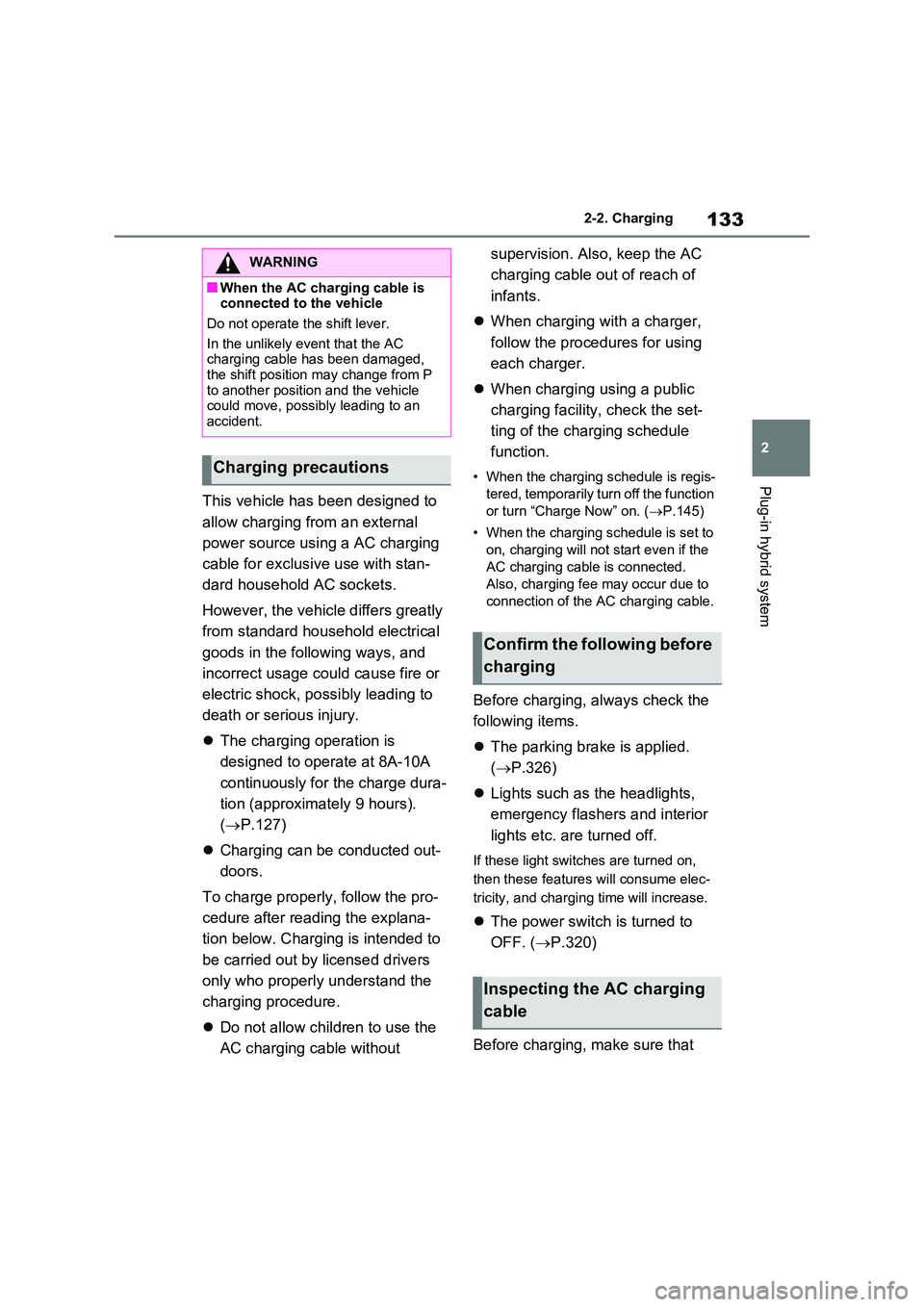
WARNING
■When the AC charging cable is connected to the vehicle
Do not operate the shift lever.
In the unlikely event that the AC charging cable has been damaged,
the shift position may change from P to another position and the vehicle could move, possibly leading to an
accident.
Charging precautions
Confirm the following before
charging
Inspecting the AC charging
cable
Page 144 of 664
1442-2. Charging
■Calendar settings
Current date and time information is
automatically set using GPS. However,
if GPS calibration of clock is turned off in
the multimedia system settings, the date
needs to be set on the multi-information
display.
If the calendar settings check screen is
displayed when an attempt was made to
register a charge schedule, check that
the correct date is set. If it is incorrect,
be sure to correct it.
If the calendar information is wrong, the
charging schedule function will not oper-
ate normally.
When registering the charging
schedule, the following settings can
be changed.
■Select the charging mode
One of the two following charging
modes can be selected.
“Start”
Starts charging at the set time*1 and fin-ishes charging when fully charged.
*2
“Departure”
Starts charging to finish at the set
time.
*3, 4
When this setting is selected, the air
conditioning-linked function can be
used.
*1: Charging schedule function is per-
formed in accordance with the clock
in the multi-information display.
Before registering the charging
schedule, check the clock settings to
the proper time.
*2: There might be a slight error in the
timing when charging starts due to
the state of the hybrid battery (trac-
tion battery).
*3: When the system determines that
there is no time to finish charging by
the set scheduled departure time, it
starts charging. Check the charging
schedules.
*4: If sudden changes in temperature or
changes in the condition of the
power source occur while charging,
charging may not end exactly at the
time estimated by the system.
■Repeated setting
The periodic charging schedule can
be set by selecting your desired
day of the week. (If no days are
selected, charging is only carried
out once.)
■Air conditioning-linked set-
ting (“Climate Prep”)
When the charging mode is set to
“Departure”, the vehicle air condi-
tioning system (P.452) can be set
to automatically operate
* according
Using the charging
schedule function
Charging can be carried out at
the desired time by registering
the charging schedule. Also, it
is possible to set the charging
schedule to one’s prefer-
ences, such as having
charging complete by a certain
departure time or be carried
out at the same time on certain
days.
Settings of the charging
schedule function
Page 145 of 664
145
2 2-2. Charging
Plug-in hybrid system
to the set time.
By adjusting the cabin temperature in
advance, passengers can enjoy a
pleasant interior immediately after
entering the vehicle.
*: Operation starts approximately 20
minutes before the set departure
time.
■Turning “Charge Now” on and
off
If even one charging schedule is
registered, charging does not start
until the set time, even if the AC
charging cable is connected to the
vehicle. To start charging without
changing the charging schedule
setting, turn “Charge Now” on to
temporarily cancel the charging
schedule and enable charging after
connecting the AC charging cable.
*
*: If the charging connector is removed
during charging while the charging
schedule is registered and “Charge
Now” is on, “Charge Now” turns off.
■Changing “Next Event”*1
It is possible to temporarily set the
time of the next charging schedule
without changing the registered
repeated setting.
*2
*1: The “Next Event” refers to the clos-
est charging schedule from the cur-
rent time among the registered
charging schedules. Charging
schedule is performed based on the
“Next Event”.
*2: When “Next Event” is changed, the
current charging schedule will be
temporarily ignored and charging will
not be carried out until the time specified by “Next Event”. (For
example, when “Next Event” is set
for 2 days later, even if items are
registered on the charging schedule,
charging will not be carried out until
the time specified by “Next Event”.)
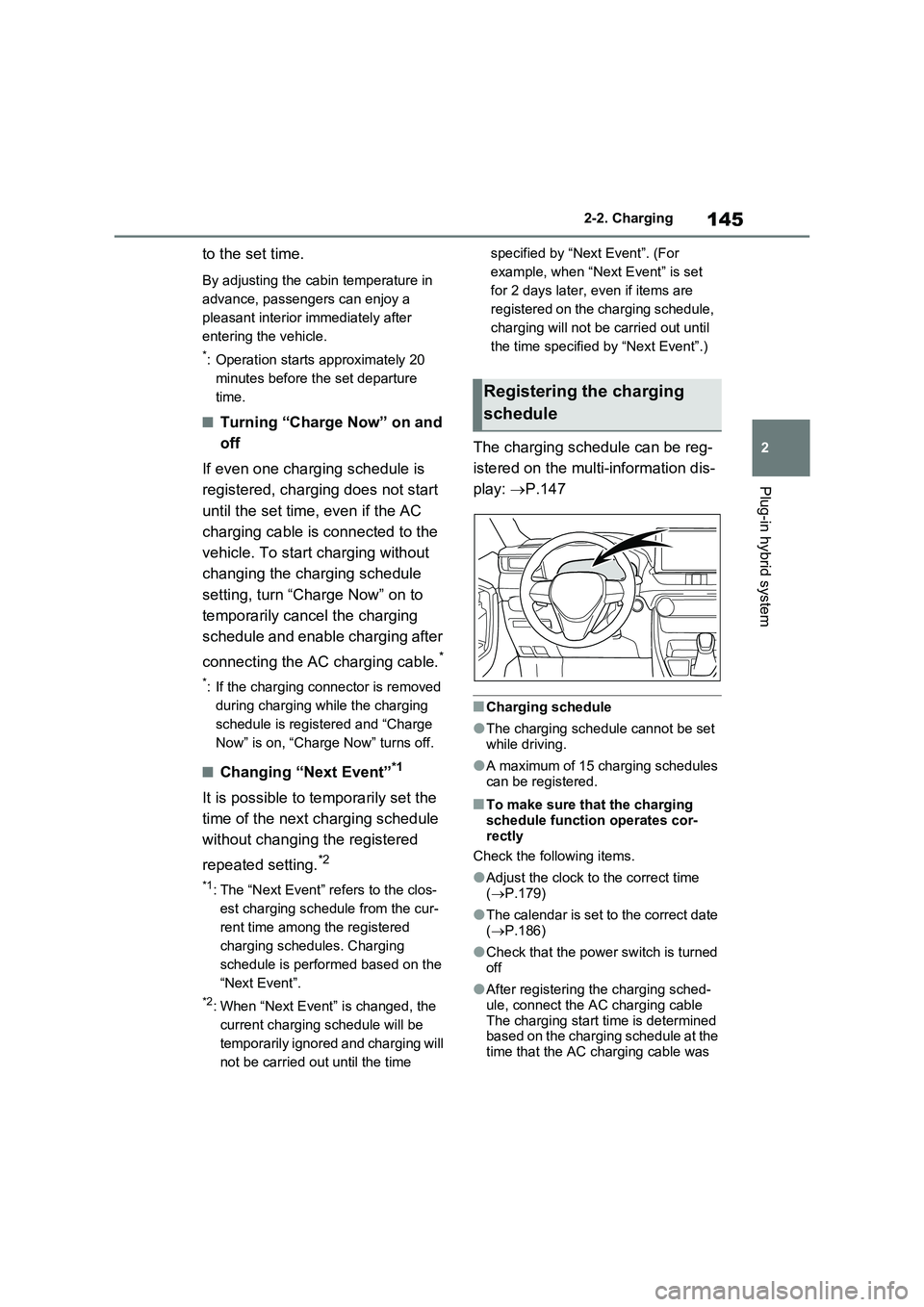
The charging schedule can be reg-
istered on the multi-information dis-
play: P.147
■Charging schedule
●The charging schedule cannot be set
while driving.
●A maximum of 15 charging schedules
can be registered.
■To make sure that the charging
schedule function operates cor-
rectly
Check the following items.
●Adjust the clock to the correct time
(P.179)
●The calendar is set to the correct date
(P.186)
●Check that the power switch is turned
off
●After registering the charging sched-
ule, connect the AC charging cable
The charging start time is determined
based on the charging schedule at the
time that the AC charging cable was
Registering the charging
schedule
Page 147 of 664
147
2 2-2. Charging
Plug-in hybrid system
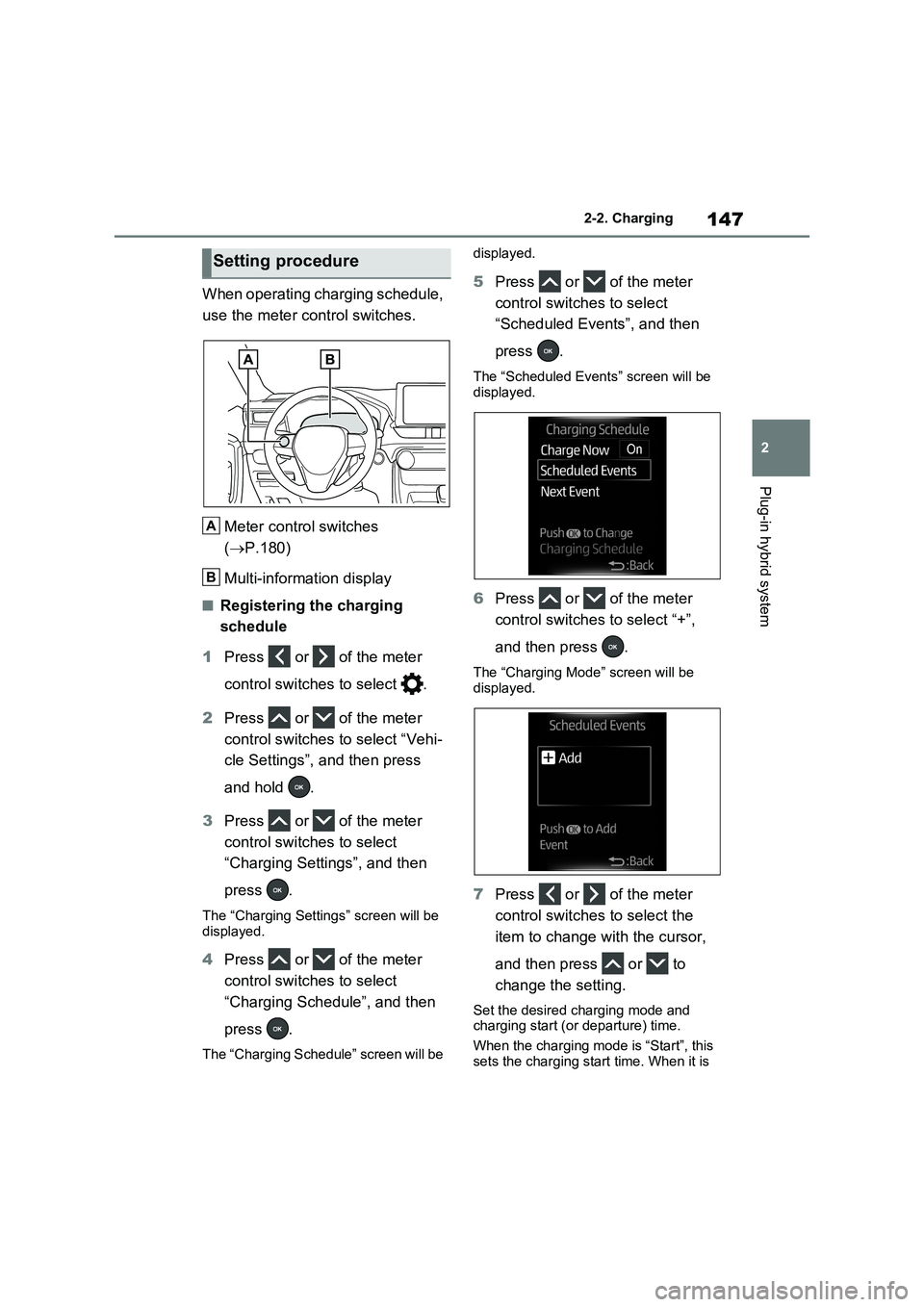
When operating charging schedule,
use the meter control switches.
Meter control switches
(P.180)
Multi-information display
■Registering the charging
schedule
1Press or of the meter
control switches to select .
2Press or of the meter
control switches to select “Vehi-
cle Settings”, and then press
and hold .
3Press or of the meter
control switches to select
“Charging Settings”, and then
press .
The “Charging Settings” screen will be
displayed.
4Press or of the meter
control switches to select
“Charging Schedule”, and then
press .
The “Charging Schedule” screen will be displayed.
5Press or of the meter
control switches to select
“Scheduled Events”, and then
press .
The “Scheduled Events” screen will be
displayed.
6Press or of the meter
control switches to select “+”,
and then press .
The “Charging Mode” screen will be
displayed.
7Press or of the meter
control switches to select the
item to change with the cursor,
and then press or to
change the setting.
Set the desired charging mode and
charging start (or departure) time.
When the charging mode is “Start”, this
sets the charging start time. When it is
Setting procedure
A
B
Page 148 of 664
1482-2. Charging
“Departure”, this sets the charging end
time.
After changing the settings to the
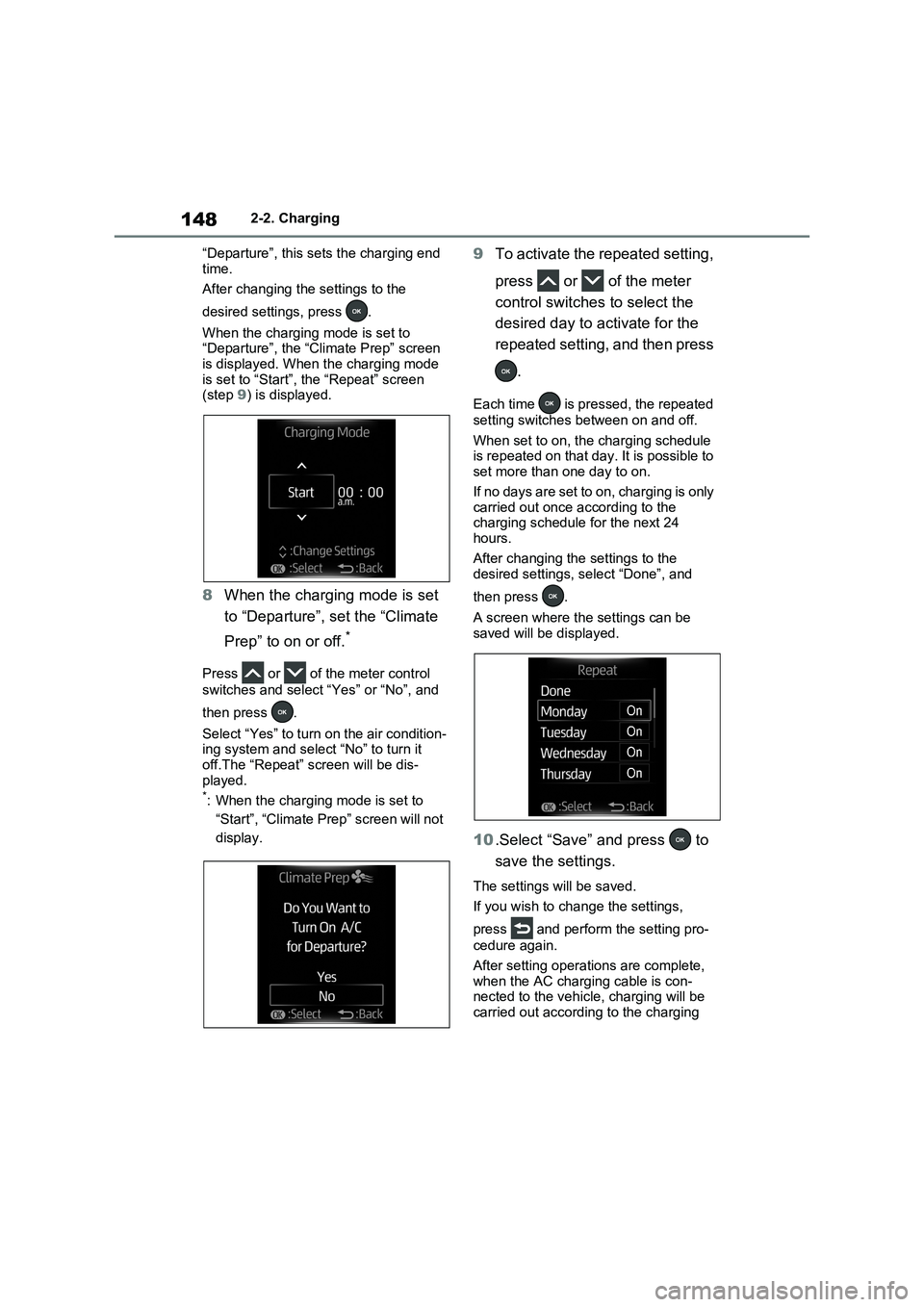
desired settings, press .
When the charging mode is set to
“Departure”, the “Climate Prep” screen
is displayed. When the charging mode
is set to “Start”, the “Repeat” screen
(step 9) is displayed.
8When the charging mode is set
to “Departure”, set the “Climate
Prep” to on or off.
*
Press or of the meter control
switches and select “Yes” or “No”, and
then press .
Select “Yes” to turn on the air condition-
ing system and select “No” to turn it
off.The “Repeat” screen will be dis-
played.
*: When the charging mode is set to
“Start”, “Climate Prep” screen will not
display.
9To activate the repeated setting,
press or of the meter
control switches to select the
desired day to activate for the
repeated setting, and then press
.
Each time is pressed, the repeated
setting switches between on and off.
When set to on, the charging schedule
is repeated on that day. It is possible to
set more than one day to on.
If no days are set to on, charging is only
carried out once according to the
charging schedule for the next 24
hours.
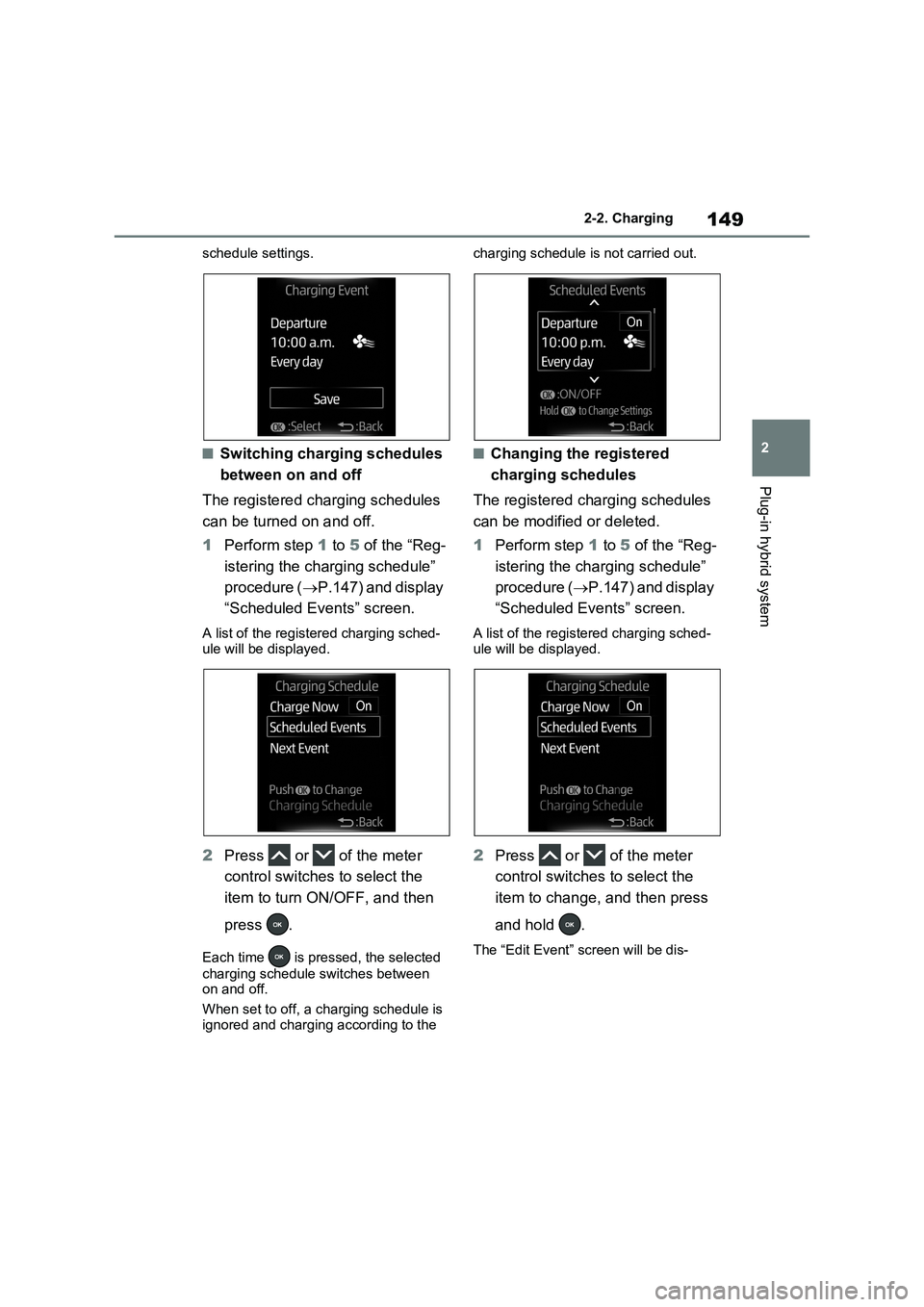
After changing the settings to the
desired settings, select “Done”, and
then press .
A screen where the settings can be
saved will be displayed.
10.Select “Save” and press to
save the settings.
The settings will be saved.
If you wish to change the settings,
press and perform the setting pro-
cedure again.
After setting operations are complete,
when the AC charging cable is con-
nected to the vehicle, charging will be
carried out according to the charging
Page 149 of 664
149
2 2-2. Charging
Plug-in hybrid system
schedule settings.
■Switching charging schedules
between on and off
The registered charging schedules
can be turned on and off.
1Perform step 1 to 5 of the “Reg-
istering the charging schedule”
procedure (P.147) and display
“Scheduled Events” screen.
A list of the registered charging sched-
ule will be displayed.
2Press or of the meter
control switches to select the
item to turn ON/OFF, and then
press .
Each time is pressed, the selected
charging schedule switches between
on and off.
When set to off, a charging schedule is
ignored and charging according to the charging schedule is not carried out.
■Changing the registered
charging schedules
The registered charging schedules
can be modified or deleted.
1Perform step 1 to 5 of the “Reg-
istering the charging schedule”
procedure (P.147) and display
“Scheduled Events” screen.
A list of the registered charging sched-
ule will be displayed.
2Press or of the meter
control switches to select the
item to change, and then press
and hold .
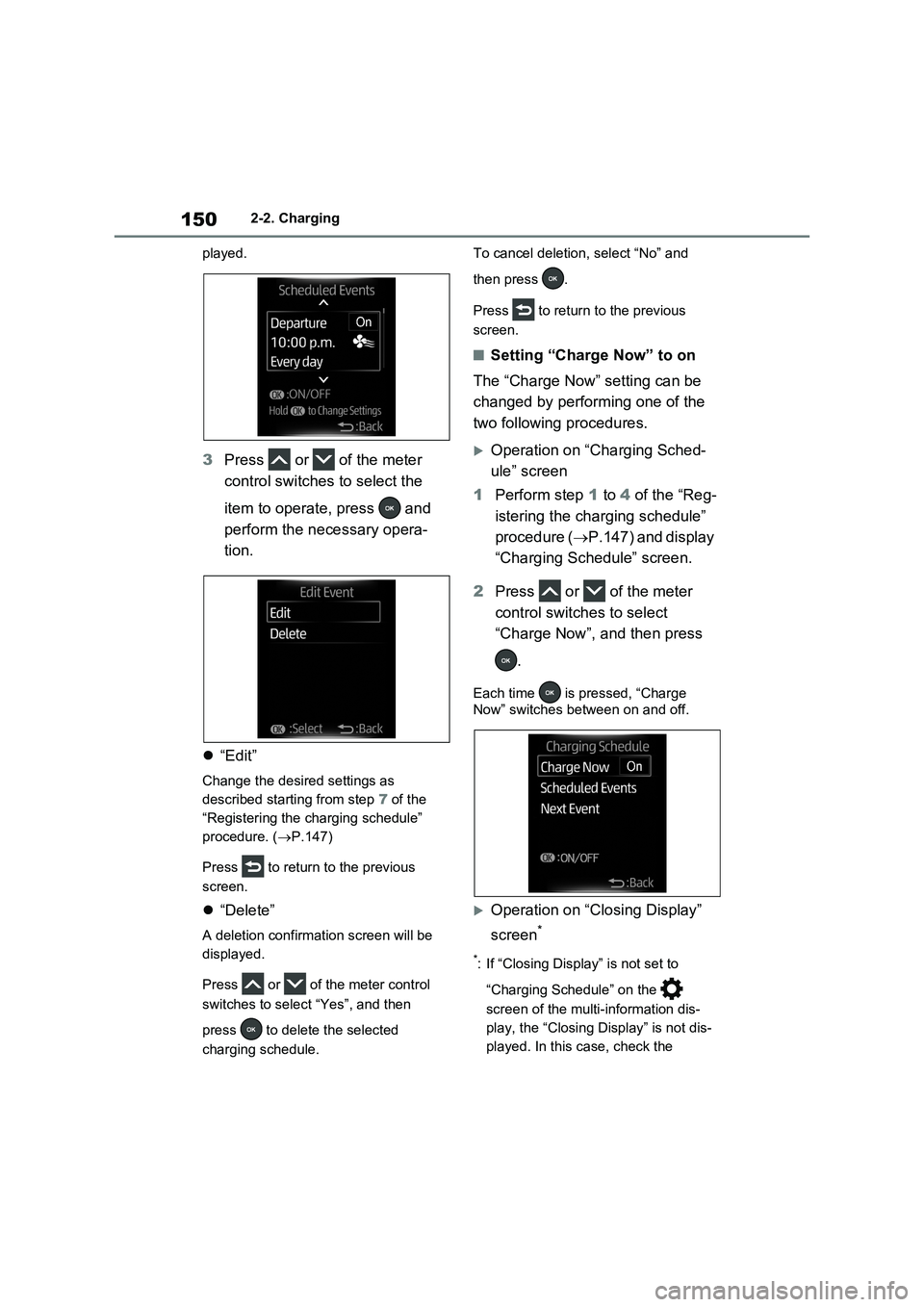
The “Edit Event” screen will be dis-
Page 150 of 664
1502-2. Charging
played.
3Press or of the meter
control switches to select the
item to operate, press and
perform the necessary opera-
tion.
“Edit”
Change the desired settings as
described starting from step 7 of the
“Registering the charging schedule”
procedure. (P.147)
Press to return to the previous
screen.
“Delete”
A deletion confirmation screen will be
displayed.
Press or of the meter control
switches to select “Yes”, and then
press to delete the selected
charging schedule.To cancel deletion, select “No” and
then press .
Press to return to the previous
screen.
■Setting “Charge Now” to on
The “Charge Now” setting can be
changed by performing one of the
two following procedures.
Operation on “Charging Sched-
ule” screen
1Perform step 1 to 4 of the “Reg-
istering the charging schedule”
procedure (P.147) and display
“Charging Schedule” screen.
2Press or of the meter
control switches to select
“Charge Now”, and then press
.
Each time is pressed, “Charge
Now” switches between on and off.
Operation on “Closing Display”
screen
*
*: If “Closing Display” is not set to
“Charging Schedule” on the
screen of the multi-information dis-
play, the “Closing Display” is not dis-
played. In this case, check the
Page 151 of 664
151
2 2-2. Charging
Plug-in hybrid system
settings on the multi-information dis-
play.
1Turn the power switch off.
The “Closing Display” screen is dis-
played on the multi-information display.
(P.152)
2Press to set “Charge Now”
to on.
Each time is pressed, “Charge
Now” switches between on and off.
After setting operations are com-
plete, charging starts when the AC
charging cable is connected.
(P.135)
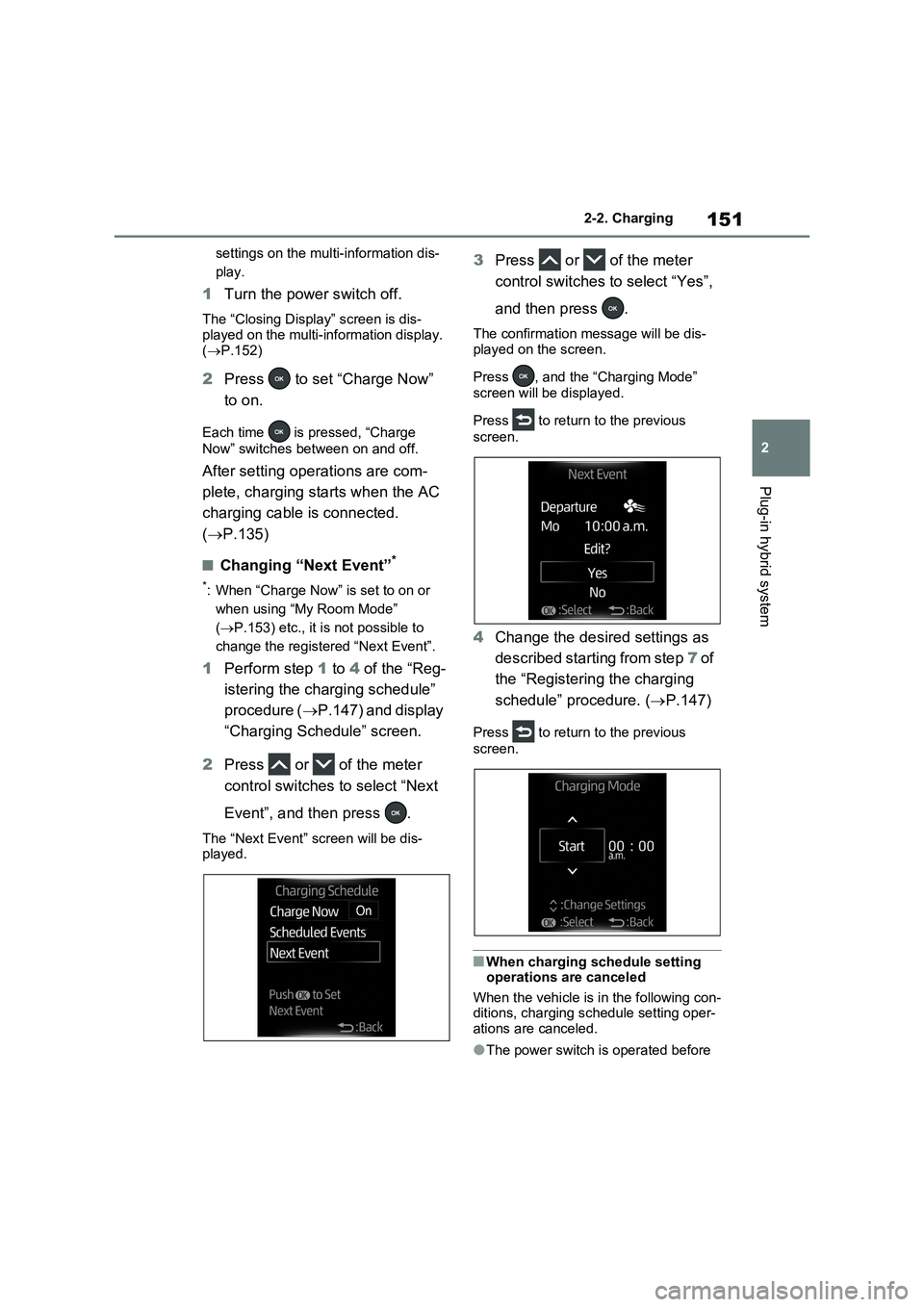
■Changing “Next Event”*
*: When “Charge Now” is set to on or
when using “My Room Mode”
(P.153) etc., it is not possible to
change the registered “Next Event”.
1Perform step 1 to 4 of the “Reg-
istering the charging schedule”
procedure (P.147) and display
“Charging Schedule” screen.
2Press or of the meter
control switches to select “Next
Event”, and then press .
The “Next Event” screen will be dis-
played.
3Press or of the meter
control switches to select “Yes”,
and then press .
The confirmation message will be dis-
played on the screen.
Press , and the “Charging Mode”
screen will be displayed.
Press to return to the previous
screen.
4Change the desired settings as
described starting from step 7 of
the “Registering the charging
schedule” procedure. (P.147)
Press to return to the previous
screen.
■When charging schedule setting
operations are canceled
When the vehicle is in the following con-
ditions, charging schedule setting oper-
ations are canceled.
●The power switch is operated before
Page 152 of 664
1522-2. Charging
the settings are confirmed
●The vehicle starts off
●A display with a higher priority than that of the charging schedule setting is shown
■“Next Event”
After charging completes, the “Next Event” displayed on the multi-informa-tion display will not change until the AC
charging cable is removed, even after charging is performed according to the “Next Event” schedule.
■To return to original setting after
changing “Next Event” setting
Turning the setting of “Charge Now” on and then off can return the setting of
“Next Event” to its original setting.
■When “Next Event” is changed while charging
●When the charging mode is “Depar-ture”, the current charging is inter-rupted or continued depending on the
remaining time until the charging is completed.
●When the charging mode is “Start”, the current charging is interrupted, the next charging will start at the set time.
■When the power switch is turned
off
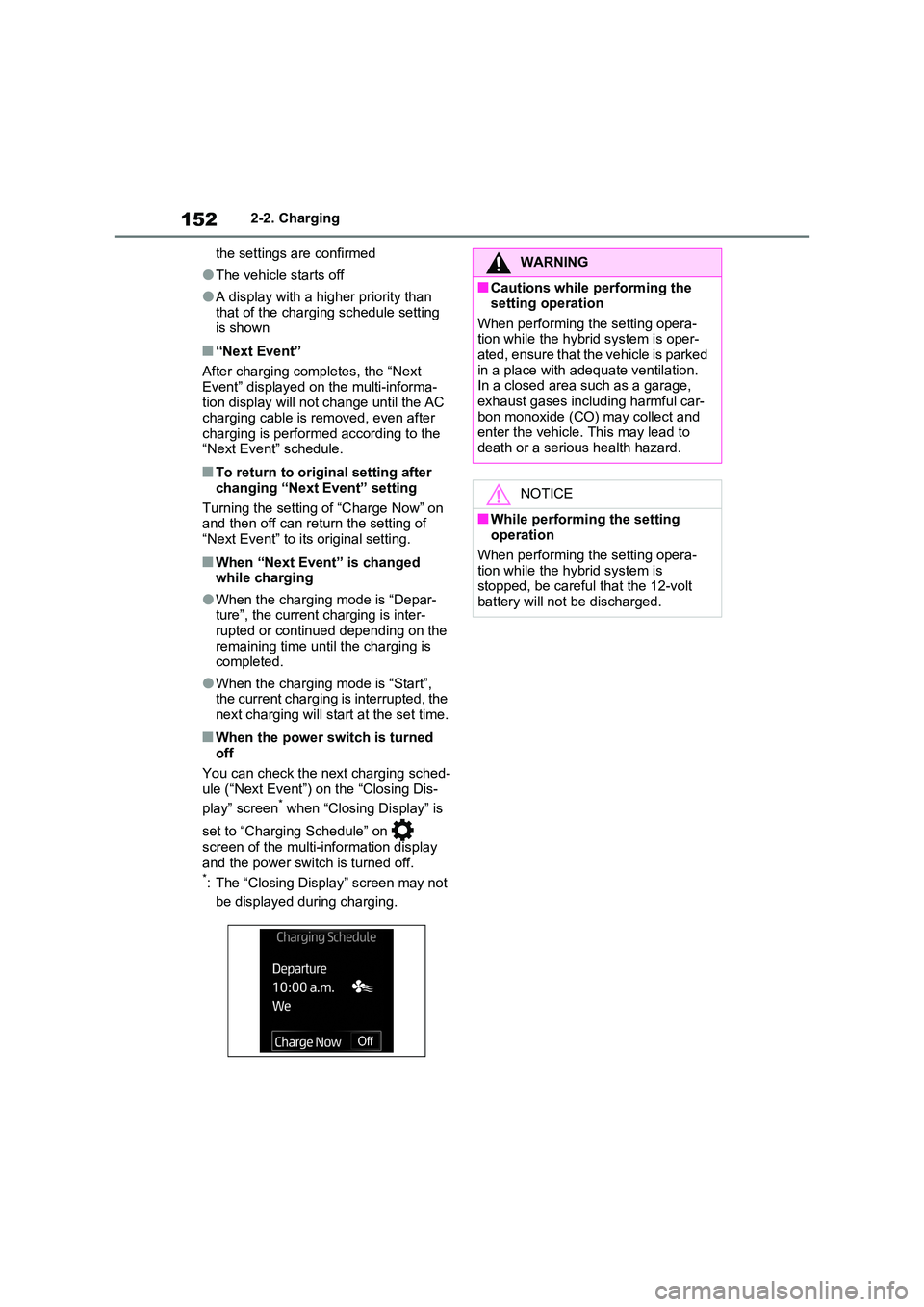
You can check the next charging sched- ule (“Next Event”) on the “Closing Dis-
play” screen* when “Closing Display” is
set to “Charging Schedule” on
screen of the multi-information display
and the power switch is turned off.*: The “Closing Display” screen may not
be displayed during charging.
WARNING
■Cautions while performing the setting operation
When performing the setting opera- tion while the hybrid system is oper-ated, ensure that the vehicle is parked
in a place with adequate ventilation. In a closed area such as a garage, exhaust gases including harmful car-
bon monoxide (CO) may collect and enter the vehicle. This may lead to death or a serious health hazard.
NOTICE
■While performing the setting operation
When performing the setting opera- tion while the hybrid system is stopped, be careful that the 12-volt
battery will not be discharged.
Page 160 of 664
1602-2. Charging
■Charging ends earlier than time set in “Departure”
■Charging is not complete, even though it is time set in “Departure”
■Charging does not start, even though it is time set in “Start”
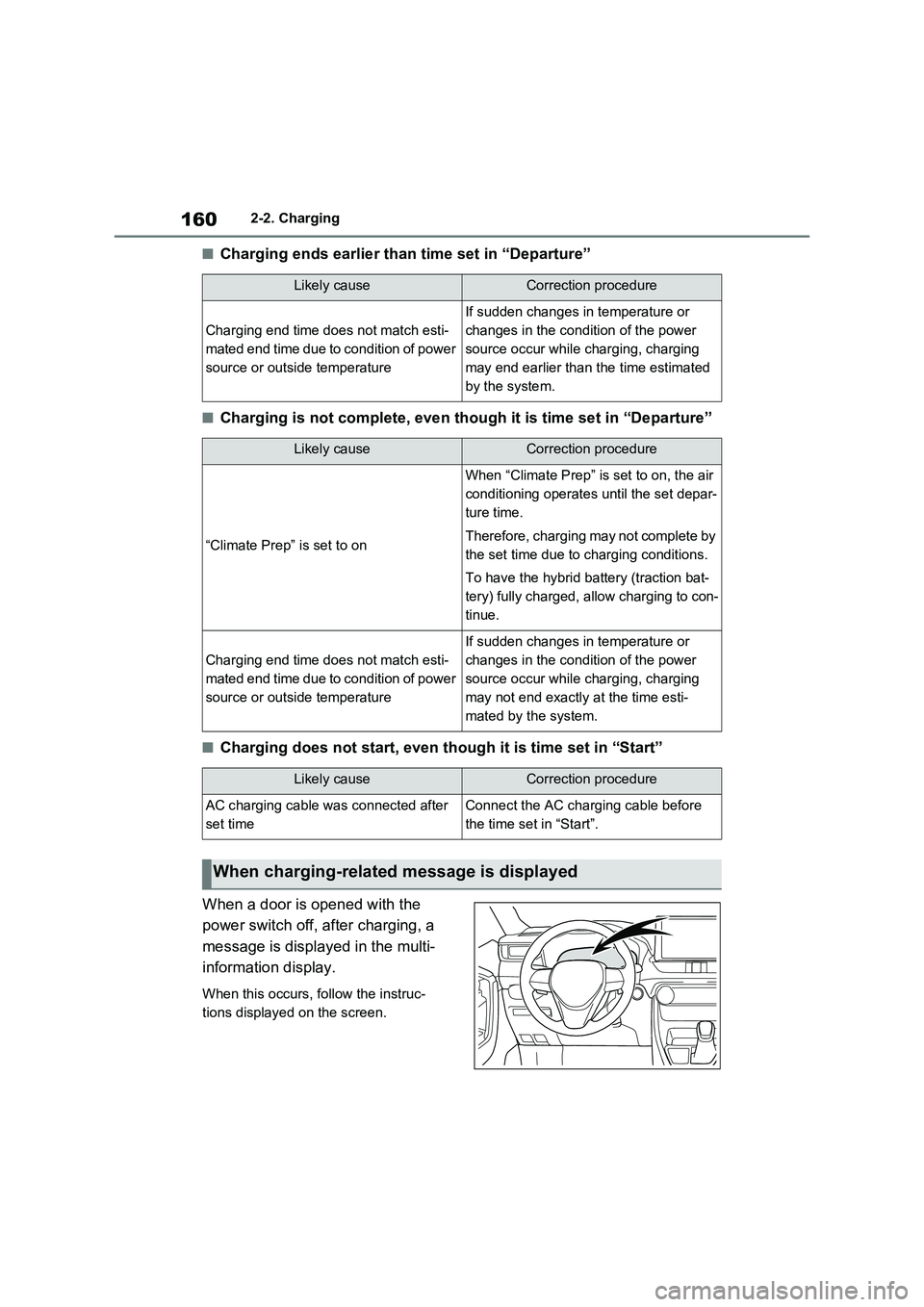
When a door is opened with the
power switch off, after charging, a
message is displayed in the multi-
information display.
When this occurs, follow the instruc-
tions displayed on the screen.
Likely causeCorrection procedure
Charging end time does not match esti-
mated end time due to condition of power
source or outside temperature
If sudden changes in temperature or
changes in the condition of the power
source occur while charging, charging
may end earlier than the time estimated
by the system.
Likely causeCorrection procedure
“Climate Prep” is set to on
When “Climate Prep” is set to on, the air
conditioning operates until the set depar-
ture time.
Therefore, charging may not complete by
the set time due to charging conditions.
To have the hybrid battery (traction bat-
tery) fully charged, allow charging to con-
tinue.
Charging end time does not match esti-
mated end time due to condition of power
source or outside temperature
If sudden changes in temperature or
changes in the condition of the power
source occur while charging, charging
may not end exactly at the time esti-
mated by the system.
Likely causeCorrection procedure
AC charging cable was connected after
set timeConnect the AC charging cable before
the time set in “Start”.
When charging-related message is displayed