Page 24 VOLKSWAGEN GOLF 2009 Service Manual
[x] Cancel search | Manufacturer: VOLKSWAGEN, Model Year: 2009, Model line: GOLF, Model: VOLKSWAGEN GOLF 2009Pages: 516, PDF Size: 105.12 MB
Page 69 of 516
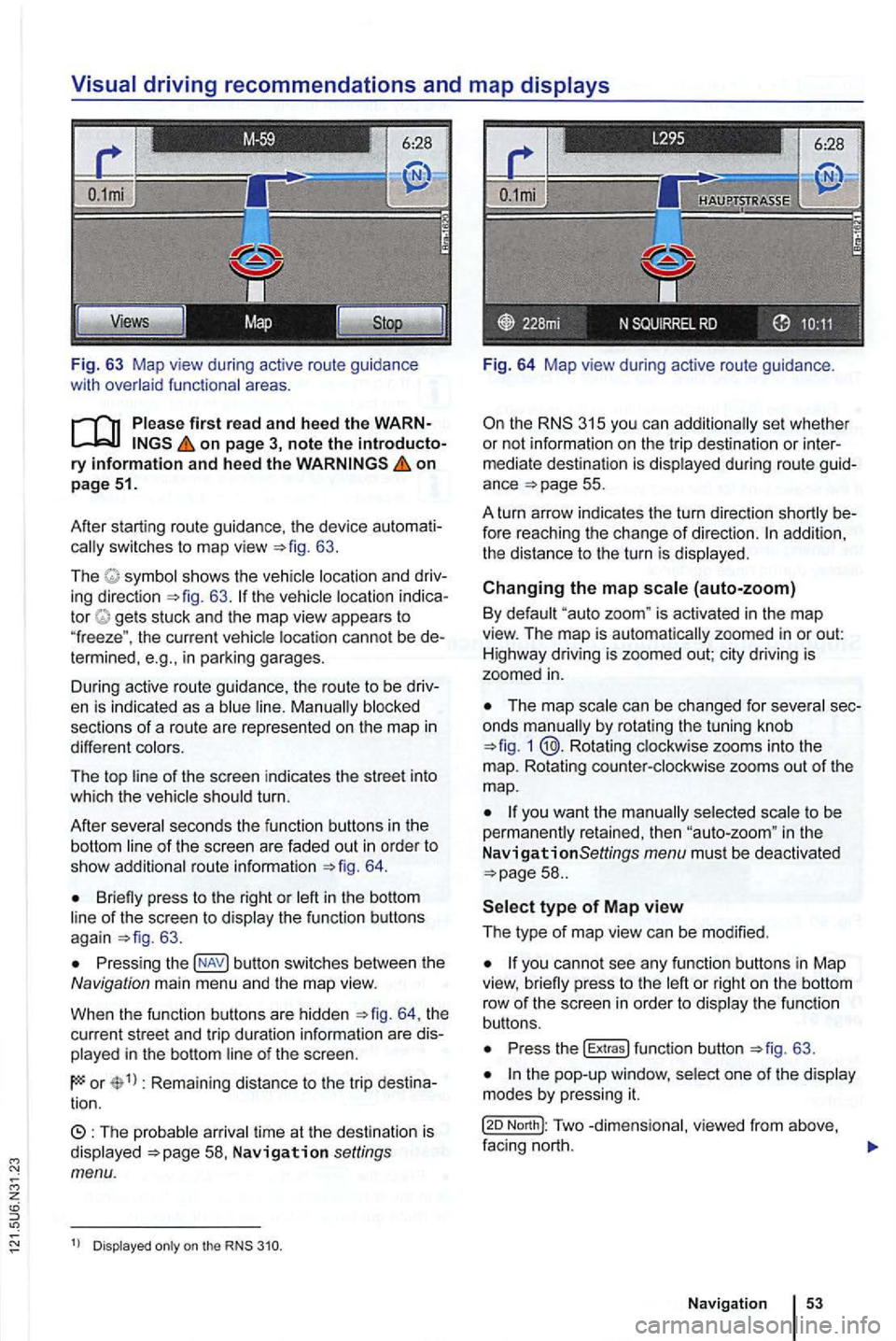
Fig. 63 Map view during active route guidance
with
on page 3, note the introductory information and heed the on page 51.
After starting route guidance. the device
switches to map view 63.
The sh ows the ing direction 63. tor gets stuck and the map view appears to
" freeze ". the current cannot be in parking garages.
During active route guidance , the route to
be
sections of a ro ute are represented on the map in
different
of the screen indicates the street into
which the turn.
After
seco nds the function buttons in th e
bottom
route informa tion 64.
Briefly press to the right or of the screen to 63 .
Press ing button switches between the Navigation main men u and the map view.
When the func tion buttons are hidden
th e
current street and trip duratio n info rmation are
in the bottom
or Rema ining distance to the trip tion.
time at th e destinat ion is Navigation settings menu.
Dis played on the
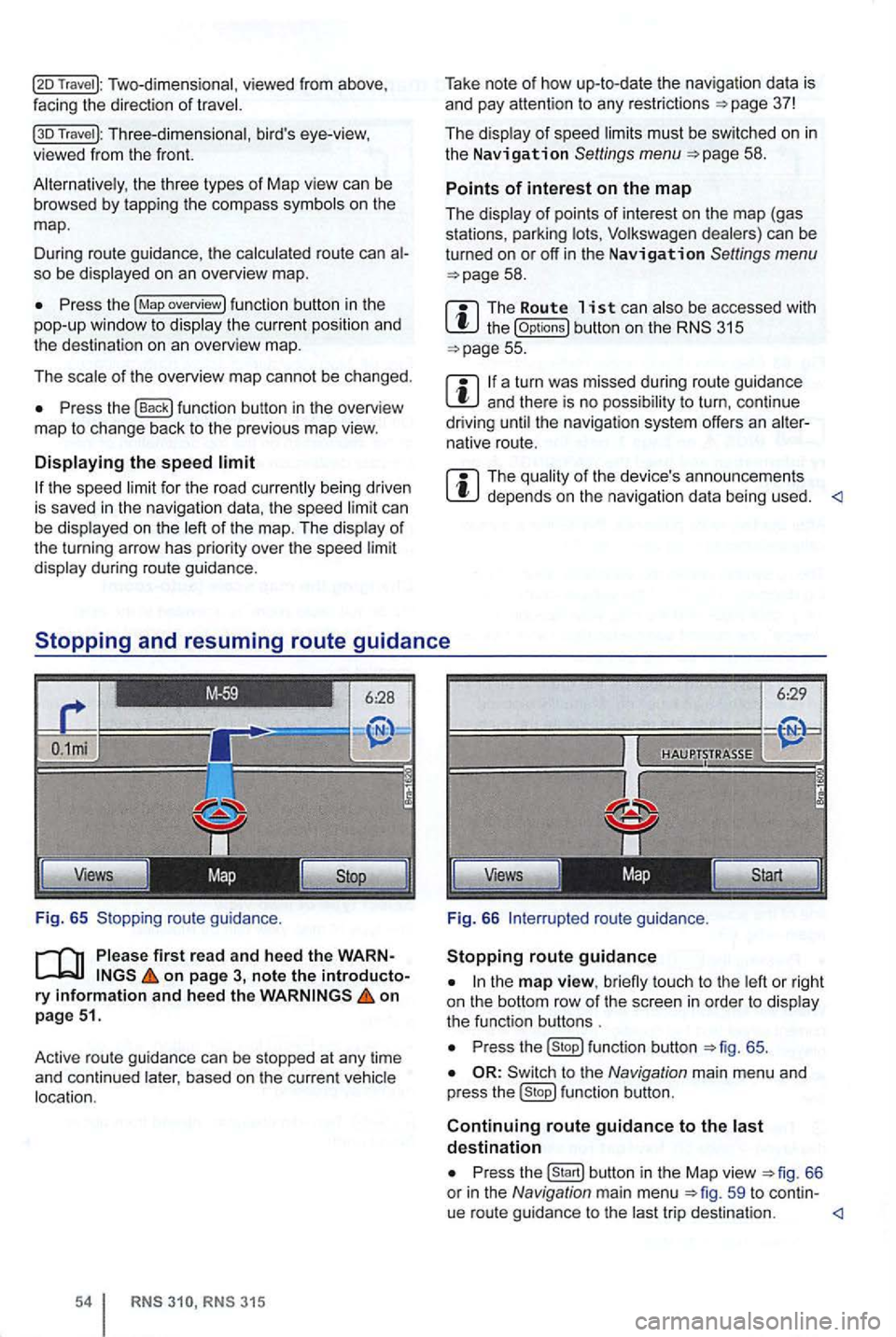
Fig. 64 Map view during active route guidance .
the RNS 315 you can additio nally set whethe r
or not inform ation on the trip dest ina tion or
ance =>page 55.
A turn arrow indicates the turn direction
fore reaching the change of direction. addition,
th e distance to the turn is
Changing the map (auto-zoom)
By "auto zoom " is activated in the map
view. The map is automatically zoomed in or out:
H ighwa y driving is zoomed out; city driving is
zoomed
in.
The map by rotat ing the tuning knob 1 @.Rotating zooms into the
m ap. Rotating
to be
perma nen tly retained, then in the
N avigationSettings menu must be deactivated
or right on the bottom
row of th e sc ree n in orde r to th e fu n ct io n
buttons.
Press the !Extras ! function button =>fig. 63 .
North!: Two facing nort h.
N avi gation
Page 70 of 516
Two-dimensional, viewed from above ,
facing the direction of
Travel ): Three-dimensional , bird's eye-view, viewed from the front.
the three types of Map view can be browsed by tapp ing the co mpass on the
map .
D uring route guidance , th e
route can so be
Press the (Map overview) fun ction button in the
pop-up window to
of the overview map cannot be chang ed.
Press the function button in the overview
ma p to change back to the previo us map view.
the speed ca n be on the of
the turning arrow has priori ty over the speed
during route guidance.
Fig. 65 Stopping route guidan
ce.
first rea d and heed the WARNon page 3, note the introductory information and hee d the on
p age 51.
Active route gu idan ce
can be stopped at any time
and continued based on the curre nt
RN S RNS 315
Take note of how up-to-date the nav igation data is
and pay attention to any restrictions =>page 37!
The
must be sw itched on in the Navigation Settings menu =>page 58 .
Points of interest on the map
The
the (Op tions) button on the 315 =>page 55.
a turn was missed during route guidance and there is no t o turn , con tinue
driving the navigat ion system offers an native route.
The depends on the navigation data being used.
6:29
Views
Fig. 66
to u ch to the
P ress function button =>fig. 65 .
to the Navigation main menu and
p ress fu nction button.
Continuing route guidance to the destination
Press
trip desti nation.
Page 71 of 516
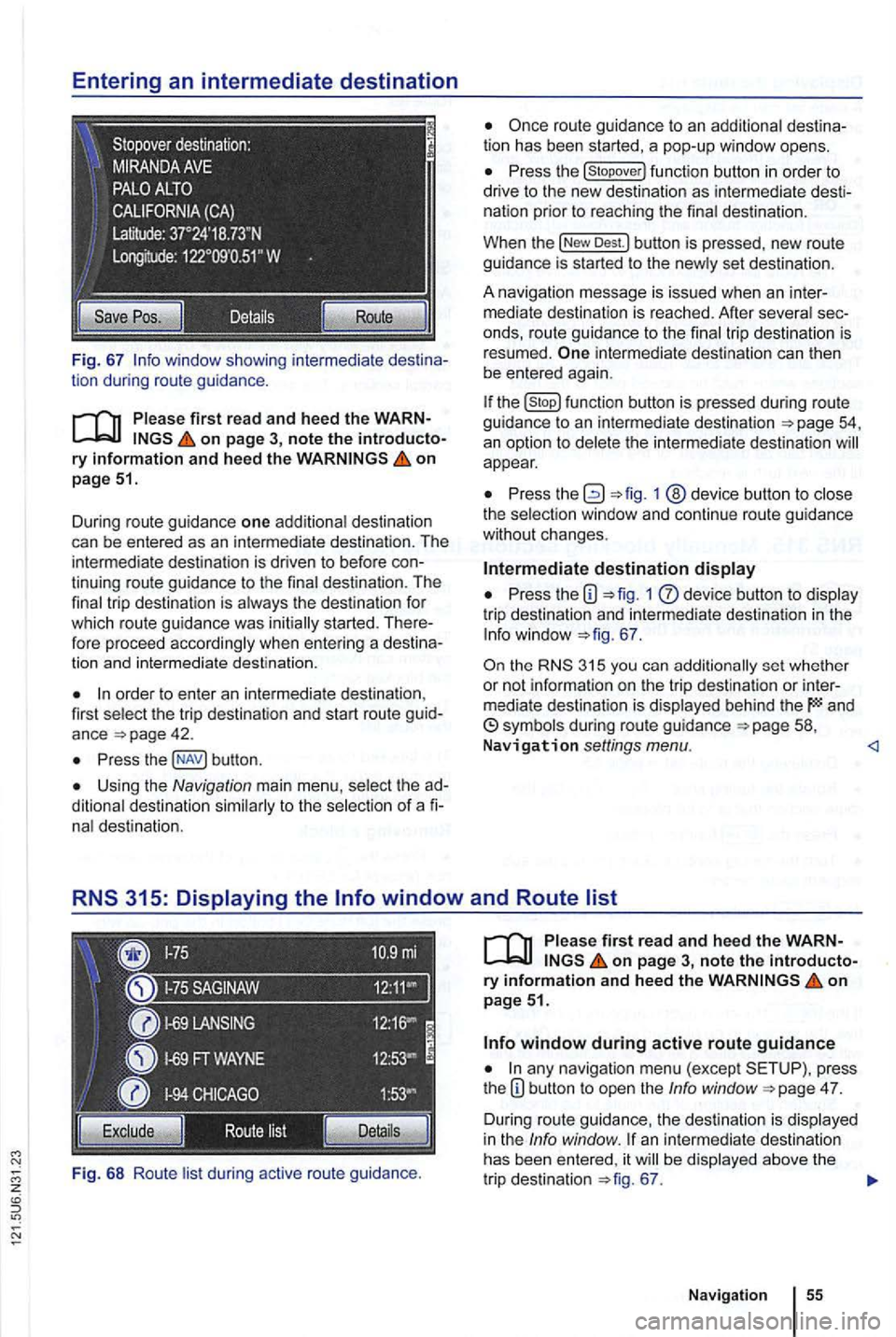
Fig. 67
on page 51.
Dur ing route guidance one additiona l destination
can be entered as an in termediate destination . The
intermed ia te destination is driven to befo re
order to enter an inte rmedia te destina tion ,
first select the trip destination and start route guid
ance
Press butt on .
Using the Navigation main menu , select the
nal destination.
Fi g.
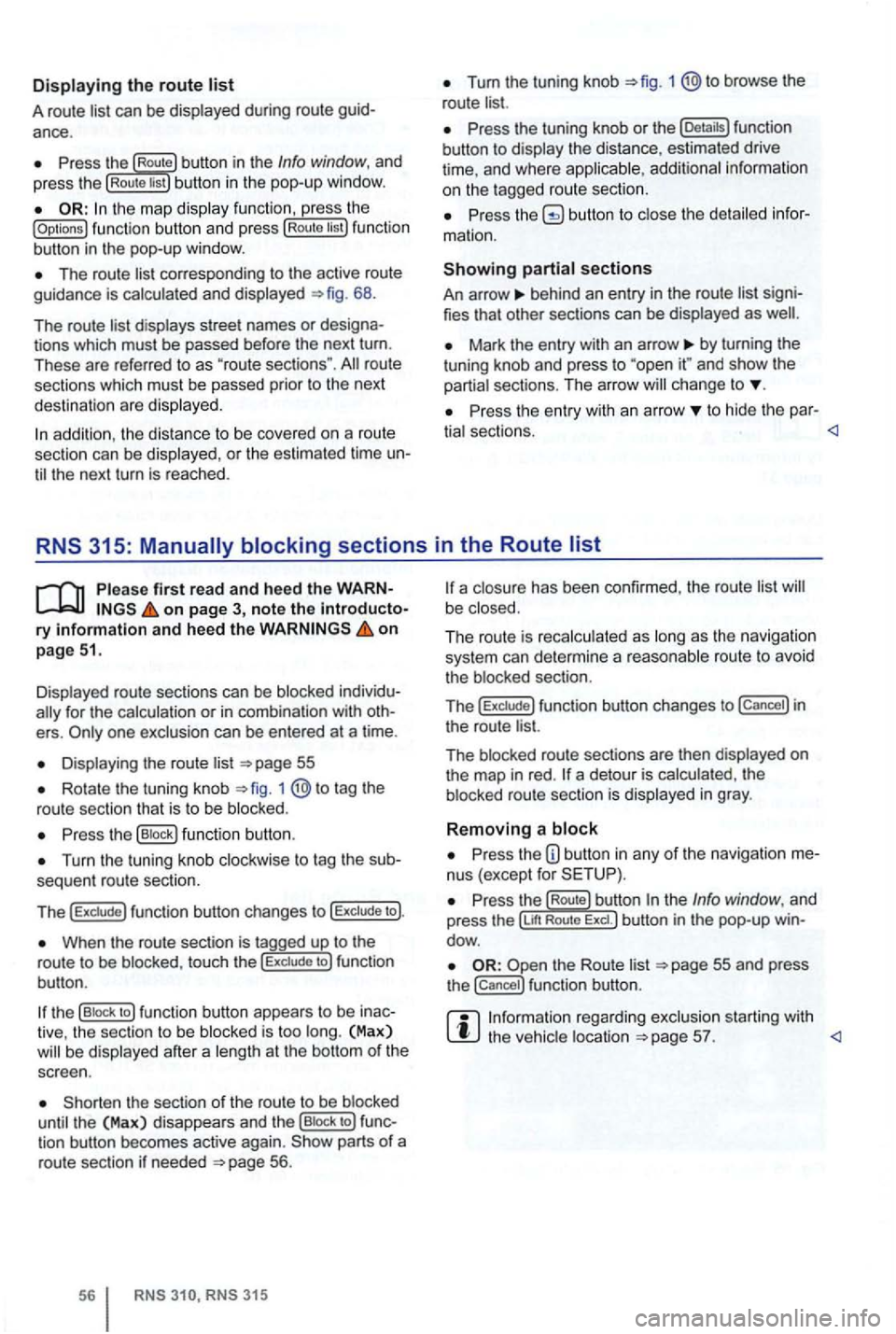
68 Ro ute lis t during active route gu idance .
Press the
Dest.l button is pressed , new route
guidance is started to the new ly set des tin ation .
A na vigation message
is issued when an inter
m ediate destination is reached. After several
intermediate destination can then
be entered again.
the function butto n is pressed during route guidance to an intermediate destination
appear.
Press 1 @device button to close
the select ion window and continue r oute guidance
without changes .
Intermediate destination display
Press the 1 dev ice button to display
tri p destination and intermedia te destination in the
67 .
the 315 you can additionally set whether
or not informa tio n on the t rip dest ination or inter
mediate destination is displayed behind the and
on page 3, note the introductory information and heed the on page 51.
any navigation menu (exc ept press
t he 4 7.
D uring route guidance, the des tination is displa yed
in the Info window . an intermediate destination
has been entered , it be displayed above the
tr ip destination 67.
Navigation
Page 72 of 516
Displaying the route list
A route list can be displayed during ro ut e
Press the Route button in the Info window, and
press the Rou te list bu tton in the pop-up window.
the map display function , ress the (Options ) function butt on and press Route tist function
button in th e pop-up window .
The route corresponding to the active route
guidance is calcula ted and displayed 68.
The route
d ispl ays street names or
route
sections which must be passed prior to the next
dest ination are displayed .
Tum the tuning knob 1 @to browse the
route list.
Press the tuning knob or th e (Deta ils) function
button to disp lay the distance, estimated drive
time , and where
Press butto n to close the
behind an entry in the route list
Mark the entry with an arrow by turning the
t uning knob and press to and sh ow the
partia l sect ions. The arro w ch ange to
Pr ess the entry wit h an arrow to hide the par-
tia l sectio ns.
Displayed route sections can be blocked
for the calculation or in com binat ion with
Displa ying the route list
Rotate the tuning knob 1 to tag the
route sectio n that is to be blo cked .
Press the (B lock ) function button .
Turn the tuning knob clockwise to tag the
When the route section is tagged up to the
r o ute to be blo cke d, touc h the to ) fun ction
bu tton .
the (B lock to ) function button appears to be
the sect ion of the route to be blocked
until the (Max) disappea rs and th e (Bloc k to ) tion button becomes active again. parts of a
route section if neede d 56.
315
a closu re has been confirmed , the route list be close d.
The ro ut e is reca lc ulated as long
as th e naviga tio n
system can determi ne a reasonabl e route to avoid
t he blocked section.
T
he f un ction button changes to in
the route list.
The blocked route sectio ns are then displayed
on the map in red . a detour is calcula ted , th e
b locked route section is displayed in gray .
Removing a block
Press the nus (except for
re ga rding exclusion starting with the vehic le location
Page 73 of 516
on page 3, note the ry and heed the on pag e 51.
An upcoming section of road can be blocked
while route guidance is in process.
Pre ss the nus (exce pt for
Press the (Route) function button in the Info dow .
Press the ahead ) function button in the
pop-up window.
the length of the section which is to be
blocked by turning the tuning knob 1 @.
The length of the section being blocked is played at the bottom of the screen . (Max) pears at the bottom , thi s signifies the max imum distance.
Route guidance in Demo mode
on page 3, note the introductory on page 51.
Demo mode is activated in the Navigation tings menu ,
Touch ing the (D emo ) function button starts route guidance " to the entered trip destinatio n.
ance are compa rable to route guidance .
route guidance is repeated after reaching
the fictional trip destinat ion, and always restarts
from
in t he Navigation settings menu, the n
virtual route guidance starts from this position.
A
entered starting point is overwr itten by
the current vehicle location when the is
moved and the current location of the vehicle can
be determined via
Press the tun ing knob or press the function
button to confirm the block.
Blocked sections are displayed on the map in gray.
The route is recalculated
as as the navigation
system can determi ne a reasonable route to avoid
the blocked section.
R e
moving a
Pre ss the button in any of the navigation
Pre ss the (Rout e) function button in the Info dow .
Press the Rem ove Ex.) function button in the pop-up window .
regarding manually blocking ditional upcoming route sections 56.
afte r virtua l route guidance in Demo mode, rea l
route guidance is started , then the device must be
re -orien ted . Depending on the number of being received at the time, this may take a wh ile. movement can reduce the re-o rientation
t ime
Ending D emo mode
The demo mode should be deactivated after being
used , as you are
tween a virtua l or a normal route guidance at the
beg inning of any naviga tion .
Demo mode is
automatically ended when
the route guidance is fini shed or a new final
also Demo mode.
You end Demo mode in the
N av ig a tion settings menu.
Press the button in any of the naviga
tion menus.
Deactivate the checkbox in Demo mode) functio n button .
Navigation
Page 74 of 516
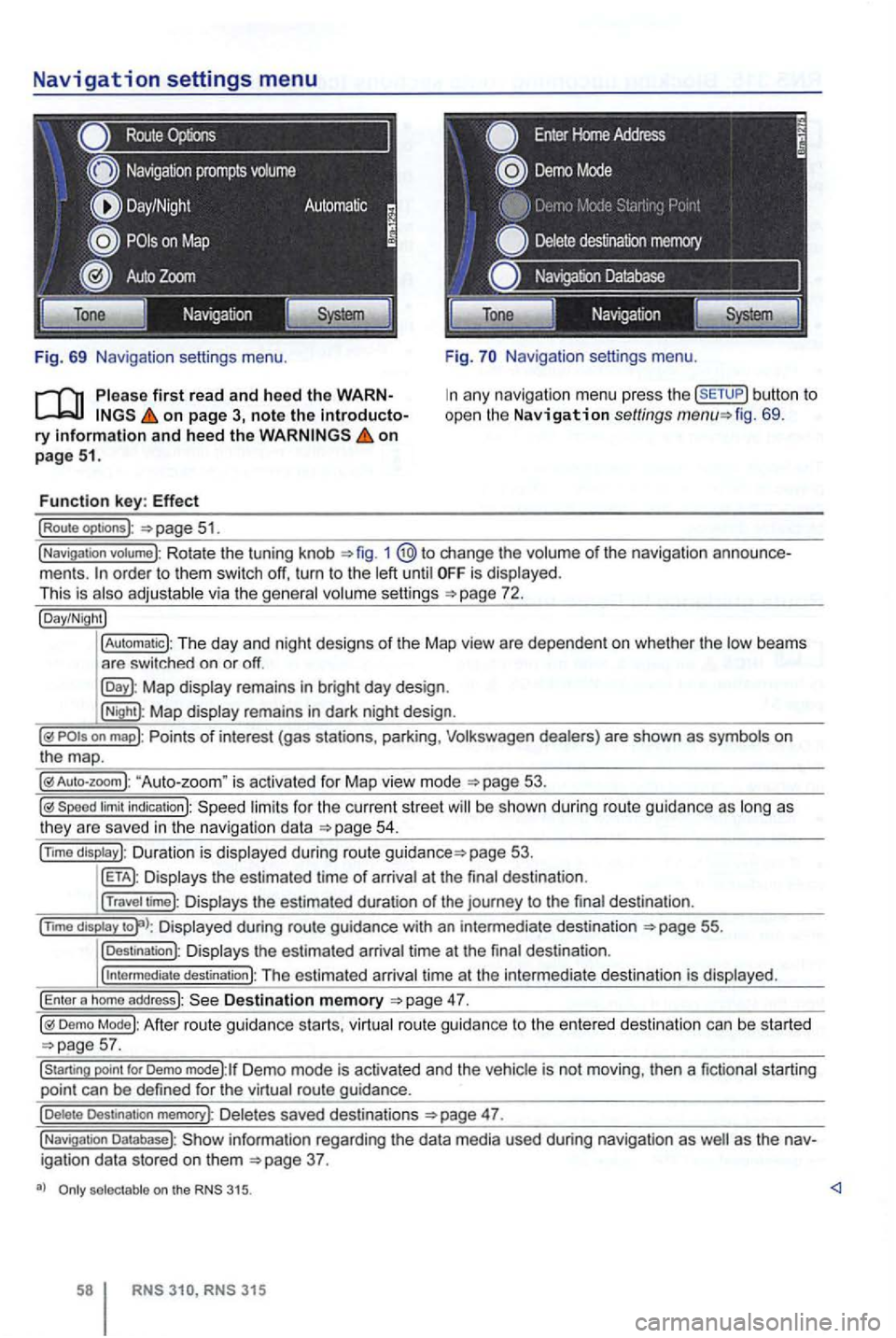
Navigation settings menu
Route
Fig. 69 Navigation settings menu.
on page 3, note the introductory information and heed the on page 51.
Function key: Effect
(Route optoons ):
Navigation settings menu.
any navigation menu press the (SETUP) button to
open the Navigation settings fig. 69.
(Navigation votume): Rotate the tuning knob 1 change the volume of the navigation order to them switch off, turn to the until is displayed.
This is
Map display remains in bright day design .
(Night): Map display remains in dark night design .
"Auto-zoom " is activated for Map vie w mode
Speed limit indication): limits for the current street be s hown duri ng route guidance as
page 53.
Displays the estimated time of arrival at the final des tination .
(Travel time): Displays the estimated duration of the journey to the final destina tion .
(nm o
display Displayed during route guidance with an intermedi ate destination 55.
(Destination): Displays the estimated arrival time at the final destination .
(
intermediate destination): The estimated arriva l time at the intermediate destination is displayed.
(Enter a homo address): Destination memory
Demo Mode): After route guidance starts, virtual route guidance to the entered destination can be started
Demo mode):lf Demo mode is activated and the vehicle is not moving , then a fictional starting
point can be defined for the virtual route guidance.
(Delete Destination memory): De letes saved destinations 47.
(Navigation Database): information regarding the data media used during navigation as igation data stored on them
selectable on the 315.
315
Page 75 of 516
main menu ... .
315: Voice command menu Telephone ...... .
60
60
61
63
63
64
64
The telephone fu nctions described in the
Connect the mobile phone to the radio
Pair an d connect mobile phone via the ment clus ter
there is no naviga tio n system . then phone control is not
phone in th e
More information:
instructions 3
Device overview 6
Operat ion basi cs page 8
Talking on the
phone and/or operating the
'
the sirens of emergency rescue
areas with no mobile network coverage or poor mobile network coverage, as as
in tunnels, garages and subways, phone versations may be interrupted, and it may be impossible to make phone ev en
cured ph one can be thrown around the
inside of the vehicle during a sudden braking maneuver , a cra sh or other accident and cause injury to vehicle occupants.
Always mount mobile phones properly
ference with a pacemaker , if worn
8 inch es tween the antenna s of the mobile phone and pacemakers , as mobile phones can affec t the functionality of a pacemaker .
phone in the breast pocket over a pa cemaker.
phone immediat ely .
The
cent e r armrest ca n interfere with the
dents and seve re injuries.
Always keep the armrest closed
Telephon e control
Page 76 of 516
High sp eeds, poor weather and road conditions and poor network quality can affect a telephone
c all the ve hicl e.
The appea rance of the various telep hone menus varies from phone to phon e. Th ere
may be variatio ns.
Consult the mob ile phone and accessory slruc lions as garding headset usage .
Places with special regulations
tory information and heed the on page 59.
off lhe mobile phone and mobile phone
package at explosio n-prone locations ! The se
but not always , identified clearly in Introduction on page 59. These include , for
example :
Vic init y of pipes and ta nk s co ntaining cals .
Lowe r decks of ships and ferries .
Vicinity of vehicles powered by liquefied
Areas with ch emicals or partic les in the air,
s uch as flour , dust or metal powder .
olher locations where the vehicle engine
must be switched off .
Reception interference and interruptions may occur in dead spots.
Most electrica l d evices are sh iel ded agains t RF (high-frequency) signals. some rare
cases , however , e lecl ronic devices may not be
shie lded against the mobile phone package's RF signal s. Interference may occur .
areas with special regulations relating to or prohibiting the use of mobile phone s, the mo-bile phone and the mobile phone package or the mobile phone package must be switched off. Radiation from a switched-on bile phone ca n interfere with sensitive techni-ca l and medical devices, potentially causing malfunctions or damage to the devices.
Using a mobile phone without a connection to the outside antenna
Pl ease first re ad and note the
on page 59.
Mobile or
tees in an effort to keep the electromagnetic tion from cellular phones at levels that
en tifically based proof that wireless phones are solut ely safe.
RNS RNS 315
Th erefore , some experts recomme nd a ary approac h regard ing the use of cell ular phones
by taki ng measures that lower the persona l
a motor
be highe r than when ing th e cellular telephone while properly connected
to an integrated or other telephone antenna
Page 78 of 516
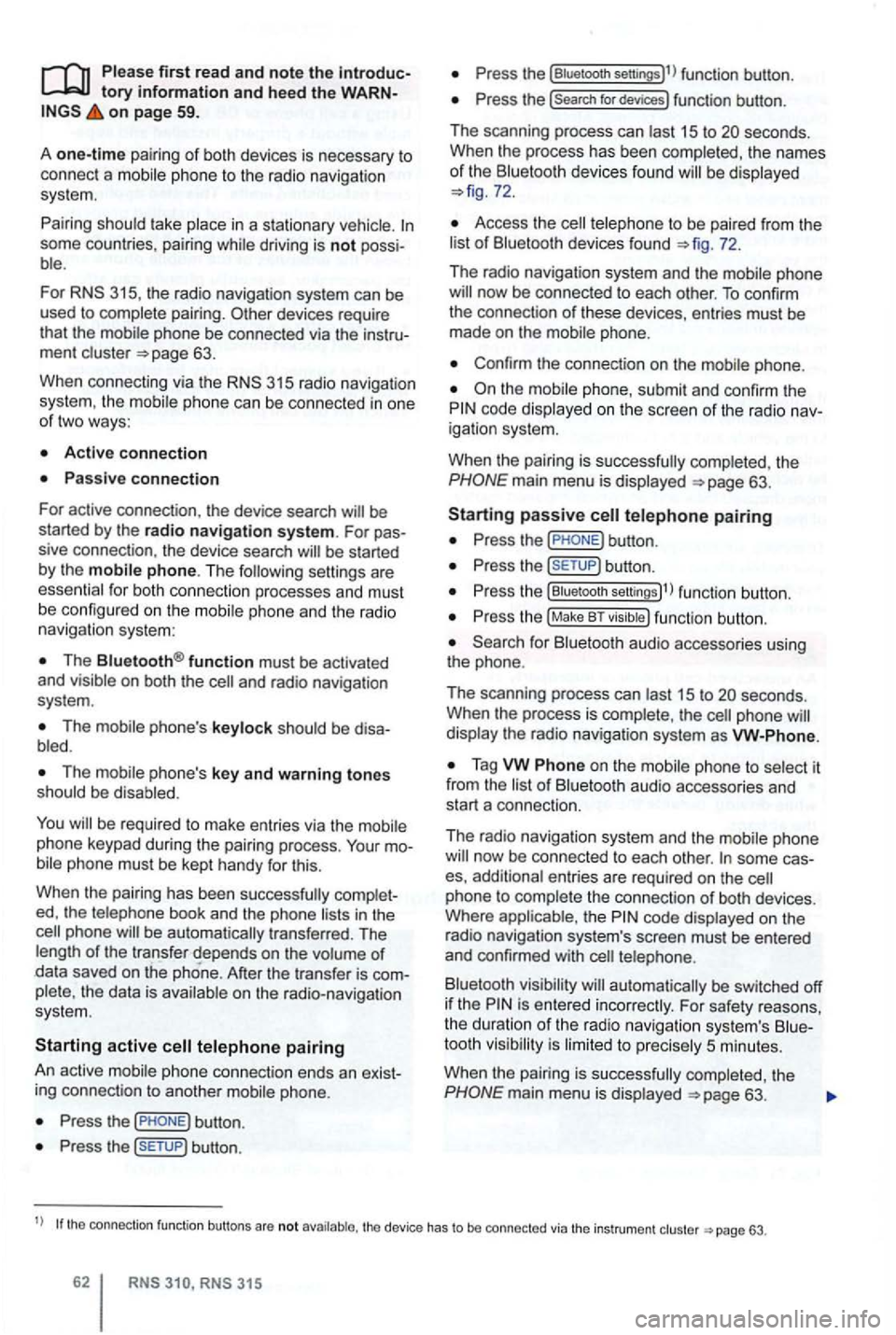
Please first read and note the introductory information and hee d the WARN on page 59.
A
one-time pairi ng of both devices is necessary to
connect a
some countries , pairing driving is not possi
For 315, the radio navigation system can be
used to complete pairing.
63.
When connecting via the
315 radio navigation
system , the mobile ph one can be connected in one
of two ways :
Active connection
The Bluetooth® function must be activated
and v isible on both the
The should be disa
The phone's key and warning tones should be disabled .
You
phone be automatically transferred . T he
length of the transfer depends on the volume of data saved on the phone . After the transfer is com
p lete , the data is
active telephone pairing
An active mobile phone connection ends an exist
ing connection to anot her mobile phone.
Press the button.
Press the (SETUP ) button.
Press the [Biuetooth settings)l l func tion button .
Press the [search for devices) function button.
T he scan ning process can
15 to seconds .
When the process has bee n comple ted, the names
o f t he Bluetoot h devices f ound
72.
Access the telephone to be paired from the 72.
T he radio navigation system and the mobile phone
code displaye d on th e screen of th e rad io nav
i gation system.
When the pairing is successfully completed, the
63 .
passive telephone pairing
Press the button.
Press button.
Press th e [Biuetooth settings)1l funct ion button.
Press the (Make BT fu nc tion butto n .
15 to phone
of Bluetooth audio accesso ries and
start a connec tion.
T he radio naviga tio n system and the
some cases, additional entries are required on the phone to complete the connection of both devices.
Where the code displayed on the
radio navigation system's screen must be entered
and confirmed with
is entered inco rrectly. For safety reasons ,
t h e duration of the radio navigatio n system's toot h visibil ity is li m ited to precisely 5 min utes.
When the pairing is successfully completed, the
63 .
tho connection function butto ns are not the d evice has to be connected via the instrument p age 63.
Page 79 of 516
z
Pairing and connecting
There can be up to four one can be connected to the rad io -navigation system at any one time.
When the radio navigation system
is switched on,
it
connect
ed.
attempt to connect to
t h e next phone on the of paired devices.
T
he maximum reception distance for a connection is con
nection be interru pted if this distance is ex- ceeded
. The connection
as soon as a paired device is within range again.
four one is to be connected , one
Press button .
Press the (Biuetooth settings)1l function button.
Press the (Paired device lis t) function bu tto n.
of paired devices, tag the phon e to be
Connecting the
Please first read and note the introductory information and heed the WARNon page 59.
is connected , via the radio naviga
tion system.
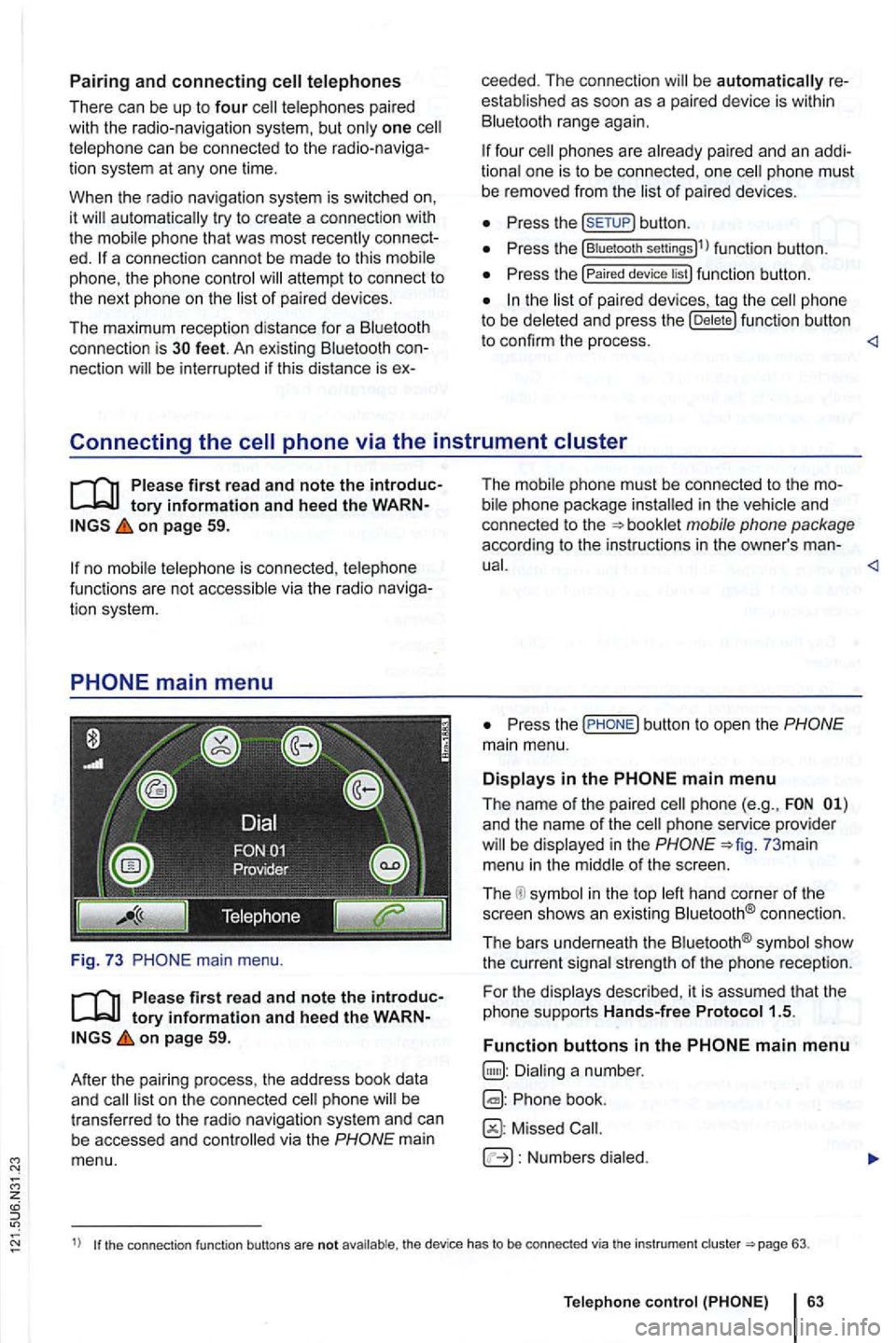
main menu.
first read and note the introductory information and heed the WARNon page 59.
After
the pair ing process , the address book data
and
mai n
menu. T
he i
n the and
co nnected to the
P ress the
and the name of the phone service provider in the 73 mai n
menu in the
in the top connect io n .
The bars underneath the
strength of the phone reception.
F or th e
Phone book.
Missed
Numbers
1) the connection function buttons are not the device has to be connected via th e instrument 63.
Telep hone