warning VOLVO V90 2017 Owners Manual
[x] Cancel search | Manufacturer: VOLVO, Model Year: 2017, Model line: V90, Model: VOLVO V90 2017Pages: 594, PDF Size: 15.07 MB
Page 344 of 594
||
DRIVER SUPPORT
* Option/accessory.
342
WARNING
The system is a supplement to, not a replace- ment for, a safe driving style and use of therearview mirrors. It can never replace the driv-er's attention and responsibility. The responsi-bility for changing lanes safely always restswith the driver.
Related information
• Activate/deactivate Blind Spot Information
*
(p. 342)
• Limitations of Blind Spot Information
*
(p. 343)
• Messages for Blind Spot Information
* and
Cross Traffic Alert * (p. 347)
• Cross Traffic Alert
* (p. 343)
Activate/deactivate Blind Spot Information *
The Blind Spot Information (BLIS) function can be activated/deactivated.
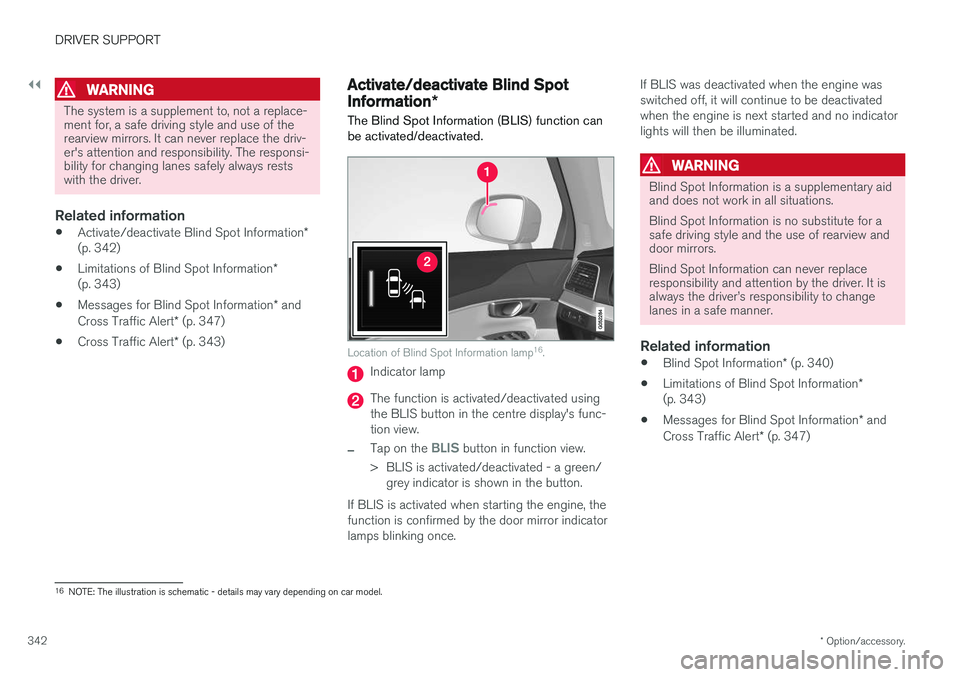
Location of Blind Spot Information lamp 16
.
Indicator lamp
The function is activated/deactivated using the BLIS button in the centre display's func-tion view.
–Tap on the BLIS button in function view.
> BLIS is activated/deactivated - a green/ grey indicator is shown in the button.
If BLIS is activated when starting the engine, the function is confirmed by the door mirror indicatorlamps blinking once. If BLIS was deactivated when the engine wasswitched off, it will continue to be deactivatedwhen the engine is next started and no indicatorlights will then be illuminated.
WARNING
Blind Spot Information is a supplementary aid and does not work in all situations. Blind Spot Information is no substitute for a safe driving style and the use of rearview anddoor mirrors. Blind Spot Information can never replace responsibility and attention by the driver. It isalways the driver
Page 346 of 594
||
DRIVER SUPPORT
* Option/accessory.
344 If CTA has sensed that something is approaching from the side, this is also indicated with:
• an acoustic signal - the sound is heard in theleft-hand or right-hand speaker according tothe direction from which the objectapproaches.
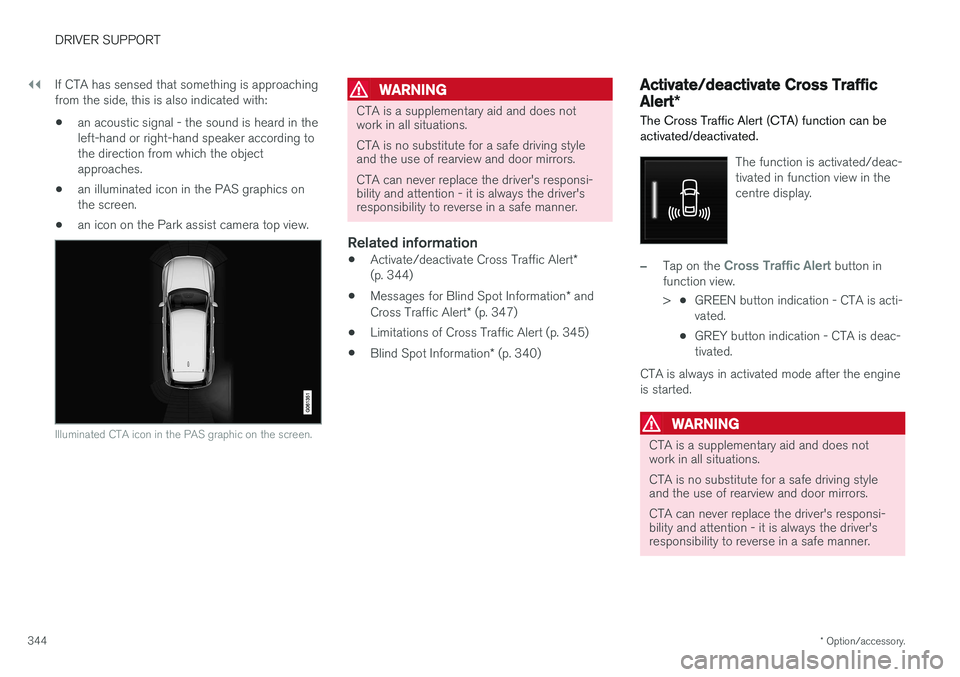
• an illuminated icon in the PAS graphics onthe screen.
• an icon on the Park assist camera top view.
Illuminated CTA icon in the PAS graphic on the screen.
WARNING
CTA is a supplementary aid and does not work in all situations. CTA is no substitute for a safe driving style and the use of rearview and door mirrors. CTA can never replace the driver's responsi- bility and attention - it is always the driver'sresponsibility to reverse in a safe manner.
Related information
•
Activate/deactivate Cross Traffic Alert
*
(p. 344)
• Messages for Blind Spot Information
* and
Cross Traffic Alert * (p. 347)
• Limitations of Cross Traffic Alert (p. 345)
• Blind Spot Information
* (p. 340)
Activate/deactivate Cross Traffic Alert *
The Cross Traffic Alert (CTA) function can be activated/deactivated.
The function is activated/deac- tivated in function view in thecentre display.
–Tap on the Cross Traffic Alert button in
function view. > •GREEN button indication - CTA is acti- vated.
• GREY button indication - CTA is deac-tivated.
CTA is always in activated mode after the engine
is started.
WARNING
CTA is a supplementary aid and does not work in all situations. CTA is no substitute for a safe driving style and the use of rearview and door mirrors. CTA can never replace the driver's responsi- bility and attention - it is always the driver'sresponsibility to reverse in a safe manner.
Page 350 of 594
DRIVER SUPPORT
* Option/accessory.
348
Road Sign Information *
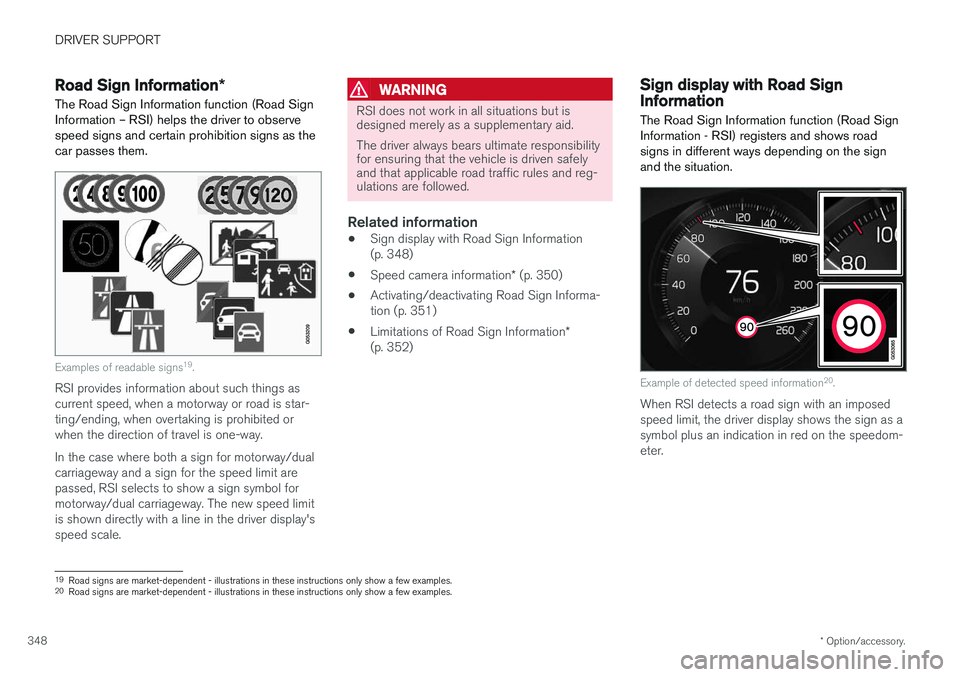
The Road Sign Information function (Road Sign Information – RSI) helps the driver to observespeed signs and certain prohibition signs as thecar passes them.
Examples of readable signs 19
.
RSI provides information about such things as current speed, when a motorway or road is star-ting/ending, when overtaking is prohibited orwhen the direction of travel is one-way. In the case where both a sign for motorway/dual carriageway and a sign for the speed limit arepassed, RSI selects to show a sign symbol formotorway/dual carriageway. The new speed limitis shown directly with a line in the driver display'sspeed scale.
WARNING
RSI does not work in all situations but is designed merely as a supplementary aid. The driver always bears ultimate responsibility for ensuring that the vehicle is driven safelyand that applicable road traffic rules and reg-ulations are followed.
Related information
• Sign display with Road Sign Information (p. 348)
• Speed camera information
* (p. 350)
• Activating/deactivating Road Sign Informa-tion (p. 351)
• Limitations of Road Sign Information
*
(p. 352)
Sign display with Road Sign Information
The Road Sign Information function (Road Sign
Information - RSI) registers and shows roadsigns in different ways depending on the signand the situation.
Example of detected speed information 20
.
When RSI detects a road sign with an imposed speed limit, the driver display shows the sign as asymbol plus an indication in red on the speedom-eter.
19 Road signs are market-dependent - illustrations in these instructions only show a few examples.
20 Road signs are market-dependent - illustrations in these instructions only show a few examples.
Page 351 of 594
DRIVER SUPPORT
}}
* Option/accessory.349
Besides the speed limit symbol an additional sign may beshown as well, such as "noovertaking".
If the driver enters a road marked with a no-entry sign atthe roadside, the symbol forthis sign flashes on and off onthe driver display as a warning.
If the car is equipped with Sensus Navigation
*
then information from the map is also used to determine whether the car is being driven in thewrong direction. The driver can also get an acoustic warning when driving towards a no-entry entrance if the
Audio
Warning function is activated - see the heading
"Activating/deactivating the acoustic warning" in the section "Activating/deactivating Road SignInformation".
End of restriction or motorwayIf RSI detects a sign which may imply the end ofa speed limit, such as the end of a motorway, thedriver display shows the corresponding road signfor 10–30 seconds. Examples of such signs are: End of all restrictions.
End of motorway.
Following which, the sign information is hidden until the next speed-related sign is detected.
Additional signs
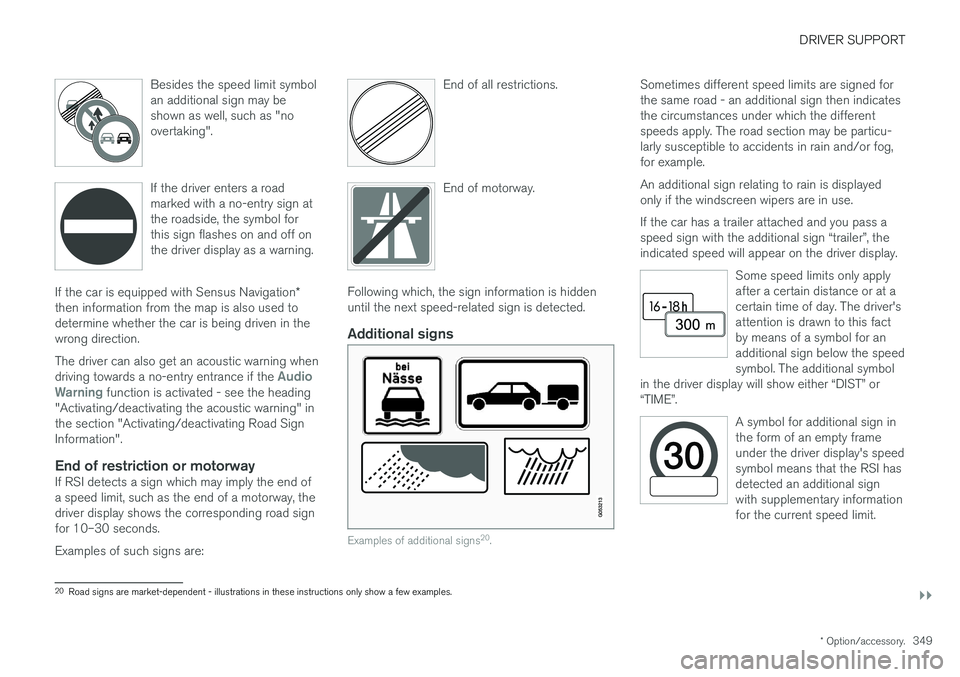
Examples of additional signs
20
.
Sometimes different speed limits are signed for the same road - an additional sign then indicatesthe circumstances under which the differentspeeds apply. The road section may be particu-larly susceptible to accidents in rain and/or fog,for example. An additional sign relating to rain is displayed only if the windscreen wipers are in use. If the car has a trailer attached and you pass a speed sign with the additional sign “trailer”, theindicated speed will appear on the driver display.
Some speed limits only applyafter a certain distance or at acertain time of day. The driver'sattention is drawn to this factby means of a symbol for anadditional sign below the speedsymbol. The additional symbol
in the driver display will show either “DIST” or“TIME”.
A symbol for additional sign in the form of an empty frameunder the driver display's speedsymbol means that the RSI hasdetected an additional signwith supplementary informationfor the current speed limit.
20 Road signs are market-dependent - illustrations in these instructions only show a few examples.
Page 352 of 594
||
DRIVER SUPPORT
* Option/accessory.
350
Sensus NavigationIf the car is equipped with Sensus Navigation, speed information is read from the navigationunit in the following cases:
• On detecting signs that indirectly indicate aspeed limit, such as motorway, dual carriage-way and city limit signs.
• If a previously detected sign is assumed notto apply any longer, but no new sign hasbeen detected.
NOTE
If a downloaded third-party app is used for navigation then there is no support for speed-related information.
Sign for "School" and "Children at play"
If the warning sign for "School" or "Children at play" is includedin the satellite navigator's mapdata, the driver display shows a sign20
of this type.
Related information
• Road Sign Information
* (p. 348)
• Activating/deactivating Road Sign Informa- tion (p. 351)
Speed camera information
*
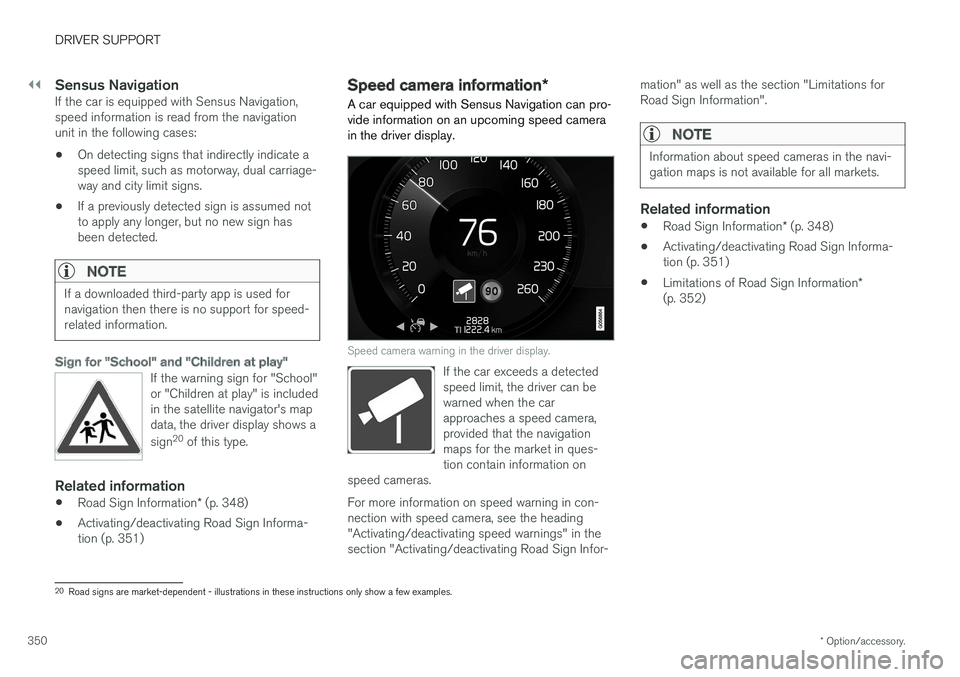
A car equipped with Sensus Navigation can pro- vide information on an upcoming speed camerain the driver display.
Speed camera warning in the driver display.
If the car exceeds a detected speed limit, the driver can bewarned when the carapproaches a speed camera,provided that the navigationmaps for the market in ques-tion contain information on
speed cameras.
For more information on speed warning in con- nection with speed camera, see the heading"Activating/deactivating speed warnings" in thesection "Activating/deactivating Road Sign Infor- mation" as well as the section "Limitations forRoad Sign Information".
NOTE
Information about speed cameras in the navi- gation maps is not available for all markets.
Related information
•
Road Sign Information
* (p. 348)
• Activating/deactivating Road Sign Informa- tion (p. 351)
• Limitations of Road Sign Information
*
(p. 352)
20 Road signs are market-dependent - illustrations in these instructions only show a few examples.
Page 353 of 594
DRIVER SUPPORT
* Option/accessory.351
Activating/deactivating Road Sign Information
The Road Sign Information (Road Sign Information - RSI) function can be activated/deactivated.
Activating/deactivating Road Sign
Information
The function is activated/deac- tivated in function view in thecentre display.
–Tap on the Road Sign Information button
in function view.
> RSI is activated and the button shows a green indicator - a grey indicator means that RSI is deactivated.
Activating/deactivating speed warningsThe speed warning function warns the driverwhen the applicable speed limit is exceeded. Aspeed warning is always given if the speed limit isexceeded in connection with speed camera infor-mation. The driver can choose to have the func-tion activated or deactivated. The speed warning is given bythe driver display symbol show-ing the applicable maximumpermitted speed temporarilyflashing when this speed isexceeded.
1.
Press Settings in the centre display's top
view.
2. Press
My CarIntelliSafeRoad Sign
Information.
3. Select
Speed Limit Warning to activate/
deactivate speed warnings.
> A speed selector is shown if the function is activated.
4. Adjust the limit for when a speed warning is to be given, either up or down, by pressing the up/down arrows. Note that no consideration is given to any boundary adjustment made when the driverdisplay shows the speed camera symbol.
Activating/deactivating the acoustic warning.
It is also possible to have an acoustic warning in connection with a speed warning: 1.Press
Settings in the centre display's top
view. 2.
Press
My CarIntelliSafeRoad Sign
Information.
3. Select
Audio Warning to activate/deacti-
vate the acoustic warning.
With the
Audio Warning function activated, the
driver is also warned when driving towards a no- entry entrance.
Related information
• Road Sign Information
* (p. 348)
• Speed camera information
* (p. 350)
• Sign display with Road Sign Information(p. 348)
Page 355 of 594
DRIVER SUPPORT
}}
353
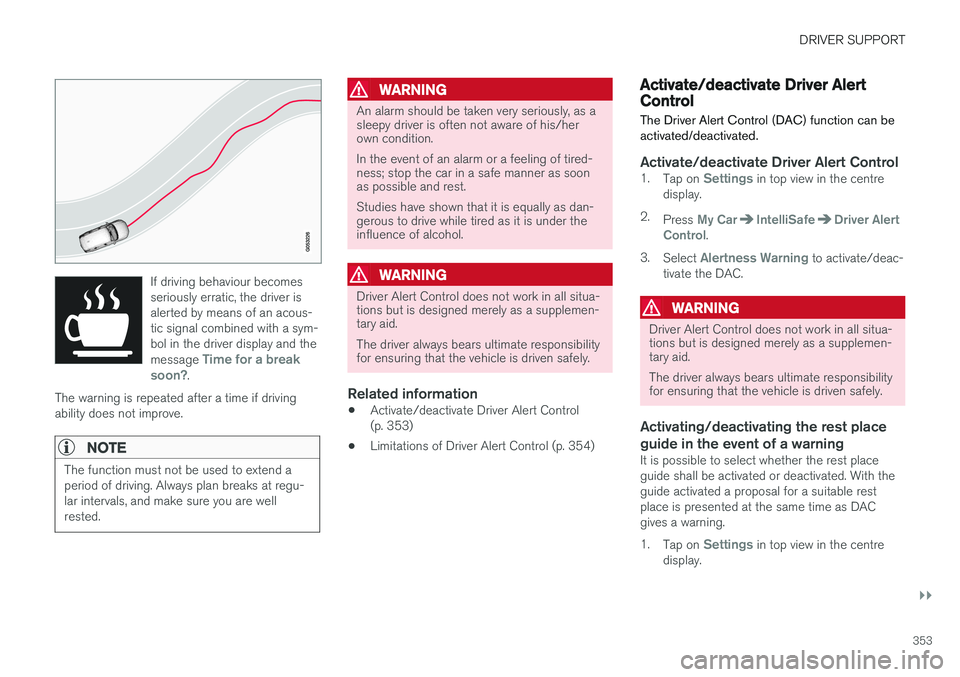
If driving behaviour becomes seriously erratic, the driver isalerted by means of an acous-tic signal combined with a sym-bol in the driver display and the message
Time for a break
soon?.
The warning is repeated after a time if driving ability does not improve.
NOTE
The function must not be used to extend a period of driving. Always plan breaks at regu-lar intervals, and make sure you are wellrested.
WARNING
An alarm should be taken very seriously, as a sleepy driver is often not aware of his/herown condition. In the event of an alarm or a feeling of tired- ness; stop the car in a safe manner as soonas possible and rest. Studies have shown that it is equally as dan- gerous to drive while tired as it is under theinfluence of alcohol.
WARNING
Driver Alert Control does not work in all situa- tions but is designed merely as a supplemen-tary aid. The driver always bears ultimate responsibility for ensuring that the vehicle is driven safely.
Related information
• Activate/deactivate Driver Alert Control (p. 353)
• Limitations of Driver Alert Control (p. 354)
Activate/deactivate Driver Alert Control
The Driver Alert Control (DAC) function can be activated/deactivated.
Activate/deactivate Driver Alert Control1. Tap on Settings in top view in the centre
display.
2. Press
My CarIntelliSafeDriver Alert
Control.
3. Select
Alertness Warning to activate/deac-
tivate the DAC.
WARNING
Driver Alert Control does not work in all situa- tions but is designed merely as a supplemen-tary aid. The driver always bears ultimate responsibility for ensuring that the vehicle is driven safely.
Activating/deactivating the rest place guide in the event of a warning
It is possible to select whether the rest place guide shall be activated or deactivated. With theguide activated a proposal for a suitable restplace is presented at the same time as DACgives a warning. 1. Tap on
Settings in top view in the centre
display.
Page 356 of 594
||
DRIVER SUPPORT
* Option/accessory.
354 2.
Press
My CarIntelliSafeDriver Alert
Control.
3. Select
Rest Stop Guidance to activate/
deactivate the rest place guide.
Related information
• Driver Alert Control (p. 352)
• Limitations of Driver Alert Control (p. 354)
Limitations of Driver Alert Control
The Driver Alert Control (DAC) function may have limitations in certain situations.
In some cases, driving behaviour may not be affected, despite the driver being tired - e.g. whenusing the Pilot Assist function - with the resultthat the driver is then not given a warning fromDAC. For this reason, it is always very importantto stop and take a break in the event of theslightest sign of driver fatigue, regardless ofwhether DAC has given a warning. In some cases the system may issue a warning despite driving ability not deteriorating, for exam-ple:
• in strong side winds
• on rutted road surfaces.
NOTE
The function uses the car's camera unit, which has some general limitations, see the"Limitations for camera unit" section.
Related information
•
Driver Alert Control (p. 352)
• Activate/deactivate Driver Alert Control (p. 353)
• Limitations of the camera unit (p. 327)
• Pilot Assist
* (p. 304)
Lane Keeping Aid
The function of lane assistance is to help the driver to reduce the risk of the car accidentallyleaving its own lane on motorways and similarmajor routes.
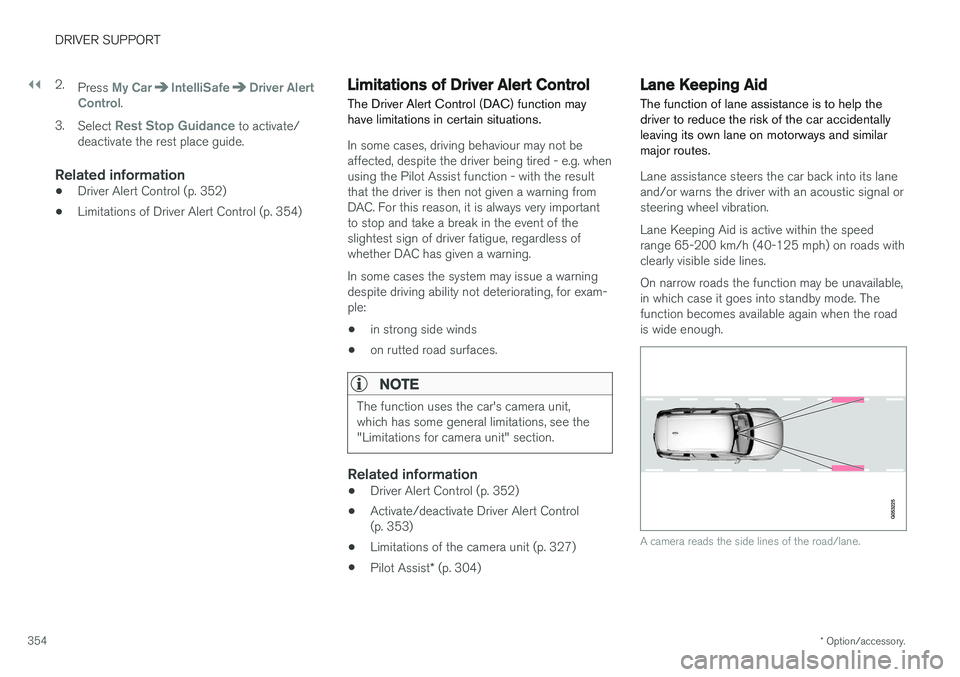
Lane assistance steers the car back into its lane and/or warns the driver with an acoustic signal orsteering wheel vibration. Lane Keeping Aid is active within the speed range 65-200 km/h (40-125 mph) on roads withclearly visible side lines. On narrow roads the function may be unavailable, in which case it goes into standby mode. Thefunction becomes available again when the roadis wide enough.
A camera reads the side lines of the road/lane.
Page 357 of 594
DRIVER SUPPORT
}}
355
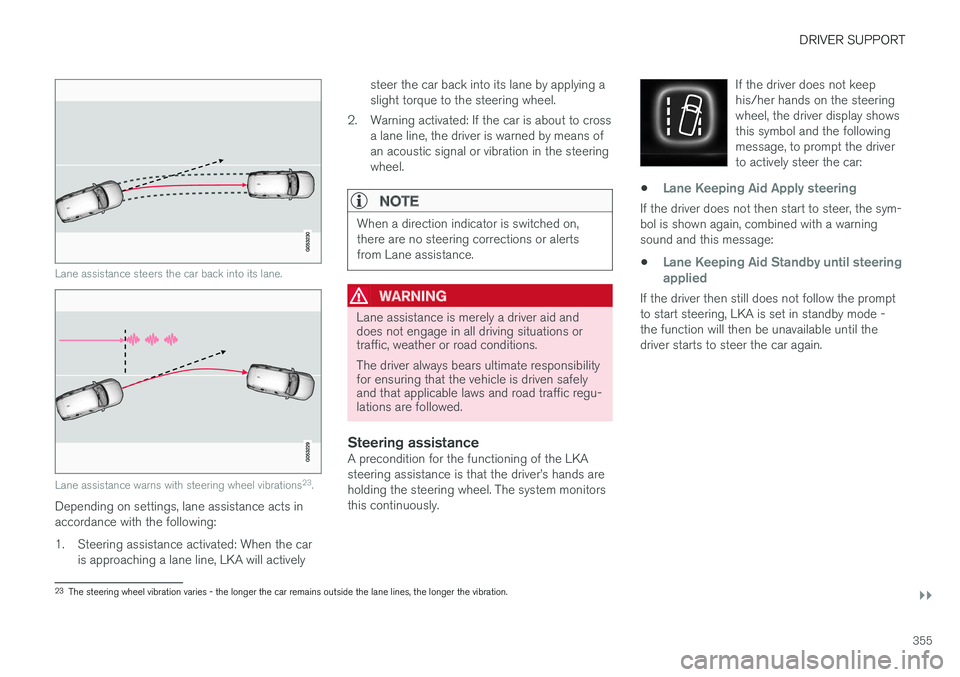
Lane assistance steers the car back into its lane.
Lane assistance warns with steering wheel vibrations23
.
Depending on settings, lane assistance acts in accordance with the following:
1. Steering assistance activated: When the car
is approaching a lane line, LKA will actively steer the car back into its lane by applying a slight torque to the steering wheel.
2. Warning activated: If the car is about to cross a lane line, the driver is warned by means ofan acoustic signal or vibration in the steeringwheel.
NOTE
When a direction indicator is switched on, there are no steering corrections or alertsfrom Lane assistance.
WARNING
Lane assistance is merely a driver aid and does not engage in all driving situations ortraffic, weather or road conditions. The driver always bears ultimate responsibility for ensuring that the vehicle is driven safelyand that applicable laws and road traffic regu-lations are followed.
Steering assistanceA precondition for the functioning of the LKA steering assistance is that the driver
Page 358 of 594
||
DRIVER SUPPORT
356
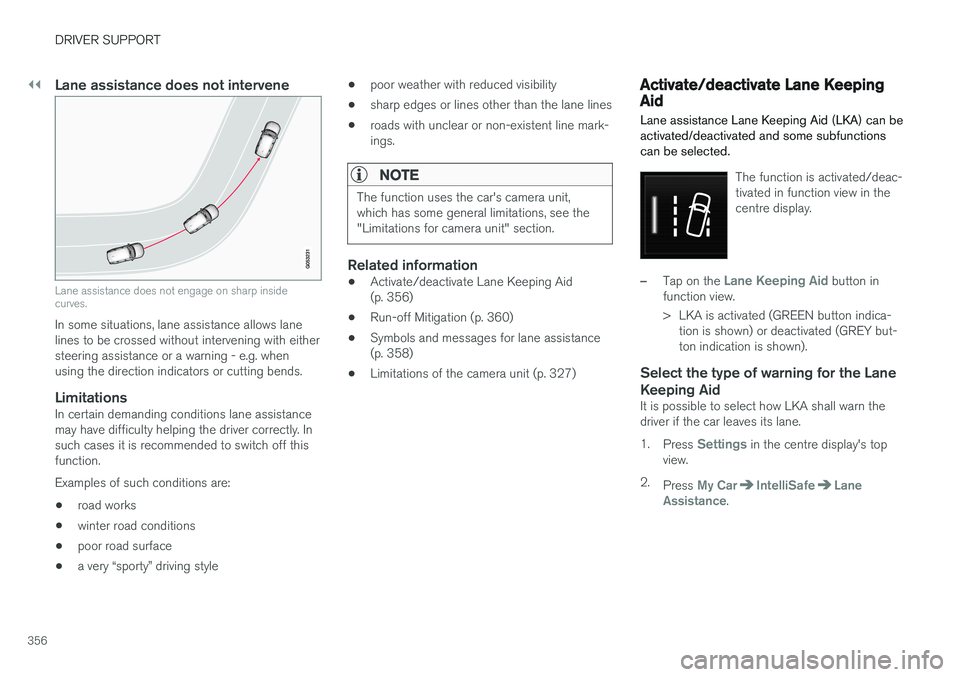
Lane assistance does not intervene
Lane assistance does not engage on sharp inside curves.
In some situations, lane assistance allows lane lines to be crossed without intervening with eithersteering assistance or a warning - e.g. whenusing the direction indicators or cutting bends.
LimitationsIn certain demanding conditions lane assistancemay have difficulty helping the driver correctly. Insuch cases it is recommended to switch off thisfunction. Examples of such conditions are:• road works
• winter road conditions
• poor road surface
• a very “sporty” driving style •
poor weather with reduced visibility
• sharp edges or lines other than the lane lines
• roads with unclear or non-existent line mark- ings.
NOTE
The function uses the car's camera unit, which has some general limitations, see the"Limitations for camera unit" section.
Related information
•
Activate/deactivate Lane Keeping Aid (p. 356)
• Run-off Mitigation (p. 360)
• Symbols and messages for lane assistance(p. 358)
• Limitations of the camera unit (p. 327)
Activate/deactivate Lane Keeping Aid Lane assistance Lane Keeping Aid (LKA) can be activated/deactivated and some subfunctionscan be selected.
The function is activated/deac- tivated in function view in thecentre display.
–Tap on the Lane Keeping Aid button in
function view.
> LKA is activated (GREEN button indica- tion is shown) or deactivated (GREY but- ton indication is shown).
Select the type of warning for the Lane Keeping Aid
It is possible to select how LKA shall warn the driver if the car leaves its lane. 1. Press
Settings in the centre display's top
view.
2. Press
My CarIntelliSafeLane
Assistance.