buttons VOLVO V90 2017 Service Manual
[x] Cancel search | Manufacturer: VOLVO, Model Year: 2017, Model line: V90, Model: VOLVO V90 2017Pages: 594, PDF Size: 15.07 MB
Page 247 of 594
LOCKS AND ALARM
}}
* Option/accessory.245
Locking/unlocking from the inside
The doors and tailgate can be locked and unlocked from inside using the central locking controls in the front doors. The lock controls * on
the rear doors each lock their own rear door.
Central locking
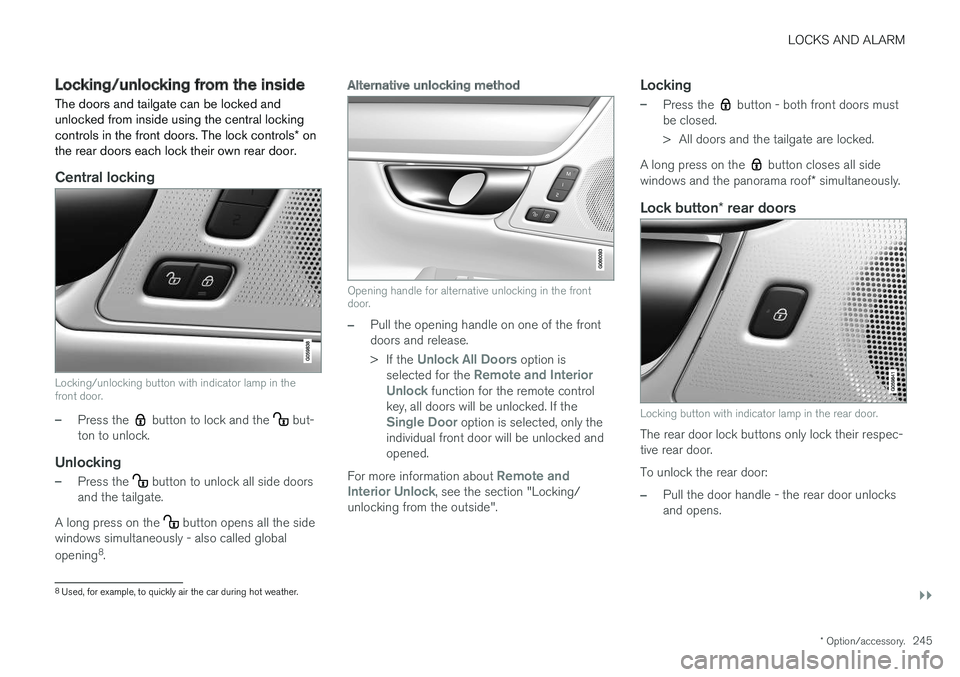
Locking/unlocking button with indicator lamp in the front door.
–Press the button to lock and the but-
ton to unlock.
Unlocking
–Press the button to unlock all side doors
and the tailgate.
A long press on the
button opens all the side
windows simultaneously - also called global opening 8
.
Alternative unlocking method
Opening handle for alternative unlocking in the front door.
–Pull the opening handle on one of the front doors and release. > If the
Unlock All Doors option is
selected for the Remote and Interior
Unlock function for the remote control
key, all doors will be unlocked. If the
Single Door option is selected, only the
individual front door will be unlocked and opened.
For more information about
Remote and
Interior Unlock, see the section "Locking/
unlocking from the outside".
Locking
–Press the button - both front doors must
be closed.
> All doors and the tailgate are locked.
A long press on the
button closes all side
windows and the panorama roof * simultaneously.
Lock button * rear doors
Locking button with indicator lamp in the rear door.
The rear door lock buttons only lock their respec- tive rear door. To unlock the rear door:
–Pull the door handle - the rear door unlocks and opens.
8
Used, for example, to quickly air the car during hot weather.
Page 255 of 594
LOCKS AND ALARM
}}
* Option/accessory.253
NOTE
•A door's lock reset only locks that partic- ular door - not all doors simultaneously.
• A manually locked rear door with acti-vated manual or electric child safety lockscannot be opened from either the outsideor the inside. A rear door that is locked inthis way can only be unlocked with theremote control key or central locking but-ton.
Related information
• Detachable key blade (p. 250)
Power operated tailgate
*
The car's tailgate can be opened/closed electri- cally.
Opening/closing via a foot movement is also available as an extended option - see the section"Opening/closing the power operated tailgatewith foot movement" for more information.
OpeningThe tailgate can be opened with its handle, with foot movement *, a button on the instrument
panel or the remote control key.
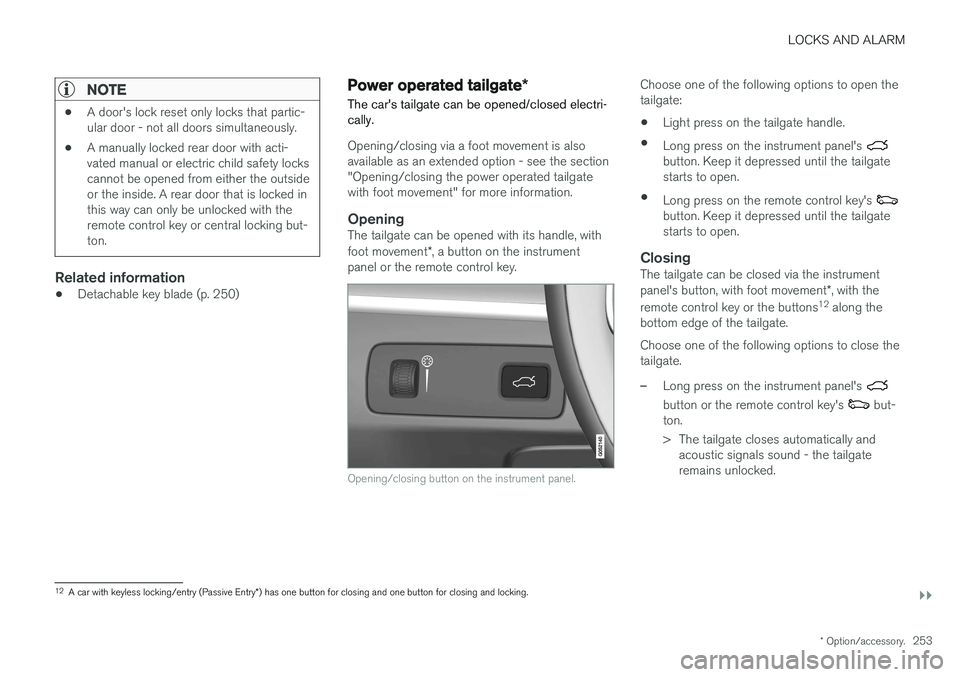
Opening/closing button on the instrument panel.
Choose one of the following options to open the tailgate:
• Light press on the tailgate handle.
• Long press on the instrument panel's
button. Keep it depressed until the tailgate starts to open.
• Long press on the remote control key's
button. Keep it depressed until the tailgate starts to open.
ClosingThe tailgate can be closed via the instrument panel's button, with foot movement *, with the
remote control key or the buttons 12
along the
bottom edge of the tailgate. Choose one of the following options to close the tailgate.
–Long press on the instrument panel's
button or the remote control key's but-
ton.
> The tailgate closes automatically and acoustic signals sound - the tailgate remains unlocked.
12A car with keyless locking/entry (Passive Entry *) has one button for closing and one button for closing and locking.
Page 279 of 594
DRIVER SUPPORT
* Option/accessory.277
Speed limiter *
A speed limiter (Speed Limiter — SL) can be regarded as a reverse cruise control — thedriver regulates the speed using the acceleratorpedal but is prevented by the speed limiter fromaccidentally exceeding a pre-selected/presetmaximum speed.
Overview
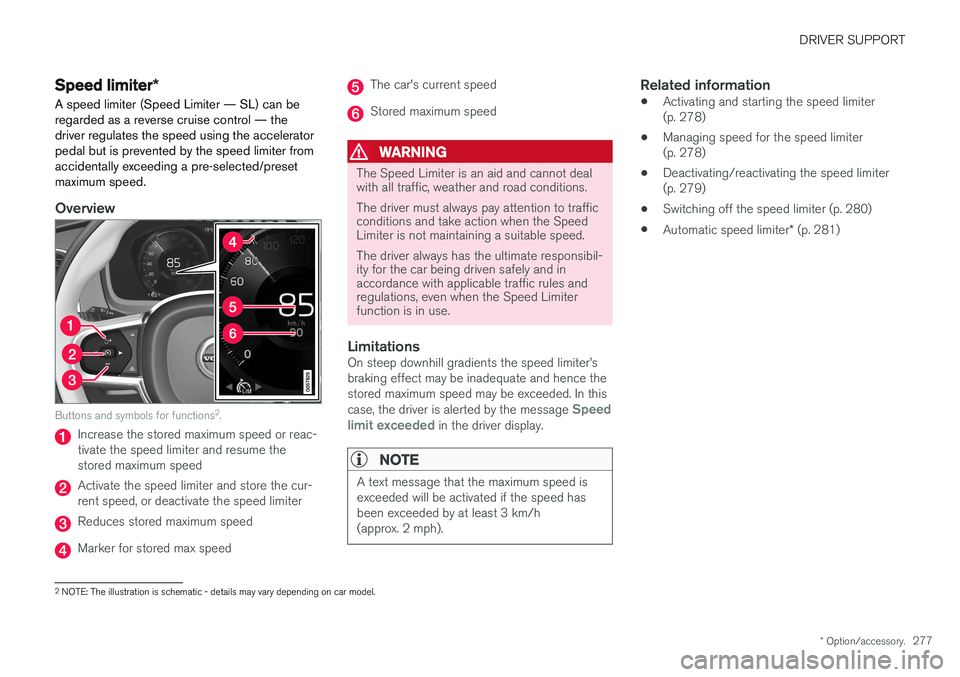
Buttons and symbols for functions 2
.
Increase the stored maximum speed or reac- tivate the speed limiter and resume thestored maximum speed
Activate the speed limiter and store the cur- rent speed, or deactivate the speed limiter
Reduces stored maximum speed
Marker for stored max speed
The car's current speed
Stored maximum speed
WARNING
The Speed Limiter is an aid and cannot deal with all traffic, weather and road conditions. The driver must always pay attention to traffic conditions and take action when the SpeedLimiter is not maintaining a suitable speed. The driver always has the ultimate responsibil- ity for the car being driven safely and inaccordance with applicable traffic rules andregulations, even when the Speed Limiterfunction is in use.
LimitationsOn steep downhill gradients the speed limiter
Page 285 of 594
DRIVER SUPPORT
* Option/accessory.283
Changing the tolerance for the Automatic speed limiter
The speed limiter function (Automatic Speed Limiter - ASL) can be set for different tolerancelevels.
It is possible to increase/decrease the signed speed limit. If, for example, the car follows asigned speed limit of 70 km/h (43 mph) thedriver can instead choose to allow the car tomaintain 75 km/h (47 mph).
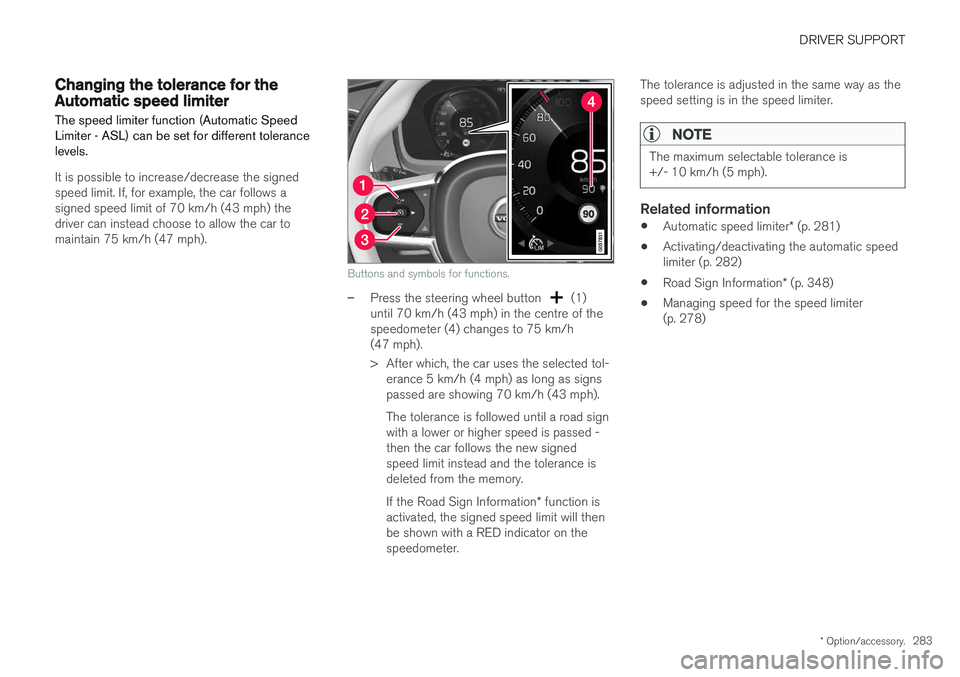
Buttons and symbols for functions.
–Press the steering wheel button (1)
until 70 km/h (43 mph) in the centre of the speedometer (4) changes to 75 km/h(47 mph).
> After which, the car uses the selected tol- erance 5 km/h (4 mph) as long as signs passed are showing 70 km/h (43 mph). The tolerance is followed until a road sign with a lower or higher speed is passed -then the car follows the new signedspeed limit instead and the tolerance isdeleted from the memory. If the Road Sign Information * function is
activated, the signed speed limit will then be shown with a RED indicator on thespeedometer. The tolerance is adjusted in the same way as thespeed setting is in the speed limiter.
NOTE
The maximum selectable tolerance is +/- 10 km/h (5 mph).
Related information
•
Automatic speed limiter
* (p. 281)
• Activating/deactivating the automatic speed limiter (p. 282)
• Road Sign Information
* (p. 348)
• Managing speed for the speed limiter(p. 278)
Page 286 of 594
DRIVER SUPPORT
* Option/accessory.
284
Cruise control
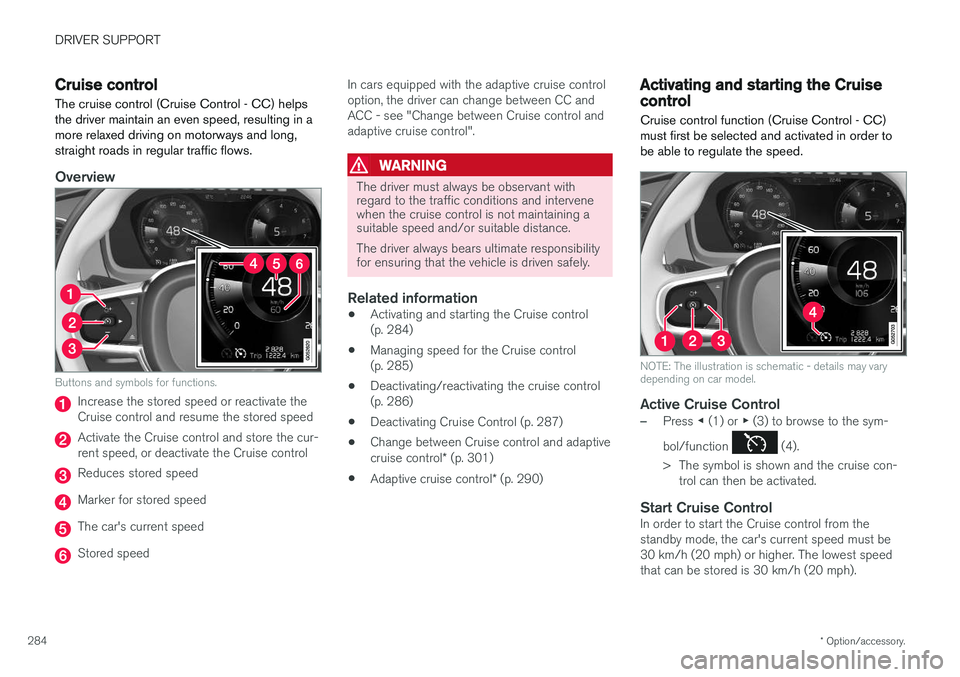
The cruise control (Cruise Control - CC) helps the driver maintain an even speed, resulting in amore relaxed driving on motorways and long,straight roads in regular traffic flows.
Overview
Buttons and symbols for functions.
Increase the stored speed or reactivate the Cruise control and resume the stored speed
Activate the Cruise control and store the cur- rent speed, or deactivate the Cruise control
Reduces stored speed
Marker for stored speed
The car's current speed
Stored speed In cars equipped with the adaptive cruise control option, the driver can change between CC andACC - see "Change between Cruise control andadaptive cruise control".
WARNING
The driver must always be observant with regard to the traffic conditions and intervenewhen the cruise control is not maintaining asuitable speed and/or suitable distance. The driver always bears ultimate responsibility for ensuring that the vehicle is driven safely.
Related information
•
Activating and starting the Cruise control (p. 284)
• Managing speed for the Cruise control(p. 285)
• Deactivating/reactivating the cruise control(p. 286)
• Deactivating Cruise Control (p. 287)
• Change between Cruise control and adaptive cruise control
* (p. 301)
• Adaptive cruise control
* (p. 290)
Activating and starting the Cruise control Cruise control function (Cruise Control - CC) must first be selected and activated in order tobe able to regulate the speed.
NOTE: The illustration is schematic - details may vary depending on car model.
Active Cruise Control
–Press ◀ (1) or ▶ (3) to browse to the sym-
bol/function
(4).
> The symbol is shown and the cruise con- trol can then be activated.
Start Cruise ControlIn order to start the Cruise control from the standby mode, the car's current speed must be30 km/h (20 mph) or higher. The lowest speedthat can be stored is 30 km/h (20 mph).
Page 289 of 594
DRIVER SUPPORT
* Option/accessory.287
–Press the steering wheel button (1).
> The cruise control markings and symbols in the driver display change colour from GREY to WHITE — the car will now followthe most recently stored speed again.
or
–Press the steering wheel button (2).
> The cruise control markings and symbols in the driver display change colour from GREY to WHITE — the car will now followthe current speed.
NOTE
A marked speed increase may occur once the speed has been resumed by pressing steer- ing wheel button
.
Related information
• Cruise control (p. 284)
• Activating and starting the Cruise control (p. 284)
• Managing speed for the Cruise control(p. 285)
• Deactivating Cruise Control (p. 287)
Deactivating Cruise Control Cruise control Cruise Control — CC can be deactivated.
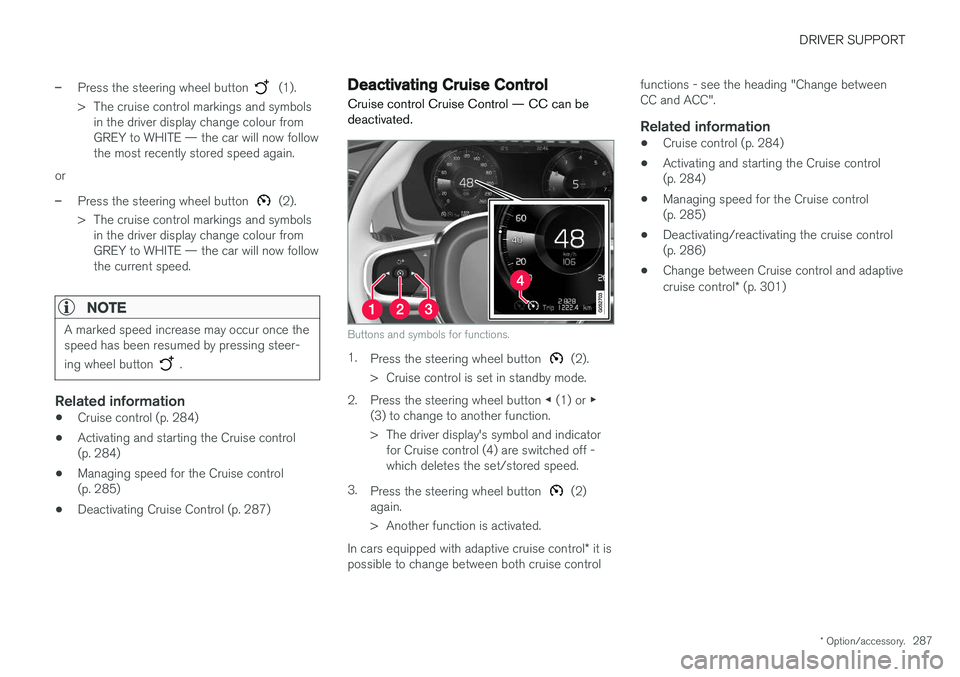
Buttons and symbols for functions.
1.
Press the steering wheel button (2).
> Cruise control is set in standby mode.
2. Press the steering wheel button ◀ (1) or ▶
(3) to change to another function.
> The driver display's symbol and indicator for Cruise control (4) are switched off - which deletes the set/stored speed.
3. Press the steering wheel button
(2)
again.
> Another function is activated.
In cars equipped with adaptive cruise control * it is
possible to change between both cruise control functions - see the heading "Change between CC and ACC".
Related information
•
Cruise control (p. 284)
• Activating and starting the Cruise control(p. 284)
• Managing speed for the Cruise control(p. 285)
• Deactivating/reactivating the cruise control(p. 286)
• Change between Cruise control and adaptive cruise control
* (p. 301)
Page 294 of 594

||
DRIVER SUPPORT
292
Overview
Controls
Buttons and symbols for functions5
.
Increases stored speed or reactivates the adaptive cruise control and resumes storedspeed and time interval
Activate the adaptive cruise control and store the current speed or deactivate the adaptivecruise control
Reduces stored speed
Increases the time interval to vehicles ahead
Reduces the time interval to vehicles ahead
Target vehicle indicator: ACC has detected and is following a target vehicle at the presettime interval
Symbol for time interval to vehicles ahead
In cars equipped with the adaptive cruise control option, the driver can change between CC andACC - see "Change between Cruise control andadaptive cruise control".
Driver display
Indication of speeds 5
.
Stored speed
Speed of vehicle ahead.
Current speed of your car.
To see different combinations of symbols depending on traffic situation - see the heading "Symbols and messages for the adaptive cruisecontrol".
Collision risk warning
Audio and symbol for collision warning
5
Acoustic warning signal in the event of a risk of collision
Warning signal in the event of a risk of colli- sion
Distance measurement with the camera and radar unit
Adaptive Cruise Control uses approx. 40% of thecapacity of the foot brake. If the car needs to bebraked more heavily than the adaptive cruisecontrol is capable of and the driver does notbrake, the warning lamp and acoustic warning are
5 NOTE: The illustration is schematic - details may vary depending on car model.
Page 308 of 594
||
DRIVER SUPPORT
306
Overview
Controls
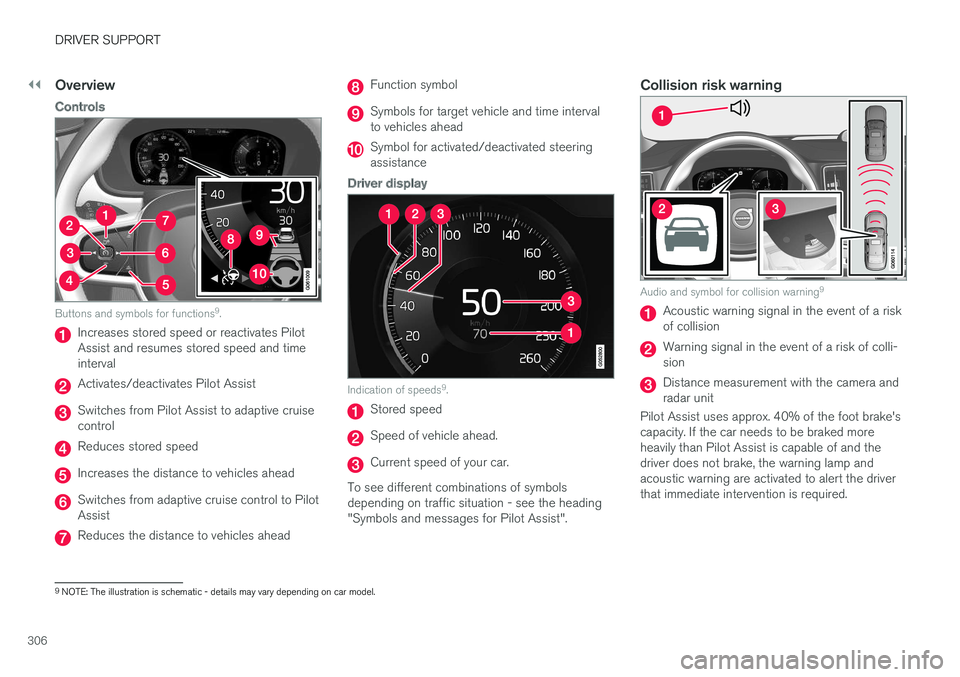
Buttons and symbols for functions9
.
Increases stored speed or reactivates Pilot Assist and resumes stored speed and timeinterval
Activates/deactivates Pilot Assist
Switches from Pilot Assist to adaptive cruise control
Reduces stored speed
Increases the distance to vehicles ahead
Switches from adaptive cruise control to Pilot Assist
Reduces the distance to vehicles ahead
Function symbol
Symbols for target vehicle and time interval to vehicles ahead
Symbol for activated/deactivated steering assistance
Driver display
Indication of speeds 9
.
Stored speed
Speed of vehicle ahead.
Current speed of your car.
To see different combinations of symbols depending on traffic situation - see the heading"Symbols and messages for Pilot Assist".
Collision risk warning
Audio and symbol for collision warning 9
Acoustic warning signal in the event of a risk of collision
Warning signal in the event of a risk of colli- sion
Distance measurement with the camera and radar unit
Pilot Assist uses approx. 40% of the foot brake'scapacity. If the car needs to be braked moreheavily than Pilot Assist is capable of and thedriver does not brake, the warning lamp andacoustic warning are activated to alert the driverthat immediate intervention is required.
9 NOTE: The illustration is schematic - details may vary depending on car model.
Page 510 of 594
||
MAINTENANCE AND SERVICE
* Option/accessory.
508 The appointment request contains vehicle data when it is sent from your car to the workshop viayour Internet connection. This information facili-tates planning for the workshop.
Accept the appointment suggestion
The car will retrieve appointment suggestions via your Internet connection when it is available.When the car has received an appointment sug-gestion, a message will be shown at the top ofthe centre display.
1. Tap the message.
2. If the suggested booking is acceptable, tap
on the
Accept button. Otherwise press
either of the Send new proposal orDecline buttons.
When an appointment suggestion is accepted, the reply will be sent to the workshop via yourInternet connection.
Sending vehicle data
You can send vehicle data at any time from your car, e.g. if you book a workshop visit directly viathe My Volvo owner's portal, and will help yourworkshop with better basic information. The vehicle data sent is the last saved (last time the car was running).
1. Open the Car status app from the app view
in the centre display.
2. Press the
Appointments button.
3. Press the
Send car data button.
> A message that vehicle data are being sent is shown at the top of the centre dis- play. You can cancel data transmission bytapping the X in the activity indicator. The vehicle data are sent via your Internet connection.
See workshop information
1. Open the Car status app from the app view
in the centre display.
2. Press the
Appointments button. 3.
Press the
Workshop information button.
> A pop-up window with information on your dealer will open.
4. Call your dealer if you like, or tap on the address or GPS coordinates to start naviga- tion to your workshop 2
.
Booking information and vehicle dataWhen you decide to book a service or send data from your car, the booking information and vehi-cle data will be sent via you Internet connection.The vehicle data make it easier for your workshopto plan your next visit. The vehicle data consists of information in the following areas:
• service requirement
• time since last service
• function status
• fluid levels
• meter reading
• the car's vehicle identification number (VIN 4
)
• the car's software version
• the car's diagnostics data.
2
Applies to Sensus Navigation *.
4 Vehicle Identification Number.
Page 512 of 594
MAINTENANCE AND SERVICE
* Option/accessory.
510
System updates
System updates are intended for the Internet- connected and infotainment components of thecar. If system software updates are available, theupdates can be made all at once or one at atime.
System updates are handled via the Download Centre app
in the centre display's applica- tion view. A tap on the buttonstarts a download application inthe home view's bottom sub-view. If no search for available
updates has been performed since the last timethe infotainment system was started, a search isperformed. No search is performed if a softwareinstallation is in progress. An icon in the down- load application's button
System updatesshows how many updates are available. A tap on the button shows a list of updates that can beinstalled in the car. For more information andanswers to common questions regarding functionand to download certain system updates, go in tosupport.volvocars.com. For system updates to be possible, the car must be connected to the Internet, see section "Onlinecar".
Searching for software updates is activated when the car is supplied from the factory.
NOTE
Data download may affect other services that transmit data, e.g. Internet radio. If the effecton other services is experienced as disruptivethen the download can be interrupted. Alter-natively, it may be appropriate to switch off orinterrupt other services.
NOTE
An update can be interrupted when the igni- tion is switched off and the car is left. However, the update does not have to be completed before the car is left, this isbecause the update is resumed the next timethe car is used.
Update all system software
–Select Install all at the bottom of the list.
If no list is desired, then
Install all can be
selected at the System updates button instead.
Update individual system software
programs
–Select Install for the software required.
Cancelling the download
–Tap on X in the activity indicator that has replaced the button Install at the start of the
download. Note that only the download can be cancelled, when the installation phase has started, this can-not be cancelled.
Background search for software
updates
The function can be deactivated via the centredisplay: 1. Press
Settings in the top view.
2. Press
SystemDownload Centre.
3. Deselect
Auto Software Update.
If an update is available, the message
New
software updates available is shown in the
centre display's status bar. A tap on the message starts a download application in the home view'sbottom subview. As soon as the download appli-cation has started, an icon in the download appli- cation's button
System updates shows how
many updates are available.
Related information
• Online car
* (p. 463)
• Downloading, updating and uninstalling apps (p. 468)
• Remote updates (p. 509)