radio controls VOLVO XC60 2009 Owner´s Manual
[x] Cancel search | Manufacturer: VOLVO, Model Year: 2009, Model line: XC60, Model: VOLVO XC60 2009Pages: 297, PDF Size: 21.16 MB
Page 104 of 297
03 Your driving environmentHomeLink® Wireless Control System* 03
102
* Option/accessory, for more information, see Introduction.
Introduction
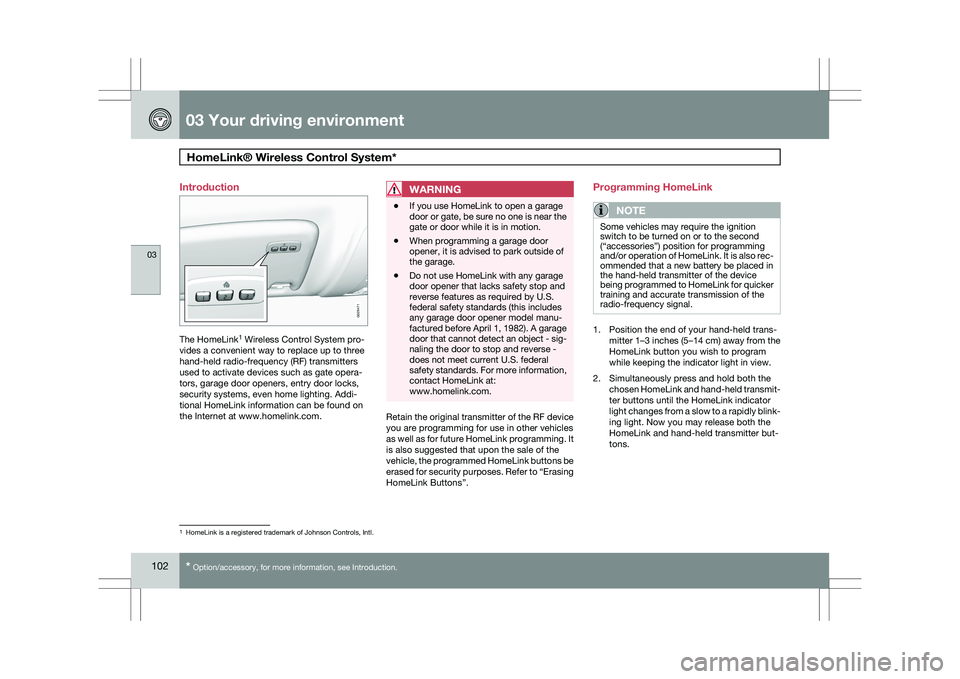
The HomeLink
1
Wireless Control System pro-
vides a convenient way to replace up to three
hand-held radio-frequency (RF) transmitters
used to activate devices such as gate opera-
tors, garage door openers, entry door locks,
security systems, even home lighting. Addi-
tional HomeLink information can be found on
the Internet at www.homelink.com.
WARNING \b
If you use HomeLink to open a garage
door or gate, be sure no one is near the
gate or door while it is in motion.
\b When programming a garage door
opener, it is advised to park outside of
the garage.
\b Do not use HomeLink with any garage
door opener that lacks safety stop and
reverse features as required by U.S.
federal safety standards (this includes
any garage door opener model manu-
factured before April 1, 1982). A garage
door that cannot detect an object - sig-
naling the door to stop and reverse -
does not meet current U.S. federal
safety standards. For more information,
contact HomeLink at:
www.homelink.com. Retain the original transmitter of the RF device
you are programming for use in other vehicles
as well as for future HomeLink programming. It
is also suggested that upon the sale of the
vehicle, the programmed HomeLink buttons be
erased for security purposes. Refer to “Erasing
HomeLink Buttons”.Programming HomeLink
NOTE Some vehicles may require the ignition
switch to be turned on or to the second
(“accessories”) position for programming
and/or operation of HomeLink. It is also rec-
ommended that a new battery be placed in
the hand-held transmitter of the device
being programmed to HomeLink for quicker
training and accurate transmission of the
radio-frequency signal.
1. Position the end of your hand-held trans-
mitter 1–3 inches (5–14 cm) away from the
HomeLink button you wish to program
while keeping the indicator light in view.
2. Simultaneously press and hold both the chosen HomeLink and hand-held transmit-
ter buttons until the HomeLink indicator
light changes from a slow to a rapidly blink-
ing light. Now you may release both the
HomeLink and hand-held transmitter but-
tons. 1
HomeLink is a registered trademark of Johnson Controls, Intl. G029471
Page 125 of 297
04 Comfort and driving pleasure
Menus and messages04
}}
* Option/accessory, for more information, see Introduction. 123
City Safety
Light settings
Lock settings
Reduced guard
1
Parking camera settings*
Steering force level*
Information
Climate settings Automatic blower adjust
Recirculation timer
Auto. rear defroster
Reset climate settings
Main menu AM
Audio settings 2
Sound stage
Equalizer, front
Equalizer, rear
Auto. volume control
Resets all audio settings.
Main menu FMFM settings Radio text
Advanced radio settings
Audio settings
Main menu CDRandom Off
Folder
Disc
Single disc
All discs
CD settings Disc text*
Audio settings
Main menu AUXVolume, AUX input
Audio settings Main instrument panel
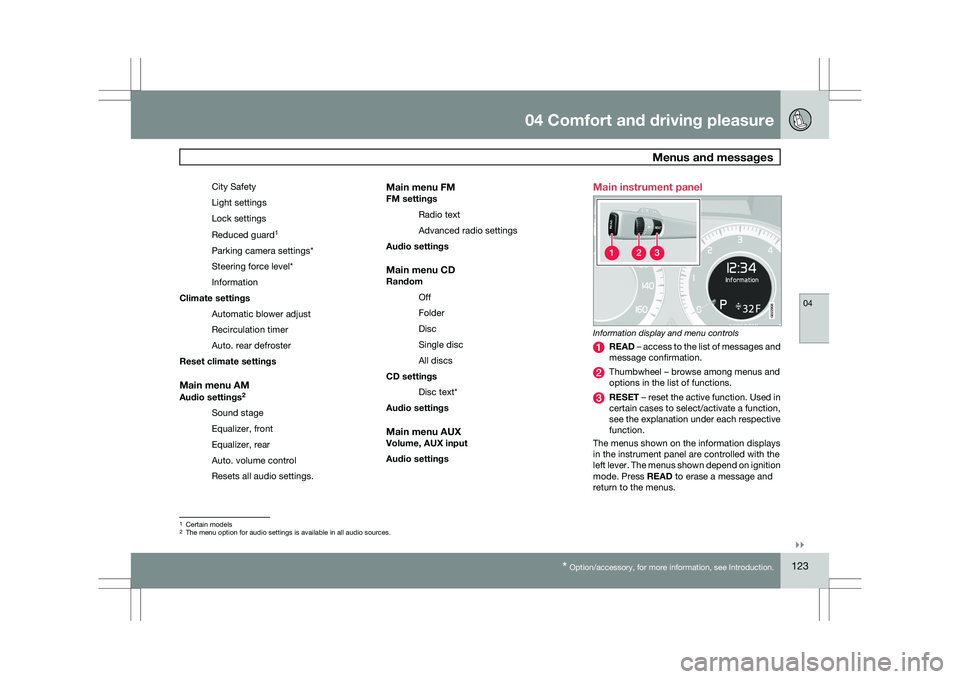
Information display and menu controls
READ – access to the list of messages and
message confirmation.
Thumbwheel – browse among menus and
options in the list of functions.
RESET – reset the active function. Used in
certain cases to select/activate a function,
see the explanation under each respective
function.
The menus shown on the information displays
in the instrument panel are controlled with the
left lever. The menus shown depend on ignition
mode. Press READ to erase a message and
return to the menus. 1
Certain models
2 The menu option for audio settings is available in all audio sources. G022908
Page 138 of 297
04 Comfort and driving pleasureAudio system 04
136
* Option/accessory, for more information, see Introduction.
1. Select the function in the menu to be
stored. Only certain functions can be
stored.
2. Press and hold MY KEY for more than two
seconds.
Activate the stored function by pressing MY
KEY briefly.
The following functions can be pro-
grammed using MY KEY:
FM
Radio text on/off
Audio settings Sound stage (front/driver/rear)
Auto. volume control (off/low/medium/
high)
Sirius satellite radio* Add song to memory
Direct channel entry
Song seek (on/off)
Sirius settings – Song memory (show
memory list)
CD/CD changer Random (CD changer)
Disc text (on/off) Track information (on/off)
Car settings Fold mirror when locking
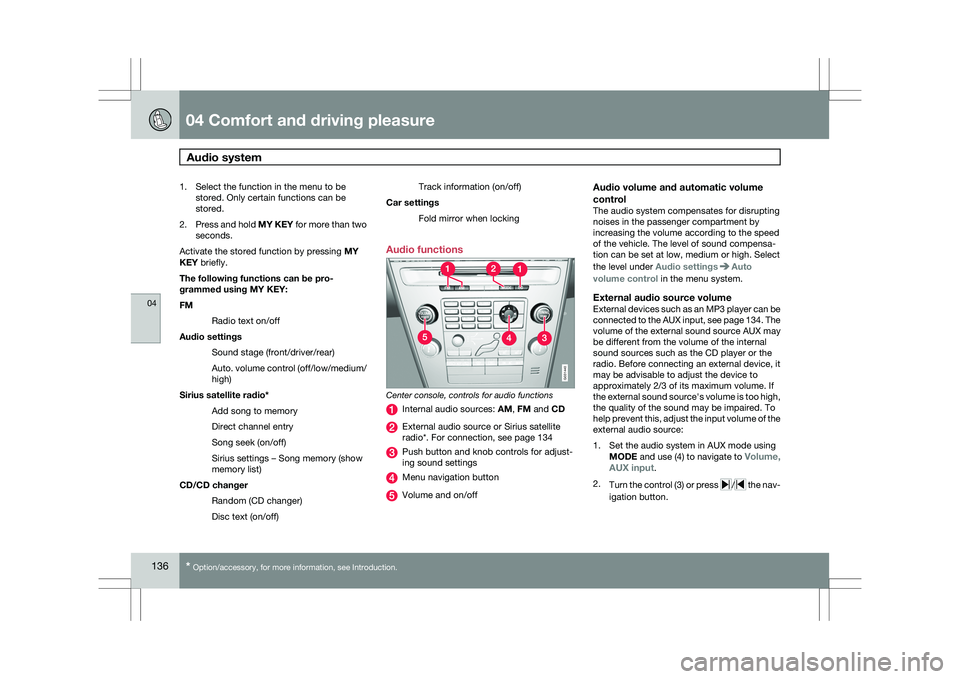
Audio functions Center console, controls for audio functions
Internal audio sources:
AM, FM and CD External audio source or Sirius satellite
radio*. For connection, see page 134
Push button and knob controls for adjust-
ing sound settings
Menu navigation button
Volume and on/off
Audio volume and automatic volume
control
The audio system compensates for disrupting
noises in the passenger compartment by
increasing the volume according to the speed
of the vehicle. The level of sound compensa-
tion can be set at low, medium or high. Select
the level under Audio settings Auto
volume control in the menu system.
External audio source volumeExternal devices such as an MP3 player can be
connected to the AUX input, see page 134. The
volume of the external sound source AUX may
be different from the volume of the internal
sound sources such as the CD player or the
radio. Before connecting an external device, it
may be advisable to adjust the device to
approximately 2/3 of its maximum volume. If
the external sound source\fs volume is too high,
the quality of the sound may be impaired. To
help prevent this, adjust the input volume of the
external audio source:
1. Set the audio system in AUX mode using MODE and use (4) to navigate to Volume,
AUX input.
2. Turn the control (3) or press / the nav-
igation button. G031440
Page 140 of 297
04 Comfort and driving pleasureAudio system 04
138 intended to enable the user to adapt sound
reproduction to his/her personal tastes.
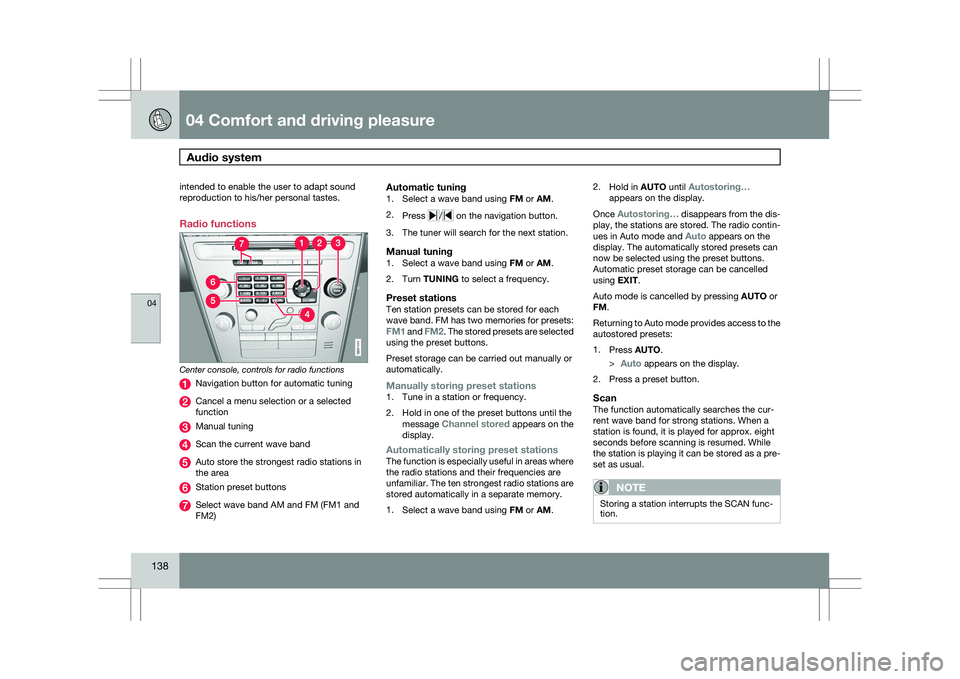
Radio functions
Center console, controls for radio functions
Navigation button for automatic tuning
Cancel a menu selection or a selected
function
Manual tuning
Scan the current wave band
Auto store the strongest radio stations in
the area
Station preset buttons
Select wave band AM and FM (FM1 and
FM2)
Automatic tuning1.
Select a wave band using FM or AM.
2. Press / on the navigation button.
3. The tuner will search for the next station.
Manual tuning1. Select a wave band using FM or AM.
2. Turn TUNING to select a frequency.
Preset stationsTen station presets can be stored for each
wave band. FM has two memories for presets:
FM1 and FM2. The stored presets are selected
using the preset buttons.
Preset storage can be carried out manually or
automatically.
Manually storing preset stations1. Tune in a station or frequency.
2. Hold in one of the preset buttons until the
message Channel stored appears on the
display.
Automatically storing preset stationsThe function is especially useful in areas where
the radio stations and their frequencies are
unfamiliar. The ten strongest radio stations are
stored automatically in a separate memory.
1.Select a wave band using FM or AM. 2.
Hold in AUTO until Autostoring…
appears on the display.
Once Autostoring… disappears from the dis-
play, the stations are stored. The radio contin-
ues in Auto mode and Auto appears on the
display. The automatically stored presets can
now be selected using the preset buttons.
Automatic preset storage can be cancelled
using EXIT.
Auto mode is cancelled by pressing AUTO or
FM.
Returning to Auto mode provides access to the
autostored presets:
1. Press AUTO.
>
Auto appears on the display.
2. Press a preset button.
ScanThe function automatically searches the cur-
rent wave band for strong stations. When a
station is found, it is played for approx. eight
seconds before scanning is resumed. While
the station is playing it can be stored as a pre-
set as usual.
NOTE Storing a station interrupts the SCAN func-
tion. G031441