Led VOLVO XC60 TWIN ENGINE 2020 Owners Manual
[x] Cancel search | Manufacturer: VOLVO, Model Year: 2020, Model line: XC60 TWIN ENGINE, Model: VOLVO XC60 TWIN ENGINE 2020Pages: 687, PDF Size: 14.65 MB
Page 494 of 687

AUDIO, MEDIA AND INTERNET
* Option/accessory.
492
Playing media
The media player is controlled from the cen- ter display. Several other functions can alsobe controlled using the right-side steeringwheel keypad or by using voice commands. The radio can also be controlled in the media player. See the section describing the radio.
Starting a media source
App view. (Generic illustration; basic apps vary depending on market and model).
CD *
1. Insert a CD. 2.
Open the
CD app from App view.
3. Select the track you would like to play. > Playback will begin.
USB flash drive
1. Inset a USB flash drive. 2.Open the
USB app from App view.
3. Select the track you would like to play. > Playback will begin.
MP3 player and iPod®
NOTE
To start playback from an iPod, the iPod app must be used (not USB). When an iPod is used as source, the car's audio and media system has a menu struc-ture similar to the iPod player's own menustructure.
1. Connect a media source.
2. Start playback in the connected media
source.
3. Open the app (
iPod, USB) from App view.
> Playback will begin.
Bluetooth-connected device
1. Activate Bluetooth in the media source. 2. Connect a media source.
3. Start playback in the connected media
source.
4. Open the
Bluetooth app from App view.
> Playback will begin.
Media with Internet connection
Medial playback from apps with Internet con- nection:
1. Connect the vehicle to the Internet.
2. Open the app from the App view. > Playback will begin.
Read the separate section on how to down- load apps.
Video
1. Connect a media source. 2. Open the
USB app from App view.
3. Tap the title you would like to play. > Playback will begin.
Apple CarPlay
CarPlay is described in a separate section.
Android Auto
Android Auto is described in a separate sec- tion.
Page 495 of 687
AUDIO, MEDIA AND INTERNET
}}
* Option/accessory.493
Related information
Handling the App menu in the instrument panel (p. 108)
Radio (p. 474)
Controlling and changing media (p. 493)
Connecting a device via the USB port(p. 498)
Connecting a device via Bluetooth ®
(p. 497)
Download apps (p. 473)
Internet-connected vehicle
* (p. 516)
Video (p. 496)
Apple ®
CarPlay ®
* (p. 500)
Android Auto
* (p. 504)
Voice control for radio and media (p. 152)
Compatible file formats for media(p. 499)
Controlling and changing media
Media playback can be controlled using voice commands, the steering wheel keypad or thecenter display.
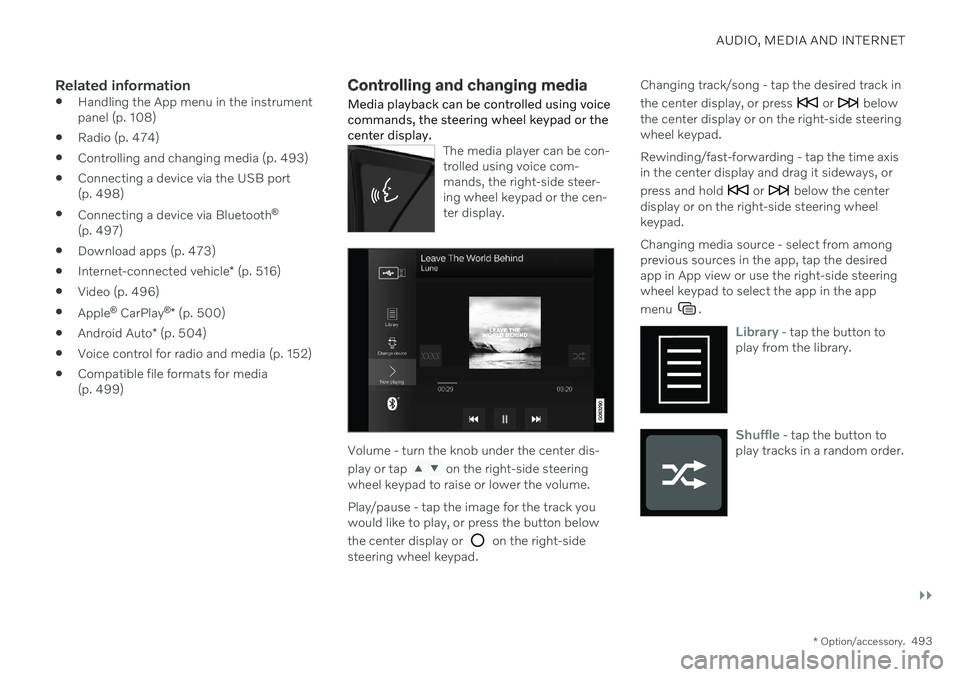
The media player can be con- trolled using voice com-mands, the right-side steer-ing wheel keypad or the cen-ter display.
Volume - turn the knob under the center dis- play or tap
on the right-side steering
wheel keypad to raise or lower the volume. Play/pause - tap the image for the track you would like to play, or press the button below the center display or
on the right-side
steering wheel keypad. Changing track/song - tap the desired track in the center display, or press
or below
the center display or on the right-side steering wheel keypad. Rewinding/fast-forwarding - tap the time axis in the center display and drag it sideways, or press and hold
or below the center
display or on the right-side steering wheel keypad. Changing media source - select from among previous sources in the app, tap the desiredapp in App view or use the right-side steeringwheel keypad to select the app in the app menu
.
Library - tap the button to
play from the library.
Shuffle - tap the button to
play tracks in a random order.
Page 499 of 687

AUDIO, MEDIA AND INTERNET
497
Video settings
You can change some language settings for video playback.
Audio Language and Subtitle Language can
be adjusted with the video player in full-screen mode or by opening Top view and tapping
SettingsMediaVideo.
Related information
Video (p. 496)
Streaming media via Bluetooth ®
The vehicle's media player is equipped with Bluetooth and can play audio files fromBluetooth-enabled external devices such ascellular phones and tablets.
In order for the media player to be able to wirelessly play audio files from an externaldevice, the device must be connected to thevehicle via Bluetooth.
Related information
Connecting a device via Bluetooth ®
(p. 497)
Connecting a phone to the car via Blue-tooth for the first time (p. 508)
Playing media (p. 492)
Compatible file formats for media(p. 499)
Connecting a device via Bluetooth ®
Connect a Bluetooth ®
device to the vehicle to
wirelessly play media and give the vehicle an Internet connection if it is available.
Many cellular phones on the market currently offer wireless Bluetooth ®
technology, but not
all phones are fully compatible with the vehi- cle. The procedure for connecting a media device is the same as for connecting a cellular phone to the vehicle via Bluetooth ®
.
Related information
Streaming media via Bluetooth ®
(p. 497)
Connecting a phone to the car via Blue- tooth for the first time (p. 508)
Playing media (p. 492)
Page 502 of 687

||
AUDIO, MEDIA AND INTERNET
* Option/accessory.
500
DivX ®
DivX-certified devices have been tested for high-quality DivX (.divx, .avi) video playback.When you see the DivX logo, you have thefreedom to play your favorite DivX videos.
Profile DivX Home Theater
Video codec DivX, MPEG-4
Resolution 720x576Audio speed (bit rate) 4.8Mbps
Frame rate 30 fps
File extension .divx, .avi
Max. file size 4 GB
Audio codec MP3, AC3
Subtitles XSUB Special func- tions Multiple subtitles, multi-ple audio, resume play
Reference Meets all requirements of the DivX Home Theaterprofile. Visit divx.com formore information andsoftware tools to convertyour files into DivX HomeTheater video.
Related information
Media player (p. 491)
Video (p. 496)
Playing DivX ®
(p. 496)Apple ®
CarPlay ®
*
With CarPlay, you can listen to music, make phone calls, get driving instructions, send/receive messages and use Siri, all whileremaining focused on driving.
CarPlay works with select iOS devices. If the car doesnot already support CarPlay,this can be retrofitted. Con-tact a Volvo retailer to installCarPlay.
Information about supported apps and com- patible iOS devices are available on the Applewebsite: www.apple.com/ios/carplay/. Usingapps that are not compatible with CarPlaymay sometimes mean that the connectionbetween the device and the vehicle is broken.Please note that Volvo is not responsible forthe content of CarPlay. When using map navigation via CarPlay, guid- ance will only be shown on the center displayand not in the instrument panel or head-updisplay. When navigation is started through Apple CarPlay, any current route guidance from thevehicle's own systems will be discontinued. CarPlay apps can be controlled from the cen- ter display, an iOS device or with the right-side steering wheel keypad (for certain func-tions). The apps can also be voice-controlled
Page 503 of 687
AUDIO, MEDIA AND INTERNET
}}
* Option/accessory.501
using Siri. Press and hold the
button on
the steering wheel to start voice control with Siri. Press briefly to activate the vehicle's ownvoice control system. If Siri cuts off too soon, press and hold the
6 button on the steer-
ing wheel.
By using Apple CarPlay you acknowledge the following: Apple CarPlay is a serviceprovided by Apple Inc. under its terms andconditions. Volvo Cars is thus notresponsible for Apple CarPlay or itsfeatures/applications. When using AppleCarPlay, certain information from your car(including its position) is transferred toyour iPhone. In relation to Volvo Cars, youare fully responsible for your and anyothers person
Page 506 of 687

||
AUDIO, MEDIA AND INTERNET
* Option/accessory.
504 but the text will be shown in your iOS device. When using Siri, note that it is thephone's microphones that are used andthe quality therefore depends on thephone's location.
If the device is connected to the vehiclethrough Bluetooth, the connection will bebroken when CarPlay is used. ResumeInternet connection in the vehicle by teth-ering using the device's Wi-Fi hotspot.
Some of CarPlay's functions (such asvoice calls and messages) interrupt theuse of the vehicle's own functions andCarPlay will instead be automatically dis-played. If you do not wish this to happen,deselect display of the correspondingfunction in CarPlay under the phone'snotification settings.
CarPlay only works with iPhone 9
.
NOTE
Availability and functionality can vary depending on market.
Related information
Apple ®
CarPlay ®
* (p. 500)
Connecting the vehicle to the Internet via a phone (Wi-Fi) (p. 517)
Android Auto
*
Android Auto lets you listen to music, make calls, get driving directions and use apps cus-tomized for your vehicle from an Androiddevice. Android Auto can be used withselected Android devices.
For information on supported apps and com- patible Android devices, please go towww.android.com/auto/. For third-party apps,see Google Play. Please note that Volvo is notresponsible for the content of Android Auto. Android Auto is started from App view. After Android Auto has been initially started, the appwill start automatically the next time thedevice is connected. The automatic start set-ting can be deactivated in Settings.
NOTE
When a device is connected to Android Auto, it is possible to steam to anothermedia player via Bluetooth. Bluetooth isactive while Android Auto is in use.
When using navigation guidance provided by Android Auto, navigation will only be shownon the center display and not in the instrumentpanel or head-up display. Android Auto can be controlled from the cen- ter display, with the right-side steering wheelkeypad or by using voice commands. Press and hold the
button on the steering wheel
keypad to start Google Assistant and press briefly to deactivate it.
By using Android Auto, you acknowledge the following: Android Auto is a serviceprovided by Google Inc. under its termsand conditions. Volvo Cars is notresponsible for Android Auto or itsfeatures or applications. When you useAndroid Auto, your car transfers certaininformation (including its location) to yourconnected Android phone. You are fullyresponsible for your and any otherperson
Page 507 of 687

AUDIO, MEDIA AND INTERNET
* Option/accessory.505
Related information
Using Android Auto
* (p. 505)
Settings for Android Auto
* (p. 506)
Using Android Auto *
To use the
Android Auto app, the app must
be installed on the Android device and the device must be connected to the vehicle'sUSB port.
NOTE
For installation of Android Auto to be pos- sible, the vehicle must be equipped with two USB ports (USB hub) *. If the car only
has one USB port then it is not possible to use Android Auto.
Connecting an Android device for the first
time
1. Connect the Android device to the USB port with the white frame.
2. Read the information in the pop-up win- dow and then tap
OK.
3. Tap
Android Auto in App view.
4. Read the terms and conditions and then tap
Accept to connect.
> The Android Auto tile will open and compatible apps will be displayed.
5. Tap the desired app. > The app will start up.
From a previously connected Android
device
1. Connect the device to the USB port with the white frame. >If the auto start setting is selected -
the name of the device will be dis- played.
2. Tap the name of the device – the Android Auto tile will open and compatibleapps will be displayed.
3. If the automatic start setting is not acti- vated - open the
Android Auto app from
App view.
> The Android Auto tile will open and compatible apps will be displayed.
4. Tap the desired app. > The app will start up.
Android Auto will run in the background if another app is started in the same tile. To dis-play Android Auto in the tile, tap theAndroid Auto icon in App view.
Related information
Android Auto
* (p. 504)
Settings for Android Auto
* (p. 506)
Connecting a device via the USB port(p. 498)
Voice Control (p. 148)
Page 509 of 687

AUDIO, MEDIA AND INTERNET
}}
* Option/accessory.507
by tethering using the device's Wi-Fi hot- spot.
A maximum of 20 Android devices can bestored at the same time, which may beworth noting if many people share thevehicle, e.g. in a car pool. When the list isfull and a new device is connected, theoldest one will be deleted. A factory resetmust be performed to delete the list.
Related information
Android Auto
* (p. 504)
Connecting the vehicle to the Internet viaa phone (Wi-Fi) (p. 517)
Phone
A phone equipped with Bluetooth can be wirelessly connected to the vehicle's inte-grated hands-free system.
The audio and media system offers hands-free functionality for remotely controlling a numberof the phone's features. The phone's inte-grated controls can also be used, even when itis connected to the vehicle. When the phone has been paired and con- nected to the vehicle, it can be used as anInternet connection or to make or receivecalls, send or receive text messages or wire-lessly play music. The phone is controlled from the center dis- play, and the App menu (accessed using theright-side steering wheel keypad) and voicecommands can also be used to control certainfunctions.
Overview
Microphone.
Phone.
Phone handling in the center display.
Keypad for controlling phone functions shown in the center display and voicecommands.
Instrument panel.
Related information
Handling phone calls (p. 511)
Managing the phone book (p. 514)
Handling text messages (p. 512)
Connecting a phone to the car via Blue- tooth for the first time (p. 508)
Page 510 of 687

AUDIO, MEDIA AND INTERNET
508
Connecting a phone to the car via Blue- tooth automatically (p. 510)
Connecting a phone to the car via Blue-tooth manually (p. 510)
Disconnecting a Bluetooth-connectedphone (p. 510)
Switch between phones connected viaBluetooth (p. 511)
Disconnecting Bluetooth-connected devi-ces (p. 511)
Phone settings (p. 514)
Voice Control (p. 148)
Handling the App menu in the instrumentpanel (p. 108)
Sound settings (p. 470)
Connecting the vehicle to the Internet viaa Bluetooth-connected phone (p. 517)
Connecting a phone to the car via Bluetooth for the first time
Pair a Bluetooth-enabled phone to the vehicle to make calls, send/receive text messagesand wirelessly play media from the vehicle, orconnect the vehicle to the Internet.
Two Bluetooth devices can be connected at the same time, but in that case, only one willbe used for wireless playback. The mostrecently paired phone will be automaticallyconnected to make calls, send/receive textmessages, play media or use as an Internetconnection. It is possible to change what the phone is used for under
Bluetooth Devicesvia the settings menu in the center display's Top view. The cellular phone must be equip-ped with Bluetooth and support tethering. After the device has been connected/regis- tered for the first time via Bluetooth, thedevice no longer needs to be visible/searcha-ble. It just needs to have Bluetooth activated.A maximum of 20 paired Bluetooth devicescan be stored in the vehicle. There are two ways to pair a phone to the vehicle. Searching for the phone from the vehi-cle or searching for the vehicle from thephone.
Option 1 - searching for the phone from the vehicle
1. Make the phone discoverable/visible using its Bluetooth function.
2. Open the phone tile in the center display.
If no phone has been paired to the vehi- cle, tap
Add phone.
If a phone has been paired to the vehi- cle, tap
Change. Tap Add phone in
the pop-up window.
> A list of available Bluetooth devices will be displayed. The list will be updated as new devices are discovered.
3. Tap the name of the phone you would like to connect.
4. Make sure that the code displayed in the vehicle matches the one in the phone. If itdoes, confirm the code in both places.
5. In the phone, accept or cancel the options for selecting the phone's contacts and textmessages.
NOTE
The message function must be acti- vated in certain phones.
Not all cell phones are fully compatibleand may not be able to display con-tacts and messages in the vehicle.
Page 514 of 687

||
AUDIO, MEDIA AND INTERNET
512opened using the
button on the right-side
steering wheel keypad.
Making multiple calls
While the call is in progress: 1. Tap
Add call.
2. Select from the list of recent calls, favor- ites or contacts.
3. Tap an item/row in the list of recent calls or
for the contact in the phone book.
4. Tap
Swap call to switch between calls.
5. Tap
to end the current call.
Group (conference) calls
While multiple calls are in progress: 1.
Tap
Join calls to merge ongoing calls.
2. Tap
to end the call.
Incoming callsIncoming phone calls will be shown on the instrument panel and in the center display.Manage the calls using the right-side steeringwheel keypad or the center display. 1.
Tap
Answer/Reject.
2. Tap
to end the call.
Incoming calls while another call is in progress
1.
Tap Answer/Reject. 2.
Tap
to end the call.
Privacy–While a call is in progress, tap Privacyand select setting:
Switch to mobile phone - the hands-
free function will be disabled and the call will proceed on the cellular phone.
Driver focused - the microphone in the
ceiling liner on the passenger side will be muted and the call will proceedusing the vehicle's hands-free function.
Related information
Phone (p. 507)
Connecting a phone to the car via Blue-tooth for the first time (p. 508)
Voice control for cellular phones (p. 151)
Handling the App menu in the instrumentpanel (p. 108)
Entering characters, letters and words byhand in the center display (p. 132)
Managing the phone book (p. 514)
Handling text messages (p. 512)
Sound settings (p. 470)
Handling text messages 10
A Bluetooth-connected cellular phone's text messages can be handled in the vehicle.
Text message functionality needs to be acti- vated in certain phones. Not all phones arefully compatible and therefore cannot displaycontacts and messages in the vehicle.
Handling text messages in the center
display
Text messages are only shown in the centerdisplay if the relevant setting is made.
Tap
Messages in App view
to handle text messages in the center display.
NOTE
When the vehicle is moving:
Only one row of the message will be displayed. Tap
Read out to have the
entire message read aloud.
The center display's keyboard cannot be used.