key VOLVO XC90 2015 Owners Manual
[x] Cancel search | Manufacturer: VOLVO, Model Year: 2015, Model line: XC90, Model: VOLVO XC90 2015Pages: 570, PDF Size: 12.44 MB
Page 419 of 570
VOLVO ON CALL WITH SENSUS CONNECT *
* Option/accessory, for more information, see Introduction.
417
Locating the vehicleThe vehicle's location is shown on a map and directions to the vehicle can be provided. There isalso a digital compass to help show the ownerthe right direction. When you are within approx.100 yards/meters of the vehicle, you can activateits horn and turn signals to help locate it.
The vehicle's instrument panelThis function provides information such as: thefuel level, range on the remaining fuel, averagefuel consumption, average speed and odometer/trip odometer readings.
Vehicle "checkup"The mobile app monitors the vehicle's conditionand provides information about bulbs and the lev-els of brake fluid, coolant and engine oil.
Driving logbookDetailed information about each trip made duringthe past 40 days can be saved and downloaded.All or part of this information can be exportedfrom the mobile app to a spreadsheet format andsent to an email address. This is very useful fore.g., keeping track of business-related driving. This function can be deactivated, in which case the vehicle will not transmit logbook informationat the end of each trip.
Vehicle informationBasic information such as model, license platenumber and VIN number are readily accessible.
Theft notificationIf the vehicle's alarm is triggered, the owner willbe informed via his/her cell phone.
Remote door unlockThe status of all doors and windows is provided.The owner can lock/unlock the vehicle fromanother location but for security reasons, theapp's password is always required before thevehicle can be unlocked.
Engine remote start (ERS)*1ERS makes it possible to remotely start theengine using the remote key to enable the cli-mate system to cool or heat the passenger com-partment before driving. When the engine starts, the climate and infotain- ment systems will restart using the same settingsas when the engine was switched off. You can choose to let the engine run for between 1 and 15 minutes before it automati-cally switches off again. After 2 ERS starts, theengine must be started in the normal way beforeERS can be used again.
WARNING
Keep the following in mind before using ERS:
• The vehicle should be in view.
• The vehicle should be unoccupied.
• The vehicle must not be parked indoors or in an enclosed area. Exhaust fumes areharmful to the health.
NOTE
Always observe applicable state, province and/or local laws regarding engine idlingwhen using ERS.
Related information
•Volvo On Call convenience services (p. 416)
• Volvo On Call (VOC)
* (p. 414)
• Volvo ID (p. 27)
• Starting the engine (p. 356)
• Volvo On Call (VOC) functions (p. 415)
1
Certain models only.
Page 427 of 570
VOLVO ON CALL WITH SENSUS CONNECT *
* Option/accessory, for more information, see Introduction.
425
Roadside assistanceRequest help for e.g., flat tires, a discharged bat- tery, if you have run out of fuel, etc.
Emergency numberWhen an emergency call has been initiated, VOCattempts to contact the customer service center.If this is not possible, the call will be transferredto the emergency 911 number instead.
Related information
•Volvo On Call (VOC)
* (p. 414)
• Volvo On Call manual safety service (p. 424)
• Volvo On Call roadside assistance (p. 425)
• Using Volvo On Call (p. 414)
Volvo On Call roadside assistance
Use VOC to summon help in the event of a flat tire, an empty fuel tank, etc.
1. Press the ON CALL button for at least
2 seconds.
2. The VOC customer service center attempts to establish voice contact with the driver to determine the need for assistance.
Related information
•Volvo On Call (VOC)
* (p. 414)
• Volvo On Call safety services (p. 424)
• Volvo On Call manual safety service (p. 424)
• Using Volvo On Call (p. 414)
Volvo On Call security services The Volvo On Call (VOC) security services are intended to provide assistance, for instance, ifyou are locked out of your vehicle, if it has beenstolen, etc.
Volvo On Call's security services are primarily intended to help minimize the risk of the vehiclebeing stolen. If the vehicle's normal electrical system is not functioning properly, VOC's reserve battery pro-vides the system with current.
Theft notificationA signal will be sent automatically to the VolvoOn Call customer service center in the event of abreak-in or theft (if the vehicle's alarm has beentriggered). This service will be interrupted if the alarm is turned off using one of the vehicle's remote keys.
Remote door unlockIf the vehicle's remote key has been lost orlocked in the car, the doors can be unlockedremotely within the following 5 days with assis-tance from the VOC customer service centerafter the owner's identity has been verified byhis/her pin code.
Remote vehicle immobilizerIf the vehicle has been stolen, the owner or policecan contact the VOC customer service center to
Page 428 of 570
VOLVO ON CALL WITH SENSUS CONNECT *
* Option/accessory, for more information, see Introduction.
426 have the vehicle's remote keys immobilized (deactivated).
NOTE
This applies even if the vehicle has been unlocked and started with one of its remotekeys.
After contacting the owner/police, the VOC cus- tomer service center then deactivates the remotekeys. Once the engine has been switched off, itcan only be restarted if the owner/police hasgiven the VOC customer service center authori-zation to reactivate the remote keys. Once thisauthorization has been verified (using your PINcode), the VOC customer service center will reac-tivate the remote keys.
Related information
•
Volvo On Call (VOC)
* (p. 414)
• Unlocking the vehicle from the customer service center (p. 426)
• Service center phone number (p. 419)
• Volvo On Call PIN code (p. 418)
Unlocking the vehicle from the customer service center
The doors can be unlocked remotely with assis-
tance from the VOC customer service center.
1. Contact the VOC customer service center at 855-399-4691 (this number applies in both the United States and Canada).
2. After confirming that the caller is the vehi- cle's owner or other authorized person (usingyour PIN code), the VOC customer servicecenter sends a signal to the vehicle to unlockit.
3. The tailgate has to be opened to unlock the other doors. Press lightly on the rubberizedpressure plate under the outer tailgate han-dle.
NOTE
If the tailgate is not opened within the time period set by the VOC customer service cen-ter, it will relock.
NOTE
If the vehicle is parked in a garage or other covered area, remote unlocking may not bepossible due to poor signal reception.
Related information
• Volvo On Call security services (p. 425)
• Volvo On Call (VOC)
* (p. 414)
• Locking/unlocking the tailgate (p. 233)
Page 435 of 570
NAVIGATION*
* Option/accessory, for more information, see Introduction.
433
StepCenter dis- play/menuAction
5Start navi- gation is
displayed on thescreen.Tap Start navigation.
6A map showingthe route toyour desti-nation isdisplayed.Guidance will begin. Fol- low the directions on theinstrument panel.
Related information
• Using the center display (p. 46)
• Center display overview (p. 29)
Navigation displays and controls
Volvo Sensus Navigation is presented on the instrument panel and head-up display * and con-
trolled using center display on-screen buttons, the right-side steering wheel keypad and voicecommands.
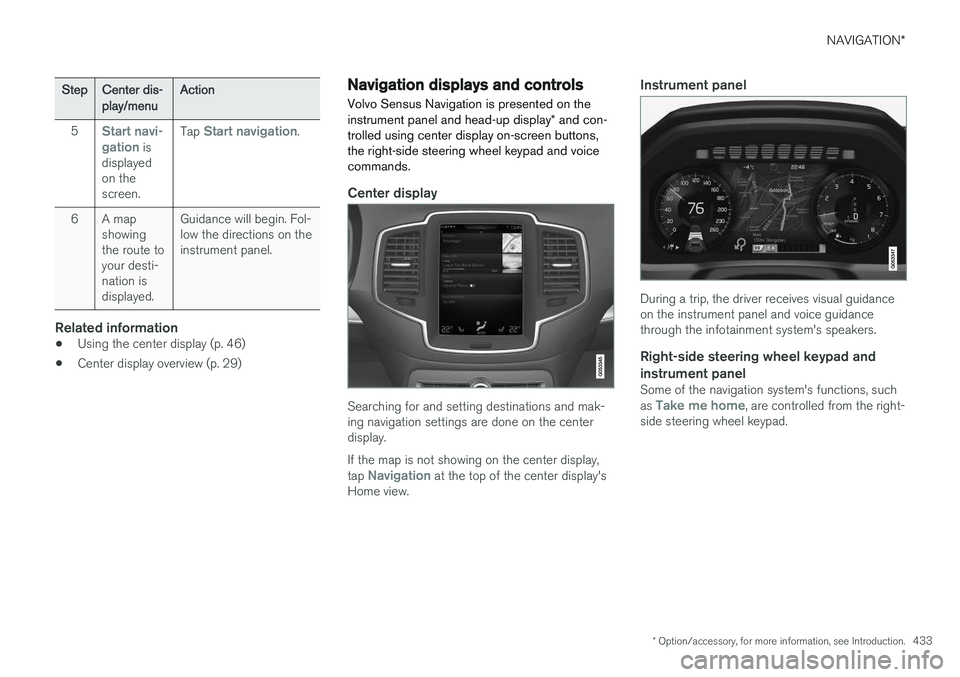
Center display
Searching for and setting destinations and mak- ing navigation settings are done on the centerdisplay. If the map is not showing on the center display, tap
Navigation at the top of the center display's
Home view.
Instrument panel
During a trip, the driver receives visual guidance on the instrument panel and voice guidancethrough the infotainment system's speakers.
Right-side steering wheel keypad and instrument panel
Some of the navigation system's functions, such as Take me home, are controlled from the right-
side steering wheel keypad.
Page 436 of 570
NAVIGATION*
* Option/accessory, for more information, see Introduction.
434
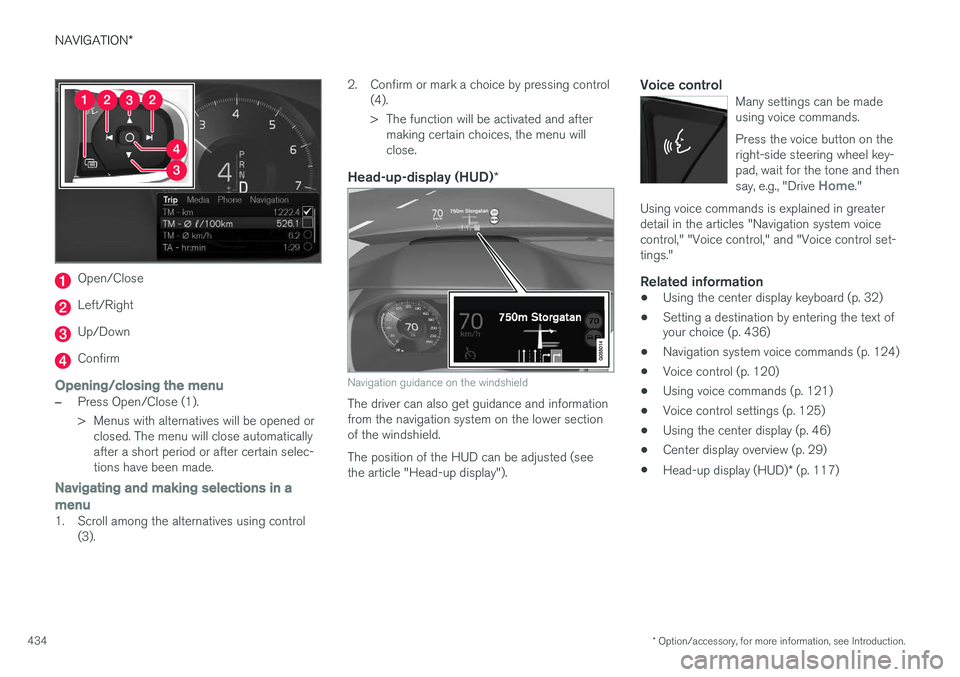
Open/Close
Left/Right
Up/Down
Confirm
Opening/closing the menu
–Press Open/Close (1).
> Menus with alternatives will be opened or
closed. The menu will close automatically after a short period or after certain selec-tions have been made.
Navigating and making selections in a menu
1. Scroll among the alternatives using control (3). 2. Confirm or mark a choice by pressing control
(4).
> The function will be activated and aftermaking certain choices, the menu will close.
Head-up-display (HUD) *
Navigation guidance on the windshield
The driver can also get guidance and information from the navigation system on the lower sectionof the windshield. The position of the HUD can be adjusted (see the article "Head-up display").
Voice controlMany settings can be madeusing voice commands. Press the voice button on the right-side steering wheel key-pad, wait for the tone and then say, e.g., "Drive
Home."
Using voice commands is explained in greater detail in the articles "Navigation system voicecontrol," "Voice control," and "Voice control set-tings."
Related information
•Using the center display keyboard (p. 32)
• Setting a destination by entering the text of your choice (p. 436)
• Navigation system voice commands (p. 124)
• Voice control (p. 120)
• Using voice commands (p. 121)
• Voice control settings (p. 125)
• Using the center display (p. 46)
• Center display overview (p. 29)
• Head-up display (HUD)
* (p. 117)
Page 438 of 570
NAVIGATION*
* Option/accessory, for more information, see Introduction.
436
Changing the icon's locationPress the icon on the map, drag it to the desired position and release it.
Related information
• Entering a destination (p. 435)
Setting a destination by entering the text of your choice
Entering the text of your choice is one way to set a destination.
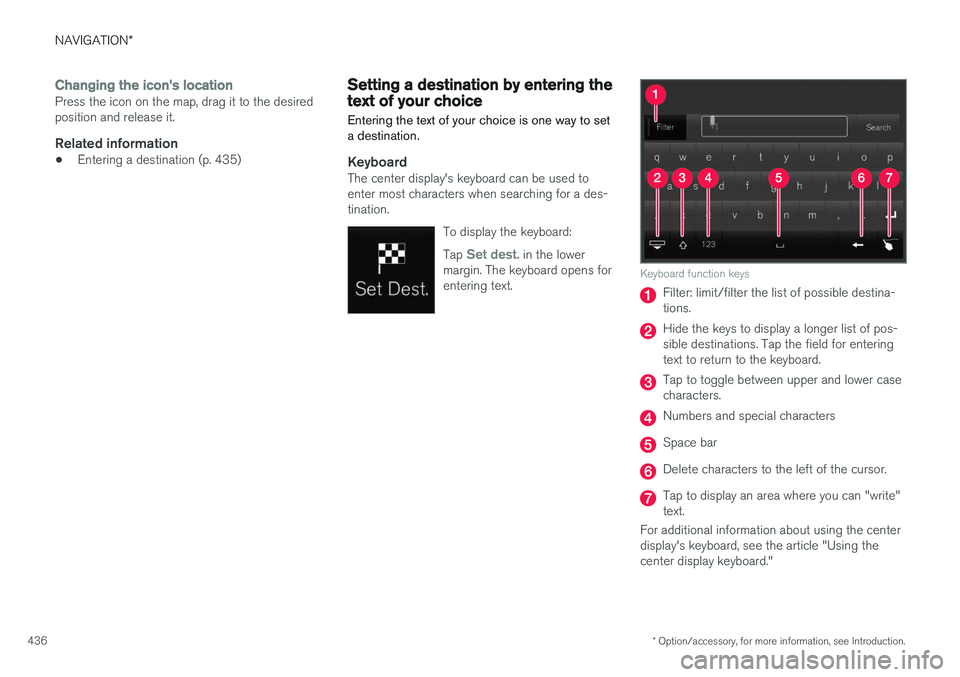
KeyboardThe center display's keyboard can be used to enter most characters when searching for a des-tination.
To display the keyboard: Tap
Set dest. in the lower
margin. The keyboard opens for entering text.
Keyboard function keys
Filter: limit/filter the list of possible destina- tions.
Hide the keys to display a longer list of pos- sible destinations. Tap the field for enteringtext to return to the keyboard.
Tap to toggle between upper and lower case characters.
Numbers and special characters
Space bar
Delete characters to the left of the cursor.
Tap to display an area where you can "write" text.
For additional information about using the centerdisplay's keyboard, see the article "Using thecenter display keyboard."
Page 440 of 570
NAVIGATION*
* Option/accessory, for more information, see Introduction.
438
CoordinatesA destination can also be set by entering its map coordinates.
• For example, enter: "N 58.1234 E 12.5678" and tap
Search/.
Map coordinates can be written in different ways, such as:
N 58.1234 E 12.5678 (with spaces)
N 58.1234 E12.5678 (without spaces)
58.1234 N 12.5678 E (with the points on the
compass after the coordinates)
58.1234 -12.5678 (with a hyphen without the
points on the compass)
Both periods [.] and commas [,] can be used.
Related information
• Entering a destination (p. 435)
• Navigation displays and controls (p. 433)
• Using the center display keyboard (p. 32)
• Information cards on the map (p. 446)
Setting a destination using Recent/ Favorites/Library Selecting from a list is one way of setting a des- tination.
To display these lists:
1. Tap
Set dest. in the lower
margin. A keyboard will be dis- played with search alternativesin the upper margin. 2. Continue by selecting one of the lists in the upper margin:
•Recent
•Favorites
•Library
After marking an alternative, it will be added as a destination by tapping the Start navigation orAdd as waypoint buttons.
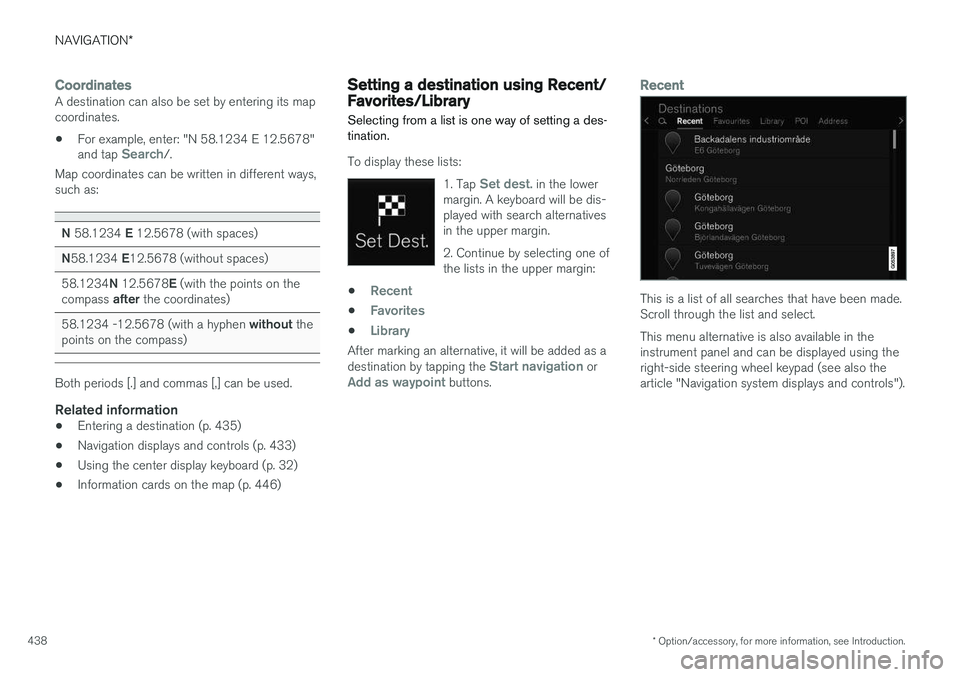
Recent
This is a list of all searches that have been made. Scroll through the list and select. This menu alternative is also available in the instrument panel and can be displayed using theright-side steering wheel keypad (see also thearticle "Navigation system displays and controls").
Page 441 of 570
NAVIGATION*
* Option/accessory, for more information, see Introduction.
439
Favorites
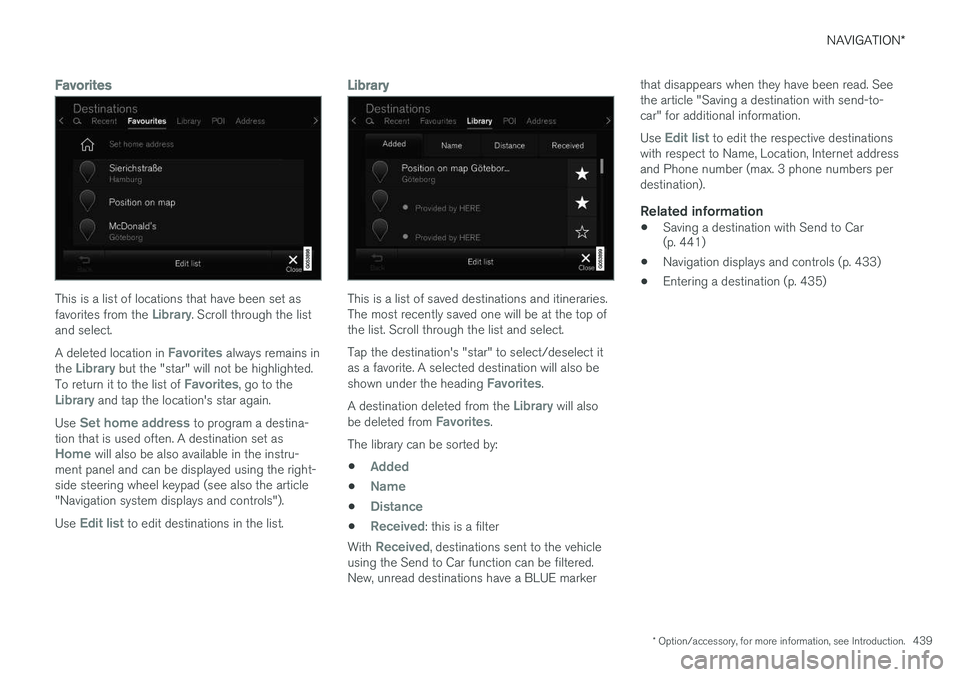
This is a list of locations that have been set as favorites from the Library. Scroll through the list
and select. A deleted location in
Favorites always remains in
the Library but the "star" will not be highlighted.
To return it to the list of Favorites, go to theLibrary and tap the location's star again.
Use
Set home address to program a destina-
tion that is used often. A destination set as
Home will also be also available in the instru-
ment panel and can be displayed using the right- side steering wheel keypad (see also the article"Navigation system displays and controls"). Use
Edit list to edit destinations in the list.
Library
This is a list of saved destinations and itineraries. The most recently saved one will be at the top ofthe list. Scroll through the list and select. Tap the destination's "star" to select/deselect it as a favorite. A selected destination will also be shown under the heading
Favorites.
A destination deleted from the
Library will also
be deleted from Favorites.
The library can be sorted by:
•
Added
•Name
•Distance
•Received: this is a filter
With
Received, destinations sent to the vehicle
using the Send to Car function can be filtered. New, unread destinations have a BLUE marker that disappears when they have been read. Seethe article "Saving a destination with send-to-car" for additional information. Use
Edit list to edit the respective destinations
with respect to Name, Location, Internet address and Phone number (max. 3 phone numbers perdestination).
Related information
• Saving a destination with Send to Car (p. 441)
• Navigation displays and controls (p. 433)
• Entering a destination (p. 435)
Page 442 of 570
NAVIGATION*
* Option/accessory, for more information, see Introduction.
440
Using a point of interest (POI) as a destination
Selecting a point of interest (POI) is one way of setting a destination.
1. Tap Set dest. in the lower
margin. A keyboard will be dis- played with search alternativesin the upper margin. 2. Continue by selecting a
POIfrom the upper margin.
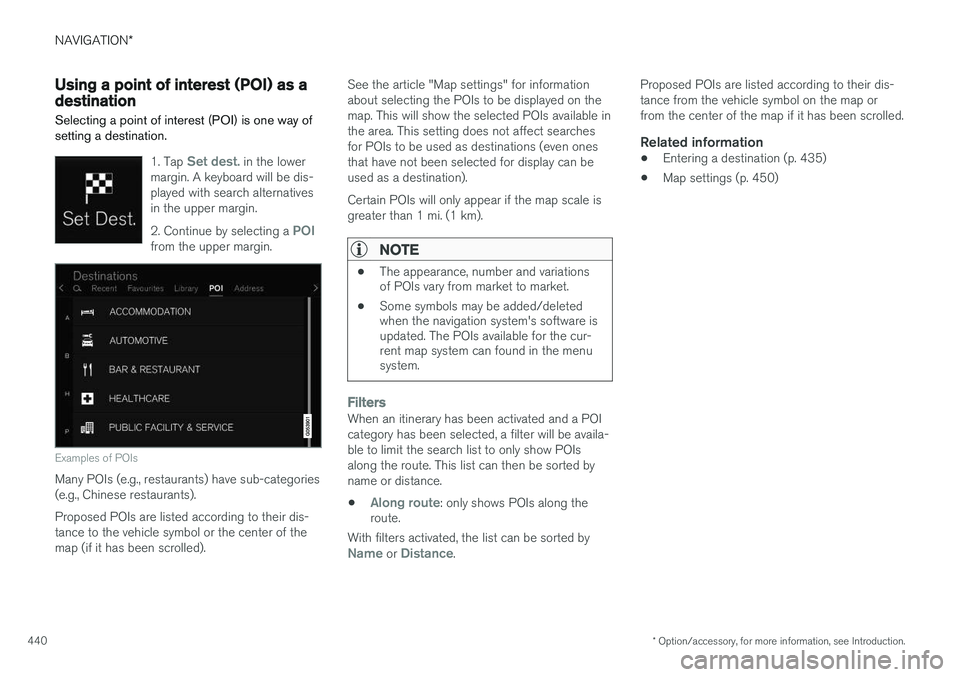
Examples of POIs
Many POIs (e.g., restaurants) have sub-categories (e.g., Chinese restaurants). Proposed POIs are listed according to their dis- tance to the vehicle symbol or the center of themap (if it has been scrolled). See the article "Map settings" for informationabout selecting the POIs to be displayed on themap. This will show the selected POIs available inthe area. This setting does not affect searchesfor POIs to be used as destinations (even onesthat have not been selected for display can beused as a destination). Certain POIs will only appear if the map scale is greater than 1 mi. (1 km).
NOTE
•
The appearance, number and variations of POIs vary from market to market.
• Some symbols may be added/deletedwhen the navigation system's software isupdated. The POIs available for the cur-rent map system can found in the menusystem.
FiltersWhen an itinerary has been activated and a POI category has been selected, a filter will be availa-ble to limit the search list to only show POIsalong the route. This list can then be sorted byname or distance.
•
Along route: only shows POIs along the
route.
With filters activated, the list can be sorted by
Name or Distance. Proposed POIs are listed according to their dis- tance from the vehicle symbol on the map orfrom the center of the map if it has been scrolled.
Related information
•
Entering a destination (p. 435)
• Map settings (p. 450)
Page 443 of 570
NAVIGATION*
* Option/accessory, for more information, see Introduction.
441
Setting a destination by entering an address
Entering an address is one way to set a destina- tion.
Tap Set dest. in the lower
margin. A keyboard will be dis- played with search alternativesin the upper margin. 2. Continue by selecting an
Address from the upper mar-
gin. Additional search fields will be added.
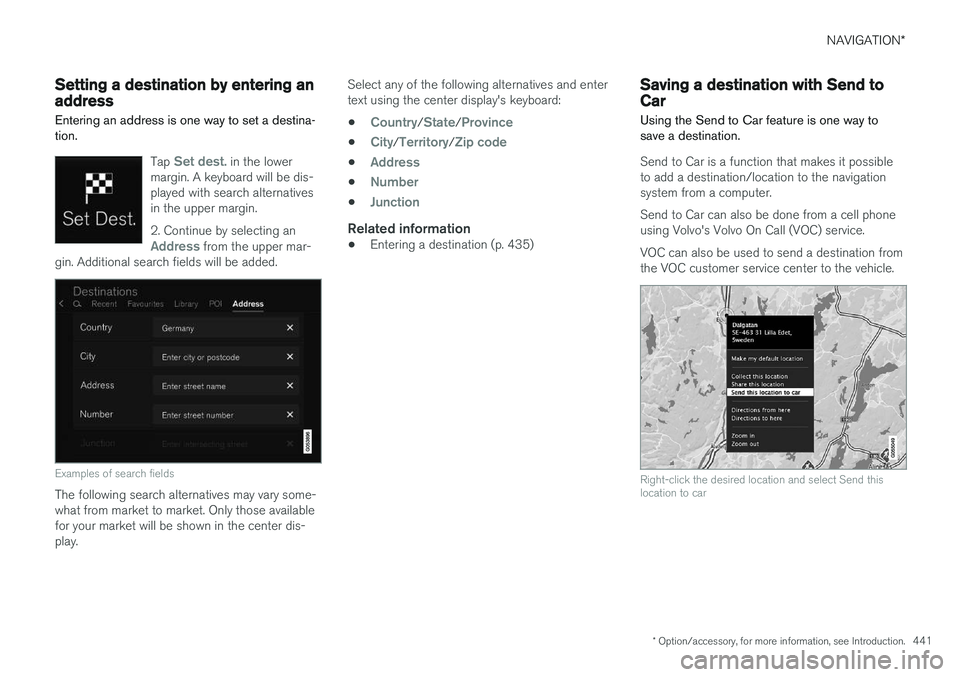
Examples of search fields
The following search alternatives may vary some- what from market to market. Only those availablefor your market will be shown in the center dis-play. Select any of the following alternatives and entertext using the center display's keyboard:
•
Country/State/Province
•City/Territory/Zip code
•Address
•Number
•Junction
Related information
• Entering a destination (p. 435)
Saving a destination with Send to Car
Using the Send to Car feature is one way to save a destination.
Send to Car is a function that makes it possible to add a destination/location to the navigationsystem from a computer. Send to Car can also be done from a cell phone using Volvo's Volvo On Call (VOC) service. VOC can also be used to send a destination from the VOC customer service center to the vehicle.
Right-click the desired location and select Send this location to car