connect VOLVO XC90 2015 User Guide
[x] Cancel search | Manufacturer: VOLVO, Model Year: 2015, Model line: XC90, Model: VOLVO XC90 2015Pages: 570, PDF Size: 12.44 MB
Page 85 of 570

SAFETY
83
Safety systems In addition to seat belts and airbags, your vehi- cle is also equipped with a number of othersafety systems.
In the event of an accident, there are a number of sensors in the vehicle that react and triggersafety systems such as Roll Stability Control, air-bags, seat belt pretensioners, etc., depending onthe severity of the collision. There are alsomechanical systems such as the WhiplashProtection System.
Related information
•General safety information (p. 56)
• Whiplash protection system (p. 89)
• Rollover protection system (p. 89)
• Airbag system (p. 83)
• Seat belts (p. 58)
• Seat belt pretensioners (p. 59)
Airbag system As an enhancement to the three-point seat belts, your vehicle is equipped with an airbag system.
WARNING
• If the airbag warning light stays on after the engine has started or if it illuminateswhile you are driving, have the vehicleinspected by a trained and qualified Volvoservice technician as soon as possible.
• Never try to repair any component or partof the airbag systems yourself. Any inter-ference in the system could cause mal-function and serious injury. All work onthese systems should be performed by atrained and qualified Volvo service techni-cian.
WARNING
If your vehicle has become flood-damaged in any way (e.g., soaked carpeting/standingwater on the floor of the vehicle), do notattempt to start the vehicle. This may causeairbag deployment which could result in seri-ous injury. Have the vehicle towed to a trainedand qualified Volvo service technician forrepairs. Before attempting to tow the vehicle:
1. Switch off the ignition for at least
10 minutes and disconnect the battery.
2. Follow the instructions for manually over- riding the shiftlock system.
Deployed airbags
WARNING
If any of the airbags have deployed:
• Do not attempt to drive the vehicle. Have it towed to a qualified repair facility.
• If necessary seek medical attentIon.
Page 107 of 570
INSTRUMENTS AND CONTROLS
105
NOTE
•Movement of the windows will stop if they are obstructed in any way. If this happenstwice in succession, the automatic func-tion will not work for several minutes andthe window can be closed by holding thebutton up.
• To reduce buffeting wind noise if the rearwindows are opened, also open the frontwindows slightly.
Manual up/down
–Move one of the controls up/down slightly.
> The power windows move up/down as
long as the control is held in position.
Auto up/down
–Move one of the controls up/down as far as possible and release it.
> The window will open or close completely.
ResettingIf the battery has been disconnected, the auto open function must be reset so that it will workproperly
1. Gently raise the front section of the button to close the window and hold it for one second.
2. Release the button briefly.
3. Raise the front section of the button again for one second.
Related information
• Child safety locks (p. 218)
Rearview mirror The interior rearview mirror has an auto-dim function that helps reduce glare from followingvehicle's headlights.
Auto-dim functionThe interior rearview mirror
Page 112 of 570
INSTRUMENTS AND CONTROLS
110
Viewing the VIN (Vehicle Identification Number)
1. Pull down the center display's Top view andtap Settings.
2. Tap
SystemVehicle Identification
Number.
> The vehicle's VIN will be displayed.
Linking a remote key to a driver profile A remote key can be linked to a driver profile, which means that all of the settings stored in thedriver profile will apply each time that particularremote key is used with the vehicle.
A remote key is not initially linked to a specific driver profile. When the key is used to unlock thevehicle/start the engine for the first time, the
Guest profile will be used.
A driver profile can be selected manually each time the vehicle is unlocked/started without aremote key being linked to that profile. If the keyhas previously been linked to a driver profile, it isnot necessary to manually select a profile whenthat particular key is used.
Linking a remote key to a driver profile for the first time
1. Pull down the center display's Top view and tap Settings.
2. Tap
SystemDriver Profile.
3. Tap the profile to be linked to the remote key. The
Guest profile cannot be linked to a
remote key.
4. Tap
Edit Profile. 5.
Select
Connect key to link the selected pro-
file to the key currently being used. A profile can only be linked to the remote key that iscurrently being used. If there are several keys in the vehicle at the same time,
More than
one key is found, put the key you want to connect on backup reader
will be dis-
played.
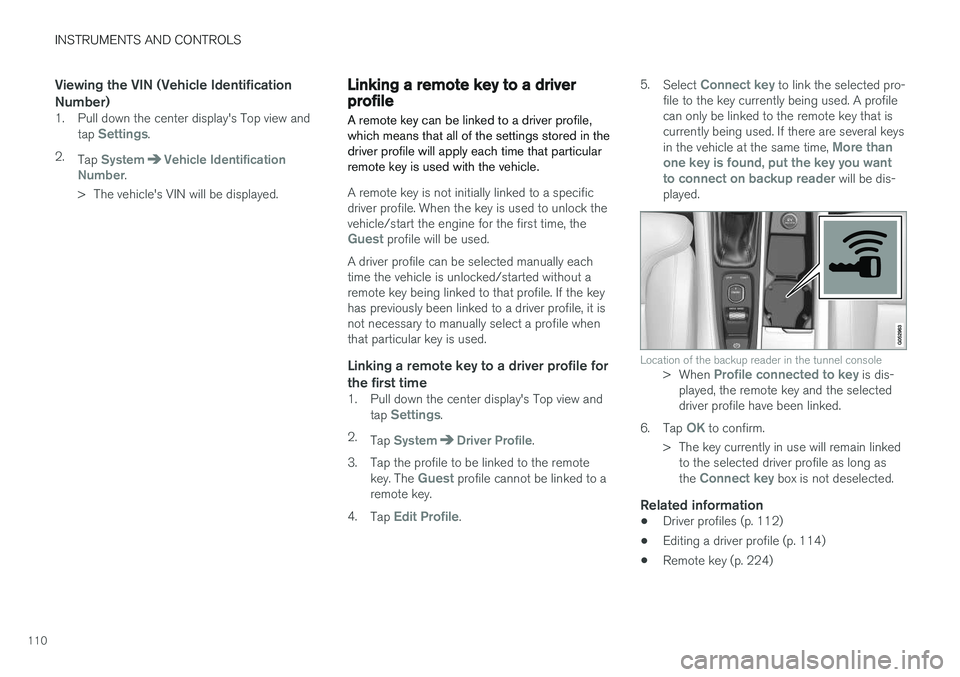
Location of the backup reader in the tunnel console> When Profile connected to key is dis-
played, the remote key and the selected driver profile have been linked.
6. Tap
OK to confirm.
> The key currently in use will remain linked to the selected driver profile as long as the
Connect key box is not deselected.
Related information
• Driver profiles (p. 112)
• Editing a driver profile (p. 114)
• Remote key (p. 224)
Page 122 of 570
INSTRUMENTS AND CONTROLS
* Option/accessory, for more information, see Introduction.
120 Never use strong stain removers. For difficult cleaning conditions, a special cleaning agent canbe purchased at a Volvo retailer.
Related information
•
Driver profiles (p. 112)
• Center display overview (p. 29)
• Navigating in the center display's views (p. 39)
Voice control
Voice commands make it possible for the driver to voice-control certain functions in the mediaplayer, a Bluetooth-connected cell phone, cli- mate system and the Volvo navigation system *.
Voice control offers convenience and enables the driver to keep his/her hands on the steeringwheel and concentrate on driving and the trafficsituation around the vehicle.
WARNING
As the driver, you have full responsibility for operating the vehicle safely and adhering toall applicable traffic regulations.
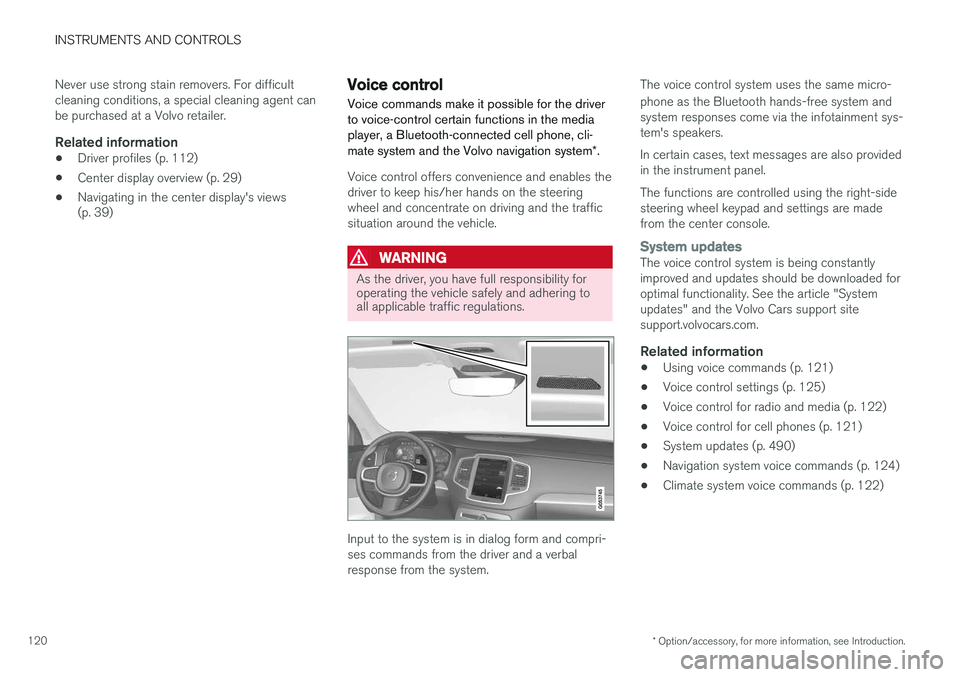
Input to the system is in dialog form and compri- ses commands from the driver and a verbalresponse from the system. The voice control system uses the same micro- phone as the Bluetooth hands-free system and system responses come via the infotainment sys-tem's speakers. In certain cases, text messages are also provided in the instrument panel. The functions are controlled using the right-side steering wheel keypad and settings are madefrom the center console.
System updatesThe voice control system is being constantly improved and updates should be downloaded foroptimal functionality. See the article "Systemupdates" and the Volvo Cars support sitesupport.volvocars.com.
Related information
•
Using voice commands (p. 121)
• Voice control settings (p. 125)
• Voice control for radio and media (p. 122)
• Voice control for cell phones (p. 121)
• System updates (p. 490)
• Navigation system voice commands (p. 124)
• Climate system voice commands (p. 122)
Page 123 of 570
INSTRUMENTS AND CONTROLS
121
Using voice commands
The following is an introduction for using voice commands.
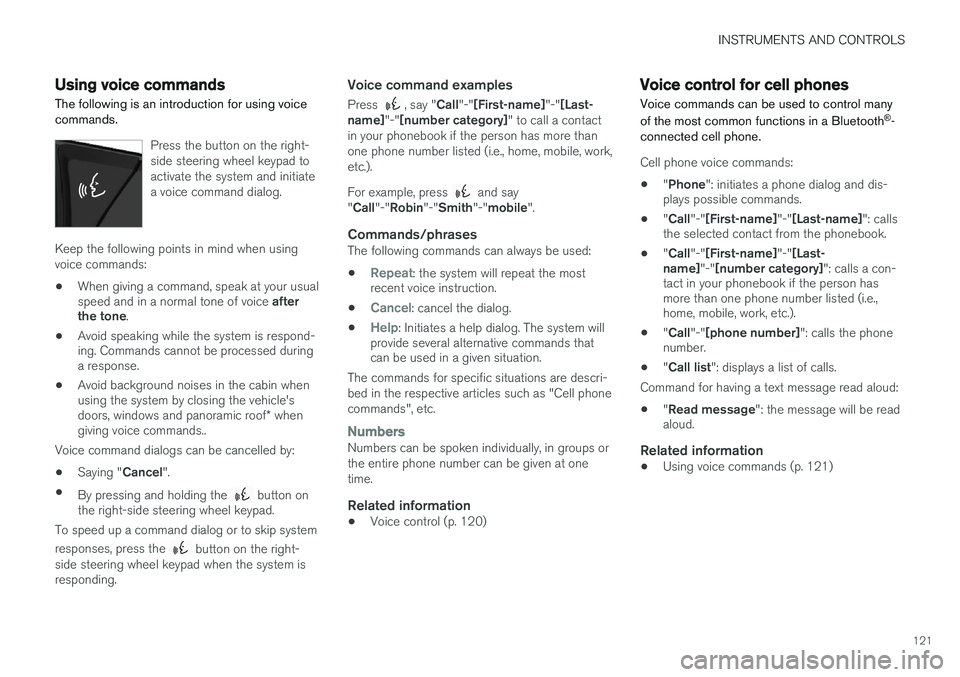
Press the button on the right- side steering wheel keypad toactivate the system and initiatea voice command dialog.
Keep the following points in mind when using voice commands:
• When giving a command, speak at your usual speed and in a normal tone of voice
after
the tone .
• Avoid speaking while the system is respond- ing. Commands cannot be processed duringa response.
• Avoid background noises in the cabin whenusing the system by closing the vehicle's doors, windows and panoramic roof
* when
giving voice commands..
Voice command dialogs can be cancelled by:
• Saying "
Cancel".
• By pressing and holding the
button on
the right-side steering wheel keypad.
To speed up a command dialog or to skip system responses, press the
button on the right-
side steering wheel keypad when the system is responding.
Voice command examples
Press , say " Call"-"[First-name] "-"[Last-
name] "-"[number category] " to call a contact
in your phonebook if the person has more than one phone number listed (i.e., home, mobile, work,etc.). For example, press
and say
" Call "-"Robin "-"Smith "-"mobile ".
Commands/phrasesThe following commands can always be used: •
Repeat: the system will repeat the most
recent voice instruction.
•
Cancel: cancel the dialog.
•
Help: Initiates a help dialog. The system will
provide several alternative commands that can be used in a given situation.
The commands for specific situations are descri- bed in the respective articles such as "Cell phonecommands", etc.
NumbersNumbers can be spoken individually, in groups or the entire phone number can be given at onetime.
Related information
• Voice control (p. 120)
Voice control for cell phones Voice commands can be used to control many of the most common functions in a Bluetooth ®
-
connected cell phone.
Cell phone voice commands:
• "
Phone ": initiates a phone dialog and dis-
plays possible commands.
• "
Call "-"[First-name] "-"[Last-name] ": calls
the selected contact from the phonebook.
• "
Call "-"[First-name] "-"[Last-
name] "-"[number category] ": calls a con-
tact in your phonebook if the person has more than one phone number listed (i.e.,home, mobile, work, etc.).
• "
Call "-"[phone number] ": calls the phone
number.
• "
Call list ": displays a list of calls.
Command for having a text message read aloud:
• "
Read message ": the message will be read
aloud.
Related information
• Using voice commands (p. 121)
Page 124 of 570
INSTRUMENTS AND CONTROLS
* Option/accessory, for more information, see Introduction.
122
Voice control for radio and media
The following voice commands can be used for the radio or an external multimedia device.
• "
Media and radio ": initiates a dialog for
media and radio, and displays possible com- mands.
• "
Play "-"[artist] ": plays music by the selected
artist.
• "
Play "-"[song title] ": plays the selected
song.
• "
Play "-"[song title] "-"from "-"[album] ":
plays the selected song from the selectedalbum.
• "
Play "-"[radio station] ": starts the selected
radio station.
• "
Tune "-"[frequency] ": tunes to the selected
frequency on the current waveband. If nowaveband has been selected, FM is thedefault.
• "
Tune "-"[frequency] "-"[waveband] ": tunes
to the selected station on the selected wave-band.
• "
Radio ": starts FM radio.
• "
Radio FM ": starts FM radio.
• "
Radio AM " : starts AM radio.
• "
SiriusXM "*: starts satellite radio
• "
CD ": starts playback from a CD.
• "
USB ": starts playback from a USB flash
drive. •
"
iPod ": starts playback from an iPod.
• "
Bluetooth ": starts playback from a Blue-
tooth-connected device.
• Similar music
": starts playback from a USB
flash drive with music similar to the type cur-rently playing.
Related information
• Voice control (p. 120)
• Using voice commands (p. 121)
• Voice control settings (p. 125)
Climate system voice commands Voice commands can be used to control the cli- mate system to e.g., change the temperature, activate seat heating
* or change blower (fan)
speed.
Page 135 of 570
INSTRUMENTS AND CONTROLS
133
merchantability and of fitness for any purpose. The Contributing Authors and Group 42, Inc.assume no liability for direct, indirect, incidental,special, exemplary, or consequential damages,which may result from the use of the PNGReference Library, even if advised of thepossibility of such damage. Permission is hereby granted to use, copy, modify, and distribute this source code, orportions hereof, for any purpose, without fee,subject to the following restrictions:
1. The origin of this source code must not be
misrepresented.
2. Altered versions must be plainly marked as such and must not be misrepresented as being the original source.
3. This Copyright notice may not be removed or altered from any source or altered sourcedistribution.
The Contributing Authors and Group 42, Inc. specifically permit, without fee, and encouragethe use of this source code as a component tosupporting the PNG file format in commercialproducts. If you use this source code in a product,acknowledgment is not required but would beappreciated. A "png_get_copyright" function is available, for convenient use in "about" boxes and the like: printf("%s",png_get_copyright(NULL)); Also, the PNG logo (in PNG format, of course) is supplied in the files "pngbar.png" and"pngbar.jpg (88x31) and "pngnow.png" (98x31). Libpng is OSI Certified Open Source Software. OSI Certified Open Source is a certification markof the Open Source Initiative. Glenn Randers-Pehrson [email protected] April 15, 2002
MIT LicenseCopyright (c)
Permission is hereby granted, free of charge, toany person obtaining a copy of this software andassociated documentation files (the "Software"),to deal in the Software without restriction,including without limitation the rights to use,copy, modify, merge, publish, distribute,sublicense, and/or sell copies of the Software,and to permit persons to whom the Software isfurnished to do so, subject to the followingconditions: The above copyright notice and this permission notice shall be included in all copies orsubstantial portions of the Software. THE SOFTWARE IS PROVIDED "AS IS", WITHOUT WARRANTY OF ANY KIND,EXPRESS OR IMPLIED, INCLUDING BUT NOTLIMITED TO THE WARRANTIES OFMERCHANTABILITY, FITNESS FOR APARTICULAR PURPOSE ANDNONINFRINGEMENT. IN NO EVENT SHALL THE AUTHORS OR COPYRIGHT HOLDERS BELIABLE FOR ANY CLAIM, DAMAGES OROTHER LIABILITY, WHETHER IN AN ACTIONOF CONTRACT, TORT OR OTHERWISE,ARISING FROM, OUT OF OR IN CONNECTIONWITH THE SOFTWARE OR THE USE OROTHER DEALINGS IN THE SOFTWARE.
zlib LicenseThe zlib/libpng License Copyright (c)
< copyright holders >
This software is provided 'as-is', without anyexpress or implied warranty. In no event will theauthors be held liable for any damages arisingfrom the use of this software. Permission is granted to anyone to use this software for any purpose, including commercialapplications, and to alter it and redistribute itfreely, subject to the following restrictions:
1. The origin of this software must not be misrepresented; you must not claim that you wrote the original software. If you use thissoftware in a product, an acknowledgment inthe product documentation would beappreciated but is not required.
2. Altered source versions must be plainly marked as such, and must not bemisrepresented as being the originalsoftware.
3. This notice may not be removed or altered from any source distribution.
Page 136 of 570
![VOLVO XC90 2015 User Guide INSTRUMENTS AND CONTROLS
134
SGI Free Software B License Version 2.0.SGI FREE SOFTWARE LICENSE B (Version 2.0, Sept. 18, 2008) Copyright (C) [dates of first publication] Silicon Graphics, Inc. All Rig](/img/45/58555/w960_58555-135.png "VOLVO XC90 2015 User Guide INSTRUMENTS AND CONTROLS
134
SGI Free Software B License Version 2.0.SGI FREE SOFTWARE LICENSE B (Version 2.0, Sept. 18, 2008) Copyright (C) [dates of first publication] Silicon Graphics, Inc. All Rig")
INSTRUMENTS AND CONTROLS
134
SGI Free Software B License Version 2.0.SGI FREE SOFTWARE LICENSE B (Version 2.0, Sept. 18, 2008) Copyright (C) [dates of first publication] Silicon Graphics, Inc. All Rights Reserved. Permission ishereby granted, free of charge, to any personobtaining a copy of this software and associateddocumentation files (the "Software"), to deal inthe Software without restriction, including withoutlimitation the rights to use, copy, modify, merge,publish, distribute, sublicense, and/or sell copiesof the Software, and to permit persons to whomthe Software is furnished to do so, subject to thefollowing conditions: The above copyright noticeincluding the dates of first publication and eitherthis permission notice or a reference to http://oss.sgi.com/projects/FreeB/ shall be included inall copies or substantial portions of the Software. THE SOFTWARE IS PROVIDED "AS IS", WITHOUT WARRANTY OF ANY KIND,EXPRESS OR IMPLIED, INCLUDING BUT NOTLIMITED TO THE WARRANTIES OFMERCHANTABILITY, FITNESS FOR APARTICULAR PURPOSE ANDNONINFRINGEMENT. IN NO EVENT SHALLSILICON GRAPHICS, INC. BE LIABLE FOR ANYCLAIM, DAMAGES OR OTHER LIABILITY,WHETHER IN AN ACTION OF CONTRACT,TORT OR OTHERWISE, ARISING FROM, OUTOF OR IN CONNECTION WITH THE SOFTWAREOR THE USE OR OTHER DEALINGS IN THESOFTWARE.Except as contained in this notice, the name ofSilicon Graphics, Inc. shall not be used inadvertising or otherwise to promote the sale, useor other dealings in this Software without priorwritten authorization from Silicon Graphics, Inc.
Related information
•
Instrument panel (p. 128)
Warning symbols in the instrument panel
The warning symbols alert the driver that an important function is activated or that a seriousfault has occurred.
SymbolMeaning
Warning The red warning symbol alerts the driver that an important function isactivated or that a serious faulthas occurred that may affect thevehicle's drivability. The warningsymbol can also illuminate in com-bination with other symbols.
Seat belt reminder This symbol will flash for approxi- mately 6 seconds if the driver orfront seat passenger has not fas-tened his or her seat belt or if any-one in the rear seat has unbuck-led a seat belt.
Page 144 of 570
INSTRUMENTS AND CONTROLS
* Option/accessory, for more information, see Introduction.
142
• When there are vehicles on connecting roads
• At the top of hills or in dips in the road
• In sharp curves
Auxiliary lights
*If the vehicle is equipped with auxiliary lights, the driver can use the center display to activate/deactivate them or decide if they will go on/off along with the high beams 10
.
Related information
• City Safety
™ troubleshooting (p. 280)
• Lighting panel and controls (p. 138)
Active Bending Lights
*
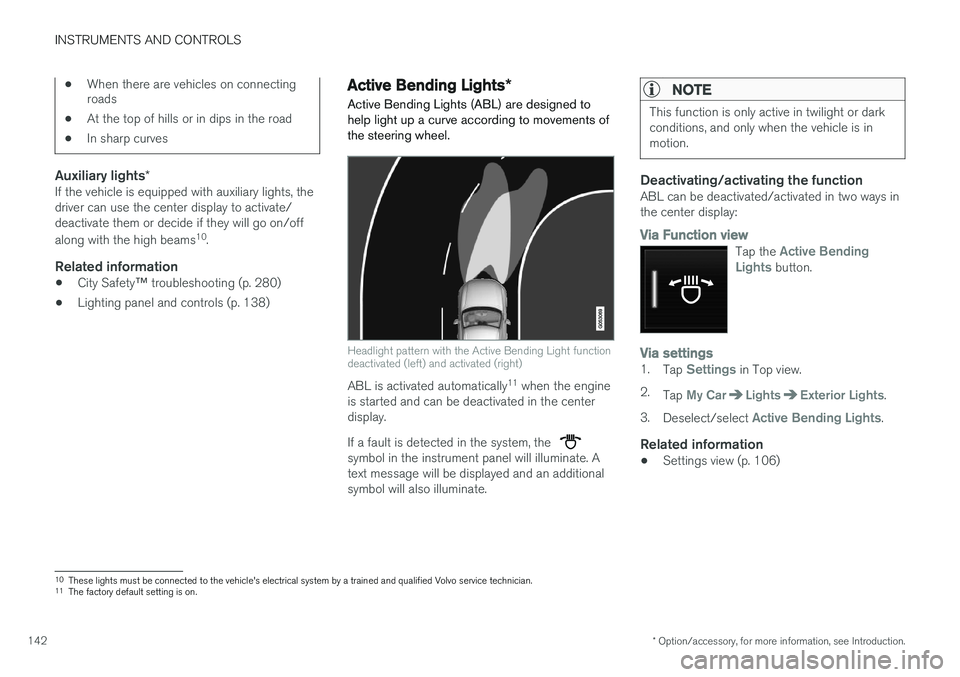
Active Bending Lights (ABL) are designed to help light up a curve according to movements ofthe steering wheel.
Headlight pattern with the Active Bending Light function deactivated (left) and activated (right)
ABL is activated automatically 11
when the engine
is started and can be deactivated in the center display. If a fault is detected in the system, the
symbol in the instrument panel will illuminate. A text message will be displayed and an additionalsymbol will also illuminate.
NOTE
This function is only active in twilight or dark conditions, and only when the vehicle is inmotion.
Deactivating/activating the functionABL can be deactivated/activated in two ways in the center display:
Via Function view
Tap the Active Bending
Lights button.
Via settings1. Tap Settings in Top view.
2. Tap
My CarLightsExterior Lights.
3. Deselect/select
Active Bending Lights.
Related information
• Settings view (p. 106)
10
These lights must be connected to the vehicle's electrical system by a trained and qualified Volvo service technician.
11 The factory default setting is on.
Page 206 of 570
LOADING AND STORAGE
* Option/accessory, for more information, see Introduction.
204
Electrical sockets There are two 12-volt sockets in the tunnel con- sole, a 120-volt socket on the rear side of thetunnel console, and one 12-volt socket in the cargo area *.
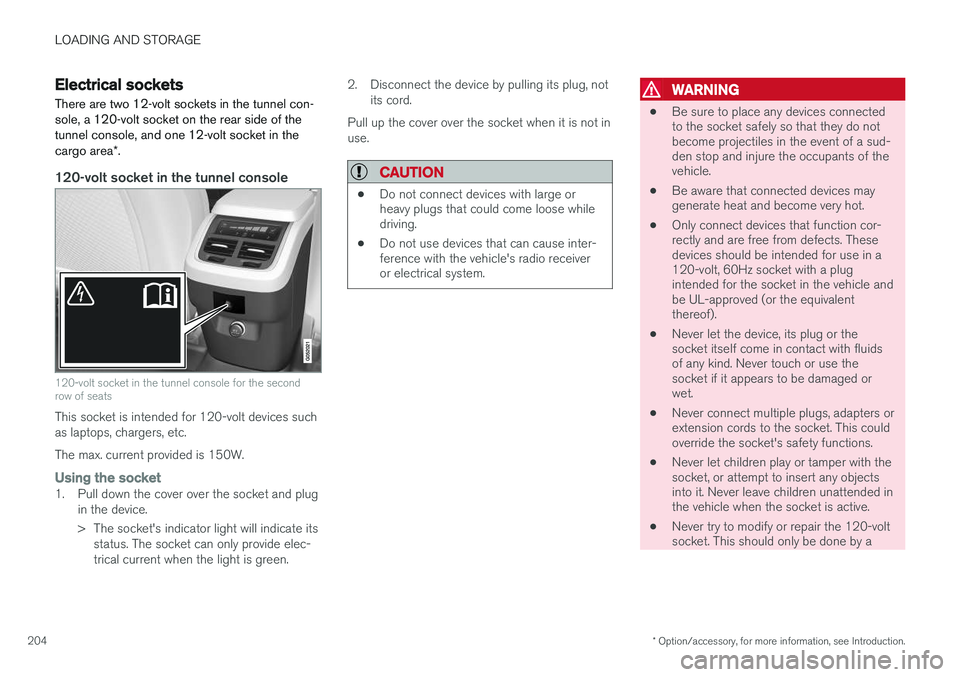
120-volt socket in the tunnel console
120-volt socket in the tunnel console for the second row of seats
This socket is intended for 120-volt devices such as laptops, chargers, etc. The max. current provided is 150W.
Using the socket1. Pull down the cover over the socket and plug
in the device.
> The socket's indicator light will indicate itsstatus. The socket can only provide elec- trical current when the light is green. 2. Disconnect the device by pulling its plug, not
its cord.
Pull up the cover over the socket when it is not inuse.
CAUTION
• Do not connect devices with large or heavy plugs that could come loose whiledriving.
• Do not use devices that can cause inter-ference with the vehicle's radio receiveror electrical system.
WARNING
•
Be sure to place any devices connected to the socket safely so that they do notbecome projectiles in the event of a sud-den stop and injure the occupants of thevehicle.
• Be aware that connected devices maygenerate heat and become very hot.
• Only connect devices that function cor-rectly and are free from defects. Thesedevices should be intended for use in a120-volt, 60Hz socket with a plugintended for the socket in the vehicle andbe UL-approved (or the equivalentthereof).
• Never let the device, its plug or thesocket itself come in contact with fluidsof any kind. Never touch or use thesocket if it appears to be damaged orwet.
• Never connect multiple plugs, adapters orextension cords to the socket. This couldoverride the socket's safety functions.
• Never let children play or tamper with thesocket, or attempt to insert any objectsinto it. Never leave children unattended inthe vehicle when the socket is active.
• Never try to modify or repair the 120-voltsocket. This should only be done by a