connect VOLVO XC90 2015 Workshop Manual
[x] Cancel search | Manufacturer: VOLVO, Model Year: 2015, Model line: XC90, Model: VOLVO XC90 2015Pages: 570, PDF Size: 12.44 MB
Page 405 of 570
INFOTAINMENT
403
•
Connecting a device via the AUX/USB socket (p. 393)
• Wi-Fi technology and security (p. 407)
Apps (applications)
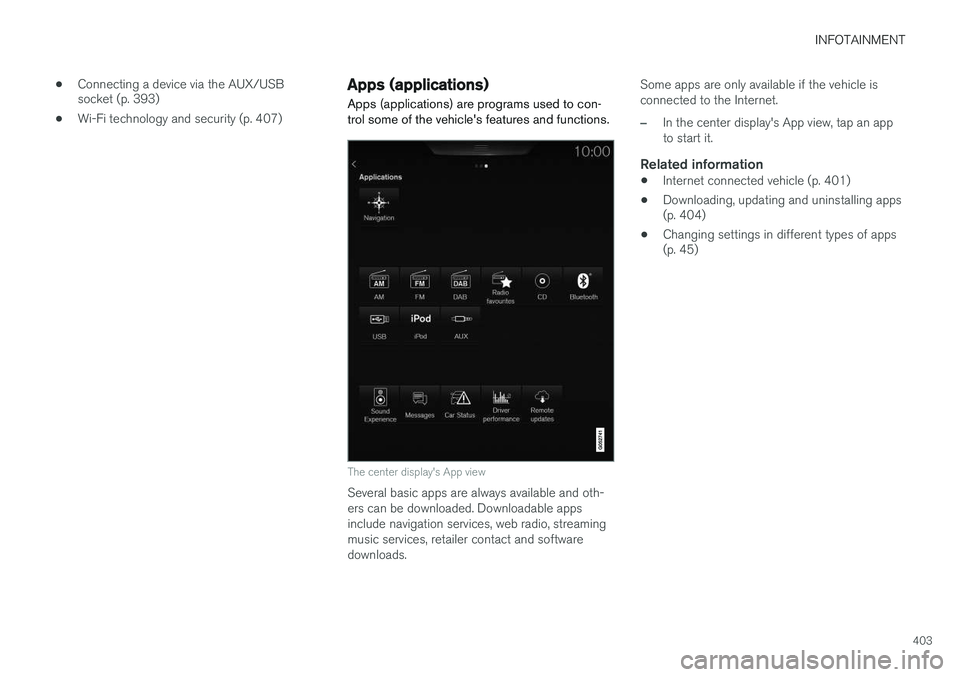
Apps (applications) are programs used to con- trol some of the vehicle's features and functions.
The center display's App view
Several basic apps are always available and oth- ers can be downloaded. Downloadable appsinclude navigation services, web radio, streamingmusic services, retailer contact and softwaredownloads. Some apps are only available if the vehicle isconnected to the Internet.
–In the center display's App view, tap an app to start it.
Related information
•
Internet connected vehicle (p. 401)
• Downloading, updating and uninstalling apps (p. 404)
• Changing settings in different types of apps(p. 45)
Page 406 of 570
INFOTAINMENT
404
Bluetooth settingsThe following settings apply to a Bluetooth-con- nected cell phone.
Bluetooth1. Tap Settings in the center display's Top
view.
2. Tap
CommunicationBluetooth and
select among the following settings:
•
Previously paired devices: lists the
devices that are paired and connected to the vehicle.
•
Internet connection: select to connect
to the Internet using the device's Bluetooth connection.
•
Add device: begin the procedure to pair
a new device.
•
Remove device: remove a paired device.
•
Allowed services for this device: select
the services that the device will be used for.
Bluetooth complianceUnited States FCC CAUTION Changes or modifications not expressly approved by the party responsible for compliance couldvoid the user's authority to operate the equip-ment. This transmitter must not be co-located or operated in conjunction with any other antennaor transmitter. Canada This device complies with Industry Canada licence-exempt RSS standard(s). Operation issubject to the following two conditions: (1) this device may not cause interference, and(2) this device must accept any interference, including interference that may cause undesiredoperation of the device.
Related information
•
Internet connected vehicle (p. 401)
• Pairing a cell phone (p. 387)
• Phone (p. 387)
• Media player (p. 393)
• Connecting/disconnecting a cell phone (p. 389)
Downloading, updating and uninstalling apps
Apps can be added (downloaded), kept up-to- date or deleted.
NOTE
Downloading data may affect other services that transfer data such as web radio, stream-ing music, etc. If this occurs, a download inprogress can be cancelled or the other serv-ice can be temporarily turned off.
Apps are managed via theRemote update service in
the center display's App view. To download, update or delete apps, the vehicle must be con-nected to the Internet.
Downloading an app
1. Open the Remote update service app.
2. Select
Explore to open a list of apps that
are available but which are not installed in the vehicle. Tap anywhere in a line for an appto expand the list for additional information.
Page 407 of 570
INFOTAINMENT
405
3.
Select
Install to start downloading the app. It
will remain in the list and a new download can be initiated if necessary.
> Download status will be indicated while it is in progress. A message will be displayed if a download cannot be started immediately. The appwill remain in the list and a new downloadcan be initiated if necessary.
Cancelling (aborting) a download
–Tap Abort to cancel a download that is cur-
rently underway.
Only a download can be cancelled. If the installa-
tion phase has begun, it cannot be interrupted.
Updating appsIf an app is being used while an update is in pro- gress, it will be restarted to complete the update.
Update (install) all1. Open the Remote update service app.
2. Select
Install all.
> The update will begin.
Updating certain apps1. Open the Remote update service app.
2. Select
Application updates to open a list
of available updates.
3. Find the desired app and select
Install.
> The update will begin.
Uninstalling an appAn app being used must be closed before it can be uninstalled. 1. Open the
Remote update service app.
2. Select
Application updates to open a list
of apps that have been installed.
3. Find the desired app and select
Uninstall to
begin uninstalling the app.
> When the app has been uninstalled, it will be removed from the list.
Related information
• Internet connected vehicle (p. 401)
• Media player (p. 393)
• System updates (p. 490)
Internet connection troubleshooting The following are factors that may affect the vehicle's Internet connection.
The amount of data being transmitted depends on the services or apps that are currently in use.For example, streaming audio requires a greatdeal of data to be transmitted, which requires agood connection and a strong signal.
Cell phone to the vehicleConnection speed may vary depending on thelocation of the cell phone in the vehicle. Move thephone closer to the center display to increasesignal strength. Be sure that there are noobstructing/screening objects between thephone and the screen.
Cell phone to the network operatorThe speed of the mobile network may varydepending on coverage/reception in the vehicle'slocation. Reception is generally poorer in tunnels,in mountainous areas, in deep valleys or indoors.Connection speed may also depend on the typeof subscription that you have with the serviceprovider. Contact your service provider in the event of data transmission problems.
Related information
• Internet connected vehicle (p. 401)
• Connecting to the Internet (p. 402)
Page 408 of 570
INFOTAINMENT
406
Tethering (Wi-Fi sharing)When the vehicle is connected to the Internet, this connection can be shared (tethered) with other devices 5
.
The network service provider (the SIM card) must support tethering.
1. Open the center display's Top view.2. Tap
SettingsCommunicationVehicle Wi-Fi Hotspot.
3. Tap
Network name and assign a name to
the hotspot.
4. Tap
Password and create a password to be
used by devices trying to connect (tether) to the hotspot.
5. Tap
Frequency band and select a fre-
quency that the hotspot will use to transmit data. This may not be possible in all markets.
6. Activate/deactivate by tapping the
Vehicle
Wi-Fi Hotspot box.
7. If another connection has been used previ- ously, confirm the change of connections.
> It is now possible for external devices toconnect to the vehicle's Wi-Fi hotspot.
Connection status will be indicated in a symbol in the center display's status bar. Tap
Connected devices to see a list of con-
nected devices.
Related information
• Internet connected vehicle (p. 401)
• Wi-Fi technology and security (p. 407)
• Symbols in the center display status bar (p. 44)
• Internet connection troubleshooting (p. 405)
Deleting Wi-Fi networks
Networks that are not used can be deleted.
1. Tap Settings in the center display's Top
view.
2. Tap
Wi-FiSaved networks.
3. Tap
Forget to remove the network.
4. Confirm the selection. > The vehicle will no longer connect to thedeleted network.
Deleting all networksAll networks can be deleted at the same time by returning (resetting) to factory settings. If this is done, all user data and settings will be reset to their default settings.
Related information
• Internet connected vehicle (p. 401)
• Connecting to the Internet (p. 402)
5
Does not apply for a Wi-Fi connection.
Page 409 of 570
INFOTAINMENT
407
Wi-Fi technology and security
The following are types of networks can be con- nect to.
It is possible to connect to the following types of networks:
• Frequency: 2.4 or 5 GHz 6
.
• Standards: 802.11 a/b/g/n.
• Security type: WPA2-AES-CCMP.
The vehicle's Wi-Fi system is designed to man-age Wi-Fi devices in the vehicle. If several devices are using a frequency at the same time, this may result in poorer performance.
Related information
• Internet connected vehicle (p. 401)
• Connecting to the Internet (p. 402)
• Tethering (Wi-Fi sharing) (p. 406)
• Internet connection troubleshooting (p. 405)
Vehicle modem settings
The vehicle is equipped with a modem that can be used to connect the vehicle to the Internet. Itis also possible to share (tether) this connectionvia Wi-Fi.
1. Tap Settings in the center display's Top
view.
2. Tap
CommunicationVehicle Modem
Internet and choose among the following
settings:
•
Vehicle modem Internet: select to use the
vehicle's modem to connect to the Internet.
•
Data usage: %s: Tap Reset to restart
(reset) the counter for the amount of data sent/received.
•
Network Select carrier
: select a service provider automati-
cally or manually.
Data roaming: select to allow the vehicle to con-
nect to another network if the standard net- work is not available (e.g., if you are driving inanother country). This could entail additionalcharges, consult your service provider.
•
SIM card PIN Change PIN
: enter max. 4 digits.
Disable PIN: Allow access to the SIM card without
requiring a PIN code.
•
Send request code: this is used to down-
load the balance remaining on a SIM card. This is specific to your service provider.
Related information
• Internet connected vehicle (p. 401)
• Connecting to the Internet (p. 402)
6
Selecting a frequency is not possible in all markets.
Page 412 of 570
INFOTAINMENT
410with the distribution. Neither the name of the
Original Code is Copyright (c) 1991-2000 SiliconGraphics, Inc. Copyright in any portions createdby third parties is as indicated elsewhere herein.All Rights Reserved. Copyright (C) [1991-2000]Silicon Graphics, Inc. All Rights Reserved.Permission is hereby granted, free of charge, toany person obtaining a copy of this software andassociated documentation files (the "Software"),to deal in the Software without restriction,including without limitation the rights to use,copy, modify, merge, publish, distribute,sublicense, and/or sell copies of the Software,and to permit persons to whom the Software isfurnished to do so, subject to the followingconditions: The above copyright notice includingthe dates of first publication and either thispermission notice or a reference to http://oss.sgi.com/projects/FreeB/ shall be included inall copies or substantial portions of the Software.THE SOFTWARE IS PROVIDED "AS IS",WITHOUT WARRANTY OF ANY KIND,EXPRESS OR IMPLIED, INCLUDING BUT NOTLIMITED TO THE WARRANTIES OFMERCHANTABILITY, FITNESS FOR APARTICULAR PURPOSE ANDNONINFRINGEMENT. IN NO EVENT SHALLSILICON GRAPHICS, INC. BE LIABLE FOR ANYCLAIM, DAMAGES OR OTHER LIABILITY,WHETHER IN AN ACTION OF CONTRACT,TORT OR OTHERWISE, ARISING FROM, OUTOF OR IN CONNECTION WITH THE SOFTWAREOR THE USE OR OTHER DEALINGS IN THESOFTWARE. Except as contained in this notice,the name of Silicon Graphics, Inc. shall not beused in advertising or otherwise to promote thesale, use or other dealings in this Softwarewithout prior written authorization from SiliconGraphics, Inc. This software is based in parts on the work of the FreeType Team. This software uses parts of SSLeay Library: Copyright (C) 1995-1998 Eric Young([email protected]). All rights reserved
Linux software
This product contains software licensed underGNU General Public License (GPL) or GNULesser General Public License (LGPL), etc. You have the right of acquisition, modification, and distribution of the source code of the GPL/LGPL software. You may download Source Code from the following website at no charge: http://www.embedded-carmultimedia.jp/linux/oss/download/TVM_8351_013 The website provides the Source Code "As Is" and without warranty of any kind. By downloading Source Code, you expressly assume all risk and liability associated withdownloading and using the Source Code andcomplying with the user agreements thataccompany each Source Code.
Page 416 of 570
VOLVO ON CALL WITH SENSUS CONNECT *
* Option/accessory, for more information, see Introduction.
414
Volvo On Call (VOC) *
VOC is an integrated, subscription-based sys-
tem that provides emergency, roadside assis- tance and security services.
VOC is connected to the vehicle's airbag and alarm systems. The vehicle has an integratedGlobal System for Mobile Communications(GSM) module that handles communicationbetween the vehicle and the VOC customer serv-ice center.
AvailabilityVOC uses the Global Navigation Satellite System(GNSS) to locate the vehicle and its integratedGSM module to enable communication with theVOC customer service center and the VOCmobile app. From the time that the remote key has been removed from the vehicle, VOC's functionsremain available for 5 full days and subsequentlyonce an hour for the following 17 days. Afterthree weeks have elapsed, the system will remainswitched off until the engine is started.
WARNING
The system can only function in areas where there is adequate cellular network coverage. Just as in the case of cell phones, atmos- pheric disturbances or areas with relativelyfew GSM transmitters can make it impossiblefor VOC to make a connection, for example, inrural areas.
SubscriptionsA free, limited-time trial subscription is initiated when the vehicle is purchased and VOC is acti-vated. The subscription can be extended by con-tacting your Volvo retailer.
Information on the InternetFor additional information about Volvo On Call, goto: United States http://www.volvocars.com/us/support Canada English: http://support.volvocars.com/en-CA French: http://support.volvocars.com/fr-CA
Related information
• Volvo On Call convenience services (p. 416)
• Volvo On Call safety services (p. 424)
• Volvo On Call security services (p. 425)
• Using Volvo On Call (p. 414)
• Volvo ID (p. 27)
Using Volvo On Call
Volvo On Call (VOC) is controlled using the but- tons in the ceiling console and the center dis-play.
In the event of an accident in which the seat belt pretensioners, airbags or the inflatable curtainshave been triggered, a signal is transmitted auto-
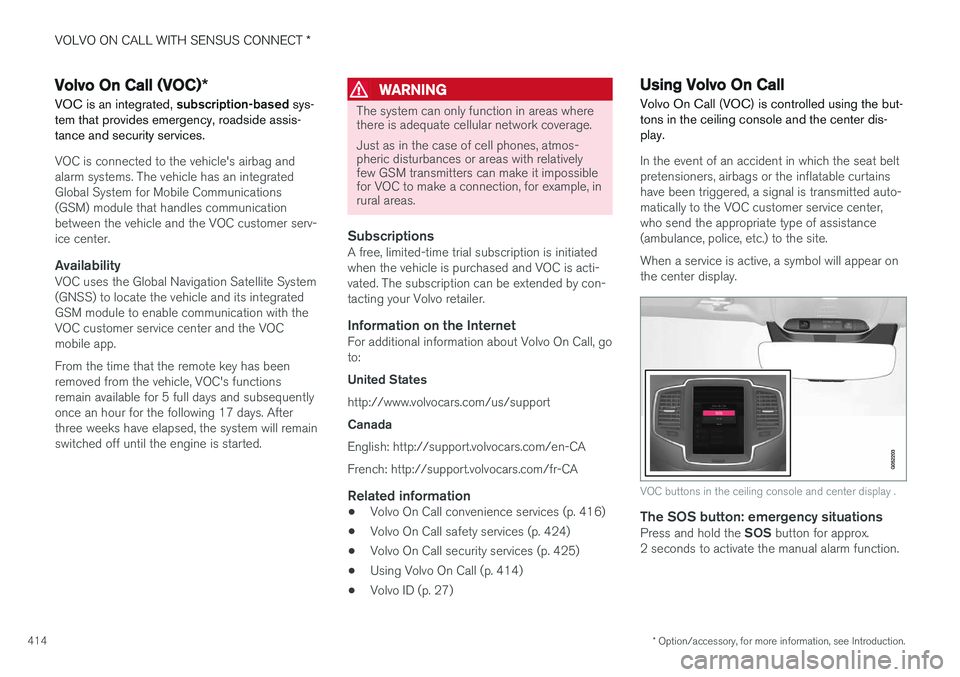
matically to the VOC customer service center,who send the appropriate type of assistance(ambulance, police, etc.) to the site. When a service is active, a symbol will appear on the center display.
VOC buttons in the ceiling console and center display .
The SOS button: emergency situationsPress and hold the SOS button for approx.
2 seconds to activate the manual alarm function.
Page 417 of 570
VOLVO ON CALL WITH SENSUS CONNECT *
* Option/accessory, for more information, see Introduction.
415
The ON CALL button: roadside assistancePress the ON CALL button for approx. 2 seconds
to activate the roadside assistance functions.
Alternative to the ON CALL button
In the center display's Phone view, tap On Call.
Select Call in the pop-up window that opens.
NOTE
The SOS button should only be used in an
emergency situation such as an accident, ill- ness or in the event of a threat to the occu-pants of the vehicle. Misusing this buttoncould result in extra charges. The ON CALL button can be used for all of
the other VOC services, including roadside assistance.
Canceling a callA service call that has been initiated can be can- celled within 10 seconds by pressing the EXIT
button on the steering wheel keypad.
SettingsSettings and selections can be made in the cen- ter display by going to s
Settings
CommunicationVolvo On Call. These set-
tings include activating/deactivating a subscrip- tion, button lock, etc.
Related information
• Volvo On Call (VOC)
* (p. 414)
• Volvo On Call (VOC) functions (p. 415)
• Volvo On Call manual safety service (p. 424)
• Volvo On Call roadside assistance (p. 425)
Volvo On Call (VOC) functions
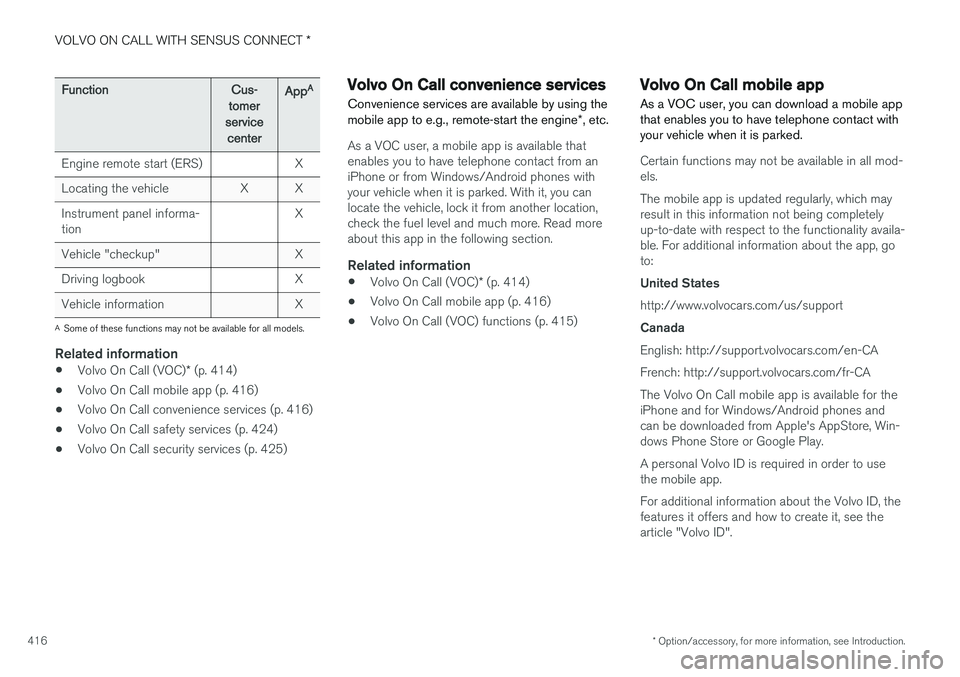
The following table provides an overview of the functions that are available from the VOC cus-tomer service center and the mobile app.
Please note that these functions are subject to change. For up-to-date information about therange of Volvo On Call functions and services,contact your Volvo retailer or go to: United States http://www.volvocars.com/us/support Canada English: http://support.volvocars.com/en-CA French: http://support.volvocars.com/fr-CA
FunctionCus-
tomer
service centerApp A
Automatic alarmX
Manual alarmX
Roadside assistanceXX
Theft notificationXX
Remote Door UnlockXX
Remote Vehicle Immobil- izerX
Page 418 of 570
VOLVO ON CALL WITH SENSUS CONNECT *
* Option/accessory, for more information, see Introduction.
416
FunctionCus-
tomer
service centerApp A
Engine remote start (ERS)X
Locating the vehicleXX
Instrument panel informa- tionX
Vehicle "checkup"X
Driving logbookX
Vehicle informationX
A
Some of these functions may not be available for all models.
Related information
• Volvo On Call (VOC)
* (p. 414)
• Volvo On Call mobile app (p. 416)
• Volvo On Call convenience services (p. 416)
• Volvo On Call safety services (p. 424)
• Volvo On Call security services (p. 425)
Volvo On Call convenience services
Convenience services are available by using the mobile app to e.g., remote-start the engine *, etc.
As a VOC user, a mobile app is available that enables you to have telephone contact from aniPhone or from Windows/Android phones withyour vehicle when it is parked. With it, you canlocate the vehicle, lock it from another location,check the fuel level and much more. Read moreabout this app in the following section.
Related information
• Volvo On Call (VOC)
* (p. 414)
• Volvo On Call mobile app (p. 416)
• Volvo On Call (VOC) functions (p. 415)
Volvo On Call mobile app
As a VOC user, you can download a mobile app that enables you to have telephone contact withyour vehicle when it is parked.
Certain functions may not be available in all mod- els. The mobile app is updated regularly, which may result in this information not being completelyup-to-date with respect to the functionality availa-ble. For additional information about the app, goto: United States http://www.volvocars.com/us/support Canada English: http://support.volvocars.com/en-CA French: http://support.volvocars.com/fr-CAThe Volvo On Call mobile app is available for the iPhone and for Windows/Android phones andcan be downloaded from Apple's AppStore, Win-dows Phone Store or Google Play. A personal Volvo ID is required in order to use the mobile app. For additional information about the Volvo ID, the features it offers and how to create it, see thearticle "Volvo ID".
Page 419 of 570
VOLVO ON CALL WITH SENSUS CONNECT *
* Option/accessory, for more information, see Introduction.
417
Locating the vehicleThe vehicle's location is shown on a map and directions to the vehicle can be provided. There isalso a digital compass to help show the ownerthe right direction. When you are within approx.100 yards/meters of the vehicle, you can activateits horn and turn signals to help locate it.
The vehicle's instrument panelThis function provides information such as: thefuel level, range on the remaining fuel, averagefuel consumption, average speed and odometer/trip odometer readings.
Vehicle "checkup"The mobile app monitors the vehicle's conditionand provides information about bulbs and the lev-els of brake fluid, coolant and engine oil.
Driving logbookDetailed information about each trip made duringthe past 40 days can be saved and downloaded.All or part of this information can be exportedfrom the mobile app to a spreadsheet format andsent to an email address. This is very useful fore.g., keeping track of business-related driving. This function can be deactivated, in which case the vehicle will not transmit logbook informationat the end of each trip.
Vehicle informationBasic information such as model, license platenumber and VIN number are readily accessible.
Theft notificationIf the vehicle's alarm is triggered, the owner willbe informed via his/her cell phone.
Remote door unlockThe status of all doors and windows is provided.The owner can lock/unlock the vehicle fromanother location but for security reasons, theapp's password is always required before thevehicle can be unlocked.
Engine remote start (ERS)*1ERS makes it possible to remotely start theengine using the remote key to enable the cli-mate system to cool or heat the passenger com-partment before driving. When the engine starts, the climate and infotain- ment systems will restart using the same settingsas when the engine was switched off. You can choose to let the engine run for between 1 and 15 minutes before it automati-cally switches off again. After 2 ERS starts, theengine must be started in the normal way beforeERS can be used again.
WARNING
Keep the following in mind before using ERS:
• The vehicle should be in view.
• The vehicle should be unoccupied.
• The vehicle must not be parked indoors or in an enclosed area. Exhaust fumes areharmful to the health.
NOTE
Always observe applicable state, province and/or local laws regarding engine idlingwhen using ERS.
Related information
•Volvo On Call convenience services (p. 416)
• Volvo On Call (VOC)
* (p. 414)
• Volvo ID (p. 27)
• Starting the engine (p. 356)
• Volvo On Call (VOC) functions (p. 415)
1
Certain models only.