connect VOLVO XC90 2015 Service Manual
[x] Cancel search | Manufacturer: VOLVO, Model Year: 2015, Model line: XC90, Model: VOLVO XC90 2015Pages: 570, PDF Size: 12.44 MB
Page 391 of 570
INFOTAINMENT
389
www.volvocars.com for a list of compatible phones or contact your Volvo retailer.
Related information
•
Connecting/disconnecting a cell phone (p. 389)
• Handling phone calls (p. 390)
• Handling text messages (p. 391)
• Phone settings (p. 392)
• Bluetooth settings (p. 404)
Connecting/disconnecting a cell phone
Once a cell phone or other Bluetooth device has been paired to the infotainment system, it can beconnected, disconnected or removed from thelist of available devices.
Connecting automatically1. Before switching on the vehicle's ignition, be sure that the phone's Bluetooth and personal hotspot (tethering) functions are activated.
2. Switch on the ignition. > The phone (or other device) will be con-nected to the system and can be usedwirelessly.
Connecting manually1. Be sure that the phone's Bluetooth and per- sonal hotspot (tethering) functions are acti-vated.
2. In the center display, open Phone view and tap
Change phone.
> A list of available Bluetooth devices (ones that have already been paired to the info- tainment system) will be displayed.
3. Tap the name of the phone or other device to be connected.
> The phone (or other device) will be con-nected.
Disconnecting a phone
–Deactivate the phone's Bluetooth function.
If a phone is carried out of range of the vehicle, it will automatically be disconnected. If a call in progress when this is done, the call will be transferred from the vehicle's speakers/micro-phone to the cell phone.
Changing phones1. In the center display, open Phone view. 2. Tap
Change.
> A list of available Bluetooth devices (ones that have already been paired to the info- tainment system) will be displayed.
3. Tap the name of the phone (or other device) to be connected.
Removing a phone (or other device) from the list
1. In the center display, open Phone view. 2.Tap
SettingsCommunicationBluetooth.
> A list of available Bluetooth devices (ones that have already been paired to the info- tainment system) will be displayed.
3. Tap the name of the phone to be deleted from the list.
Page 393 of 570
INFOTAINMENT
391
2.
Tap
End call to end a phone call.
Incoming calls while another call is in progress
1.Tap Answer/Decline.
2. Tap
End call to end a phone call.
PrivacyWhile a call is in progress:
–Tap Privacy.
> The vehicle's integrated microphone will be turned off.
•
Switch to mobile phone: the hands-free
function will be disconnected and the call will continue in the cell phone.
•
Driver only: the microphone in the ceiling
liner on the passenger's side will be muted and the call will continue using vehicle's thehands-free function on the driver's side.
Related information
• Phone (p. 387)
• Voice control for cell phones (p. 121)
• Using the center display (p. 46)
• Using the center display keyboard (p. 32)
• Phone settings (p. 392)
Handling text messages
Text messages can be received and sent from a connected cell phone.
Text message functionality has to be activated in certain cell phones and not all phones offer fullcompatibility/functionality. Go tosupport.volvocars.com for additional information.
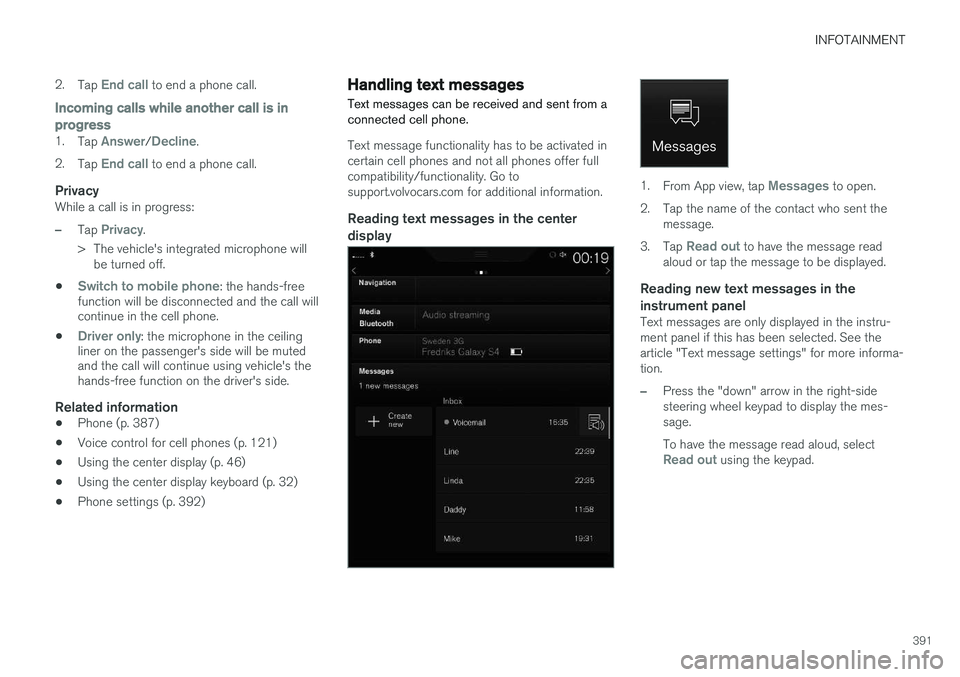
Reading text messages in the center display
1. From App view, tap Messages to open.
2. Tap the name of the contact who sent the message.
3. Tap
Read out to have the message read
aloud or tap the message to be displayed.
Reading new text messages in the instrument panel
Text messages are only displayed in the instru- ment panel if this has been selected. See thearticle "Text message settings" for more informa-tion.
–Press the "down" arrow in the right-side steering wheel keypad to display the mes-sage. To have the message read aloud, select
Read out using the keypad.
Page 394 of 570
INFOTAINMENT
* Option/accessory, for more information, see Introduction.
392
Sending text messages
1.
From App view, tap Messages to open.
2. •To reply to a message: tap the name of the contact who sent the message and then tap
Answer.
• To create a new message: tap
Create
new
+. Select the contact who will
receive the message or enter a phone number.
3. Write the message. 4. Tap
Send.
Message notificationSee the article "Text message settings" for a list of possible settings.
Related information
• Text message settings (p. 392)
Phone settings
The following settings can be made for a paired and connected cell phone.
Cell phones
–Pull down the center display's Top view and tap
SettingsCommunicationPhoneand choose among the following settings: •
Ringtones: select a ring tone (tones from
the cell phone or the vehicle can be used). Not all cell phones are fully com-patible and it may not be possible to usetheir ring tones in the vehicle. Go towww.volvocars.com for additional informa-tion.
•
Sort order for contacts: select sort cri-
teria for the phone book (list of contacts).
To show call notifications in the head-up dis- play *, see the article "Head-up display."
Related information
• Text message settings (p. 392)
• Bluetooth settings (p. 404)
• Phone (p. 387)
• Handling phone calls (p. 390)
• Head-up display (HUD)
* (p. 117)
Text message settings
The following settings can be made for text mes- sages received through a paired and connectedcell phone.
Text message settings
–Pull down the center display's Top view and tap
SettingsCommunicationText
Messages and choose among the following
settings:
•
Notification in center display: shows
text messages in the center display's sta- tus bar.
•
Notification in driver display: shows
text messages in the instrument panel. With this alternative active, incoming mes-sages can be handled from the right-sidesteering wheel keypad.
•
Text message tone: select an audible
signal for incoming text messages.
Related information
• Connecting/disconnecting a cell phone (p. 389)
• Pairing a cell phone (p. 387)
• Handling text messages (p. 391)
Page 395 of 570
INFOTAINMENT
* Option/accessory, for more information, see Introduction.393
Connecting a Bluetooth®
device
Bluetooth ®
-enabled devices can be paired and
connected to the infotainment system to stream media and in some cases connect to the Inter-net.
Many cell phones and other devices currently on the market offer wireless Bluetooth ®
technology.
Consult your Volvo retailer or go to support.volvocars.com for any questions regar-ding a device's compatibility with the vehicle'sinfotainment system. The procedure for pairing and connecting a Bluetooth ®
-enabled device is the same as for a
cell phone. See the articles "Pairing a cell phone" and "Connecting/disconnecting a cell phone" fordetails.
Related information
• Pairing a cell phone (p. 387)
• Connecting/disconnecting a cell phone (p. 389)
Connecting a device via the AUX/USB socket
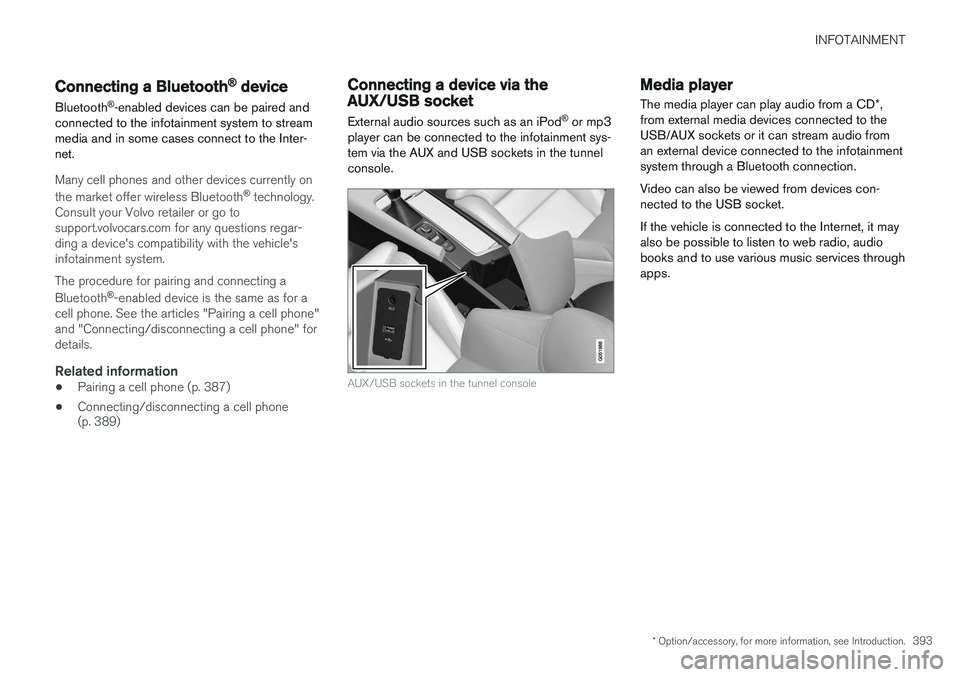
External audio sources such as an iPod ®
or mp3
player can be connected to the infotainment sys- tem via the AUX and USB sockets in the tunnelconsole.
AUX/USB sockets in the tunnel console
Media player
The media player can play audio from a CD *,
from external media devices connected to the USB/AUX sockets or it can stream audio froman external device connected to the infotainmentsystem through a Bluetooth connection. Video can also be viewed from devices con- nected to the USB socket. If the vehicle is connected to the Internet, it may also be possible to listen to web radio, audiobooks and to use various music services throughapps.
Page 397 of 570
INFOTAINMENT
395
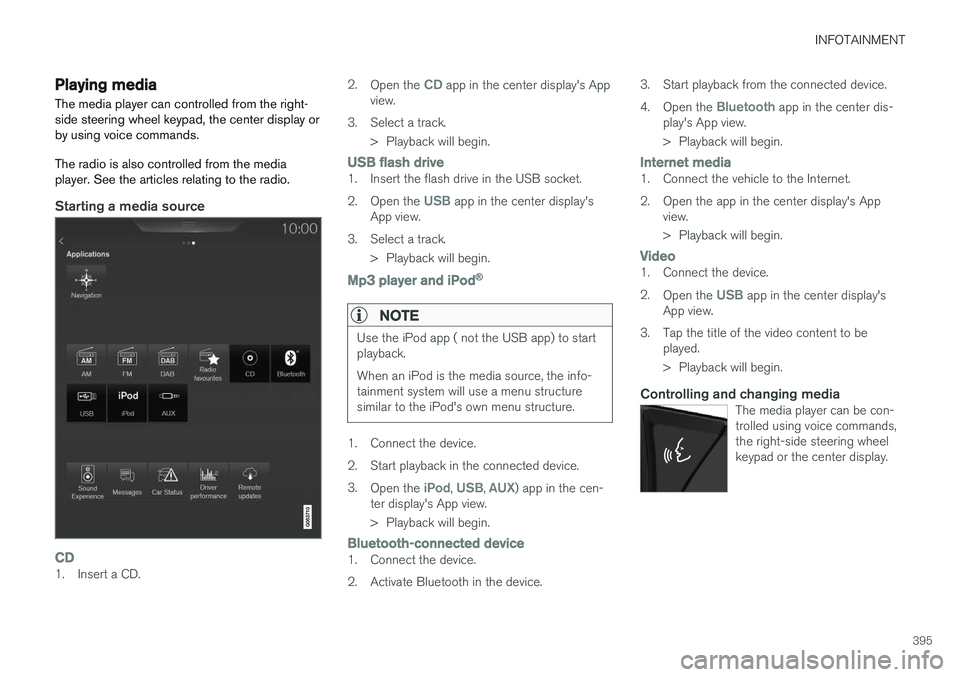
Playing media The media player can controlled from the right- side steering wheel keypad, the center display orby using voice commands. The radio is also controlled from the media player. See the articles relating to the radio.
Starting a media source
CD1. Insert a CD.2.
Open the
CD app in the center display's App
view.
3. Select a track. > Playback will begin.
USB flash drive1. Insert the flash drive in the USB socket. 2.Open the
USB app in the center display's
App view.
3. Select a track. > Playback will begin.
Mp3 player and iPod®
NOTE
Use the iPod app ( not the USB app) to start playback. When an iPod is the media source, the info- tainment system will use a menu structuresimilar to the iPod's own menu structure.
1. Connect the device.
2. Start playback in the connected device.3.
Open the
iPod, USB, AUX) app in the cen-
ter display's App view.
> Playback will begin.
Bluetooth-connected device1. Connect the device.
2. Activate Bluetooth in the device. 3. Start playback from the connected device.4.
Open the
Bluetooth app in the center dis-
play's App view.
> Playback will begin.
Internet media1. Connect the vehicle to the Internet.
2. Open the app in the center display's App view.
> Playback will begin.
Video1. Connect the device. 2.Open the
USB app in the center display's
App view.
3. Tap the title of the video content to be played.
> Playback will begin.
Controlling and changing mediaThe media player can be con- trolled using voice commands,the right-side steering wheelkeypad or the center display.
Page 398 of 570

INFOTAINMENT
* Option/accessory, for more information, see Introduction.
396
Volume: use the buttons on the keypad or turn the control under the center display to raise orlower the volume. Play/pause: tap the track's image, press the
symbol on the keypad or press the button under the center display. Change tracks: tap the desired track on the cen- ter display, press the < > buttons under the cen-
ter display or use the keypad. Fast forward/reverse, move within a track: press the time axis on the center display and drag from side to side, press and hold the
< > buttons
under the center display or use the keypad. Change media source: Tap a media source under
Recents, tap the desired app in the center dis-
play's App view or use the keypad.
Library: tap to play a track from the library.
Shuffle: tap to play tracks in random order.
Similar: tap to use Gracenote to search for simi-
lar music on the USB device and create a playlist based on the results. The playlist can contain upto 50 tracks.
Change device: tap to toggle between USB
devices if more than one is connected.
Video settingsThe following can be adjusted with the video player in full screen or by opening the center dis- play's Top view and tapping
SettingsVideo:Primary Audio Default Language, Subtitleand Primary Subtitle Default Language.
Play DivX®This DivX device must be registered in order to play purchased DivX Video-on-Demand (VOD)movies.
1. Open the center display's Top view and tap
SettingsVideoDivX
® VOD to get a
registration code. 2. Go to vod.divx.com for additional information
and to complete the registration process.
Related information
• CD (media) player
* (p. 394)
• Media player technical data (p. 400)
• Media player (p. 393)
• Voice control for radio and media (p. 122)
• Apps (applications) (p. 403)
• Connecting a Bluetooth ®
device (p. 393)
• Connecting a device via the AUX/USB socket (p. 393)
• Gracenote (p. 399)
• Connecting to the Internet (p. 402)
• Media searches (p. 397)
• Video (p. 399)
Page 399 of 570
INFOTAINMENT
397
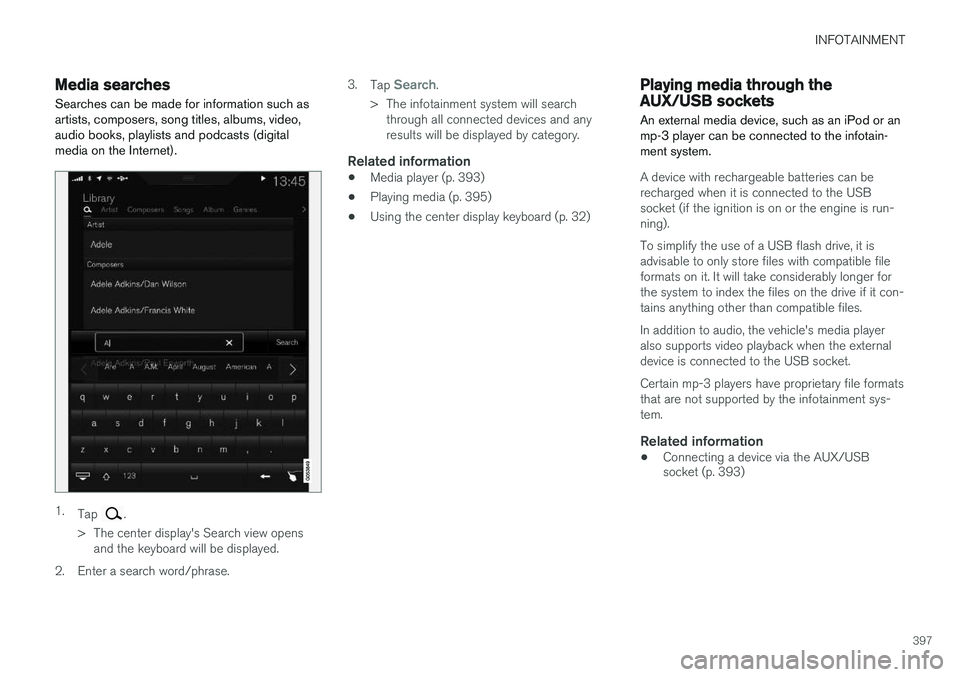
Media searchesSearches can be made for information such as artists, composers, song titles, albums, video,audio books, playlists and podcasts (digitalmedia on the Internet).
1. Tap .
> The center display's Search view opens and the keyboard will be displayed.
2. Enter a search word/phrase. 3.
Tap
Search.
> The infotainment system will search through all connected devices and any results will be displayed by category.
Related information
• Media player (p. 393)
• Playing media (p. 395)
• Using the center display keyboard (p. 32)
Playing media through the AUX/USB sockets
An external media device, such as an iPod or an mp-3 player can be connected to the infotain-ment system.
A device with rechargeable batteries can be recharged when it is connected to the USBsocket (if the ignition is on or the engine is run-ning). To simplify the use of a USB flash drive, it is advisable to only store files with compatible fileformats on it. It will take considerably longer forthe system to index the files on the drive if it con-tains anything other than compatible files. In addition to audio, the vehicle's media player also supports video playback when the externaldevice is connected to the USB socket. Certain mp-3 players have proprietary file formats that are not supported by the infotainment sys-tem.
Related information
• Connecting a device via the AUX/USB socket (p. 393)
Page 400 of 570

INFOTAINMENT
* Option/accessory, for more information, see Introduction.
398
Streaming media through a Bluetooth connection The media player is equipped with Bluetooth ®
for streaming audio files from external Bluetooth ®
-enabled devices.
Related information
• Connecting a Bluetooth ®
device (p. 393)
• Playing media (p. 395)
• Voice control for radio and media (p. 122)
• Media player (p. 393)
• Ignition modes (p. 355)
• Media player technical data (p. 400)
Media sound settings
Sound settings for the media player can be per- sonalized.
1. Tap Settings in the center display's Top
view.
2. Tap
Sound and select among the following:
•
Sound Experience* : this feature offers sev-
eral ways of adapting media sound settings to replicate e.g., a concert hall or a recordingstudio. These settings override any of theones below that may have been adjusted.
•
Tone: personal settings for bass, treble,
equalizer, etc.
•
Balance: adjust the front/rear and left/right
sound settings in the passenger compart- ment.
System volumes for mediaOpen the center display's Top view and tap
SettingsSoundSystem Volumes:
•
AUX: an external device (e.g., an mp3 player,
an iPod, etc.) connected to the AUX socket may have a different volume level than theone set for the infotainment system (e.g., forthe radio). This setting enables you to adjustthe AUX socket's volume. Please note that ifthis volume is set too high, sound quality maybe affected.
•
Speed/Volume Compensation: the info-
tainment system will compensate for disrupt- ing noises in the passenger compartment by increasing media volume in relation to thevehicle's speed. This can be set to one ofseveral different levels.
Related information
•
Playing media (p. 395)
• Sound settings (p. 376)
Page 403 of 570
INFOTAINMENT
* Option/accessory, for more information, see Introduction.401
Max. number
Tracks in a playlist1,000
SubfoldersNo limit
Related information
•CD (media) player
* (p. 394)
Internet connected vehicle
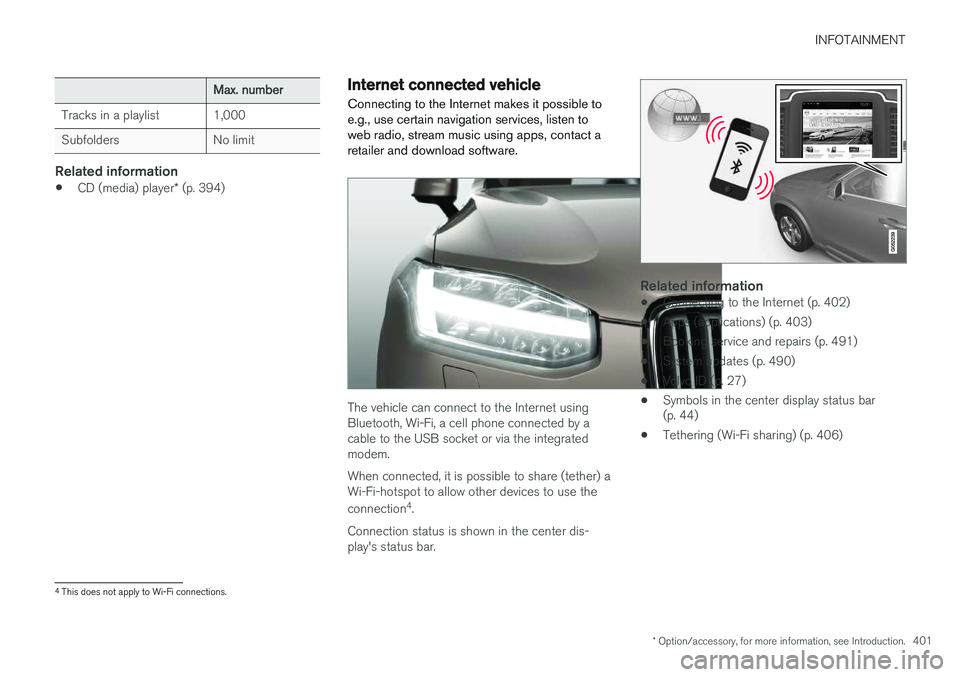
Connecting to the Internet makes it possible to e.g., use certain navigation services, listen toweb radio, stream music using apps, contact aretailer and download software.
The vehicle can connect to the Internet using Bluetooth, Wi-Fi, a cell phone connected by acable to the USB socket or via the integratedmodem. When connected, it is possible to share (tether) a Wi-Fi-hotspot to allow other devices to use the connection 4
.
Connection status is shown in the center dis- play's status bar.
Related information
• Connecting to the Internet (p. 402)
• Apps (applications) (p. 403)
• Booking service and repairs (p. 491)
• System updates (p. 490)
• Volvo ID (p. 27)
• Symbols in the center display status bar (p. 44)
• Tethering (Wi-Fi sharing) (p. 406)
4
This does not apply to Wi-Fi connections.
Page 404 of 570
INFOTAINMENT
402
Connecting to the Internet
Connect the vehicle to the Internet using
Bluetooth, Wi-Fi, by connecting a phone through a cable to the USB socket or via the vehicle'sintegrated modem.
The cell phone and the network service provider must support Internet sharing (tethering) and thesubscription must included data transfer.
Connect using BluetoothSee the article "Pairing a cell phone."
Connect using Wi-Fi
1. Activate tethering/personal hotspot in the cell phone.
2. Tap
Settings in the center display's Top
view.
3. Tap
CommunicationWi-Fi.
4. Tap Wi-Fi to activate/deactivate.
5. Tap the name of the network to be used.
6. Enter the network password. 7. If a different connection was used previously,
confirm the connection change.
> The vehicle will connect to the network.
When a phone is connected to the vehicle, it is saved for future use. When a max. number of 50have been saved, the first one connected will bedeleted. To show the list of saved networks or to manually delete a network, tap
SettingsWi-Fi
Saved networks.
See the article "Wi-Fi technology and security" for network connection requirements.
Connect using a cable-connected to the
USB socket
1. Connect the phone via a cable to the USB socket in the tunnel console storage com-partment.
2. Activate USB tethering in the cell phone.
3. If a different connection was used previously, confirm the connection change.
> The vehicle will connect to the network.
Connect using the vehicle's integrated modem
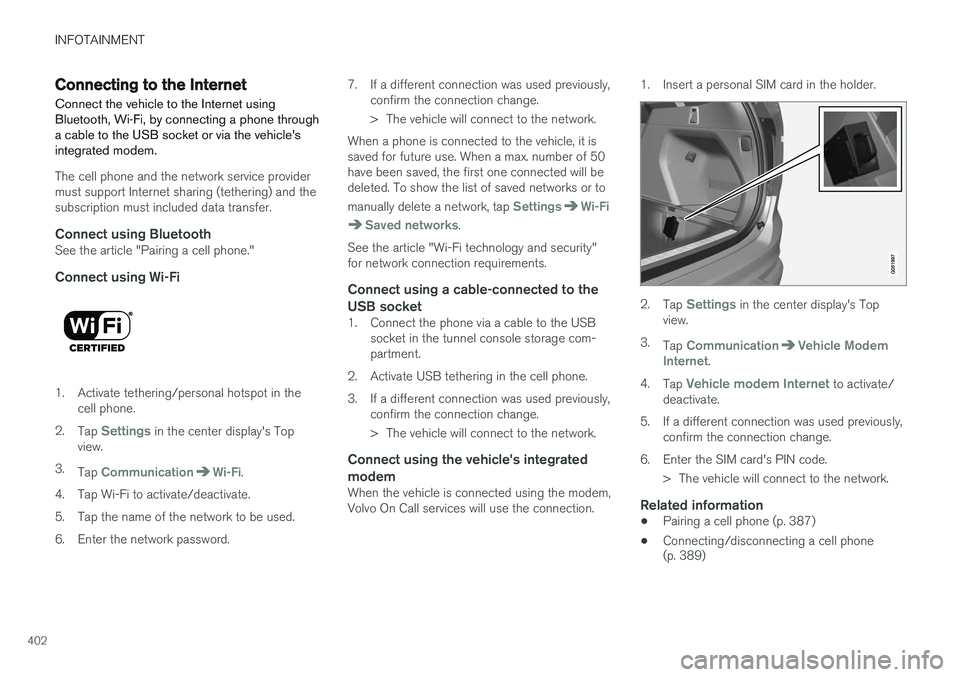
When the vehicle is connected using the modem, Volvo On Call services will use the connection. 1. Insert a personal SIM card in the holder.
2.
Tap Settings in the center display's Top
view.
3. Tap
CommunicationVehicle Modem
Internet.
4. Tap
Vehicle modem Internet to activate/
deactivate.
5. If a different connection was used previously, confirm the connection change.
6. Enter the SIM card's PIN code. > The vehicle will connect to the network.
Related information
• Pairing a cell phone (p. 387)
• Connecting/disconnecting a cell phone (p. 389)