ESP VOLVO XC90 2015 Repair Manual
[x] Cancel search | Manufacturer: VOLVO, Model Year: 2015, Model line: XC90, Model: VOLVO XC90 2015Pages: 570, PDF Size: 12.44 MB
Page 378 of 570
INFOTAINMENT
376
The infotainment system
The infotainment system consists of a radio, media player and has the capacity to communi-cate with a Bluetooth-connected cell phone. It isalso possible to connect to the Internet to e.g.,stream audio content via apps. The system's functions can be controlled from the right-side steering wheel keypad, the centerdisplay or by using voice commands.
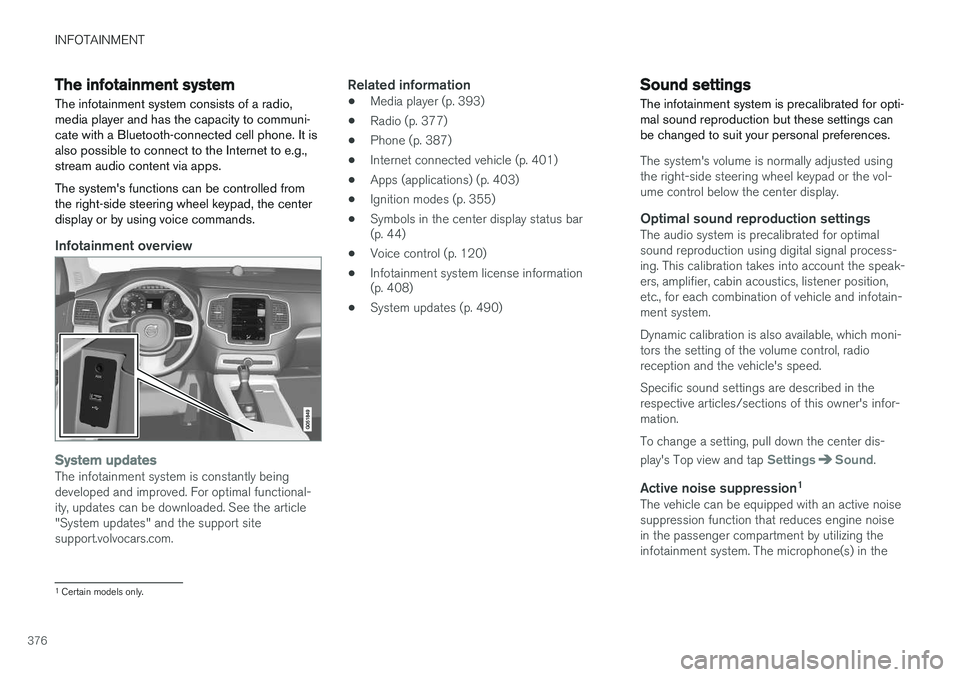
Infotainment overview
System updatesThe infotainment system is constantly being developed and improved. For optimal functional-ity, updates can be downloaded. See the article"System updates" and the support sitesupport.volvocars.com.
Related information
• Media player (p. 393)
• Radio (p. 377)
• Phone (p. 387)
• Internet connected vehicle (p. 401)
• Apps (applications) (p. 403)
• Ignition modes (p. 355)
• Symbols in the center display status bar (p. 44)
• Voice control (p. 120)
• Infotainment system license information(p. 408)
• System updates (p. 490)
Sound settings
The infotainment system is precalibrated for opti- mal sound reproduction but these settings canbe changed to suit your personal preferences.
The system's volume is normally adjusted using the right-side steering wheel keypad or the vol-ume control below the center display.
Optimal sound reproduction settingsThe audio system is precalibrated for optimalsound reproduction using digital signal process-ing. This calibration takes into account the speak-ers, amplifier, cabin acoustics, listener position,etc., for each combination of vehicle and infotain-ment system. Dynamic calibration is also available, which moni- tors the setting of the volume control, radioreception and the vehicle's speed. Specific sound settings are described in the respective articles/sections of this owner's infor-mation. To change a setting, pull down the center dis- play's Top view and tap
SettingsSound.
Active noise suppression 1The vehicle can be equipped with an active noise suppression function that reduces engine noisein the passenger compartment by utilizing theinfotainment system. The microphone(s) in the
1
Certain models only.
Page 381 of 570
INFOTAINMENT
* Option/accessory, for more information, see Introduction.379
FavoritesIf a favorite station from a list is currently availa- ble, the radio will automatically tune to that sta-tion. See "Changing a list in a waveband" above for information about selecting favorites on a wave-band. See "Radio favorites" below for informationabout selecting a station among all of your favor-ites.
–Tap to add or remove a station for the
waveband's list of favorites or Radio favorites.
Radio favoritesRadio favorites shows all of the favorite stations that have beensaved for e.g., AM, FM.
1. Open the Radio favorites app in App view.
2. Tap the desired station to listen. When a station is removed, it will also be removed from the respective waveband's list offavorites.
Changing wavebands
–Tap an app, e.g., FM in App view or open the
app menu from the right-side steering wheel keypad to select.
Searching for a radio stationSearching is done differently, depending on thewaveband selected.
• AM: stations and frequencies.
• FM: stations, genres and frequencies.
• SiriusXM
®: program types, genres, stations.
1. Tap
Library. 2.
Tap
.
> The search view with a keyboard will open.
3. Enter a search word(s). > The search will start and change as char-acters are entered and the search results will be categorized.
Searching for a station manuallySearching manually makes it possible to find andtune to stations that are not on the automaticallycompiled list of the strongest stations in the area.
–Tap Manual tuning, drag the control or tap
< > to go to the desired frequency.
Related information
•
SiriusXM ®
Satellite radio * (p. 383)
• HD Radio
™reception (p. 380)
Page 389 of 570
INFOTAINMENT
387
Phone
A Bluetooth-enabled cell phone can be paired and connected to the vehicle's integrated hands-free system.
The infotainment system offers hands-free func- tionality for remote-controlling a number of a cellphone's features. The phone's integrated controlscan also be used, even when it is connected tothe vehicle. When the phone has been paired and connected to the infotainment system, it can be used tomake or receive calls, send or receive text mes-sages, to stream music, etc., or as an Internetconnection.
The phone is controlled fromthe center display but the Appmenu (accessed using theright-side steering wheel key-pad) and voice commands canalso be used to control certainfunctions.
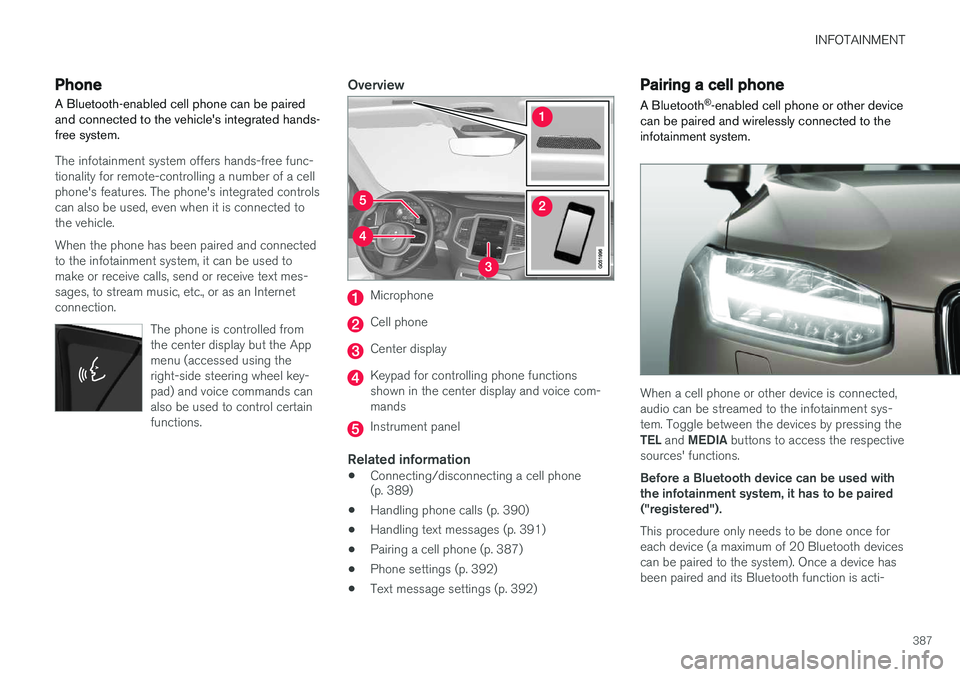
Overview
Microphone
Cell phone
Center display
Keypad for controlling phone functions shown in the center display and voice com-mands
Instrument panel
Related information
•Connecting/disconnecting a cell phone (p. 389)
• Handling phone calls (p. 390)
• Handling text messages (p. 391)
• Pairing a cell phone (p. 387)
• Phone settings (p. 392)
• Text message settings (p. 392)
Pairing a cell phone
A Bluetooth ®
-enabled cell phone or other device
can be paired and wirelessly connected to the infotainment system.
When a cell phone or other device is connected, audio can be streamed to the infotainment sys-tem. Toggle between the devices by pressing the TEL and MEDIA buttons to access the respective
sources' functions. Before a Bluetooth device can be used with the infotainment system, it has to be paired("registered"). This procedure only needs to be done once for each device (a maximum of 20 Bluetooth devicescan be paired to the system). Once a device hasbeen paired and its Bluetooth function is acti-
Page 406 of 570
INFOTAINMENT
404
Bluetooth settingsThe following settings apply to a Bluetooth-con- nected cell phone.
Bluetooth1. Tap Settings in the center display's Top
view.
2. Tap
CommunicationBluetooth and
select among the following settings:
•
Previously paired devices: lists the
devices that are paired and connected to the vehicle.
•
Internet connection: select to connect
to the Internet using the device's Bluetooth connection.
•
Add device: begin the procedure to pair
a new device.
•
Remove device: remove a paired device.
•
Allowed services for this device: select
the services that the device will be used for.
Bluetooth complianceUnited States FCC CAUTION Changes or modifications not expressly approved by the party responsible for compliance couldvoid the user's authority to operate the equip-ment. This transmitter must not be co-located or operated in conjunction with any other antennaor transmitter. Canada This device complies with Industry Canada licence-exempt RSS standard(s). Operation issubject to the following two conditions: (1) this device may not cause interference, and(2) this device must accept any interference, including interference that may cause undesiredoperation of the device.
Related information
•
Internet connected vehicle (p. 401)
• Pairing a cell phone (p. 387)
• Phone (p. 387)
• Media player (p. 393)
• Connecting/disconnecting a cell phone (p. 389)
Downloading, updating and uninstalling apps
Apps can be added (downloaded), kept up-to- date or deleted.
NOTE
Downloading data may affect other services that transfer data such as web radio, stream-ing music, etc. If this occurs, a download inprogress can be cancelled or the other serv-ice can be temporarily turned off.
Apps are managed via theRemote update service in
the center display's App view. To download, update or delete apps, the vehicle must be con-nected to the Internet.
Downloading an app
1. Open the Remote update service app.
2. Select
Explore to open a list of apps that
are available but which are not installed in the vehicle. Tap anywhere in a line for an appto expand the list for additional information.
Page 413 of 570
INFOTAINMENT
411
Please note that we cannot respond to any inquiries regarding the source code.
camellia:1.2.0Copyright (c) 2006, 2007 NTT (Nippon Telegraph and Telephone Corporation). All rights reserved. Redistribution and use in source and binary forms, with or without modification, are permittedprovided that the following conditions are met:
1. Redistributions of source code must retain
the above copyright notice, this list of conditions and the following disclaimer asthe first lines of this file unmodified.
2. Redistributions in binary form must reproduce the above copyright notice, this listof conditions and the following disclaimer inthe documentation and/or other materialsprovided with the distribution.
THIS SOFTWARE IS PROVIDED BY NTT
Page 414 of 570
INFOTAINMENT
412Changes or modifications not expressly approved by the party responsible for compliance couldvoid the user's authority to operate the equip-ment. This transmitter must not be co-located oroperated in conjunction with any other antennaor transmitter. CanadaThis device complies with Industry Canada licence-exempt RSS standard(s). Operation issubject to the following two conditions: (1) thisdevice may not cause interference, and (2) thisdevice must accept any interference, includinginterference that may cause undesired operationof the device.
Terms, conditions and confidentiality
See terms and conditions for services and cus- tomer privacy policy at support.volvocars.com.
Terms & Conditions for ServicesVolvo offers the best possible services to make owning and operating a Volvo safe, convenient,comfortable and enjoyable. Volvo offers a widearray of services, ranging from emergency assis-tance to navigation and infotainment.
Customer privacy policyThis policy applies to the way in which customer-related and personal information are handled. Itspurpose is to provide our present, previous andfuture customers a general understanding of: • The circumstances under which we gather and process your personal information.
• The types of personal information gathered.
• The reasons for gathering your personalinformation.
• How we deal with your personal information.
This policy can be read in its entirety at support.volvocars.com.
Page 418 of 570
VOLVO ON CALL WITH SENSUS CONNECT *
* Option/accessory, for more information, see Introduction.
416
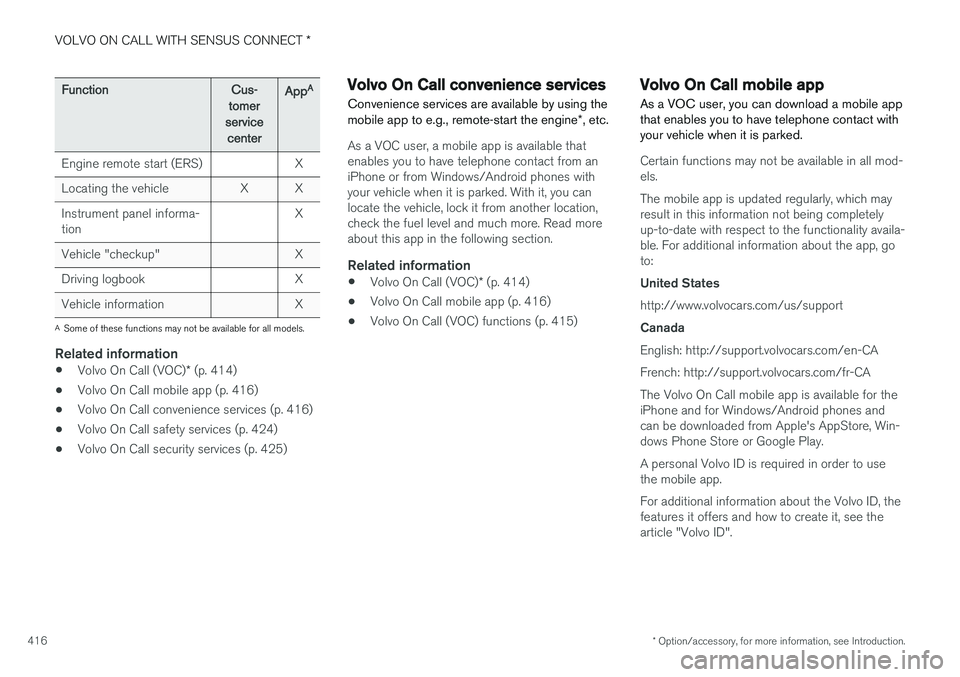
FunctionCus-
tomer
service centerApp A
Engine remote start (ERS)X
Locating the vehicleXX
Instrument panel informa- tionX
Vehicle "checkup"X
Driving logbookX
Vehicle informationX
A
Some of these functions may not be available for all models.
Related information
• Volvo On Call (VOC)
* (p. 414)
• Volvo On Call mobile app (p. 416)
• Volvo On Call convenience services (p. 416)
• Volvo On Call safety services (p. 424)
• Volvo On Call security services (p. 425)
Volvo On Call convenience services
Convenience services are available by using the mobile app to e.g., remote-start the engine *, etc.
As a VOC user, a mobile app is available that enables you to have telephone contact from aniPhone or from Windows/Android phones withyour vehicle when it is parked. With it, you canlocate the vehicle, lock it from another location,check the fuel level and much more. Read moreabout this app in the following section.
Related information
• Volvo On Call (VOC)
* (p. 414)
• Volvo On Call mobile app (p. 416)
• Volvo On Call (VOC) functions (p. 415)
Volvo On Call mobile app
As a VOC user, you can download a mobile app that enables you to have telephone contact withyour vehicle when it is parked.
Certain functions may not be available in all mod- els. The mobile app is updated regularly, which may result in this information not being completelyup-to-date with respect to the functionality availa-ble. For additional information about the app, goto: United States http://www.volvocars.com/us/support Canada English: http://support.volvocars.com/en-CA French: http://support.volvocars.com/fr-CAThe Volvo On Call mobile app is available for the iPhone and for Windows/Android phones andcan be downloaded from Apple's AppStore, Win-dows Phone Store or Google Play. A personal Volvo ID is required in order to use the mobile app. For additional information about the Volvo ID, the features it offers and how to create it, see thearticle "Volvo ID".
Page 422 of 570
VOLVO ON CALL WITH SENSUS CONNECT *
* Option/accessory, for more information, see Introduction.
420
Personal information Personal information is gathered for use with the Volvo On Call (VOC) service.
Volvo's sales companies are responsible for pro- cessing and storing VOC-related information.This information is treated according to legisla-tion and regulations pertaining to data of thistype.
CountrySales company
United StatesVolvo Cars of North America, LLC
CanadaVolvo Cars of Canada
Why information is gatheredPersonal information is used by Volvo and its partners to provide and develop the VOC service.
Types of personal information gatheredThe primary types of personal information gath-ered for VOC-related purposes are:
• Personal information that the customer pro- vides in connection with the activation of theVOC service and during other contact withVolvo, including name, address, telephonenumber, type of service and the duration ofthe service.
• When information about a specific VOC-rela-ted event is automatically transmitted fromthe vehicle. A message of this type contains:the vehicle identification number (VIN), time when the service is used, type of service, ifairbags have been triggered, if the seat belttensioners have been triggered, current fuellevel, current temperature inside and outsidethe vehicle, whether the doors are lockedand windows are closed and the vehicle'slast six locations, including speed and direc-tion.
• Other information associated with theowner/driver, such as telephone calls withpeople in the vehicle, the customer servicecenter that provided the service and notesmade by the customer service operator.
Access to my personal informationVolvo uses sub-contractors to provide the service. These sub-contractors work on behalf of Volvoand may only process personal information to theextent necessary to provide service. All sub-con-tractors are bound by agreements requiring themto observe strict confidentiality and to treat per-sonal details in accordance with applicable legis-lation.
Deleting personal informationThe personal details required to provide the VOCservice are stored during the subscription periodand thereafter for as long as necessary in orderfor Volvo to fulfil its obligations according to leg-islation and other regulations. Information gener-ated during events covered by the VOC service isdeleted three months after an event has occur-red.
Corrections and register extractsPrivate persons have the right to request correc-tions of incorrect information and to obtain anextract showing the personal information that hasbeen processed. Requests for extracts from theregister must be submitted in writing and signedby the applicant and include name, address andcustomer number. The request should be postedto: Volvo Cars of North America, LLC Customer Care Center 1 Volvo Drive,P.O. Box 914Rockleigh, New Jersey 07647Phone: 1-800-458-1552 Volvo Cars of Canada National Customer Service 9130 Leslie Street, Suite 101Richmond Hill, Ontario L4B 0B9Phone: 1-800-663-8255
Consent to gather VOC-related personal
information
By activating a VOC subscription in accordance with the instructions in this document, the useragrees to the collection of VOC-related personalinformation.
Page 441 of 570
NAVIGATION*
* Option/accessory, for more information, see Introduction.
439
Favorites
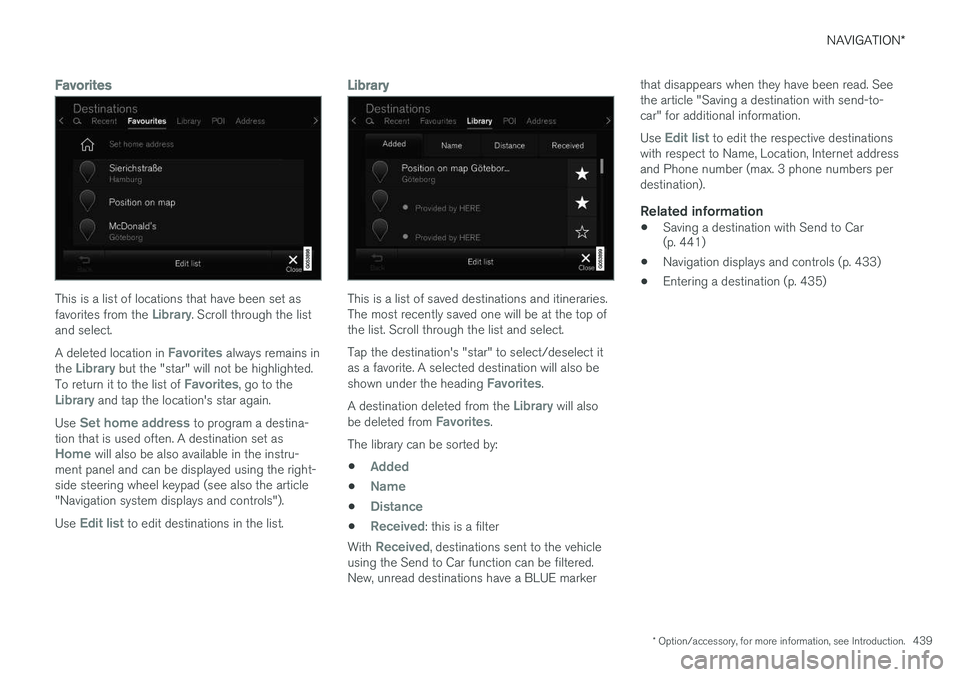
This is a list of locations that have been set as favorites from the Library. Scroll through the list
and select. A deleted location in
Favorites always remains in
the Library but the "star" will not be highlighted.
To return it to the list of Favorites, go to theLibrary and tap the location's star again.
Use
Set home address to program a destina-
tion that is used often. A destination set as
Home will also be also available in the instru-
ment panel and can be displayed using the right- side steering wheel keypad (see also the article"Navigation system displays and controls"). Use
Edit list to edit destinations in the list.
Library
This is a list of saved destinations and itineraries. The most recently saved one will be at the top ofthe list. Scroll through the list and select. Tap the destination's "star" to select/deselect it as a favorite. A selected destination will also be shown under the heading
Favorites.
A destination deleted from the
Library will also
be deleted from Favorites.
The library can be sorted by:
•
Added
•Name
•Distance
•Received: this is a filter
With
Received, destinations sent to the vehicle
using the Send to Car function can be filtered. New, unread destinations have a BLUE marker that disappears when they have been read. Seethe article "Saving a destination with send-to-car" for additional information. Use
Edit list to edit the respective destinations
with respect to Name, Location, Internet address and Phone number (max. 3 phone numbers perdestination).
Related information
• Saving a destination with Send to Car (p. 441)
• Navigation displays and controls (p. 433)
• Entering a destination (p. 435)
Page 448 of 570
NAVIGATION*
* Option/accessory, for more information, see Introduction.
446 For information about a specific traffic tie-up:
• Select it in the list to get specific information.
Use the selection
Avoid to be rerouted to an
alternate route to your destination.
Related information
• Traffic information (p. 448)
• Traffic information settings (p. 454)
Information cards on the map
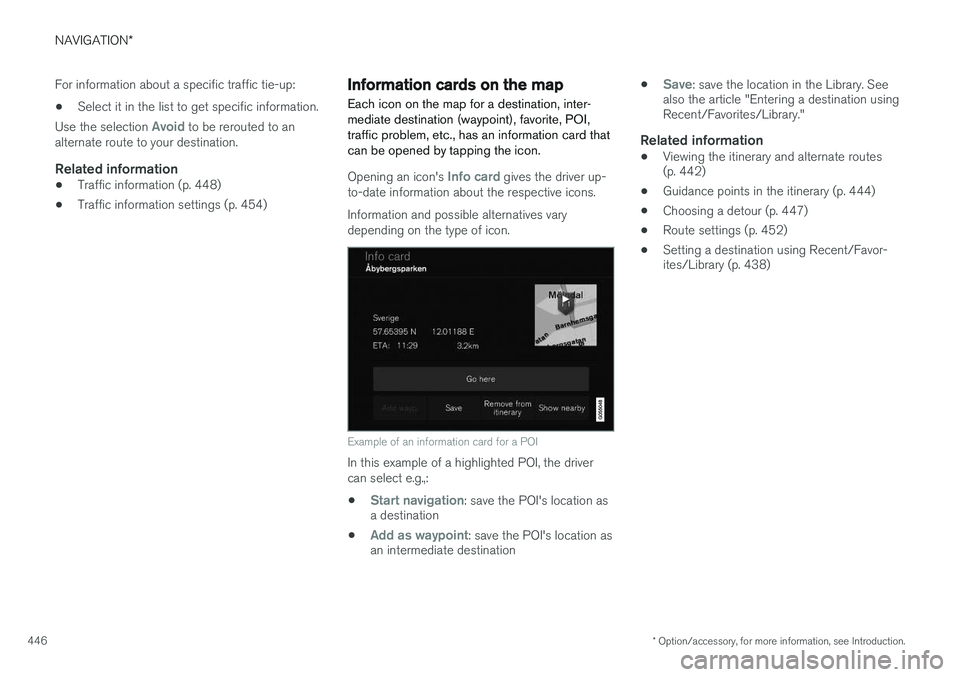
Each icon on the map for a destination, inter- mediate destination (waypoint), favorite, POI,traffic problem, etc., has an information card thatcan be opened by tapping the icon.
Opening an icon's Info card gives the driver up-
to-date information about the respective icons. Information and possible alternatives vary depending on the type of icon.
Example of an information card for a POI
In this example of a highlighted POI, the driver can select e.g.,:
•
Start navigation: save the POI's location as
a destination
•
Add as waypoint: save the POI's location as
an intermediate destination •
Save: save the location in the Library. See
also the article "Entering a destination using Recent/Favorites/Library."
Related information
• Viewing the itinerary and alternate routes(p. 442)
• Guidance points in the itinerary (p. 444)
• Choosing a detour (p. 447)
• Route settings (p. 452)
• Setting a destination using Recent/Favor-ites/Library (p. 438)