mode VOLVO XC90 T8 2017 Owner´s Manual
[x] Cancel search | Manufacturer: VOLVO, Model Year: 2017, Model line: XC90 T8, Model: VOLVO XC90 T8 2017Pages: 580, PDF Size: 10.37 MB
Page 422 of 580
||
STARTING AND DRIVING
420
Deactivating suspension and leveling control
In certain situations, this function has to be turned off, for example when lifting the vehicle ona jack to help avoid problems created by the dif-ference in levels in the pneumatic suspensionwhen the vehicle is raised. 1.Tap
Settings in the center display's Top
view.
2. Tap
My CarSuspension .
3. Select
Disable Leveling Control.
Loading mode
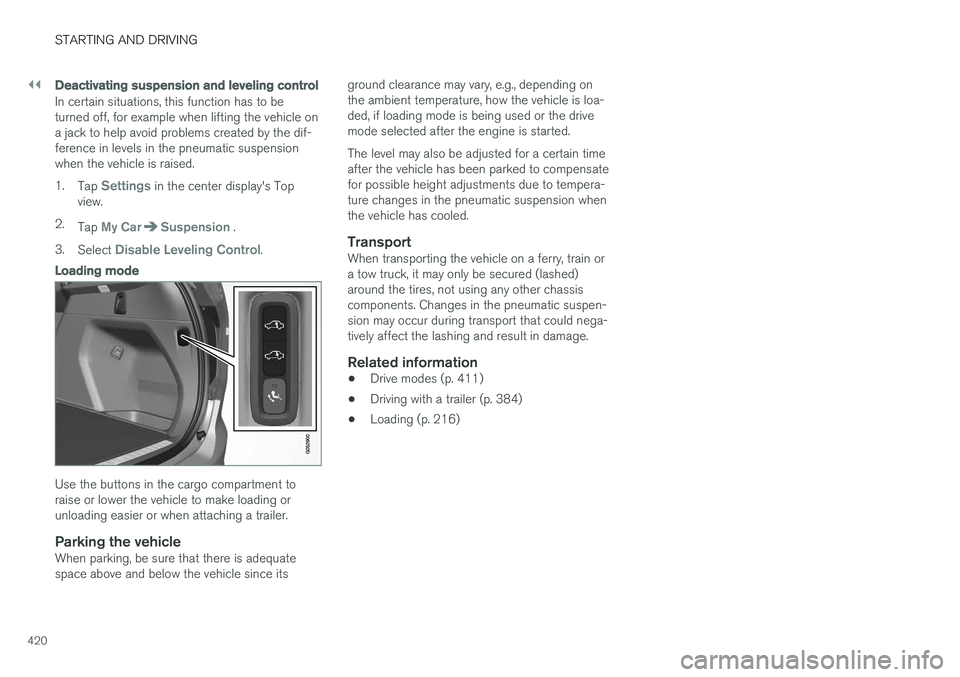
Use the buttons in the cargo compartment to raise or lower the vehicle to make loading orunloading easier or when attaching a trailer.
Parking the vehicleWhen parking, be sure that there is adequatespace above and below the vehicle since its ground clearance may vary, e.g., depending onthe ambient temperature, how the vehicle is loa-ded, if loading mode is being used or the drivemode selected after the engine is started. The level may also be adjusted for a certain time after the vehicle has been parked to compensatefor possible height adjustments due to tempera-ture changes in the pneumatic suspension whenthe vehicle has cooled.
TransportWhen transporting the vehicle on a ferry, train ora tow truck, it may only be secured (lashed)around the tires, not using any other chassiscomponents. Changes in the pneumatic suspen-sion may occur during transport that could nega-tively affect the lashing and result in damage.
Related information
•
Drive modes (p. 411)
• Driving with a trailer (p. 384)
• Loading (p. 216)
Page 424 of 580
INFOTAINMENT
422
The infotainment system
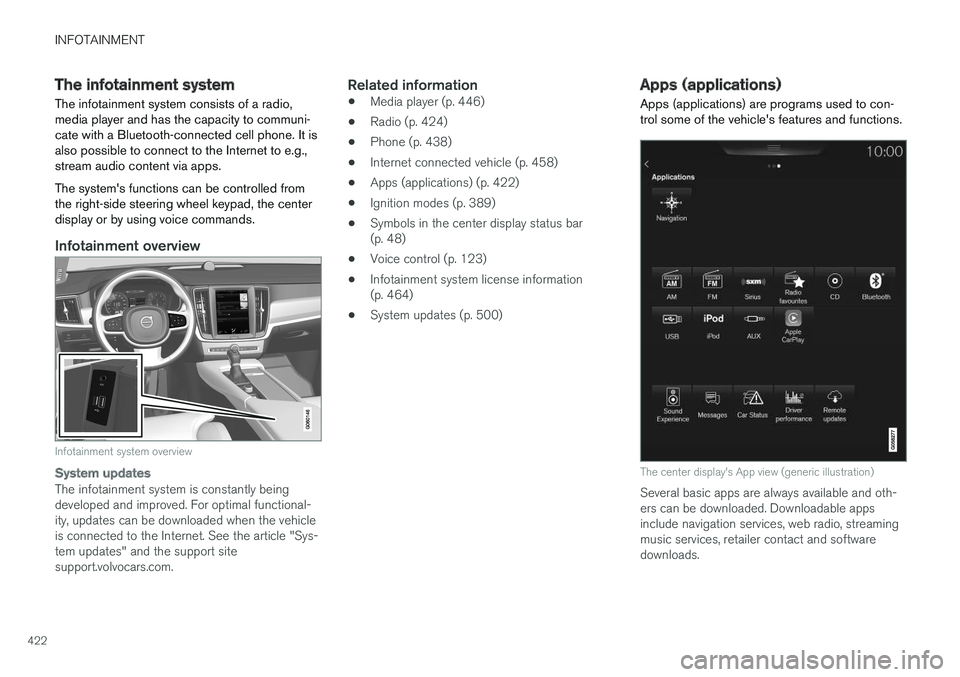
The infotainment system consists of a radio, media player and has the capacity to communi-cate with a Bluetooth-connected cell phone. It isalso possible to connect to the Internet to e.g.,stream audio content via apps. The system's functions can be controlled from the right-side steering wheel keypad, the centerdisplay or by using voice commands.
Infotainment overview
Infotainment system overview
System updates
The infotainment system is constantly being developed and improved. For optimal functional-ity, updates can be downloaded when the vehicleis connected to the Internet. See the article "Sys-tem updates" and the support sitesupport.volvocars.com.
Related information
• Media player (p. 446)
• Radio (p. 424)
• Phone (p. 438)
• Internet connected vehicle (p. 458)
• Apps (applications) (p. 422)
• Ignition modes (p. 389)
• Symbols in the center display status bar(p. 48)
• Voice control (p. 123)
• Infotainment system license information(p. 464)
• System updates (p. 500)
Apps (applications)
Apps (applications) are programs used to con- trol some of the vehicle's features and functions.
The center display's App view (generic illustration)
Several basic apps are always available and oth- ers can be downloaded. Downloadable appsinclude navigation services, web radio, streamingmusic services, retailer contact and softwaredownloads.
Page 425 of 580
INFOTAINMENT
423
Some apps are only available if the vehicle is connected to the Internet.
–In the center display's App view, tap an app to start it.
Related information
•
Internet connected vehicle (p. 458)
• Downloading, updating and uninstalling apps(p. 461)
• Changing settings in different types of apps(p. 48)
Sound settings
The infotainment system is precalibrated for opti- mal sound reproduction but these settings canbe changed to suit your personal preferences.
The system's volume is normally adjusted using the right-side steering wheel keypad or the vol-ume control below the center display.
Optimal sound reproduction settingsThe audio system is precalibrated for optimalsound reproduction using digital signal process-ing. This calibration takes into account the speak-ers, amplifier, cabin acoustics, listener position,etc., for each combination of vehicle and infotain-ment system. Dynamic calibration is also available, which moni- tors the setting of the volume control, radioreception and the vehicle's speed. Specific sound settings are described in the respective articles/sections of this owner's infor-mation. To change a setting, pull down the center dis- play's Top view and tap
SettingsSound.
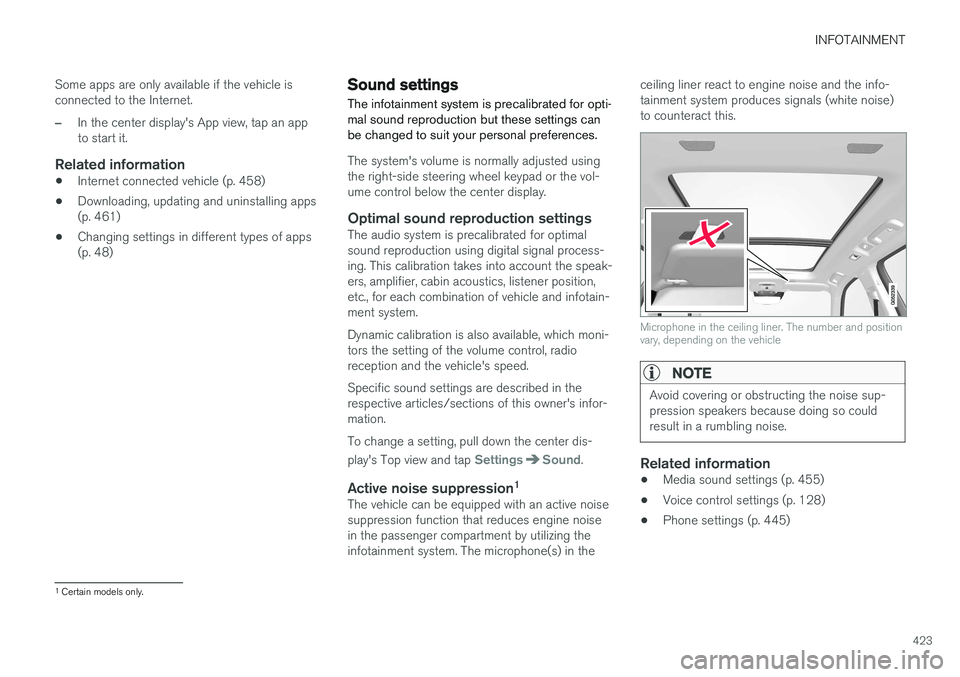
Active noise suppression 1The vehicle can be equipped with an active noise suppression function that reduces engine noisein the passenger compartment by utilizing theinfotainment system. The microphone(s) in the ceiling liner react to engine noise and the info-tainment system produces signals (white noise)to counteract this.
Microphone in the ceiling liner. The number and position vary, depending on the vehicle
NOTE
Avoid covering or obstructing the noise sup- pression speakers because doing so couldresult in a rumbling noise.
Related information
•
Media sound settings (p. 455)
• Voice control settings (p. 128)
• Phone settings (p. 445)
1
Certain models only.
Page 427 of 580
INFOTAINMENT
}}
425
Changing and searching for radio stations The radio automatically compiles a list of the strongest stations that it is currently receiving.
Turning the radio on1. Open an app (e.g., FM) from the center dis-play's App view.
2. Select a station.
Changing a list in a waveband1. Tap Library.
2. Sect from
Stations, Favorites or Genres.
3. Tap the desired station in the list.
Favorites: only plays stations from the list of
favorites (see "Favorites" below).
Genres: only plays stations broadcasting the
selected genre or program type, e.g., pop, classi- cal, etc.
Changing stations in a selected list
–Tap < > under the center display or on the
right-side steering wheel keypad.
> Move step-by-step through the selected list.
The center display can also be used to change stations.
FavoritesIf a favorite station from a list is currently availa-ble, the radio will automatically tune to that sta-tion. See "Changing a list in a waveband" above for information about selecting favorites on a wave-band. See "Radio favorites" below for informationabout selecting a station among all of your favor-ites.
–Tap to add or remove a station for the
waveband's list of favorites or Radio favorites.
Radio favorites
Radio favorites shows all of the favorite stations that have beensaved for e.g., FM.
1. Open the Radio favorites app in App view.
2. Tap the desired station to listen. When a station is removed, it will also be removed from the respective waveband's list offavorites.
Changing wavebands 3
–Tap an app, e.g., FM in App view or open the
app menu from the right-side steering wheel keypad to select.
Searching for a radio stationSearching is done differently, depending on thewaveband selected.
• FM: stations, genres and frequencies.
• SiriusXM
®: program types, genres, stations.
2
Certain stations only.3
The AM waveband is not available in hybrid models.
Page 428 of 580
||
INFOTAINMENT
* Option/accessory.
426 1.
Tap
Library.
2. Tap
.
> The search view with a keyboard will open.
3. Enter a search word(s). > The search will start and change as char-acters are entered and the search results will be categorized.
Searching for a station manuallySearching manually makes it possible to find andtune to stations that are not on the automaticallycompiled list of the strongest stations in the area.
–Tap Manual tuning, drag the control or tap
< > to go to the desired frequency.
Related information
•
SiriusXM ®
Satellite radio * (p. 429)
• HD Radio
™reception (p. 426)
HD Radio ™reception
HD Radio is a brand name registered by the iBiquity digital corporation 4
. They are the devel-
oper of a broadcasting technology called IBOC or In Band On Channel, which refers to themethod of transmitting a digital radio broadcastsignal centered on the same frequency as theFM station's present frequency.
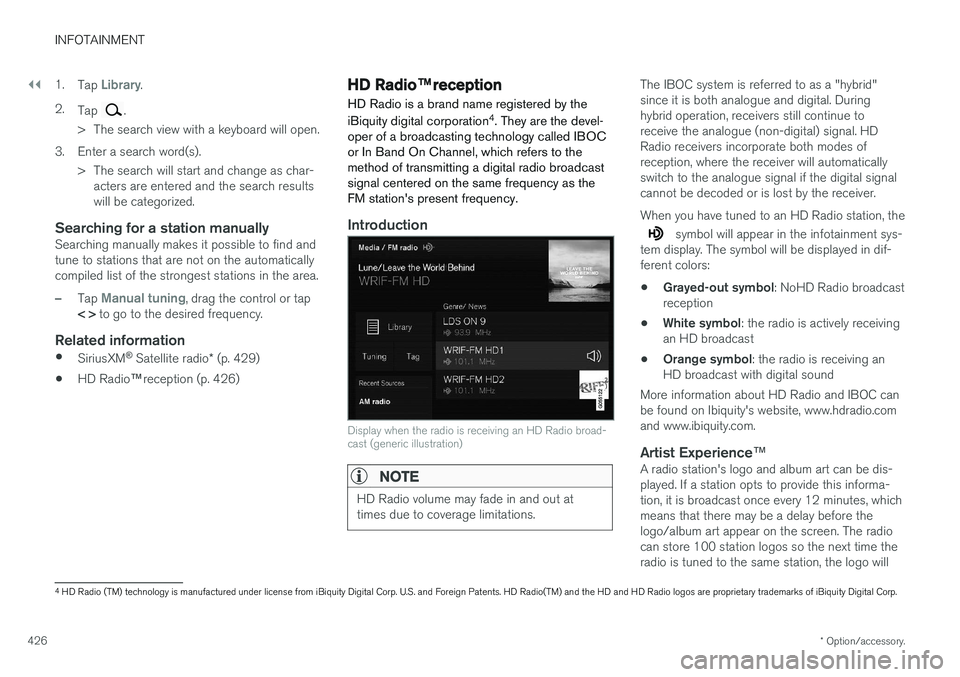
Introduction
Display when the radio is receiving an HD Radio broad- cast (generic illustration)
NOTE
HD Radio volume may fade in and out at times due to coverage limitations.
The IBOC system is referred to as a "hybrid" since it is both analogue and digital. Duringhybrid operation, receivers still continue toreceive the analogue (non-digital) signal. HDRadio receivers incorporate both modes ofreception, where the receiver will automaticallyswitch to the analogue signal if the digital signalcannot be decoded or is lost by the receiver. When you have tuned to an HD Radio station, the
symbol will appear in the infotainment sys-
tem display. The symbol will be displayed in dif- ferent colors:
• Grayed-out symbol
: NoHD Radio broadcast
reception
• White symbol
: the radio is actively receiving
an HD broadcast
• Orange symbol
: the radio is receiving an
HD broadcast with digital sound
More information about HD Radio and IBOC canbe found on Ibiquity's website, www.hdradio.comand www.ibiquity.com.
Artist Experience ™A radio station's logo and album art can be dis-played. If a station opts to provide this informa-tion, it is broadcast once every 12 minutes, whichmeans that there may be a delay before thelogo/album art appear on the screen. The radiocan store 100 station logos so the next time theradio is tuned to the same station, the logo will
4
HD Radio (TM) technology is manufactured under license from iBiquity Digital Corp. U.S. and Foreign Patents. HD Radio(TM) and the HD and HD Radio logos are proprietary trademarks of iBiquity Digital Corp.
Page 429 of 580
INFOTAINMENT
}}
* Option/accessory.427
be displayed immediately. Album art is synched with the artist that you are currently listening to.
iTunes taggingThis feature is common to both HD Radio and SiriusXM
®
Satellite radio *. See the section
"iTunes tagging" in the article "SiriusXM satellite radio settings" for more detailed information.
Ball game modeThis feature means that a main FM station (HD1)will broadcast live events, where the content ofthe programming is more important than soundquality, in analog mode only to help prevent thedelay between analog and digital broadcasting.The HD Radio symbol will be white during livebroadcasts and "Live" will be displayed next tothe symbol.
Benefits of digital broadcasting
• Better sound (FM sounds near CD quality).
• Some FM frequencies offer a greater num-ber of listening choices through “multicast-ing” (consisting of a frequency's main chan-nel and any sub-channels that may also beavailable on that particular frequency.)
• When receiving a digital signal there is nomultipath disturbance or hisses/pops/crack-ling due to outside influences.
How HD Radio
™ Technology
broadcasting works
HD Radio works similarly to conventional radioand broadcasts of this type are available in manyareas of the United States. However, there are afew key differences:
• Instead of transmitting one analogue signal,stations send out a bundled signal – bothanalogue and digital.
• An HD Radio receiver can receive both digi-tal and analogue broadcasts. Depending onthe terrain and location of the vehicle (whichwill influence the signal strength), thereceiver will determine which signal toreceive.
Related information
•
Switching HD Radio on and off (p. 427)
• HD Radio sub-channels (p. 428)
• HD Radio limitations (p. 429)
• Radio (p. 424)
• Changing and searching for radio stations(p. 425)
Switching HD Radio on and off The factory setting for HD Radio is
off.
Switching HD on or offWhen listening to an HD Radio station and driv- ing through areas with weak HD signals (fringeareas), you may experience that the radio repeat-edly switches between analogue/digital and digi-tal/analogue reception. If this happens, it may bedesirable to switch HD off. To do so:
1. Be sure the infotainment system is switched
on and in FM mode.
2. To access the settings menu from the center display's Home view, pull down Top view and tap
FM radio.
Go to
Adjust settings for media.
3. Tap the or
FM HD Radio box to select/
deselect this function.
This will disable the radio's capability to receive digital broadcasts but it will continue to functionas a conventional (analogue) FM receiver. Pleasenote that when HD is switched off, it will not bepossible to tune to sub-channels (see the article"HD Radio subchannels" for a more detailedexplanation of sub-channels). Please note that this will only switch HD Radio on or off (selecting or deselecting the function)only affects the selected waveband.
Page 431 of 580
INFOTAINMENT
}}
* Option/accessory.429
HD Radio limitations
Limitations
•Main channel vs. sub-channels (FM only)
:
The main channel is the only channel that can receive in hybrid mode (both digital andanalogue). If a frequency has sub-channels,they are broadcast in digital mode only. Themain FM channel will be displayed as, forexample, "WRIF-FM HD1". The sub-FMchannels will be displayed as"WRIF-FMHD2", "WRIF-FM HD3", etc.
• Reception coverage area
: Due to current
IBOC transmitter power limitations, thereception coverage area in digital mode issomewhat more limited than the station'sanalogue coverage area. Please be awarethat as with any radio broadcast technology,terrain, time of day, foliage level and buildinglocation can have positive or negative effectson radio reception.
• Analogue to digital/digital to analogueblending
: Analogue to digital blending will
occur as the signal strength reaches a presetthreshold in the receiver. This will be noticea-ble in fringe areas (areas with weak recep-tion) and is normal.
NOTE
There may be a noticeable difference in sound quality when a change from analogueto digital or digital to analogue occurs, suchas:
• Volume increase or decrease
• Equalizer settings, i.e., Bass/ Midrange/Treble cut or boost
• Time alignment (Digital program materialin extreme cases can be as much as 8seconds behind the analogue). This willnoticeable as a "stuttering" effect.
The above items are dependant on thebroadcaster's equipment settings and donot indicate a fault in the vehicle's radioreceiver or antenna systems .
Related information
•HD Radio sub-channels (p. 428)
• HD Radio
™reception (p. 426)
SiriusXM ®
Satellite radio *
The SiriusXM ®
Satellite system broadcasts from
of a number of high elevation satellites in geo- synchronous orbit.
Listening to satellite radioThe digital signals from the satellites are line-of- sight, which means that physical obstructionssuch as bridges, tunnels, etc, may temporarilyinterfere with signal reception. Avoid any obstructions, such as metallic objects transported on roof racks or in a ski box, or otherantennas that may impede signals from the SiriusXM ®
satellites.
Selecting SiriusXM ®
Satellite radio
mode
1. From the center display's Home view, swipe from right to left to come to App view.
2.Tap the SiriusXM ®
Satellite radio icon.
Page 449 of 580
INFOTAINMENT
}}
* Option/accessory.447
•
Apps (applications) (p. 422)
• CD (media) player
* (p. 451)
• Playing media through the AUX/USB sock- ets (p. 454)
Apple CarPlay
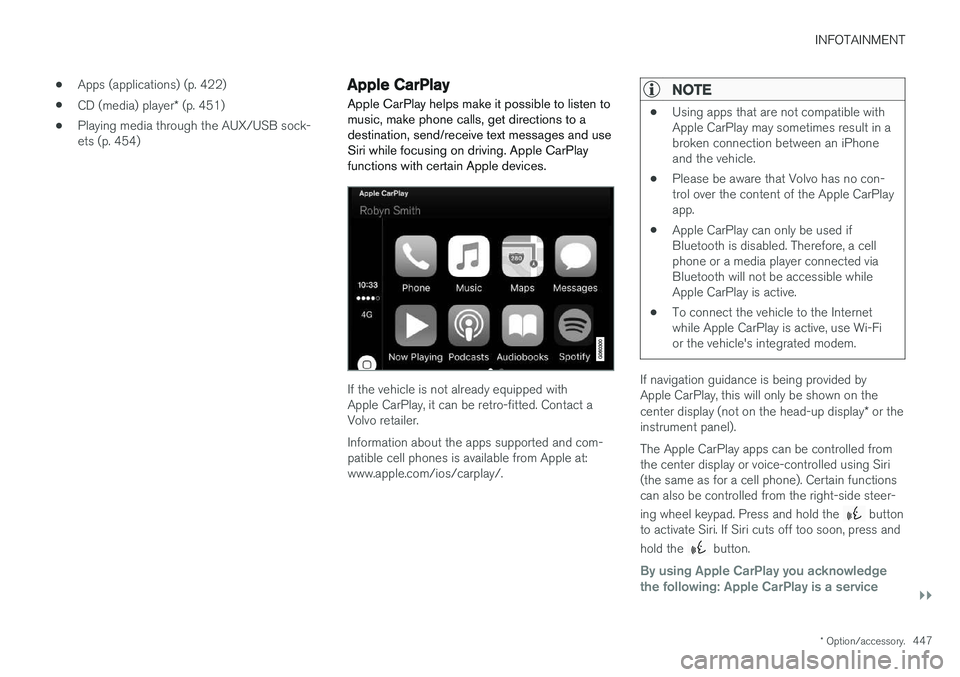
Apple CarPlay helps make it possible to listen to music, make phone calls, get directions to adestination, send/receive text messages and useSiri while focusing on driving. Apple CarPlayfunctions with certain Apple devices.
If the vehicle is not already equipped with Apple CarPlay, it can be retro-fitted. Contact aVolvo retailer. Information about the apps supported and com- patible cell phones is available from Apple at:www.apple.com/ios/carplay/.
NOTE
• Using apps that are not compatible with Apple CarPlay may sometimes result in abroken connection between an iPhoneand the vehicle.
• Please be aware that Volvo has no con-trol over the content of the Apple CarPlayapp.
• Apple CarPlay can only be used ifBluetooth is disabled. Therefore, a cellphone or a media player connected viaBluetooth will not be accessible whileApple CarPlay is active.
• To connect the vehicle to the Internetwhile Apple CarPlay is active, use Wi-Fior the vehicle's integrated modem.
If navigation guidance is being provided by Apple CarPlay, this will only be shown on the center display (not on the head-up display
* or the
instrument panel). The Apple CarPlay apps can be controlled from the center display or voice-controlled using Siri(the same as for a cell phone). Certain functionscan also be controlled from the right-side steer- ing wheel keypad. Press and hold the
button
to activate Siri. If Siri cuts off too soon, press and hold the
button.
By using Apple CarPlay you acknowledge the following: Apple CarPlay is a service
Page 452 of 580
||
INFOTAINMENT
* Option/accessory.
450
NOTE
• Please be aware that Volvo has no con- trol over the content of the Android Autoapp.
• If a cell phone or a media player is con-nected via Bluetooth, it will not be acces-sible while Android Auto is activebecause Bluetooth will be disabled. Toconnect the vehicle to the Internet, useWi-Fi or the vehicle's integrated modem.
If navigation guidance is being provided by Android Auto, this will only be shown on the cen- ter display (not on the head-up display
* or the
instrument panel). The Android Auto apps can be controlled from the center display or voice-controlled (the sameas for a cell phone). Certain functions can also becontrolled from the right-side steering wheel key- pad. Press and hold the
button to activate
voice control. Press briefly to deactivate.
By using Android Auto, you acknowledge the following: Android Auto is a serviceprovided by Google Inc. under its terms andconditions. Volvo Cars is not responsible forAndroid Auto or its features or applications.When you use Android Auto, your cartransfers certain information (including itslocation) to your connected Android phone. You are fully responsible for your and anyother person
Page 457 of 580
INFOTAINMENT
* Option/accessory.455
Streaming media through a Bluetooth connection The media player is equipped with Bluetooth ®
for streaming audio files from external Bluetooth ®
-enabled devices.
Related information
• Connecting a Bluetooth ®
device (p. 445)
• Playing media (p. 452)
• Voice control for radio and media (p. 125)
• Media player (p. 446)
• Ignition modes (p. 389)
• Media player technical data (p. 457)
Media sound settings
Sound settings for the media player can be per- sonalized.
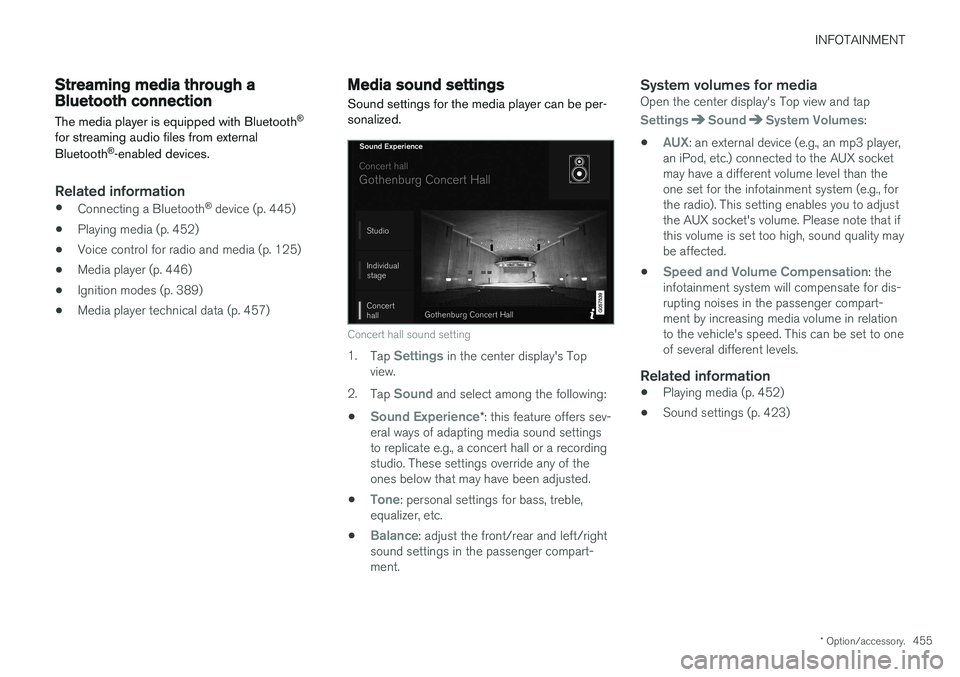
Concert hall sound setting
1. Tap Settings in the center display's Top
view.
2. Tap
Sound and select among the following:
•
Sound Experience* : this feature offers sev-
eral ways of adapting media sound settings to replicate e.g., a concert hall or a recordingstudio. These settings override any of theones below that may have been adjusted.
•
Tone: personal settings for bass, treble,
equalizer, etc.
•
Balance: adjust the front/rear and left/right
sound settings in the passenger compart- ment.
System volumes for mediaOpen the center display's Top view and tap
SettingsSoundSystem Volumes:
•
AUX: an external device (e.g., an mp3 player,
an iPod, etc.) connected to the AUX socket may have a different volume level than theone set for the infotainment system (e.g., forthe radio). This setting enables you to adjustthe AUX socket's volume. Please note that ifthis volume is set too high, sound quality maybe affected.
•
Speed and Volume Compensation: the
infotainment system will compensate for dis- rupting noises in the passenger compart-ment by increasing media volume in relationto the vehicle's speed. This can be set to oneof several different levels.
Related information
• Playing media (p. 452)
• Sound settings (p. 423)