ad blue VOLVO XC90 TWIN ENGINE 2018 User Guide
[x] Cancel search | Manufacturer: VOLVO, Model Year: 2018, Model line: XC90 TWIN ENGINE, Model: VOLVO XC90 TWIN ENGINE 2018Pages: 686, PDF Size: 17 MB
Page 159 of 686

LIGHTING
}}
* Option/accessory. 157
Active high beam
Active high beams is a function that uses cam-
era sensors in the upper edge of the windshield
to detect the headlights of approaching vehicles
or the taillights of the vehicle directly ahead.
When either of these is detected, the vehicle's
headlights will automatically switch from high
beams to low beams. Active high beam is enabled by moving the lighting ring
on the steering wheel lever to
.
The function can also detect street lighting.
When the camera sensor no longer detects an
approaching vehicle or a vehicle ahead, the head-
lights will return to high beams. This function can be used in dark conditions
when the vehicle's speed is approx. 20 km/h
(approx. 12 mph) or higher.
If active high beams are deactivated when the
high beams are on, the headlights will automati-
cally switch to low beams.
When active high beams are activated, a white symbol will be displayed in the instrument
panel.
When high beams are on, the symbol will be blue.
For LED headlights, this applies even if the high
beams are partially dimmed, i.e. if the headlights
are illuminated with slightly more than low beams.
Vehicles with LED 3
headlights*
If the active high beams are equipped with the
auto on/off function 4
, the headlights will return to
high beams a second or so after the camera sen-
sor no longer detects the headlights of approach-
ing vehicles or the taillights of a vehicle ahead.
Limitations for active high beams
The camera sensor on which the function is
based has limitations. If this symbol and the message Active
High Beam Temporarily unavailable is displayed in the instru-
ment panel, switching between high
and low beams must be done manually. The light-
ing ring on the steering wheel lever can remain in
the position. The symbol will go out
when the message is displayed. The same applies if this symbol along
with the message
Windscreen
sensor Sensor blocked, see Owner's manual is displayed. Active high beams may be temporarily unavailable
in certain situations, e.g. heavy fog or rain. When
active high beams become available again, or the
windshield sensors are no longer blocked, the
message will disappear and the
symbol will
be displayed.
WARNING Automatic high beam is an aid in using the
best possible light based on prevailing condi-
tions.
The driver is always responsible for manually
switching between high and low beam when
traffic situations or weather conditions require
this.
3
LED (Light Emitting Diode)4 Depends on the vehicle's equipment level.
Page 207 of 686
CLIMATE CONTROL
* Option/accessory.205
•
Interior Air Quality System* (p. 206)
• Passenger compartment air filter (p. 207) Clean Zone*
The Clean Zone function monitors the condi-
tions affecting good air quality in the passenger
compartment and indicates whether they are ful-
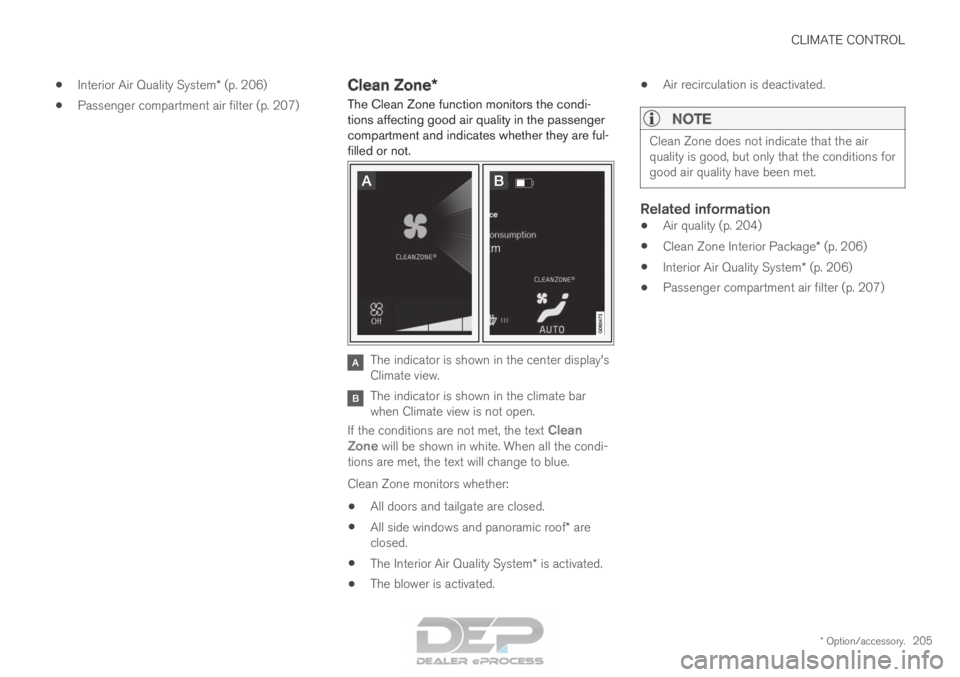
filled or not. The indicator is shown in the center display's
Climate view.
The indicator is shown in the climate bar
when Climate view is not open.
If the conditions are not met, the text Clean
Zone will be shown in white. When all the condi-
tions are met, the text will change to blue.
Clean Zone monitors whether:
• All doors and tailgate are closed.
• All side windows and panoramic roof* are
closed.
• The Interior Air Quality System* is activated.
• The blower is activated. •
Air recirculation is deactivated.
NOTE Clean Zone does not indicate that the air
quality is good, but only that the conditions for
good air quality have been met.
Related information
•
Air quality (p. 204)
• Clean Zone Interior Package* (p. 206)
• Interior Air Quality System* (p. 206)
• Passenger compartment air filter (p. 207)
Page 412 of 686
||HYBRID INFORMATION
410
CAUTION
Wipe the charging cable with a clean cloth
lightly moistened with water or a mild deter-
gent. Do not use chemicals or solvents. Do
not submerge the charging cable.
The charging cable and its components
should not be rinsed or immersed in water.
CAUTION
Avoid exposing the charging module and its
plug to direct sunlight. In such cases, the
overheating protection in the plug could
reduce or cut off charging of the hybrid bat-
tery.
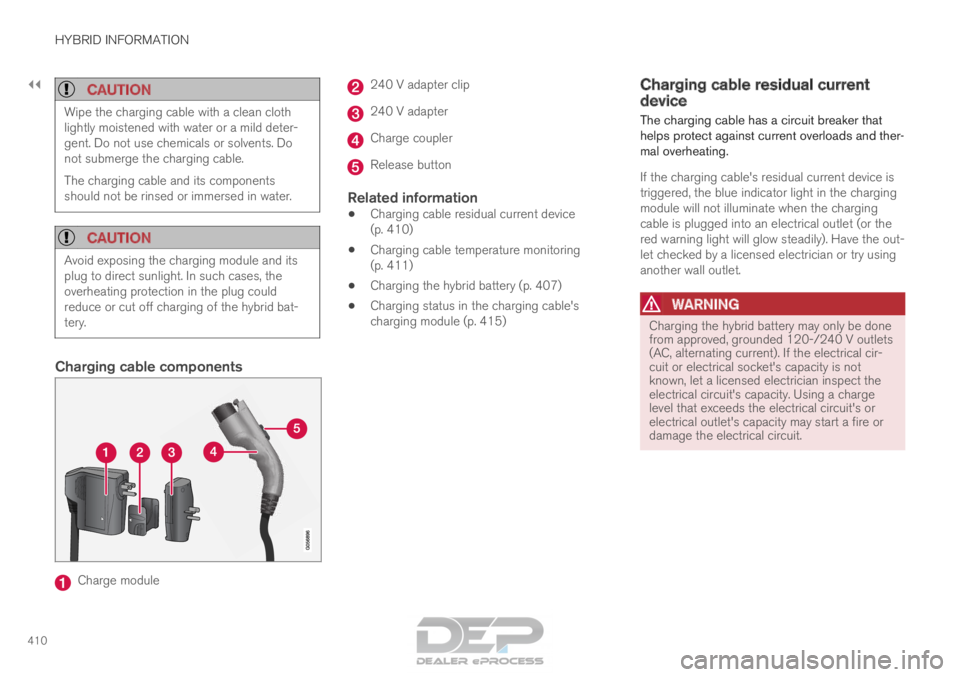
Charging cable components
Charge module 240 V adapter clip
240 V adapter
Charge coupler
Release button
Related information
•
Charging cable residual current device
(p. 410)
• Charging cable temperature monitoring
(p. 411)
• Charging the hybrid battery (p. 407)
• Charging status in the charging cable's
charging module (p. 415) Charging cable residual current
device
The charging cable has a circuit breaker that
helps protect against current overloads and ther-
mal overheating.
If the charging cable's residual current device is
triggered, the blue indicator light in the charging
module will not illuminate when the charging
cable is plugged into an electrical outlet (or the
red warning light will glow steadily). Have the out-
let checked by a licensed electrician or try using
another wall outlet.
WARNING Charging the hybrid battery may only be done
from approved, grounded 120-/240 V outlets
(AC, alternating current). If the electrical cir-
cuit or electrical socket's capacity is not
known, let a licensed electrician inspect the
electrical circuit's capacity. Using a charge
level that exceeds the electrical circuit's or
electrical outlet's capacity may start a fire or
damage the electrical circuit.
Page 417 of 686
HYBRID INFORMATION
415
Charging status in the charging
cable's charging module
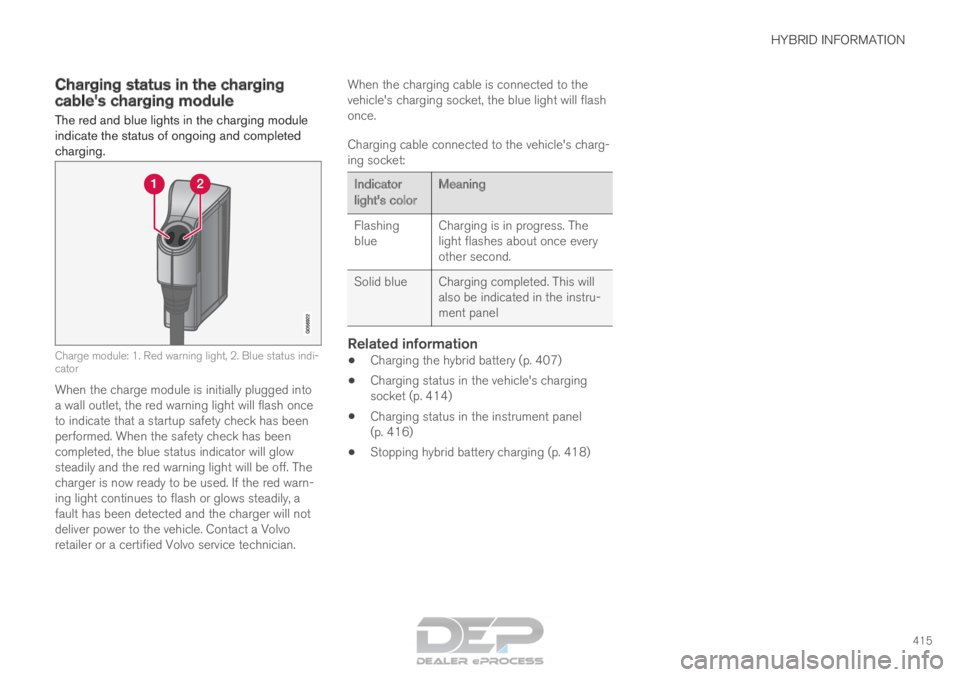
The red and blue lights in the charging module
indicate the status of ongoing and completed
charging. Charge module: 1. Red warning light, 2. Blue status indi-
cator
When the charge module is initially plugged into
a wall outlet, the red warning light will flash once
to indicate that a startup safety check has been
performed. When the safety check has been
completed, the blue status indicator will glow
steadily and the red warning light will be off. The
charger is now ready to be used. If the red warn-
ing light continues to flash or glows steadily, a
fault has been detected and the charger will not
deliver power to the vehicle. Contact a Volvo
retailer or a certified Volvo service technician. When the charging cable is connected to the
vehicle's charging socket, the blue light will flash
once.
Charging cable connected to the vehicle's charg-
ing socket: Indicator
light's color
Meaning
Flashing
blue Charging is in progress. The
light flashes about once every
other second.
Solid blue
Charging completed. This will
also be indicated in the instru-
ment panel
Related information
• Charging the hybrid battery (p. 407)
• Charging status in the vehicle's charging
socket (p. 414)
• Charging status in the instrument panel
(p. 416)
• Stopping hybrid battery charging (p. 418)
Page 418 of 686

HYBRID INFORMATION
416Charging status in the instrument
panel
Charging status is indicated in the instrument
panel using both graphics and messages. This information is displayed as long as the instru-
ment panel is active.Graphic
Message MeaningFully charged at: [Time] displayed along with an animated blue puls-
ing light through the charging cable. Charging is in progress and the approximate time at which the
battery will be fully charged is displayed.Charging complete is displayed. An image will be superimposed over
the graphic of the vehicle with a green LED indicator light in the socket. The battery is fully charged.Charging error will be displayed. The LED indicator light in the charg-
ing socket will be red. Malfunction. Make sure the charging cable is correctly con-
nected to the vehicle's charging socket and to the 120/240 V
outlet (alternating current).
Page 429 of 686
STARTING AND DRIVING
}}
* Option/accessory. 427
•
Jump starting using another battery (p. 469)
• Selecting ignition mode (p. 428) Ignition modes
The vehicle's ignition can be put in various
modes (levels) to make different functions availa-
ble.
To enable the use of a limited number of func-
tions when the engine is not running, the ignition
can be put in one of three different levels: 0, I
and II. These levels are referred to as "ignition
modes" in the Owner's Manual.
The following table shows which functions are
available in each ignition mode: Mode
Functions
0 •The odometer, clock and tem-
perature gauge are illuminated A
.
• The power seats* can be
adjusted.
• The power windows can be used.
• The center display is activated
and can be used A
.
• The 12 V outlet in the cargo com-
partment* can be used.
• The infotainment system can be
used A
.
In this ignition mode, the functions are
available for a limited time and then
switch off automatically.
I •The panoramic roof, power win-
dows, 12 V outlet in passenger
compartment, Bluetooth, naviga-
tion, phone, blower and wind-
shield wipers can be used.
• The power seats can be adjusted.
• The 12 V outlet in the cargo com-
partment can be used.
Electrical current will be taken
from the battery in this ignition
mode.
Page 488 of 686
AUDIO, MEDIA AND INTERNET
* Option/accessory.
486 Audio, media and Internet
The audio and media system consists of a media
player and a radio. A cellular phone can also be
connected through Bluetooth to use hands-free
functions or play music in the vehicle. When the
vehicle is connected to the Internet, it is also
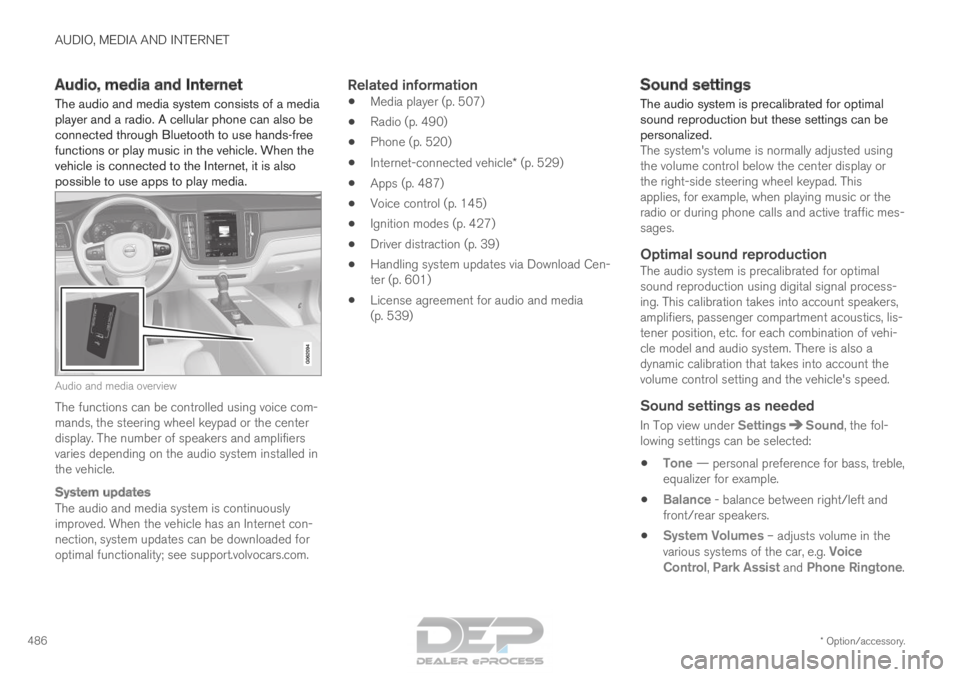
possible to use apps to play media. Audio and media overview
The functions can be controlled using voice com-
mands, the steering wheel keypad or the center
display. The number of speakers and amplifiers
varies depending on the audio system installed in
the vehicle.
System updates
The audio and media system is continuously
improved. When the vehicle has an Internet con-
nection, system updates can be downloaded for
optimal functionality; see support.volvocars.com.
Related information
•
Media player (p. 507)
• Radio (p. 490)
• Phone (p. 520)
• Internet-connected vehicle* (p. 529)
• Apps (p. 487)
• Voice control (p. 145)
• Ignition modes (p. 427)
• Driver distraction (p. 39)
• Handling system updates via Download Cen-
ter (p. 601)
• License agreement for audio and media
(p. 539) Sound settings
The audio system is precalibrated for optimal
sound reproduction but these settings can be
personalized.
The system's volume is normally adjusted using
the volume control below the center display or
the right-side steering wheel keypad. This
applies, for example, when playing music or the
radio or during phone calls and active traffic mes-
sages.
Optimal sound reproductionThe audio system is precalibrated for optimal
sound reproduction using digital signal process-
ing. This calibration takes into account speakers,
amplifiers, passenger compartment acoustics, lis-
tener position, etc. for each combination of vehi-
cle model and audio system. There is also a
dynamic calibration that takes into account the
volume control setting and the vehicle's speed.
Sound settings as needed
In Top view under Settings Sound, the fol-
lowing settings can be selected:
• Tone — personal preference for bass, treble,
equalizer for example.
• Balance - balance between right/left and
front/rear speakers.
• System Volumes – adjusts volume in the
various systems of the car, e.g.
Voice
Control, Park Assist and Phone Ringtone.
Page 509 of 686
AUDIO, MEDIA AND INTERNET
* Option/accessory.507
4. Tap one of the divisions to display:
•In progress: play-by-play information
about a match/game/tournament cur-
rently in progress. Continue tapping to
display. In the detailed view, you can also
select a radio station that is currently
broadcasting an ongoing sporting event
• Headlines for MLB: Tap to display brief
headline information
• Scheduled: schedules for coming
matches, games, etc.
• Scores: match/game results
The same principle applies to all sports.
Related information
• SiriusXM Travel Link ®
* (p. 502)
• SiriusXM Travel Link ®
* - Notifications
(p. 504)
• SiriusXM Travel Link ®
* - Fuel (p. 505)
• SiriusXM Travel Link ®
* - Weather (p. 503) Media player
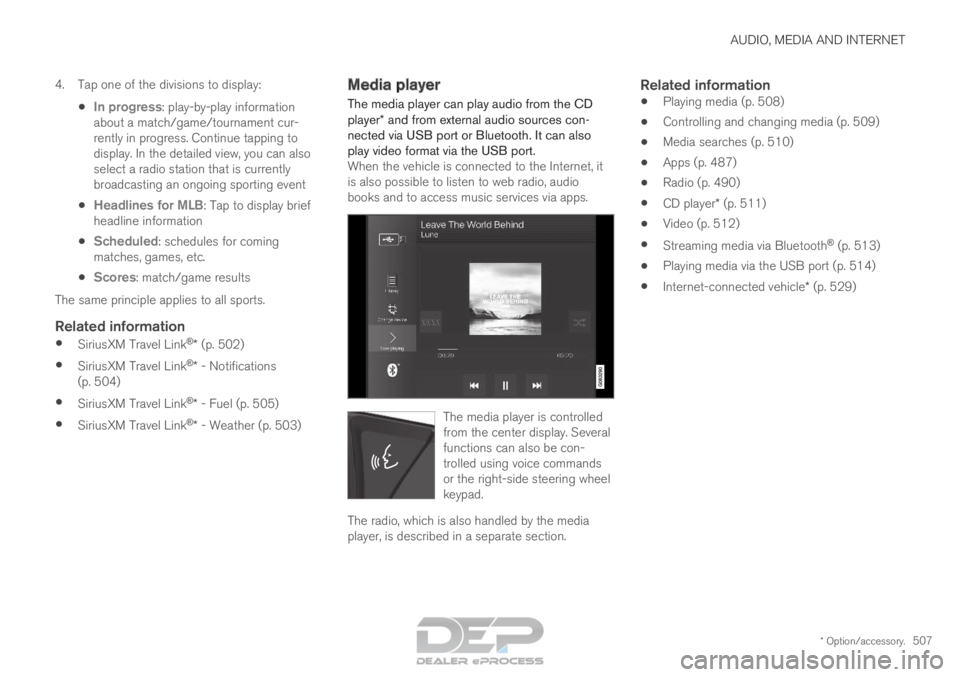
The media player can play audio from the CD
player* and from external audio sources con-
nected via USB port or Bluetooth. It can also
play video format via the USB port. When the vehicle is connected to the Internet, it
is also possible to listen to web radio, audio
books and to access music services via apps. The media player is controlled
from the center display. Several
functions can also be con-
trolled using voice commands
or the right-side steering wheel
keypad.
The radio, which is also handled by the media
player, is described in a separate section.
Related information
•
Playing media (p. 508)
• Controlling and changing media (p. 509)
• Media searches (p. 510)
• Apps (p. 487)
• Radio (p. 490)
• CD player* (p. 511)
• Video (p. 512)
• Streaming media via Bluetooth ®
(p. 513)
• Playing media via the USB port (p. 514)
• Internet-connected vehicle* (p. 529)
Page 510 of 686
AUDIO, MEDIA AND INTERNET
* Option/accessory.
508 Playing media
The media player is controlled from the center
display. Several other functions can also be con-
trolled using the right-side steering wheel key-
pad or by using voice commands.
The radio can also be controlled in the media
player. See the section describing the radio.
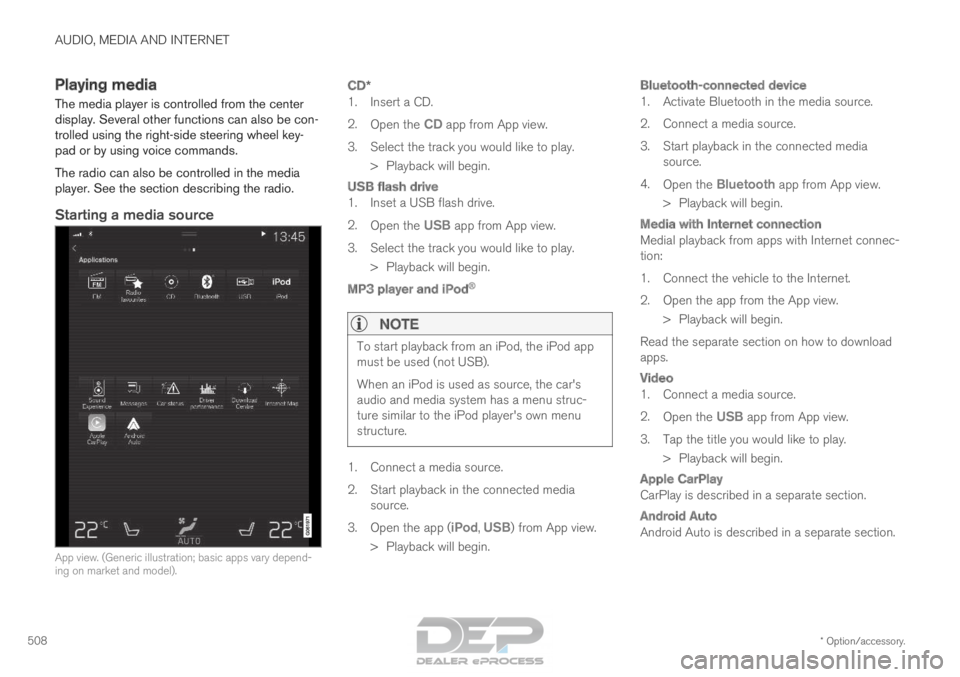
Starting a media source
App view. (Generic illustration; basic apps vary depend-
ing on market and model).
CD*
1. Insert a CD.
2.
Open the CD app from App view.
3.
Select the track you would like to play.
> Playback will begin.
USB flash drive
1. Inset a USB flash drive.
2. Open the USB app from App view.
3.
Select the track you would like to play.
> Playback will begin.
MP3 player and iPod ®
NOTE To start playback from an iPod, the iPod app
must be used (not USB).
When an iPod is used as source, the car's
audio and media system has a menu struc-
ture similar to the iPod player's own menu
structure.
1. Connect a media source.
2.
Start playback in the connected media
source.
3. Open the app ( iPod, USB) from App view.
>
Playback will begin.
Bluetooth-connected device
1. Activate Bluetooth in the media source.
2. Connect a media source.
3. Start playback in the connected media source.
4. Open the Bluetooth app from App view.
>
Playback will begin.
Media with Internet connection
Medial playback from apps with Internet connec-
tion:
1. Connect the vehicle to the Internet.
2. Open the app from the App view. > Playback will begin.
Read the separate section on how to download
apps.
Video
1. Connect a media source.
2. Open the USB app from App view.
3.
Tap the title you would like to play.
> Playback will begin.
Apple CarPlay
CarPlay is described in a separate section.
Android Auto
Android Auto is described in a separate section.
Page 511 of 686
AUDIO, MEDIA AND INTERNET
}}
* Option/accessory. 509
Related information
•Handling the App menu in the instrument
panel (p. 104)
• Radio (p. 490)
• Controlling and changing media (p. 509)
• Connecting a device via the USB port
(p. 514)
• Connecting a device via Bluetooth ®
(p. 513)
• Download apps (p. 488)
• Internet-connected vehicle* (p. 529)
• Video (p. 512)
• Apple ®
CarPlay ®
* (p. 515)
• Android Auto* (p. 518)
• Voice control for radio and media (p. 148)
• Compatible file formats for media (p. 536) Controlling and changing media
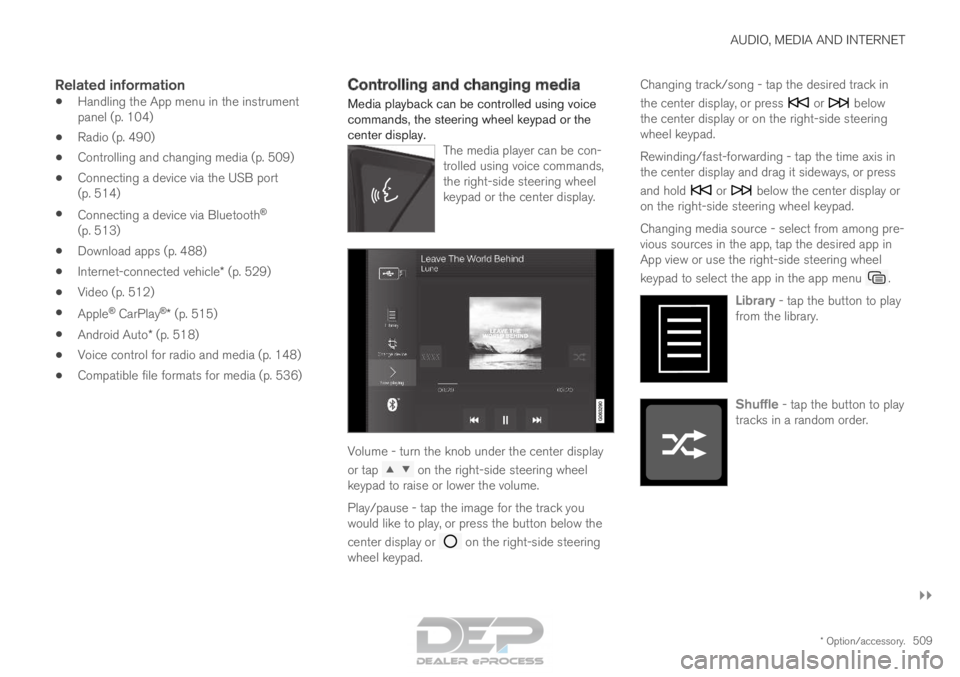
Media playback can be controlled using voice
commands, the steering wheel keypad or the
center display. The media player can be con-
trolled using voice commands,
the right-side steering wheel
keypad or the center display. Volume - turn the knob under the center display
or tap
on the right-side steering wheel
keypad to raise or lower the volume.
Play/pause - tap the image for the track you
would like to play, or press the button below the
center display or on the right-side steering
wheel keypad. Changing track/song - tap the desired track in
the center display, or press or below
the center display or on the right-side steering
wheel keypad.
Rewinding/fast-forwarding - tap the time axis in
the center display and drag it sideways, or press
and hold or below the center display or
on the right-side steering wheel keypad.
Changing media source - select from among pre-
vious sources in the app, tap the desired app in
App view or use the right-side steering wheel
keypad to select the app in the app menu .
Library - tap the button to play
from the library. Shuffle - tap the button to play
tracks in a random order.