change time VOLVO XC90 TWIN ENGINE 2018 Service Manual
[x] Cancel search | Manufacturer: VOLVO, Model Year: 2018, Model line: XC90 TWIN ENGINE, Model: VOLVO XC90 TWIN ENGINE 2018Pages: 686, PDF Size: 17 MB
Page 462 of 686
||STARTING AND DRIVING
460
Charge
Engine charges hybrid
battery.
This function charges the
hybrid battery with the help of
the combustion engine for
increased use of the electric
motor at a later time. This function is not available
if the hybrid battery's charge level is already high.
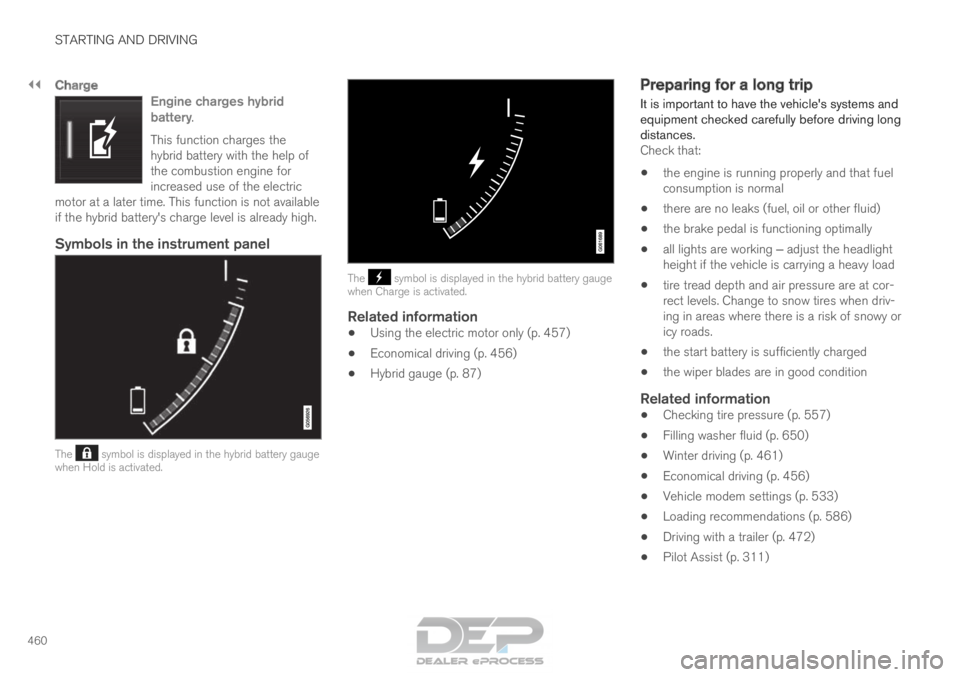
Symbols in the instrument panel The symbol is displayed in the hybrid battery gauge
when Hold is activated. The symbol is displayed in the hybrid battery gauge
when Charge is activated.
Related information
• Using the electric motor only (p. 457)
• Economical driving (p. 456)
• Hybrid gauge (p. 87) Preparing for a long trip
It is important to have the vehicle's systems and
equipment checked carefully before driving long
distances.
Check that:
• the engine is running properly and that fuel
consumption is normal
• there are no leaks (fuel, oil or other fluid)
• the brake pedal is functioning optimally
• all lights are working ‒ adjust the headlight
height if the vehicle is carrying a heavy load
• tire tread depth and air pressure are at cor-
rect levels. Change to snow tires when driv-
ing in areas where there is a risk of snowy or
icy roads.
• the start battery is sufficiently charged
• the wiper blades are in good condition
Related information
• Checking tire pressure (p. 557)
• Filling washer fluid (p. 650)
• Winter driving (p. 461)
• Economical driving (p. 456)
• Vehicle modem settings (p. 533)
• Loading recommendations (p. 586)
• Driving with a trailer (p. 472)
• Pilot Assist (p. 311)
Page 499 of 686

AUDIO, MEDIA AND INTERNET
497
Selecting sub-channels
To listen to a station's sub-channel(s), tap the
station on the screen or press the forward/back
arrow keys on the right-side steering wheel key-
pad or below the screen.
Sub-channels can also be saved as radio favor-
ites.
If you tap a sub-channel favorite, it may take up
to 6 seconds before the channel becomes audi-
ble. If you tap a station while you are out of digital
range of the transmitter, No reception will be
displayed.
Related information
• HD Radio™ (p. 494)
• Activating and deactivating the HD Radio
™
(p. 496)
• Changing waveband and radio station
(p. 491)
• Searching for a radio station (p. 492)
• HD Radio™ limitations (p. 497) HD Radio
™ limitations
Limitations
•
Main channel vs. sub-channels (FM only):
The main channel is the only channel that
can receive in hybrid mode (both digital and
analog). If a frequency has sub-channels,
they are broadcast in digital mode only. The
main FM channel will be displayed as, for
example, "WRIF-FM HD1". The sub-FM
channels will be displayed as"WRIF-FM
HD2", "WRIF-FM HD3", etc.
• Reception coverage area: Due to current
IBOC transmitter power limitations, the
reception coverage area in digital mode is
somewhat more limited than the station's
analog coverage area. Be aware that, like all
radio transmission technology, terrain, time of
day, vegetation and buildings can have a
positive or negative effect on radio reception.
• Analog to digital/digital to analog blend-
ing: Analog to digital blending will occur as
the signal strength reaches a preset thresh-
old in the receiver. This will be noticeable in
fringe areas (areas with weak reception) and
is normal.
NOTE There may be a noticeable difference in
sound quality when a change from analogue
to digital or digital to analogue occurs, such
as:
• Volume increase or decrease
• Equalizer settings, i.e., Bass/ Midrange/
Treble cut or boost
• Time alignment (Digital program material
in extreme cases can be as much as 8
seconds behind the analogue). This will
noticeable as a "stuttering" effect.
The above items are dependant on the
broadcaster's equipment settings and do
not indicate a fault in the vehicle's radio
receiver or antenna systems.
Related information
• HD Radio™ (p. 494)
• Activating and deactivating the HD Radio™
(p. 496)
• HD Radio
™
sub-channels (p. 496)
Page 523 of 686
AUDIO, MEDIA AND INTERNET
}}
521
•
Connecting a phone to the car via Bluetooth
automatically (p. 523)
• Connecting a phone to the car via Bluetooth
manually (p. 523)
• Disconnecting a Bluetooth-connected phone
(p. 524)
• Switch between phones connected via Blue-
tooth (p. 524)
• Removing a Bluetooth-connected phone
(p. 525)
• Phone settings (p. 528)
• Voice control (p. 145)
• Handling the App menu in the instrument
panel (p. 104)
• Sound settings (p. 486)
• Connecting the car to the Internet via a
mobile device (Bluetooth) (p. 531) Connecting a phone to the car via
Bluetooth for the first time
Pair a Bluetooth-enabled phone to the vehicle to
make calls, send/receive text messages and
wirelessly play media from the vehicle, or con-
nect the vehicle to the Internet. Two Bluetooth devices can be connected at the
same time, but in that case, only one will be used
for wireless playback. The most recently paired
phone will be automatically connected to make
calls, send/receive text messages, play media or
use as an Internet connection. To change what
the phone is used for when it is paired, go to
Bluetooth Devices settings.
After the device has been connected/registered
for the first time via Bluetooth, the device no
longer needs to be visible/searchable. It just
needs to have Bluetooth activated. To connect
the vehicle to the Internet using a phone, the
phone's Wi-Fi sharing function (personal hot-
spot/tethering) must be activated. A maximum of
20 paired Bluetooth devices can be stored in the
vehicle.
There are two ways to pair a phone to the vehicle.
Searching for the phone from the vehicle or
searching for the vehicle from the phone.
Option 1 - searching for the phone from
the vehicle
1. Make the phone discoverable/visible using its Bluetooth function. 2. To connect the vehicle to the Internet via the
phone's Bluetooth function, activate Internet
sharing (tethering/personal hotspot) via
Bluetooth in the phone.
3. Open the phone tile.
•If no phone has been paired to the vehi-
cle, tap
Add phone.
• If a phone has been paired to the vehicle,
tap
Change . Tap
Add phone in the
pop-up window.
>
A list of available Bluetooth devices will be
displayed. The list will be updated as new
devices are discovered.
4. Tap the name of the phone you would like to connect.
5. Make sure that the code displayed in the vehicle matches the one in the phone. Con-
firm the code in both cases.
6. In the phone, accept or cancel the options for selecting the phone's contacts and text
messages.
NOTE •
The message function must be activated
in certain phones.
• Not all cell phones are fully compatible
and may not be able to display contacts
and messages in the vehicle.
Page 526 of 686
AUDIO, MEDIA AND INTERNET
524•
Settings for Bluetooth devices (p. 529)
• Connecting the car to the Internet via a
mobile device (Bluetooth) (p. 531) Disconnecting a Bluetooth-
connected phone
Disconnect a Bluetooth-connected phone from
the vehicle by deactivating Bluetooth in the
phone.
When the phone is out of range of the vehicle, it
will be automatically disconnected. If a call is in
progress when the phone is disconnected from
the vehicle, the call will be transferred from the
vehicle's speakers and microphone to the cellular
phone.
Related information
•
Phone (p. 520)
• Phone settings (p. 528)
• Switch between phones connected via Blue-
tooth (p. 524)
• Removing a Bluetooth-connected phone
(p. 525)
• Settings for Bluetooth devices (p. 529) Switch between phones connected
via Bluetooth
It is possible to switch between Bluetooth-con-
nected phones.
1. Open the phone tile.
2. Tap
Change or pull down Top view and
tap Settings Communication
Bluetooth Devices Add device
.
> A list of available Bluetooth devices will be displayed.
3. Tap the name of the phone you would like to connect.
Related information
• Phone (p. 520)
• Connecting a phone to the car via Bluetooth
for the first time (p. 521)
• Settings for Bluetooth devices (p. 529)
• Disconnecting a Bluetooth-connected phone
(p. 524)
• Removing a Bluetooth-connected phone
(p. 525)
Page 531 of 686

AUDIO, MEDIA AND INTERNET
}}
* Option/accessory. 529
Settings for Bluetooth devices
Settings for Bluetooth-connected devices.
1. Tap Settings in the Top view.
2.
Tap Communication Bluetooth
Devices and select settings:
• Add device - start the procedure for pairing
a new device.
• Previously paired devices - list con-
nected/paired devices.
• Remove device - remove a connected
device.
• Allowed services for this device - select
what the device will be used for: making
calls, sending/receiving messages, stream-
ing media, Internet connection.
• Internet connection connect the vehicle to
the Internet using the device's Bluetooth
connection.
Bluetooth ®
declaration of conformityUSA
FCC CAUTION
Changes or modifications not expressly approved
by the party responsible for compliance could
void the user's authority to operate the equip-
ment. This transmitter must not be co-located or
operated in conjunction with any other antenna
or transmitter. Canada
This device complies with Industry Canada
license-exempt RSS standard(s). Operation is
subject to the following two conditions:
(1) this device may not cause interference, and
(2) this device must accept any interference,
including interference that may cause undesired
operation of the device.
Related information
•
Phone (p. 520)
• Phone settings (p. 528)
• Internet-connected vehicle* (p. 529)
• Connecting a phone to the car via Bluetooth
for the first time (p. 521) Internet-connected vehicle*
When the vehicle is connected to the Internet, it
is possible to use web radio and music services
via apps, download software and contact retail-
ers from the vehicle.
The vehicle can be connected to the Internet
using Bluetooth, Wi-Fi or the vehicle's integrated
modem.
Page 533 of 686

AUDIO, MEDIA AND INTERNET
}}
* Option/accessory. 531
Connecting the car to the Internet
via a mobile device (Bluetooth)
Establish an Internet connection using Bluetooth
and tethering from a phone and get access to
multiple connected services in your vehicle. The phone and the network service provider must
support Internet sharing (tethering) and the sub-
scription must include data transfer.
1.
To connect the vehicle to the Internet via a
Bluetooth-connected phone, the phone must
first be paired with the vehicle via Bluetooth.
Ensure that the personal hotspot (portable/
personal hotspot) is activated in your phone.
2. If the phone has been connected via Blue- tooth previously, tap Settings in the center
display's Top view.
3. In the center display: Tap CommunicationBluetooth Devices
.
4. Mark the window for Bluetooth Internet
connection under the heading Internet
connection.
>
Your vehicle is now connected to the
Internet via your Bluetooth-connected
phone.
NOTE When using Apple CarPlay, it is only possible
to connect the vehicle to the Internet using
Wi-Fi or the vehicle's modem.
Related information
•
Internet-connected vehicle* (p. 529)
• Connect the car to the Internet via car
modem (SIM card) (p. 532)
• Connecting a phone to the car via Bluetooth
for the first time (p. 521)
• Connecting the car to the Internet via a
mobile device (Wi-Fi) (p. 531)
• Apple ®
CarPlay ®
* (p. 515)
• No or poor Internet connection (p. 534)
• Settings for Bluetooth devices (p. 529) Connecting the car to the Internet
via a mobile device (Wi-Fi)
Establish an Internet connection via Wi-Fi tether-
ing from a phone and get access to multiple
connected services in your vehicle.
The phone and the network service provider must
support Internet sharing (tethering) and the sub-
scription must include data transfer. 1. Activate Internet sharing (personal hotspot)
in the phone.
2. Tap Settings in the Top view.
3.
Proceed to Communication Wi-Fi
.
4. Activate/deactivate by tapping to check/ uncheck the Wi-Fi box.
5. Tap the name of the network you would like to connect.
6. Enter the network password.
7. If a different connection was used previously, confirm the connection change.
> The vehicle will connect to the network.
Please note that certain cellular phones will disa-
ble Internet sharing (tethering) when the connec-
Page 534 of 686

||AUDIO, MEDIA AND INTERNET
* Option/accessory.
532 tion to the vehicle has been broken, e.g. when the
phone has been removed from the vehicle. The
phone's tethering function will then need to be
reactivated the next time the phone's hotspot is
used to connect to the Internet.
When a phone is connected to the vehicle, it will
be saved for future use. When the maximum
number of 50 connected phones has been
reached, the first will be deleted. To display a list
of saved networks or to manually delete saved
networks, tap
Settings Communication
Wi-Fi Saved networks.
Technical and security requirements for Wi-Fi
connection are described in a separate section.
Related information
• Internet-connected vehicle* (p. 529)
• Deleting Wi-Fi networks (p. 535)
• No or poor Internet connection (p. 534)
• Wi-Fi technology and security (p. 535) Connect the car to the Internet via
car modem (SIM card)
For vehicles equipped with Volvo On Call, it is
possible to establish an Internet connection via
the vehicle modem and a personal SIM card (P-
SIM).
When the vehicle is connected using the inte-
grated modem, the Volvo On Call services will
use this connection.
1.
Insert a personal SIM card in the holder.
2. Tap Settings in the Top view.
3.
Tap Communication Vehicle Modem
Internet .
4.
Activate/deactivate by tapping to check/
uncheck the Vehicle modem Internet box. 5.
If a different connection was used previously,
confirm the connection change.
6. Enter the SIM card's PIN code. > The vehicle will connect to the network.
Related information
• Internet-connected vehicle* (p. 529)
• No or poor Internet connection (p. 534)
• Vehicle modem settings (p. 533)
Page 538 of 686

AUDIO, MEDIA AND INTERNET
536Terms of use and data sharing
The first time certain services and apps are
started, a pop-up window with the heading
Terms and conditions and Data sharing may open.
The aim is to inform the user about Volvo's terms
of use and data sharing policy. By accepting data
sharing, the user accepts that certain information
will be sent from the vehicle. This is required for
certain services and apps to work with full func-
tionality.
Data sharing can be set from the center display's
Settings menu.
Related information
• Activating and deactivating data sharing
(p. 536) Activating and deactivating data
sharing
Data sharing for relevant services and apps can
be set via the Settings menu in the center dis-
play. 1. Tap Settings in the Top view in the center
display.
2.
Tap System Privacy and data
.
3. Select Data sharing to enable or disable
data sharing.
4.
When data sharing is enabled, settings for
individual services and apps in the list below
can be changed.
When data sharing is disabled, the previous set-
tings for individual services and apps are saved
and restored when data sharing is enabled again.
Related information
• Terms of use and data sharing (p. 536) Compatible file formats for media
In order to play media, the following file formats
must be used.
Audio files For-
mat
File extension
Codec
MP3
.mp3 MPEG1 Layer III,
MPEG2 Layer III,
MP3 Pro (mp3
compatible),
MP3 HD (mp3
compatible)
AAC .m4a, .m4b, .aac AAC LC (MPEG-4 part III Audio),
HE-AAC (aacPlus
v1/v2)
WMA .wma WMA8/9,
WMA9/10 Pro
WAV .wav LPCM
FLAC .flac FLAC
Video files Format
File extension
MP4
.mp4, m4v
MPEG-PS .mpg, .mp2, .mpeg, .m1v
Page 542 of 686

||AUDIO, MEDIA AND INTERNET
540
Portions of the content are copyright © of
Gracenote or its providers.
Gracenote, the Gracenote logo and logotype,
"Powered by Gracenote" and Gracenote MusicID
are either registered trademarks of Gracenote,
Inc. in the United States and/or other countries.
Gracenote ®
End User License Agreement
This application or device contains software from
Gracenote, Inc. in Emeryville, California, United
States ("Gracenote"). The software from Grace-
note (the “Gracenote Software”) enables this
application to perform disc and/or file identifica-
tion and obtain music-related information, includ-
ing name, artist, track, and title information
(“Gracenote Data”) from online servers or embed-
ded databases (collectively “Gracenote Servers”)
and to perform other functions. You may use
Gracenote Data only by means of the intended
End-User functions of this application or device.
You agree that you will use Gracenote Data, the
Gracenote Software, and Gracenote Servers for
your own personal non-commercial use only. You
agree not to assign, copy, transfer or transmit the
Gracenote Software or any Gracenote Data to
any third party. YOU AGREE NOT TO USE OR
EXPLOIT GRACENOTE DATA, THE GRACE-
NOTE SOFTWARE, OR GRACENOTE SERVERS,
EXCEPT AS EXPRESSLY PERMITTED HEREIN.
You agree that your non-exclusive license to use
the Gracenote Data, the Gracenote Software, and
Gracenote Servers will terminate if you violate these restrictions. If your license terminates, you
agree to cease any and all use of the Gracenote
Data, the Gracenote Software, and Gracenote
Servers. Gracenote reserves all rights in all
Gracenote Data, all Gracenote Software, and all
Gracenote Servers, including all ownership rights.
Under no circumstances will Gracenote become
liable for any payment to you for any information
that you provide. You agree that Gracenote, Inc.
may enforce its rights under this Agreement
against you directly in its own name.
The Gracenote service uses a unique identifier to
track queries for statistical purposes. The pur-
pose of a randomly assigned numeric identifier is
to allow the Gracenote service to count queries
without knowing anything about who you are. For
more information, see the web page for the
Gracenote Privacy Policy for the Gracenote serv-
ice.
The Gracenote Software and each item of Grace-
note Data are licensed to you “AS IS.” Gracenote
makes no representations or warranties, express
or implied, regarding the accuracy of any Grace-
note Data from in the Gracenote Servers. Grace-
note reserves the right to delete data from the
Gracenote Servers or to change data categories
for any cause that Gracenote deems sufficient.
No warranty is made that the Gracenote Software
or Gracenote Servers are error-free or that func-
tioning of Gracenote Software or Gracenote
Servers will be uninterrupted. Gracenote is not
obligated to provide you with new enhanced or
additional data types or categories that Grace-
note may provide in the future and is free to dis-
continue its services at any time.
GRACENOTE DISCLAIMS ALL WARRANTIES
EXPRESS OR IMPLIED, INCLUDING, BUT NOT
LIMITED TO, IMPLIED WARRANTIES OF MER-
CHANTABILITY, FITNESS FOR A PARTICULAR
PURPOSE, TITLE, AND NON-INFRINGEMENT.
GRACENOTE DOES NOT WARRANT THE
RESULTS THAT WILL BE OBTAINED BY YOUR
USE OF THE GRACENOTE SOFTWARE OR
ANY GRACENOTE SERVER. IN NO CASE WILL
GRACENOTE BE LIABLE FOR ANY CONSE-
QUENTIAL OR INCIDENTAL DAMAGES OR
FOR ANY LOST PROFITS OR LOST REVENUES.
© Gracenote, Inc. 2009
Sensus software
This software uses parts of sources from clib2
and Prex Embedded Real-time OS - Source
(Copyright (c) 1982, 1986, 1991, 1993, 1994),
and Quercus Robusta (Copyright (c) 1990,
1993), The Regents of the University of
California. All or some portions are derived from
material licensed to the University of California by
American Telephone and Telegraph Co. or Unix
System Laboratories, Inc. and are reproduced
herein with the permission of UNIX System
Laboratories, Inc. Redistribution and use in
source and binary forms, with or without
modification, are permitted provided that the
following conditions are met: Redistributions of
Page 559 of 686

WHEELS AND TIRES
* Option/accessory.557
Checking tire pressure
Correct inflation pressure helps improve driving
stability, save fuel and increase the service life of
the tires.
Tire pressure decreases over time, which is nor-
mal. Tire pressure also varies depending on the
ambient temperature. Driving on under-inflated
tires could cause the vehicle to overheat and lead
to damage. Tire pressure affects traveling com-
fort, road noise and driving characteristics.
Check the pressure in the tires every month. Use
the recommended inflation pressure for cold tires
for optimal tire performance and wear. Under-
inflated or over-inflated tires could cause uneven
tread wear.
Use an air pressure gauge and check the infla-
tion pressure on all the tires, including the spare
tire 4
, at least once a month and before long trips.
Volvo strongly recommends buying a reliable air
pressure gauge, as the automatic gauges provi-
ded at service stations may be inaccurate.
WARNING •
Under-inflation is the most common
cause of tire failure and may result in
severe tire cracking, tread separation, or
"blow-out," with unexpected loss of vehi-
cle control and increased risk of injury.
• Under-inflated tires reduce the load car-
rying capacity of your vehicle.
Cold tiresInflation pressure should be checked when the
tires are cold.
The tires are considered to be cold when they
have the same temperature as the surrounding
(ambient) air.
This temperature is normally reached after the
vehicle has been parked for at least 3 hours.
After driving for approximately 1.6 km (1 mile),
the tires are considered to be warm. If you need
to drive longer than that to inflate the tires, check
and record the inflation pressure of the tires first
and inflate accordingly when you arrive at the
pump.
When the ambient temperature changes, so does
the inflation pressure. A 10-degree temperature
drop causes a corresponding drop in inflation
pressure of 1 psi (7 kPa). Check the inflation
pressure of the tires regularly and adjust to the correct pressure, which can be found on the vehi-
cle's tire information placard or certification label.
If you check inflation pressure when the tires are
warm, you should never release air. The tires
become warm after driving and it is normal for
warm tires to have an inflation pressure above
the recommended pressure for cold tires. A warm
tire with an inflation pressure equal to or under
the recommended pressure for cold tires could
be significantly under-inflated.Related information
•
Adjusting tire pressure (p. 558)
• Recommended tire pressure (p. 559)
• Tire pressure monitoring system* (p. 559)
• Tires (p. 550) 4
Not available in all models.