change time Acura RDX 2012 Owner's Guide
[x] Cancel search | Manufacturer: ACURA, Model Year: 2012, Model line: RDX, Model: Acura RDX 2012Pages: 518, PDF Size: 26.43 MB
Page 199 of 518

DISC SCAN-The disc scan
function samples the first track (file
in MP3/WMA mode) on each disc
within the changer in numerical
order. To activate this feature, press
the SCAN button twice. In MP3/
WMA mode, press the SCAN button
three times. The first track/file on
each disc plays for about 10 seconds.
You will see ‘‘D-SCAN ’’and disc
number flashing on the center
display. To hear the rest of the track/
file on the disc currently scanning,
press and hold the SCAN button for
more than 2 seconds. When the
system finishes scanning all the
discs, disc scan is canceled and the
system begins to play the first track/
file of that disc normally. Each time you press and release the
SCAN button, the mode changes
from scan to folder scan, disc scan
then to normal play.
RANDOM (Random within a
Disc)
-This feature plays the
tracks (all files in each folder in
MP3/WMA mode) within a disc in
random order. To activate it, press
and release the A.SEL/RDM button.
In MP3/WMA mode, press the
A.SEL/RDM button twice to select
random play within a disc. You will
see ‘‘RDM ’’on the center display.
Press and hold the A.SEL/RDM
button for more than 2 seconds to
return to normal play.
In MP3/WMA modeFOLDER RANDOM -This feature
plays the files within a folder in
random order, rather than in the
order they are compressed in MP3/
WMA. To activate it, press the
A.SEL/RDM button once. You will
see ‘‘F-RDM ’’on the center display.
The system will then select and play
files randomly. This continues until
you deactivate folder random play by
pressing and holding the RDM
button for more than 2 seconds.
Each time you press and release the
A.SEL/RDM button, the mode
changes from folder random to
random, then to normal play.
CONTINUED
Playing Discs (Models without navigation system)
193
Features
11/06/16 17:42:51 12 ACURA RDX MMC North America Owner's M 50 31STK650 enu
Page 200 of 518

To Pause a Disc
To pause a disc, press the
corresponding number of the current
disc on the appropriate side of the
preset bars. To play the disc again,
press the preset bar again.
To Stop Playing a Disc
If you turn the system off while a CD
is playing, either with the PWR/VOL
knob or by turning off the ignition
switch, the disc will stay in the drive.
When you turn the system back on,
the CD will begin playing where it
left off.
To take the system out of CD mode,
press the AM or FM, CD/AUX, or
button. To return to CD mode,
press the CD/AUX button. The
system will continue at the same
point that it left off. Removing CDs from the Changer
To remove the disc that is currently
playing, press and release the eject
(
) button. You will see
‘‘EJECT ’’
on the center display. When you
remove the disc from the slot, the
system begins the load sequence so
you can load another disc in that
position. If you do not load another
CD within 10 seconds, the system
selects the previous mode (AM,
FM1, FM2, or XM).
If you do not remove the CD from
the slot, the system will reload the
CD after 10 seconds and put the CD
changer in pause mode. To begin
playing the CD, press the CD/AUX
button.
To remove a different CD from the
changer, select it with the
appropriate side of the preset bar.
When that CD begins playing, press
the eject button. Press and hold the eject button until
you hear a beep to remove all the
discs from the changer.
You can also eject discs when the
ignition switch is off by pressing the
eject button. The disc that was last
selected is ejected first. You can eject
the rest of the discs one at a time.
Protecting Discs
For information on how to handle
and protect compact discs, see page
257.
Disc Changer Error Messages
For information, see page 195.
Adjusting the Sound
For information, see page 177.
Playing Discs (Models without navigation system)19411/06/16 17:42:51 12 ACURA RDX MMC North America Owner's M 50 31STK650 enu
Page 206 of 518
Text Data Display FunctionEach time you press the DISP/
MODE button, the display mode
switches between the album name,
the song name, the artist name, or
name off (which turns off the text
display).
The center display shows up to about
16 characters of the selected data. If
the text data has more than 16
characters, you will see the first 16
characters and the
indicator in the
center display. Press and hold the
DISP/MODE button until the next
16 characters are shown.
To Change or Select FilesUse the SEEK/SKIP bar while an
iPod is playing to select passages and
change files.
SKIP -Each time you press and
release the
side of the SEEK/
SKIP bar, the system skips forward
to the beginning of the next file.
Press and release the
side of the
bar, to skip backward to the
beginning of the current file. Press it
again to skip to the beginning of the
previous file.
To move rapidly within a file, press
and hold either side (or
)of
the SEEK/SKIP bar.
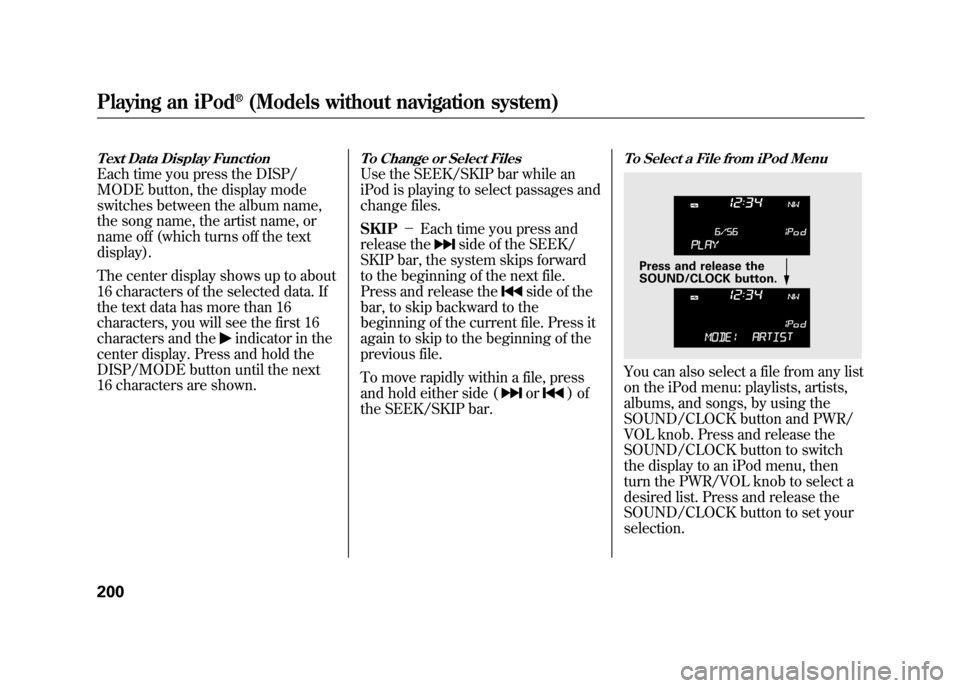
To Select a File from iPod MenuYou can also select a file from any list
on the iPod menu: playlists, artists,
albums, and songs, by using the
SOUND/CLOCK button and PWR/
VOL knob. Press and release the
SOUND/CLOCK button to switch
the display to an iPod menu, then
turn the PWR/VOL knob to select a
desired list. Press and release the
SOUND/CLOCK button to set your
selection.
Press and release the
SOUND/CLOCK button.
Playing an iPod
®(Models without navigation system)
20011/06/16 17:42:51 12 ACURA RDX MMC North America Owner's M 50 31STK650 enu
Page 207 of 518
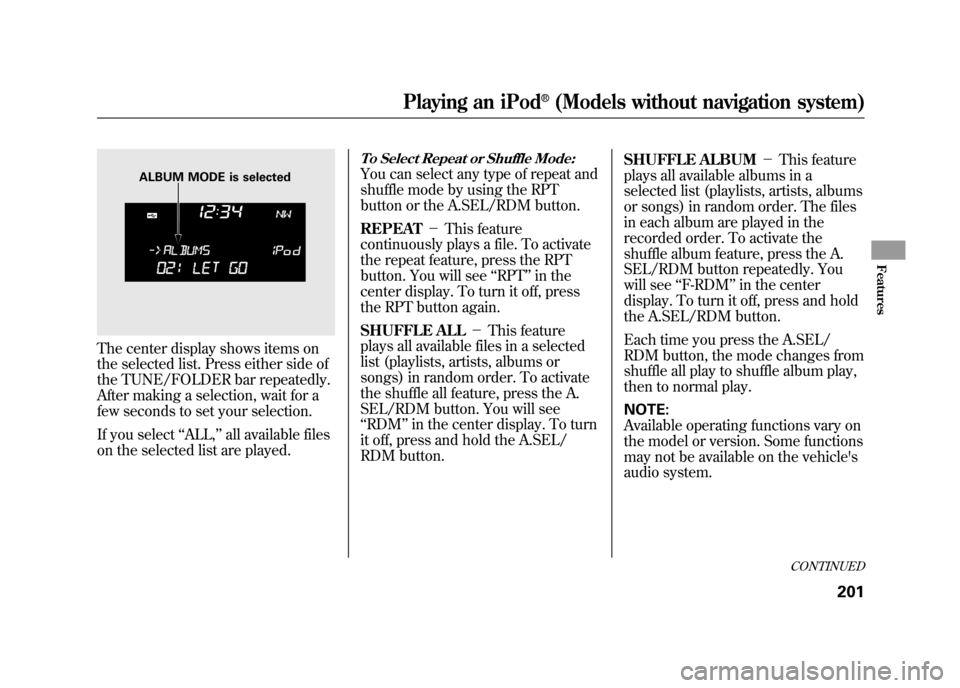
The center display shows items on
the selected list. Press either side of
the TUNE/FOLDER bar repeatedly.
After making a selection, wait for a
few seconds to set your selection.
If you select‘‘ALL,’’ all available files
on the selected list are played.
To Select Repeat or Shuffle Mode:You can select any type of repeat and
shuffle mode by using the RPT
button or the A.SEL/RDM button.
REPEAT -This feature
continuously plays a file. To activate
the repeat feature, press the RPT
button. You will see ‘‘RPT ’’in the
center display. To turn it off, press
the RPT button again.
SHUFFLE ALL -This feature
plays all available files in a selected
list (playlists, artists, albums or
songs) in random order. To activate
the shuffle all feature, press the A.
SEL/RDM button. You will see
‘‘ RDM ’’in the center display. To turn
it off, press and hold the A.SEL/
RDM button. SHUFFLE ALBUM
-This feature
plays all available albums in a
selected list (playlists, artists, albums
or songs) in random order. The files
in each album are played in the
recorded order. To activate the
shuffle album feature, press the A.
SEL/RDM button repeatedly. You
will see ‘‘F-RDM ’’in the center
display. To turn it off, press and hold
the A.SEL/RDM button.
Each time you press the A.SEL/
RDM button, the mode changes from
shuffle all play to shuffle album play,
then to normal play.
NOTE:
Available operating functions vary on
the model or version. Some functions
may not be available on the vehicle's
audio system.
ALBUM MODE is selected
CONTINUED
Playing an iPod
®(Models without navigation system)
201
Features
11/06/16 17:42:51 12 ACURA RDX MMC North America Owner's M 50 31STK650 enu
Page 214 of 518
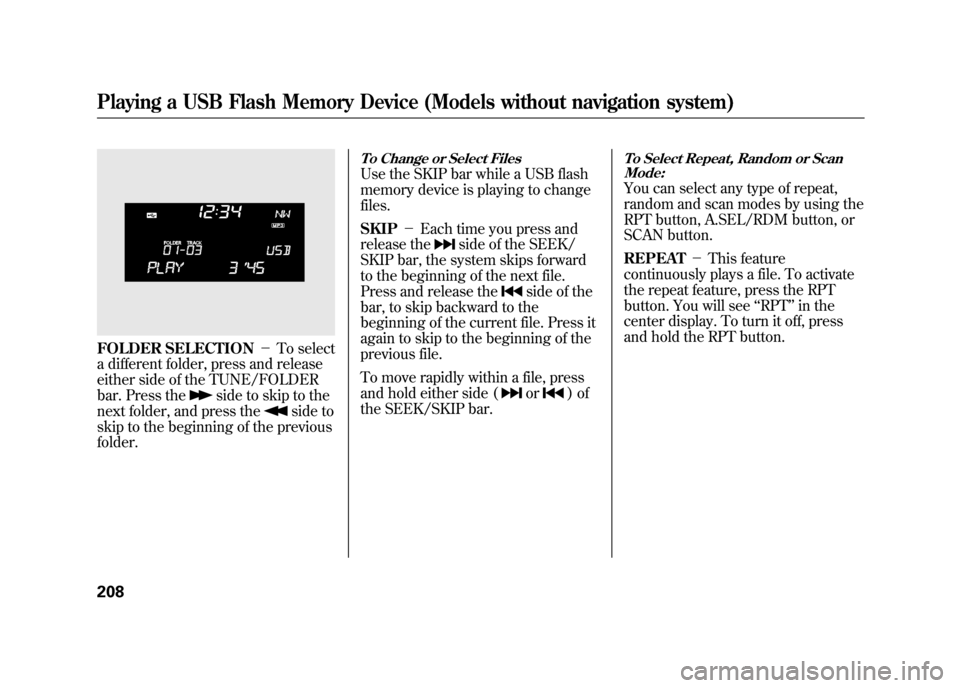
FOLDER SELECTION-To select
a different folder, press and release
either side of the TUNE/FOLDER
bar. Press the
side to skip to the
next folder, and press the
side to
skip to the beginning of the previous
folder.
To Change or Select FilesUse the SKIP bar while a USB flash
memory device is playing to change
files.
SKIP -Each time you press and
release the
side of the SEEK/
SKIP bar, the system skips forward
to the beginning of the next file.
Press and release the
side of the
bar, to skip backward to the
beginning of the current file. Press it
again to skip to the beginning of the
previous file.
To move rapidly within a file, press
and hold either side (or
)of
the SEEK/SKIP bar.
To Select Repeat, Random or Scan Mode:You can select any type of repeat,
random and scan modes by using the
RPT button, A.SEL/RDM button, or
SCAN button.
REPEAT -This feature
continuously plays a file. To activate
the repeat feature, press the RPT
button. You will see ‘‘RPT ’’in the
center display. To turn it off, press
and hold the RPT button.
Playing a USB Flash Memory Device (Models without navigation system)20811/06/16 17:42:51 12 ACURA RDX MMC North America Owner's M 50 31STK650 enu
Page 215 of 518

FOLDER REPEAT-This feature
replays all the files in the selected
folder in the order they are stored.
To activate the folder repeat feature,
press the RPT button repeatedly. You
will see ‘‘F-RPT ’’in the center
display. To turn it off, press and hold
the RPT button.
Each time you press and release the
RPT button, the mode changes from
file repeat to folder repeat, then to
normal play. FOLDER RANDOM
-This feature
plays the files in the selected folder
in random order. To activate the
folder random feature, press the
A.SEL/RDM button. You will see ‘‘F-
RDM ’’in the center display. To turn
it off, press and hold the A.SEL/
RDM button.
RANDOM -This feature plays all
the files in random order. To activate
the track random feature, press the
A.SEL/RDM button repeatedly. You
will see ‘‘RDM ’’in the center display.
To turn it off, press and hold the
A.SEL/RDM button.
Each time you press and release the
A.SEL/RDM button, the mode
changes folder random to random
play, then to normal play. SCAN
-This feature samples all
files in the selected folder in the
order they are stored. To activate the
scan feature, press the SCAN button.
You will see ‘‘SCAN ’’in the center
display. You will get a 10 second
sampling of each file in the folder.
Press and hold the SCAN button to
get out of the scan mode and play the
last file sampled.
FOLDER SCAN -This feature
samples the first file in each folder in
the order they are stored. To activate
the folder scan feature, press the
SCAN button repeatedly. You will
see ‘‘F-SCAN ’’in the center display.
You will get a 10 second sampling of
the first file in each folder. Press and
hold the SCAN button to get out of
the folder scan mode and play the
last file sampled.
CONTINUED
Playing a USB Flash Memory Device (Models without navigation system)
209
Features
11/06/16 17:42:51 12 ACURA RDX MMC North America Owner's M 50 31STK650 enu
Page 216 of 518

Each time you press and release the
SCAN button, the mode changes
from file scan to folder scan, then to
normal play.To Stop Playing a USB Flash
Memory Device
To play the radio, press the FM, AM
or
button. Press the CD/AUX
button to switch between disc (if a
disc is loaded) and
Bluetooth
®Audio.
You can also press the MODE button
on the steering wheel to change
modes.
If you reconnect the same USB flash
memory device, the system will
begin playing where it left off.
Disconnecting a USB Flash Memory DeviceYou can disconnect the USB flash
memory device at any time even if
the USB mode is selected on the
audio system. Always follow the USB
flash memory device's instructions
when you remove it.
When you disconnect the USB flash
memory device while it is playing,
the center display shows ‘‘USB NO
DATA. ’’
If you reconnect the same USB flash
memory device, the system will
begin playing where it left off.
USB Flash Memory Device Error
Messages
For information, see page 211.
Playing a USB Flash Memory Device (Models without navigation system)21011/06/16 17:42:51 12 ACURA RDX MMC North America Owner's M 50 31STK650 enu
Page 225 of 518

To Play the Radio
The ignition switch must be in the
ACCESSORY (I) or the ON (II)
position. Press the AUDIO button to
view the audio control display. Turn
the system on by pressing the PWR/
VOL knob or the AM/FM button.
Adjust the volume by turning the
PWR/VOL knob.The band and frequency the radio
was last tuned to are shown on the
upper display. To change bands,
press the AM/FM button. You can
also change bands with the interface
dial. Press the AUDIO button to view
the audio control display and the
band changes to FM1, FM2, or AM
each time you push the selector up.
On the FM bands,
‘‘STEREO ’’will be
shown on the audio control display.
‘‘ ST’’ will also appear on the upper
display if the station is broadcasting
in stereo. Stereo reproduction on AM
is not available.
XM Radio information is available on
page 228. To Select a Station
You can use any of five methods to
find radio stations on the selected
band: TUNE, SEEK, SCAN, the
preset buttons or icons, and AUTO
SELECT.
TUNE
-Use the TUNE/FOLDER
bar to tune the radio to a desired
frequency. Press the
side of the
bar to tune to a higher frequency,
and the
side of the bar to tune to
a lower frequency.
If you press and hold the
or
side of the bar, the frequency will
begin to change rapidly. It will stop
when you release it.
CONTINUED
Playing the FM/AM Radio (Models with navigation system)
219
Features
11/06/16 17:42:51 12 ACURA RDX MMC North America Owner's M 50 31STK650 enu
Page 236 of 518
Your vehicle is capable of receiving
XM
®Radio anywhere in the United
States and Canada, except Hawaii,
Alaska, and Puerto Rico. XM is a
registered trademark of Sirius XM
Radio®, Inc. and XM CANADA
®is a
registered business name of
Canadian Satellite Radio Inc.
XM Radio receives signals from two
satellites to produce clear, high-
quality digital reception. It offers
many channels in several categories.
Along with a large selection of
different types of music, XM Radio
also allows you to view channel and
category selections in the upper
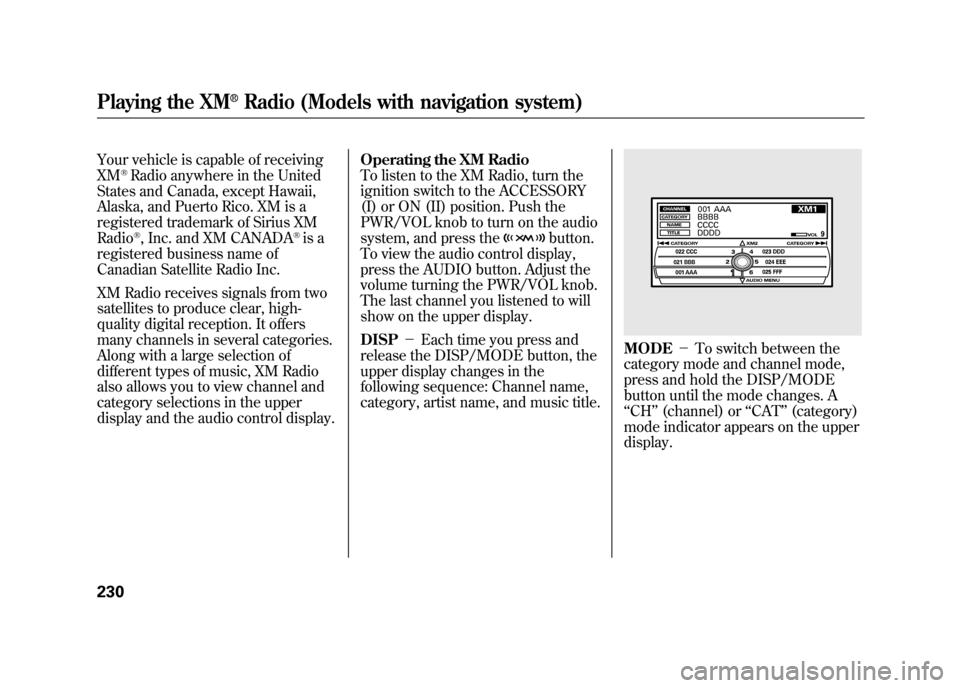
display and the audio control display. Operating the XM Radio
To listen to the XM Radio, turn the
ignition switch to the ACCESSORY
(I) or ON (II) position. Push the
PWR/VOL knob to turn on the audio
system, and press the
button.
To view the audio control display,
press the AUDIO button. Adjust the
volume turning the PWR/VOL knob.
The last channel you listened to will
show on the upper display.
DISP -Each time you press and
release the DISP/MODE button, the
upper display changes in the
following sequence: Channel name,
category, artist name, and music title.
MODE -To switch between the
category mode and channel mode,
press and hold the DISP/MODE
button until the mode changes. A
‘‘ CH ’’(channel) or ‘‘CAT’’ (category)
mode indicator appears on the upper
display.
Playing the XM
®Radio (Models with navigation system)
23011/06/16 17:42:51 12 ACURA RDX MMC North America Owner's M 50 31STK650 enu
Page 248 of 518
Manufactured under license under
U.S. Patent #'s: 5,451,942; 5,956,674;
5,974,380; 5,978,762; 6,487,535 &
other U.S. and worldwide patents
issued & pending. DTS and DTS
Digital Surround are registered
trademarks and the DTS logos and
Symbol are trademarks of DTS, Inc.
© 1996-2007 DTS, Inc. All Rights
Reserved.Loading Discs
To load multiple discs in one
operation:
1. Press and hold the LOAD button
on the changer unit until you hear
a beep. You will see ‘‘BUSY ’’on
the upper display, and the disc
load indicator turns red and starts
blinking.
2. Insert the disc into the disc slot when the disc load indicator turns
green and ‘‘LOAD ’’appears in the
upper display at the same time.
Insert it only halfway; the drive will
pull it in the rest of the way. You
will see ‘‘BUSY ’’on the upper
display, and the disc load indicator
turns red again and blinks as the
CD is loaded.
3. When the disc load indicator turns green and ‘‘LOAD ’’appears on the
upper display again, insert the next
CD in the slot. Do not try to insert a disc until
‘‘
LOAD ’’appears. You could
damage the audio unit.
4. Repeat steps 1 through 3 until all six positions are loaded. If you are
not loading all six positions, press
the LOAD button again after the
last CD has loaded. ‘‘DISC READ ’’
appears on the upper display, then
the system begins playing the last
loaded.
If you stop loading discs before all
six positions are filled, the system
will wait for 10 seconds, stop the load
operation, and begin playing the last
disc loaded.
To load a single disc:
1. Press and release the LOAD button on the changer unit. You
will see ‘‘BUSY ’’on the upper
display, and the disc load indicator
turns red and starts blinking.Playing Discs (Models with navigation system)24211/06/16 17:42:51 12 ACURA RDX MMC North America Owner's M 50 31STK650 enu