map Acura RDX 2016 Navigation Manual
[x] Cancel search | Manufacturer: ACURA, Model Year: 2016, Model line: RDX, Model: Acura RDX 2016Pages: 363, PDF Size: 17.77 MB
Page 1 of 363
The information and specifications included in this publication were in effect at the time of approval for printing. Honda Motor Co., Ltd., reserves the right,
however, to discontinue or change specif ications or design at any time without notice and without incurring any obligation.
Accessories Precautions
The GPS antenna is located in the roof. Trees, tall buildings, fr eeway/highway overpasses, tunnels, or overhead electrical power wires can ealisly interrupt or
interfere GPS reception.
Signal noise from devices such as radar detectors, vehicle tracking devices, remote starters, and additional amplifiers can dis rupt the navigation system. If you
install any such item, install it away from the navigation display and antenna.
Important Safety Information
Avoid focusing on the screen or manually operating the system controls while driving.
Enter information before you begin driving or when stopped. As y ou drive, listen to the audible instructions and use voice commands when possible. Pull to the
side of the road if you need more time to look at the screen or operate the controls.
Route guidance may conflict with street closures, road construction, detours, and out-of-date map data.
The system itself may also have limitations. Verify route information by carefully observing roads, signs, and signals. Always use your own judgment and obey
traffic laws.
2
System Limitations P. 336
NOTICEThis vehicle’s navigation display, if so equipped, includes me rcury-containing components. Upon removal, please reuse, recycle, or dispose of as hazardous waste.
Clean the screen with a soft, damp cloth. You may use a mild cleaner intended for use on navigation screens.
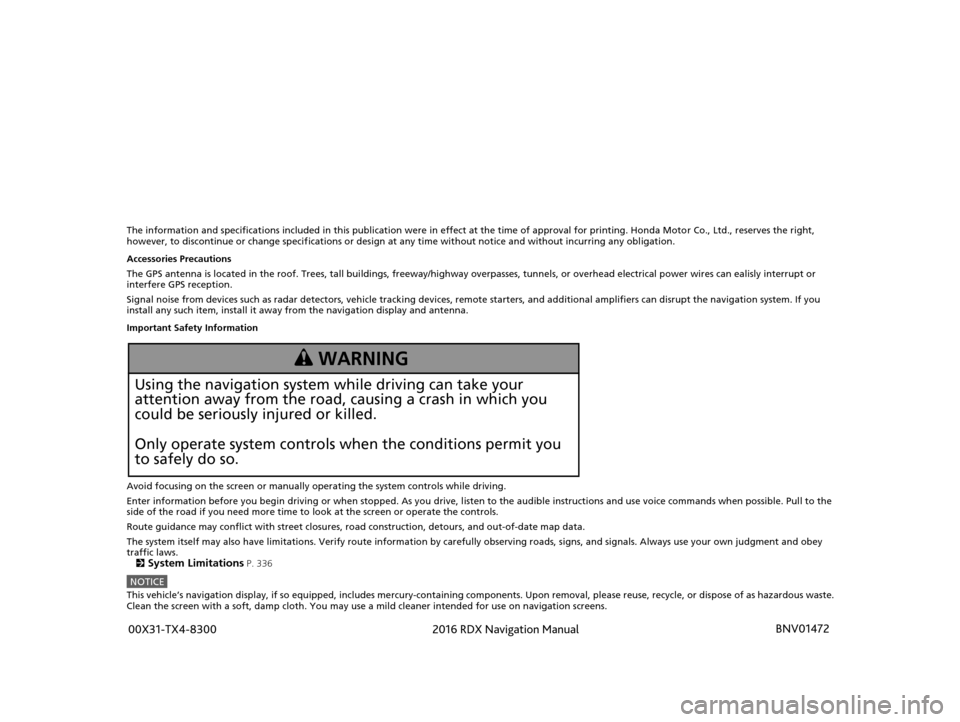
3 WARNING
Using the navigation system while driving can take your
attention away from the road, causing a crash in which you
could be seriously injured or killed.
Only operate system controls when the conditions permit you
to safely do so.
16 ACURA RDX NAVI-31TX48300.book 0 ページ 2015年3月6日 金曜日 午後1時26分 00X31-TX4-8300 BNV01472
2016 RDX Navigation Manual
Page 2 of 363
Contents
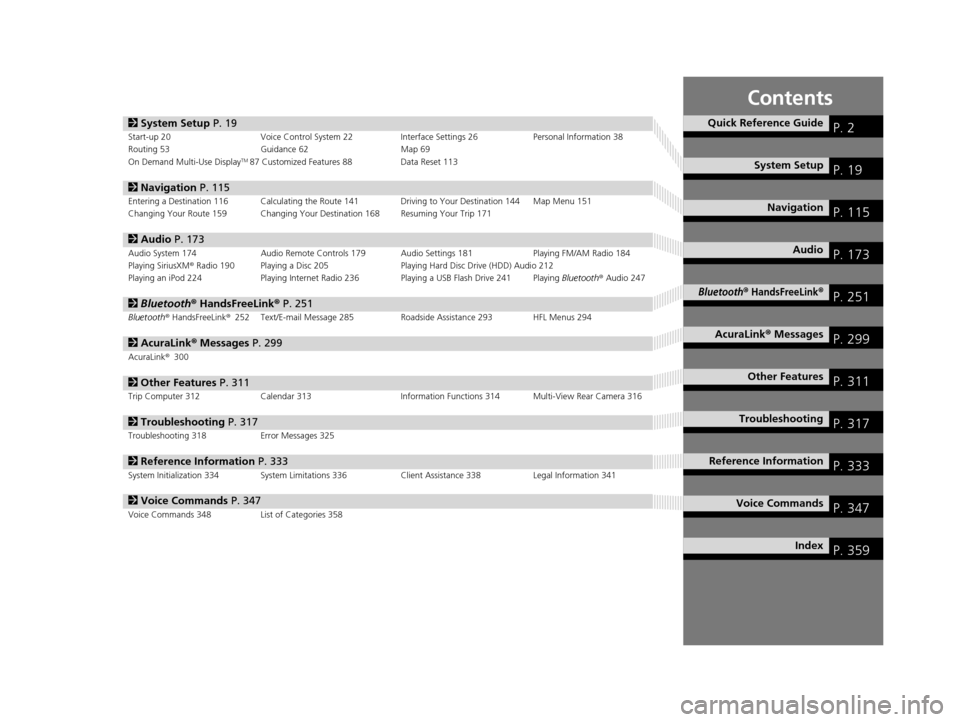
2System Setup P. 19Start-up 20 Voice Control System 22 Interface Settings 26Personal Information 38
Routing 53 Guidance 62 Map 69
On Demand Multi-Use Display
TM87 Customized Features 88 Data Reset 113
2Navigation P. 115Entering a Destination 116 Calculating the Route 141 Driving to Your Destination 144 Map Menu 151
Changing Your Route 159 Changing Your Destination 168 Resuming Your Trip 171
2Audio P. 173Audio System 174 Audio Remote Controls 179 Audio Settings 181 Playing FM/AM Radio 184
Playing SiriusXM® Radio 190 Playing a Disc 205 Playing Hard Disc Drive (HDD) Audio 212
Playing an iPod 224 Playing Internet Radio 236 Playing a USB Flash Drive 241 Playing Bluetooth® Audio 247
2 Bluetooth ® HandsFreeLink® P. 251Bluetooth® HandsFreeLink ®252 Text/E-mail Message 285 Roadside Assistance 293 HFL Menus 294
2AcuraLink® Messages P. 299AcuraLink® 300
2Other Features P. 311Trip Computer 312 Calendar 313 Information Functions 314 Multi-View Rear Camera 316
2Troubleshooting P. 317Troubleshooting 318 Error Messages 325
2Reference Information P. 333System Initialization 334 System Limitations 336 Client Assistance 338Legal Information 341
2Voice Commands P. 347Voice Commands 348 List of Categories 358
Quick Reference GuideP. 2
System SetupP. 19
NavigationP. 115
AudioP. 173
Bluetooth® HandsFreeLink®P. 251
AcuraLink® MessagesP. 299
Other FeaturesP. 311
TroubleshootingP. 317
Reference InformationP. 333
Voice CommandsP. 347
IndexP. 359
16 ACURA RDX NAVI-31TX48300.book 1 ページ 2015年3月6日 金曜日 午後1時26分
Page 8 of 363
7
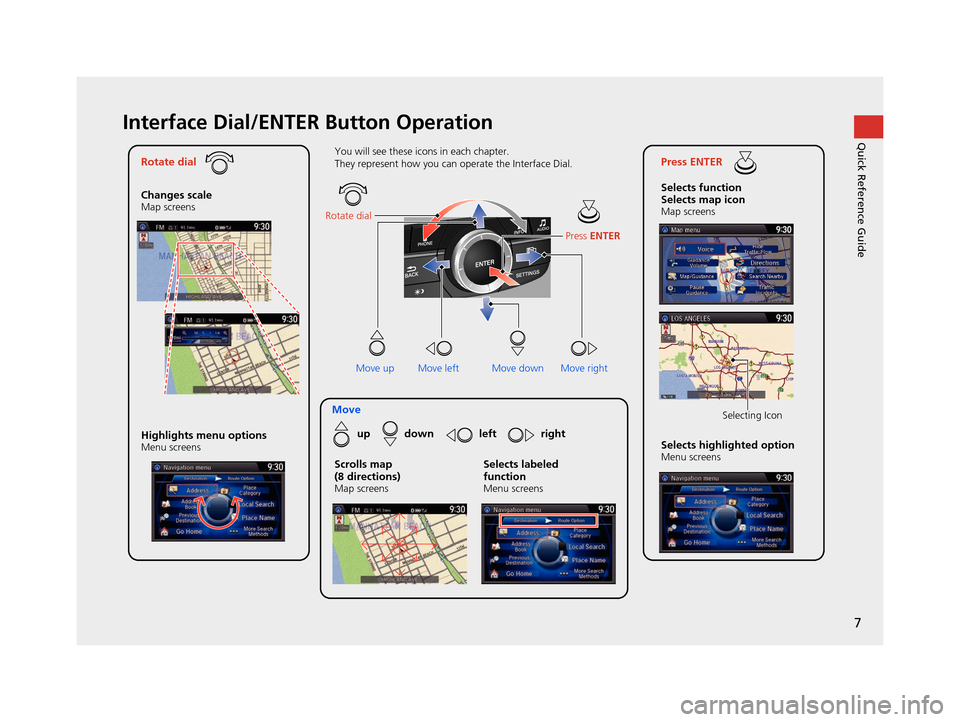
Quick Reference GuideInterface Dial/ENTER Button Operation
Rotate dial
Changes scale
Map screens
Press ENTER
Selects function
Selects map icon
Map screens
Moveup down left right
Highlights menu options
Menu screensSelects highlighted optionMenu screens Selecting Icon
You will see these icons in each chapter.
They represent how you can operate the Interface Dial.
Move up Move left Move rightScrolls map
(8 directions)
Map screens
Selects labeled
function
Menu screens
Rotate dial
Press ENTER
Move down
16 ACURA RDX NAVI-31TX48300.book 7 ページ 2015年3月6日 金曜日 午後1時26分
Page 9 of 363
8
Quick Reference GuideHow to Enter Information
You can enter information (e.g., city names, street names, personal names, and business names comprising letters, numbers, and symbols)
when prompted on input screens by two different methods.
Using Voice Control
When you see in this manual, voice commands are available for
that feature.
Say the letter, number, or symbol (e.g., say “ A”).
Use spelling assist (e.g., say “ Alpha” to enter the letter “ A”
or “ Hyphen” to enter a hyphen).
The system beeps if you say an unavailable (grayed out) letter or
number.
If a voice command is not recognized, a list is displayed with
possible options.
On list screens:
Say the number of the list item (e.g., say “ Five” to select item
5).
Say “ Up” or “ Previous” to scroll up one page.
Say “ Down” or “Next ” to scroll down one page.
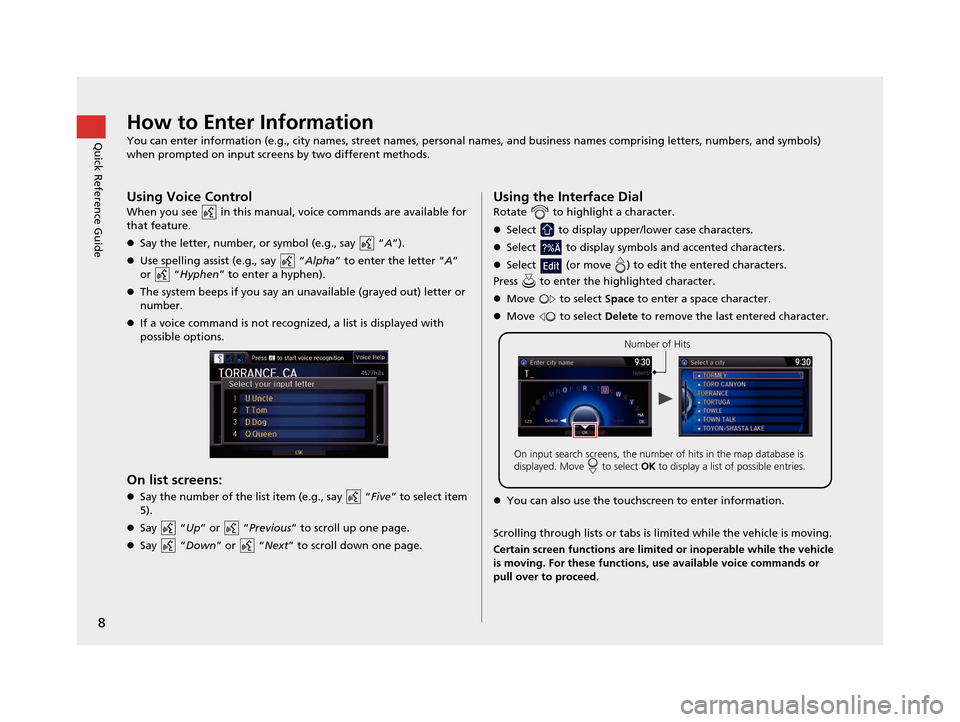
Using the Interface Dial
Rotate to highlight a character.
Select to display upper/lower case characters.
Select to display symbols and accented characters.
Select (or move ) to edit the entered characters.
Press to enter the highlighted character.
Move to select Space to enter a space character.
Move to select Delete to remove the last entered character.
You can also use the touchs creen to enter information.
Scrolling through lists or tabs is lim ited while the vehicle is moving.
Certain screen functions are limited or inoperable while the vehicle
is moving. For these functions, use available voice commands or
pull over to proceed.
Number of Hits
On input search screens, the number of hits in the map database is
displayed. Move to select OK to display a list of possible entries.
16 ACURA RDX NAVI-31TX48300.book 8 ページ 2015年3月6日 金曜日 午後1時26分
Page 10 of 363
9
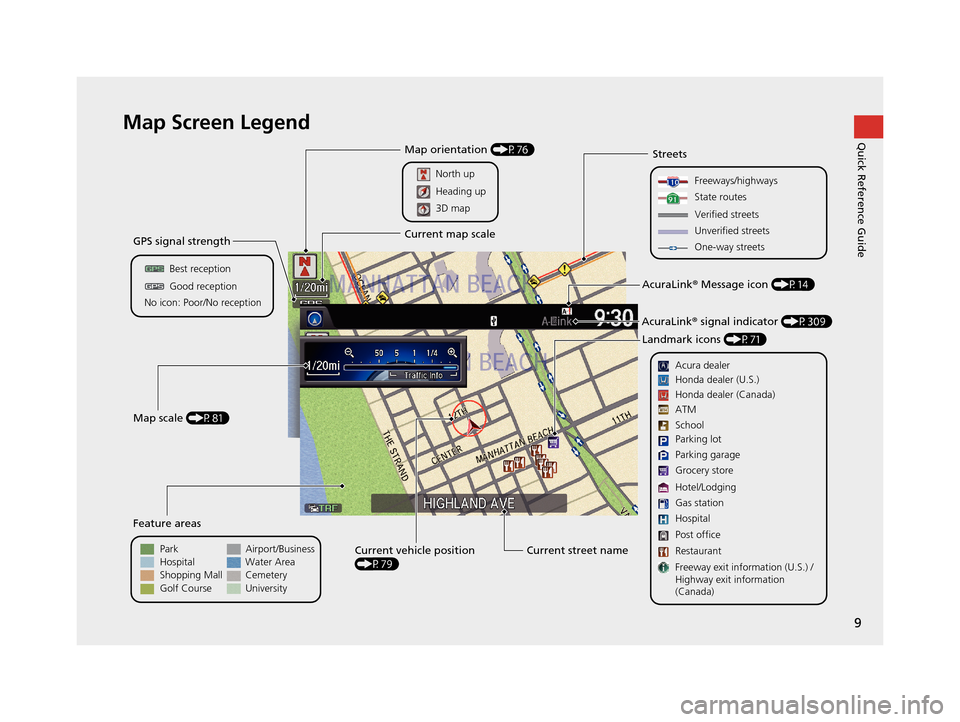
Quick Reference GuideMap Screen Legend
GPS signal strength
Best reception
Feature areas
Park
Streets
Map scale (P81)
No icon: Poor/No receptionGood reception
Hospital
Shopping Mall
Golf Course Airport/Business
Water Area
Cemetery
University
Current street name
Current vehicle position
(P79)
Freeways/highways
State routes
Verified streets
Unverified streets
One-way streets
Acura dealer
AcuraLink® Message icon (P14)
AcuraLink ® signal indicator (P309)
Landmark icons (P71)
Honda dealer (U.S.)
Honda dealer (Canada)
School
Parking lot
Gas station
Hospital
Post office
Restaurant
Freeway exit information (U.S.) /
Highway exit information
(Canada) Parking garage
Grocery store
Hotel/Lodging ATM
Map orientation (P76)
North up
Current map scale
Heading up
3D map
16 ACURA RDX NAVI-31TX48300.book 9 ページ 2015年3月6日 金曜日 午後1時26分
Page 11 of 363
10
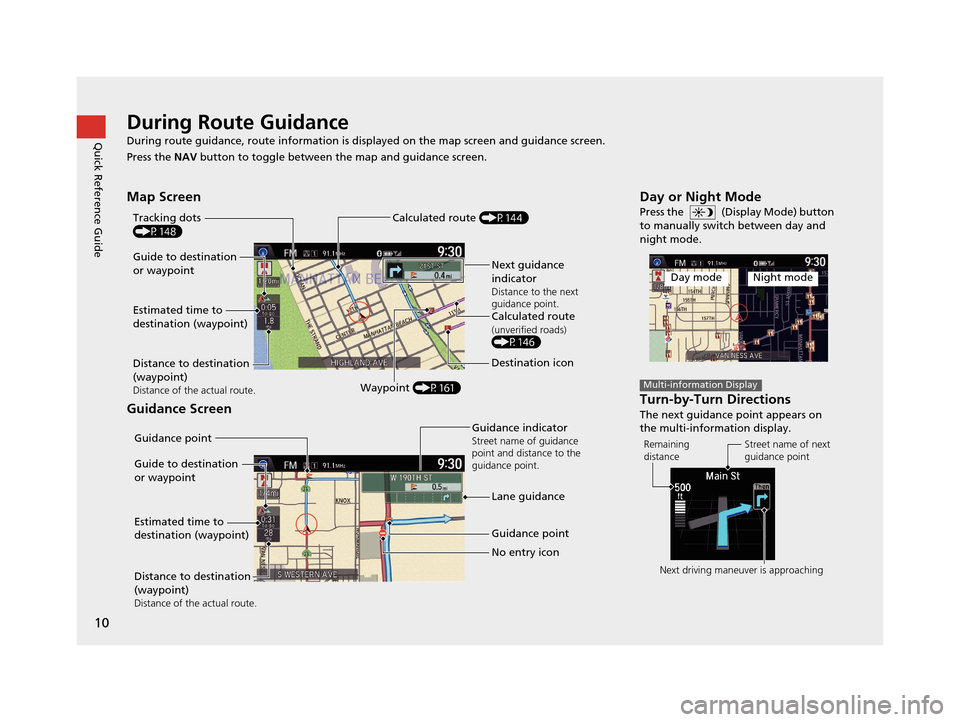
Quick Reference GuideDuring Route Guidance
During route guidance, route information is displayed on the map screen and guidance screen.
Press the NAV button to toggle between th e map and guidance screen.
Map Screen
Guidance Screen
Guide to destination
or waypoint
Estimated time to
destination (waypoint)
Distance to destination
(waypoint)
Distance of the actual route.Waypoint (P161)
Tracking dots
(P148)
Next guidance
indicator
Distance to the next
guidance point.
Calculated route(unverified roads)(P146)
Destination icon
Calculated route (P144)
Guide to destination
or waypoint
Estimated time to
destination (waypoint)
Distance to destination
(waypoint)
Distance of the actual route.
Guidance point
Guidance point
No entry icon
Guidance indicatorStreet name of guidance
point and distance to the
guidance point.
Lane guidance
Day or Night Mode
Press the (Display Mode) button
to manually switch between day and
night mode.
Turn-by-Turn Directions
The next guidance point appears on
the multi-information display.
Day modeNight mode
Multi-information Display
Remaining
distance
Street name of next
guidance point
Next driving maneuver is approaching
16 ACURA RDX NAVI-31TX48300.book 10 ページ 2015年3月6日 金曜日 午後1時26分
Page 12 of 363
11
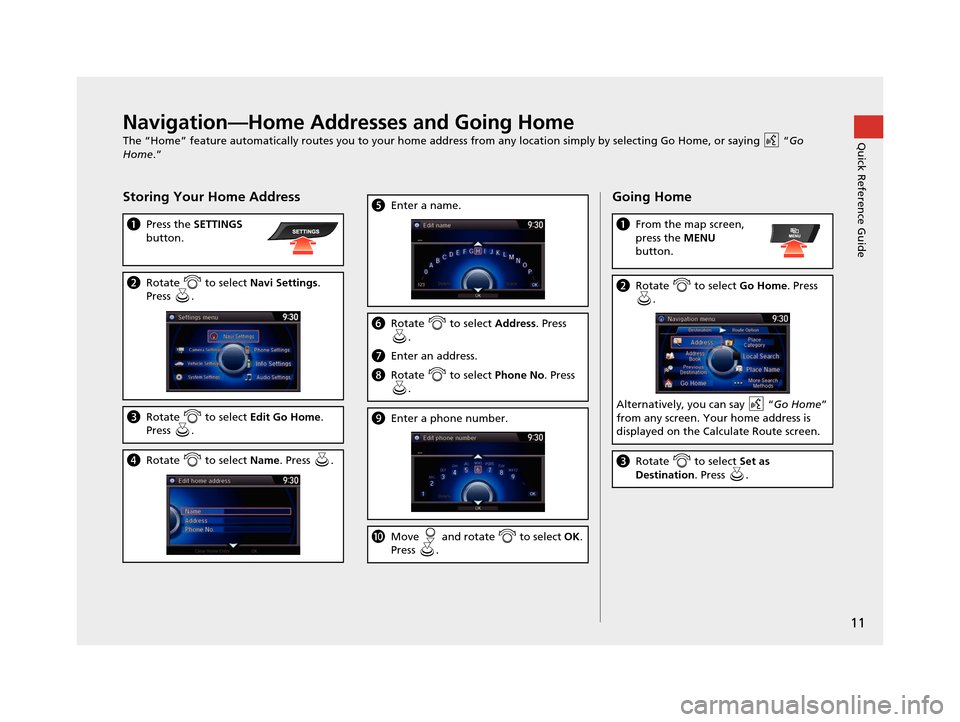
Quick Reference GuideNavigation—Home Addresses and Going Home
The “Home” feature automatically routes you to your home address from any location simply by selecting Go Home, or saying “Go
Home .”
Storing Your Home Address
aPress the SETTINGS
button.
b Rotate to select Navi Settings.
Press .
c Rotate to select Edit Go Home.
Press .
d Rotate to select Name. Press .
eEnter a name.
fRotate to select Address. Press
.
g Enter an address.
hRotate to select Phone No. Press
.
i Enter a phone number.
jMove and rotate to select OK.
Press .
Going Home
a From the map screen,
press the MENU
button.
b Rotate to select Go Home. Press
.
Alternatively, you can say “ Go Home”
from any screen. Your home address is
displayed on the Calculate Route screen.
c Rotate to select Set as
Destination . Press .
16 ACURA RDX NAVI-31TX48300.book 11 ページ 2015年3月6日 金曜日 午後1時26分
Page 13 of 363
12
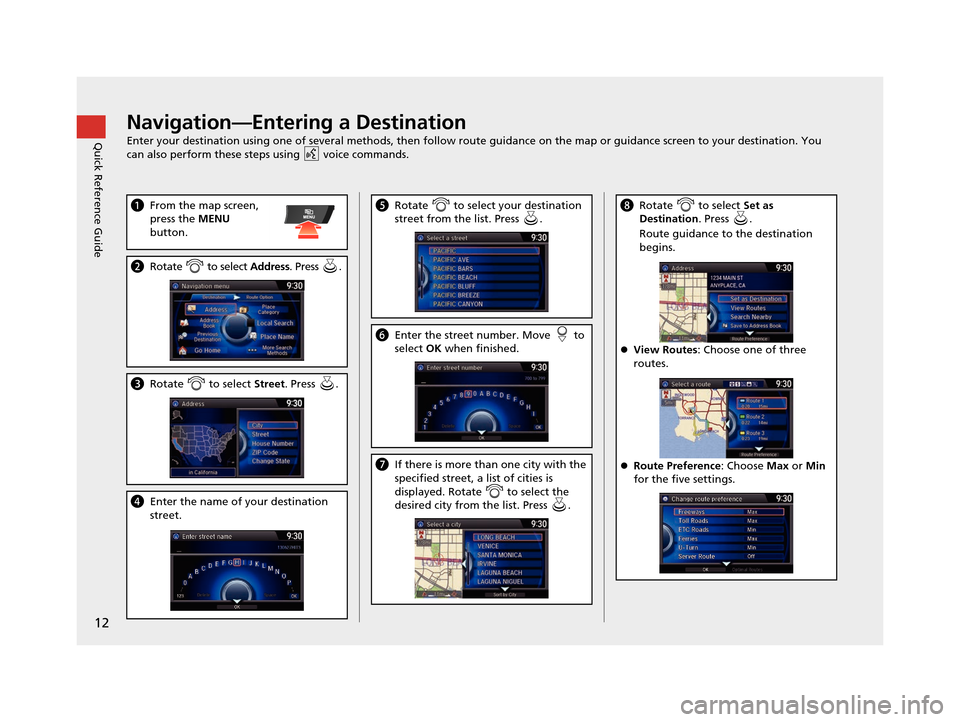
Quick Reference GuideNavigation—Entering a Destination
Enter your destination using one of several methods, then follow route guidance on the map or guidance screen to your destination. You
can also perform these steps using voice commands.
a From the map screen,
press the MENU
button.
b Rotate to select Address. Press .
cRotate to select Street. Press .
dEnter the name of your destination
street.
eRotate to select your destination
street from the list. Press .
fEnter the street number. Move to
select OK when finished.
g If there is more than one city with the
specified street, a list of cities is
displayed. Rotate to select the
desired city from the list. Press .
hRotate to select Set as
Destination . Press .
Route guidance to the destination
begins.
View Routes : Choose one of three
routes.
Route Preference : Choose Max or Min
for the five settings.
16 ACURA RDX NAVI-31TX48300.book 12 ページ 2015年3月6日 金曜日 午後1時26分
Page 14 of 363
13
Quick Reference GuideNavigation—Changing Route or Destination
You can alter your route by adding waypoints to visit, adding streets to avoid, or changing your destination during route guidance.
Adding a Waypoint
(“Pit Stop”)
You can add up to four waypoints along
your route. (P161)
aFrom the map screen, press the MENU
button.
b Rotate to select Destination List.
Press .
c Rotate to select Add New
Destination . Press .
dRotate to select Find Along
Route . Press .
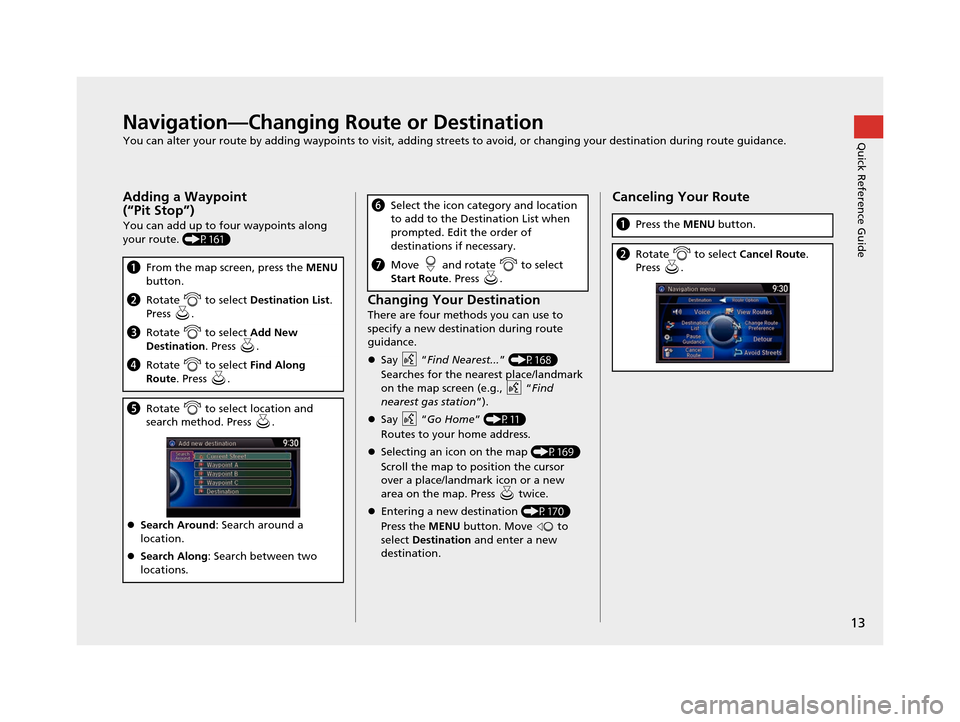
eRotate to select location and
search method. Press .
Search Around : Search around a
location.
Search Along : Search between two
locations.
Changing Your Destination
There are four methods you can use to
specify a new destination during route
guidance.
Say “Find Nearest... ” (P168)
Searches for the nearest place/landmark
on the map screen (e.g., “ Find
nearest gas station ”).
Say “Go Home” (P11)
Routes to your home address.
Selecting an icon on the map (P169)
Scroll the map to position the cursor
over a place/landmark icon or a new
area on the map. Press twice.
Entering a new destination (P170)
Press the MENU button. Move to
select Destination and enter a new
destination.
f Select the icon category and location
to add to the Destination List when
prompted. Edit the order of
destinations if necessary.
gMove and rotate to select
Start Route . Press .
Canceling Your Route
aPress the MENU button.
bRotate to select Cancel Route.
Press .
16 ACURA RDX NAVI-31TX48300.book 13 ページ 2015年3月6日 金曜日 午後1時26分
Page 15 of 363
14
Quick Reference GuideAcuraLink®
AcuraLink® Messages
AcuraLink® provides a direct communication link between you and Acura. It sends and receives several kinds of messages through the Acura
server.
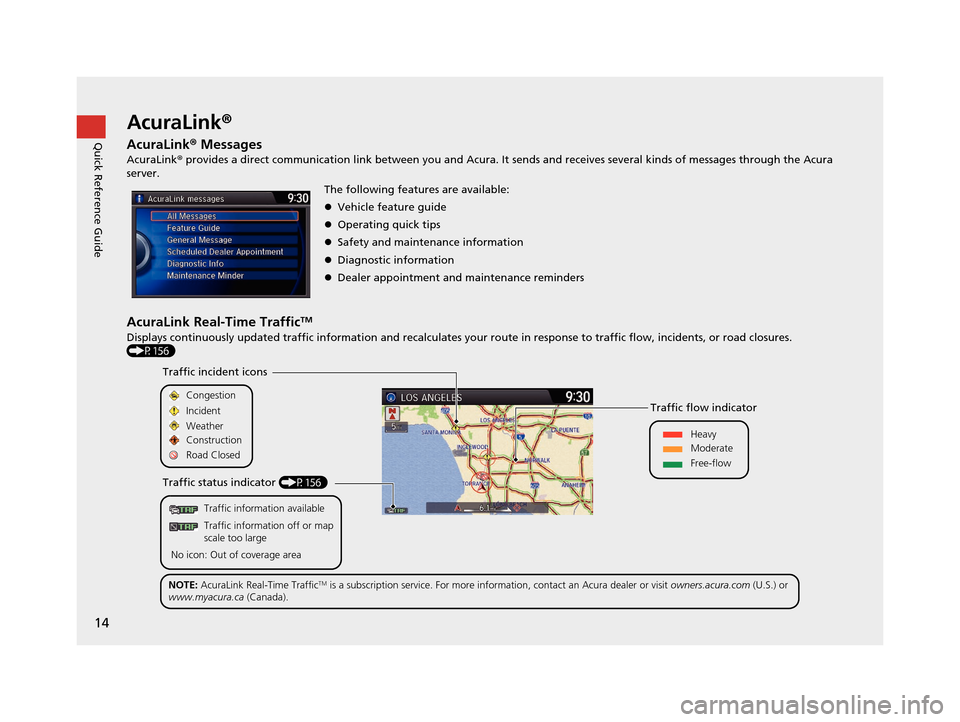
AcuraLink Real-Time TrafficTM
Displays continuously updated traffic informat ion and recalculates your route in response to traffic flow, incidents, or road closures.
(P156) The following features are available:
Vehicle feature guide
Operating quick tips
Safety and maintenance information
Diagnostic information
Dealer appointment and maintenance reminders
Traffic information available
Traffic information off or map
scale too large
No icon: Out of coverage area
Traffic incident icons
Traffic status indicator (P156) Traffic flow indicator
Congestion
Incident
Weather
Heavy
Moderate
Free-flow
Construction
Road Closed
NOTE: AcuraLink Real-Time Traffic
TM is a subscription service. For more information, contact an Acura dealer or visit owners.acura.com (U.S.) or
www.myacura.ca (Canada).
16 ACURA RDX NAVI-31TX48300.book 14 ページ 2015年3月6日 金曜日 午後1時26分