Hold Acura RDX 2020 Workshop Manual
[x] Cancel search | Manufacturer: ACURA, Model Year: 2020, Model line: RDX, Model: Acura RDX 2020Pages: 657, PDF Size: 33.2 MB
Page 291 of 657
290
uuAudio System Basic Operation uPlaying an iPod
Features
Playing an iPod
Using your USB connector, connect the iPod to the USB port, then select the USB
mode.
2 USB Ports P. 239
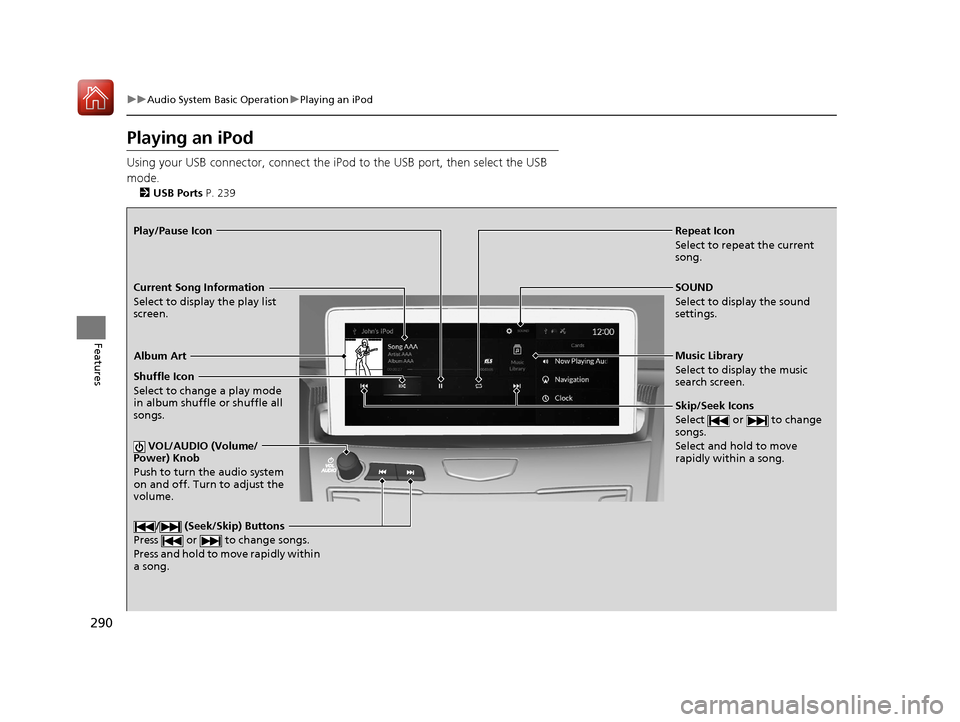
Repeat Icon
Select to repeat the current
song.
SOUND
Select to display the sound
settings.
Music Library
Select to display the music
search screen.
Skip/Seek Icons
Select or to change
songs.
Select and hold to move
rapidly within a song.
Shuffle Icon
Select to change a play mode
in album shuffle or shuffle all
songs.
VOL/AUDIO (Volume/
Power) Knob
Push to turn the audio system
on and off. Turn to adjust the
volume.
/ (Seek/Skip) Buttons
Press or to change songs.
Press and hold to move rapidly within
a song.
Play/Pause Icon
Album Art
Current Song Information
Select to display the play list
screen.
20 ACURA RDX-31TJB6111.book 290 ページ 2020年2月11日 火曜日 午後2時6分
Page 294 of 657
293
uuAudio System Basic Operation uPlaying a USB Flash Drive
Continued
Features
Playing a USB Flash Drive
Your audio system reads and plays audio f iles on a USB flash drive in either format
of MP3, WMA, AAC*1, etc.
2 Playable audio file P. 315
Connect your USB flash drive to the USB port, then select the USB mode.
2USB Ports P. 239
*1:Only AAC format files recorded with iTunes are playable on this unit.
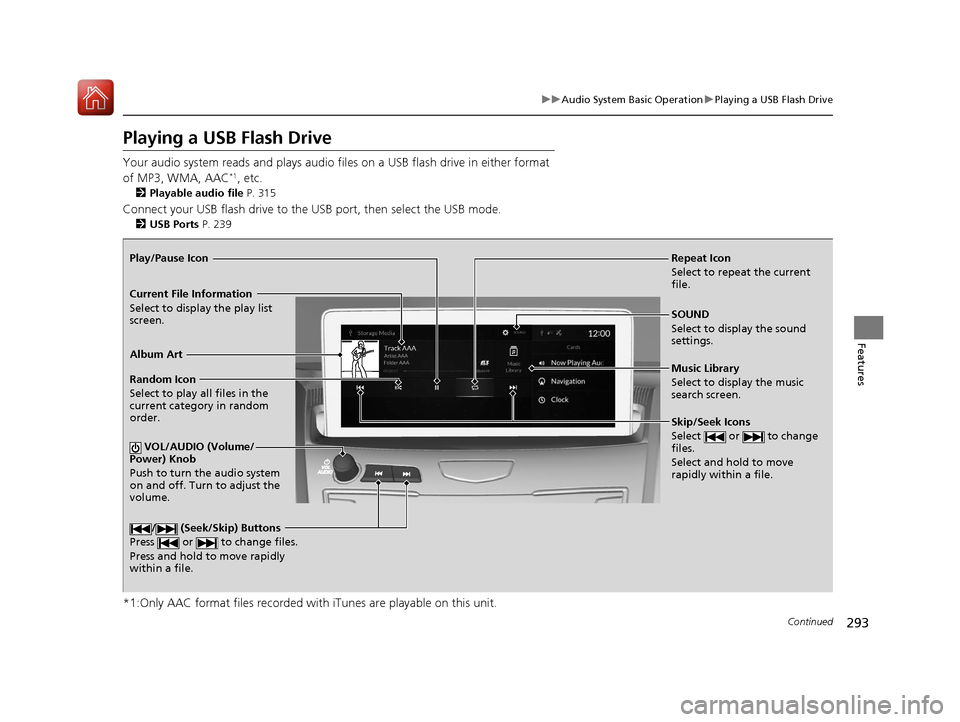
Repeat Icon
Select to repeat the current
file.
SOUND
Select to display the sound
settings.
Music Library
Select to display the music
search screen.
Skip/Seek Icons
Select or to change
files.
Select and hold to move
rapidly within a file.
Random Icon
Select to play all files in the
current category in random
order.
VOL/AUDIO (Volume/
Power) Knob
Push to turn the audio system
on and off. Turn to adjust the
volume.
/ (Seek/Skip) Buttons
Press or to change files.
Press and hold to move rapidly
within a file.
Play/Pause Icon
Album Art
Current File Information
Select to display the play list
screen.
20 ACURA RDX-31TJB6111.book 293 ページ 2020年2月11日 火曜日 午後2時6分
Page 297 of 657
296
uuAudio System Basic Operation uPlaying Bluetooth ® Audio
Features
Playing Bluetooth ® Audio
Your audio system allows you to listen to music from your Bluetooth-compatible
phone.
This function is available when the phone is paired and connected to the vehicle’s
Bluetooth ® HandsFreeLink ® (HFL) system.
2 Phone Setup P. 367
1Playing Bluetooth ® Audio
Not all Bluetooth-enabled phones with streaming
audio capabilities are compat ible with the system. For
a list of compatible phones:
•U.S.: Visit www.handsfreelink.com/Acura or call 1-
888-528-7876.
•Canada: For more info rmation on smartphone
compatibility, call 1-855-490-7351.
It may be illegal to perform some data device
functions while driving.
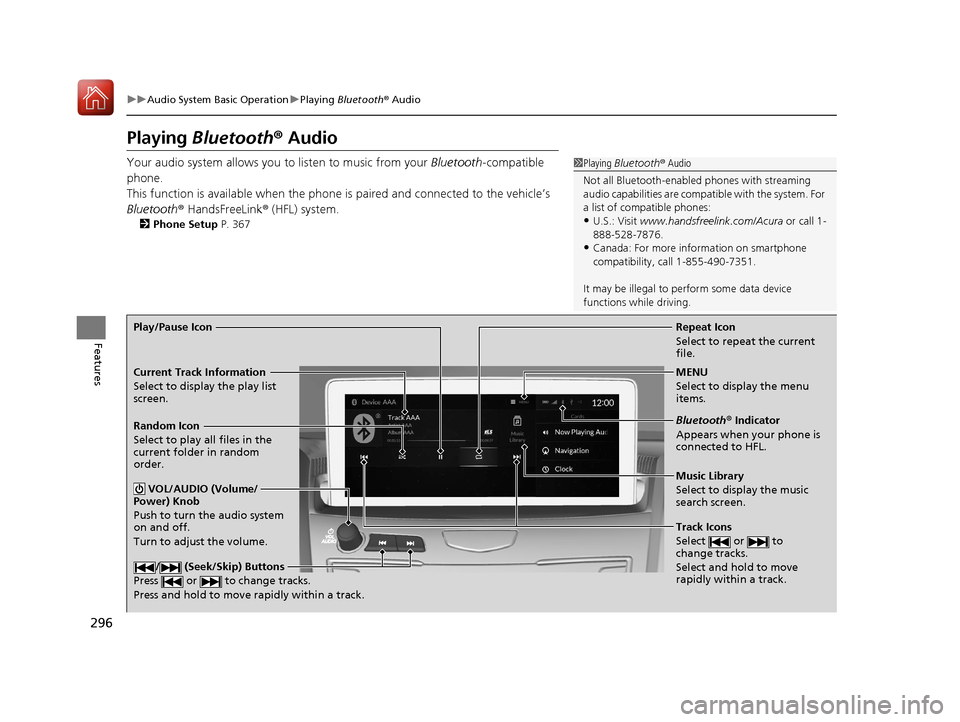
Repeat Icon
Select to repeat the current
file.
Music Library
Select to display the music
search screen.
Track Icons
Select or to
change tracks.
Select and hold to move
rapidly within a track.
Random Icon
Select to play all files in the
current folder in random
order.
VOL/AUDIO (Volume/
Power) Knob
Push to turn the audio system
on and off.
Turn to adjust the volume.
/ (Seek/Skip) Buttons
Press or to change tracks.
Press and hold to move rapidly within a track.
Play/Pause Icon
MENU
Select to display the menu
items.
Bluetooth® Indicator
Appears when your phone is
connected to HFL.
Current Track Information
Select to display the play list
screen.
20 ACURA RDX-31TJB6111.book 296 ページ 2020年2月11日 火曜日 午後2時6分
Page 302 of 657
301
uuAudio System Basic Operation uSiri Eyes Free
Features
Siri Eyes Free
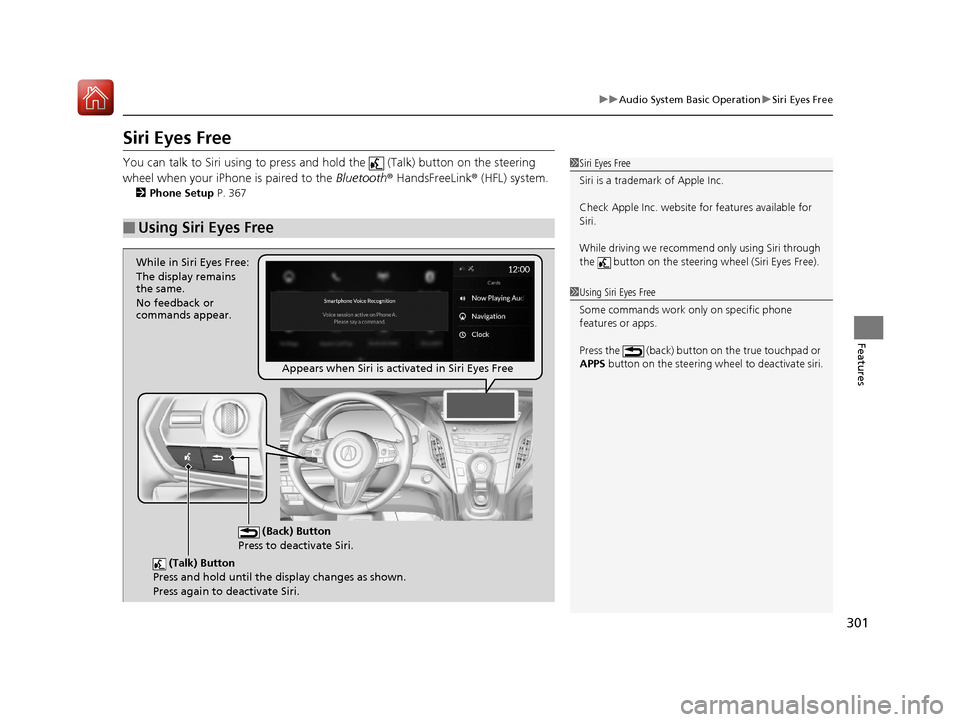
You can talk to Siri using to press and hold the (Talk) button on the steering
wheel when your iPhone is paired to the Bluetooth® HandsFreeLink ® (HFL) system.
2 Phone Setup P. 367
■Using Siri Eyes Free
1Siri Eyes Free
Siri is a trademark of Apple Inc.
Check Apple Inc. website for features available for
Siri.
While driving we recomme nd only using Siri through
the button on the steering wheel (Siri Eyes Free).
1Using Siri Eyes Free
Some commands work only on specific phone
features or apps.
Press the (back) button on the true touchpad or
APPS button on the steering whee l to deactivate siri.
(Talk) Button
Press and hold until the display changes as shown.
Press again to deactivate Siri.
(Back) Button
Press to deactivate Siri.
While in Siri Eyes Free:
The display remains
the same.
No feedback or
commands appear.
Appears when Siri is activated in Siri Eyes Free
20 ACURA RDX-31TJB6111.book 301 ページ 2020年2月11日 火曜日 午後2時6分
Page 306 of 657
305
uuAudio System Basic Operation uApple CarPlay
Features
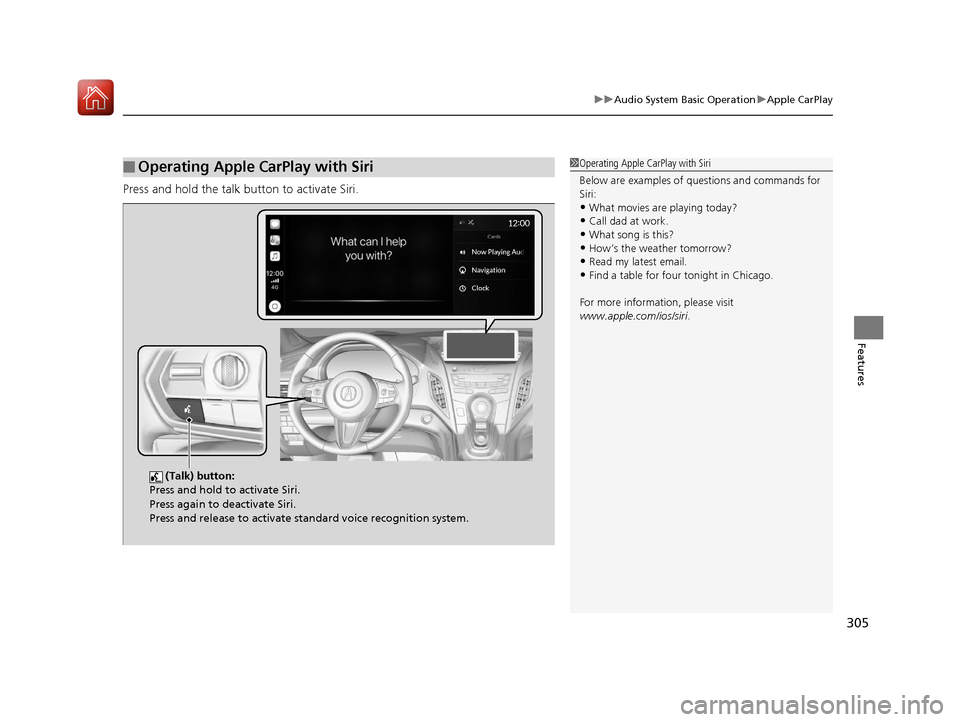
Press and hold the talk bu tton to activate Siri.
■Operating Apple CarPlay with Siri1Operating Apple CarPlay with Siri
Below are examples of questions and commands for
Siri:
•What movies are playing today?
•Call dad at work.
•What song is this?•How’s the weather tomorrow?
•Read my latest email.
•Find a table for four tonight in Chicago.
For more information, please visit
www.apple.com/ios/siri .
(Talk) button:
Press and hold to activate Siri.
Press again to deactivate Siri.
Press and release to activate st andard voice recognition system.
20 ACURA RDX-31TJB6111.book 305 ページ 2020年2月11日 火曜日 午後2時6分
Page 310 of 657
309
uuAudio System Basic Operation uAndroid Auto
Features
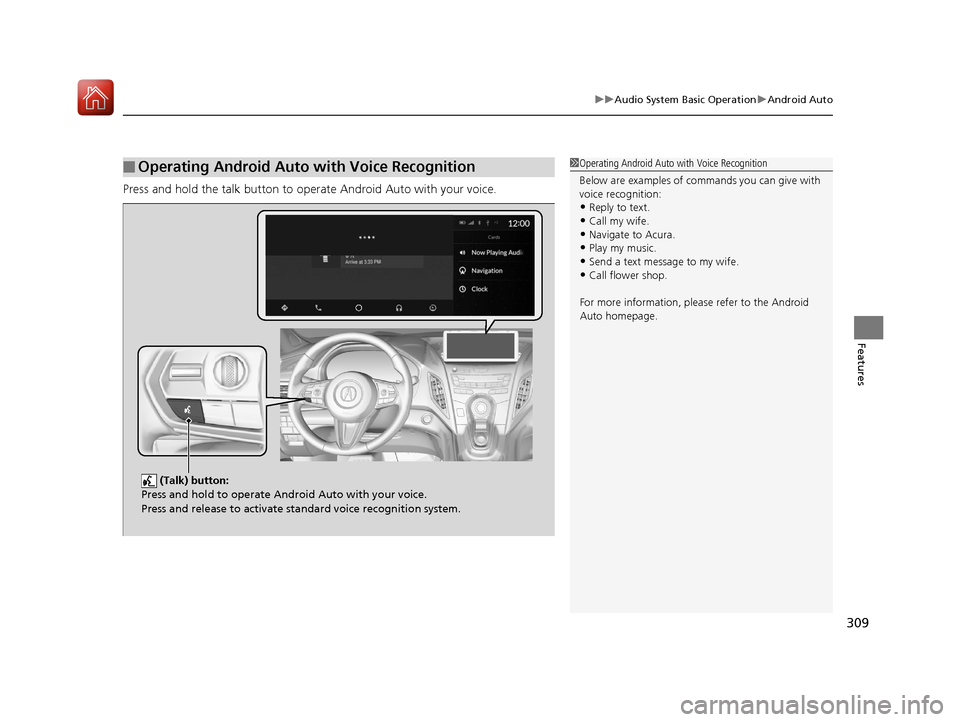
Press and hold the talk button to operate Android Auto with your voice.
■Operating Android Auto with Voice Recognition1Operating Android Auto with Voice Recognition
Below are examples of co mmands you can give with
voice recognition:
•Reply to text.
•Call my wife.•Navigate to Acura.
•Play my music.
•Send a text message to my wife.•Call flower shop.
For more information, please refer to the Android
Auto homepage.
(Talk) button:
Press and hold to operate Android Auto with your voice.
Press and release to activate standard voice recognition system.
20 ACURA RDX-31TJB6111.book 309 ページ 2020年2月11日 火曜日 午後2時6分
Page 360 of 657

359
uuHomeLink ® Universal Transceiver uTraining HomeLink
Continued
Features
Training HomeLink
If it is necessary to er ase a previously entered
learned code:
• Press and hold the I and III HomeLink
buttons for about 10 seconds, until the
green indicator blinks. Release the buttons,
and proceed to step 1.
• If you are training the second or third
button, go directly to step 1.
The instructions on the next page should work for most gate or garage openers, but
may not work for all. For detailed instructions about your specific remote opener,
visit http://www.homelink.com or call (800) 355-3515.
III HomeLink
Button
Indicator I HomeLink Button
20 ACURA RDX-31TJB6111.book 359 ページ 2020年2月11日 火曜日 午後2時6分
Page 361 of 657
uuHomeLink ® Universal Transceiver uTraining HomeLink
360
Features
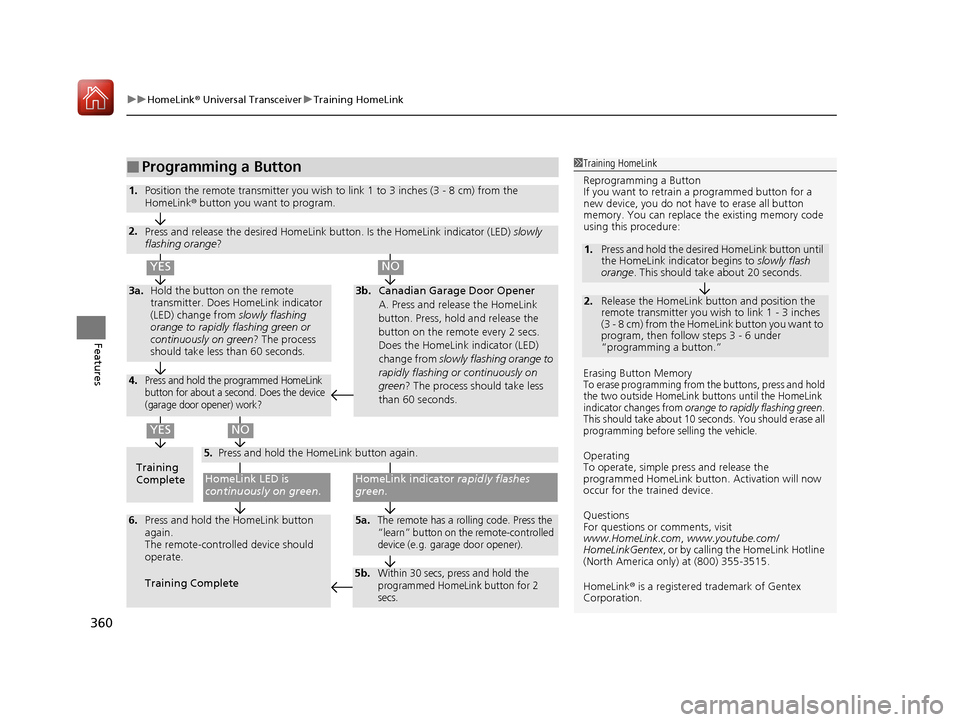
■Programming a Button1Training HomeLink
Reprogramming a Button
If you want to retrain a programmed button for a
new device, you do not ha ve to erase all button
memory. You can replace the existing memory code
using this procedure:
Erasing Button Memory
To erase programming from the buttons, press and hold
the two outside HomeLink buttons until the HomeLink
indicator changes from
orange to rapidly flashing green.
This should take about 10 seconds. You should erase all
programming before selling the vehicle.
Operating
To operate, simple pr ess and release the
programmed HomeLink butto n. Activation will now
occur for the trained device.
Questions
For questions or comments, visit
www.HomeLink.com , www.youtube.com/
HomeLinkGentex , or by calling the HomeLink Hotline
(North America only) at (800) 355-3515.
HomeLink® is a registered tra demark of Gentex
Corporation.
2.
1. Press and hold the desired HomeLink button until
the HomeLink indi
cator begins to slowly flash
orange . This should take about 20 seconds.
Release the HomeLink button and position the
remote transmitter you wish to link 1 - 3 inches
(3 - 8 cm) from the HomeLink button you want to
program, then follow steps 3 - 6 under
“programming a button.”
Training
CompleteHomeLink LED is
continuously on green .
YES
YES
1.Position the remote transmitter you wish to link 1 to 3 inches (3 - 8 cm) from the
HomeLink® button you want to program.
3b.Canadian Garage Door Opener
A. Press and release the HomeLink
button. Press, hold and release the
button on the remote every 2 secs.
Does the HomeLink indicator (LED)
change from slowly flashing orange to
rapidly flashing or continuously on
green ? The process should take less
than 60 seconds.
NO
2. Press and release the desired HomeLink but ton. Is the HomeLink indicator (LED) slowly
flashing orange ?
NO
3a.Hold the button on the remote
transmitter. Does HomeLink indicator
(LED) change from slowly flashing
orange to rapidly flashing green or
continuously on green? The process
should take less than 60 seconds.
5. Press and hold the HomeLink button again.
HomeLink indicator rapidly flashes
green .
5a.The remote has a rolling code. Press the
“learn” button on th e remote-controlled
device (e.g. garage door opener).6. Press and hold the HomeLink button
again.
The remote-controll ed device should
operate.
Training Complete
5b.Within 30 secs, press and hold the
programmed HomeLink button for 2
secs.
4.Press and hold the programmed HomeLink
button for about a second. Does the device
(garage door opener) work?
20 ACURA RDX-31TJB6111.book 360 ページ 2020年2月11日 火曜日 午後2時6分
Page 375 of 657
uuBluetooth ® HandsFreeLink ®u HFL Menus
374
Features
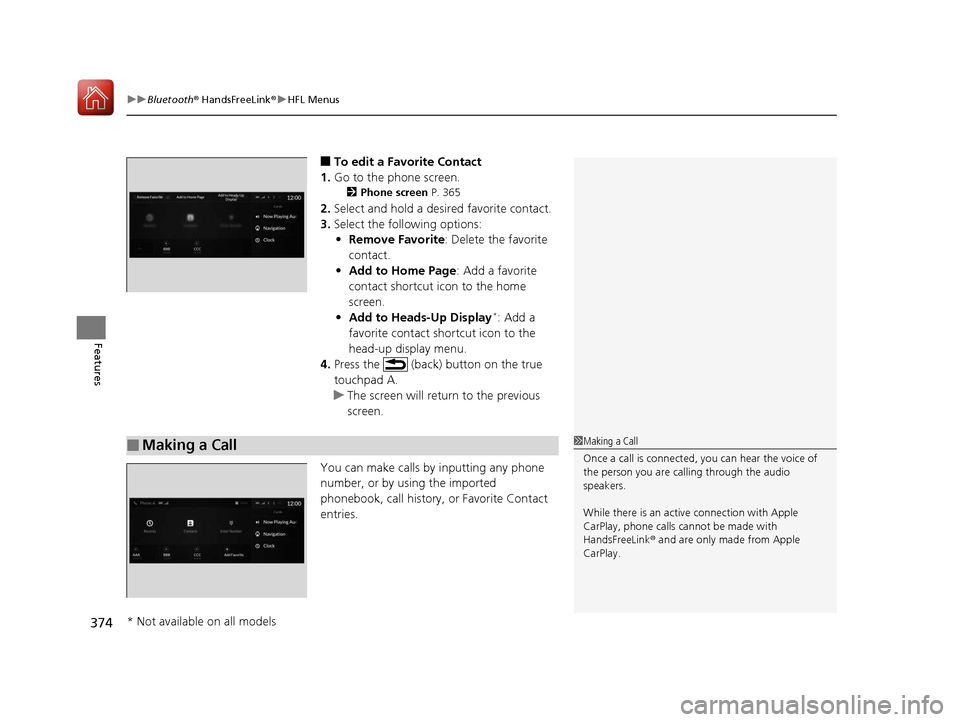
■To edit a Favorite Contact
1. Go to the phone screen.
2 Phone screen P. 365
2.Select and hold a desired favorite contact.
3. Select the following options:
• Remove Favorite : Delete the favorite
contact.
• Add to Home Page : Add a favorite
contact shortcut icon to the home
screen.
• Add to Heads-Up Display
*: Add a
favorite contact shortcut icon to the
head-up display menu.
4. Press the (back) button on the true
touchpad A.
u The screen will return to the previous
screen.
You can make calls by inputting any phone
number, or by using the imported
phonebook, call history, or Favorite Contact
entries.
■Making a Call1 Making a Call
Once a call is connected, you can hear the voice of
the person you are call ing through the audio
speakers.
While there is an active connection with Apple
CarPlay, phone calls ca nnot be made with
HandsFreeLink ® and are only made from Apple
CarPlay.
* Not available on all models
20 ACURA RDX-31TJB6111.book 374 ページ 2020年2月11日 火曜日 午後2時6分
Page 378 of 657
Continued377
uuBluetooth ® HandsFreeLink ®u HFL Menus
Features
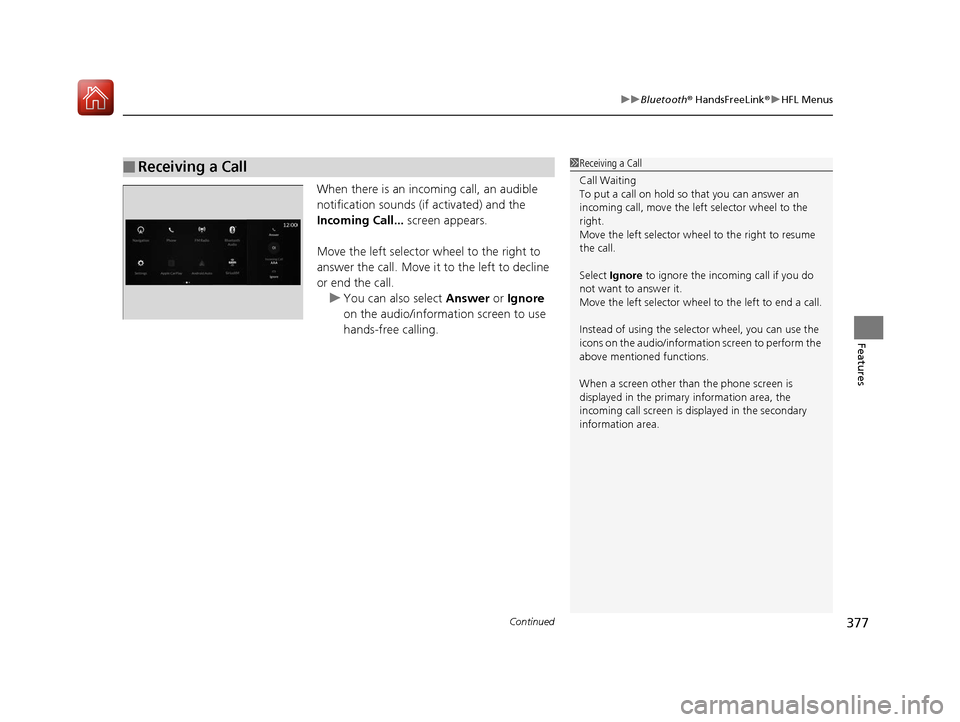
When there is an inco ming call, an audible
notification sounds (if activated) and the
Incoming Call... screen appears.
Move the left selector wheel to the right to
answer the call. Move it to the left to decline
or end the call. u You can also select Answer or Ignore
on the audio/information screen to use
hands-free calling.
■Receiving a Call1 Receiving a Call
Call Waiting
To put a call on hold so that you can answer an
incoming call, move the left selector wheel to the
right.
Move the left selector wheel to the right to resume
the call.
Select Ignore to ignore the incoming call if you do
not want to answer it.
Move the left selector wheel to the left to end a call.
Instead of using the selector wheel, you can use the
icons on the audio/information screen to perform the
above mentioned functions.
When a screen other than the phone screen is
displayed in the primar y information area, the
incoming call screen is displayed in the secondary
information area.
20 ACURA RDX-31TJB6111.book 377 ページ 2020年2月11日 火曜日 午後2時6分