ECO mode Acura ZDX 2012 Owners Manual
[x] Cancel search | Manufacturer: ACURA, Model Year: 2012, Model line: ZDX, Model: Acura ZDX 2012Pages: 645, PDF Size: 16.36 MB
Page 308 of 645
Each time you press the TITLE side
of the SCAN/TITLE bar, the display
changes from artist name to album
name, to track name and then to
normal display that shows the track
number and the elapsed time. When
playing a disc in MP3/WMA/AAC,
the display mode changes from
folder name, to file name, to artist
tag, to album tag, to track tag, and
then to normal display.To Change Tracks
Each time you press and release the
side of the skip bar, the player
skips forward to the beginning of the
next track. Press and release the
side of the skip bar to skip backward
to the beginning of the current track.
Press the
side again to skip to the
previous track. To move rapidly
within a track, press and hold either
side of the skip bar.
When you insert a CD for the first
time, the system automatically starts
recording to the hard disc. For
information on recording from music
CDs, see page 315. To Choose a Track
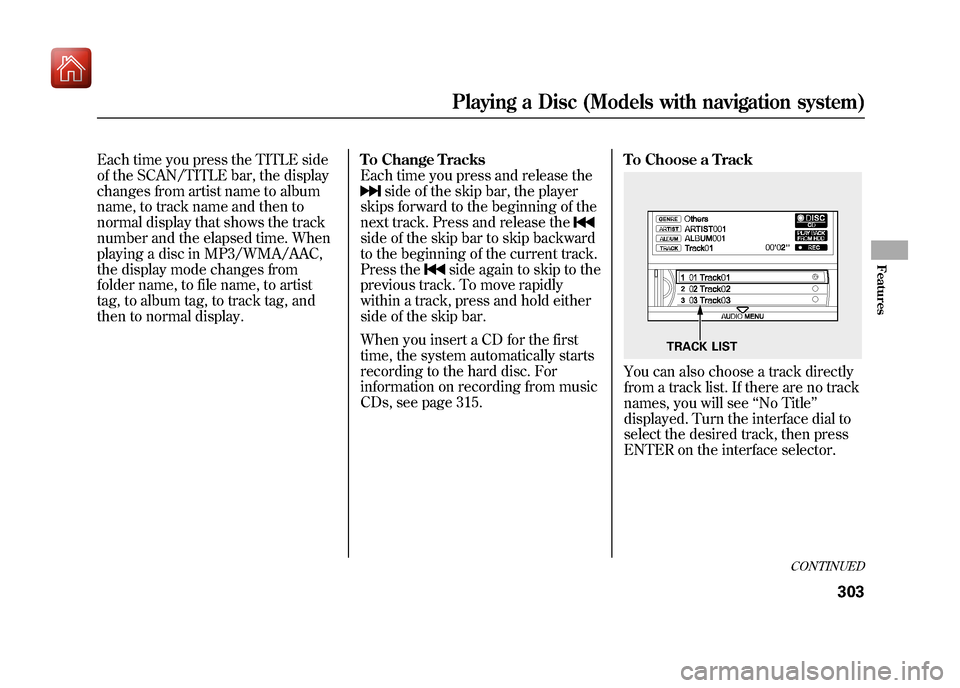
You can also choose a track directly
from a track list. If there are no track
names, you will see
‘‘No Title’’
displayed. Turn the interface dial to
select the desired track, then press
ENTER on the interface selector.
TRACK LIST
CONTINUED
Playing a Disc (Models with navigation system)
303
Features
09/10/28 17:15:37 10 ACURA ZDX KA KC New North America Own 50 31SZN600 enu
Page 310 of 645
Turn the interface dial to select the
track random icon, and press ENTER
on the interface selector.
To turn this feature off, turn the
interface dial to select OFF icon, and
press ENTER on the interface
selector.Track Scan
The scan function samples all tracks
on the disc in the order they are
recorded on the disc.
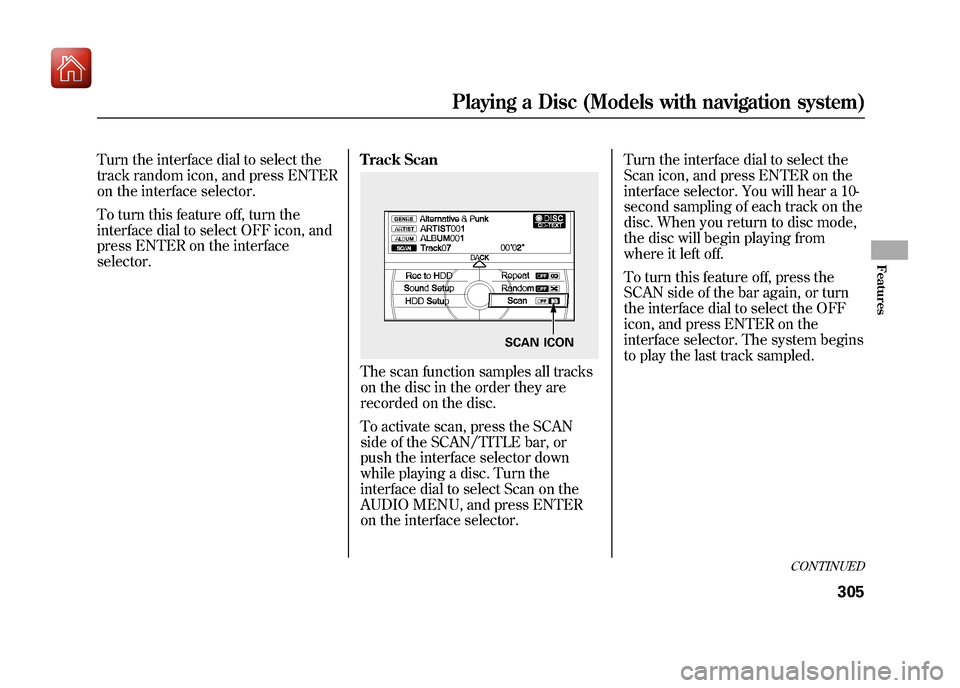
To activate scan, press the SCAN
side of the SCAN/TITLE bar, or
push the interface selector down
while playing a disc. Turn the
interface dial to select Scan on the
AUDIO MENU, and press ENTER
on the interface selector.Turn the interface dial to select the
Scan icon, and press ENTER on the
interface selector. You will hear a 10-
second sampling of each track on the
disc. When you return to disc mode,
the disc will begin playing from
where it left off.
To turn this feature off, press the
SCAN side of the bar again, or turn
the interface dial to select the OFF
icon, and press ENTER on the
interface selector. The system begins
to play the last track sampled.
SCAN ICON
CONTINUED
Playing a Disc (Models with navigation system)
305
Features
09/10/28 17:15:37 10 ACURA ZDX KA KC New North America Own 50 31SZN600 enu
Page 314 of 645
To turn this feature off, turn the
interface dial to select OFF icon, and
press ENTER on the interface
selector.File Scan
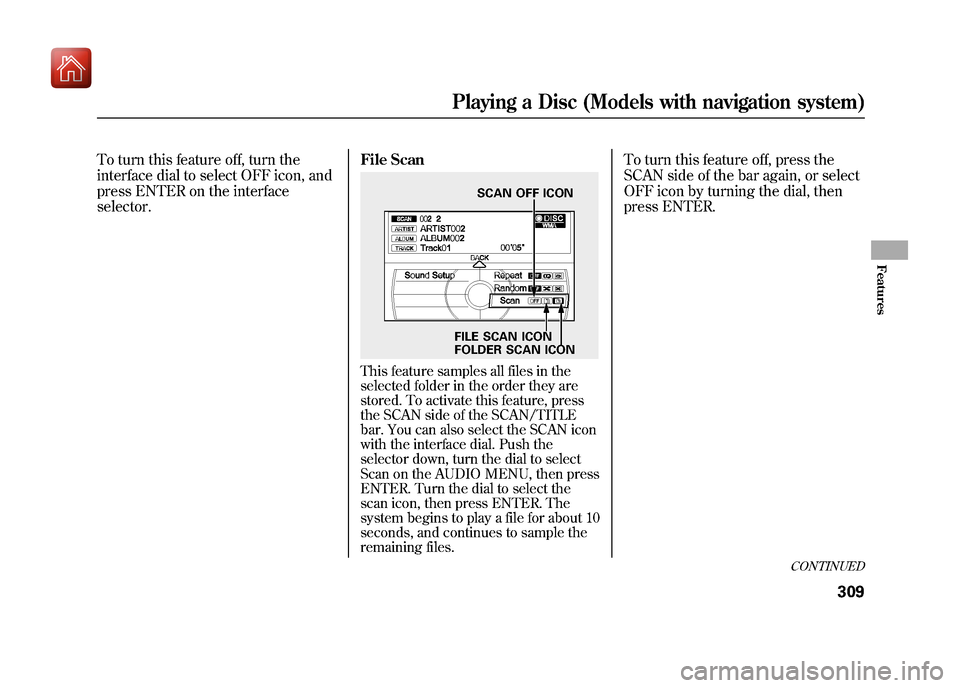
This feature samples all files in the
selected folder in the order they are
stored. To activate this feature, press
the SCAN side of the SCAN/TITLE
bar. You can also select the SCAN icon
with the interface dial. Push the
selector down, turn the dial to select
Scan on the AUDIO MENU, then press
ENTER. Turn the dial to select the
scan icon, then press ENTER. The
system begins to play a file for about 10
seconds, and continues to sample the
remaining files.
To turn this feature off, press the
SCAN side of the bar again, or select
OFF icon by turning the dial, then
press ENTER.
SCAN OFF ICON
FILE SCAN ICON
FOLDER SCAN ICON
CONTINUED
Playing a Disc (Models with navigation system)
309
Features
09/10/28 17:15:37 10 ACURA ZDX KA KC New North America Own 50 31SZN600 enu
Page 315 of 645
Folder Scan
This feature, when activated, samples
the first file of each folder for 10
seconds. To scan a folder, press the
SCAN side of the SCAN/TITLE bar.
Or, push the interface selector down
while playing a disc. Turn the
interface dial to select Scan on the
AUDIO MENU, and press ENTER
on the interface selector. Turn the
interface dial to select the folder scan
icon, and press ENTER on the
interface selector.
The system plays the first file in the
first folder for about 10 seconds. If
you do nothing, the system will then
play the first files in the next folders
for 10 seconds. After playing the first
file of the last folder, the system
plays normally.
To turn this feature off, turn the
interface dial to select OFF icon, and
press ENTER on the interface
selector. The last track sampled
begins to play.NOTE:
When playing MP3, WMA or AAC
format disc, each time you press the
SCAN side of the SCAN/TITLE bar,
the system changes in the following
sequence: Scan
ꭟScan first track in
folder ꭟOFF ꭟScan. Removing Discs from the Disc
Player
To remove the disc, press the eject
(
) button.
If you do not remove the disc from
the slot, the system will reload the
disc after 10 seconds. The disc starts
playing automatically.
Playing a DVD-A Disc
Use the disc controls previously
described.
Playing a Disc (Models with navigation system)31009/10/28 17:15:37 10 ACURA ZDX KA KC New North America Own 50 31SZN600 enu
Page 318 of 645
The Hard Disc Drive (HDD) Audio
function can record tracks from
music CDs to the navigation system’s
hard disc. This function also allows
for various playing methods, such as
playing recorded tracks on an artist-
by-artist or genre-by-genre basis. For
example, you can play the tracks that
you want to listen to in any order that
you like for each playlist. NOTE:
●Only recordings from a standard
CD-DA (44.1 kHz, 16 bit stereo
PCM digital sound data) to HDD
are supported.●Digital music files, such as MP3,
WMA, AAC etc., in CD-R, DVD-R
and USB flash memory devices
cannot be copied to HDD.
Likewise, digital music files
recorded to HDD cannot be copied
to CD-R, DVD-R and USB devices.●Music data recorded on HDD can
only be used for personal
enjoyment.●Data is recorded using ultra-
efficient compression technology,
therefore, sound quality may vary
slightly from the original.
●Title information will be displayed
when the information is found in
the Gracenote
ꭂAlbum Info
(Gracenote
ꭂMedia Database) on
the built-in hard disk drive. See
page 337.
●Recording function from following
media is not supported.
– CD-DA which prohibits the copy
by SCMS
– CD-DA with copy control
– SACD (Super Audio CD)
– DTS-CD
– DVD-A
– CD-R/RW
– DVD-R/RW
– Copy controlled CDs (Playback
cannot be guaranteed)
– DTS-CDs (Only enabled for
playback)
CONTINUED
Playing Hard Disc Drive (HDD) Audio (Models with navigation system)
313
Features
09/10/28 17:15:37 10 ACURA ZDX KA KC New North America Own 50 31SZN600 enu
Page 319 of 645
If the HDD is ever replaced, all data
will be lost and stored music will not
be recovered.Playlists
Playlists are track lists in a certain
playback group.
Original Playlist
This playlist is automatically
generated when the music CD is
recorded. The maximum number of
original playlists that can be stored to
the HDD is 999, with 99 songs on
each playlist. Each album name on
the music CD is counted as a playlist.User Playlist
The HDD has six playlist folders for
user customizing. Each playlist can
be edited by the user, and will store
up to 999 songs. For more
information of how to edit the user
playlist, see page 325.Playing Hard Disc Drive (HDD) Audio (Models with navigation system)31409/10/28 17:15:37 10 ACURA ZDX KA KC New North America Own 50 31SZN600 enu
Page 320 of 645
Track Search Methods
Songs that have been recorded on
the HDD are categorized in groups
for easy searching.
There are six categories:
Albums: Album names are arranged
in alphabetical order.
Artists: Artist names are arranged in
alphabetical order.
Tracks: Track titles are arranged in
alphabetical order.
Playlists: Any of six playlists that are
arranged by the user
Genres: Songs are arranged by
genre.
Ripped Date: Album titles are
arranged by date of recording.
For more information on how to
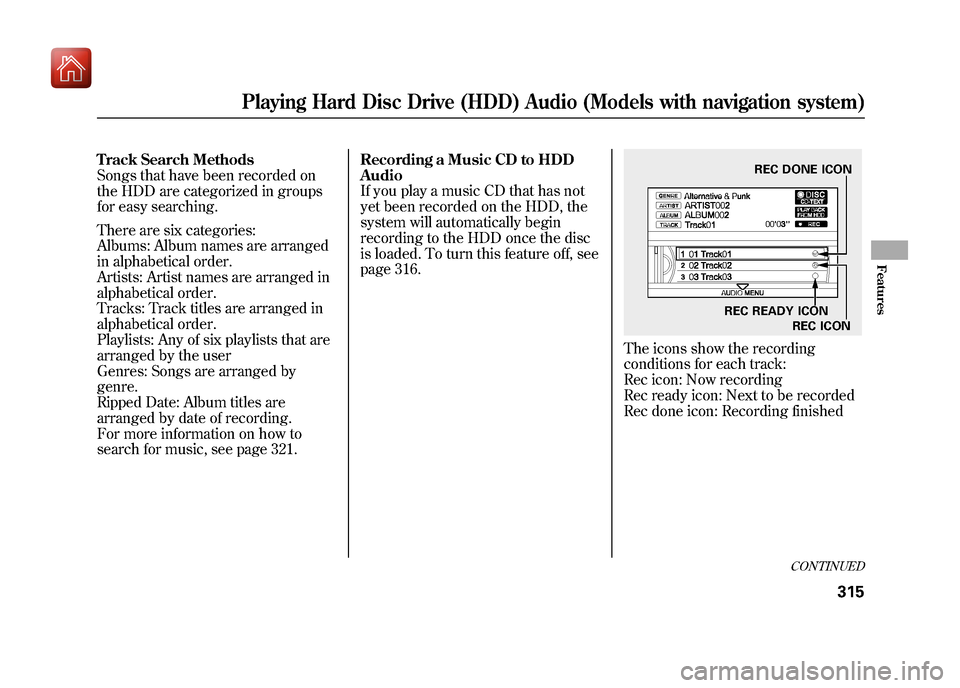
search for music, see page 321.Recording a Music CD to HDD
Audio
If you play a music CD that has not
yet been recorded on the HDD, the
system will automatically begin
recording to the HDD once the disc
is loaded. To turn this feature off, see
page 316.
The icons show the recording
conditions for each track:
Rec icon: Now recording
Rec ready icon: Next to be recorded
Rec done icon: Recording finished
REC DONE ICON
REC READY ICON REC ICON
CONTINUED
Playing Hard Disc Drive (HDD) Audio (Models with navigation system)
315
Features
09/10/28 17:15:37 10 ACURA ZDX KA KC New North America Own 50 31SZN600 enu
Page 321 of 645
NOTE:●Please note that there will be no
compensation offered in the case
of unsuccessful recording of audio
data or the loss of audio data due
to any cause whatsoever.●During recording, operation of this
product may be slower.●If you stop the engine or the power
system is turned off while
recording a CD, there may be
pauses between songs when you
play back from the HDD.●Tracks from music CDs are
recorded at four times the
playback speed. You can listen to
tracks as they are being recorded.●Repeat, random and scan functions
are not available during recording.
●You can listen to tracks from other
playlists that have already been
recorded while recording. Press
the HDD button and switch over to
HDD Audio.●With the factory settings, all of the
songs on a music CD are
automatically recorded.●Recording settings cannot be
changed during recording.●If the number of songs in the
playlist exceeds 999, the oldest
song will be overwritten each time
you add a new song.To Cancel Recording a Music CD
to HDD
In order to suspend recording, push
the interface selector down, select
Cancel Rec to HDD, and press
ENTER on the interface selector.
Playing Hard Disc Drive (HDD) Audio (Models with navigation system)31609/10/28 17:15:37 10 ACURA ZDX KA KC New North America Own 50 31SZN600 enu
Page 322 of 645
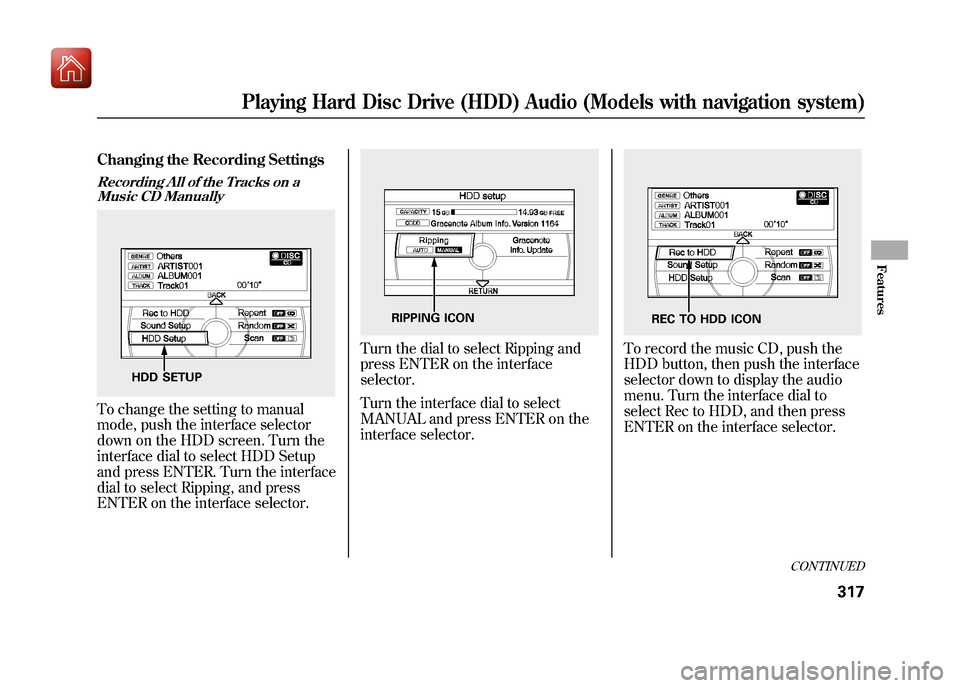
Changing the Recording SettingsRecording All of the Tracks on aMusic CD ManuallyTo change the setting to manual
mode, push the interface selector
down on the HDD screen. Turn the
interface dial to select HDD Setup
and press ENTER. Turn the interface
dial to select Ripping, and press
ENTER on the interface selector.
Turn the dial to select Ripping and
press ENTER on the interface
selector.
Turn the interface dial to select
MANUAL and press ENTER on the
interface selector.
To record the music CD, push the
HDD button, then push the interface
selector down to display the audio
menu. Turn the interface dial to
select Rec to HDD, and then press
ENTER on the interface selector.
HDD SETUP
RIPPING ICON
REC TO HDD ICON
CONTINUED
Playing Hard Disc Drive (HDD) Audio (Models with navigation system)
317
Features
09/10/28 17:15:37 10 ACURA ZDX KA KC New North America Own 50 31SZN600 enu
Page 323 of 645
Recording All of the Tracks on aMusic CD AutomaticallyTo change the setting to
automatically record all of the tracks
on a music CD, move the interface
selector down on the HDD Audio
screen. Turn the interface dial to
select HDD Setup, and press ENTER
on the interface selector.
Turn the interface selector to select
Ripping, and press ENTER on the
interface selector.
Turn the interface dial to select
AUTO, and press ENTER on the
interface selector. Playing Tracks on HDD
To play tracks on HDD, push the
HDD button until the HDD Audio
screen appears. Playback will start
automatically with the track
previously selected.
Playing the Selected Track
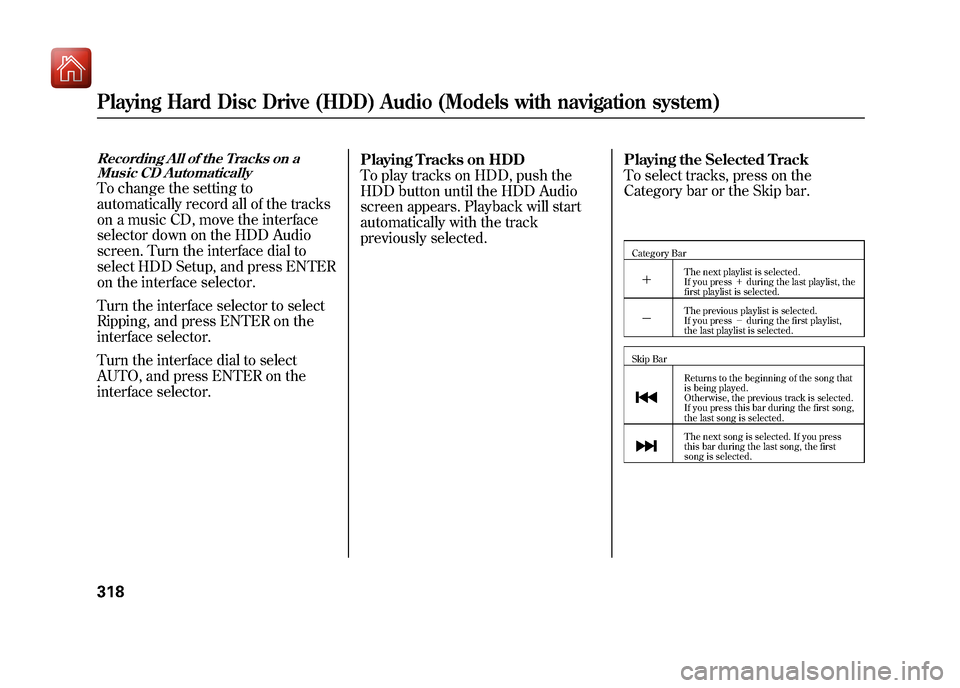
To select tracks, press on the
Category bar or the Skip bar.
Category Bar+
The next playlist is selected.
If you press
+during the last playlist, the
first playlist is selected.
-
The previous playlist is selected.
If you press -during the first playlist,
the last playlist is selected.
Skip BarReturns to the beginning of the song that
is being played.
Otherwise, the previous track is selected.
If you press this bar during the first song,
the last song is selected.The next song is selected. If you press
this bar during the last song, the first
song is selected.
Playing Hard Disc Drive (HDD) Audio (Models with navigation system)31809/10/28 17:15:37 10 ACURA ZDX KA KC New North America Own 50 31SZN600 enu