ECO mode Acura ZDX 2012 Repair Manual
[x] Cancel search | Manufacturer: ACURA, Model Year: 2012, Model line: ZDX, Model: Acura ZDX 2012Pages: 645, PDF Size: 16.36 MB
Page 239 of 645
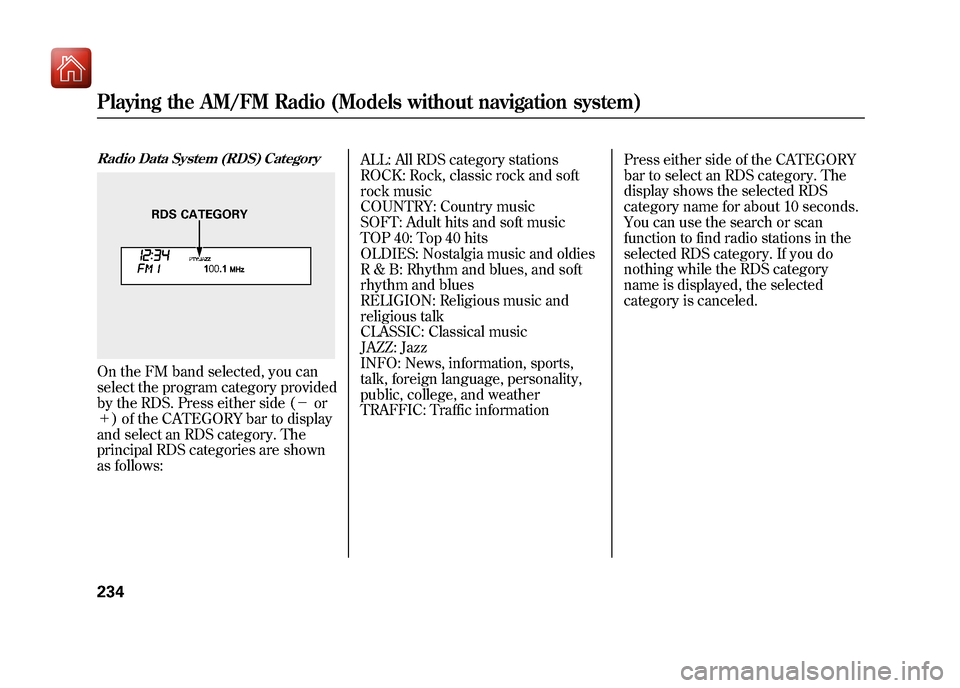
Radio Data System (RDS) CategoryOn the FM band selected, you can
select the program category provided
by the RDS. Press either side (-or
+ ) of the CATEGORY bar to display
and select an RDS category. The
principal RDS categories are shown
as follows: ALL: All RDS category stations
ROCK: Rock, classic rock and soft
rock music
COUNTRY: Country music
SOFT: Adult hits and soft music
TOP 40: Top 40 hits
OLDIES: Nostalgia music and oldies
R & B: Rhythm and blues, and soft
rhythm and blues
RELIGION: Religious music and
religious talk
CLASSIC: Classical music
JAZZ: Jazz
INFO: News, information, sports,
talk, foreign language, personality,
public, college, and weather
TRAFFIC: Traffic information
Press either side of the CATEGORY
bar to select an RDS category. The
display shows the selected RDS
category name for about 10 seconds.
You can use the search or scan
function to find radio stations in the
selected RDS category. If you do
nothing while the RDS category
name is displayed, the selected
category is canceled.
RDS CATEGORY
Playing the AM/FM Radio (Models without navigation system)23409/10/28 17:15:37 10 ACURA ZDX KA KC New North America Own 50 31SZN600 enu
Page 240 of 645
RDS Program SearchThis function searches up and down
a frequency for the strongest signal
from the frequencies that carry the
selected RDS category information.
This can help you to find a station in
your favorite category. To activate it,
press and release either side (
or
) of the SKIP bar. You will see
the selected RDS category name
blinking while searching it. When
the system finds a station, the
selected RDS category name will be
displayed again for about 5 seconds.
If the system does not find a station,
‘‘ NOTHING ’’will be blinking for
about 5 seconds, then the system
goes back to the last selected station.
RDS Program SCANThe scan function samples all
stations with strong signals on the
selected RDS category. To activate it,
press and release the SCAN side of
the SCAN/A.SEL bar. You will see
SCAN in the display. The system will
scan for a station with a strong signal
in the selected RDS category. You
will also see the selected RDS
category name blinking while
searching it. When it finds one, it will
stop and play that station for about 10
seconds.
If you do nothing, the system will
scan for the next strong station and
play it for 10 seconds. When it plays
a station that you want to listen to,
press the SCAN button again.
If the system does not find a station,
‘‘ NOTHING ’’will be blinking for
about 5 seconds, then the system
goes back to the last selected station. You can use the RDS program search
or scan function even if the RDS
information display function is off. In
this case, the display shows a
frequency in place of a RDS name.
CONTINUED
Playing the AM/FM Radio (Models without navigation system)
235
Features
09/10/28 17:15:37 10 ACURA ZDX KA KC New North America Own 50 31SZN600 enu
Page 242 of 645
Speed-sensitive VolumeCompensation (SVC)The SVC mode controls the volume
based on vehicle speed. The faster
you go, the louder the audio volume
becomes. As you slow down, the
audio volume decreases.
The SVC has four modes: SVC OFF,
SVC LOW, SVC MID, and SVC
HIGH. Turn the selector knob to
adjust the setting to your liking. If
you feel the sound is too loud,
choose low. If you feel the sound is
too quiet, choose high. Audio System Lighting
You can use the instrument panel
brightness control buttons (+
or-)
to adjust the illumination of the audio
system (see page 144).
Playing the AM/FM Radio (Models without navigation system)
237
Features
09/10/28 17:15:37 10 ACURA ZDX KA KC New North America Own 50 31SZN600 enu
Page 245 of 645
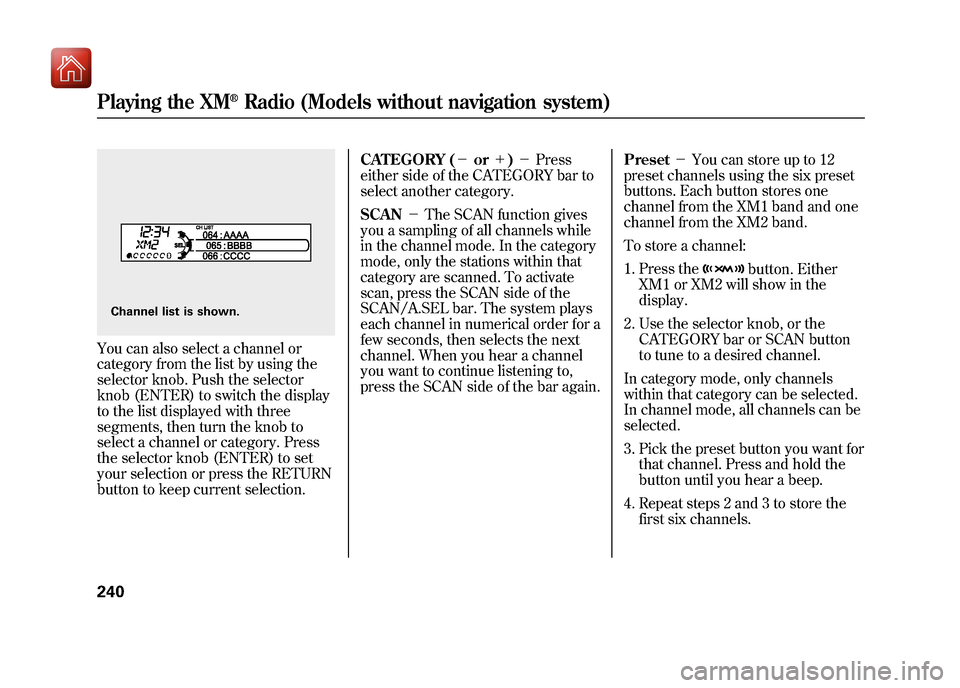
You can also select a channel or
category from the list by using the
selector knob. Push the selector
knob (ENTER) to switch the display
to the list displayed with three
segments, then turn the knob to
select a channel or category. Press
the selector knob (ENTER) to set
your selection or press the RETURN
button to keep current selection.CATEGORY (-
or+)- Press
either side of the CATEGORY bar to
select another category.
SCAN -The SCAN function gives
you a sampling of all channels while
in the channel mode. In the category
mode, only the stations within that
category are scanned. To activate
scan, press the SCAN side of the
SCAN/A.SEL bar. The system plays
each channel in numerical order for a
few seconds, then selects the next
channel. When you hear a channel
you want to continue listening to,
press the SCAN side of the bar again. Preset
-You can store up to 12
preset channels using the six preset
buttons. Each button stores one
channel from the XM1 band and one
channel from the XM2 band.
To store a channel:
1. Press the
button. Either
XM1 or XM2 will show in the
display.
2. Use the selector knob, or the CATEGORY bar or SCAN button
to tune to a desired channel.
In category mode, only channels
within that category can be selected.
In channel mode, all channels can be
selected.
3. Pick the preset button you want for that channel. Press and hold the
button until you hear a beep.
4. Repeat steps 2 and 3 to store the first six channels.
Channel list is shown.Playing the XM
®Radio (Models without navigation system)
24009/10/28 17:15:37 10 ACURA ZDX KA KC New North America Own 50 31SZN600 enu
Page 251 of 645
Loading DiscsYour vehicle’s in-dash disc changer
holds up to six discs.
1. To load all disc, press the LOAD button until you hear a beep and
see ‘‘LOAD ’’in the display. To load
only one disc, press and release
the LOAD button.
2. The disc number for an empty position begins blinking.
3. Insert the disc into the disc slot when the green disc load indicator
comes on. Insert it only about
halfway; the drive will pull it in the
rest of the way. You will see
‘‘BUSY ’’in the display while the
disc load indicator turns red and
blinks as the disc is loaded. You cannot load and play 3-inch
(8-cm) discs in this unit.
4. When the disc load indicator turns green and ‘‘LOAD ’’appears in the
display again, insert the next disc
in the slot. Do not try to insert a
disc until ‘‘LOAD ’’appears. You
could damage the audio unit.
5. Repeat this until all six positions are loaded. If you are not loading
all six positions, the system begins
playing the last disc loaded.
You can also load a disc into an
empty position while a disc is playing
by pressing the appropriate preset
button. The system stops playing the
current disc and starts the loading
sequence. It then plays the disc just
loaded.
Text Data Display FunctionEach time you press the TITLE
button, the display shows you the
text data on a disc, if the disc was
recorded with text data.
If you select NAME OFF, the text
display is turned off.
You can see the album, artist, and
track name in the display. If a disc is
recorded in MP3 or WMA, you can
see the folder and file name, and the
artist, album, and track tag.
When you press and release the
TITLE button while a disc without
text data is playing, you will see ‘‘NO
INFO ’’on the display.
The display shows up to 17
characters of selected text data (the
folder name, file name, etc.).
Playing Discs (Models without navigation system)24609/10/28 17:15:37 10 ACURA ZDX KA KC New North America Own 50 31SZN600 enu
Page 255 of 645
REPEAT DISC-This feature
continuously replays the current
disc. To activate disc repeat, select
REPEAT DISC from the menu items.
You will see REPEAT DISC icon in
the display. Select NORMAL PLAY
to turn it off.In MP3 or WMA modeRANDOM IN FLD -This feature,
when activated, plays the files within
the current folder in random order,
rather than in the order they are
compressed in MP3 or WMA. To
activate folder random play, select
RANDOM IN FLD from the menu
items. You will see RANDOM IN
FLD icon in the display. The system
will then select and play files
randomly. This continues until you
deactivate folder random play by
selecting NORMAL PLAY, or you
select a different folder with the
CATEGORY bar. RANDOM IN DISC
-This feature
plays the tracks within a disc (the
files in MP3 or WMA mode) in
random order. To activate random
play, select RANDOM IN DISC from
the menu items. You will see
RANDOM IN DISC icon in the
display. Select NORMAL PLAY to
return to normal play. SCAN TRK
-The SCAN function
samples all the tracks on the disc in
the order they are recorded on the
disc (all files in the selected folder in
MP3 or WMA mode). To activate the
scan feature, press and release the
SCAN side of the SCAN/A.SEL bar.
You will see SCAN in the display.
You will get a 10 second sampling of
each track/file on the disc/folder.
Press and hold the SCAN side of the
bar to get out of scan mode and play
the last track sampled.
You can also select the scan feature
from the menu items with the
selector knob (see page 248).Playing Discs (Models without navigation system)25009/10/28 17:15:37 10 ACURA ZDX KA KC New North America Own 50 31SZN600 enu
Page 256 of 645
In MP3 or WMA modeSCAN FLD-This feature, when
activated, samples the first file in
each folder on the disc in the order
they are recorded. To activate the
folder scan feature, press and release
the SCAN side of the SCAN/A.SEL
bar repeatedly. You will see SCAN
FLD icon in the display. The system
will then play the first file in the main
folders for about 10 seconds. If you
do nothing, the system will then play
the following first files for 10 seconds
each. When it plays a file that you
want to continue listening to, press
and hold the SCAN side of the bar.
You can also select the folder scan
feature from the menu items with the
selector knob (see page 248). Pressing either side of the SKIP bar,
or selecting a different disc (using
the preset buttons) or folder (using
the CATEGORY bar) turns off the
SCAN or SCAN FLD feature.
SCAN DISC
-This feature, when
activated, samples the first track on
each disc in order (the first file in the
main folder on each disc in MP3 or
WMA mode). To activate the disc
scan feature, press and release the
SCAN side of the SCAN/A.SEL bar
repeatedly until SCAN DISC icon
shows in the display. The system will
then play the first track/file in the
first main folder on the first disc for
about 10 seconds. If you do nothing,
the system will then play the
following first track/file for 10
seconds each. When it plays a track/
file that you want to continue
listening to, press and hold the
SCAN side of the bar again.
CONTINUED
Playing Discs (Models without navigation system)
251
Features
09/10/28 17:15:37 10 ACURA ZDX KA KC New North America Own 50 31SZN600 enu
Page 257 of 645
When the first track on the last disc,
or the first file in the last main folder
on the last disc begins to play, the
disc scan mode will be canceled.
Pressing either side of the SKIP bar
or selecting a different folder with
the CATEGORY bar also turns off
the scan feature.
Each time you press and release the
SCAN side of the SCAN/A.SEL bar,
the mode changes from scan, disc
scan, then to normal play.
In MP3 or WMA modeEach time you press and release the
SCAN side of the SCAN/A.SEL bar,
the mode changes from file scan,
folder scan, disc scan, then to normal
play.
You can also select the disc scan
feature from the menu items with the
selector knob (see page 248).To Stop Playing a Disc
Press the eject button (
)to
remove the disc. If you eject the disc,
but do not remove it from the slot,
the system will automatically reload
the disc after 10 seconds and begin
playing.
To eject all discs, press and hold the
eject button until the first disc begins
to eject.
To play the radio when a disc is
playing, press the AM/FM or
button. Press the USB/AUX button
to switch to an appropriate audio unit
(if it is connected to the auxiliary
input jack or the USB adapter cable).
Press the DISC button again to
switch back to the disc changer.
Playing Discs (Models without navigation system)25209/10/28 17:15:37 10 ACURA ZDX KA KC New North America Own 50 31SZN600 enu
Page 258 of 645
If you turn the system off while a disc
is playing, either with the VOL/knob or by turning off the ignition
switch, the disc will stay in the drive.
When you turn the system back on,
the disc will begin playing where it
left off.Removing Discs from the In-dashDisc ChangerTo remove the disc currently in play,
press the eject button. When a disc is
removed from a slot, the system
automatically begins the load
sequence so you can load another
disc in that position. If you do not
remove the disc from the changer
within 10 seconds, the disc will
reload into the slot. Then the system
returns to the previous mode (AM,
FM, or XM Radio). To remove a different disc from the
changer, first select it with the
appropriate preset button. When that
disc begins playing, press the eject
button. Continue pressing the eject
button to remove all the discs from
the changer.
You can also eject discs when the
ignition switch is off. The disc that
was last selected is ejected first.
Protecting Discs
For information on how to handle
and protect compact discs, see page
365.
Playing Discs (Models without navigation system)
253
Features
09/10/28 17:15:37 10 ACURA ZDX KA KC New North America Own 50 31SZN600 enu
Page 261 of 645
To Play an iPod
®
This audio system can select and
play the audio files on the iPod
®with
the same controls used for the disc
player. To play an iPod, connect it to
the USB adapter cable in the console
compartment by using your dock
connector, then press the USB/AUX
button. The ignition switch must be
in the ACCESSORY (I) or ON (II)
position. The iPod will also be
charged with the ignition switch in
these positions.
The system will only play songs
stored on the iPod with iTunes.
iPod and iTunes are registered
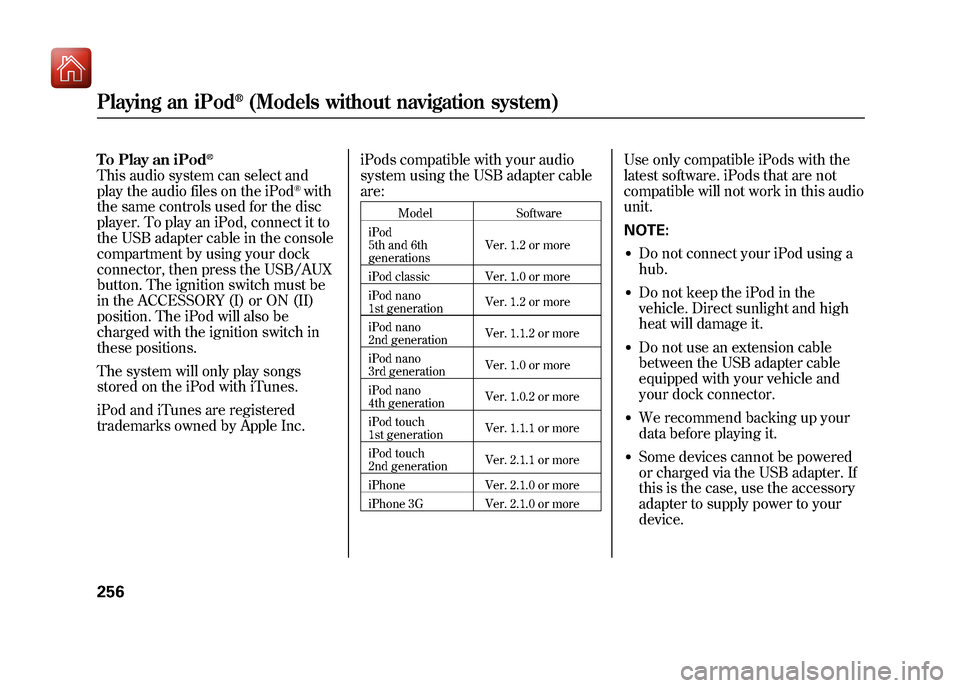
trademarks owned by Apple Inc. iPods compatible with your audio
system using the USB adapter cable
are:
Model
Software
iPod
5th and 6th
generations Ver. 1.2 or more
iPod classic Ver. 1.0 or more
iPod nano
1st generation Ver. 1.2 or more
iPod nano
2nd generation Ver. 1.1.2 or more
iPod nano
3rd generation Ver. 1.0 or more
iPod nano
4th generation Ver. 1.0.2 or more
iPod touch
1st generation Ver. 1.1.1 or more
iPod touch
2nd generation Ver. 2.1.1 or more
iPhone Ver. 2.1.0 or more
iPhone 3G Ver. 2.1.0 or more
Use only compatible iPods with the
latest software. iPods that are not
compatible will not work in this audio
unit.
NOTE:●Do not connect your iPod using a
hub.●Do not keep the iPod in the
vehicle. Direct sunlight and high
heat will damage it.●Do not use an extension cable
between the USB adapter cable
equipped with your vehicle and
your dock connector.●We recommend backing up your
data before playing it.●Some devices cannot be powered
or charged via the USB adapter. If
this is the case, use the accessory
adapter to supply power to your
device.
Playing an iPod
®(Models without navigation system)
25609/10/28 17:15:37 10 ACURA ZDX KA KC New North America Own 50 31SZN600 enu