ECO mode Acura ZDX 2012 Owner's Manual
[x] Cancel search | Manufacturer: ACURA, Model Year: 2012, Model line: ZDX, Model: Acura ZDX 2012Pages: 645, PDF Size: 16.36 MB
Page 352 of 645
Disconnecting an iPodYou can disconnect the iPod at any
time when you see the‘‘OK to
disconnect ’’message
ꭧin the iPod
display. Always make sure you see
the ‘‘OK to disconnect ’’message in
the iPod display before you
disconnect it. Make sure to follow
the iPod's instructions on how to
disconnect the dock connector from
the USB adapter cable.
ꭧ : The displayed message may vary
on models or versions. On some
models, there is no message to
disconnect.
When you disconnect the iPod while
it is playing, the display shows USB
NO DATA, and the audio screen (if
selected) shows NO DATA.
If you reconnect the same iPod, the
system may begin playing where it
left off, depending on what mode the
iPod is in when it is reconnected.
When you connect your iPod to the
navigation system, the most recent
settings (Shuf f le, Repeat, etc.) will be
carried over. iPod Error Messages
If you see an error message in the
display, see page 348.
Playing an iPod
®(Models with navigation system)
347
Features
09/10/28 17:15:37 10 ACURA ZDX KA KC New North America Own 50 31SZN600 enu
Page 355 of 645
To Play a USB Flash Memory
Device
This audio system can select and
play the audio files on a USB flash
memory device with the same
controls used for the disc player. To
play a USB flash memory device,
connect it to the USB adapter cable
in the console compartment, then
press the USB/AUX button until you
see‘‘USB’’ in the display. The power
mode must be ACCESSORY or ON.
Your vehicle has the engine start/
stop button instead of an ignition
switch. For more information to
select the power mode, see page 194. The audio system reads and plays
the audio files on the USB flash
memory device in MP3, WMA or
AAC
ꭧformats. The USB flash
memory device limit is up to 500
folders or up to 15000 files.
ꭧ : Only AAC format files recorded
with iTunes are playable on this
audio unit.
The recommended USB flash
memory devices are 256 MB or
higher, and formatted with the FAT
file system. Some digital audio
players may be compatible as well.
Some USB flash memory devices
(such as devices with security
lockout features, etc.) will not work
in this audio unit. NOTE:
●Do not use a device such as a card
reader or hard drive as it or your
files may be damaged.●Do not connect your USB flash
memory device using a hub.●Do not use an extension cable to
the USB adapter cable equipped
with your vehicle.●Do not keep a USB flash memory
device in the vehicle. Direct
sunlight and high heat will damage
it.●We recommend backing up your
data before playing a USB flash
memory device.●Some devices cannot be powered
or charged via the USB adapter, if
this is the case use the accessory
adapter to supply power to your
device.
Playing a USB Flash Memory Device (Models with navigation system)35009/10/28 17:15:37 10 ACURA ZDX KA KC New North America Own 50 31SZN600 enu
Page 356 of 645
●Depending on the type and
number of files, it may take some
time before they begin to play.●Depending on the software the
files were made with, it may not be
possible to play some files, or
display some text data.●Depending on the type of
encoding and writing software
used, there may be cases where
character information does not
display properly.●The order of files in USB playback
may be different from the order of
files displayed in PC or other
devices etc. Files are played in the
order stored in USB flash memory
device.Voice Control SystemYou can select the AUX mode by
using the voice control buttons, but
cannot operate the play mode
functions.Even if recorded in MP3, WMA or
AAC format, a file with unsupported
version cannot be played. If the
system finds it, the audio unit
displays UNSUPPORTED, and then
skips to the next file.
InWMA or AAC format, DRM (digital
rights management) files cannot be
played. If the system finds a DRM
file, the audio unit displays
UNPLAYABLE FILE, and then skips
to the next file.
Combining a low sampling f requency
with a low bitrate may result in
extremely degraded sound quality.
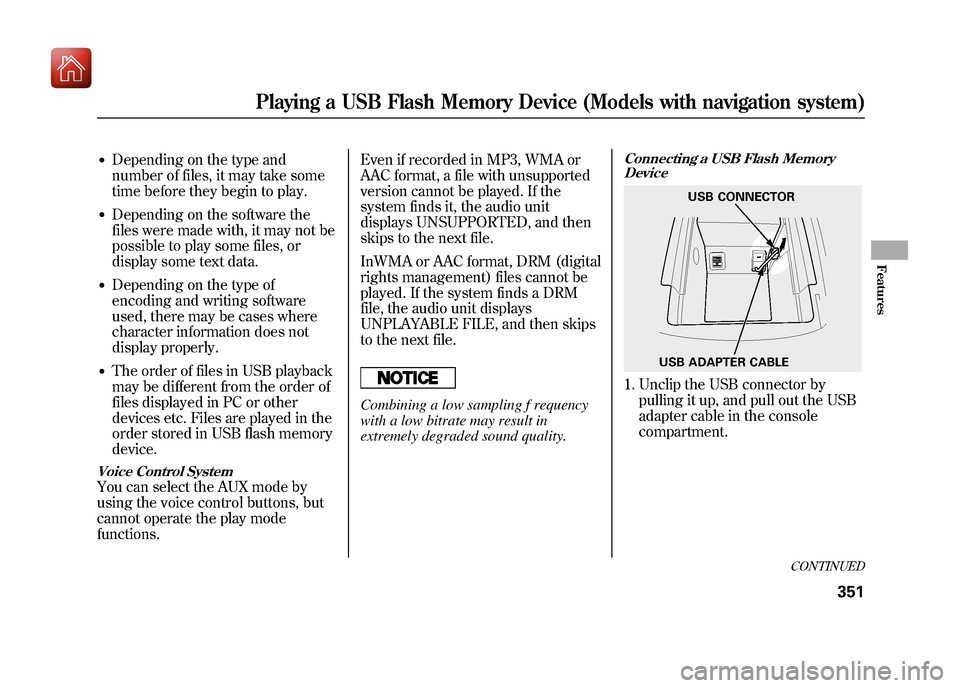
Connecting a USB Flash Memory
Device1. Unclip the USB connector by
pulling it up, and pull out the USB
adapter cable in the console
compartment.
USB ADAPTER CABLE USB CONNECTOR
CONTINUED
Playing a USB Flash Memory Device (Models with navigation system)
351
Features
09/10/28 17:15:37 10 ACURA ZDX KA KC New North America Own 50 31SZN600 enu
Page 361 of 645
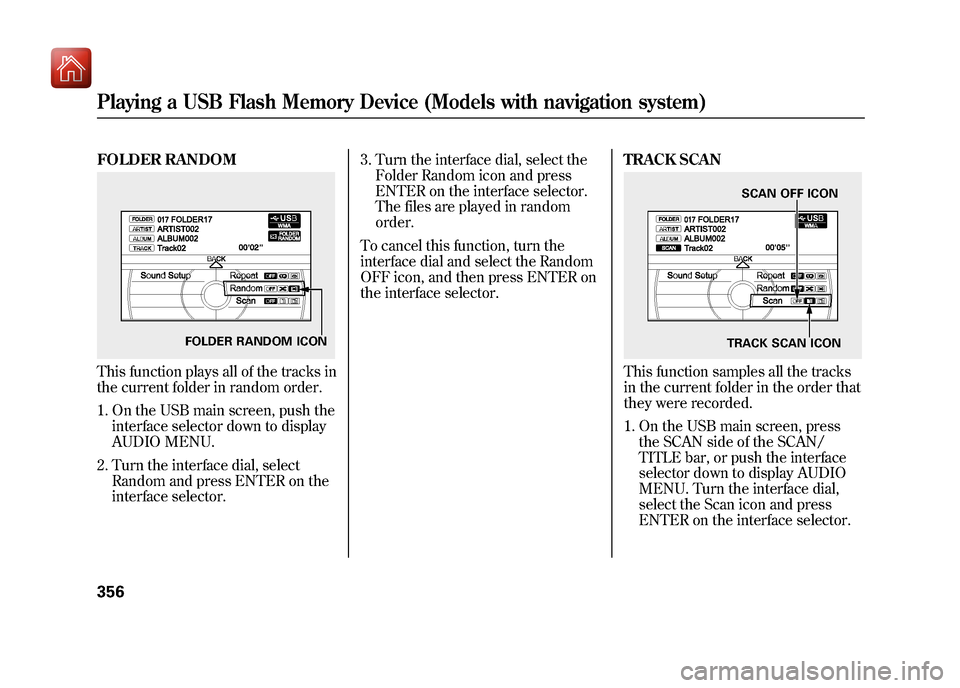
FOLDER RANDOMThis function plays all of the tracks in
the current folder in random order.1. On the USB main screen, push the interface selector down to display
AUDIO MENU.
2. Turn the interface dial, select Random and press ENTER on the
interface selector. 3. Turn the interface dial, select the
Folder Random icon and press
ENTER on the interface selector.
The files are played in random
order.
To cancel this function, turn the
interface dial and select the Random
OFF icon, and then press ENTER on
the interface selector. TRACK SCAN
This function samples all the tracks
in the current folder in the order that
they were recorded.
1. On the USB main screen, press
the SCAN side of the SCAN/
TITLE bar, or push the interface
selector down to display AUDIO
MENU. Turn the interface dial,
select the Scan icon and press
ENTER on the interface selector.
FOLDER RANDOM ICON
SCAN OFF ICON
TRACK SCAN ICON
Playing a USB Flash Memory Device (Models with navigation system)35609/10/28 17:15:37 10 ACURA ZDX KA KC New North America Own 50 31SZN600 enu
Page 362 of 645
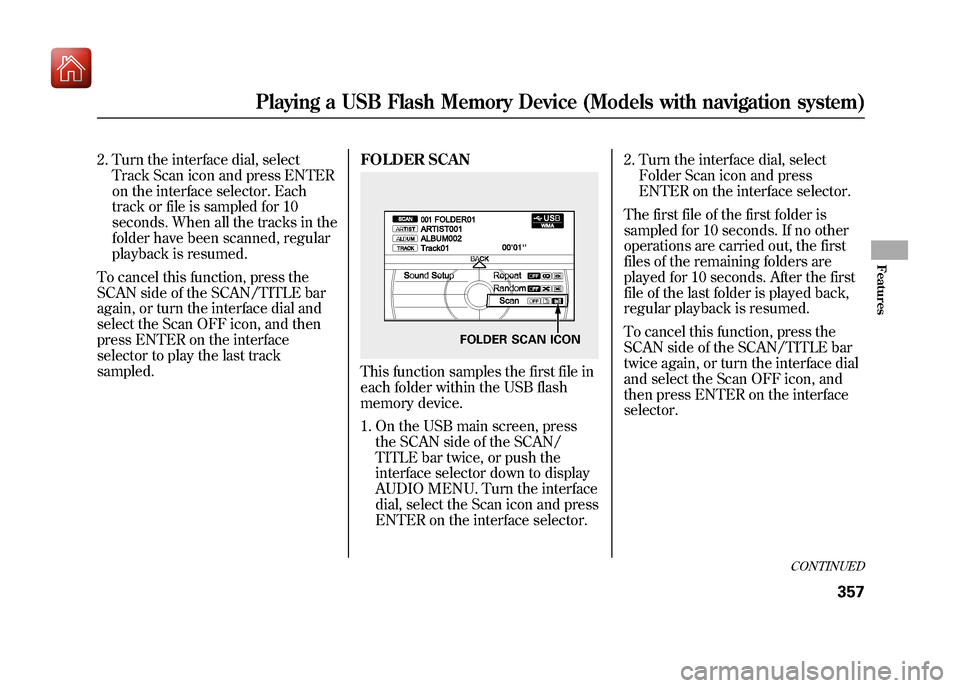
2. Turn the interface dial, selectTrack Scan icon and press ENTER
on the interface selector. Each
track or file is sampled for 10
seconds. When all the tracks in the
folder have been scanned, regular
playback is resumed.
To cancel this function, press the
SCAN side of the SCAN/TITLE bar
again, or turn the interface dial and
select the Scan OFF icon, and then
press ENTER on the interface
selector to play the last track
sampled. FOLDER SCAN
This function samples the first file in
each folder within the USB flash
memory device.
1. On the USB main screen, press
the SCAN side of the SCAN/
TITLE bar twice, or push the
interface selector down to display
AUDIO MENU. Turn the interface
dial, select the Scan icon and press
ENTER on the interface selector. 2. Turn the interface dial, select
Folder Scan icon and press
ENTER on the interface selector.
The first file of the first folder is
sampled for 10 seconds. If no other
operations are carried out, the first
files of the remaining folders are
played for 10 seconds. After the first
file of the last folder is played back,
regular playback is resumed.
To cancel this function, press the
SCAN side of the SCAN/TITLE bar
twice again, or turn the interface dial
and select the Scan OFF icon, and
then press ENTER on the interface
selector.
FOLDER SCAN ICON
CONTINUED
Playing a USB Flash Memory Device (Models with navigation system)
357
Features
09/10/28 17:15:37 10 ACURA ZDX KA KC New North America Own 50 31SZN600 enu
Page 363 of 645
To Stop Playing a USB Flash
Memory Device
To play the radio, press the AM/FM,
or
button. Press the DISC
button to switch to the disc mode.
Press the USB/AUX button to switch
the mode between the USB and
Bluetooth
ꭂAudio.
If you reconnect the same USB flash
memory device, the system will
begin playing where it left off.
Disconnecting a USB Flash Memory DeviceYou can disconnect the USB flash
memory device at any time even if
the USB mode is selected on the
audio system. Always follow the USB
flash memory device ’s instructions
when you remove it.
When you disconnect the USB flash
memory device while it is playing,
the display shows USB NO DATA,
and the audio screen(if selected)
shows NO DATA. USB Flash Memory Device Error
Messages
If you see an error message in the
display, see page 359.
Playing a USB Flash Memory Device (Models with navigation system)35809/10/28 17:15:37 10 ACURA ZDX KA KC New North America Own 50 31SZN600 enu
Page 366 of 645
Your vehicle is equipped with aBluetooth
®audio system, which
allows you to listen to streaming
audio from your Bluetooth audio
compatible phone. This function is
only available on Bluetooth Audio
Compatible phones that are paired
and linked to the vehicle's
Bluetooth
®HandsFreeLink
®(HFL)
system (see page 416).
Not all Bluetooth-enabled phones
with streaming audio capabilities are
compatible with the system. You can
find an approved phone by visiting
www.acura.com/handsfreelink,
or by
calling the HandsFreeLink
®
consumer support at 1-888-528-7876.
In Canada, visit
www.acura.ca,
or call
1-888-9-ACURA-9.
NOTE: In some states it may be
illegal to perform some data device
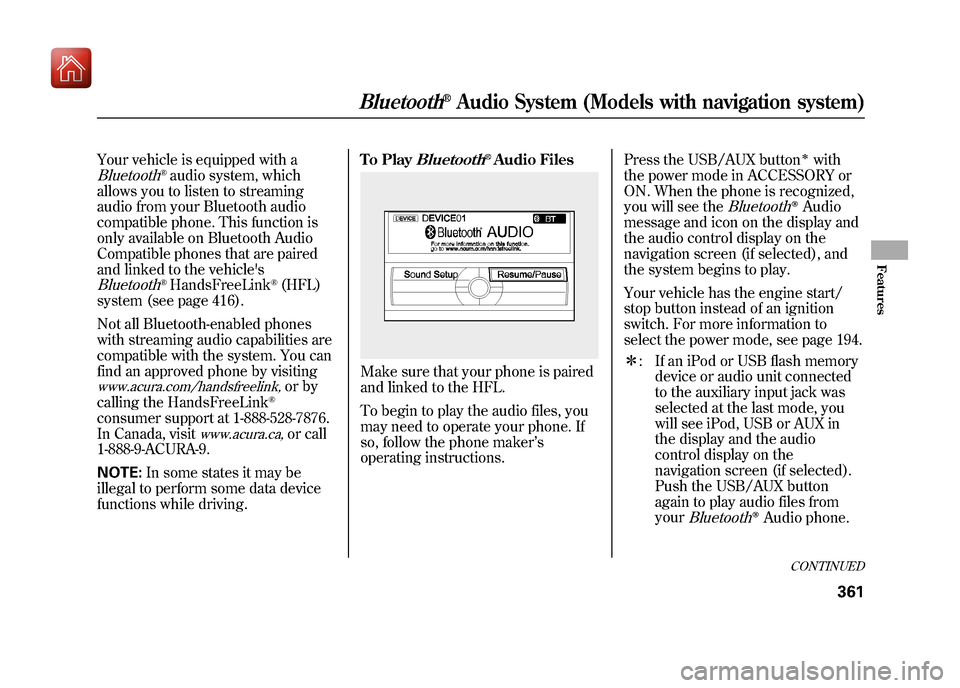
functions while driving. To Play
Bluetooth
®Audio Files
Make sure that your phone is paired
and linked to the HFL.
To begin to play the audio files, you
may need to operate your phone. If
so, follow the phone maker
’s
operating instructions. Press the USB/AUX button
ꭧwith
the power mode in ACCESSORY or
ON. When the phone is recognized,
you will see the
Bluetooth
ꭂAudio
message and icon on the display and
the audio control display on the
navigation screen (if selected), and
the system begins to play.
Your vehicle has the engine start/
stop button instead of an ignition
switch. For more information to
select the power mode, see page 194.
ꭧ : If an iPod or USB flash memory
device or audio unit connected
to the auxiliary input jack was
selected at the last mode, you
will see iPod, USB or AUX in
the display and the audio
control display on the
navigation screen (if selected).
Push the USB/AUX button
again to play audio files from
your
Bluetooth
ꭂAudio phone.
CONTINUED
Bluetooth
®Audio System (Models with navigation system)
361
Features
09/10/28 17:15:37 10 ACURA ZDX KA KC New North America Own 50 31SZN600 enu
Page 370 of 645
General InformationOn models without navigationsystem●When using CD-R or CD-RW
discs, use only high quality discs
labeled for audio use.●When recording a CD-R or
CD-RW, the recording must be
closed for it to be used by the disc
changer.
On models with navigation system●When using CD-R, CD-RW, DVD-R
or DVD-RW discs, use only high
quality discs labeled for audio use.●When recording a CD-R, CD-RW,
DVD-R or DVD-RW the recording
must be closed for it to be used by
the disc player.●When using DVD-R/RW discs,
they should meet DVD verification
standards.
All models●Play only standard, round, 5-inch
(12 cm) discs. Smaller or odd-
shaped discs may jam in the drive
or cause other problems.●Handle your discs properly to
prevent damage and skipping.Do not use discs with adhesive labels.
The label can curl up and cause the
disc to jam in the unit.
CONTINUED
Protecting Your Discs
365
Features
09/10/28 17:15:37 10 ACURA ZDX KA KC New North America Own 50 31SZN600 enu
Page 373 of 645
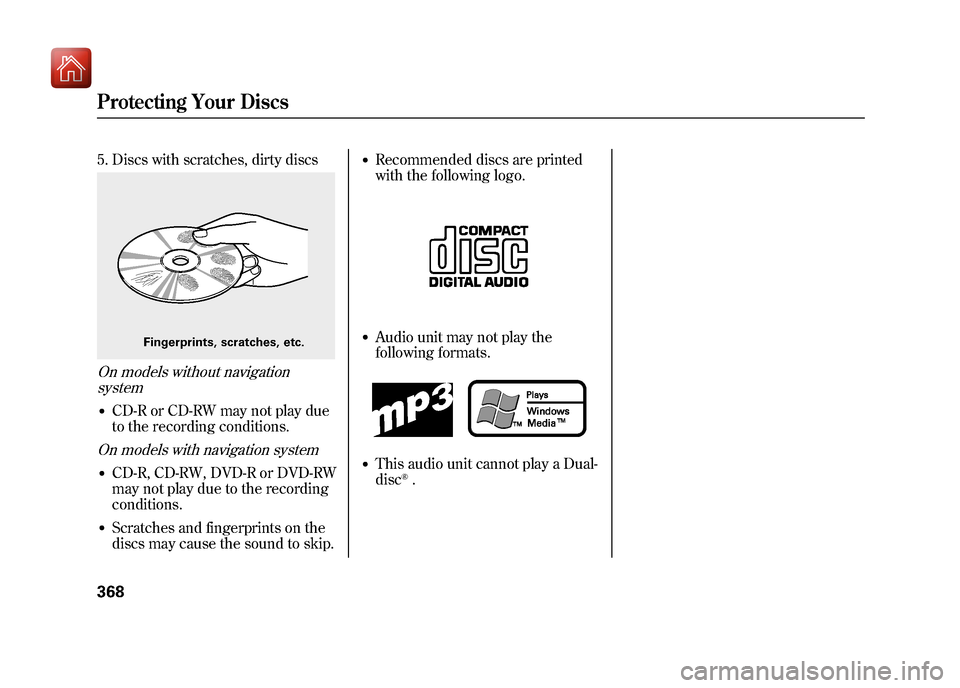
5. Discs with scratches, dirty discsOn models without navigationsystem●CD-R or CD-RW may not play due
to the recording conditions.On models with navigation system●CD-R, CD-RW, DVD-R or DVD-RW
may not play due to the recording
conditions.●Scratches and fingerprints on the
discs may cause the sound to skip.
●Recommended discs are printed
with the following logo.●Audio unit may not play the
following formats.●This audio unit cannot play a Dual-
disc
®.
Fingerprints, scratches, etc.
Protecting Your Discs36809/10/28 17:15:37 10 ACURA ZDX KA KC New North America Own 50 31SZN600 enu
Page 384 of 645
Cruise control allows you to maintain
a set speed above 25 mph (40 km/h)
without keeping your foot on the
accelerator pedal. It should be used
for cruising on straight, open
highways. It is not recommended for
city driving, winding roads, slippery
roads, heavy rain, or bad weather.
Improper use of the cruise
control can lead to a crash.
Use the cruise control only
when traveling on open
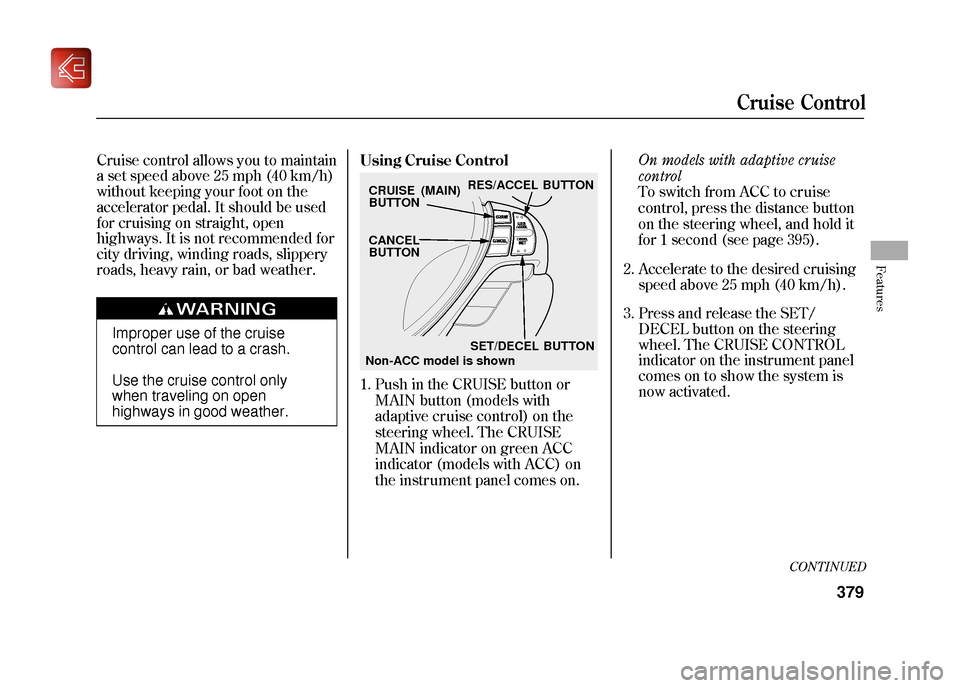
highways in good weather.Using Cruise Control
2. Accelerate to the desired cruising
speed above 25 mph (40 km/h).
3. Press and release the SET/ DECEL button on the steering
wheel. The CRUISE CONTROL
indicator on the instrument panel
comes on to show the system is
now activated.
CRUISE (MAIN)
BUTTON RES/ACCEL BUTTON
SET/DECEL BUTTON
CANCEL
BUTTON
Cruise Control
379
Features
09/10/28 17:15:37 10 ACURA ZDX KA KC New North America Own 50 31SZN600 enu
CONTINUED
Non-ACC model is shown
1. Push in the CRUISE button or
MAIN button (models with
adaptive cr uise control) on the
steering wheel. The CRUISE
MAIN indicator on green ACC
indicator (models with ACC) on
the instr ument panel comes on. On models with adaptive cruise
control
To switch from ACC to cr uise
control, press the distance button
on the steering wheel, and hold it
for 1 second (see page 395).