CD player AUDI Q2 2021 Owner´s Manual
[x] Cancel search | Manufacturer: AUDI, Model Year: 2021, Model line: Q2, Model: AUDI Q2 2021Pages: 364, PDF Size: 87.77 MB
Page 244 of 364
Media
The following options may be available depend
ing on the information displayed (e.g. the sta
tion/track currently playing):
- Sound settings: Refer to
^>page
260.
- Wi-Fi settings: Refer to
Opage
201, Wi-Fi hot-
spot.
- Connection manager: Refer to
<>page
257.
- Additional options may be available depending
on the active online media service or Internet
radio function.
A WARNING
- Mobile devices, tablet and laptop computers
and devices of
a
similar weight can only be
operated safely when the vehicle is station
ary. Like any Loose object, they can be cata
pulted through the vehicle in an accident
and cause serious injuries. Always make sure
that such devices are securely stowed while
you are driving.
- No Wi-Fi devices may be used from the front
seats in the areas around the airbags while
the vehicle is being driven. Please also ob
serve the safety warnings on
^>page
282,
Front airbags.
© CAUTION
- Please always observe the information
•=>©
in Wi-Fi hotspot on page 202.
- In order to use online media, you generally
have
to
set up an account with an online
media service, which may lead
to
additional
costs,
especially if
you
are using the service
abroad.
© Note
- Depending on the Internet connection and
network
load,
playback of the online media
services may be interrupted.
- Whether online media and Internet radio
can be used depends on the availability
of
services provided by third parties.
- AUDI AG only enables you
to
access online
media services via the MMI system and ac
cepts no responsibility for the content of
online media services.
- Please always note the information in the
chapter
^>page
204, General notes on Audi
connect (infotainment).
- Depending on the mobile device you are us
ing,
you may experience interruptions
in
media playback when using the Audi MMI
connect app. To avoid interruptions, keep
the Audi MMI connect app running in the
foreground and do not lock the screen on
your mobile device.
- Audi dealerships will be able
to
provide you
with further information on online media.
Multimedia connections
USB adapters for Audi music interface or
USB charging socket
Depending on the vehicle equipment, you may be
able
to
connect your mobile devices (e.g. smart-
phones, MP3 players)
to
the Audi music interface
or the
USB
charging socket using the special
USB
adapters.
<
Fig.
196 Audi USB adapters
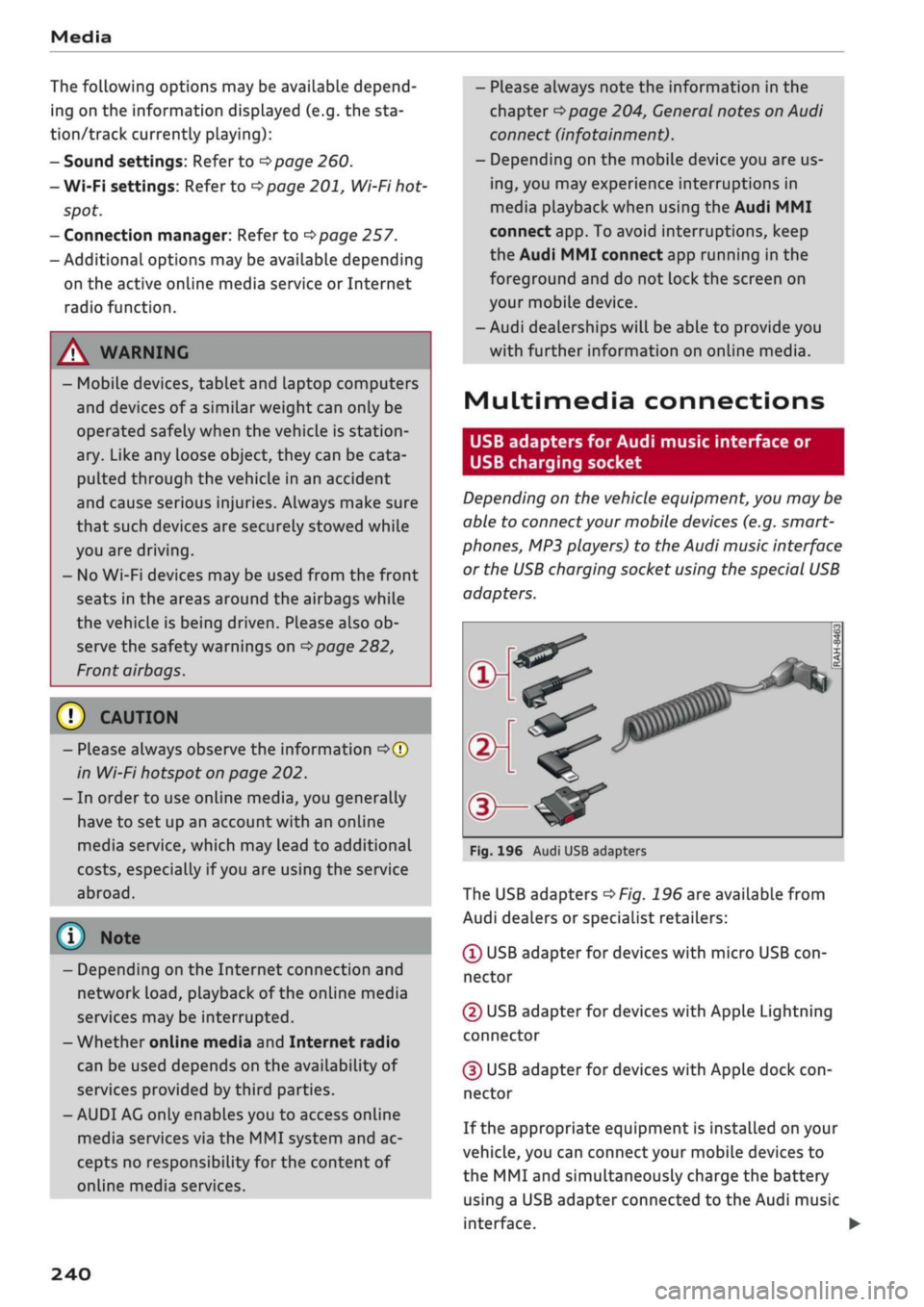
The USB adapters
^>Fig.
196 are available from
Audi dealers or specialist retailers:
® USB adapter for devices with micro USB
con
nector
© USB adapter for devices with Apple Lightning
connector
© USB adapter for devices with Apple dock
con
nector
If the appropriate equipment is installed on your
vehicle, you can connect your mobiLe devices
to
the MMI and simultaneously charge the battery
using a USB adapter connected
to
the Audi music
interface.
•
240
Page 245 of 364
Media
CO
< o rN
IV
rN
•-H
•H
00
Applies to: vehicles with Audi music interface
- Audi music interface: See
^>page
241.
Applies to: vehicles with AUX input/USB charging socket
- AUX input/USB charging socket: See
•=>
page 242.
© CAUTION
Please handle the USB adapters with care.
Make sure the cable does not become pinched
or trapped.
Audi music interface
Applies to: vehicles with Audi music interface
You
can connect your mobile devices via the Audi
music interface in order to charge the battery
and operate the devices via the MMI.
Fig.
197 Connecting mobile devices
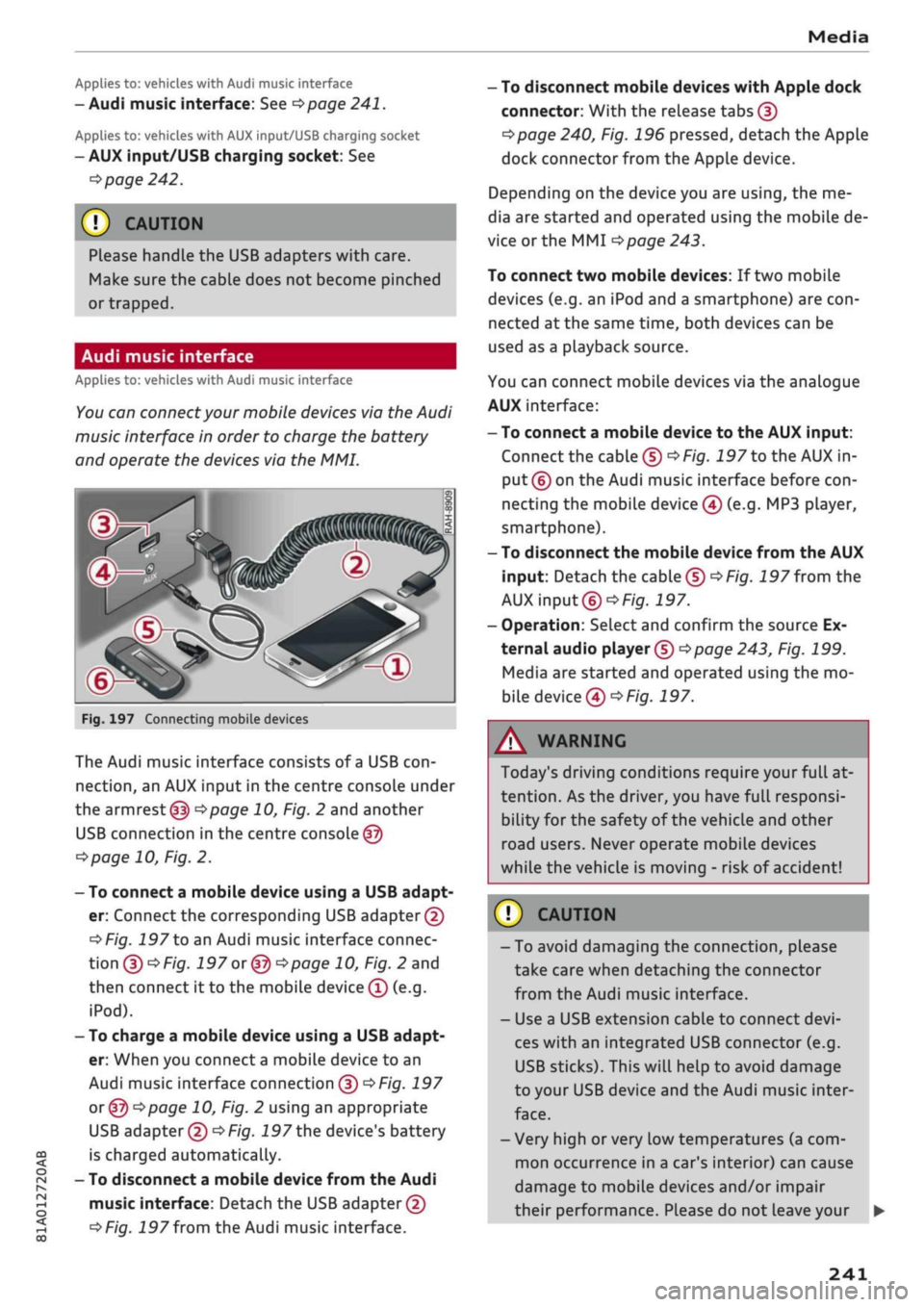
The Audi music interface consists of
a
USB
con
nection,
an AUX input in the centre console under
the
armrest (f|) ^>page
10, Fig. 2 and another
USB connection in the centre console
©
<=>page
10, Fig. 2.
- To connect a mobile device using a USB adapt
er: Connect the corresponding USB adapter©
^>Fig.
197 to an Audi music interface connec
tion
©^F/'g.
197 or @ •=>page
10, Fig. 2 and
then connect it to the mobile device ® (e.g.
iPod).
- To charge a mobile device using a USB adapt
er: When you connect
a
mobile device to an
Audi music interface connection @
^>Fig.
197
or ©o
page 10, Fig. 2 using an appropriate
USB adapter ©
•=>
Fig.
197 the device's battery
is charged automatically.
- To disconnect a mobile device from the Audi
music interface: Detach the USB adapter©
^>Fig.
197
from
the Audi music interface.
-
To
disconnect mobile devices with Apple dock
connector: With the release tabs ©
^>page
240, Fig. 196 pressed, detach the Apple
dock connector from the Apple device.
Depending on the device you are using, the me
dia are started and operated using the mobile de
vice or the MMI
^page
243.
To connect two mobile devices: If two mobile
devices (e.g. an iPod and a smartphone) are
con
nected at the same time, both devices can be
used as a pLayback source.
You can connect mobile devices via the analogue
AUX interface:
-
To
connect a mobile device to the AUX input:
Connect the cable ©
^Fig.
197 to the AUX in
put © on the Audi music interface before
con
necting the mobile device
©
(e.g. MP3 player,
smartphone).
- To disconnect the mobile device from the AUX
input: Detach the cable©
^Fig.
197
from
the
AUX input©
^Fig.
197.
- Operation: Select and confirm the source Ex
ternal audio player ©
Opage
243, Fig. 199.
Media are started and operated using the mo
bile device©
^F/'g.
197.
A WARNING
Today's driving conditions require your full at
tention.
As the driver, you have full responsi
bility for the safety of the vehicle and other
road users. Never operate mobile devices
while the vehicle is moving - risk of accident!
©
!)
CAUTION
-To avoid damaging the connection, please
take care when detaching the connector
from the Audi music interface.
- Use a USB extension cable to connect
devi
ces with an integrated USB connector (e.g.
USB sticks). This will heLp to avoid damage
to your USB device and the Audi music inter
face.
- Very high or very Low temperatures (a com
mon occurrence in a car's interior) can cause
damage to mobile devices and/or impair
their performance. Please do not leave your •
241
Page 246 of 364

Media
mobile devices in the vehicle when the
tem
perature is very high or very low.
-When you switch off the ignition, the USB
ports will continue to be supplied with pow
er as long as the energy management sys
tem does not intervene.
- Do not use any additional USB extension ca
bles or adapters when connecting mobile
devices which have an integrated cable or
which must be connected via a USB adapter
(tapage
240) to the Audi music interface;
this could cause performance issues.
- The AUX adapter cable is available from
Audi dealers or specialist retailers.
- It cannot be guaranteed that mobile devices
which do not meet the specification USB 2.0
will function properly.
- USB hubs are not supported.
- Some iPod versions (e.g. iPod shuffle)
can
not be connected with the USB adapter for
devices with Apple dock connector. You can
connect these devices using the AUX adapt
er cable.
- Content that has been changed on a mobiLe
device1' connected to the Audi music inter
face may not be shown in the media centre.
In this case, reset the Media settings to the
Factory settings
opage
256.
- Video playback via the Audi music interface
is only supported if the system detects that
the device connected is a USB storage device
(e.g.
a USB stick). Apple or MTP devices (e.g.
smartphones) are not recognised as USB
storage devices.
- iPod/iPhone malfunctions also affect opera
tion of the device via the MMI. In this case,
please reset your iPod/iPhone.
- Please refer to the iPod/iPhone operating
instructions for important information on
how to use your iPod/iPhone. We recom
mend
that
you use the most up-to-date
iPod/iPhone software possible.
- For more information on the Audi music in
terface and on which devices are supported,
please see the Audi mobile device database
at www.audi.com/bluetooth or contact an
Audi dealer.
AUX input/USB charging socket
Applies to: vehicles with AUX input/USB charging socket
You
can charge the batteries of your mobile
devi
ces using the
USB
charging socket.
You
can con
nect mobile devices using the analogue
AUX
in
terface.
Fig.
198 USB charging socket and AUX input
The USB charging socket and the AUX input are
located under the armrest in the centre console
@ •=>
page 10, Fig. 2.
AUX input
- To connect a mobile device to the AUX input:
Connect the cable ©
o
Fig.
198 to the AUX in
put ©before connecting the mobile device®
(e.g.
MP3 player, smartphone).
- To disconnect the mobile device from the AUX
input: Detach the
cable
©^>F/g.
198
from the
AUX input©
^Fig.
198.
- Operation: Select and confirm the source Ex
ternal audio player©
opage243,
Fig. 199.
Media are started and operated using the mo
bile device
@^>Fig.
198.
USB charging socket*
- USB adapter: See
Opage
240,
USB
adapters
for Audi music interface or
USB
charging
sock
et. •
15
Applies to MTP devices only. Does not apply to Apple or
USB mass storage devices.
242
Page 247 of 364
Media
CO
<
o
rN
IV
rN
i—i
o
<
•H
00
- To charge a mobile device using
a
USB adapt
er: Connect your mobile device®
^>Fig.
198
to
the charging socket® using
the
appropriate
USB adapter©.
- To disconnect
the
USB adapter from
the
charging socket: Detach
the
USB adapter©
^Fig.
198
from
the
USB charging socket.
- To disconnect mobile devices with Apple dock
connector: With
the
release tabs
©
^>page
240,
Fig.
196
pressed, detach
the
Apple
dock connector from
the
Apple device.
A WARNING
Today's driving conditions require your full
at
tention.
As
the
driver, you have full responsi
bility
for
the
safety
of
the vehicle
and
other
road users. Never use mobile devices while
the vehicle
is
moving
-
risk
of
accident!
!
)
CAUTION
-To avoid damaging
the
connection
on the
Audi music interface, please take care when
unplugging
the
connector from
the
AUX
in
put
or the
USB charging socket.
- Very high
or
very
low
temperatures
(a
com
mon occurrence
in a
car's interior)
can
cause
damage
to
mobile devices and/or impair
their performance. Please
do not
leave your
mobile devices
in the
vehicle when
the
tem
perature
is
very high
or
very
low.
© Note
- When you switch
off
the ignition,
the
USB
ports will continue
to be
supplied with pow
er as Long as
the
energy management sys
tem does
not
intervene.
- USB charging sockets marked
ICHARGEONLYI
cannot transfer data
and
are intended
for
charging only.
-
Do not
use
any
additional USB extension
ca
bles
or
adapters when connecting mobile
devices which must
be
connected
to the USB
charging
socket
©^F/g.
198
via
a USB
adapter
(^>page
240);
this could cause per
formance issues.
- The AUX adapter cable
is
available from
Audi dealers
or
specialist retailers.
- USB hubs
are not
supported.
- Please refer
to the
operating instructions
of
your mobile device
for
important informa
tion
on its
operation.
-
It
cannot
be
guaranteed that
all
mobile
de
vices will function without
any
problems.
- Using
a
mobile device with
the
engine
switched
off
will drain
the
vehicle's battery.
- Audi recommends setting
the
volume
of
a
mobile device connected
to the
AUX input
to
about
70 % of
maximum.
Playing media
Calling
up
media
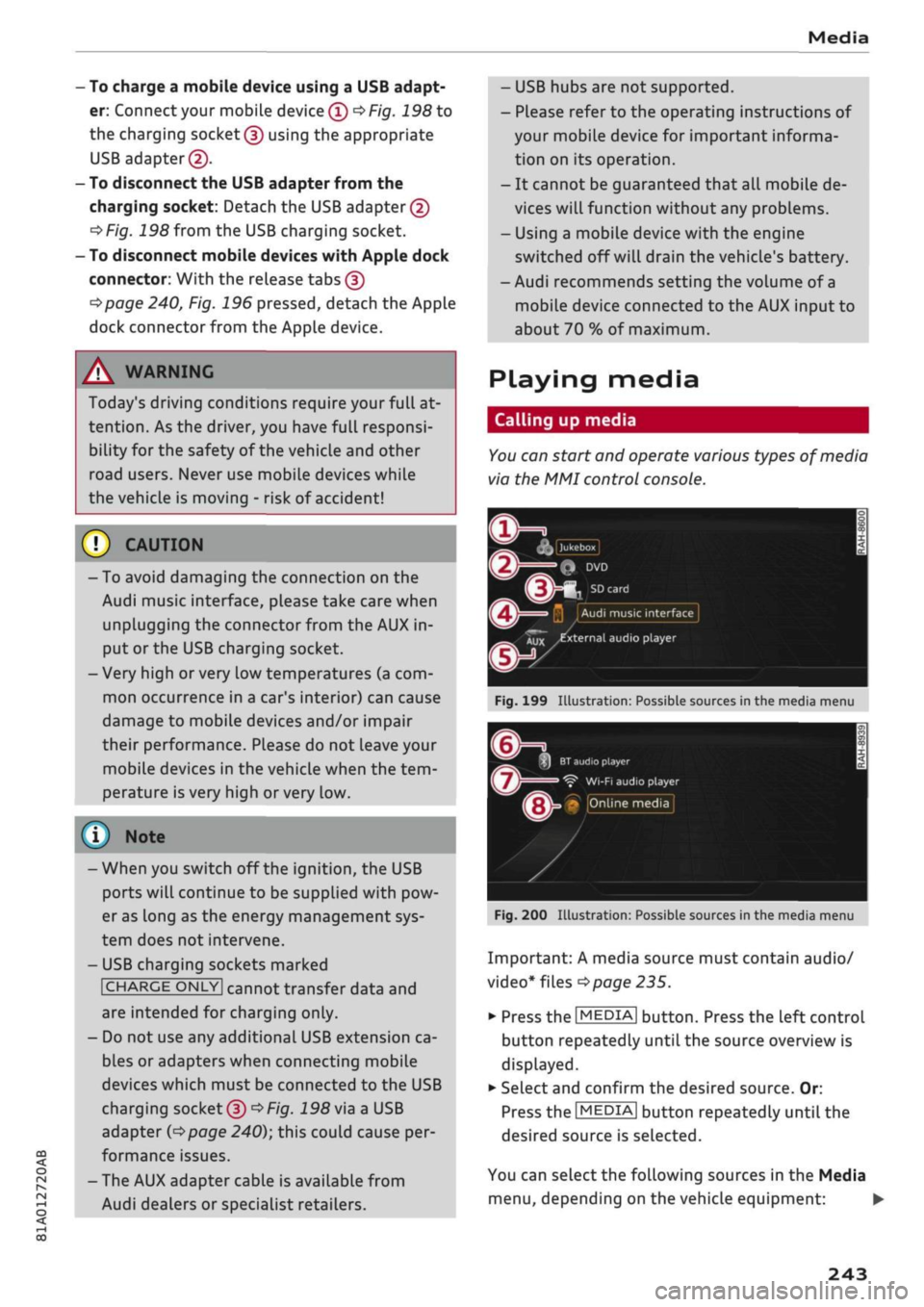
You
can start
and
operate various types
of
media
via
the MMI
control console.
| Jukebox
I
Q
DVD
Audi
music interface
Xux
^external
audio player
Fig.
199
Illustration:
Possible sources
in the
media menu
3H
BT
audio
playe
Ç"
WI-FI
audio player
• Online media
Fig.
200
Illustration:
Possible sources
in the
media menu
Important:
A
media source must contain audio/
video*
files
^>page
235.
*•
Press
the
I
MEDIA|
button. Press
the
left control
button repeatedly until
the
source overview
is
displayed.
•
Select and confirm
the
desired source.
Or:
Press
the|MEDIA|
button repeatedly until
the
desired source
is
selected.
You
can
select
the
following sources
in the
Media
menu,
depending
on the
vehicle equipment:
•
243
Page 248 of 364

Media
® Jukebox* 236
© DVD/CD drive*
235,
236
© SD card reader
235
© Audi music interface* 241
e.g.
iPod,
USB stick
© External audio player 242
e.g.
an MP3 player connected to
the
AUX input
© Bluetooth audio player* 237
© Wi-Fi audio player* 238
© Online media* and Internet radio* .. 239
- To play audio/video files: Select a source in the
Media menu > category (e.g. artist > album >
track/title).
- To access the next level up in the structure of
folders: Press the |BACK| button. Or: Select and
confirm Go up.
- To select the previous/next
item1^:
Briefly
press the ON/OFF button on the MMI controL
console to the left/right
(KM/»I).
- To rewind/fast forward audio/video* files:
Move and hold the ON/OFF button to the left/
right (KM/»)).
-To pause/resume playback: Briefly press the
ON/OFF button on the MMI control console.
(T)
Note
- You can scroll rapidly through long lists by
turning the rotary pushbutton quickly. The
scrolling speed depends on the number of
entries in the list.
- If the Traffic announcements
Opage
229
or DAB announcements* function is switch
ed on, playback is interrupted for announce
ments. You can cancel an announcement
while it is being played by briefly pressing
the ON/OFF button on the MMI controL
con
sole.
- For safety reasons, the video picture is not
available while the vehicle is moving. While
you are driving, only the sound is played.
Media centre
Several categories for selecting
audio/video1
files are available in the media centre.
Favourites
Artists
fl*
Albums
Fig.
201 Example: Categories for a USB stick
L
La
Fig.
fc V
!~
202
' /
Example
Orchestra Tracks
V\
Folders
J3
J
Playlists
/Videos
Categories for
a
USB stick
L
B
5
1
•
Press the |MEDIA| button. Press the left control
button repeatedly until the source overview is
displayed.
Select and confirm the desired
source.
©Active source
The active source is highlighted. The symbol for
the active source © may change depending on
the device connected or the online media* or In
ternet radio* service in use. The device name may
be displayed (e.g. MyPhone). A USB stick connec
ted via the Audi music interface* is shown as an
example
^>Fig.
201.
Depending on the active source, you can select
audio/video* files from the following categories
and copy them into the
playlist:
®
Favourites
The category Favourites appears if at least one
item has been stored as a favourite. Refer to
•=>page
246, Favourites.
l)
May not be possible during playback (depends on the
DVD).
244
Page 249 of 364
Media
CO
< o rN
IV
rN
i—i
o <
•H
00
© Artists
All
available artists are displayed. Select and
con
firm an artist, an album and then a track.
©Albums
All available albums are displayed. Select and
confirm an album and then a track.
© Genres
ALL
available genres are displayed. SeLect and
confirm a genre (e.g. Pop), an artist, an album
and then a track.
©
Tracks
AIL
available tracks are displayed. SeLect and
con
firm a track.
© Folders
The folder structure or the track/title/chapter list
is displayed. Select
a
folder (if applicable) and se
lect and confirm an item in it.
® Playlists
All playlists on the source along with the intelli
gent playlists are displayed. Select and confirm a
playlist
and then a track.
Intelligent playlists:
- Last tracks played: The most recently played
tracks from the selected source are displayed.
- Most played: The tracks you have played most
often from the selected source are displayed.
-
5
stars to 1 star: Tracks from the selected
source are displayed according to their rating.
- Unrated: All files without rating information
(e.g.
ID3 tag) in the selected source are dis
played.
©Videos*
AIL
available video files are displayed. SeLect and
confirm a video file.
Note
- Only the categories supported by the medi
um used are available. For example, CD/
DVD-ROM tracks cannot be seLected via cat
egories such as Artists, Albums or Genres.
The categories Podcasts, Audiobooks and
Composers are available when you are using
an iPod (source: Audi music interface
•=>
page 240).
- For safety reasons, the video picture is not
available while the vehicle is moving. While
you are driving, only the sound is played.
- If
you
synchronise a portable player with
"cloud"
services, the playlists may not be
displayed correctly on the MMI. Use the de
vice's Local media library.
Search function
Applies to: vehicles with search function
You
can search for e.g. tracks and video files* in
the active source.
F
Media: Search
£ The Rock Band
The Rock Band The Rock Band
JJ
The latest
I
The Rock Band -
Numéro
Uno
Fig.
203 Entry field and results list for the search function
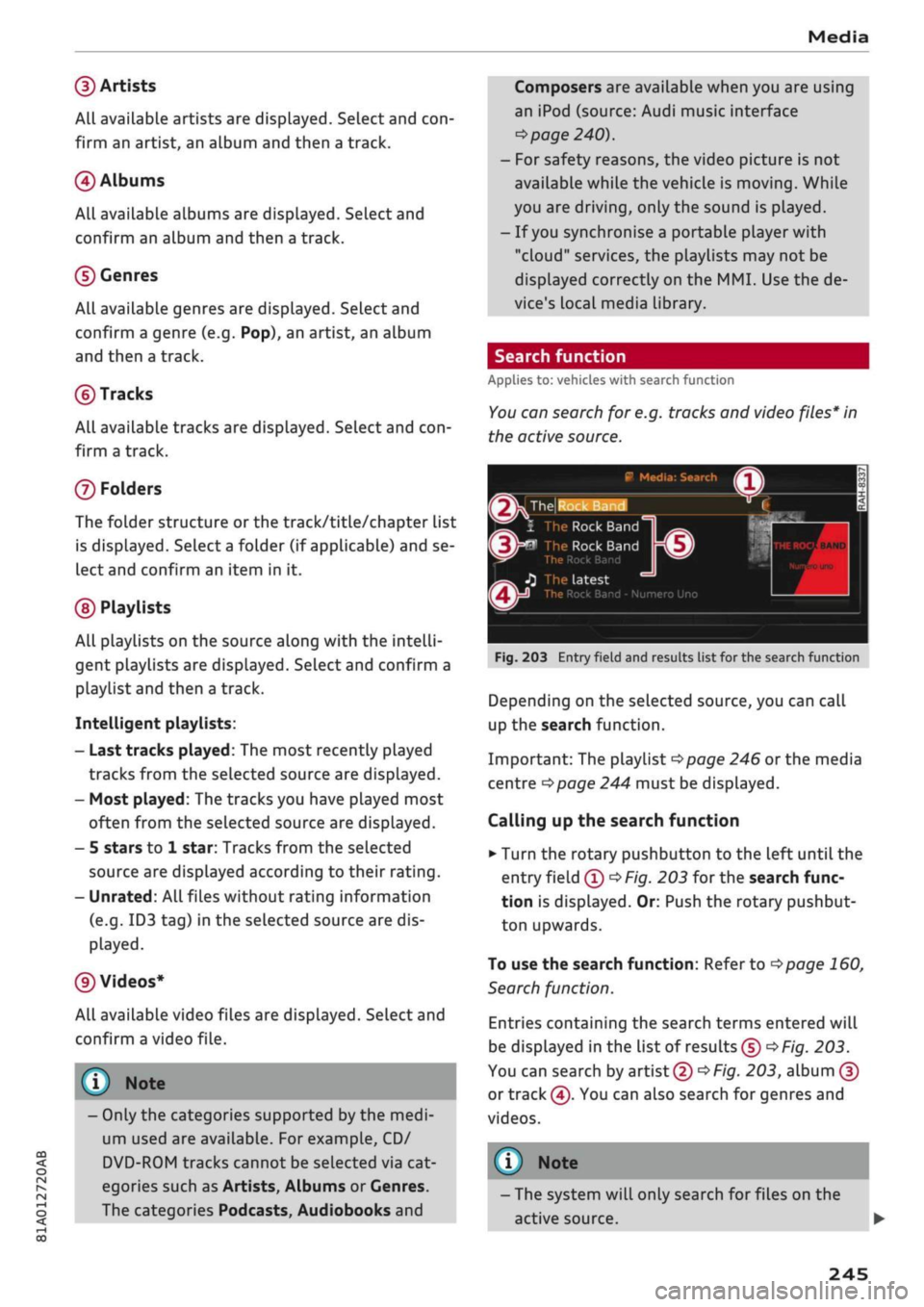
Depending on the selected source, you can call
up the search function.
Important: The playlist
^>page
246 or the media
centre
^>page
244 must be displayed.
Calling up the search function
•
Turn the rotary pushbutton to the left until the
entry field ©
oFig.
203 for the search func
tion is displayed. Or: Push the rotary pushbut
ton upwards.
To use the search function: Refer to
=>page
160,
Search function.
Entries containing the search terms entered will
be displayed in the list of results©
^F/'g.
203.
You can search by
artist©^F/'g.
203, album©
or track ©. You can also search for genres and
videos.
- The system will only search for files on the
active source. •
245
Page 253 of 364
Media
Supported media and file formats
CO
<
O
rN
iv
rN
i—i
o < 00
Overview
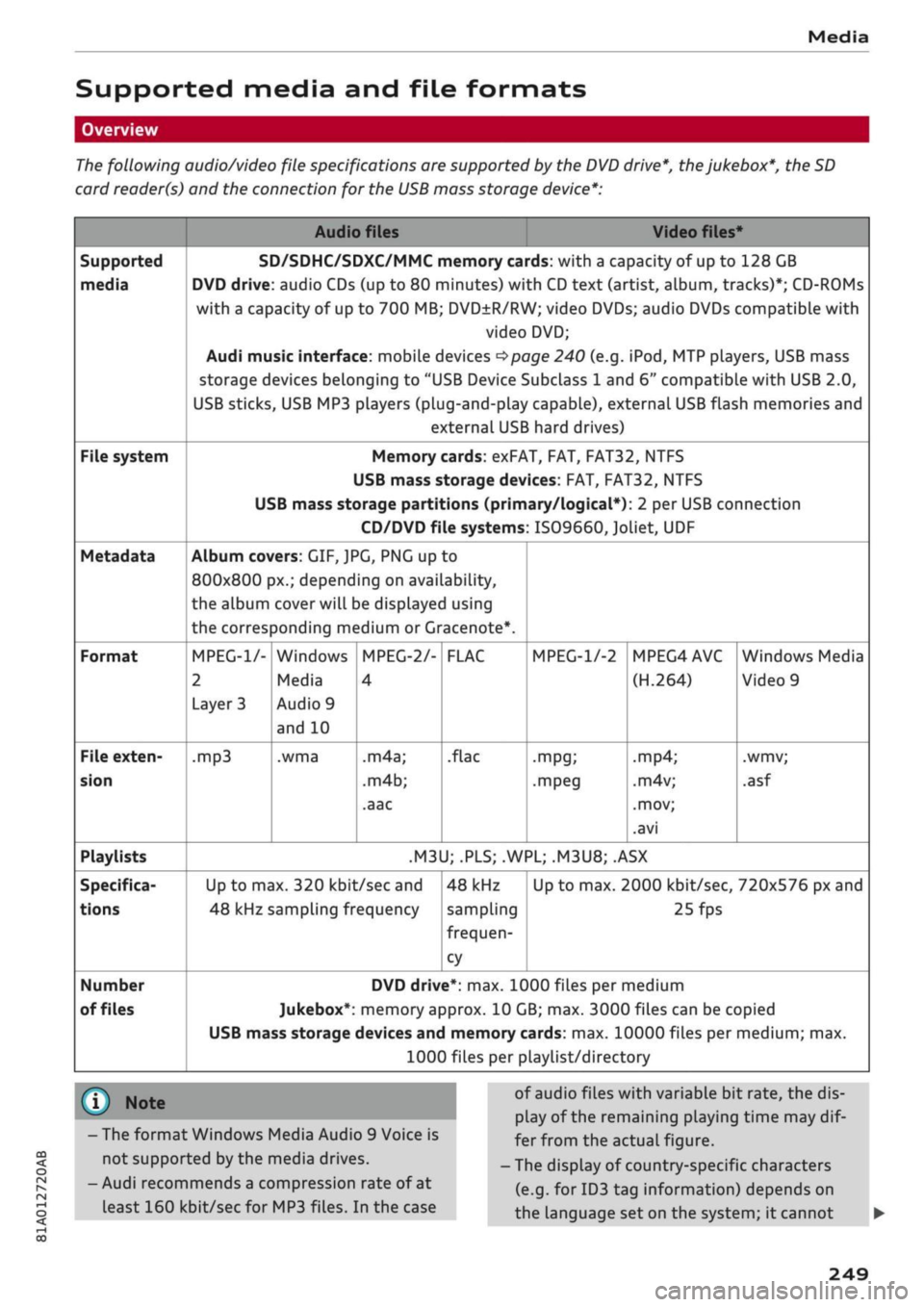
The following audio/video file specifications are supported
by
the DVD drive*, the jukebox*,
the
SD
card reader(s)
and the
connection
for the
USB mass storage device*:
Audio files Video files*
Supported
media
File system
Metadata
Format
File exten
sion
Playlists
Specifica
tions
Number
of files
SD/SDHC/SDXC/MMC memory cards: with
a
capacity
of
up
to
128 GB
DVD drive: audio CDs (up
to 80
minutes) with CD text (artist, album, tracks)*; CD-ROMs
with
a
capacity
of
up
to
700 MB; DVD±R/RW; video DVDs; audio DVDs compatible with
video DVD;
Audi music interface: mobile devices
^>page
240
(e.g.
iPod,
MTP players, USB mass
storage devices belonging
to
"USB Device Subclass
1
and
6"
compatible with USB 2.0,
USB sticks, USB MP3 players (plug-and-play capable), external USB flash memories and
external USB hard drives)
Memory cards: exFAT, FAT, FAT32, NTFS
USB mass storage devices: FAT, FAT32, NTFS
USB mass storage partitions (primary/logical*):
2
per USB connection
CD/DVD file systems: IS09660,
Joliet,
UDF
Album co
800x800[
the album
the corres
MPEG-1/-
2
Layer
3
.mp3
rers:GIF,JPG, PNG
up
to
)x.; depending on availability,
cover will be displayed using
3onding
medium
or
Gracenote*.
Windows
Media
Audio
9
and
10
.wma
MPEG-2/-
4
.m4a;
.m4b;
.aac
F
LAC
.flac
MPEG-1/-2
•mpg;
.mpeg
MPEG4AVC
(H.264)
.mp4;
.m4v;
.mov;
.avi
Windows Media
Video
9
.wmv;
.asf
.M3U;
.PLS;
.WPL;
.M3U8;
.ASX
Up
to
max. 320
kbit/sec
and
48 kHz sampling frequency
48 kHz
sampling
frequen
cy
Up
to
max. 2000
kbit/sec,
720x576 px and
25fps
DVD drive*: max. 1000 files per medium
Jukebox*: memory approx. 10 GB; max. 3000 files can be copied
USB mass storage devices and memory cards: max. 10000 files per medium; max.
1000 files per playlist/directory
® Note
- The format Windows Media Audio
9
Voice
is
not supported by the media drives.
- Audi recommends a compression rate
of
at
least 160
kbit/sec
for MP3 files.
In
the case
of audio files with variable
bit
rate, the dis
play
of
the remaining playing time may
dif
fer from the actual figure.
- The display
of
country-specific characters
(e.g.
for
ID3 tag information) depends
on
the language set on the system;
it
cannot
249
Page 254 of 364

Media
be ensured that these characters are always
displayed correctly.
The manufacturer will provide you with in
formation on the "USB Device Subclass" of
a
USB memory device.
- Some functions of MTP players such as
vid
eo playback and the rating of tracks are not
supported.
CD drive
Applies to: vehicles with CD drive
The CD
drive supports the following audio file specifications:
Supported
media
File system
Metadata
Format
File extension
Playlists
Specifications
Number
of files
Audio files
Audio CDs (up to 80 minutes) with
CD
text (artist, album, track)*, CD-ROMs with a
capacity of up to 700 MB
CD file systems: IS09660, Joliet, UDF
Album covers: GIF,
JPG,
PNG up to 800x800 px.; depending on availability, the al
bum cover will be displayed using the corresponding medium.
MPEG-1/-2
Layer 3
.mp3
Windows Media Au
dio
9
and 10
.wma
MPEG-2/-4
.m4a;
.m4b;
.aac
FLAC
.flac
.M3U;
.PLS;
.WPL;
.M3U8;
.ASX
Up to max. 320
kbit/sec
and 48 kHz sampling frequency 48 kHz sampling
frequency
max. 1000 files per medium
® Note
- We recommend a compression rate of at
least 160
kbit/sec
for MP3 files. In the case
of audio files with variable bit rate, the dis
pLay of the remaining playing time may
dif
fer from the actual figure.
-The display of country-specific characters
(e.g.
for ID3 tag information) depends on
the Language set on the system; it cannot
be ensured that these characters are always
displayed correctly.
Troubleshooting
Subject
Audi music interfaceVBluetooth
audio player*: The mobiLe device
is not supported.
Audi music interface*: When
starting playback via the AUX in
put, the volume is too high/low.
Advice
Please observe the notes in the chapter
^page
240, Multimedia
connections/^page
237, Bluetooth audio
player.
For information
on which mobile devices are supported, please see the Audi mo
bile device database at www.audi.com/bluetooth.
Set the volume of the mobile device to about 70% of maximum
^>page
246, Input level.
250
Page 255 of 364

Media
Subject
Audi music interface*: The porta
ble player is not recognised as a
source.
Audi music interface*: Problems
during audio playback via an
iPod/
iPhone.
Audi music interface*: Content
that has been changed on a mo
biLe device connected to the Audi
music interface* is not shown in
the media centre.
AUX input: Interference audible
when plugging in or unplugging
the AUX adapter cable.
Bluetooth audio player*/Wi-Fi
audio player*: Playback problems.
Wi-Fi audio player*: Playback
problems.
Jukebox*: The tracks in the impor
ted playlists are greyed out.
Jukebox*: Imported tracks cannot
be played or cannot be found.
Wi-Fi audio player*: More than
one device is connected to the Wi-
Fi hotspot. A media player (e.g. a
smartphone) is shown as the
source and cannot be changed.
Online media*: Failure of connec
tion between the MMI and the
Audi MMI connect app.
Wi-Fi audio playerVOnline me
dia and Internet radio*: Playback
problems.
Advice
On some mobile phones or mobile devices, playback is not possi
bLe if the battery charge is very low (less than 5% of its capacity).
After it has been plugged in, the mobile device will only be recog
nised as a source in the MMI again when it has sufficient battery
charge.
The Bluetooth audio player function is switched on. Switch the
function off
^>page 258
when you are not using a Bluetooth au
dio player.
Reset the Media settings to the factory settings
<=>page
256.
External audio player is selected as the source when the adapter
cable is being connected. Activate the mute function (see
tapage
261) or another audio source (e.g.
ipage
228, Calling up
the radio menu) before connecting/disconnecting your mobile de
vice.
To ensure problem-free playback, only one interface should be in
use at any one time.
Some mobile phones may experience audio playback problems if
the Internet connection in the vehicle was not established via the
SIM card reader* or embedded SIM card of the MMI controL
con
sole while the mobile data option is activated on the mobile
phone.
Deactivate the mobile data option on your mobiLe phone.
When importing playlists, you must copy all files yourself.
If
you
cannot find imported tracks via the media centre, this could
mean that they are not supported. Please only copy supported
files
^>page
249 to the jukebox.
Close the Audi MMI connect app on the connected devices (e.g.
smartphones) that you do not want to use as the Wi-Fi audio play
er*. Also close any UPnP server apps on the devices, or disable me
dia sharing on any integrated UPnP/DLNA servers. Connect the de
sired device as a Wi-Fi audio player*
^>page
238.
The MMI connection switch on the status screen of the Audi MMI
connect app must be switched on to establish a connection with
the
MMI.
Audio playback problems can occur if the Connection to personal
hotspot function
opage
202 is activated and your personal hot-
spot
^>page
195 is not in range. To avoid playback problems,
switch the function off when you are not using a personal hotspot.
<
o
rN
IV
rN
i-H
00
251
Page 256 of 364

Media
Subject
Audi music interface*: Content
that has been changed on a mo
bile
devicea)
connected to the
Audi music interface is not shown
in the media centre.
Bluetooth audio player*: Prob
lems with track display and play
back.
Wi-Fi hotspot*: Wi-Fi hotspot
connection to your Wi-Fi device
interrupted.
Audi music interface: No audio
playback possibLe via a connected
mobiLe device.
Advice
Reset the Media settings to the factory settings
^page
256.
Problems can occur if
a
third party music playback app is open
when you are playing audio via the Bluetooth audio player. Audi
recommends
that
you use the integrated media player on your
Bluetooth device (e.g. smartphone).
Make sure that the network optimisation function is switched off
in the Wi-Fi settings or network settings of your Wi-Fi device.
Please refer to the operating manual
of your
Wi-Fi device for fur
ther details.
Make sure that the USB mode
MTP
is selected in your mobile
devi
ce's settings.
a'
Applies to MTP devices only. Does not apply to Apple or USB mass storage devices.
252