ignition AUDI Q2 2021 Owner´s Manual
[x] Cancel search | Manufacturer: AUDI, Model Year: 2021, Model line: Q2, Model: AUDI Q2 2021Pages: 364, PDF Size: 87.77 MB
Page 219 of 364
Navigation
CO
< o rN
IV
rN
•-H
•H
00
The distance to the destination and the estima
ted time of arrival are also displayed for your per
sonal routes. Even before route guidance is star
ted,
your MMI system monitors the traffic situa
tion for your personal routes and the infotain
ment display shows possible traffic disruptions
along the route you will probably take (2)
*>Fig.
177.
A message is displayed if there are any Larger
traffic disruptions (more than 7 minutes delay),
irrespective of which menu is selected
<=>Fig.
178.
Select and confirm one of the following options:
- Start route guidance: The MMI starts route
guidance for the personal route shown and
searches for
a
faster route (if one is available).
- Ignore this route and this message: The desti
nation shown and all of the corresponding per
sonal routes are no Longer taken into account
on the current trip. No more messages are dis
played for the destination shown. The destina
tion shown and
all
the corresponding personal
routes are ignored until the car is parked and
the ignition is subsequently switched on again.
- Ignore all messages: All of the personal routes
are ignored for the current trip. No more mes
sages are displayed. Messages for traffic dis
ruptions on the personal routes are not dis
played again until the car is parked and the ig
nition is subsequently switched on again.
The symbol disappears from the status line and
your trips are no longer recorded as soon as you
switch off the personal route assist function.
Trips which have already been recorded remain
stored.
Deleting a personal route:
- Select the desired personal route in the Enter
destination menu
®
^>Fig.
177.
- SeLect: right control button > Delete destina
tion.
Deleting all personal routes:
- Select:
|MENU]
button > Settings
>
left control
button > MMI settings > Factory settings.
- Select: Navigation and online memory
>
Re
store factory settings
^page
256.
- Personal routes are memorised depending
on your vehicle's location. Routes are priori
tised depending on how often you drive to a
destination.
- Up to three personal routes are displayed in
the Enter destination menu. The traffic sit
uation is always monitored for the three
routes most likely to be followed depending
on your vehicle's current location.
- Please note that, once a personal route has
been stored, it remains stored after the
function is deactivated (i.e. it has to be de
leted manually).
- This function is not available in the Mexican
market.
Home address
Applies to: vehicles with navigation system
•
Press the |NAV/MAP| button repeatedly until
the Enter destination menu is displayed
<> page
207, Fig. 172.
Storing a home address
- Select and confirm Home address (2)
<=>page
207, Fig. 172. After calling up the
home address for the first time, you will be
asked to set
a
home address.
- Select and confirm Create now.
- Enter
a
destination or select
a
destination from
the list. Or:
- Select and confirm a destination > right control
button > Store as home address.
A home address is stored in the MMI regardless
of any mobile phone which may be connected.
This home address is always available, even if no
mobiLe phone is connected to the MMI.
Editing home address
- Select the Home address (2)
Opage
207,
Fig. 172.
- Select: right controL button > Edit home ad
dress.
- Select and confirm a new destination as the
home address.
215
Page 227 of 364

Navigation
Map
update
CO
< o rN
r^
rN
t-H
O
<
Introduction
Applies to: vehicles with navigation system
There are severaL different ways of updating the
map:
- Map updates via the online map update* func
tion
^
page 223.
- Map updates via the online map update* func
tion
•=>
page 223
1).
- Importing a map update to your MMI using an
SD card*
1).
Further information can be found
on the Internet at my.audi.com.
- Map update at your Audi dealer, who may
charge for this service.
Online map update
Applies to: vehicles with navigation system and Audi connect
(infotainment)
With the online map update function you can up
date the map material
of
your navigation system
directly in the vehicle.
New navigation database
-S>
Eastern Europe
An update is available for your destination
region (Eastern Europe).
"\
Updates can also be downloaded from
' my.audi.com and installed via an SD
card.
Switch to online update
Fig.
185 Example: Display of
a
new online map update
Eastern Europe
—>
Recommended regions
| Belarus
3,3 MB
O
O
j
T
m
Albania 18,2 MB
D
Packets required OB
Start download
Cancel
Fig.
186 Example: Selection of
a
country package
Important:
The requirements for Audi connect infotainment
services must be met
<=>page
191.
x)
This function is not available in the Mexican market.
You must have a myAudi account and have added
your vehicle to it.
The MMI uses the vehicle's position to establish
which regions you are most often in. The MMI
uses this information to suggest update pack
ages for these regions if any are available
<*Fig.
185.
•
Select and confirm
(T)
Switch to online update
oFig.
185 when the message informing you of
a new map update appears on the infotainment
display. Or:
•
Select:
IMENU|
button > Settings > left control
button > System maintenance > System up
date > Online update.
A list of the available update packages is shown
on the infotainment display
^>Fig.
186.
Selecting online map update
- Select an update package from the list
(5f).
If
update packages with a large volume of data
are available for certain countries (e.g. France),
you can choose to update individual regions
(e.g.
only southern France).
- Press the
I
BACK
|
button to confirm your selec
tion and return the list of available update
packages.
Starting download
- Select and confirm Start download.
- Confirm the safety query by selecting Start
download again.
The update packages will be downloaded, and
the download status will be shown on the info
tainment display.
Installing online map update
The installation of the downloaded maps only oc
curs after the vehicLe has been parked. The new
update packages are installed after the ignition is
switched off. When you restart the MMI, a mes
sage indicating
that
the updates have been in
stalled successfully will appear on the infotain
ment dispLay.
- Confirm the successful update with OK.
223
Page 246 of 364

Media
mobile devices in the vehicle when the
tem
perature is very high or very low.
-When you switch off the ignition, the USB
ports will continue to be supplied with pow
er as long as the energy management sys
tem does not intervene.
- Do not use any additional USB extension ca
bles or adapters when connecting mobile
devices which have an integrated cable or
which must be connected via a USB adapter
(tapage
240) to the Audi music interface;
this could cause performance issues.
- The AUX adapter cable is available from
Audi dealers or specialist retailers.
- It cannot be guaranteed that mobile devices
which do not meet the specification USB 2.0
will function properly.
- USB hubs are not supported.
- Some iPod versions (e.g. iPod shuffle)
can
not be connected with the USB adapter for
devices with Apple dock connector. You can
connect these devices using the AUX adapt
er cable.
- Content that has been changed on a mobiLe
device1' connected to the Audi music inter
face may not be shown in the media centre.
In this case, reset the Media settings to the
Factory settings
opage
256.
- Video playback via the Audi music interface
is only supported if the system detects that
the device connected is a USB storage device
(e.g.
a USB stick). Apple or MTP devices (e.g.
smartphones) are not recognised as USB
storage devices.
- iPod/iPhone malfunctions also affect opera
tion of the device via the MMI. In this case,
please reset your iPod/iPhone.
- Please refer to the iPod/iPhone operating
instructions for important information on
how to use your iPod/iPhone. We recom
mend
that
you use the most up-to-date
iPod/iPhone software possible.
- For more information on the Audi music in
terface and on which devices are supported,
please see the Audi mobile device database
at www.audi.com/bluetooth or contact an
Audi dealer.
AUX input/USB charging socket
Applies to: vehicles with AUX input/USB charging socket
You
can charge the batteries of your mobile
devi
ces using the
USB
charging socket.
You
can con
nect mobile devices using the analogue
AUX
in
terface.
Fig.
198 USB charging socket and AUX input
The USB charging socket and the AUX input are
located under the armrest in the centre console
@ •=>
page 10, Fig. 2.
AUX input
- To connect a mobile device to the AUX input:
Connect the cable ©
o
Fig.
198 to the AUX in
put ©before connecting the mobile device®
(e.g.
MP3 player, smartphone).
- To disconnect the mobile device from the AUX
input: Detach the
cable
©^>F/g.
198
from the
AUX input©
^Fig.
198.
- Operation: Select and confirm the source Ex
ternal audio player©
opage243,
Fig. 199.
Media are started and operated using the mo
bile device
@^>Fig.
198.
USB charging socket*
- USB adapter: See
Opage
240,
USB
adapters
for Audi music interface or
USB
charging
sock
et. •
15
Applies to MTP devices only. Does not apply to Apple or
USB mass storage devices.
242
Page 247 of 364
Media
CO
<
o
rN
IV
rN
i—i
o
<
•H
00
- To charge a mobile device using
a
USB adapt
er: Connect your mobile device®
^>Fig.
198
to
the charging socket® using
the
appropriate
USB adapter©.
- To disconnect
the
USB adapter from
the
charging socket: Detach
the
USB adapter©
^Fig.
198
from
the
USB charging socket.
- To disconnect mobile devices with Apple dock
connector: With
the
release tabs
©
^>page
240,
Fig.
196
pressed, detach
the
Apple
dock connector from
the
Apple device.
A WARNING
Today's driving conditions require your full
at
tention.
As
the
driver, you have full responsi
bility
for
the
safety
of
the vehicle
and
other
road users. Never use mobile devices while
the vehicle
is
moving
-
risk
of
accident!
!
)
CAUTION
-To avoid damaging
the
connection
on the
Audi music interface, please take care when
unplugging
the
connector from
the
AUX
in
put
or the
USB charging socket.
- Very high
or
very
low
temperatures
(a
com
mon occurrence
in a
car's interior)
can
cause
damage
to
mobile devices and/or impair
their performance. Please
do not
leave your
mobile devices
in the
vehicle when
the
tem
perature
is
very high
or
very
low.
© Note
- When you switch
off
the ignition,
the
USB
ports will continue
to be
supplied with pow
er as Long as
the
energy management sys
tem does
not
intervene.
- USB charging sockets marked
ICHARGEONLYI
cannot transfer data
and
are intended
for
charging only.
-
Do not
use
any
additional USB extension
ca
bles
or
adapters when connecting mobile
devices which must
be
connected
to the USB
charging
socket
©^F/g.
198
via
a USB
adapter
(^>page
240);
this could cause per
formance issues.
- The AUX adapter cable
is
available from
Audi dealers
or
specialist retailers.
- USB hubs
are not
supported.
- Please refer
to the
operating instructions
of
your mobile device
for
important informa
tion
on its
operation.
-
It
cannot
be
guaranteed that
all
mobile
de
vices will function without
any
problems.
- Using
a
mobile device with
the
engine
switched
off
will drain
the
vehicle's battery.
- Audi recommends setting
the
volume
of
a
mobile device connected
to the
AUX input
to
about
70 % of
maximum.
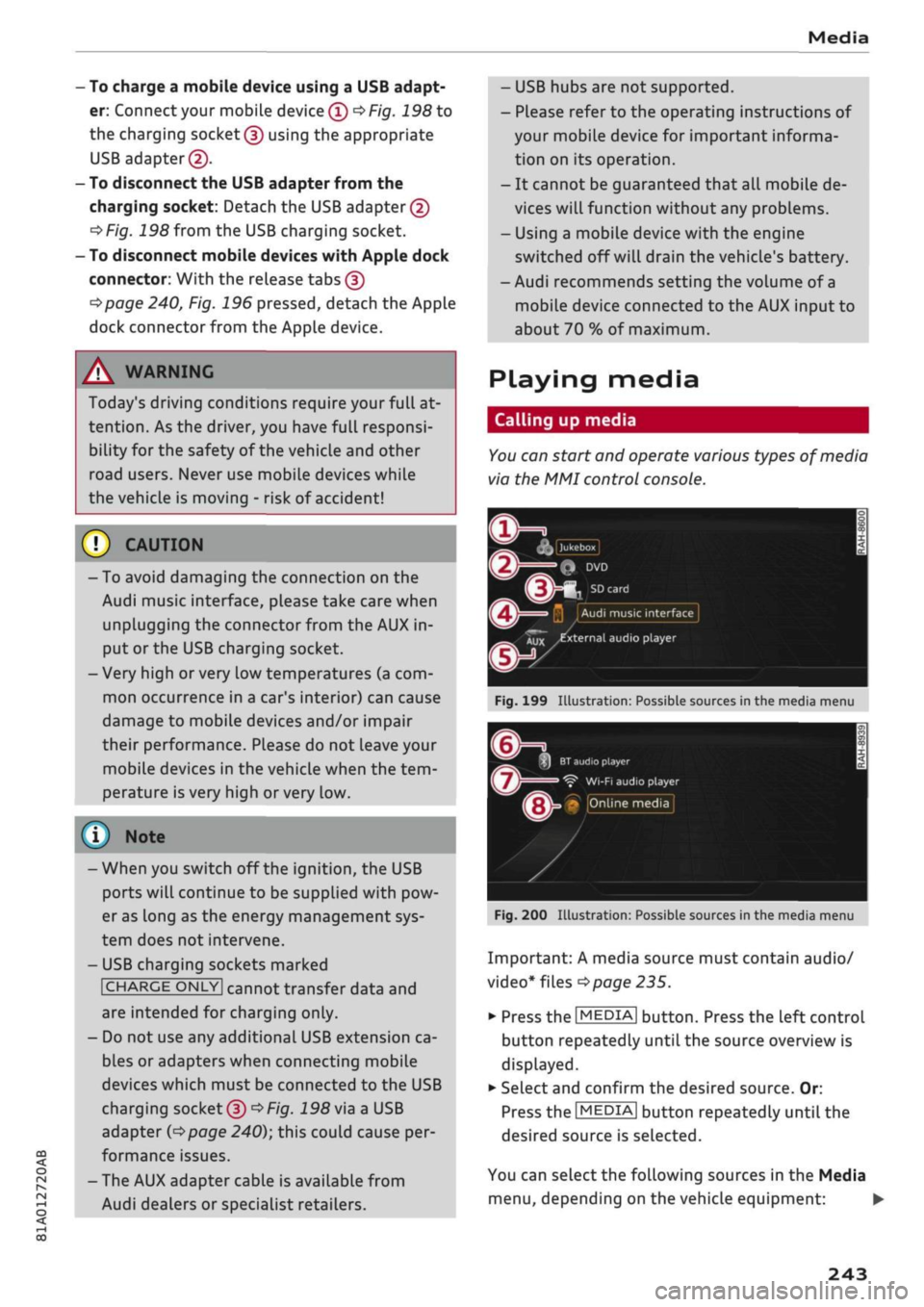
Playing media
Calling
up
media
You
can start
and
operate various types
of
media
via
the MMI
control console.
| Jukebox
I
Q
DVD
Audi
music interface
Xux
^external
audio player
Fig.
199
Illustration:
Possible sources
in the
media menu
3H
BT
audio
playe
Ç"
WI-FI
audio player
• Online media
Fig.
200
Illustration:
Possible sources
in the
media menu
Important:
A
media source must contain audio/
video*
files
^>page
235.
*•
Press
the
I
MEDIA|
button. Press
the
left control
button repeatedly until
the
source overview
is
displayed.
•
Select and confirm
the
desired source.
Or:
Press
the|MEDIA|
button repeatedly until
the
desired source
is
selected.
You
can
select
the
following sources
in the
Media
menu,
depending
on the
vehicle equipment:
•
243
Page 257 of 364

Audi smartphone interface
CO
rN
IV
rN
t-H
o <
Audi smartphone
interface
Setting
upx)
Applies to: vehicles with Audi smartphone interface
You
can connect your smartphone to the MMI
system via the Audi smartphone interface. Some
of the content
on
your smartphone is displayed
in an optimised
screen
format on the infotain
ment display and can be operated via the MMI
control console.
Important
The vehicle must be stationary, and the ignition
must be switched on.
iPhone 5 or later with Lightning connector and
operating system iOS 7.1.2 or higher or:
Smartphone with Android Auto app and operat
ing system Android 5.0 Lollipop or later.
• Connect your smartphone to the Audi music in
terface
opage
241 via a USB adapter
^> page
240, Fig. 196.
•
Select and confirm Activate Apple CarPlay or
Activate Android Auto now.
•
Follow the instructions given by the system.
• Please note any system queries on your smart
phone.
If
you
decline the use of Apple CarPlay or Android
Auto the first time you connect your smartphone,
you can start the Audi smartphone interface at a
later time via the connection manager.
•
SeLect:
|MENU|
button
>
Audi smartphone in
terface > Switch to connection manager.
•
Connect your smartphone to the Audi music in
terface via a USB adapter
^>page
240, Fig. 196.
*•
Select and confirm Audi smartphone in Con
nection manager
<3>page
257. You can select
your smartphone from the list of devices al
ready connected
^page
258.
•
Follow the instructions given by the system.
© CAUTION
Please always observe the information
=>®
in
Wi-Fi hotspot on page 202.
- The functions you can use depend on a num
ber of factors including:
-The brand of your smartphone
-The operating system version of your
smartphone
- The software version of the app in use
- The USB adapter/cable and the correct
connection
- Your mobile network/service provider
- The individual settings on your smart
phone
- One or several of the factors listed above
can result in your smartphone being incom
patible with the Audi smartphone interface.
We regret that it is not possible to guaran
tee compatibility for all types of smart
phone.
For further information and support,
please refer to the operating manual of your
smartphone or contact its manufacturer.
- If the smartphone you have connected has a
voice controL feature, you can control your
smartphone using the external speech
con
trol system
^>page
170.
-The menu language displayed on the MMI is
based on the setting on your smartphone.
- The time displayed on the MMI is based on
the setting on your smartphone.
- Some of the MMI functions are not available
while an Apple CarPlay or Android Auto
con
nection is active.
- You cannot use mobile devices via Bluetooth
when an Apple CarPlay connection is active.
- If
you
have inserted your own mini SIM card
in the SIM card reader* for making phone
calls,
the SIM card will be used exclusively
for
a
data connection when the Audi smart
phone interface and the car phone function*
^page
172 are active.
x)
Not available in all markets.
253
Page 264 of 364
System settings
On-board Handbook
Applies to: vehicles with On-board Handbook
The
On-board Handbook includes the Owner's
Manual
for
your vehicle.
Installing/updating the On-board Handbook
Important: The storage medium on which the
On-board Handbook is stored must have been in
serted into the relevant drive
^>page
235.
• Select:
|MENU|
button > Settings > Left controL
button > System maintenance > System up
date > SD card 1, SD card 2, CD/DVD* or USB*.
•
Follow the instructions given by the system.
Starting the Handbook
Important: The Handbook must have been instal
led previously.
•
Select:
IMENUI
button > Car
>
left control but
ton > Handbook.
The On-board Handbook will automatically load
in the language that is set underthe option Menu
language in the MMI
^>page
255.
Using the On-board Handbook
The following functions are available when you
are operating the On-board Handbook using the
rotary pushbutton:
- Select and confirm an entry: Turn the rotary
pushbutton to the entry you require and press
the rotary pushbutton.
- Show a picture in full size: Turn the rotary
pushbutton to the desired picture and press the
rotary pushbutton.
- Call up the options menu: You can use the
right controL button to return to the Home
page and open the Index.
/\
WARNING
You should only use the On-board Handbook
when the traffic conditions allow you to do so
safely and when you can maintain proper
con
trol of your vehicle - risk of injury.
(7) Note
-The On-board Handbook is
not
available in
all countries. Your Audi dealer will be able
to provide you with more detailed informa
tion.
-Switch off the ignition while you are instal
ling/updating the On-board Handbook.
- Please note that the On-board Handbook is
not a substitute for the printed Owner's
Manual.
Sound settings
You
can adjust the sound and volume of the MMI
individually.
The
settings depend on the equip
ment fitted in your vehicle.
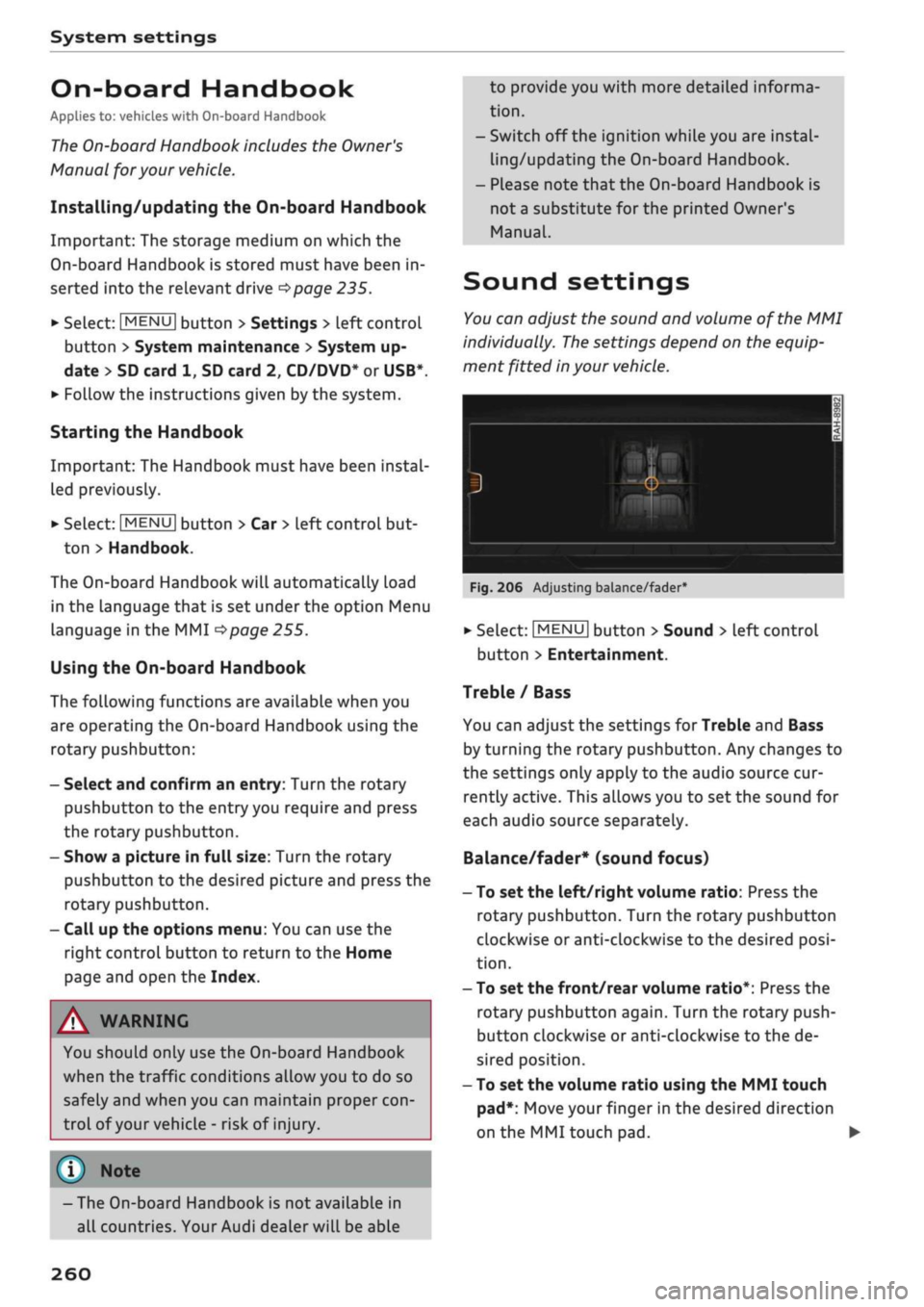
Fig.
206 Adjusting balance/fader
•
Select:
|MENU[
button > Sound > Left control
button > Entertainment.
Treble / Bass
You can adjust the settings for Treble and Bass
by turning the rotary pushbutton. Any changes to
the settings only apply to the audio source cur
rently active. This allows you to set the sound for
each audio source separately.
Balance/fader* (sound focus)
- To set the left/right volume ratio: Press the
rotary pushbutton. Turn the rotary pushbutton
clockwise or anti-clockwise to the desired
posi
tion.
- To set the front/rear volume ratio*: Press the
rotary pushbutton again. Turn the rotary push
button clockwise or anti-clockwise to the de
sired position.
- To set the volume ratio using the MMI touch
pad*:
Move your finger in the desired direction
on the MMI touch pad. •
260
Page 266 of 364
System settings
Volume of announcements: You can adjust the
volume of traffic announcements by turning the
rotary pushbutton.
Speech dialogue system
Applies
to: vehicles with speech dialogue system
Command display: Refer to
<=>page
256.
Short dialogue: Refer to
^>page
256.
Volume: Refer to
^>page
256.
Individual speech training: Refer to
^>page
256.
Parking
aid*
You can adjust the volume of the sounds by
turn
ing the rotary pushbutton.
- To adjust the front volume: Select and confirm
high,
medium or low.
- To adjust the rear volume: Select and confirm
high,
medium or low.
MMI touch*
You can adjust the volume of the MMI touch*
spoken cues by turning the rotary pushbutton.
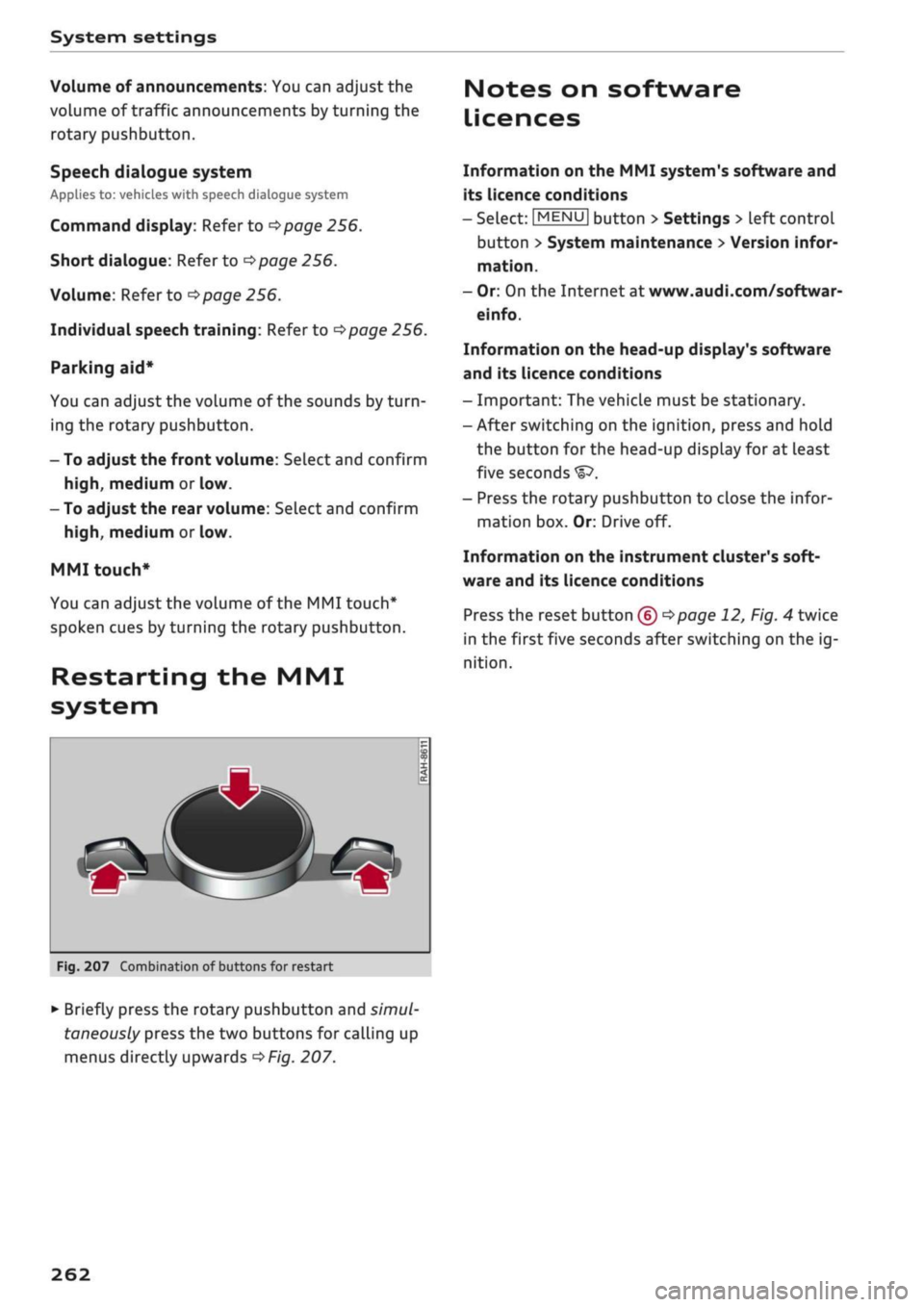
Restarting the MMI
system
_
Fig.
207 Combination of buttons for restart
•
Briefly press the rotary pushbutton and
simul
taneously press the two buttons for calling up
menus directly upwards
^>Fig.
207.
Notes on software
Licences
Information on the MMI system's software and
its licence conditions
- Select:
|MENU|
button > Settings > left control
button > System maintenance
>
Version infor
mation.
- Or: On the Internet at www.audi.com/softwar-
einfo.
Information on the head-up display's software
and its licence conditions
- Important: The vehicLe must be stationary.
- After switching on the ignition, press and hold
the button for the head-up display for at least
five seconds
- Press the rotary pushbutton to close the infor
mation box. Or: Drive off.
Information on the instrument cluster's soft
ware and its licence conditions
Press the reset button
(£) ^>page
12, Fig. 4 twice
in the first five seconds after switching on the ig
nition.
262
Page 285 of 364

Airbag system
Airbag system
Description of airbag
system
General notes on airbag system
The airbag is an integral part of the car's passive
safety system.
In conjunction with the three-point seat belts,
the airbag system gives the front occupants
addi
tional protection for the head and chest in the
event of a severe frontal collision.
In a severe side collision the side airbags and the
head-protection airbags reduce the risk of injury
to the occupants
•=>
A-
In addition to their normal function of protecting
the occupants in a collision, the seat belts also
hold them in a position where the airbags can in
flate properly and provide maximum protection.
The airbag system will only work with the
igni
tion on. The airbag system is monitored electron
ically; the airbag warning lamp indicates whether
the system is functioning properly.
The main parts of the airbag system are:
-The electronic monitoring system (control unit
and sensors)
- The two front airbags
- The front side airbags
-The head-protection airbags
- The indicator Lamp
Q
in the instrument cluster
There is a fault in the airbag system if the
warning lamp
- does not come on when the ignition is switched
on.
- does not go out about 4 seconds after the
igni
tion is switched on.
- goes out and then comes on again after the ig
nition is switched on.
- comes on or flickers while the car is moving.
CO
< o rN
iv
rN
t-H
o <
A WARNING
- The airbags are not a substitute for the seat
belts;
they are an integral part of the car's
overall passive safety system. The airbags
can only offer effective protection if the oc
cupants are wearing their seat belts. For
this reason it is very important to wear the
seat belts at all times
^>page
275, Why is it
so important to use seat belts?.
The seat belts and airbags can only provide
maximum protection if the occupants are
seated correctly
^>page
58, Front seats.
•
If you do not wear a seat belt, if you lean
forward,
or are not seated correctly while
the vehicle is in motion, you are at greater
risk of injury should the airbag system be
triggered in an accident.
Components of the airbag system are loca
ted in various parts of the vehicLe. If repairs
to other vehicle components make it neces
sary to perform work on the airbag system
or to remove or install parts of the airbag
system,
this may cause damage to the air-
bag system. As a result, the airbags may not
inflate correctly or may not be triggered at
all in an accident situation. For this reason,
you should always have the work carried out
by a qualified workshop.
If a fault should occur in the airbag system,
have the system checked immediately by a
qualified workshop. Otherwise the system
may fail to trigger in an accident.
Do not attempt to modify components of
the airbag system in
anyway.
Never make any alterations to the front
bumper
or
the body.
Do not remove the front seats.
The airbag system can only be activated
once;
if the airbag has been triggered, the
system must be replaced. Should the airbag
system or airbag modules have to be re
placed,
the qualified workshop carrying out
the replacement will document all details.
•
If any repair work is required
or
the airbag
and restraint systems have to be replaced,
have the work carried out by your authorised
Audi dealer or a qualified workshop which
adheres to the Audi factory standards. This
will minimise the risk of injury.
If you sell the vehicle, remember to pass on
the complete Service Wallet to the new
owner. If any of the airbags have been
281
Page 292 of 364
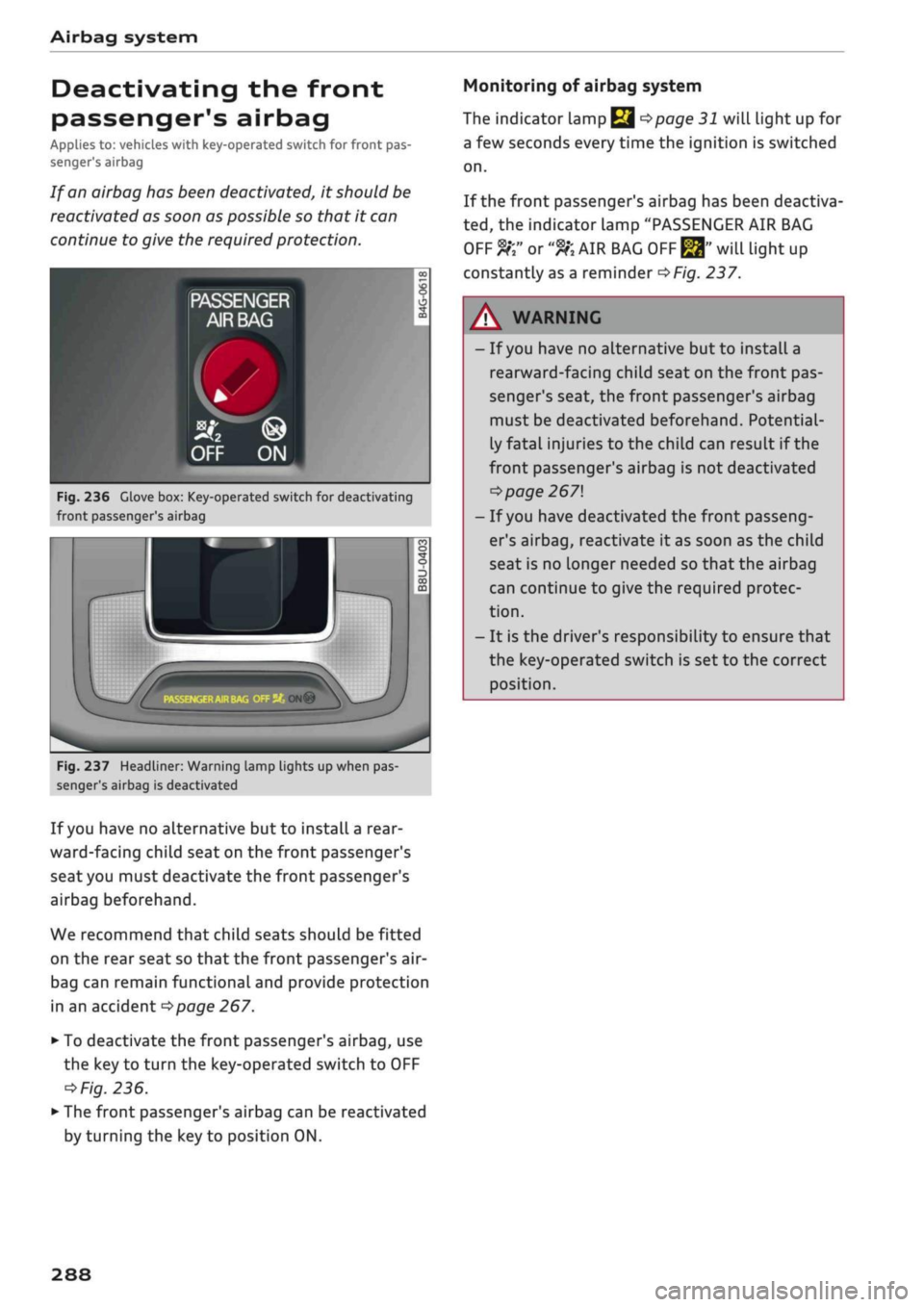
Airbag system
Deactivating the front
passenger's airbag
Applies to: vehicles with key-operated switch for front pas
senger's airbag
If
an
airbag has been deactivated, it should be
reactivated as soon as possible so that it can
continue to give the required protection.
••
-,
CG
^
Fig.
236 Glove box: Key-operated switch for deactivating
front passenger's airbag
r
;•••;
:
m
^
hu
ON®
Fig.
237 Headliner: Warning lamp lights up when pas
senger's airbag is deactivated
If
you
have no alternative but to install
a
rear
ward-facing child seat on the front passenger's
seat you must deactivate the front passenger's
airbag beforehand.
We recommend that child seats should be fitted
on the rear seat so that the front passenger's air-
bag can remain functional and provide protection
in an accident
^>page
267.
•
To deactivate the front passenger's airbag, use
the key to turn the key-operated switch to OFF
=*
Fig.
236.
•
The front passenger's airbag can be reactivated
by turning the key to position ON.
Monitoring of airbag system
The indicator Lamp
Q ^>page
31 will light up for
a few seconds every time the ignition is switched
on.
If the front passenger's airbag has been deactiva
ted,
the indicator Lamp "PASSENGER AIR BAG
OFF ft" or
"9K
AIR BAG
OFF ^"
will light up
constantly as a reminder
^>Fig.
237.
A WARNING
- If
you
have no alternative but to install a
rearward-facing child seat on the front pas
senger's seat, the front passenger's airbag
must be deactivated beforehand. Potential
ly fatal injuries to the child can result if the
front passenger's airbag is not deactivated
•=>
page 267
- If
you
have deactivated the front passeng
er's airbag, reactivate it as soon as the child
seat is no longer needed so that the airbag
can continue to give the required protec
tion.
- It is the driver's responsibility to ensure that
the key-operated switch is set to the correct
position.
288
Page 295 of 364

Checking and topping up fluids
CO
<
O
rN
IV
rN
t-H
o <
- Make sure you never spill fuel in the
vehi
cle or in the luggage compartment. Fuel
vapour is explosive - danger to life!
© Note
(7) CAUTION
- If any fuel is spilt onto the vehicle, it should
be removed immediately as it could other
wise damage the paintwork.
- Never run the tank completely dry. If there
is an irregular fuel supply, misfiring can oc
cur. As a result unburnt fuel can enter the
exhaust system and cause damage to the
catalytic converter(s).
- Applies to vehicles with diesel engine: When
filling the fuel tank after having run it com
pletely dry, the ignition must be switched
on for at least 30 seconds before the engine
is started. When you then start the engine it
may take longer than normal (up to one mi
nute) for the engine to start firing. This is
because air needs to be bled from the fuel
system while starting.
® For the sake of the envir
Do not try to put in more fuel after the auto
matic filler nozzle has switched off; this may
cause the fuel to overflow if it becomes warm.
(T)
Note
Applies to: vehicles with diesel engine
Diesel vehicles are equipped with an incorrect
fuelling protection
system1).
This system en
sures that the tank can only be fuelled from a
diesel filler nozzle.
- If the filler nozzle is old, damaged or too
small,
it may not be able to open the pro
tection mechanism on the fuel tank. In this
case,
try turning the filler nozzle before in
serting it in the fuel filler neck, use a differ
ent filling pump or seek professional assis
tance.
- The protection mechanism will not open if
you try to add fuel from a spare fuel canis
ter. You can get round this simply by adding
the diesel fuel slowly.
1)
May vary in different countries
The tank flap is not locked when you lock the
vehicle from the inside.
Releasing the tank flap manually
The
tank flap can be released manually if the
central locking system should fail to operate.
Fig.
240 Luggage compartment (rear right): Manual re
lease under luggage compartment floor
The manual release mechanism is located under
the floor panel in the side trim on the right of the
luggage compartment.
•
Lift up the floor panel until it is fixed in position
behind the retaining tabs on the two side sec
tions
•=>
page 319.
• Take the screwdriver out of the vehicle tooL kit
^>page
319. Use the flat-blade side of the re
versible insert.
•
Use the screwdriver to prise off the cover
(l)
and remove
it(|).
• Release the ring from its holder and carefully
pull the ring
(S)
-arrow-
•=>([)•
The tank flap is
then released.
•
Press the left side of the tank flap to open it
•=>
page 290, Fig. 238.
© CAUTION
Stop pulling the ring when you feel resistance
at the ring/cover (the release mechanism is
not audible). Otherwise, you could damage
the manual release mechanism.
291