ignition AUDI Q2 2021 Owner´s Manual
[x] Cancel search | Manufacturer: AUDI, Model Year: 2021, Model line: Q2, Model: AUDI Q2 2021Pages: 364, PDF Size: 87.77 MB
Page 131 of 364

Driver assist systems
CO
rN
r>
rN
•-i
00
- In certain situations, the system may not
function properly, or the functionality of the
system may be restricted. For example:
- If other vehicles are approaching very
quickly, or if
you
are overtaking other
vehicles quickly. The warning lamp may
not light up
intime.
- In poor weather conditions, such as heavy
rain,
snow or road spray.
- If
you
are travelling in very wide lanes, in
tight bends or over crests. The system
may not detect vehicles in the adjacent
lane because they are outside the area
covered by the sensors.
© CAUTION
Impacts or damage to the bumper, wheel
arches or underbody can cause misalignment
of the sensors. This can impair the functional
ity of the system. Have the systems checked
by
a
qualified workshop.
The warning lamps on the exterior mirrors
may not be properly visible if tinted foil is af
fixed to the side windows on the driver's or
passenger's side.
Switching on/off
Applies to: vehicles with Audi side assist
The
system can be switched on and off
on
the in
fotainment system.
The warning Lamps in the exterior mirrors light
up briefly each time the ignition is switched on to
indicate that the system is activated.
•
Select the following on the infotainment sys
tem:
|MENU|
button > Car
>
left control button
> Driver assist
>
Audi side assist. SeLect off to
switch off the system.
Adjusting brightness of warning lamp
Applies to: vehicles with Audi side assist
The
brightness of the warning lamp can be ad
justed on the infotainment system.
•
Select the following on the infotainment sys
tem:
|MENU|
button > Car
>
left controL button
> Driver assist
>
Audi side assist.
The brightness of the warning lamp in both the
information and warning modes is regulated au
tomatically according to the ambient Light Level.
If
you
are in very dark
or
very Light surroundings
when you adjust the brightness of the warning
lamp,
the automatic brightness control may al
ready have reached the lowest or the brightest
setting.
In such a case it is possible
that
you
won't notice a difference while you are adjusting
the brightness or that you will only notice it once
the light surroundings have changed.
Please adjust the brightness of the warning lamp
for the information mode so that it does not dis
tract you while you are looking at the road in
front. When you change the brightness, the
warning lamp on the exterior mirror will light up
briefly with the intensity set for the information
mode.
The intensity of the lamp in the warning
mode is Linked to the intensity in the information
mode and is adjusted automatically.
© Note
- The side assist is not active while the set
tings are being adjusted.
- Your personal settings are stored automati
cally and assigned to the remote control key
which is being used.
129
Page 138 of 364
Parking aids
comes
closer than before, the tone will sound
again.
If the tone is muted and the obstacLe is
further away than before, no tone will sound.
Please watch the area surrounding the vehicle
when driving off.
©
Zone
(§)*
is detected and analysed as the
vehi
cLe is moving past. When you switch the
igni
tion off and on again or open the door, or af
ter the vehicle has been stationary for
a
while,
the ambient surroundings may have changed.
Zone
0*
is displayed in black on the infotain
ment display for this reason.
Switching on/off
Applies to: vehicles with parking system plus/park assist
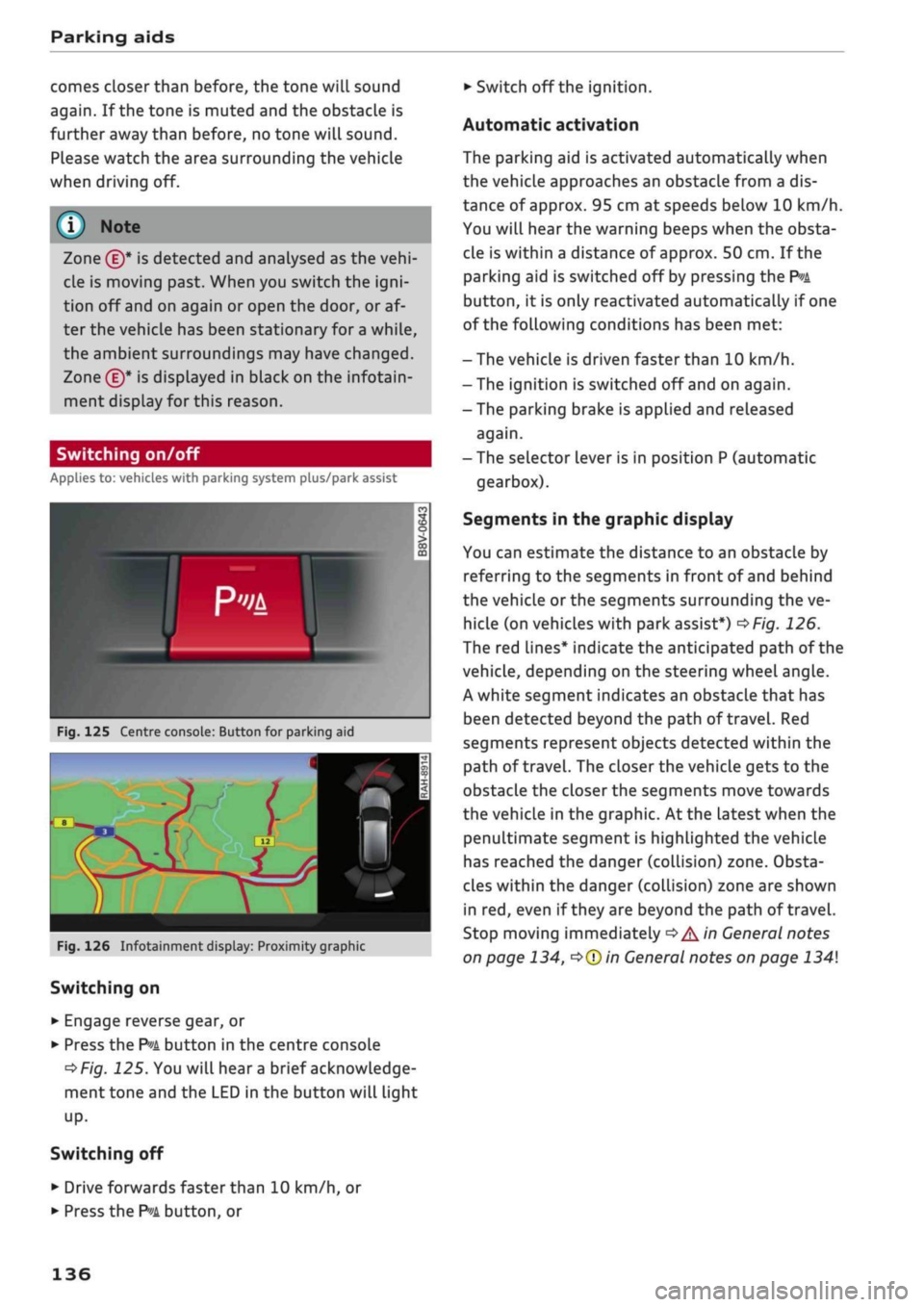
Fig.
125 Centre console: Button for parking aid
^H i m
1 •rif/^^^y^H <
12|
1 )
'.•;"
•BiHiSi
-
Fig.
126 Infotainment display: Proximity graphic
Switching on
•
Engage reverse gear, or
•
Press the
P»i
button in the centre console
^>Fig.
125. You will hear
a
brief acknowledge
ment tone and the LED in the button will light
up-
Switching
off
• Drive forwards faster than 10 km/h, or
*•
Press the
?">k
button, or
•
Switch off the ignition.
Automatic activation
The parking aid is activated automatically when
the vehicLe approaches an obstacLe from a dis
tance of approx. 95 cm at speeds below 10 km/h.
You will hear the warning beeps when the obsta
cle is within a distance of approx. 50 cm. If the
parking aid is switched off by pressing the
P*A
button,
it is only reactivated automatically if one
of the following conditions has been met:
- The vehicle is driven faster than 10 km/h.
- The ignition is switched off and on again.
-The parking brake is applied and released
again.
- The selector lever is in position P (automatic
gearbox).
Segments in the graphic display
You can estimate the distance to an obstacle by
referring to the segments in front of and behind
the vehicLe or the segments surrounding the ve
hicle (on
vehicLes
with park assist*)
^>Fig.
126.
The red lines* indicate the anticipated path of the
vehicle, depending on the steering wheel angle.
A white segment indicates an obstacle that has
been detected beyond the path of
travel.
Red
segments represent objects detected within the
path of
travel.
The closer the vehicle gets to the
obstacLe the closer the segments move towards
the vehicLe in the graphic. At the Latest when the
penultimate segment is highlighted the vehicle
has reached the danger (collision) zone. Obsta
cles within the danger (collision) zone are shown
in red, even if
they
are beyond the path of travel.
Stop moving immediately
•=>
A in General notes
on page 134,
•=>©
in General notes on page 134
136
Page 140 of 364
Parking aids
© CAUTIO
- Please observe the safety warnings
o©
in
General notes on page 134.
-The orange orientation lines on the infotain
ment display show the path of the rear end
of the vehicle if
you
were to reverse using
the current steering angle. Please note that
the front end of the vehicle swings out fur
ther than the rear. Please make sure you
keep a sufficient distance between the
vehi
cle and any obstacles to make sure that the
exterior mirror or edge of the vehicle do not
collide with the obstacles.
Switching on/off
Applies to: vehicles with reversing camera
Switching on
•
Engage reverse gear, or
•
Press the
P*A
button in the centre console
^>page
136, Fig. 125. You will hear
a
brief ac
knowledgement tone and the LED in the button
will Light up.
Switching off
•
Drive forwards faster than 10 km/h, or
•
Press the
P-A
button, or
•
Switch off the ignition.
-The graphic on the right of the display helps
identify the critical area of the vehicle.
- You can change the display and adjust the
volume of the beeps
^page
143.
Parking perpendicular to the roadside
Applies to: vehicles with reversing camera
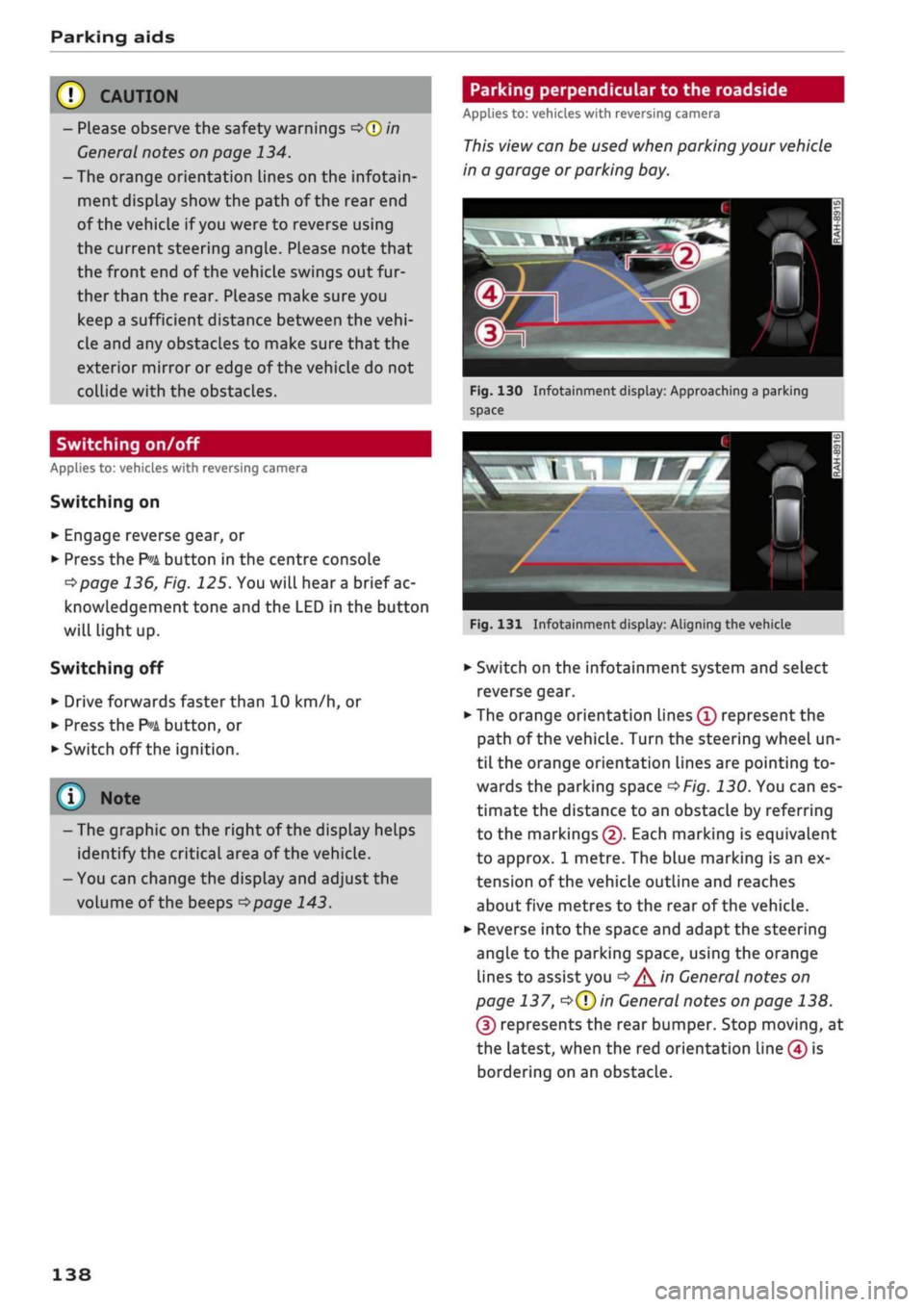
This view can be used when parking your vehicle
in a garage or parking bay.
Fig.
130 Infotainment display: Approaching a parking
space
Fig.
131 Infotainment display: Aligning the vehicle
•
Switch on the infotainment system and select
reverse gear.
•
The orange orientation lines
(Ï)
represent the
path of the vehicle. Turn the steering wheel un
til the orange orientation lines are pointing to
wards the parking space
^>Fig.
130. You can es
timate the distance to an obstacLe by referring
to the markings
(2).
Each marking is equivalent
to approx. 1 metre. The blue marking is an ex
tension of the vehicle outline and reaches
about five metres to the rear of the vehicle.
•
Reverse into the space and adapt the steering
angle to the parking space, using the orange
lines to assist you
^>^in
General notes on
page 137,
*=>(T)in
General notes on page 138.
(3) represents the rear bumper. Stop moving, at
the latest, when the red orientation Line (4) is
bordering on an obstacle.
138
Page 145 of 364

Parking aids
CO
<
o
rN
iv
rN
t-H
o
< 00
Park assist: currently unavailable. Continue
steering vehicle!
The park assist cannot be used to park the
vehi
cle.
Try repeating the parking manoeuvre or
switching the ignition off and on again.
3 Park assist: ended. Please take over steering
and continue driving
The park assist has finished manoeuvring the ve
hicle out of the parking space. Please take over
the steering.
Park assist: cancelled. Space too small. Con
tinue steering vehicle!
The park assist cannot be used to park the vehicle
in this space. Park the vehicle without using the
park assist or look for a bigger space.
Park assist: cancelled. Obstacle detected.
Please take over steering.
The park assist has interrupted the parking ma
noeuvre to avoid a collision between the vehicle
and an obstacLe.
Park assist: ended
3 Park assist: ended. Please take over steer
ing.
The park assist has finished the parking manoeu
vre.
Park assist: stabilisation control (ESC) input
The parking space indicated has been rejected be
cause the ESC has intervened.
Park assist: currently unavailable. Towing
mode
The park assist cannot be used to park the vehicle
when towing a trailer.
1
Park assist: not stopped long enough
After you select reverse gear, the vehicle has to
remain stationary for
a
moment so that the park
assist can activate the steering. Follow the direc
tions given in the display.
3
Park assist: cancelled. Assist function un
available for leaving parking space. Space too
small
The assist function is unable to automatically
steer the vehicle out of the parking space be
cause the space is too small. Manoeuvre the
vehi
cle out of the parking space without using the
park assist.
Park assist: cancelled. Continue steering ve
hicle!
The park assist has interrupted the parking ma
noeuvre.
Settings for parking aid
Applies
to: vehicles with rear parking aid/parking system
plus/reversing
camera/park assist
You
can change the settings for these functions
on the infotainment system.
•
Select the following on the infotainment sys
tem:
|MENU[
button > Car
>
left control button
> Driver assist
>
Parking aid. Or:
•
Select the right control button* on the infotain
ment system when the parking aid is activated.
End*
- To cancel the parking aid
Activate automatically - To switch automatic ac
tivation on/off
Front volume* - Volume for the front and side*
zones
Rear volume - Volume for the rear zone
In-car
entertainment fader - The volume of the
current audio or video source is reduced when the
parking aid is switched on.
You will hear
a
short test tone each time you
make a new setting.
Trailer view* - To display the trailer view
- Some of the menus can only be called up via
the right control button when the parking
aid is activated.
- The volume and automatic activation set
tings are automatically stored and assigned
to the remote control key in use.
143
Page 151 of 364
Intelligent technology
the standard tyres. Nevertheless, we still recom
mend that winter tyres or all-season tyres should
be fitted on all four wheels when winter road
conditions are expected, mainly because this will
give a better braking response.
Snow chains
On roads where snow chains are mandatory, this
also applies to cars with four-wheel drive
Opcrge
309, Snow chains.
Replacing tyres
On vehicles with four-wheel drive, all four tyres
must have the same rolling circumference. Also
avoid using tyres with varying tread depths
tapage
305,
New wheels or tyres.
Off-roader?
Some models do not have enough ground clear
ance to be used on rough tracks and uneven ter
rain,
so it is best to avoid off-road driving.
A WARNING
- Even with four-wheel drive, you should al
ways adjust your speed to suit the condi
tions.
Do not let the extra safety provided
tempt you into taking any risks when driving
- this can cause accidents.
- The braking ability of your car is limited by
the grip of the tyres. In this respect, your
car is no different from a car without four-
wheel drive. So do not be tempted to drive
too fast on icy or slippery roads just because
the car still has good acceleration in these
conditions - risk of accident!
- On wet roads bear in mind that the front
wheels may start to "aquaplane" and lose
contact with the road if the car is driven too
fast. If this should happen, there will be no
sudden increase in engine speed to warn the
driver, as with a front-wheel drive car. So do
not drive too fast in the wet: adjust your
speed to suit the conditions (accident risk).
CO
rN
IV
rN
•-i
00
Power management
This system helps to ensure reliable
starting
The
power management controls the distribu
tion of electrical energy and thus helps to ensure
that there is always enough power available to
start the engine.
If
a
vehicle with a conventional electrical system
is left parked for
a
long time, the vehicle battery
will gradually lose its charge because certain
electrical equipment (such as the immobiliser)
continues to draw current even when the ignition
is off. In some cases there may not be enough
power available to start the engine.
Your vehicLe is equipped with an intelligent pow
er management system to control the distribu
tion of electrical energy. This significantly im
proves reliability when starting the engine, and
also prolongs the life of the vehicle battery.
The main functions incorporated in the power
management system are battery diagnosis, re
sidual current management and dynamic power
management.
Battery diagnosis
The battery diagnosis function constantly regis
ters the condition of the vehicle battery. Sensors
detect the battery voltage, battery current and
battery temperature. This enables the system to
calculate the current power level and charge
con
dition of the vehicle battery.
Residual current management
The residual current management reduces power
consumption while the vehicle is parked. It
con
trols the supply of power to the various electrical
components while the ignition is switched off.
The system takes the battery diagnosis data into
consideration.
Depending on the power Level of the vehicle bat
tery, the individual electrical components are
switched off one after the other to prevent the
vehicle battery from losing too much charge and
to ensure that the engine can be started reliably. •
149
Page 152 of 364
Intelligent technology
Dynamic power management
While the vehicle is moving, this function distrib
utes the available power to the various electrical
components and systems according to their re
quirements. It ensures that on-board systems do
not consume more electrical power than is being
generated,
and thus maintains the maximum
possible vehicle battery power level.
® Note
- The power management system is not able
to overcome the given physical limits.
Please remember that the power and life of
the vehicle battery are limited.
- If the indicator lamp
|3 ^page
31 appears,
the starting ability may be impaired.
Starting ability has first priority.
Short trips, city traffic and low temperatures all
place a heavy load on the vehicLe battery. In
these conditions a large amount of power is
con
sumed,
but only
a
small amount is supplied. The
situation is also critical if electrical equipment is
in use when the engine is not running. In this
case power is consumed when none is being
gen
erated.
In these situations you will be aware that the
power management system is intervening to
con
trol the distribution of electrical power.
When the vehicle is parked for long periods
If
you
do not drive your vehicle for a period of
several days or weeks, the power management
will gradually shut off the on-board systems one
by one, or reduce the amount of current they are
using.
This limits the amount of power consumed
and helps to ensure reliable starting even after a
long period. Certain convenience features, such
as remote controL unlocking, may not be availa
ble.
These functions will be restored when you
switch on the ignition and start the engine.
150
With the engine switched off
If
you
listen to the radio or use the other info
tainment functions when the engine is not
run
ning,
this will discharge the vehicle battery.
The infotainment display will show a warning
message before the battery power drops to a Lev
el where the starting ability is impaired. This
message warns you that the system you are using
will soon be switched off automatically. You
should therefore start the engine if
you
wish to
continue using the system.
When the engine is running
Although the alternator generates electrical
power, the vehicle battery can still become dis
charged while the vehicle is being driven. This can
occur when a lot of power is being consumed but
only
a
small amount supplied, especially if the
vehicle battery is not fully charged initially.
To restore the necessary energy balance, the sys
tem
will
then temporarily shut off the electrical
components that are using a lot of power, or re
duce the current they are consuming. Heating
systems in particular use a Large amount of elec
trical power. If
you
notice, for instance, that the
seat heating* or the rear window heater is not
working,
they may have been temporarily switch
ed off or regulated to a lower heat output. These
systems will be available again as soon as
suffi
cient electrical power is available.
You may also notice that the engine runs at a
slightly faster idling speed. This is quite normal,
and no cause for concern. The increased idling
speed allows the alternator to meet the greater
power requirement and charge the vehicLe bat
tery at the same time.
Information saved in the
control units
The vehicle is fitted in the factory with electronic
control units that, among other things, control
the engine and the gearbox. The controL units al
so monitor the exhaust system and the airbags.
The control units continually analyse data rele
vant to the vehicLe while you are driving. In the •
Page 154 of 364
Multi
Media Interface
Multi
Media Interface
Notes on traffic safety
You should only use certain infotainment system
functions, e.g.
entera
navigation destination,
while the vehicle is stationary. Always be pre
pared to stop operating the infotainment system
in the interest of your own safety and that of
oth
er road users.
A WARNING
Only operate the infotainment system when
the traffic conditions allow you to do so safely
and when you can maintain proper control of
your vehicLe - risk of accident!
(T)
Note
Certain functions are not available while the
vehicle is in motion.
Introduction
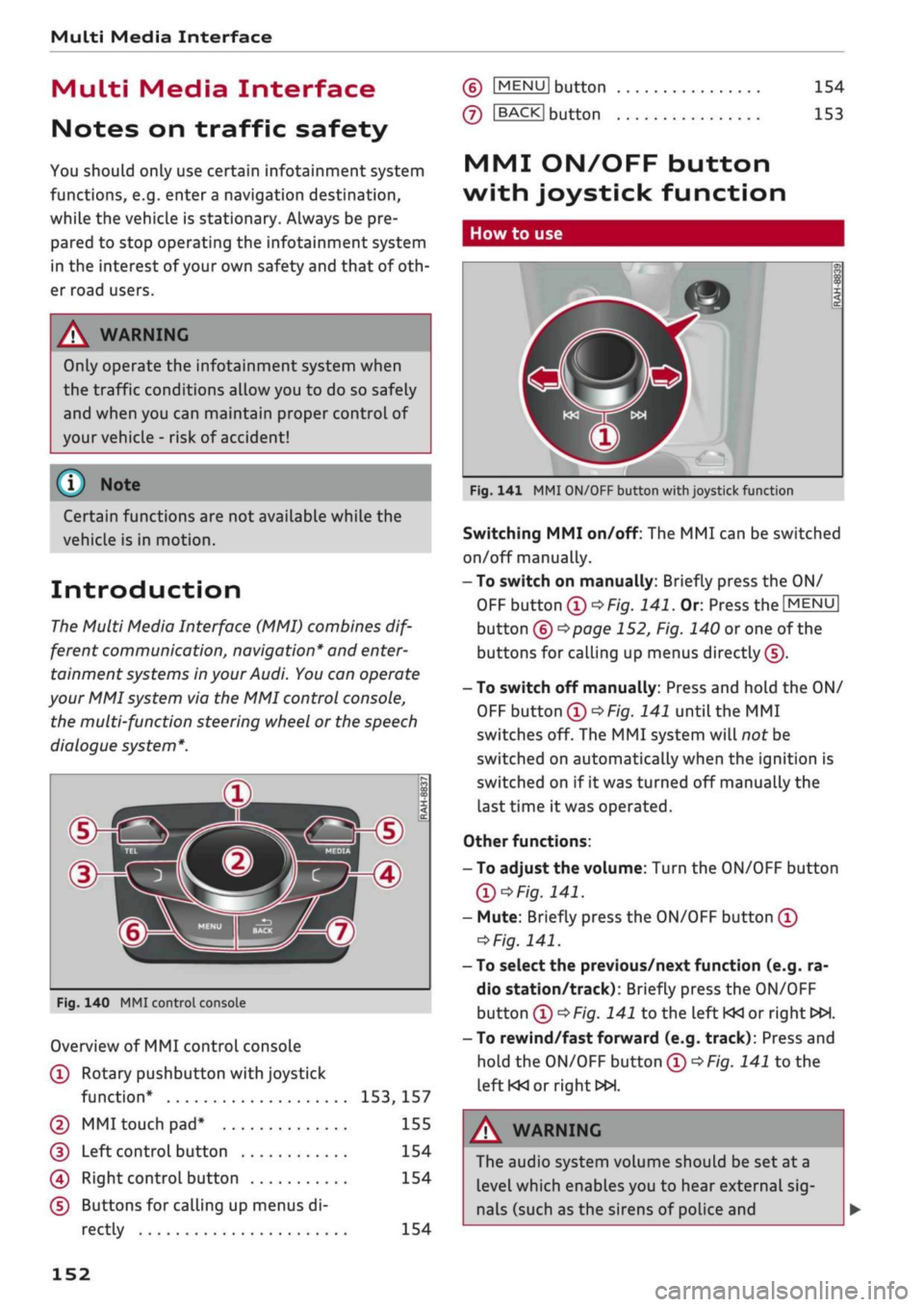
The Multi Media Interface (MMI) combines
dif
ferent communication, navigation* and
enter
tainment systems in your Audi. You can operate
your MMI system via the MMI control console,
the multi-function steering wheel or the speech
dialogue system*.
d>^3
ZLMH®
Fig.
140 MMI control console
Overview of MMI control console
(T)
Rotary pushbutton with joystick
function*
153,
157
© MMI touch
pad*
155
(D
Left controL button 154
0
Right control button 154
(D Buttons for calling up menus di
rectly 154
(6)
IMENU1
button
(7)
IBACKI
button
154
153
MMI ON/OFF button
with joystick function
How to use
Fig.
141 MMI ON/OFF button with joystick function
Switching MMI on/off: The MMI can be switched
on/off manually.
-To switch on manually: Briefly press the ON/
OFF
button
(D^F/g.
141.
Or. Press the
[MENU]
button (6)
^>page
152, Fig. 140 or one of the
buttons for calling up menus directly (J).
- To switch off manually: Press and hold the ON/
OFF
button
®^>F/g.
141 until the MMI
switches off. The MMI system will not be
switched on automatically when the ignition is
switched on if it was turned off manually the
last time it was operated.
Other functions:
- To adjust the volume: Turn the ON/OFF button
Ql^Fig.
141.
- Mute: Briefly press the ON/OFF button
(Î)
*Fig.
141.
- To select the previous/next function (e.g. ra
dio station/track): Briefly press the ON/OFF
button
(i)t>Fig.
141 to the left KM or right
WH.
-To rewind/fast forward (e.g. track): Press and
hold the ON/OFF button
(T)^Fig.
141 to the
left KM
or right»!.
A WARNING
The audio system volume should be set at a
level which enables you to hear external
sig
nals (such as the sirens of police and
152
Page 166 of 364
Speech dialogue system
Speech dialogue system
How to use the speech
dialogue system
Applies to: vehicles with speech dialogue system
You
can operate many infotainment functions
conveniently by voice.
Important: The ignition and the MMI system
must be switched on
^>page
152, you must not
be talking on the phone, and the parking aid
must not be active.
•
To switch on: Briefly press the
0
button (J)
^>page
17, Fig. 12/(3)
^>page
18, Fig. 14 on
the multi-function steering wheel and give a
spoken command after the beep signal.
*•
To switch off: Press and hold the
0
button for
several seconds. Or: Press the
0
button.
•
To pause: Say the command Pause. To end the
pause,
press the
S
button.
•
To make a correction: Say the command Cor
rection.
Input help
The system guides you through the input routine
with cues and messages.
- Input help messages on screen: After the
speech dialogue system is switched on, a selec
tion of possible commands will be shown. The
command display can be switched on or off as
required.
Select:
|MENU|
button
>
Settings >
left control button > MMI settings
>
Speech
dialogue system.
- Spoken input help
cues:
To have the system
play the commands currently possible, switch
on the speech dialogue system and say Help.
How to help the system understand you
Speak clearly in a normal volume. Speak louder if
you are driving fast.
Speak in a normal tone without long pauses.
Close doors, windows and sun roof* to reduce
background noise. Make sure that passengers are
not talking when you say a command.
Keep the air outlets of the air distribution system
pointed away from the microphone, which is fit
ted in the vicinity of the front interior lights in
the headliner.
The system should only be operated by the driv
er, since the handsfree microphone is directed
towards the driver.
Other settings
Refer to
^>page
262.
© No
-The dialogue is paused when an incoming
telephone call is received; you can continue
the dialogue by ignoring the
call.
If
you
an
swer the
call,
the dialogue will be cancelled.
- No navigation cues* or traffic announce
ments are played when a dialogue is
run
ning.
- You can select an entry from a list both via
the speech dialogue system and using the
rotary pushbutton.
- The speech dialogue system does not sup
port commands in Arabic, Norwegian or
Hungarian.
Notes on the overviews
of commands
Applies to: vehicles with speech dialogue system
The following overviews show you the commands
that you can give to operate the MMI via the
speech dialogue system. •
A WARNING
- Please direct your full attention to the road
at all times! As the driver, you have full re
sponsibility for the safety of the vehicle and
other road users.
For
this reason, you should
only use the functions in a manner that al
lows you to maintain control of the vehicle
in all situations - accident risk!
- The speech dialogue system must not be
used in cases of emergency, since the voice
changes in stressful situations. This could
result in a failed or delayed telephone
con
nection.
Always dial emergency numbers
manually!
164
Page 173 of 364
Speech dialogue system
CO
â
rN
IN
rN
•-i
•H
00
The ignition and the MMI system must be switch
ed on.
You must not be speaking on the phone.
The parking aid and the Audi speech dialogue sys
tem must not be active.
A mobile phone must be connected to the MMI
system via the Handsfree profile
Opage
173.
The mobile phone connected must feature a
speech dialogue function that can be controlled
externally.
•
To switch
on:
Press and hold the
S
button on
the multi-function steering wheel* and give a
spoken command after the external speech dia
logue system has been activated.
•
To continue/restart a dialogue: After
a
dia
logue has been ended, the system remains ac
tive for
a
short period during which you can
start a new external dialogue at any time. If
necessary, press
the S
button and say a new
command.
Or: SeLect and confirm Continue on
the MMI control console.
•
To switch off: Press and hold the
\2*\
button for
several seconds. Or: Select and confirm Cancel
on the MMI control console.
© Note
- No navigation cues* or traffic announce
ments* are played when a dialogue is active.
-Thisfunction
depends on the mobile phone
you are using. For further information re
garding your mobile phone, contact your
mobile network service provider or refer to
the operating instructions
for
your mobile
phone.
- AUDI AG only enables you to access your
mobile phone's speech dialogue system and
accepts no responsibility for the content
and commands of the external speech dia
logue system.
171
Page 175 of 364

Telephone
- We recommend using the vehicle's Wi-Fi
hotspot* when the car phone* is in use so
that
your mobile phone's apps retain access
to the Internet.
- When the car phone function* is active, Audi
connect (infotainment)* is only available us
ing
your
own SIM card
^>page
191.
Setting up
Connecting a mobile phone via Bluetooth
Applies
to: vehicles with telephone
Does
this PIN match the PIN on your
Bluetooth
device?
967536
Fig.
159
PIN display for entry on mobile phone
Important
The vehicle must be stationary, and the ignition
must be switched on.
The Bluetooth function and the discoverability
option of the MMI system
Opcge
258 and the
mobile phone must be activated.
The mobile phone you would like to connect must
not be connected to any other Bluetooth device.
The MMI must not be connected to a mobile
phone.
A mini SIM card must not be inserted in the SIM
card reader*.
Connecting a mobile phone
•
Select: |MENU| button
>
Telephone
>
Connect
mobile phone
>
Find new devices > Continue.
The available Bluetooth devices will be shown
on the infotainment display. Or: Select:
|MENU|
button > Settings > left control button > MMI
settings > Connection manager
^>page
257.
•
Select and confirm the desired mobile phone
from the list of Bluetooth devices shown.
• The MMI will generate a PIN for the connection
*Fig.
159.
•
Select and confirm Yes.
•
Enter the PIN to establish a connection on your
mobiLe phone. Or: If the PIN is already being
displayed on your mobile phone, confirm it on
the phone and on the MMI. You have about 30
seconds to enter the PIN.
•
You may need to enter the PIN for your SIM
card
intheMMl".
•
Please note any additional system queries on
your mobiLe phone, e.g. whether the phone
should connect automatically in the future. On
some mobiLe phones, you may also need to
download the directory and allow access to
your messages separately.
After connecting successfully
After the connection has been established suc
cessfully, you will be shown a short message
con
taining information on the profiles used to estab
lish the connection. You can also change the pro
files afterwards. Select: |MENU| button > Set
tings > left control button > MMI settings
>
Con
nection manager
<=$page
257.
In addition, the contacts on the mobile phone are
automatically loaded into the directory of the
MMI.
This may take several minutes, depending
on how many contacts are stored on the mobile
phone.
Applies
to: vehicles with Audi connect (infotainment)
•
If
you
have successfully connected your mobile
phone via the Bluetooth remote SIM Access
Profile, you can use either the embedded SIM
card
2)
or your own SIM card to use Audi
con
nect infotainment services.
•
Confirm the system query with either Yes or
No.
For more information on Audi connect (in
fotainment), please refer to
^>page
191.
*•
Yes:
All data connections for all Audi connect
infotainment services will be established by a
CO
<
o
rN
IN
rN
t-H
o
<
-1'
Not available in all markets. Applies to mobile phones
with
Bluetooth remote SIM Access Profile on vehicles with
Audi
connect (infotainment)* and Audi phone box*.
2)
SIM card installed in vehicle at factory.
173