ignition AUDI Q2 2021 Owner´s Manual
[x] Cancel search | Manufacturer: AUDI, Model Year: 2021, Model line: Q2, Model: AUDI Q2 2021Pages: 364, PDF Size: 87.77 MB
Page 176 of 364

Telephone
mobile network provider via the embedded SIM
card1)
^page
191. Your mobile phone will be
connected via Handsfree only
^>page
172, and
you will not be able to use the car telephone
function*
^>page
172.
•
No: All data connections for all Audi connect in
fotainment services will use your own SIM
card.
All connections via the embedded SIM
card1*
will be disconnected, and you will be able to
use the car telephone function*
^>page
172.
You can now use Audi connect infotainment serv
ices.
Applies to: vehicles with Audi connect (infotainment)
•
You can configure your vehicle's mobiLe Wi-Fi
hotspot*2)
and the Audi connect infotainment
services* immediately after connecting an
rSAP-enabled
mobile phone
^page
191. Or:
Select [TÊT]
button > right control button >
Connection manager
>
right controL button >
Wi-Fi settings.
Using the function Store as default telephone in
the Connection manager, you can store one of
your connected mobile phones as the default
phone
^>page
258.
(T)
CAUTION
Please always observe the information
^©/n
Wi-Fi hotspot on page 202.
- You can adjust further settings for connec
ted mobile phones using the connection
manager
^>page
257.
- You can also search for the MMI system via
the Bluetooth device search function on
your mobiLe phone.
- Bluetooth devices only have to be bonded
once.
Any devices that have already been
bonded to the MMI system are connected
automatically when the Bluetooth function
11
SIM card installed in vehicle at factory.
2'
Not available in all markets.
3)
The number of possible attempts depends on the SIM
card.
is switched on, the devices are within range
of the car and the ignition is on. The mobile
phone last connected is given priority.
-You will need to authorise the MMI connec
tion on your mobile phone to enable auto
matic connection.
- Please note any system queries on your mo
bile phone, e.g. whether the phone should
connect automatically in the future. On
some mobile phones, you may also need to
download the directory and allow access to
your text messages separately.
- You receive the SIM PIN code from your mo
bile network service provider together with
the SIM
card.
If
you
enter the SIM PIN code
incorrectly three
times35
in a row, the SIM
card will be be blocked. A PUK (personal un
blocking key) must be entered in order to
reactivate the SIM
card.
-The Bluetooth connection between the sys
tem and the mobile phone is automatically
terminated when you leave the car. Depend
ing on the mobile phone, telephone calls
may be transferred automatically from the
MMI to your mobile phone so that you can
continue talking.
- For further information regarding your mo
bile phone, contact your mobile network
service provider or refer to the operating in
structions for your mobile phone. For infor
mation on using a phone in your car, please
go online (e.g. www.audi.com/bluetooth)
or ask an Audi dealer.
174
Page 177 of 364

Telephone
Operating two phones via the MMI
Applies to: vehicles with Audi phone box
You
can connect two mobile phones to the MMI
system using the Audi phone box (e.g. your
busi
ness mobile as the primary phone and your
per
sonal mobile as an additional phone).
You
can
then be reached inside the vehicle on both mo
bile phones.
The first mobiLe phone that you connect is shown
as the primary phone on the MMI system. The
second mobile phone is connected as an
addi
tional phone.
The system will always display the phone book on
the primary phone while it is connected. To use
the phone book on the additional phone, you
have to swap the primary phone and additional
phone
^>page
175.
Connecting a mobile phone as the primary
phone
Connect your mobile phone to the MMI system
via Bluetooth. The first mobiLe phone that you
connect is shown as the primary phone on the
MMI system.
Refer to
^page
173,
Connecting a mobile phone
via Bluetooth.
Connecting a mobile phone as an additional
phone
Important: A mobile phone must be connected
to the MMI system as the primary phone. Or:
Your own mini SIM
card15
for making and receiv
ing calls must be inserted in the SIM card
read
er*.
CO
<
O
rN
IN
rN
t-H
o < 00
Select:
|MENU|
button
>
Telephone > right
con
trol button > Connect additional phone.
Refer to
^>page
173,
Connecting a mobile phone
via Bluetooth.
For example, you have connected your business
mobile to the MMI system as the primary phone
and your personal mobile as the additional
phone.
To call
a
contact stored in your personal
x)
Not available in all markets. On vehicles with Audi connect
(infotainment)* and Audi phone box*
phone book, you now have to swap the primary
phone with the additional phone because the sys
tem always displays the phone book from the
pri
mary phone.
Inserting your own mini SIM card in the SIM
card reader*
Important: The MMI must not be connected to a
mobile phone.
Refer to
^>page
176,
Making and receiving calls
using your own mini SIM card.
If
you
want to use your mini SIM card in the SIM
card reader* as an additional phone, please refer
to
*$page
189.
Swapping the primary phone and additional
phone
Important: A primary phone and additional
phone must be connected.
To swap the primary phone with the additional
phone, select:
|MENU|
button
>
Telephone
>
right
control button > Switch primary & additional
phone.
- Please note that the system only ever dis
plays the directory on the primary phone.
- Please note that, when your mini SIM card is
inserted in the SIM card reader*, any mobile
phones for making and receiving calls which
are already connected to the MMI via Blue
tooth will be disconnected.
- You can see in the connection manager
^>page
257 whether your mobile phone is
connected as a primary phone or an
addi
tional phone. Or: The device name of the
primary phone connected to the system
(e.g.
MyPhone) is displayed in the Tele
phone menu.
- If the primary phone is not connected to the
MMI automatically when the ignition is
switched on, e.g. because it is out of range
of the vehicle or because the Bluetooth
function is switched off, a phone which was
175
Page 178 of 364
Telephone
previously connected as an additional phone
will be connected automatically as the
pri
mary phone.
-You can send and receive messages on both
the primary phone and additional phone
^>page
178, Fig. 162. You do not have to
swap the primary phone and additional
phone to do so.
- Using the function Store as default tele
phone in the Connection manager, you can
store one of your connected mobile phones
as the default phone
^>page
258.
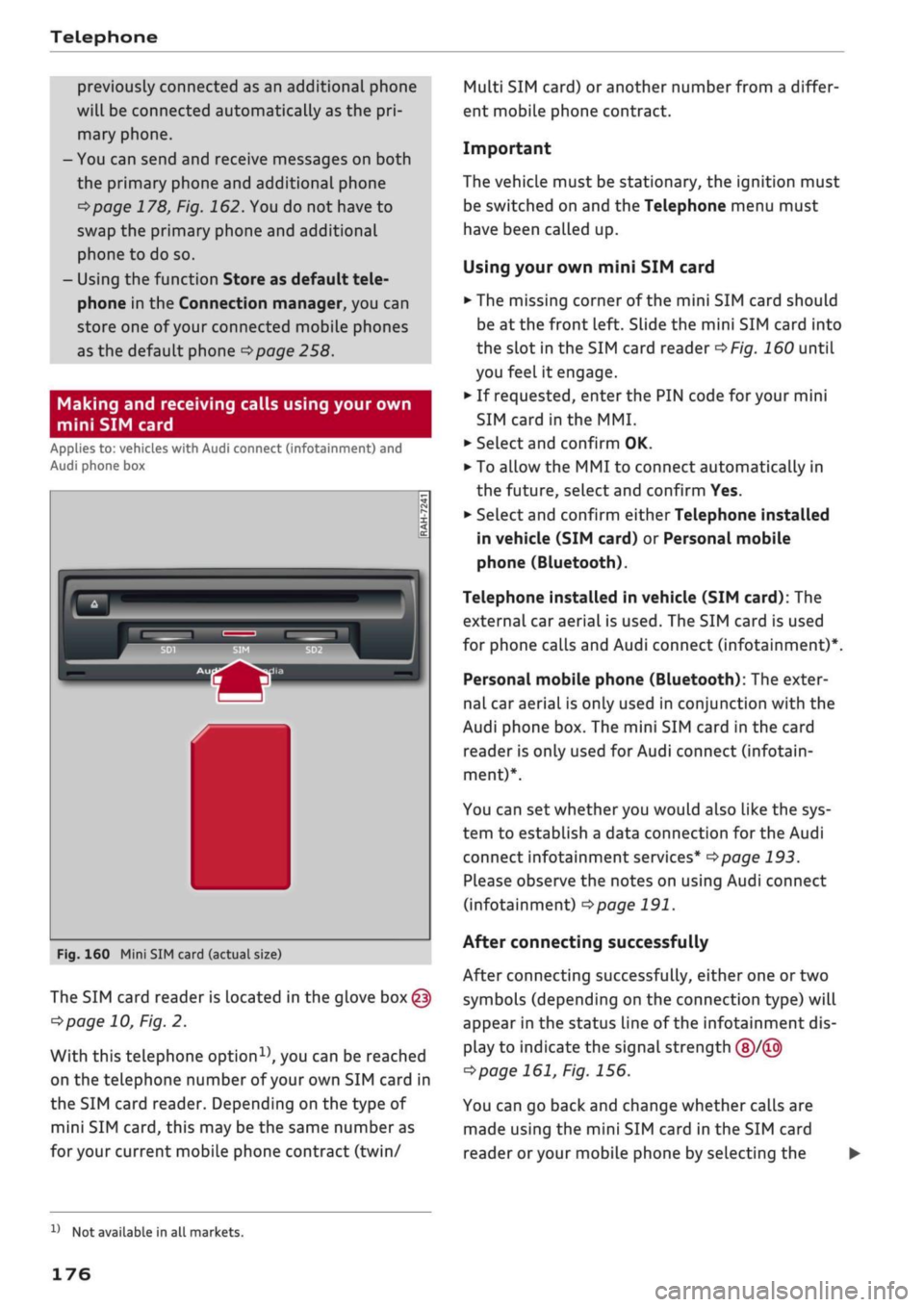
Making and receiving calls using your own
mini SIM card
Applies to: vehicles with Audi connect (infotainment) and
Audi phone box
Fig.
160 Mini SIM card (actual size)
The SIM card reader is located in the glove
box@
^>page
10, Fig. 2.
With this telephone
option15,
you can be reached
on the telephone number of your own SIM card in
the SIM card reader. Depending on the type of
mini SIM
card,
this may be the same number as
for
your current mobile phone contract (twin/
Multi SIM card) or another number from a differ
ent mobile phone contract.
Important
The vehicle must be stationary, the ignition must
be switched on and the Telephone menu must
have been called up.
Using your own mini SIM card
• The missing corner of the mini SIM card should
be at the front Left. Slide the mini SIM card into
the slot in the SIM card reader
of/g.
160 until
you feel it engage.
•
If requested, enter the PIN code for your mini
SIM card
in
the MMI.
•
SeLect and confirm OK.
•
To allow the MMI to connect automatically in
the future, select and confirm Yes.
•
Select and confirm either Telephone installed
in vehicle (SIM card) or Personal mobile
phone (Bluetooth).
Telephone installed in vehicle (SIM card): The
external car aerial is used. The SIM card is used
for phone calls and Audi connect (infotainment)*.
Personal mobile phone (Bluetooth): The exter
nal car aerial is only used in conjunction with the
Audi phone box. The mini SIM card in the card
reader is only used for Audi connect (infotain
ment)*.
You can set whether you would also like the sys
tem to establish a data connection for the Audi
connect infotainment services*
^>page
193.
Please observe the notes on using Audi connect
(infotainment)
°=>page
191.
After connecting successfully
After connecting successfully, either one or two
symbols (depending on the connection type) will
appear in the status line of the infotainment dis
play to indicate the signal strength
(§)/©
tapage
161, Fig. 156.
You can go back and change whether
caLls
are
made using the mini SIM card in the SIM card
reader
or
your mobile phone by selecting the
x)
Not available in all markets.
176
Page 180 of 364
Telephone
A WARNING
- Loose objects can be flung around in the
passenger compartment in the event of
sud
den driving or braking manoeuvres. This
could result in serious injuries and also
cause you to lose control of the vehicle. Al
ways keep the centre armrest closed when
driving.
- The mobile phone may become hot while
charging wirelessly. Consider the tempera
ture of your mobile phone when removing
it.
Take the mobile phone out of the Audi
phone box carefully.
© Note
- The Audi phone box is not available in all
countries. Your Audi dealer will be able to
provide you with more detailed information.
- If the mobile phone is placed in the Audi
phone box in a bag or
a
protective case, this
may interfere with the connection to the ex
ternal aerial*.
- Any metal objects in the Audi phone box will
prevent the mobile phone from charging
wirelessly or being used to make calls via
the external aerial*.
- The charging time and the temperature vary
depending on the mobile phone being used.
-The ignition must be switched on to charge
a mobile phone in the Audi phone box.
- To avoid malfunctions, ensure that the mo
biLe phone is correctly placed inside the
Audi phone box.
-The maximum charging capacity is 5 W.
- An enhanced transmission quality cannot be
guaranteed if more than one mobile phone
is placed inside.*
-Audi recommends the use of Audi Genuine
Accessories. Audi has tested these products
for suitability, reliability and safety.
- USB adapters are available from Audi
deal
ers or specialist retailers.
- When you charge your mobile phone wire
lessly, the charging procedure may be inter
rupted if
you
place your remote control key
in the Audi phone box together with the
mobile phone.
Using the telephone
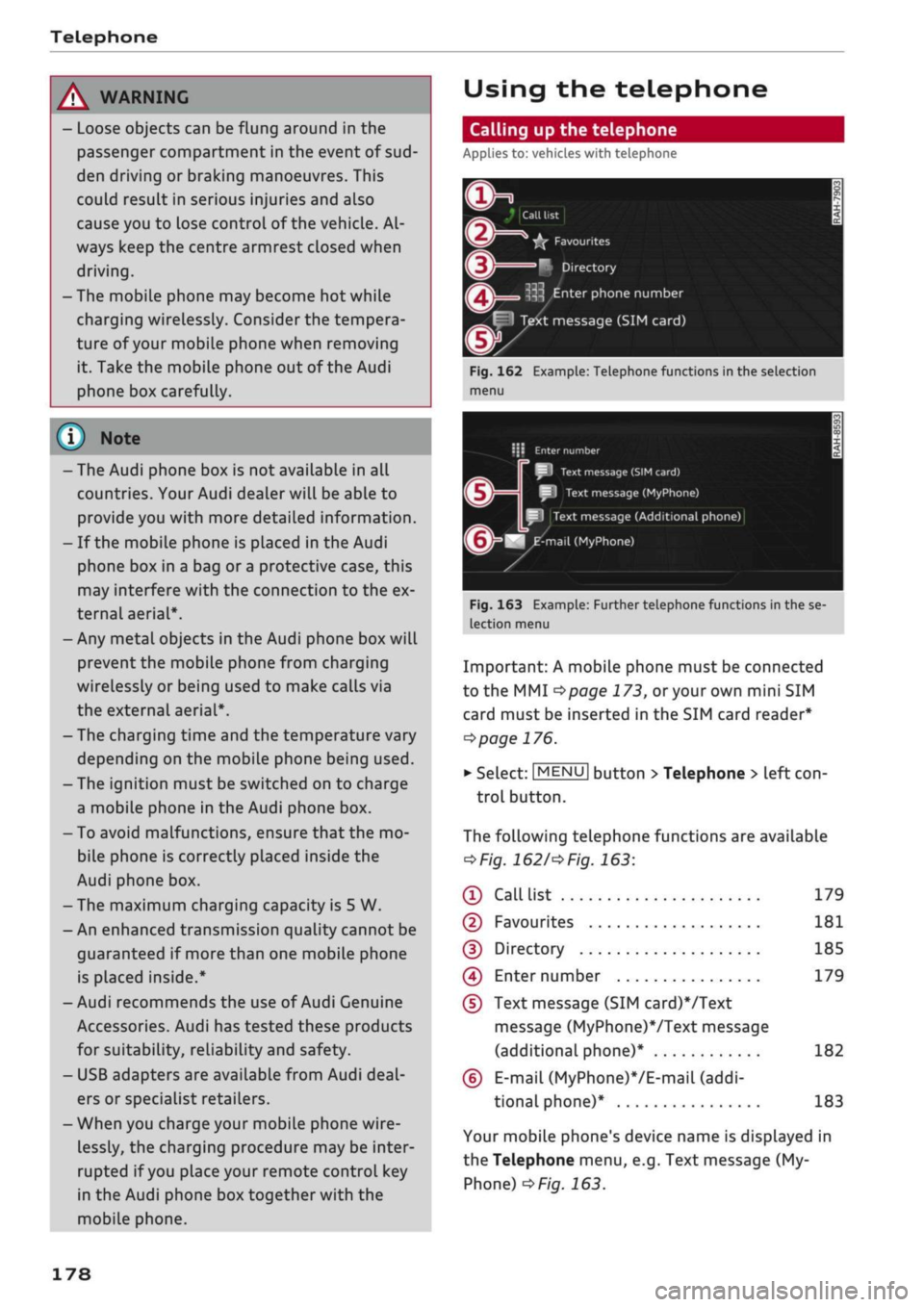
Calling up the telephone
Applies
to: vehicles with telephone
~~ .*|
Call
list
^^
•£?
Favourites
i
'^
Directory
y»
^ Enter
phone number
^^f
I
Text message (SIM card)
Fig.
162 Example: Telephone functions in the selection
menu
i\ï
Enter
number
SI
Text
message
(SIM
card)
I
Text message (MyPhone)
Text
message (Additional phone)
^mail
(MyPhone)
Fig.
163 Example: Further telephone functions in the se
lection
menu
Important: A mobile phone must be connected
to the MMI
<^>page
173,
or
your own mini SIM
card must be inserted in the SIM card reader*
^>page
176.
• Select: |MENU| button
>
Telephone > left
con
trol button.
The following telephone functions are available
*Fig.
1621'*
Fig.
163:
® Call
list 179
©
Favourites 181
(D Directory 185
(4) Enter number 179
(D
Text message (SIM card)*/Text
message (MyPhone)VText message
(additional phone)* 182
(6)
E-mail
(MyPhone)*/E-mail
(addi
tional phone)* 183
Your mobile phone's device name is displayed in
the Telephone menu, e.g. Text message (My
Phone)
^>Fig.
163.
178
Page 188 of 364
Telephone
Using contacts from another mobile phone
Applies to: vehicles with Audi connect (infotainment) and
Audi phone box
If your own mini SIM card is inserted in the SIM
card reader and is used for telephone calls, you
can
access
the directory on another mobile
phone.
Important: A mini SIM card must be inserted in
the SIM card reader.
•
Refer to
opage
258, Directory.
- When the MMI system has downloaded the
directory from the mobile phone, the
con
tacts from the SIM card will no longer be
shown in the MMI directory.
- When you switch the ignition on again after
switching it off and leaving the car, the MMI
system will load the mobile phone's directo
ry if the phone is within range and Blue
tooth is activated both on the phone and on
the MMI system. If this is not the case, the
MMI system
wiLl
show the contacts from the
mini SIM card in the SIM card reader.
Searching for a contact
Applies to: vehicles with telephone
•
Select:
IMENU|
button
>
Telephone > left
con
trol button > Directory.
•
To Limit the search, enter the initials of the
con
tact you are looking for individually in the entry
field,
separating them with a space. Enter
addi
tional Letters if necessary.
•
Select and confirm a contact in the directory.
The telephone numbers for the contact you
have selected will appear.
•
SeLect and confirm a phone number to start the
call.
scrolling speed depends on the number of
entries in the List.
- For more information on the search func
tion,
please refer to
^page
160.
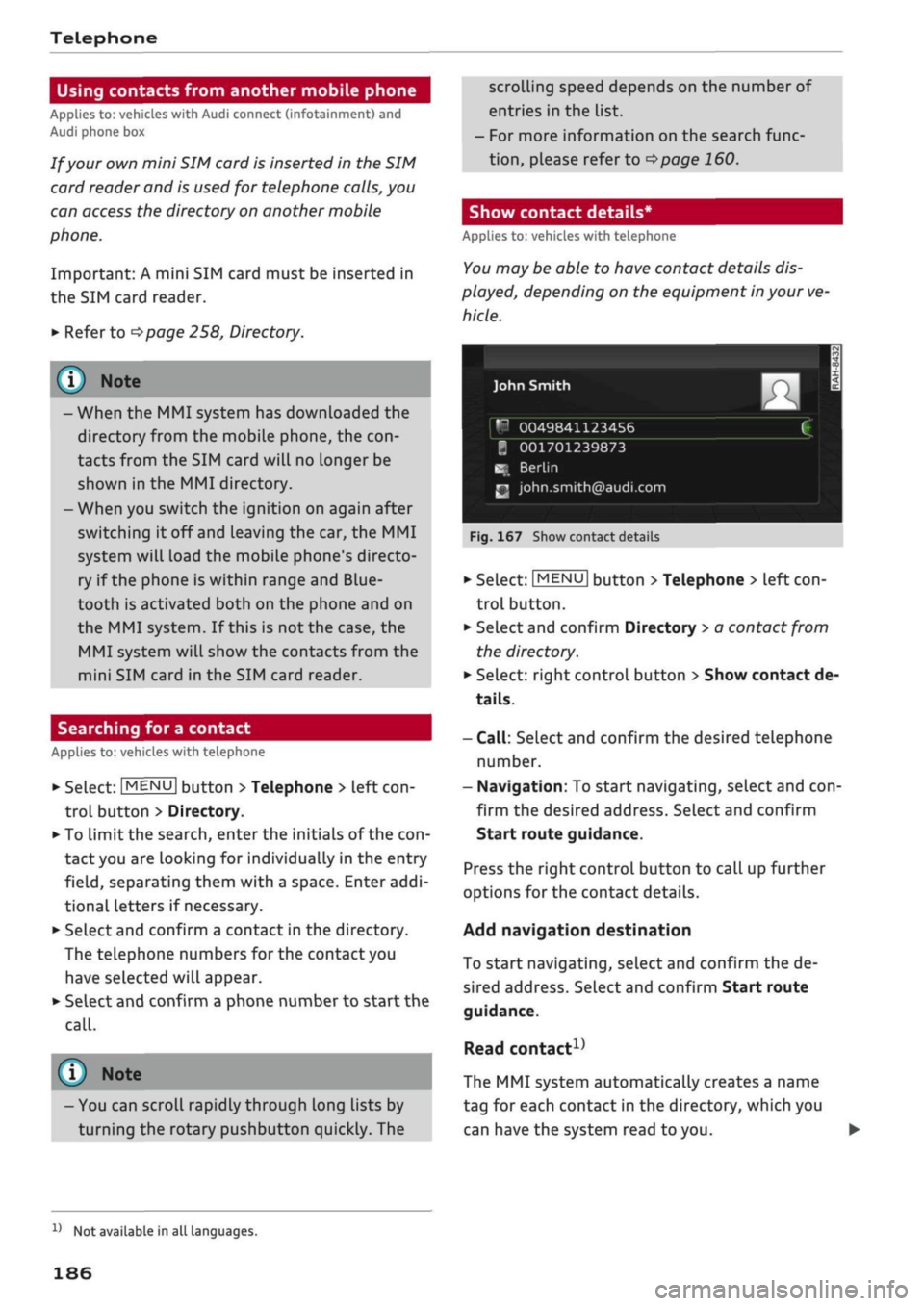
Show contact details*
Applies to: vehicles with telephone
You
may
be
able to have contact details dis
played, depending on the equipment in your
ve
hicle.
John Smith
m
,n
0049841123456
£
B
001701239873
BE
Berlin
m
[email protected]
m
'
1
Fig.
167 Show contact details
(i)
Note
- You can scroll rapidly through long lists by
turning the rotary pushbutton quickly. The
•
SeLect:
|MENU|
button
>
Telephone
>
left
con
trol button.
•
Select and confirm Directory
>
a contact from
the directory.
•
SeLect: right control button > Show contact de
tails.
-
Call:
Select and confirm the desired telephone
number.
- Navigation: To start navigating, select and
con
firm the desired address. SeLect and confirm
Start route guidance.
Press the right control button to
caLl
up further
options for the contact details.
Add navigation destination
To start navigating, select and confirm the de
sired address. Select and confirm Start route
guidance.
Read
contact1}
The MMI system automatically creates a name
tag for each contact in the directory, which you
can have the system read to you.
x)
Not available in all languages.
186
Page 190 of 364
Telephone
the settings of your mobile phone apply. You can
use Check status to check whether this function
is activated or deactivated.
Telephone mode*
On vehicles with a car telephone kit, you can
choose between three different telephone modes
to optimise the mobile network response:
- Automatic: The car telephone automatically
switches between the GSM (2G), UMTS (3G)
and LTE networks. This depends on the mobile
network's availability and reception, and on the
position of the vehicle. In this mode, there
might be restrictions when using Google Earth
or Wi-Fi.
- Telephony optimised: The car telephone kit
registers with the GSM network (2G). In this
mode,
the reception is prioritised for making
and receiving calls. There may be restrictions
when using Google Earth or Wi-Fi.
- Data service optimised: The car telephone
reg
isters with the GSM (2G), UMTS (3G) or LTE net
work. This depends on the mobile network, its
reception,
and the position of the vehicle. In
this mode, the reception is prioritised for the
use of data services. There may be restrictions
when making and receiving calls.
Ring tone and volume
settings1'
You can use the Mute telephone function to
switch ring tone playback via the MMI loudspeak
ers on/off. Ring tones are played when you select
the function Ring tone. Select an entry from the
list and confirm it. For the settings Ring tone
volume/Message volume, see
^>page
261. You
can adjust the Microphone input level during an
active phone call using the rotary pushbutton.
Network settings*
Refer to
^>page
259.
Serial number
(IMEI)*
The serial number of the telephone module in
stalled in the MMI system is displayed.
Switch on telephone/Switch off telephone
Applies to: vehicles with car telephone kit
The car telephone will be turned "on" automati
cally when the ignition is switched on, as long as
it was nor switched off separately the last time it
was used.
- You can bond several mobile phones to the
MMI system; however only two connections
are active at a time.
-All bonded Bluetooth devices can be deleted
by resetting the Bluetooth function to the
factory settings
^page
256.
- If you select the telephone mode Automatic
or Telephony optimised, there may be net
work restrictions if you try to use Audi
con
nect infotainment services* and make tele
phone calls at the same time.
Further options
•
Select:
[MENU|
button > Telephone > right
con
trol button.
Connection manager
Refer to
^>page
257.
Bluetooth settings*
Refer to
opage
258.
Online settings*
Refer to
^page
258.
Wi-Fi settings*
Refer to
^>page
201, Wi-Fi hotspot.
Data connection settings*
Refer to
^>page
203, Configuring the data con
nection.
11
Depends on the connected mobile phone
188
Page 194 of 364
Audi connect (infotainment)
- Connecting an
rSAP-enabled15
mobile phone to
the MMI via Bluetooth
^>page
193
- Using a mobiLe device (e.g. a smartphone) as a
personal Wi-Fi
hotspot2^
for the MMI
cépage
195
©
©
1
CAUTION
- The connection via the eSIM card
^page
191 is disconnected when you use
your own SIM
card.
All data connections for
all Audi connect infotainment services will
use your SIM
card.
Depending on your net
work provider, you may be charged
for
this
service, especially if
you
are using the sys
tem abroad. We therefore strongly recom
mend
that
you use an unlimited data
plan.
For more information, contact your service
provider.
- Depending on the configuration of the Wi-Fi
device you are using (refer to the operating
manual of your Wi-Fi device for more de
tails),
the SIM card of the device may be
used in certain cases to provide the data
connection for Internet-supported apps and
services which use the MMI Wi-Fi hotspot.
Depending on your network provider, you
may be charged for this service, especially if
you are using the system abroad. We there
fore strongly recommend
that
you use an
unlimited data
plan.
For more information,
contact your service provider. Some exam
ple cases are described below:
- Data plan expired/used up
- Data plan not valid abroad
- SIM card in the card reader* is not
a
data
SIM card
- SIM card in the card reader* is defective/
not valid
- Network is switched automatically due to
a low signal strength/data rate of the Wi-
Fi hotspot, the eSIM* or the SIM card in
the card reader*
- Connection to Wi-Fi hotspot interrupted
y
Note
A data connection for Audi connect infotain
ment services is pre-configured at the factory.
However, if configuration is necessary, you
can change the data connection settings at
any time
^>page
203.
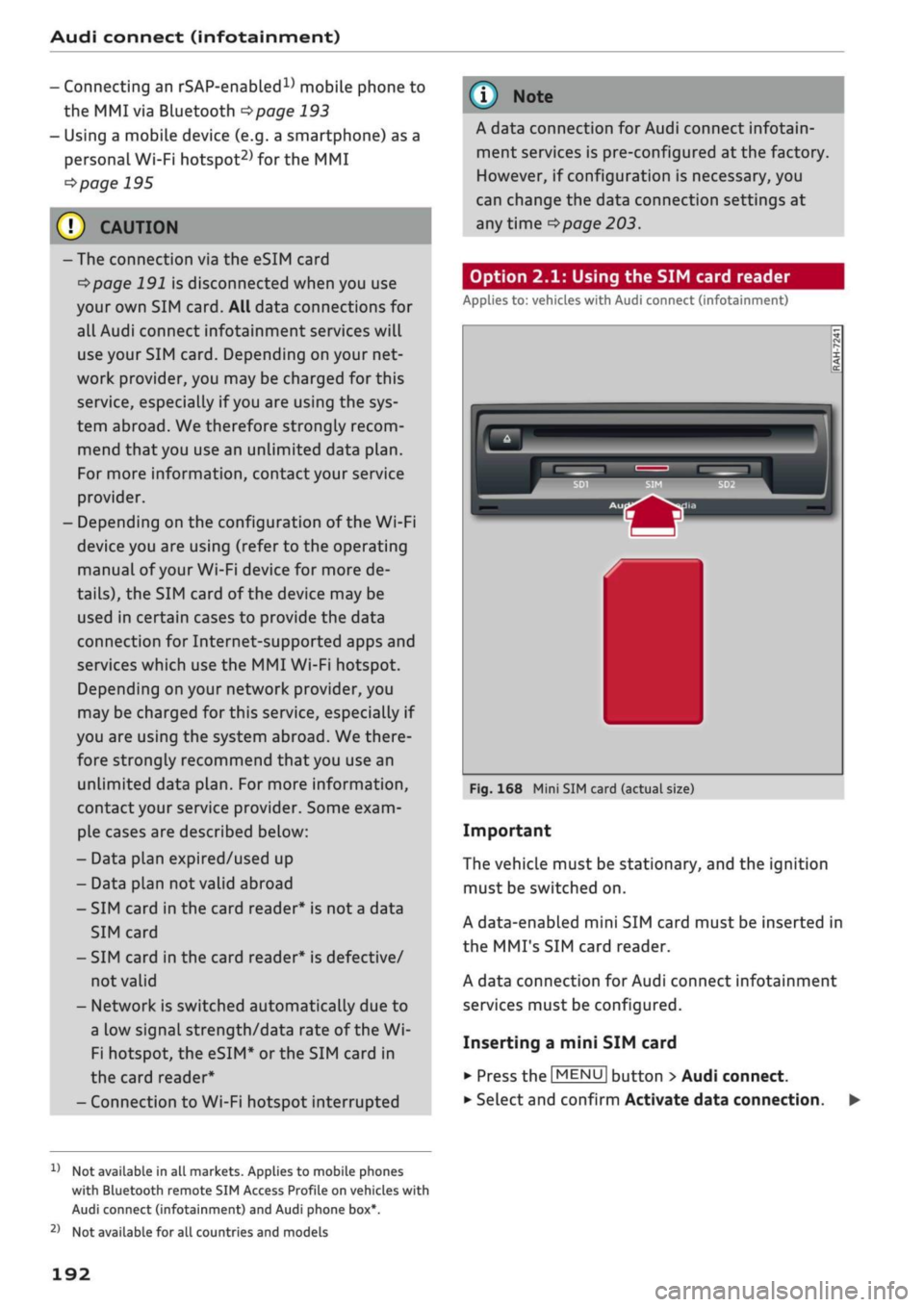
Option 2.1: Using the SIM card reader
Applies
to: vehicles with Audi connect (infotainment)
a
Fig.
168 Mini SIM card (actual size)
Important
The vehicLe must be stationary, and the ignition
must be switched on.
A data-enabled mini SIM card must be inserted in
the
MMI's
SIM card reader.
A data connection for Audi connect infotainment
services must be configured.
Inserting a mini SIM card
•
Press the |MENU| button
>
Audi connect.
•
Select and confirm Activate data connection. •
1'
Not available in all markets. Applies to mobile phones
with
Bluetooth remote SIM Access Profile on vehicles with
Audi
connect (infotainment) and Audi phone box*.
2)
Not available for all countries and models
192
Page 196 of 364
Audi connect (infotainment)
Important1'
Your mobile phone must support the Bluetooth
remote SIM Access Profile (Bluetooth rSAP).
For information regarding which Bluetooth
con
nections and functions your mobile phone sup
ports,
contact your mobile network service pro
vider or consult the mobile device database at
www.audi.com/bluetooth
oF/g.
169.
The vehicle must be stationary, and the ignition
must be switched on.
The Bluetooth function and the discoverability
option of the MMI system
•=>page
202 and the
mobile phone must be activated.
The mobile phone you would like to connect must
not be connected activeLy to any other Bluetooth
device. The MMI must not be connected to a mo
bile phone.
Access to your SIM card (SIM
Access)
must be ac
tivated on your mobile phone.
Connecting a mobile phone
•
Select:
|MENU|
button
>
Audi connect.
•
SeLect and confirm Activate data connection.
•
Select and confirm Connect mobile phone >
Continue.
•
Select and confirm the desired mobile phone
from the list of Bluetooth devices shown. Or:
Search for the MMI system via the Bluetooth
device search function on your mobile phone.
•
Enter the PIN to establish a connection on your
mobile phone. If the PIN is already being dis
played on your mobile phone, confirm it on the
phone and the MMI. You have about 30 sec
onds to enter the PIN.
Please note any additional system queries on
your mobile phone, e.g. whether the phone
should connect automatically in the future. On
some mobiLe phones, you may aLso need to
download the directory separately.
•
You can now enter the PIN code for your SIM
card on the MMI.
Not available in all markets. Applies to mobile phones
with Bluetooth remote SIM Access Profile on vehicles with
Audi connect (infotainment) and Audi phone box*.
•
To allow the MMI to connect automatically in
the future, select and confirm Yes.
After connecting successfully
After the connection has been established suc
cessfully, you will be shown a short message
con
taining information on the profiles used to estab
lish the connection. You can make changes to the
profiles via
|MENU|
>
Settings > left control but
ton > MMI settings > Connection manager
ï>page
258. This can also be done at
a
later
time.
The signal strength symbol ©, connection type
symbol®
and Bluetooth
symbol
© will appear
in the status line of the infotainment dispLay
when the mobiLe phone has been connected suc
cessfully
^>page
161.
•
Confirm the system query of whether an Inter
net connection should be established with Yes,
always connect if necessary.
You can now use Audi connect infotainment serv
ices.
(7) CAUTION
- The connection via the eSIM card
^>page
191 is disconnected when you use
your own SIM
card.
All data connections for
all Audi connect infotainment services will
use your SIM
card.
Depending on your net
work provider, you may be charged for this
service, especially if
you
are using the sys
tem abroad. We therefore strongly recom
mend
that
you use an unlimited data
plan.
For more information, contact your service
provider.
- In order to use Audi connect infotainment
services via the remote SIM Access Profile,
you will need a SIM card with a data option;
to use LTE*, the SIM card will also need to
have an LTE data option. •
194
Page 197 of 364

Audi connect (infotainment)
CO
<
O
rN
IN
rN
t-H
o < 00
- It is only possible to connect a mobile
phone via the remote SIM Access Profile on
vehicles with the Audi phone box.
- Bluetooth devices only have to be bonded
once.
Depending on the mobile phone you
are using, any devices that have already
been bonded to the MMI system are connec
ted automatically when they are within
range and the ignition is on. You can bond
several mobile phones to the MMI system;
however only one connection is active at a
time.
- You receive the SIM PIN and the PUK from
your mobile network service provider to
gether with the SIM
card.
If
you
enter the
SIM PIN code incorrectly three
times1)
in a
row, the SIM card will be be blocked. A PUK
(personal unblocking key) must be entered
in order to reactivate the SIM
card.
-The Bluetooth connection between the sys
tem and the mobile phone is automatically
terminated when you leave the car.
- For further information regarding your mo
bile phone, contact your mobile network
service provider or refer to the operating in
structions for your mobile phone. For infor
mation on using a phone in your car, please
go online (e.g. www.audi.com/bluetooth)
or ask an Audi dealer.
Option 2.3: Using a personal Wi-Fi hotspot
Applies to: vehicles with Audi connect (infotainment) and per
sonal Wi-Fi hotspot
Important
The vehicle must be stationary, and the ignition
must be switched on.
Your mobile device and mobile network provider
must support the mobile Wi-Fi hotspot function.
The personal Wi-Fi hotspot on your mobiLe device
must be activated.
Other devices must be permitted to access the
mobiLe hotspot.
Connecting the MMI to a personal hotspot
•
Select:
|MENU|
button
>
Telephone
>
right
con
trol button
>
Wi-Fi settings
>
Wi-Fi
>
on.
•
Then select and confirm Network search. The
devices found will be shown on the infotain
ment display.
• Select and confirm your personal Wi-Fi hotspot
from the List.
•
You may need to enter the password specified
by your mobile device.
• Select and confirm OK.
A
WARNINf
Mobile devices, tablet and Laptop computers
and devices of
a
similar weight can only be
operated safely when the vehicLe is stationary.
Like any loose object, they can be catapulted
through the vehicle in an accident and cause
serious injuries. Always make sure that such
devices are securely stowed while you are
driving.
(T)
CAUTION
I
The connection via the eSIM card
^>page
191
is disconnected when you use your own SIM
card.
All data connections for all Audi connect
infotainment services will use your SIM
card.
Depending on your network provider, you may
be charged for this service, especially if you
are using the system abroad. We therefore
strongly recommend
that
you use an unlimi
ted data
plan.
For more information, contact
your service provider.
- The Connection to personal hotspot option
cépage
202 will be switched on
([vf)
auto
matically during the network search.
- Please contact your mobile network service
provider to find out which functions your
mobiLe device supports.
x)
The number of possible attempts depends on the SIM
card.
195
Page 203 of 364
Audi connect (infotainment)
CO
< o rN
IN
rN
•-H
00
new version is available at my.audi.com.
You can also have the new navigation data
installed by an Audi deaLer (carries addition
al charges).
- Further information on the myAudi special
destinations and the map update can be
found online at my.audi.com.
Audi connect (infotainment) for telephones
Applies
to: vehicles with Audi connect (infotainment)
© CAUTION
•
Select: |MENU| button
>
Audi connect
>
left
control button
>
Communication.
The following Audi connect infotainment services
are currently available:
- Creating contacts on your
PC
via your myAudi
account and loading the contacts into the di
rectory of your MMI system
^>page
187.
- Dictating text messages or e-mails and having
them read out*
^>page
182, Messages.
Audi connect (infotainment) in the media
menu
Applies
to: vehicles with Wi-Fi audio player and Audi connect
(infotainment)
*•
Select: |MENU| button
>
Audi connect
>
left
control button > Entertainment.
- Wi-Fi audio player: To access the media centre
of your player (e.g. smartphone) connected via
Wi-Fi
<=>
page 238.
- Online media and Internet radio: With assis
tance from the Audi MMI connect app, this
function allows you to access and operate
vari
ous online media services using the MMI.
A WARNING
Mobile devices, tablet and Laptop computers
and devices of
a
similar weight can only be
operated safely when the vehicle is stationary.
Like any Loose object, they can be catapulted
through the vehicle in an accident and cause
serious injuries. Always make sure that such
devices are securely stowed while you are
driving.
Please always observe the information
=>®
in
Wi-Fi hotspot on page 202.
- Also refer to
opage
204, General notes on
Audi connect (infotainment).
- Please contact an Audi dealer for more in
formation on Wi-Fi audio players and for a
list of supported devices.
Further options
Applies
to: vehicles with Audi connect (infotainment)
•
Select: |MENU| button
>
Audi connect
>
right
control button.
The following options are available in the over
view of the Audi connect infotainment services:
Login*
Refer to
^>page
196, Logging into myAudi in the
vehicle.
Connection manager
Refer to
^>page
257.
Licence periods
The validity and the time remaining on your licen
ces is displayed. If the Licence expiry warning
function is switched on
(vj,
a message will be dis
played before the licence expires.
Refresh
The content of the Audi connect infotainment
service selected or the entire Audi connect (info
tainment) list is updated.
Wi-Fi hotspot
Applies
to: vehicles with Wi-Fi hotspot
You
can
use
your MMI system as a Wi-Fi hotspot
for connecting to the Internet on up to eight Wi-
Fi
devices.
Small, light Wi-Fi
devices
that are not
permanently attached to the vehicle must only
be operated from the rear seats while the vehicle
is moving.
Important: The ignition must be switched on.
201