infotainment AUDI Q5 2018 Service Manual
[x] Cancel search | Manufacturer: AUDI, Model Year: 2018, Model line: Q5, Model: AUDI Q5 2018Pages: 392, PDF Size: 60.56 MB
Page 134 of 392
Parking aid
the sound was muted, no tone will sound. Pay at
tention to the vehicle's surroundings when you
start to dr ive .
Switching on /off
Applies to: ve hicles w ith pa rking system plus
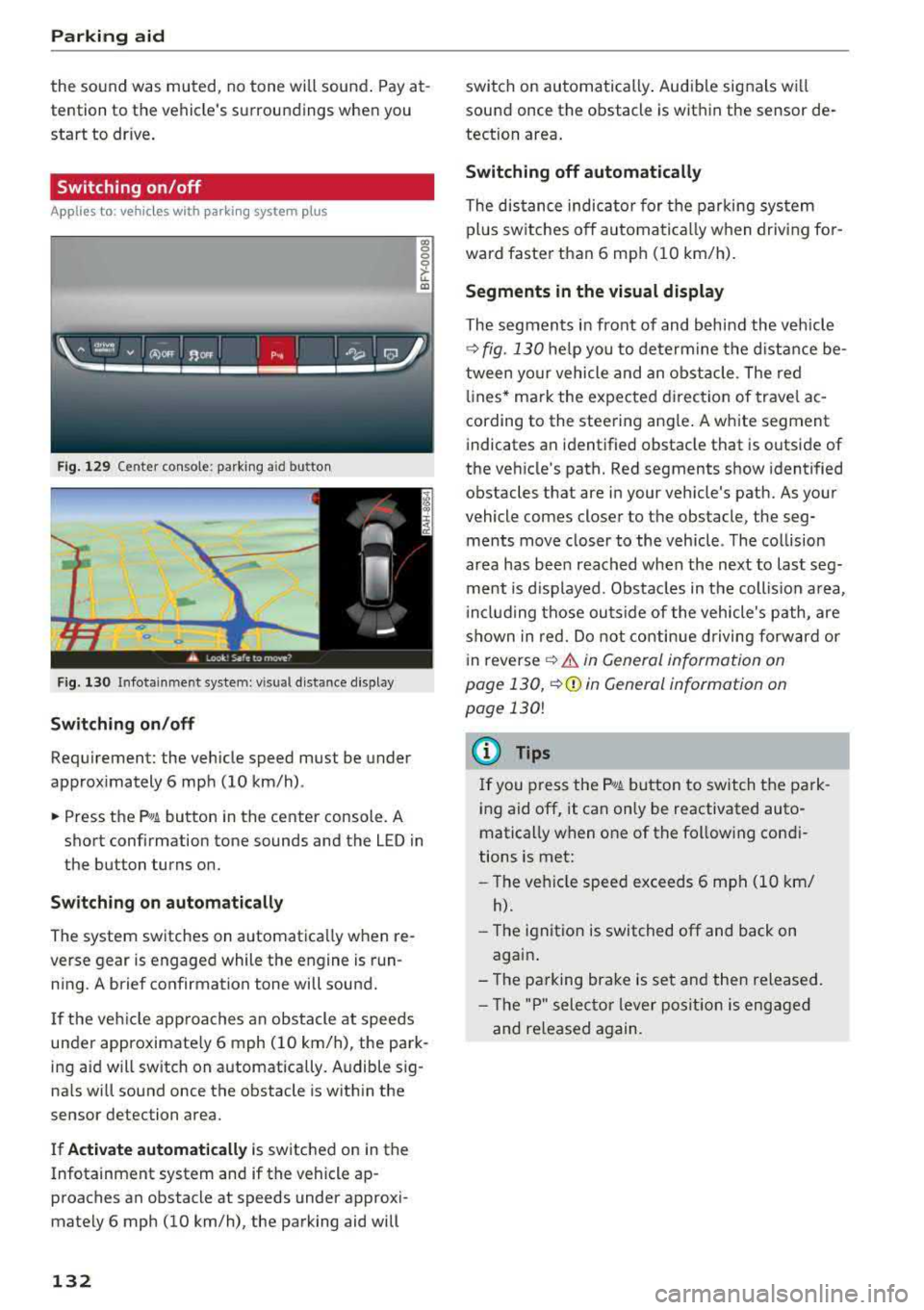
Fig. 129 Center console: park ing a id bu tton
Fig. 130 I n fot ainme nt system: v is ual d ist ance d isplay
Switching on /off
Requirement: the vehicle speed must be under
approximately 6 mph (10 km/h) .
co 0 0
~ LL. m
.. Press the p,, 1A button in the center console . A
short confirmation tone sounds and the LED in
the button turns on.
Switching on automatically
The system switches on automatica lly when re
verse gear is engaged while the engine is run
ning. A brief confirmation tone will sound.
I f the veh icle approaches an obstacle at speeds
under approximate ly 6 mph (10 km/h), the park
ing a id will sw itch on automatically . Audible sig
na ls will sound once the obstacle is within the
sensor detection area.
I f
Activate automatically is switched on in the
Infotainment system and if the vehicle ap
proaches an obstacle at speeds under approxi
mately 6 mph (10
km/h), the parking aid will
132
switch on automatically . Audible signals wi ll
sound once the obstacle is within the sensor de
tection area.
Switching off automatically
The distance indicator for the parking system
plus sw itches
off automatically when driving for
ward faster than 6 mph (10 km/h).
Segments in the visual display
The segments in front of and behind the vehicle
¢
fig. 130 he lp you to determine the distance be
tween your vehicle and an obstacle . The red
lin es* ma rk the expected d irection of travel ac
cording to the steering angle . A white segment
indicates an identified obstacle that is outside of
the veh icle's path. Red segments show identified
obstacles that are in your vehicle's path. As your
vehicle comes closer to the obstacle, the seg ments move closer to the vehicle . The collision
area has been reached when the next to last seg
ment is displayed . Obstacles in the collis ion area,
inclu ding those outside of the vehicle's path, are
shown in red. Do not continue driving forward or
i n
reverse ¢.&. in General information on
page 130,
¢ (D in General information on
page
130!
(D Tips
If you press the ?~A button to switch the park
ing aid
off, it can only be reactivated auto
matically when one of the following condi
tions is met:
-The vehicle speed exceeds 6 mph (10 km/
h).
-The ignition is switched off and back on
again .
- The parking brake is set and then released.
- Th e "P" selector lever position is engaged
and re leased again.
Page 136 of 392
Parking aid
(D Note
-Always read and follow the applicable warn
ings
¢ 0in General information on
page
130.
- The orange-colored orientation lines in the
Infotainment display show the vehicle path based on the steering wheel angle. The
front of the vehicle swings out more than
the rear of the vehicle. Maintain plenty of
distance so that an exterior mirror or a cor
ner of the vehicle does not collide with any
obstacles.
Switching on/off
A pp lies to: ve hicles w ith rearview ca mera
Switching on/off
Requirement: the vehicle speed must be under
approx imately
6 mph (10 km/h).
• Press the P,11A button in the center console
¢ page 132, fig . 129. A short confirmat ion
tone sounds and the LED in the button turns
on.
Switching on automatically
The system switches on automat ically when re
verse gear is engaged while the engine is run
n ing. A brief confirmation tone will sound.
Switching off automatically
The system switches off automatically when driv
ing forward faster than 6 mph
(10 km/h) .
Perpendicular parking
App lies to: ve hicles w ith rearview ca mera
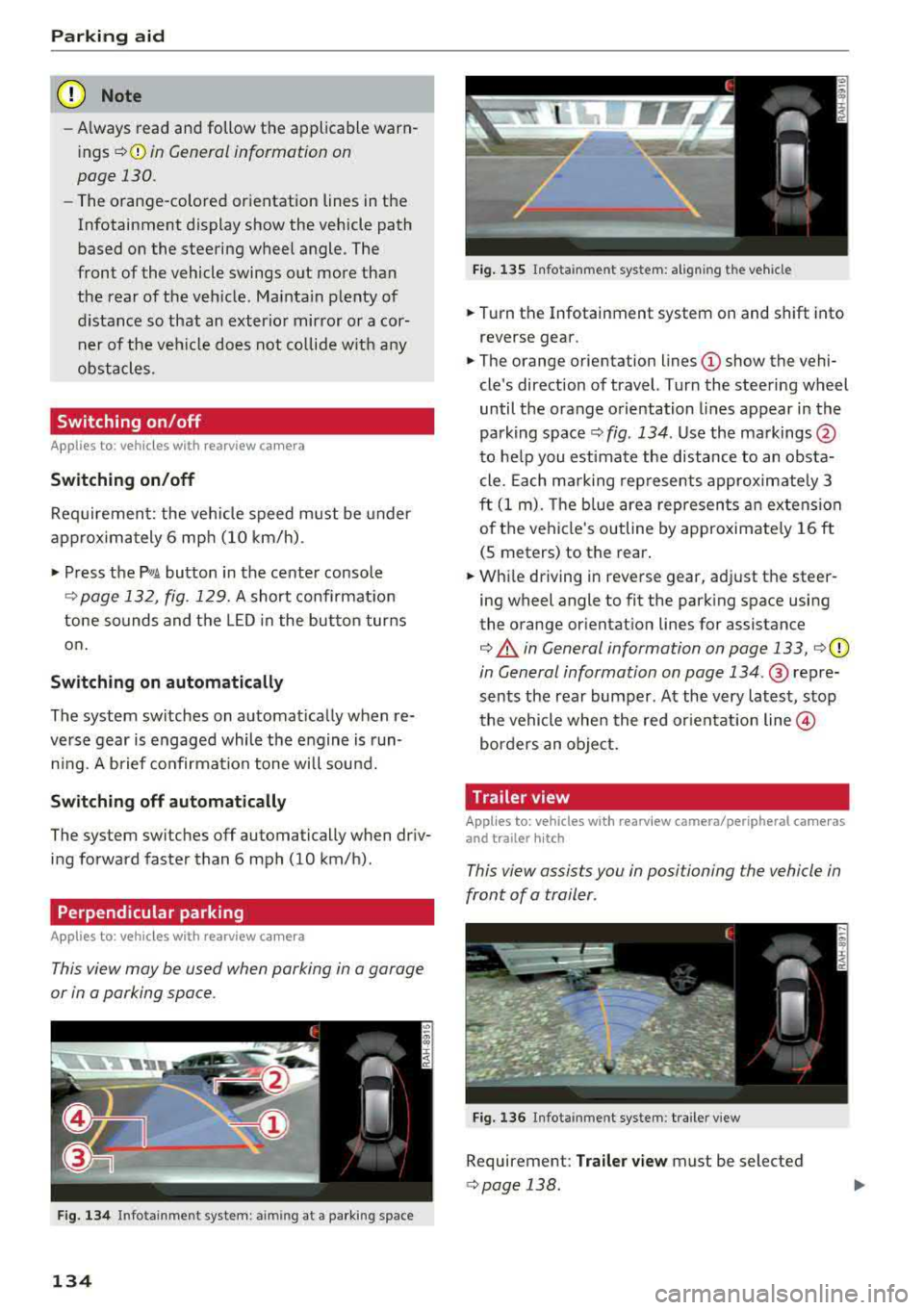
This view may be used when parking in a garage
or in a parking space .
Fig. 134 In fotainme nt system: a iming at a parking space
134
Fig. 135 Infota inment system: al ign ing the vehicle
• Turn the Infotainment system on and shift into
reverse gear.
• The orange orientation lines (D show the vehi
cle's direction of travel. Turn the steering wheel
until the orange orientation lines appear in the
parking
space ¢ fig. 134 . Use the markings @
to help you estimate the distance to an obsta
cle. Each mark ing represents approximately 3
ft
(1 m). The b lue area represents an extension
of the vehicle's outline by approximate ly
16 ft
(5 meters) to the rear.
• While driving in reverse gear, adjust the steer
ing wheel angle to fit the parking space using
the orange orientat ion lines for assistance
¢ .&. in General information on page 133, i=>(D
in General information on page 134 .@ repre
sents the rear bumper. At the very latest, stop
the vehicle when the red orientation
line @
borders an object.
Trailer view
Applies to: vehicl es with rearv iew camera/peripheral ca meras
and trailer hitch
This view assists you in positioning the vehicle in
front of a trailer .
Fig. 136 Infotainment system : trailer view
Requirement: Trailer view must be selected
¢page 138 .
Page 138 of 392
Parking aid
Switching on/off
Applies to: ve hicles w ith per ip heral cameras
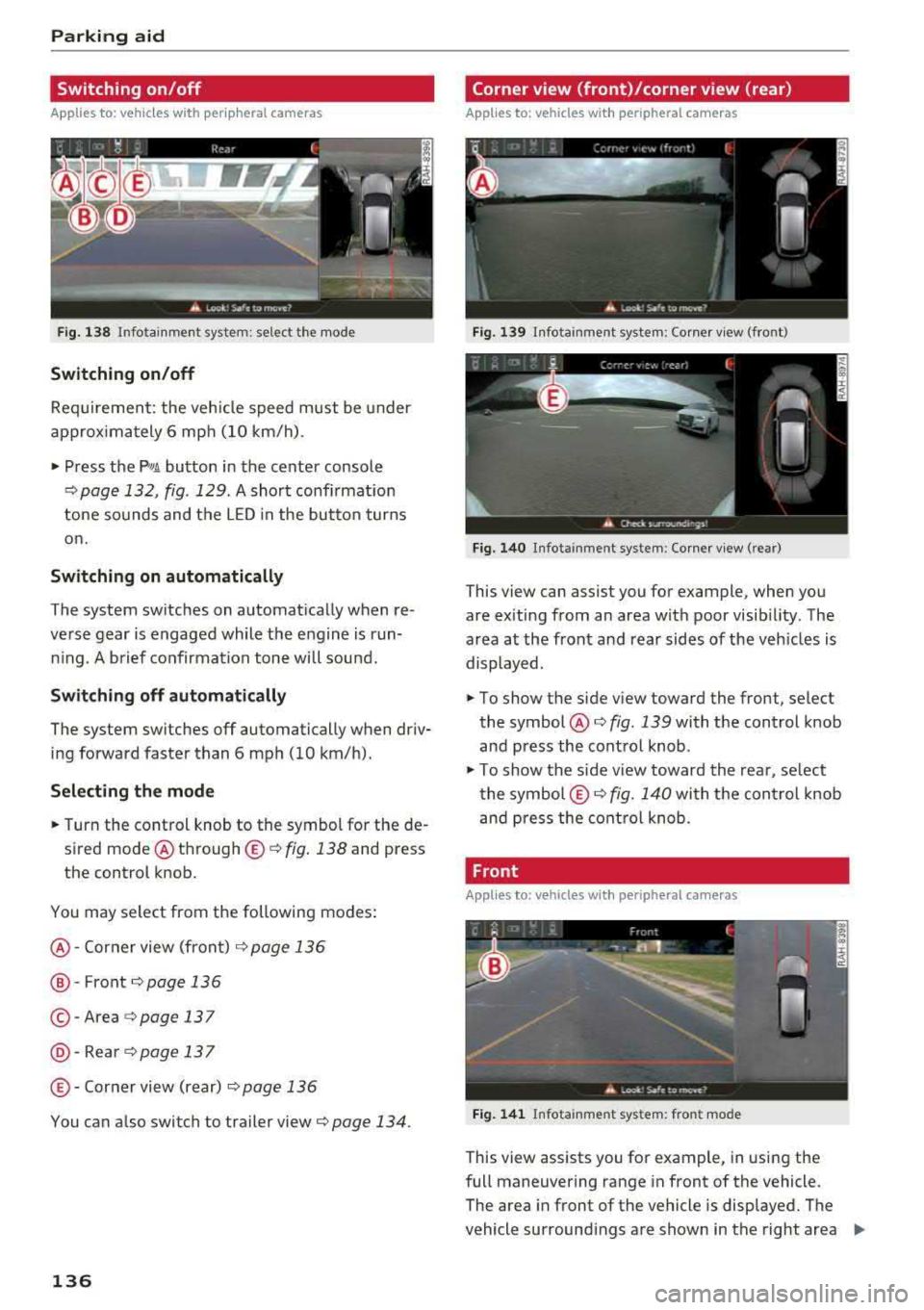
Fig. 1 38 Infotainment system: se lect the mode
Switch ing on /off
Req uirement: the veh icle speed must be under
approx imately 6 mp h (10 km/h).
• Press the P'I/ A button in the center console
¢ page 132, fig . 129 . A short confi rmat ion
tone so unds and the
LED in the but to n turns
on.
Switching on automatically
The system switches on automat ica lly when re
verse gear is engaged while the engine is run n ing . A brief confirma tion tone wi ll soun d.
Sw it c hing off automat ically
The system switches off automatically when dr iv
ing forward faster than 6 mph (10 km/h).
Selecting the mode
• Turn the control knob to the symbol for the de
sired mode @
th rough ©¢ fig. 138 and press
the control knob.
You may select from the following modes:
@ -Corner view (front) c;> page 136
@-Front¢ page 136
© -Area c;> page 137
@ -Rea rc;> page137
© - Corner view (rear) ¢ page 136
You can a lso switch to trailer view c;> page 134 .
136
Corner view (front)/corner view (rear)
Applies to : vehicles with peripheral cameras
Fi g. 139 In fota inment system: Corner v iew (front)
Fig. 14 0 Infota inment sy stem : Corner v iew (re ar)
This view can assist you for example, when you
are ex iting from an area with poor visib ility. The
area at the front and rear sides of the veh icles is
displayed.
• To show the side v iew toward the front, select
the symbol @
c;> fig. 139 with the control knob
and press the contro l knob .
• To show the s ide v iew toward the rea r, se lect
the symbol ©
c;> fig. 140 with the con trol knob
and p ress the control knob .
Front
Applies to: vehicles wi th peripheral ca meras
Fi g. 141 Info ta in ment sys tem: fron t mode
This view assists you for example, in using the
full maneuvering range in front of the vehicle.
The area in front of the vehicle is displayed. The
vehicle surround ings are shown in the right area
..,
Page 139 of 392
u co ..... N r-N .....
~ 0 co
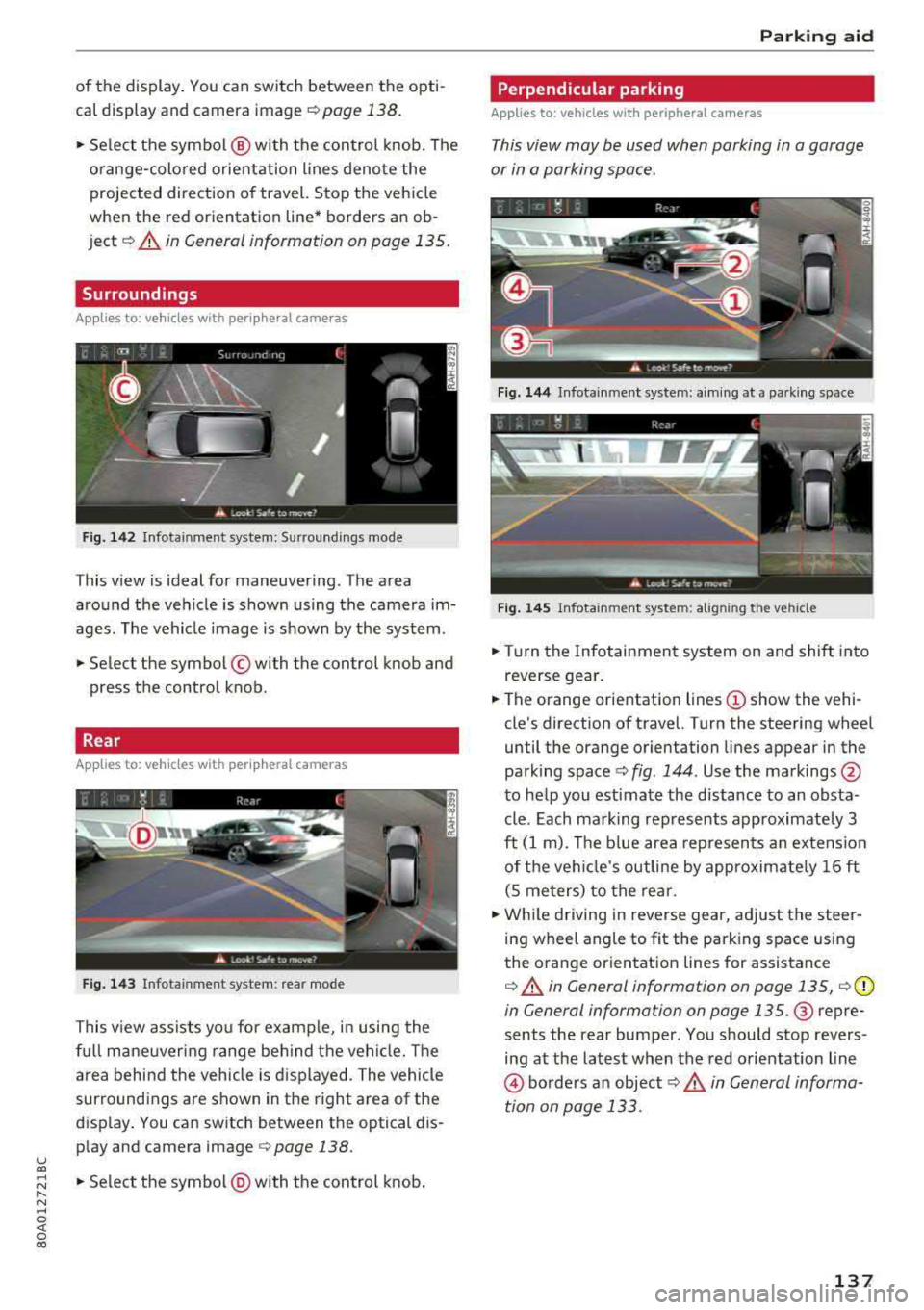
of the display. You can switch between the opti
cal display and camera image
¢page 138.
"'Select the symbol @ with the control knob. The
orange-colored orientation lines denote the
projected direction of travel. Stop the vehicle
when the red orientation line* borders an ob
ject¢ &. in General information on page 135.
Surroundings
Applies to: vehicles with peripheral cameras
Fig. 142 Infotainment system: Surroundings mode
This view is ideal for maneuvering. The area
around the vehicle is shown using the camera im
ages. The vehicle image is shown by the system.
"'Select the symbol © with the control knob and
press the control knob.
Rear
Applies to: vehicles with peripheral cameras
Fig. 143 Infotainment system: rear mode
This view assists you for example, in using the
full maneuvering range behind the vehicle. The
area behind the vehicle is displayed. The vehicle
surroundings are shown in the right area of the
display. You can switch between the optical dis
play and camera image <=>
page 138.
"'Select the symbol@) with the control knob .
Parking aid
Perpendicular parking
Applies to: vehicles with peripheral cameras
This view may be used when parking in a garage
or in a parking space.
Fig. 144 Infotainment system: aiming at a parking space
Fig. 145 Infotainment system: al igning the vehicle
"'Turn the Infotainment system on and shift into
reverse gear.
"'The orange orientation lines (!) show the vehi
cle's direction of travel. Turn the steering wheel
until the orange orientation lines appear in the
parking space
c:> fig . 144. Use the markings @
to help you estimate the distance to an obsta
cle. Each marking represents approximately 3
ft
(1 m). The blue area represents an extension
of the vehicle's outline by approximately
16 ft
(S meters) to the rear.
"'While driving in reverse gear, adjust the steer
ing wheel angle to fit the parking space using
the orange orientation lines for assistance
c:> &. in General information on page 135, ¢ (D
in General information on page 135. @ repre
sents the rear bumper. You should stop revers
ing at the latest when the red orientation line
@ borders an object c:> .& in General informa
tion on page 133.
137
Page 140 of 392
Parking aid
Adjusting the parking aid
Applies to: vehicles with a rear parking system/parking sys
tem plus/rearview camera/peripheral cameras
The functions are adjusted in the Infotainment
system .
.,. Select in the Infota in m ent system: IMENU I but
t on
> Vehicle > left co ntro l bu tton > Driver a s
sistance > Parking aid .
Or
.,. When the par kin g aid is active, se lect in the In -
fotainment system : rig ht contro l butto n*.
End sy stem * -stop t he pa rking aid
Activate automatically * -switch automatic acti
vation on/off
Front volume * -volume for the front area
Rear volume -vo lume for t he rear area
Entertainment fader -the vol ume o f th e aud io/
video so urce is lowered when t he parking system
is turned on.
T he new value is g iven b riefly du ring the a djus t
men t.
View * -sw itch betwee n an optical d isplay
( Graphic ) and camera image ( Camera ) in the
r ight section of the disp lay.
Trail er view * -show trailer view
*Auto. front /rear came ra change* -the view be
h ind the veh icle
( Rear mode) is displayed auto
mat ica lly w hen you shift into reverse gear. The
v iew in front of the vehicle
( Front mode) is d is
p layed automat ically whe n you sh ift into the for
ward gea rs. When first activat ing in a forward
gea r with t he
P,,1~ bu tto n, the front s ide v iew is
d isp layed
(Corner view (front) mode).
If you do not set
the./, t h e view behind the vehi
cle
( Rear mode) is a lways d isp layed and it does
no t swi tch to the
Front mode whe n a forwar d
ge ar is se lec ted .
(0 Tips
-Seve ral menus can be accessed w ith the
r ight contr ol butt on o nly w hen the p ark ing
a id is active.
138
- The set tings for vo lume and automa tic ac ti
vation * are stored automatically and as
signe d to the remote control key in use.
Error messages
Applies to: vehicles with a rear parking system/parking sys
tem plus/rearview camera/peripheral cameras
Ill Rear parking aid: malfunction! Ob stacl es
cannot be detected
Ill Front parking aid: malfunction! Obstacles
cannot be detect ed
Ill Parking aid : malfunct ion! Obstacles cannot
be detected
When one of these messages appears, there is a
system malfunction. The LED in t he
Pw, button al
so blinks whe n sw itchi ng it on. The releva nt mes
sage o nly appears again w hen you manually acti
vate the par king a id wi th t he b utton .
[ii Rear parking aid : obstacle detection restrict
ed
The rea r cross-traffic ass ist* c:!;> page 124, Rear
cross-traffic assist is no t ava ilable. Either the ESC
is sw itched off, or the radar sensors may be cov
ered by a bike rack, stickers, leaves, snow or oth
er objects . Switch t he ESC on , or clean the area in
front of the sensors if necessary
c:!;> page 121,
fig. 121 .
If this message cont inues to be d is
played, drive immed iate ly to an author ized A udi
de aler or au thor ized A udi Servi ce Facili ty to h ave
t h e mal funct ion repai red .
Parking system plus*
If a senso r or speaker is faulty, the.!¼ symbo l
will appear i n fro nt of/behind the vehicle in the
I nfotai nment syste m disp lay. If a rear sensor is
f aulty, only obs tacles th at are in areas @ and @
a re show n
<:!;>page 131, fig . 128 . If a front senso r
i s fa ulty, o nly obstacles that a re in a reas © and
@ are s hown.
Peripheral cameras*
There is a system malfunction if t he % symbo l
appe ars and the co rresponding area of the dis
play is shown in black . The camera is not wo rking
i n th is area.
...
Page 149 of 392
u co ..... N r-N .....
~ 0 co
Multi Media Interface
Traffic safety information
Audi recommend s performing certain Infotain
ment system fun ctions, such as entering a desti
nation, only when the vehicle is stationary . Al
ways be prepared to stop operating the Infotain ment system in the interest of your safety and
the safety of other road users.
_& WARNING
Only use the Infotainment system when traf
fic conditions permit and always in a way that
allows you to maintain complete control over
your vehicle.
@ Tips
Certain functions are not available while driv
ing .
Multi Media Inte rface
Introduction
The Multi Media Interface, or MMI for short,
combines various sys tems for communication,
navigation* and en tertainment in your Audi. You
can operate the
MMI using the MM I control pan
el, the multifunction steering wheel or the voice
recognition system* .
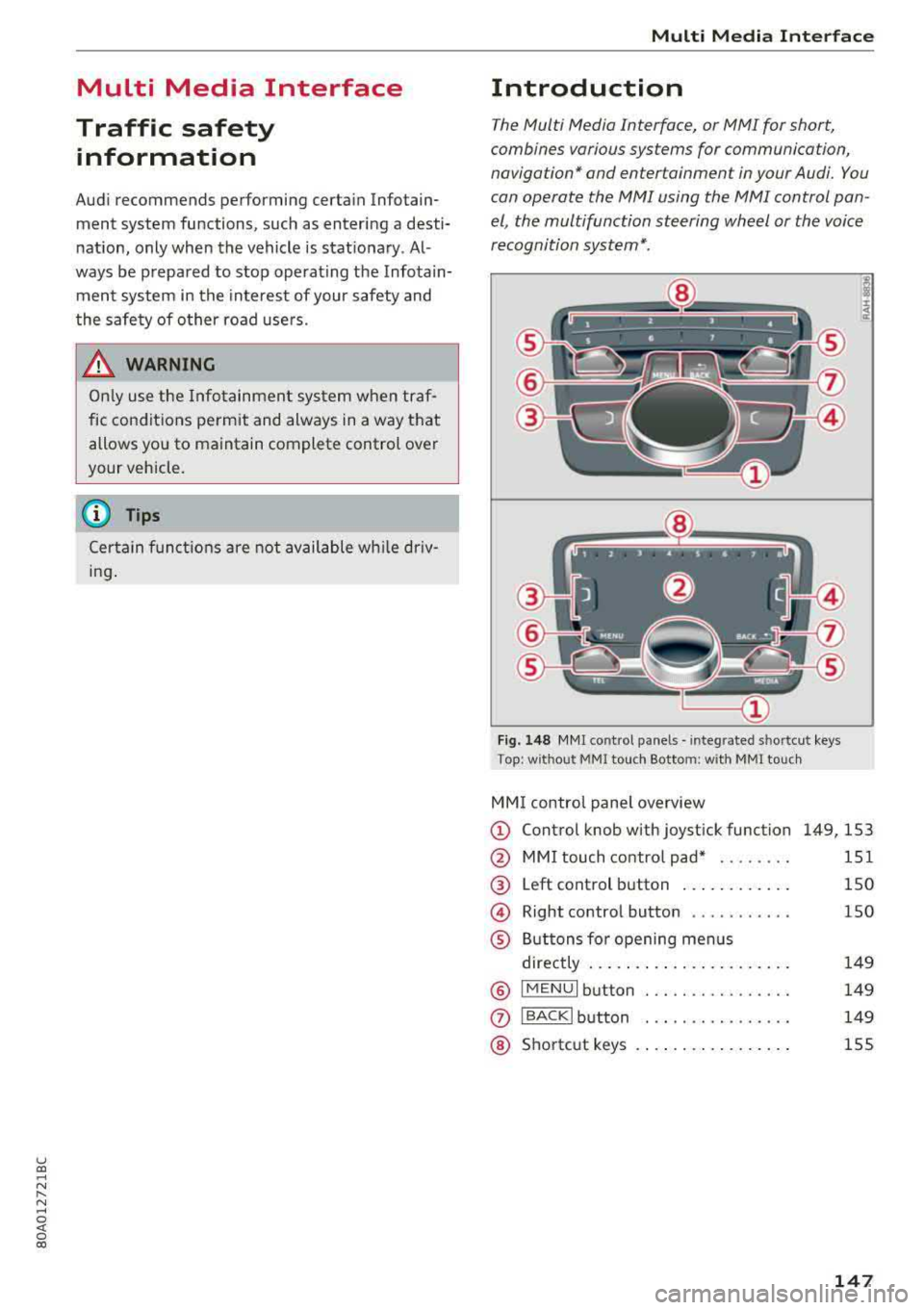
Fig. 148 MMI co ntrol p an els · integ rated s hortcu t keys
T op : w it ho ut MM I tou ch Bottom : w ith MM I touch
MM I control panel overview
© Control knob with joystick function 149, 153
@ MM I touch control pad* . . . . . . . . 151
@ Left control button . . . . . . . . . . . . 150
© Right control button . . . . . . . . . . . 150
® Buttons for opening menus
directly . . . . . . . . . . . . . . . . . . . . . . 149
@ IMENUI button . . . . . .. .. . . .. . . . 149
0 IBACKI button . . . .. . . . . . . . . . . . 149
@ Shortcut keys . . . . . . . . . . . . . . . . . 155
147
Page 150 of 392
Multi Media Interface
MMI On/Off knob with
joystick function
Operating
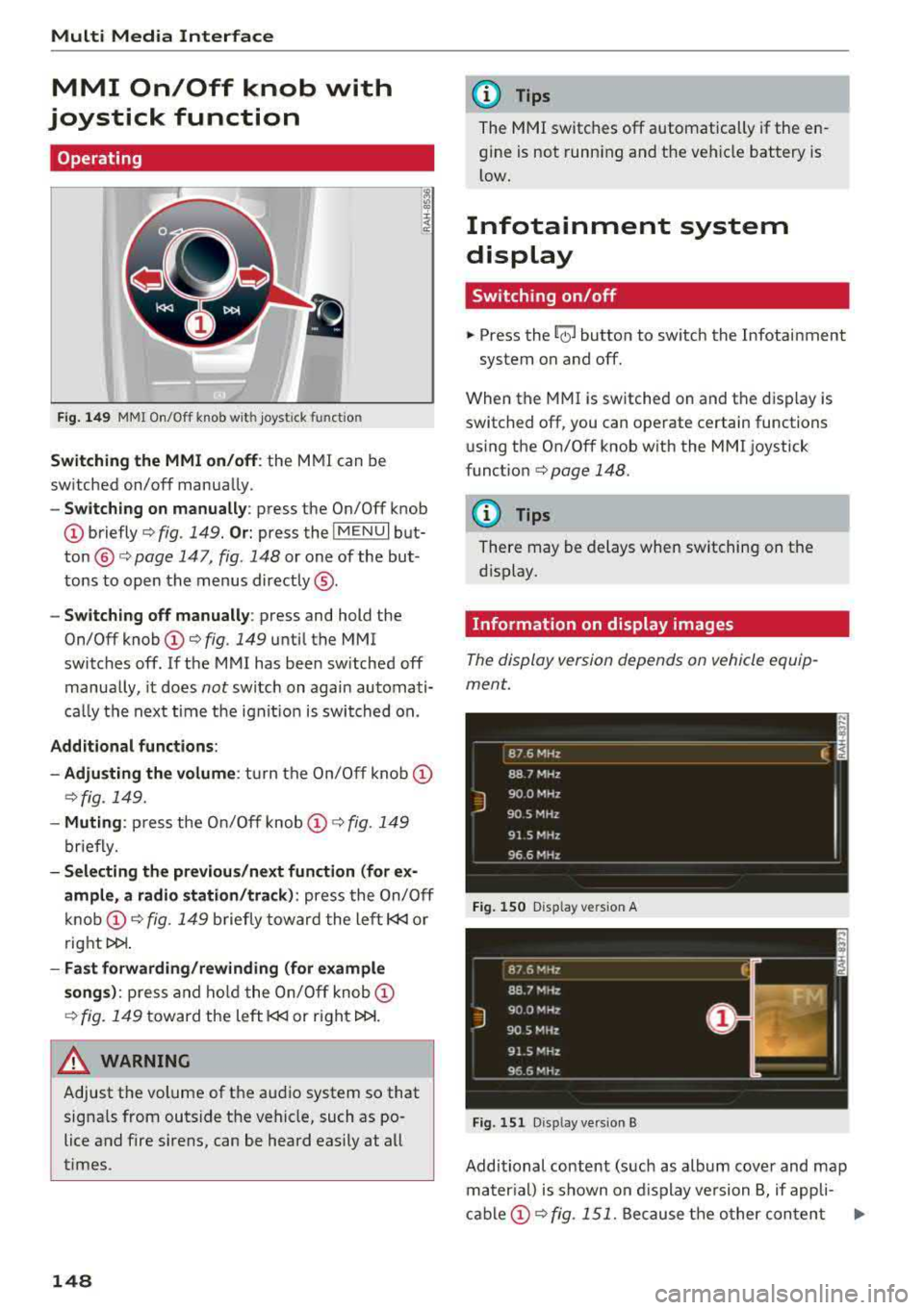
Fig.149 MMI On/Off knob wi th joystick functio n
Switching the MMI on/off: the MMI can be
switched on/off manually .
-Switching on manually : press the On/Off knob
@briefly c:> fig. 149. Or: press the IMENUI but
ton @ c:> page 147, fig. 148 or one of the but
tons to open the menus directly ®·
-Switching off manually: press and hold the
On/Off knob
(D c:> fig. 149 until the MMI
switches off. If the MMI has been switched off
manually, it does
not switch on again automati
ca lly the next time the ignit ion is switched on.
Additional functions:
- Adju sting the volume :
turn the On/Off knob (D
c:>fig. 149.
-Muting : press the On/Off knob (D c:> fig. 149
briefly.
- Selecting the previous /next function (for ex
ample, a radio station/track):
press the On/Off
knob
(D c:> fig . 149 briefly toward the left l
t>l>I .
-Fast forwarding/rewinding (for example
songs): press and hold the On/Off knob (D
c:> fig. 149 toward the left l
.&_ WARNING
Adjust the volume of the audio system so that
signals from outside the vehicle, such as po
lice and fire sirens, can be heard easily at all
times.
148
@ Tips
The MMI switches off automatically if the en
gine is not running and the vehicle battery is
low.
Infotainment system
display
Switching on/off
.. Press the~ button to switch the Infotainment
system on and off.
When the MMI is switched on and the display is
switched off, you can operate certain functions using the On/Off knob with the MMI joystick
funct ion
c:> page 148 .
{!) Tips
There may be delays when switching on the
display.
Information on display images
The display version depends on vehicle equip
ment.
_ 8_ 7_ 6
_ M_H _z ____________ ____ f. ;
88 7 MHz
J
900 MHz
90.5 MHz
91 5 MHz
96 6 MHz - -------------
Fig. 150 D isp lay vers ion A
Fig. 151 D isp lay vers ion B
Additional content (such as album cover and map
mater ial) is shown on display version B, if appli-
cable
(D c:> fig . 151. Because the other content Ill-
Page 152 of 392
Multi Media Interfac e
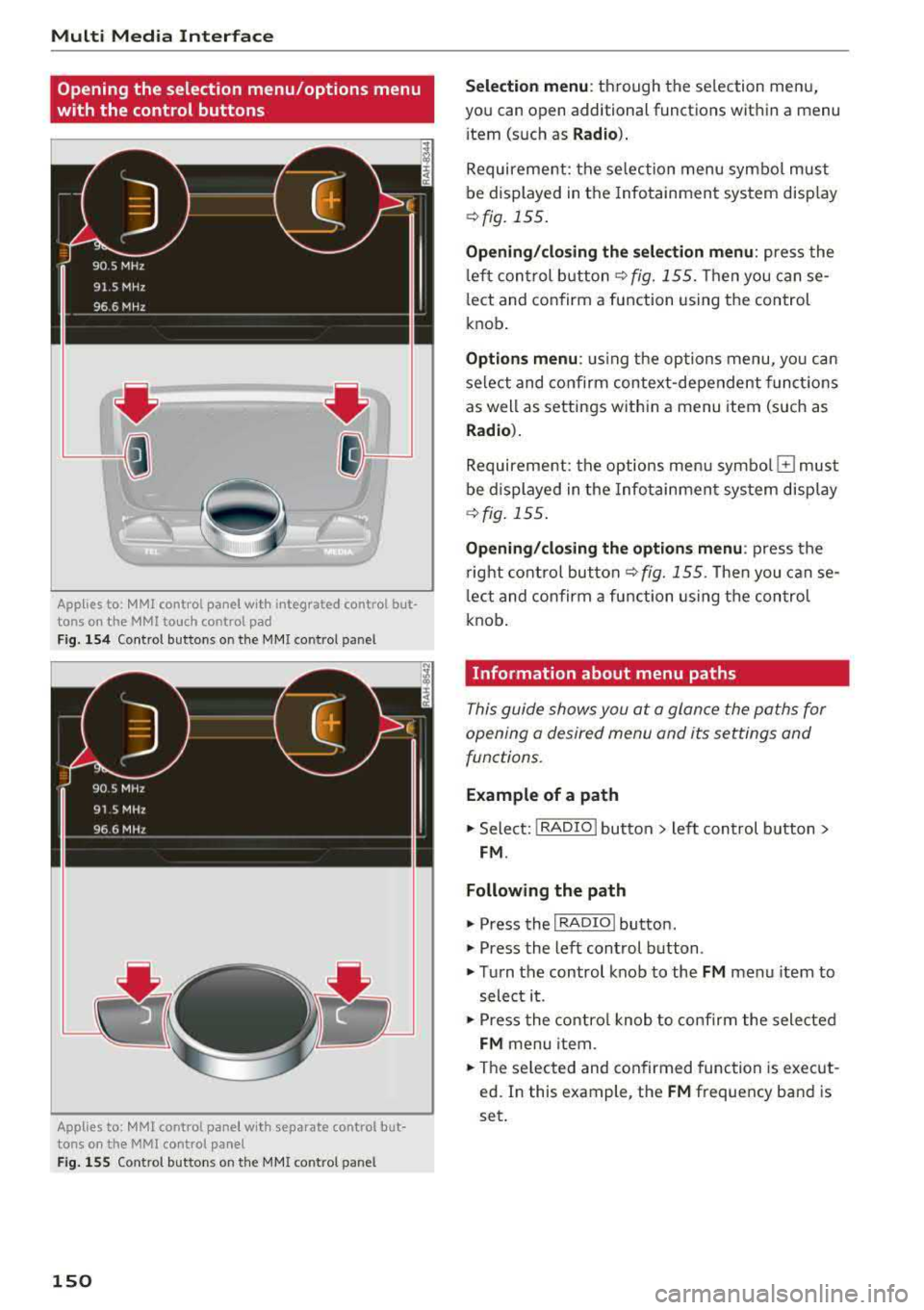
Opening the selection menu/options menu
with the control buttons
Applies to: MMI control panel with integrated control but
tons on the MMI to uch control pad
F ig. 154 Control buttons o n the MMI co ntrol panel
Applies to: MMI control pane l with separate control but
tons on the MMI control panel
Fig . 155 Contro l but tons o n the MMI co ntrol pan el
150
Se lection menu : through the se lection menu,
you can open additional functions wit hin a menu
i tem (such as
R ad io ).
Requirement: the se lection menu symbol must
be displayed in the Infotainment system disp lay
<9 fig. 155 .
Opening /clo sing the selection m enu : press the
l eft control b utton ¢
fig. 155. Then you can se
lect and confirm a function using the control
knob .
Options menu : using the options menu, yo u can
select and confirm context-dependent funct ions
as well as settings within a menu item (such as
Rad io).
Requirement: the options menu symbo l G must
be displayed in the Info tainment sys tem display
¢ fig. 155 .
Opening/clo sing th e opti ons menu : press the
r ight control but ton
¢ fig. 155. Then you can se
l ect and confirm a function using the control
knob .
Information about menu paths
This guide shows you at a glance the paths for
opening a desired menu and its settings and
functions.
E xample of a path
11> Select: I RADIO I button > left control b utton >
FM .
Following the path
" Press the I RADIO I button.
" Press the left control button .
"Turn the control knob to the FM menu item to
select it .
"Press the contro l knob to confirm the selected
FM menu item .
"The se lected and confirmed func tion is execut
ed. In this example , the
FM frequency band is
set .
Page 153 of 392
u co ..... N r-N .....
~ 0 co
MMI touch
MMI touch control pad
Applies to: vehicles with MMI touch
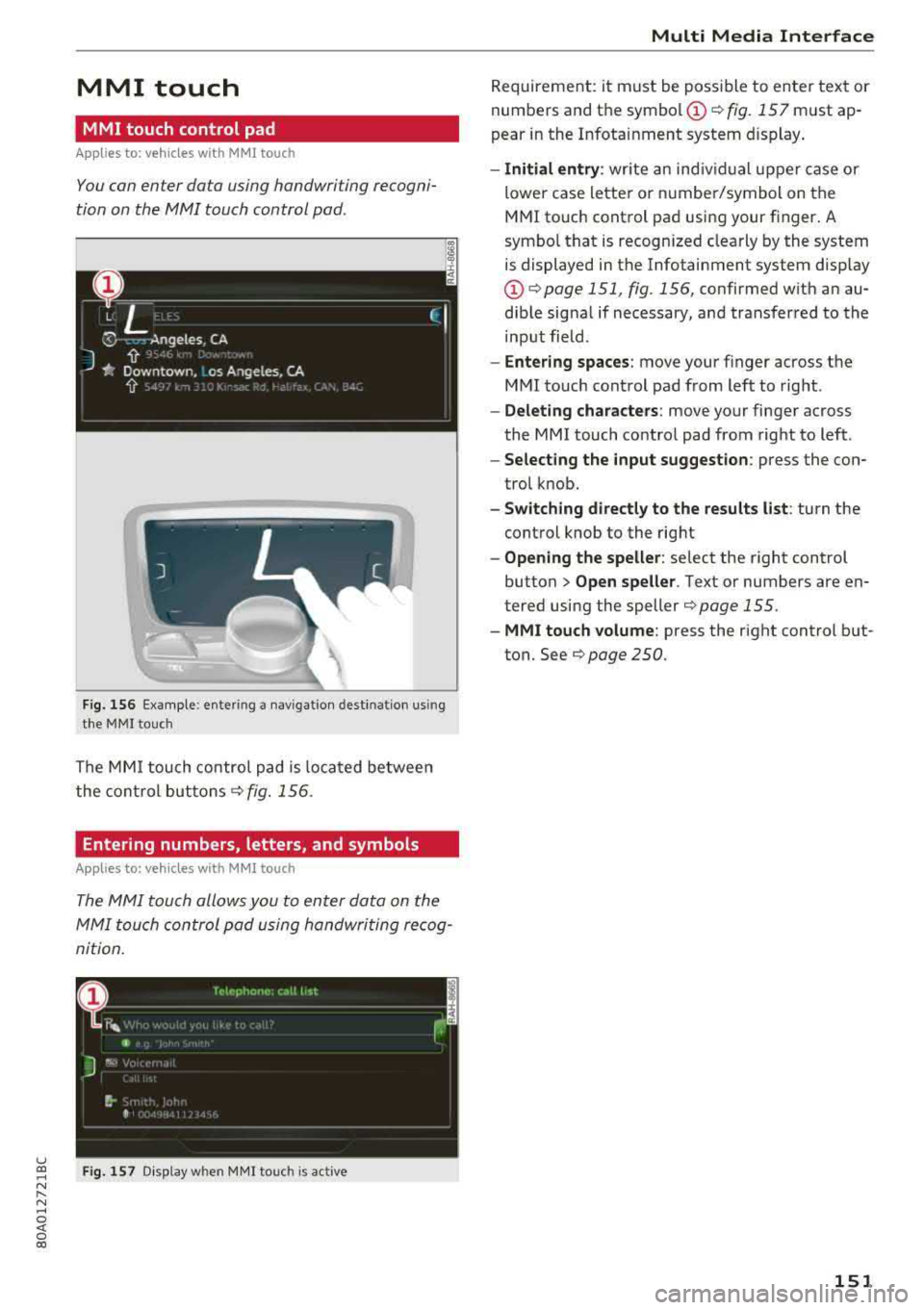
You can enter data using handwriting recogni
tion on the MMI touch control pad.
F ig . 1 56 Examp le : enter ing a nav igation dest ination us in g
t h e MMI touc h
The MMI touch control pad is loca ted be twee n
the cont ro l
buttons¢ fig. 156 .
Entering numbers, letters, and symbols
Applies to: veh icles with MMI touch
The MMI touch allo ws you to enter data on the
MMI touch con trol pad using handwriting rec og
ni tion .
Fig . 15 7 Disp lay w hen MMI touc h is act ive
Multi Media Inte rface
Requirement: it must be poss ible to enter text or
numbers and the
symbol (!) q fig. 157 must ap
pear in the Infotainment system d isplay .
-Initial entry : write an ind iv idual upper case or
lower case letter or n umbe r/symbol on the
MMI touch cont rol pad using your finger . A
symbo l that is recogn ized clearly by the system
is displayed in the Infotainment system disp lay
(D q page 151 , fig. 156, confirmed w ith an au
dib le sig na l if necessary, and transferred to the
input field.
- Enter ing spaces : move your finger across the
M MI touch control pad from left to right .
-Delet ing characters : move your finger across
the MMI touch contro l pad from right to left .
-Select ing the input suggestion : press the con
trol k nob.
- Switching directly to the results list : turn the
control knob to the rig ht
- Opening the speller : select the right control
button>
Open speller . Text or numbers are en
tered using the
speller¢ page 155.
- MMI touch volume : press the right control b ut
ton. See
¢ page 250 .
151
Page 156 of 392
Multi Media Interfac e
pushing the control knob up again i=:>page 155,
Letter/number speller.
On the map
Requiremen t: a map must be disp layed
i=:>page 213 .
-Di spla ying the input field : push the control
knob up .
-Di spla ying rout e guidan ce : when route guid
ance is active, you can also display the route
guidance by pushing the contro l knob up
i=:> page 208, fig . 187.
- Zoomi ng in /out on the map (zoom): tur n the
contro l knob to the right/ left to zoom in/out on
the map .
Applies to : vehicles without MMI touch with joyst ick function
- Sho win g/h id ing the cros shairs : press the con
trol knob . The crosshairs are shown on the
map. Press the
I BACK I button to hide the cross
hairs.
- Mo ving the cro ssha ir s: when the crosshairs are
vis ible, turn the control knob in the d irection
the crossha irs shou ld move. Press the control
knob and ho ld it unti l the crossha irs are in the
desired poi nt on the map .
-Add itional options on t he map : see
i=:>page 214
Adjusting the sound focus
Applies to: vehicles without MMI touch with joystick function
Requirement: the balance/fader function must
be selected
c> page 249.
- Mo ving the sound fo cus using th e crosshair s:
the crosshairs can be moved hori zontally. Turn
the control knob to the left o r to the r ight.
Press the control knob to move the crosshairs
vertically . Turn the control knob to the left or
to the right . Press the control knob aga in to
save the setting .
Using the DVD main menu
Requirement: a DVD must be p lay ing
i=:> page 234 . The DVD main menu is shown .
-Sele cting a menu item : move the control knob
with joystick funct ion up or down or to the left
or right.
- Confi rming a selection : press the control knob.
154
Opening the selection/options menu with
the control knob
Applies to: vehicles with joystick function
Applies to: MMI control panel with control knob and joy
stick function
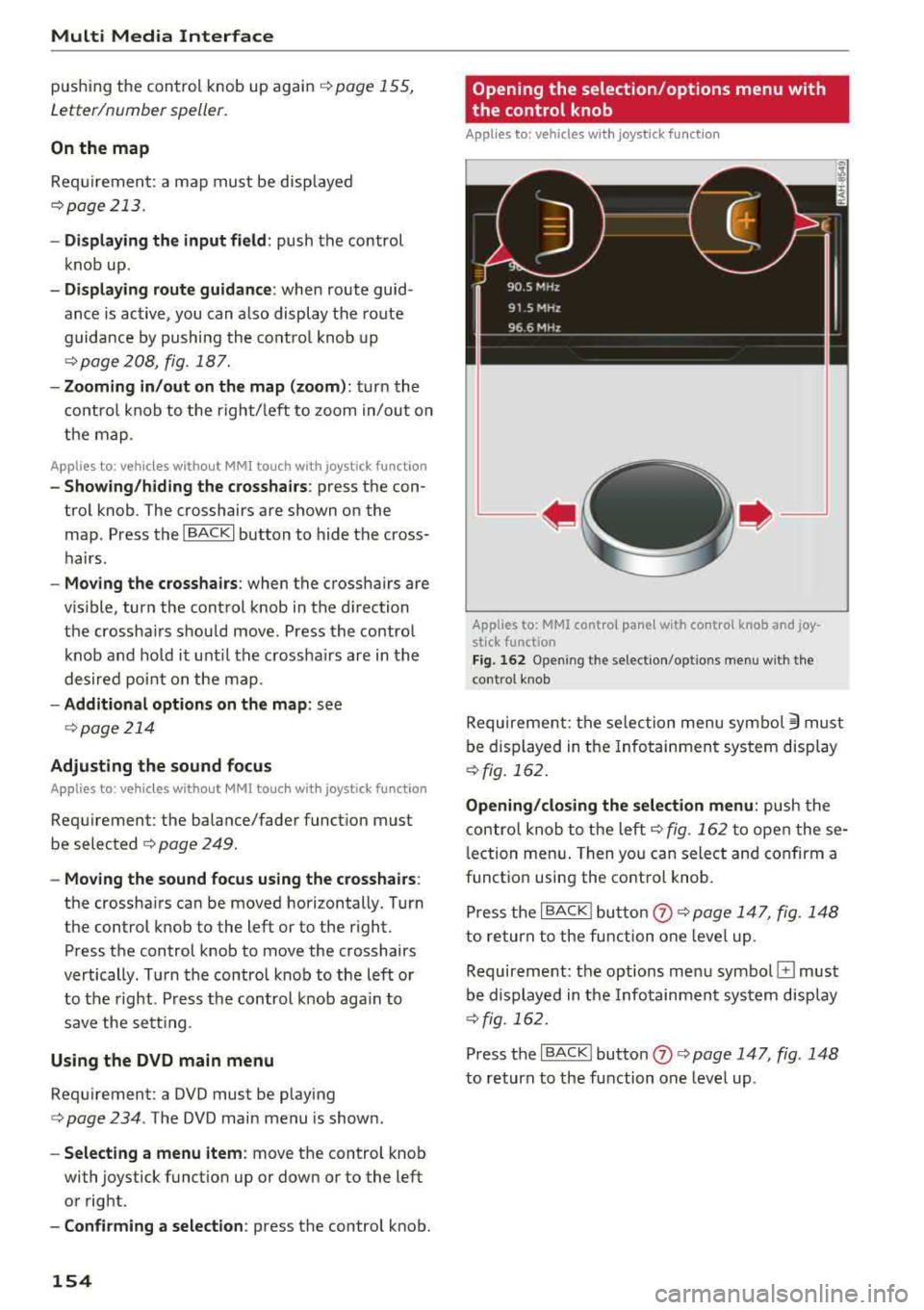
Fig. 162 Ope ning the se lec tion/opt ions menu w it h t he
contro l kn ob
Requirement : the se lection menu symbo l 3 must
be displayed in the Infotainment system display
¢ fig. 162 .
Opening /cl os ing the se lection menu : push the
contro l knob to the left
i=:> fig. 162 to open these
l ection menu . Then you can select and confirm a
function using the control knob.
Press the
I BACK I button (J) c> page 147, fig . 148
to return to the function one leve l up .
Requirement: the options menu symbo l
El must
be displayed in the Infotainment system display
i=:> fig. 162.
Press the I BACK I button 0 c> page 147, fig . 148
to return to the function one leve l up .