service AUDI Q7 2017 Owner´s Manual
[x] Cancel search | Manufacturer: AUDI, Model Year: 2017, Model line: Q7, Model: AUDI Q7 2017Pages: 402, PDF Size: 100.39 MB
Page 154 of 402
Intelligent Technology
Electromechanical
steering, all-wheel
steering
The electromechanical steering supports the
driver's steering movements .
Power steering adapts electronically based on
the vehicle speed.
Indicator lights and messages
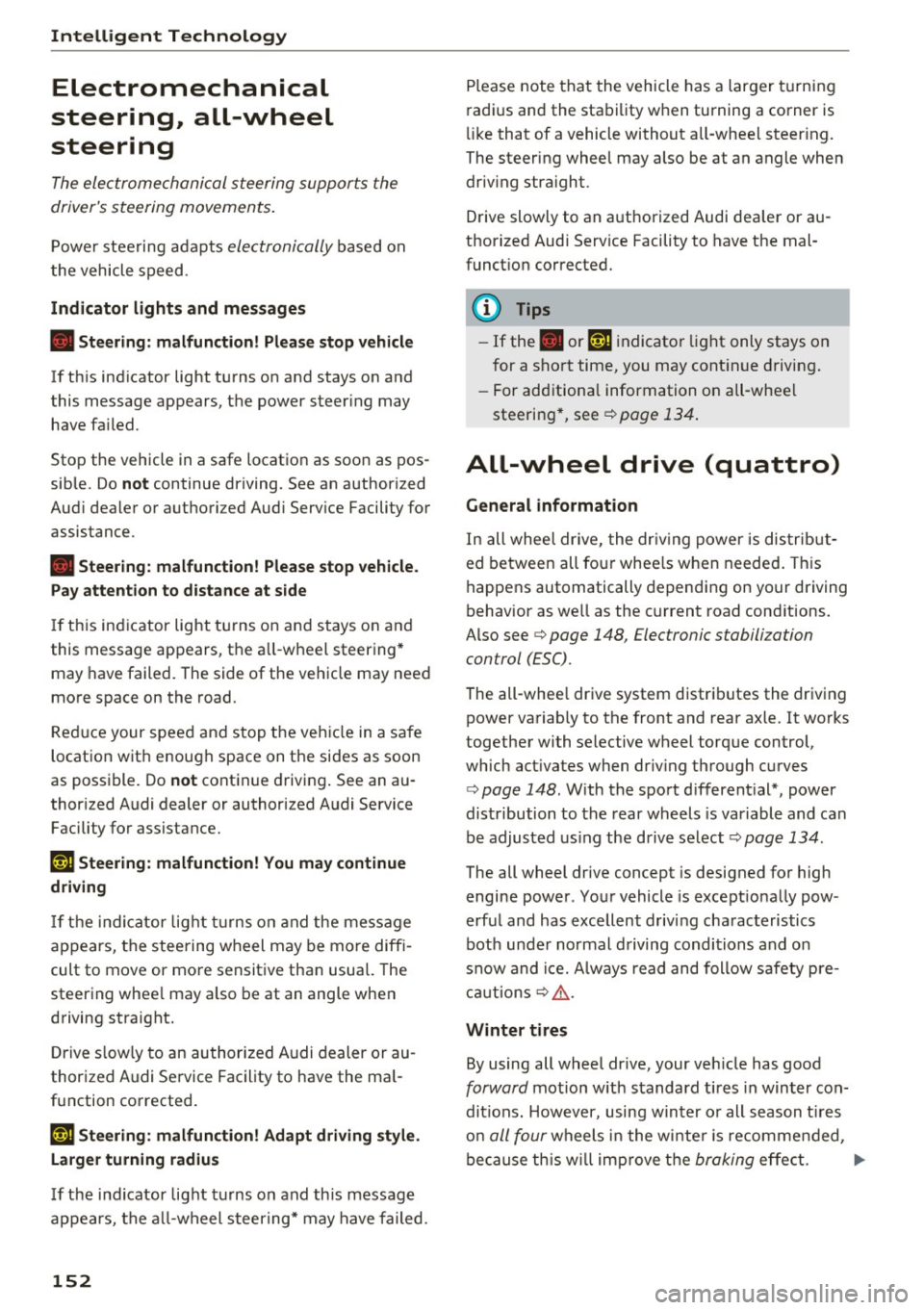
• Stee ring: malfunction! Please stop vehi cle
If th is ind icator light turns on and stays on and
this message appears, the power steer ing may
have fa iled.
Stop the vehicle in a safe location as soon as pos
sib le. Do
not continue driving. See an author iz ed
Aud i dealer or authori zed Aud i Serv ice Facility for
assistance.
• Steering: malfunction! Please stop vehicle.
Pay attention to distan ce at side
If th is ind icator light turns o n and stays o n and
this message appears, the a ll-wheel steering*
may have failed . The side of the vehicle may need
more space on the road.
Red uce your speed and stop the veh icle in a safe
locat ion wit h enough space on the sides as soon
as possible. Do
not continue d riving . See an au
thor ized Audi dealer or authorized Audi Service
Facility for assistance.
'T@ Steering : malfunction! You may continue
dri ving
If t he indicator lig ht t urns on and the message
appears, the steering wheel may be more diff i
cult to move or mo re sensitive tha n usua l. The
steering whee l may a lso be at an angle when
driving straight.
D rive s low ly to an authorized A udi dealer or au
thor ized Audi Se rvice Facility to have the ma l
function corrected.
'T@ Ste ering : ma lfunction! Adapt driving style .
Larger turning radius
I f the indicator lig ht tu rns on and th is message
appears, the a ll-wheel steering* may have failed .
152
Please note that the vehicle has a larger t urning
radi us and the stabi lity w hen turning a corner is
lik e that of a vehicle without all-whee l steer ing.
The steering wheel may also be at an angle when driv ing straight.
Drive slowly to an a uthorized Audi dea ler or au
thorized Audi Serv ice Facility to have t he mal
funct ion corrected.
(D Tips
- If the . or 'T-ij indicato r light only stays on
for a sho rt time, you may cont inue driving .
- For add itiona l information on all-wheel
steering *, see ¢
page 134 .
All-wheel drive (quattro)
General informat ion
I n all whee l drive, the dr iv ing power is dis trib ut
ed between all four whee ls when needed . This
happens automatically depending on your driving
behavior as we ll as the c urrent road cond it ions.
Also see ¢
page 148, Electronic stabili zation
control (ESC).
The all-whee l drive system distributes the driving
power va riably to the front and rear axle. It works
together with selective wheel torq ue control,
which act ivates when dr iv ing through curves
¢ page 148. With the sport d ifferent ial*, power
dist ribution to the rear wheels is variable and can
be adjusted using the drive se lect
¢ page 134.
The all wheel drive concept is designed for high
engine power . Your vehicle is except iona lly pow
erfu l and has excellent driving charac teristics
bot h unde r normal d riving conditions and o n
snow and i ce. Always read and follow safety pre
c au tions
c:::> .&, .
Winter tires
By using all wheel dr ive, your ve hicle has good
forward motion w ith standard tires in win ter con
dit ions. However, using w in ter or all season t ires
o n
all four wheels in the w inte r is re comme nded,
be cau se th is w ill imp rove t he
braking effe ct. IJII>-
Page 173 of 402
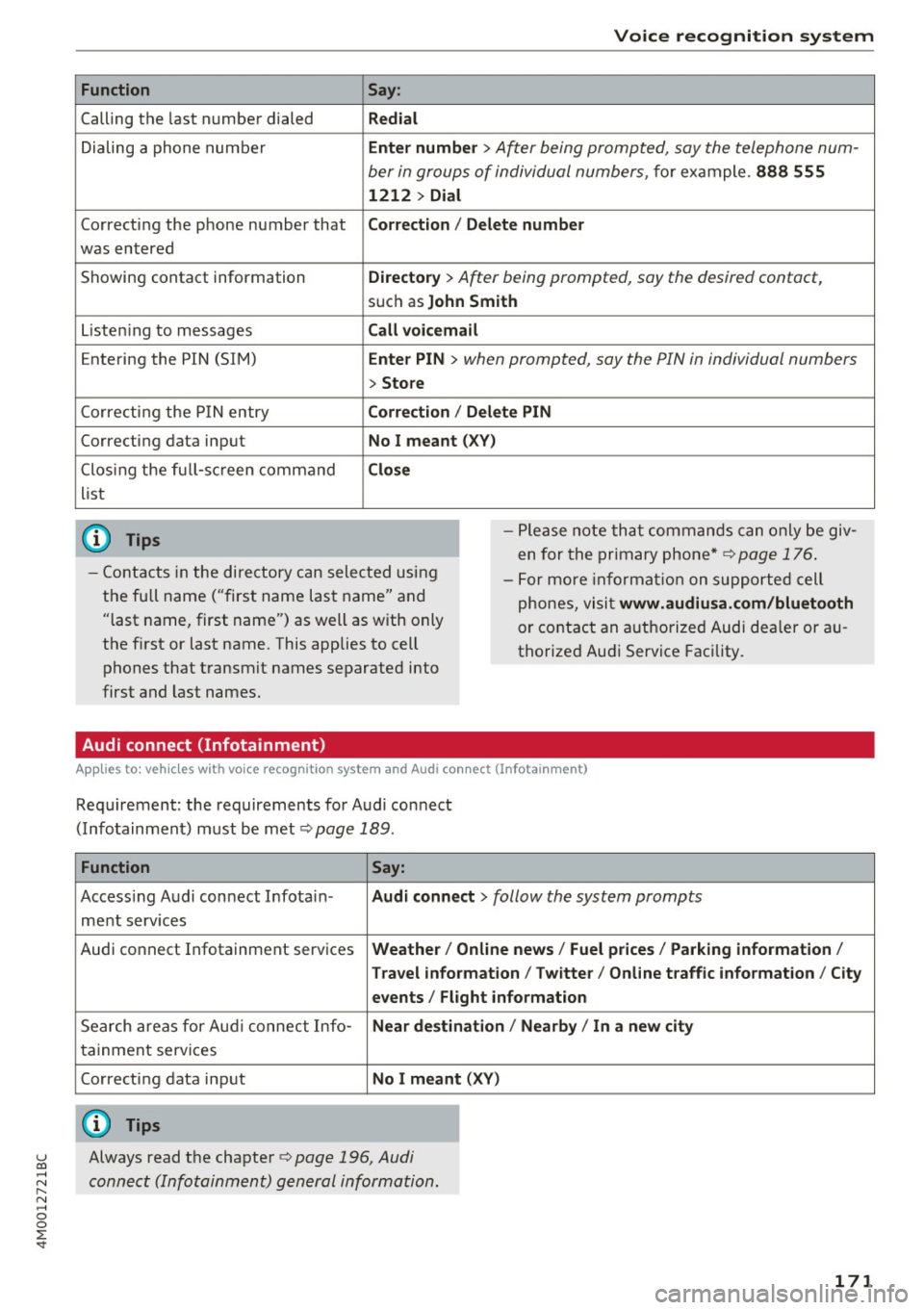
Function
Calling the last number dialed
Dialing a phone numbe r
Correcting the phone number that
was entered
Showing contact information
L isten ing to messages
Entering the PIN (SIM)
Corre cting the P IN entry
Correcting data input
Clos ing the full-sc reen command
list
@ Tips
Voice recognition system
Say :
Redial
Enter number
> After being prompted, say the telephone num-
ber in groups of individual numbers,
fo r example. 888 555
1212 > Dial
Corr ection
I Delete numb er
Directory
> After being prompted, say the desired contact,
such as John Smith
Call voicemail
Ente r PIN
> when prompted, say the PIN in individual numbers
> Store
C o rr ection / Delete PIN
No I meant ( XV)
Close
- Please note that comm ands can only be giv
en for the primary phone*~
page 176 .
-Contacts in the directory can sele cted us ing
the fu ll name ("first name last name" and
"last name, first name") as well as with only
the f irst or last name. This applies to cell
phones that transmit names separated into
first and last names. -
For more informat ion on s upported cell
phones, visi t
www.audiusa .com /bluetooth
or contact an a uthorized Audi dea ler or au
thorized Audi Service Facility.
Audi connect (Infotainment)
A ppl ies to: ve hicles with vo ice recognition system and Audi co nnect (Infotainment)
Requirement: the requirements for Audi connect
(Infotainment) m ust be met
¢ page 189.
Function Say:
Accessing Audi connect Infotain -Audi connect > follow the system prompts
ment serv ices
Audi connect Infotainment services
Weather / Online new s/ Fuel pr ices/ Parking information /
T rav el info rmation / Twitte r/ Onl ine t raffic info rmation / City
e v ents / Flight informat ion
Search areas for Aud i connect Info-Near de stin ation / Nearb y/ In a new city
tainment serv ices
Correcting data input
No I meant (XV)
(D Tips
~ Always read the chapter ¢ page 196, Audi
C::: connect (Infotainment) general information. r-... N .... 0
0
:E: '
Page 174 of 402
Voice recognition system Messages (Audi connect (Infotainment))
Applies to: vehicles with voice recognition system and Audi connect (Infotainment)
Requirement : a cell phone w ith a n active MAP
(Message Access Profi le) mus t be connected to
t he MMI
¢page 181.
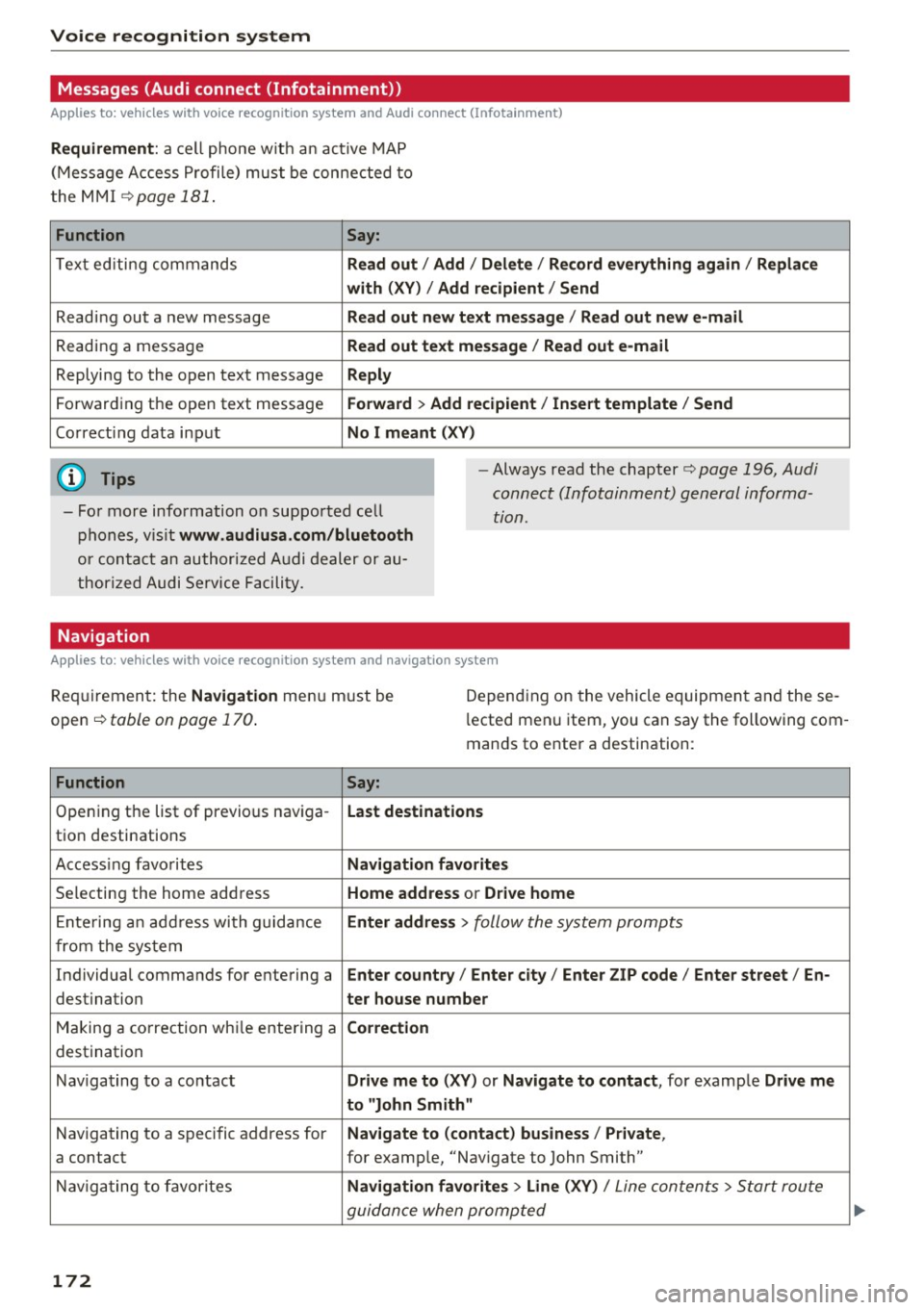
Function Say:
Text ed iti ng commands Read out /Add i/ Delete / Re cord everything again / Replace
with (XV )/ Add recipient / Send
Reading out a new message Read out n ew te xt me ssage / Re ad out new e-mail
Reading a message Read out text me ssage / Read out e-mail
Replying to the open text message Reply
Forwarding the open text message Forward > Add recipient / Insert template / Send
Correcti ng data inp ut No I meant (XV)
@ Tips
- Fo r more information on suppo rted cell
p hones, v is it
www .audiusa.com/bluetooth
or contact an author ized A udi dealer or au
thori zed Audi Service Facili ty. -
Always read the chapter¢
page 196, Audi
connect (Infotainment) general informa
tion.
Navigation
Applies to : vehicles with voice recognition system and navigation system
Requiremen t: the Navigation men u m ust be
open ¢
table on page 170 .
Depend ing on the vehicle equipmen t an d these
l ected menu item, you can say the following com
mands to enter a destination:
Function Say:
Opening the list of previous naviga -Last destinations
tio n destinations
Access ing favo rites
Nav igation favorites
Selecting the home add ress Home addre ss or Drive home
Ente ring a n add ress wi th guidance Enter addr ess > follow the system prompts
from the system
Individua l comma nds for entering a
Enter country / Enter city I Enter ZIP code / Enter street / En -
destination ter ho use number
Making a co rrection wh ile entering a Correction
destination
Naviga ting to a contact
Drive me to (XY) or Navigate to contact , for example Drive me
to "John Smith"
Navigating to a specific address for Navigate to ( contact ) business / Private ,
a contact for example, "Nav igate to John Smith"
Nav iga ting to f avorite s
Navigation favorites > Line (XV) / Line contents> Start route
guidan ce when promp ted
172
Page 175 of 402
u co ...... N r-... N ...... 0
0
:E: '
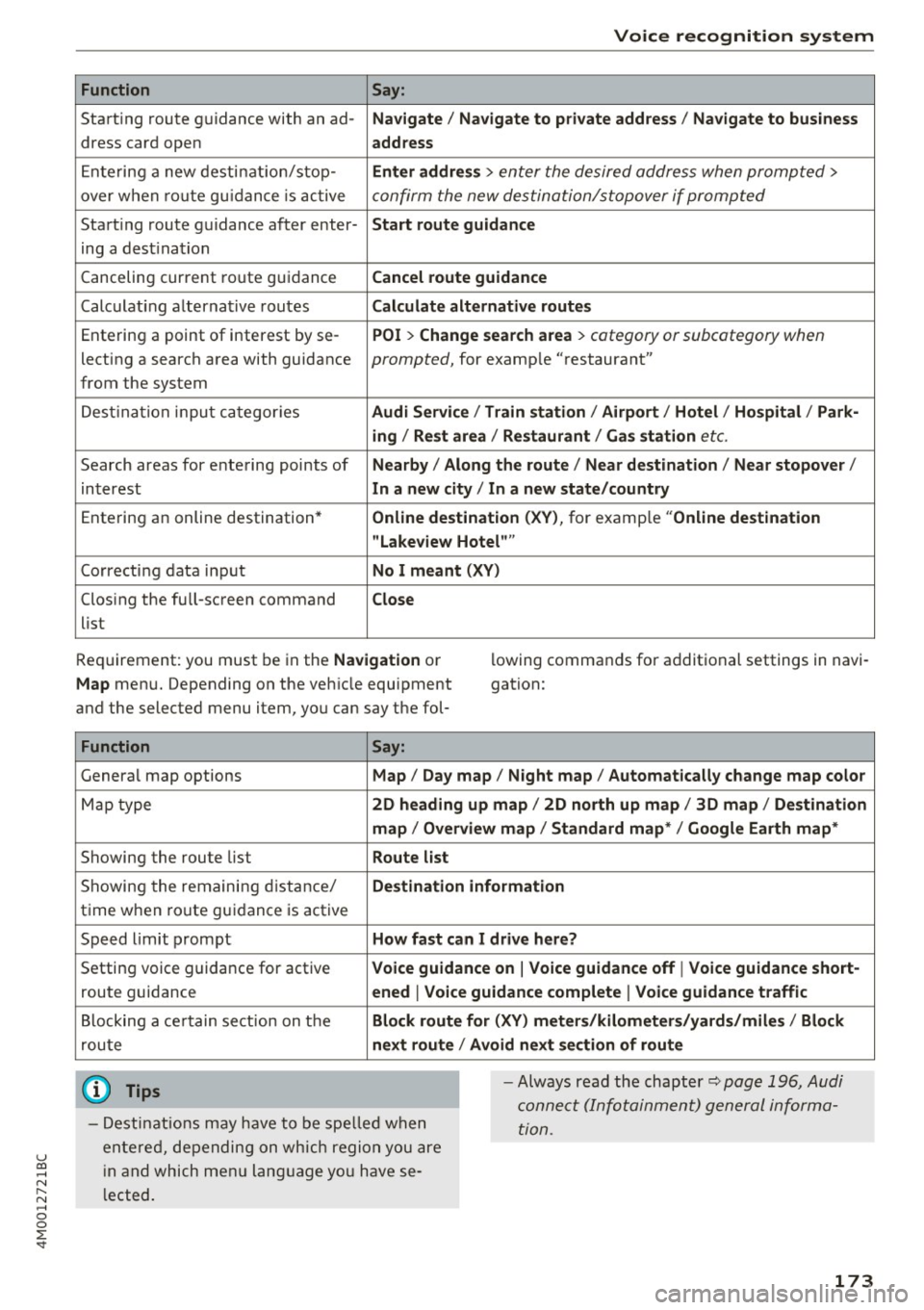
Function Say:
Starting route g uidance with an ad-Navigate / Navigate to p riv ate addre ss / Navig ate to bu siness
dress card open address
Ente ring a new desti nat ion/stop-Enter addre ss > enter the desired address when prompted>
over when ro ute gu idance is ac tive confirm the new des tination/stopover if prompted
Start ing route guidance after enter-Start rout e guidance
ing a dest ination
Canceling current route guidance
Cancel route guidance
Calculat ing alternative routes Calculate alternative route s
Entering a point of interest by se-POI > Change search area > category or subcategory when
lecting a search area with guidance prompted, for example "restaurant"
from the system
Dest ina tion i nput ca tegor ies
Audi Service / Train station /Airport / Hot el / Ho spita l / Park-
ing / Re st area / Restaurant / G as station
etc.
Search areas for entering points of Nearby/ Along the route I Near destination / Ne ar stopover /
interest In a new city/ In a new stat e/country
Entering an online destination* Online de stinat ion (XV), for examp le " Online de stination
" Lake view Hotel" "
Correcting data inp ut No I meant (XV)
Clos ing the full-screen command C lo se
list
Requirement: you must be in the
Navigation or
Map menu. Depending on the vehicle equipment
and the selected menu item, you can say the fol-l
owing commands for additional settings in navi
gation:
Function Say:
General map options Map/ Da y map / N ight map / Automat icall y chang e map color
Map type 2D heading up map / 2D north up map / 3D map / De stination
map / Ov ervi ew map / Standard map* / Googl e Earth map *
Showing the route list Route list
Showing the remaining distance/ Destination information
time when route guidance is active
Speed limit prompt
How fa st can I dri ve her e?
Setting voice guidance for active Voice guidance on I Vo ice guidance off I V oice guidance short-
route guidance ened I Voi ce guidance complete I V oice guidance traffic
Blocking a ce rtain section on the Block route for (XV ) m ete rs/ kilometers /yards /mil es/ Block
route next rou te I Avoid n ext se ction of r oute
(D Tips
- Destinations may have to be spe lled when
entered, depending on which region you are
i n and which men u lang uage you have se
l ected. -
Always read the chapter
¢ pag e 196, Audi
conne ct (Infotainment) general informa
tion.
173
Page 177 of 402
u co ...... N r-... N ...... 0
0
:E: '
tion system must not be active.
A cell phone must be connected to the MMI w ith
the
Handsfree profile ~ page 176.
The cell phone being connected must have voice
control that can be controlled externally .
.. Switching on: press and hold the 5l button on
the multifunction steering wheel* and say the
desired command after the external speech di
alog begins .
.. Continuing/resuming the dialog: the system
remains ready to use for a short time after end
ing the dialog . You can start a new external dia
log during this time. Press the
5l button if
needed, and say a new command.
Or : select
and confirm
Resume on the MMI control panel.
.. Switching off: press and hold the 5] button .
Or: select and confirm Cancel on the MMI con
trol panel.
(1) Tips
- There are no voice guidance* prompts when
a dialog is active.
- This function depends on the cell phone
used. You can obtain more information
from your cell phone service provider or
from your cell phone user guide .
-AUDI AG simply provides access to control
your cell phone with voice operation and does not take any responsibility for the con
tents and commands within the external
voice control.
Voice recognition system
175
Page 179 of 402
u co ...... N r-... N ...... 0
0
:E: '
the list of displayed Bluetooth devices.
~ The MMI generates a PIN for the connection
setup
¢ fig. 176 .
~ Select and confirm Yes.
~ Enter the PIN for connecting on your cell
phone.
Or: when the PIN is displayed on your
cell phone, confirm the PIN on your cell phone
and in the MMI. The time allowed for entering
the PIN is limited to approximately 30 seconds.
~ Pay attention to any additional system prompts
displayed on your cell phone, for example if the
system should connect automatically in the fu
ture . Depending on the cell phone, you may
have to confirm downloading the directory sep
arately .
After connecting successfully
After connecting successfully, information about
the connected profiles will appear. You can also
change the profiles later. Select:
!MENUI button>
Settings> left control button > MMI settings>
Connection manager¢
page 250.
In addition, the cell phone contacts are automat
ically loaded in the MMI directory. This process
can take several minutes, depending on the num
ber of contacts .
You can also make your connected cell phone the
default phone by selecting
Set as default tele
phone
in the Connection manager ¢ page 251.
@ Note
Always follow the information found in ~CD in
Wi-Fi hotspot on page 195.
(D Tips
- Making phone calls through the MMI is only
possible using the
Handsfree Bluetooth pro
file.
- You can apply additional settings to con
nected mobile devices using the
Connection
manager
¢ page 250.
-You can also search for the MMI in your cell
phone using the Bluetooth device search.
- You only have to pair your device one time.
Bluetooth devices that are already paired
automatically connect to the MMI when the
Telephone
Bluetooth function is switched on, they are
within range and the ignition is switched on.
The last connected cell phone is given first
priority.
- Authorizing the MMI connection in your cell
phone will make automatic connection pos
sible .
- Pay attention to any system prompts dis
played on your cell phone, for example if
the system should connect automatically in
the future . Depending on the cell phone,
you may also need to download the directo
ry and confirm access to your text messages
separately.
- When leaving the vehicle, the Bluetooth
connection to the cell phone will automati
cally disconnect . Depending on your cell
phone, phone calls in progress may be auto
matically redirected from the MMI to your
cell phone and you can continue the call on
your phone.
- You can obtain more information from your
cell phone service provider or from your cell
phone user guide. For information on using
the telephone, visit
www.audiusa.com/
bluetooth
or contact an authorized Audi
dealer or authorized Audi Service Facility.
- Applies to: vehicles without secondary
phone: Several cell phones can be paired to
the
MMI, but only one cell phone can be ac
tively connected to the MMI.
- Applies to : vehicles without seconda ry
phone : If a Bluetooth device is already con
nected to the MMI, it will be disconnected
when another device connects to the MMI.
'
Operating two telephones through the
MMI
You can connect two cell phones to the MMI, for
example your business cell phone as the primary
phone and your private cell phone as the secon
dary phone. You can be reached in your vehicle
through both cell phones.
The first connected cell phone is displayed as the
primary phone in the MMI. The second cell phone
is connected as the secondary phone. .,.
177
Page 183 of 402
u co ...... N r-... N ...... 0
0
:E: '
ce ll phone service prov ider or from your cell
phone user guide .
- When leaving the vehicle, the Bl uetooth
connection to the ce ll phone w ill automati
ca lly disconnect . Depending on you r cell
phone, phone ca lls in progress may be auto
matically redirected from the MMI to your
ce ll phone and you ca n cont inue the call o n
you r phone.
- The display of an i ncoming phone call in the
Infotainment system d is p lay may still be
v is ible fo r a few s econds after a call is an
swered/ig nored depending on the cell
p ho ne in us e.
Making an emergency call
Appl ies to: vehicles with telephone
.,. Select: I MENU I but ton > Telephone > left con
t ro l button >
Enter number > Enter emergency
ca ll number (for example, 911) >
OK.
_&. WARNING
- Beca use your p hone wo rks with radio s ig
nals, a connection cannot be guara nteed un
der all ci rcumstances. Do not rely on only
yo ur phone w hen it comes to essent ial com
mu nication (suc h as a med ica l emer gency).
-Always follow the instructions g iven by t he
e me rge ncy perso nnel d uring an emergency
ca ll a nd only end t he call whe n they inst ruct
yo u t o do so.
(j) Tips
Eme rge ncy nu mbers are not the same every
where. Fi nd ou t which eme rge ncy nu mber is
used in yo ur current lo ca ti on .
Favorites
Applies to: vehicl es with telep hone
Up to 50 co n ta cts, in addition to the voicemail
num ber, can be s tored in any order in the fav or
ites lis t.
.,. Se lect: I M ENU I butto n >Telephone > left con
t ro l bu tton .
Telephone
Storing an existing phone number as a
favorite:
-Select an d confirm Call list /Directory.
- Select a contact or phone n umbe r from the list.
- Sele ct: r igh t co ntro l but to n >
Store as favorite .
-En ter a name for the favor ite or s elect a sug-
gestion .
- Select and confirm
Store .
Renaming stored favorites
- Select: Favorites > a favorite from the list.
-Select the right cont ro l button> Rename fa-
vorite .
Moving stored favorites
- Select: Favorites > a favori te from the list .
-Sele ct the rig ht c ontro l bu tton> Move favorite .
-Select an d confirm the loca tion of the selected
favorite .
Deleting a stored favorite
- Select: Favorites > a favorite from the list.
-Select the rig ht cont ro l button > Delete favor-
ite
> Delete this favorite or Delete all favor
ites .
Messages
' Text messages
Applies to: cell phones with Bluetooth Message Access Profile
(MAP)
Depending an the cell phone being used and the
cell phone network contract, you can receive and
send text messages using the
MMI .
Requirement
A cell phone must be connected to the MM I via
B luetoot h MAP ( Message Access Profi le)
c> page 176.
.,. Sele ct: ! ME NUI bu tton> Telephone > left con
trol button >
Text message (MyPhone )/Text
message (secondary phone) *.
Write new text message
Se lect a nd con firm Write new text me ssage .
- Using a template :
select and confirm the de
sired templa te from the list .
181
Page 184 of 402
Telephone
-Writing your ow n te xt*: select and confirm D o
not use t empl ate.
Enter text using the MMI
touch contro l pad* or the letter speller.
- Enter one or mo re recipients.
- Se lect and confirm
Se nd .
lnbox
Displays all received text messages.
S ent
Displays all sent text messages .
Outbox
Displays all text messages to be sent .
Drafts
Displays all text messages that have not yet been
sent and stored text messages.
(D Tips
- Please note that you may have to act ivate
the receiving and sending of text messages
i n your cell phone depend ing on the SIM
card being used (for example, when using a
Multi-SIM). You can obtain mo re informa
tion from your cell phone service provider or
from your cell phone user g uide.
- Fo r more information on suppo rted cell
phones, v is it
www .audiu sa.com /bluetooth
or contact an authorized A udi dealer or au
thorized Audi Service Facility .
- You need a cell phone with Message Access
Profile that also supports the sending func
tion to be able to send text messages
through the MMI.
Message options
Applies to: cell phones with Bluetooth Message Access Profile
(MAP)
.,. Se lect: IT ELI button > left control button > te xt
message (M yPhone )/te xt me ssage (secondary
phone )* > In bo x/S ent/Outbo x
> right control
button.
The fo llow ing options may be availab le depend
ing on the se lected menu .
1> Not available in a ll la n guage s.
182
Storing a text me ssage as a template
Ten text message temp lates are s to red in the
MM I. You can
save up to ten additiona l tem
plates .
- Create a text message.
- Select and confirm
Store a s te mplat e.
Resume l ast te xt mes sage
The last ed ited text message can be resumed.
Reply*
A reply can be sent for the se lected message in
t h e
Inbo x.
Forward
The selected text message ca n be forwarded to a
diffe rent recipient.
Send again*
The selected text message can be resent.
Delete th is te xt me ssage *
The selected text message can be deleted.
Read out1
)
You can have the MMI read an open text mes
sage .
Text messaging settings*
To display when a new text message is received,
activate the
Text mes sage not ificat ion s. New
text messages a re ind icated w ith an enve lope 121
i n the Infotainment system display status l ine .
Connection manager
See¢ page 250.
Wi-Fi setting s
See ¢page 195 .
Telephone settings
See ¢page 186.
Page 185 of 402
u co ...... N r-... N ...... 0
0
:E: '
Messages that are deleted in the MMI are also
de leted in the ce ll phone automatica lly .
E-mail*
App lies to: ce ll pho nes wit h Bl ue tooth Message Access Profile
(MAP)
Depending on the type of cell phone being used,
you con re ceive and send e -mails through the
MMI.
Req uirement: a cell phone mus t be connected to
the M MI via Bluetoot h MAP ( Message Access Pro
fil e) <=:>
page 176 . You c an find ou t in your cell
phone owner's manua l if yo ur ce ll phone sup
ports this f unct ion .
• Se lect :
I MENU I button > Telephone > left con
t ro l bu tton >
E-mail (MyPhone) /E-mail (se con
dary phone )*.
Write new e-mail
Selec t and confi rm Write new e -mail.
- Us ing a template :
select and confi rm the de
sired template from the list.
- Writing your own te xt*: select and confirm Do
not use template .
Enter text using the MMI
touch co ntro l pad* or the letter speller .
- Enter one or more recipients.
- Se lect and confirm
Send .
Inbox
All receive d e-m ails are d isplayed .
Sent
All sent e-ma ils are d isplayed .
Outbox
All e-mails that will be sent are displayed .
Drafts
All saved e -m ail s th at have no t been sent ye t are
d is pla yed.
(D Note
Always follow t he info rma tion fou nd in r:=:>0 in
Wi-Fi ho tsp ot on page 195 .
Telephone
{!) Tips
-For more informat ion on s upported cell
phones, visit
www.audiusa.com/bluetooth
or contact an a uthorized Audi dea ler or au
thorized Aud i Service Fac ility .
- To ensure that you r sent e-ma ils are re
ceived, connect your cell phone to the Wi-Fi
hotspot * in the vehicle so that the e-ma il
app on you r ce ll phone conti nues to have In
t er ne t access. If you are s till not receiving e
m ail s even tho ugh yo u have a successf ul
c o nnec tion, the n c ontact your e-mail se rvice
prov ider o r yo ur c ell ph one serv ice p rovi der.
Message options
Applies to: cell phones w ith Bluetooth Message Access P rofile
(MAP)
• Select: !ME NUI button> Telephone > left con
t rol button >
E-mail (MyPhone) /E -mail (secon
dary phone)* > Inbox /Sent /Outbox
> r igh t
control button.
T he following op tions may be ava ilable depen d
i ng on the selected menu.
Store as template
Ten e-ma il temp lates are stored in the MMI. You
can save up to ten additional templa tes .
- Create an e-mail.
- Select an d confirm
Store as template .
Resume last edited e-mail
T he la st e-ma il in prog ress can be resumed.
Reply*
A reply can be sent for the se lected e-ma il in the
lnbo x.
Reply to all*
A reply can be sent for the se lected e -ma il in the
In bo x and it will be sent to all of the entered re
c ipients.
Forward
The sele cted e -mail can be forwarded to a diffe r-
ent rec ipient .
IJ,,
183
Page 186 of 402
Telephone
Delete this message*
The selected e -mail ca n be deleted.
Read out1
)
You can have the MMI read an open e-ma il.
E-mail settings*
To display when a new e -mail is received, activate
the
E-mail notifications . New e-mails are indicat
ed w ith an enve lope 121 in the Infotainment sys
tem display status line.
Connection manager
See ~page 250.
Wi-Fi settings
See !=)page 195.
Telephone settings
See !=)page 186.
(D Tips
- Messages that are deleted in the MMI are
also automatically deleted in the connected
cell phone.
- You cannot read any messages while driv
i ng.
Listening to voicemail
A pp lies to: ve hicles w ith tele phone
~ Se lect: I MENU I button >Telephone> left con
trol button. Select and confirm
Call list/Direc
tory /Favorites > Voicemail.
- Entering the voicemail number:
enter the de
s ir ed number. Select and confirm
OK .
-Dialing the voicemail number: select and con
firm
Voicemail.
@ Tips
- This service must be set up and activated in
advance by the cell phone service provider.
You can obta in more information from your
cell phone service prov ider.
1> Not availab le in all languages.
184 -
Th e voicemail number depends on the cell
phone service provider.
Directory
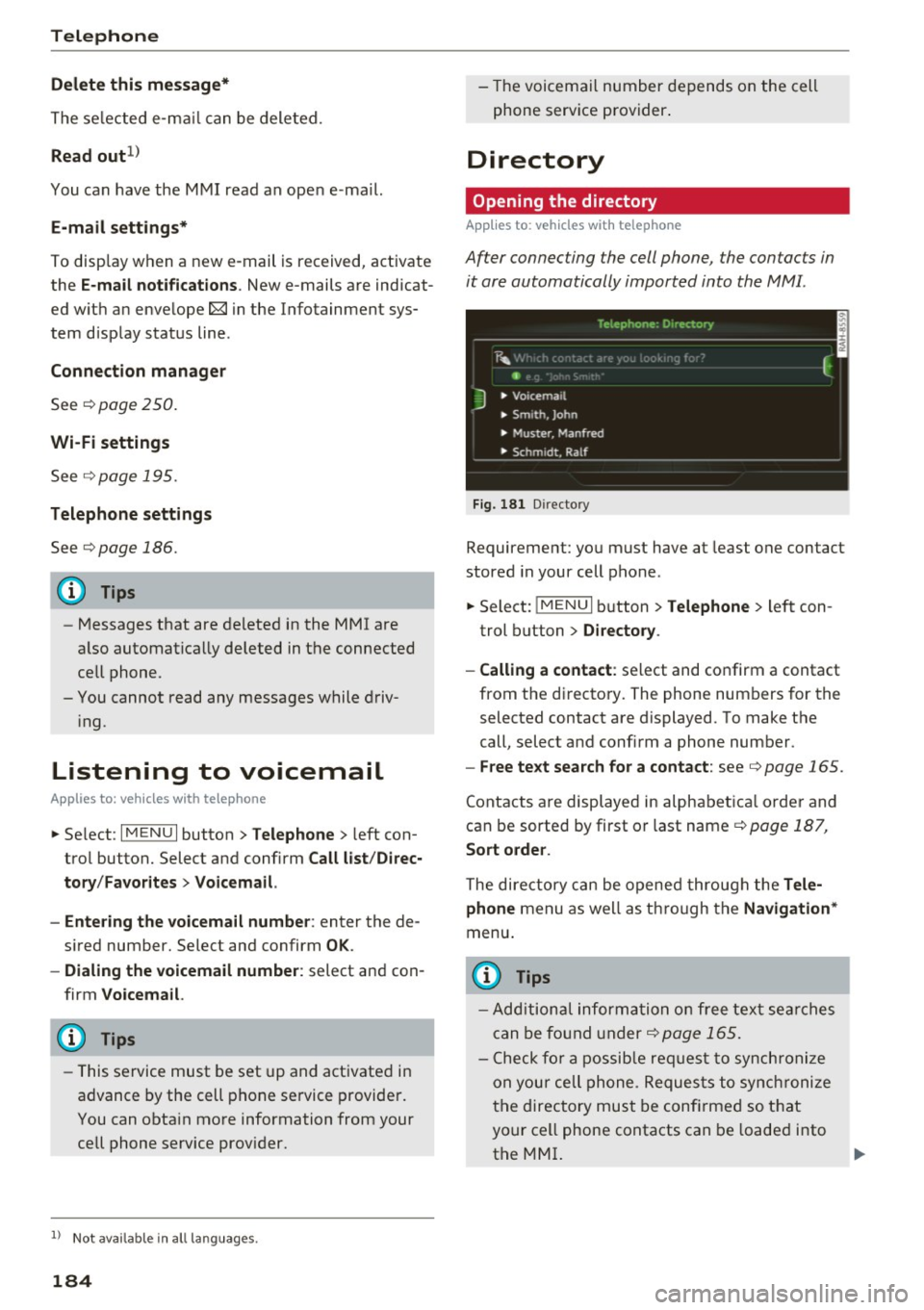
Opening the directory
Applies to : vehicles wit h telepho ne
Af ter connecting the cell phone, the contacts in
it are automatically imported into the MMI.
__________ 1_ e _1.e _ p_ h_o _n _e _· _D _,_ ·e _c_t _o _r, _· _________ ,
~m f
J • Voicemai l
• Sm ,th. John
• Muster. Manfred
• Schmidt. Ralf
Fig . 181 D irectory
Requirement: you must have at least one contact
stored in your cell phone.
~ Select: !MENUI button> Telephone> left con
trol button >
Directory .
- Calling a contact :
select and confirm a contact
from the directory. The phone numbers for the
selected contact are displayed. To make the
call, select and confirm a phone number.
- Free text search for a contact: see Q page 165.
Contacts are displayed in alphabetical order and
can be sorted by first or last name
Q page 187,
Sort order .
The directory can be opened through the Tele·
phone
menu as well as through the Navigation*
menu .
@ Tips
-Additional informatio n on free text searches
can be found under
Q page 165.
- Check for a possible request to synchronize
on you r cell phone . Requests to synchronize
the directory must be confirmed so that
your cell phone contacts can be loaded into
the MMI.