service AUDI Q7 2017 Owner´s Manual
[x] Cancel search | Manufacturer: AUDI, Model Year: 2017, Model line: Q7, Model: AUDI Q7 2017Pages: 402, PDF Size: 100.39 MB
Page 201 of 402

u co ...... N r-... N ...... 0
0
:E: '
Introduction
A ppl ies to veh icles with A ud i co nn ect vehicle cont rol
With the Audi connect vehicle control services l) ,
you can access various information or use individ
ual functions in the
Audi MMI connect app or in
myAudi .
Audi connect vehicle control includes the follow
ing services:
- Remote locking and unlocking ¢
page 200.
-Vehicle status report¢ page 200.
-Parking location ¢ page 200.
-Geofencing Alert ¢ page 201.
-Speed Alert ¢ page 201.
-Valet Alert¢ page 201 .
- Stolen Vehicle Locator ¢ page 201.
-Online Audi service request ¢ page 201.
(D Tips
-Accessing specific data or controlling func
tions remote ly depends on the charge level
of the vehicle battery. Therefore, these
functions only have limited availability after
switching off the ignition.
- The services are provided through a SIM
card installed in the vehicle . The cost of the
call and data connections is included in the
price for the services. Services are provided
assuming that the cell phone network re
quired for the installed S IM card is funct ion
i ng and ready to operate. The available serv
ic es set by Audi AG are only available within
the cell phone network coverage area for
the cell phone service provider selected by
Audi AG .
- You can also find more information on Audi
connect on line at www.audiusa.com.
l) In pre parat io n at the time of pri nting. T he ava ilab ilit y of
the services offe red depends on th e co untry an d may
c hang e over tim e.
Audi connect vehicle control
Setup
Applies to vehicles w it h Au di connec t ve hicle co ntr o l
To use Audi connect vehicle control services 1l,
please note the following:
Creating and verifying a user account
"'Create an account at www.audiusa.com/myaudi
and verify it.
Setting a key user in the vehicle
Requirements: the ignition must be switched on .
Another key user must not be set in the vehicle .
If necessary, reset the key user¢
page 200.
"'Select in the Infotainment system: I MENU ! but-
ton >
Audi connect > if necessary, Display
available functions >
right control button>
Audi connect user management > Key user >
Set key u ser.
"' Enter the user name for your ve rified account
and enter the 10-digit vehicle code. You can rub
the key tag for your remote control key to re
veal the vehicle code ¢
page 35.
"'Select and confirm Log in.
You can now use the vehicle control services
through the
Audi MMI connect app or thro ugh
www.audiusa.com/myaudi.
Using vehicle control services in the Audi
MMI connect app
Requirement: your mobile devices must be com
patible.
"' Install and start the
Audi MMI connect app on
your mobi le device .
"' Log in to the
Audi MMI connect app using your
user name and Audi online password and select
your vehicle.
(D Tips
- Store the vehicle code in a secure place. It
may be necessary to re-enter the vehicle
code.
199
Page 202 of 402

Audi connect vehicle control
-Pay attention to upper- and lower-case let
ters when entering the vehicle code.
- If you do not have the 10-digit vehicle code,
contact an authorized Audi dealer or author
ized Audi Service Facility.
Additional options
Applies to vehicles with Audi connect vehicle control
License subscription
The validity and expirat ion date of you r subscrip
tions are displayed. When
Warning before sub
scription expires
is activated, a message wi ll be
d isp layed warning you that your license is about
to expire.
Select:
! MENU ! button> Audi connect > Display
available functions >
right control button> Li
cense subscription.
Resetting the primary user
F or examp le, you ca n reset the key user when
selling your vehicle in order to deactivate these
services .
Requirement: the ignition must be switched on.
Select :
!MENU ! button> Audi connect > right
control button
> Audi connect user management
> Key user> Reset key user .
Warning levels
Requirement: the primary user must have set one
or more warning levels. Secondary users can only
see if a warning level is act ive or not .
Select:
! MENU ! button> Audi connect > right
control button
> Alerts.
Remote locking and
unlocking
Applies to vehicles with Audi connect vehicle control
You can lock and unlock your veh icle using this
service.
Requirement
- This requires the 4-dig it PIN that you specified
during the verification on www.audiusa.com/
myaudi.
- The vehicle must be stationary.
200
- The ignition must be switched off.
Vehicle status report
Applies to vehicles w ith Audi connect vehicle control
The Driver Information System collects data un
der certain conditions and sends it to a server.
When data is stored, yo u can access va lues such
as these using the service:
- Remaining range
- Fue l tank level
- Oil level
- Vehicle doors are open/closed or locked/un-
locked
- Mi leage
- Next oil change
- Next inspection
- Warning messages
- Side marker lights/parking lights on/off
For additional information on the Driver Informa
tion System, refer to
c:> page 15, Driver informa
tion system.
A WARNING
Do not ignore messages and warning or ind i
cator lights that turn on in the vehicle be
cause of the information in the status report .
This could lead to break downs in on the road,
accidents and serious injuries.
Parking location
Applies to vehicles with Audi connect vehicle control
The vehicle collects data under certain cond it ions
and sends it to a serve r.
When data is stored, you can access values such
as these using the service :
- Vehicle location display,
- Display of one's own location,
- Route to you r vehicle .
If your mobile device also has a navigation func
tion, you ca n navigate to your last kno wn parking
lo ca tion .
Page 203 of 402
u co ...... N r-... N ...... 0
0
:E: '
-Select : IMENUI > Audi connect> Car Finder
parking position.
If you do not set./, no location informat ion will
be sent to the server.
(D Tips
-The new parking location cannot be deter
mined with this service if the vehicle is
moved after shutt ing the vehicle off and
without switching the ignition on and off
again, for example when being towed or if
the veh icle is stolen.
- If the vehicle is moved and shut off again
using the second key, for example, the new
parking location is transmitted to the server
after switching the ignition off.
Geofencing Alert
Applies to vehicles with Audi connect vehicle control
You can set approved and forbidden zones for
your vehicle using this service. If your vehicle
leaves an approved :zone or enters a forbidden
zone, you will be notified by a push notification
and/or an e-mail. You can set up to five zones
and also ass ign time limits.
Requirement
-You must be verified as the primary user of your
vehicle on myAudi.
You can set on myAudi if you would like to be
notified via push notifications and/or e-mail.
Speed Alert
Applies to vehicles with Audi connect vehicle control
You can set up to two speed limits for your vehi
cle using this service . If your vehicle exceeds a set
speed limit, you will be notified by a push notifi
cation and/or e-mail.
Requirement
- You must be verified as the primary user of your
vehicle on myAudi.
Audi connect vehicle control
{!) Tips
You can set on myAud i if you would like to be
notif ied v ia push notifications and/or e-mail.
Valet Alert
Applies to vehicles with Audi connect vehicle control
If you give your vehicle over to a parking service,
you can set a zone and a speed limit using the
Audi MMI connect app . If the vehicle leaves the
zone or the exceeds the speed limit, you will be
notified by a push notification and/or e-mail.
Requirement
- You must be verified as the primary user of your
vehicle on myAud i.
(D Tips
You can set on myAudi if you would like to be
notified via push notifications and/or e-mail.
Stolen Vehicle Locator
Applies to vehicles with Audi connect vehicle control
This service helps you to track your vehicle if it is
stolen.
Proceed as follows if there is a theft:
.,. Contact the police. You receive a Case ID .
.,. Call the service hotline and give your Case ID .
The service hotline will forward the established data to the police .
@ Tips
You receive the Audi Service hotline number
when you purchase your vehicle.
Online Audi service
request
Applies to vehicles with Audi connect vehicle control
Requirement: to be able to use on line Audi serv
ice request, you must activate the service at
www .audiusa.com/myaudi and select an author
ized Audi dealer or authorized Audi service facili-
~-~
201
Page 204 of 402
Audi connect vehicle control
Online A udi se rvice request t ransmits serv ice -rel
evant data to yo ur selecte d author ized Audi deal
er or authorized Audi serv ice facility. They will
contact you before yo ur next serv ice appo int
ment.
(D Tips
You ca n deactivate t he on li ne Au di service re
quest at www.audiusa.com/myaudi.
202
Page 205 of 402
u (0 ...... N r--. N ...... 0
0
:E
Introduction
The following functions may be available depend
ing on the vehicle and the market.
- Emergency call
¢ page 203.
- Online roads ide ass istance ¢ page 204 .
@ Tips
- The serv ices are provided through a SIM
card installed in the vehicle . The cost of the
call and data connections is included in the
price for the services . Services a re provided
assuming that the cell phone network re
quired for the installed S IM card is function
ing and ready to operate. The available serv
i ces set by Audi AG are only available within
the cell phone network coverage area for
the cell phone service provider selected by
Audi AG.
- You can find what data will be transferred
at www.aud iusa.com.
- These services cannot be deactivated using
the settings in the Infotainment system.
Emergency call
Description
Appl ies to: vehicles with emergency call function
You can request help when in an eme rgency or
dangerous situation using the emergency call
function
l) _ An emergency call is a combination
of data transmission and a phone call. The data
transmission from your vehicle forwards impor
tant information, such as the vehicle and position
data, to the emergency call center.
1l The av ailabilit y of the serv ices o ffere d d ep end s on t he
c o untry a nd may chang e over t ime.
Emergen cy call
Making an emergency call
App lies to: vehicles with emergency call function
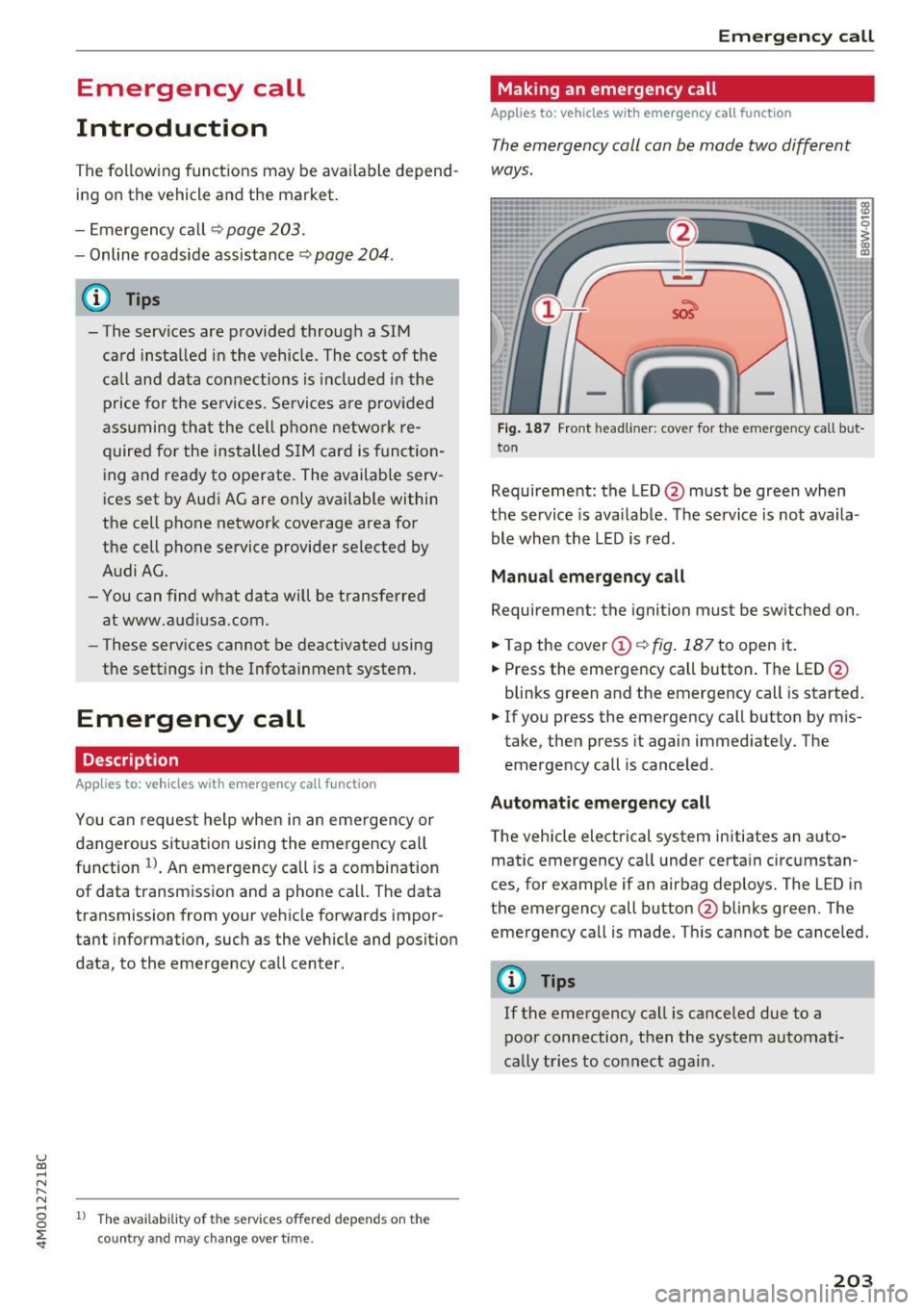
The emergency coll con be mode two different
ways .
Fig. 187 Front head liner: cover for the e mergency call b ut
ton
Requirement: the L ED @ must be green when
the service is available . The service is not availa
ble when the LED is red .
Manual emergency call
Requirement: the ignition must be switched on .
.. Tap the cover
(D ¢ fig . 187 to open it .
.. Press the emergency call button. The LED@
blinks green and the emergency call is started.
.. If you press the emergency call button by m is
take, then press it again immed iately. The
emergency call is canceled .
Automatic emergency call
The vehicle electrical system initiates an auto
matic emergency call under certa in circumstan
ces, for example if an airbag deploys. The LED in
the emergency call button@blinks green . The
emergency call is made . This cannot be cance led.
(D Tips
If the emergency call is canceled due to a
poor connection, then the system automati
cally tries to connect again.
203
Page 206 of 402
Emergency call
Messages
Applies to: vehicles with emergency call function
1!/1 Emergency call function: malfunction! Re
stricted functionality . Please conta ct Service
If the indicator lig ht t urns on and the message
appears, yo u can only make an emergency ca ll
wit h rest ric ted f un ct io n. For e xamp le, you ca nnot
call the emergen cy c all ce nte r, bu t da ta m ay st ill
be tra nsmi tted under certa in circ umst ances/
D rive to an a uthorized Audi dea le r or a uth orized
Aud i Service Facility immediately to have the
malfunct ion corrected.
II Emergency call function : malfunction! Fun c
tion unavailable. Please contact Service
I f t he indi cator lig ht tur ns on and the message
ap pears, yo u can not m ake an eme rge ncy call.
D rive to an a uth o rize d Aud i de aler or auth orized
Aud i Serv ice Facility immedia tely to have t he
malfunct io n corrected .
Online roadside
assistance
Description
Applies to: veh icles with online roadside ass istance
You can request help if you are in an accident or
b reakdow n situation using on line roadside ass is
tance
1> . A roads ide assistance call is a comb ina
tion of data transmission and a phone call. The
data transmission from your vehicle forwards im portant information to the A udi service cente r,
such as the veh icle and pos it io n data.
l ) Th e availab ili ty of th e services offered depe nds o n th e
country and may ch an ge over time.
204
· Calling online roadside ass istance
Applies to: vehicles with on line roadside assistance
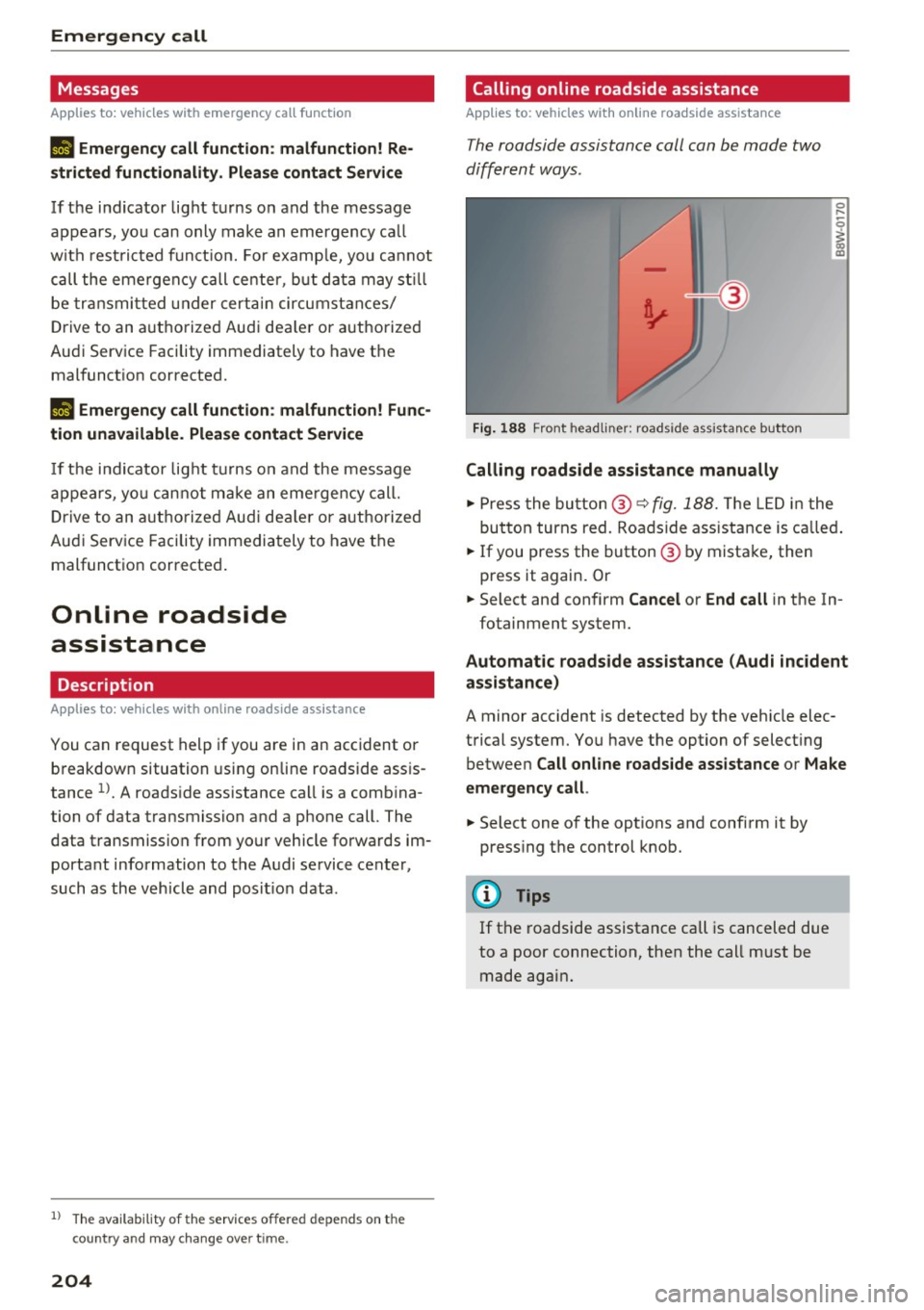
The roadside assistance call can be made two
differ ent ways.
Fig. 188 Front headliner: roadside assista nce button
Calling roadside assistance manually
0 ....
-0
I
.,. Press the bu tton @~ fig. 188. The LED in t he
but ton turns red. Ro adside ass istance is c alled.
.,. If you press the button @ by mista ke, then
press it again. Or
.,. Select and confirm
Cancel or End call in the In-
fotainment system.
Automat ic roadside assistance (Audi incident
assistance)
A minor accident is detected by the veh icle elec
trical system. You have the option of select ing
betwee n
Call online roadside assistance or Make
emergency call .
.,. Select one of the options and confi rm it by
press ing the control knob.
@ Tips
If t he roadside assistance call is canceled due
to a poor connection, then the call m ust be
made again .
Page 220 of 402
Navig ation
The map disp lay is based on data received from
the Internet in the form of satellite images,
which are then combined with the roadways from the
S tand ard map view . There are two g igabytes
of memory space in the MMI memory that can be
used to temporar ily store the map or navigation
data that was received . Th is is roughly the
amount required for the map/navigation data for
a
2,485 mile (4,000 km) route . As long as the
satellite images loaded fo r route g uidance are
stored, you can use them without having an ac
tive data connection.
Street View
W ith St reet V iew, you can exp lore many places in
the world through the eyes of a pedest rian.
S treet View is available whe n the symbol ©
¢fig . 198 is d isp layed in the crosshai rs mode.
Activating str eet vi ew : turn the cont rol knob to a
scale less than
32 yards (30 m).
The fo llow ing funct ions are the n ava ilable:
- Ex plo ring an area step -by -step : press the con
trol knob when the symbol@¢
fig. 199 is d is
played .
-Zooming in or out on the cur rent view in four
stages :
turn the control knob to the left or to
the right ®¢
fig. 199 .
-Na vigating in street view : move your finger in
the des ired direction on the MMI touc h control
pad* .
Additional informat ion
Showing additional information in the Infotain
ment system disp lay can be switched on in the
Map co ntent menu ¢ page 217. To disp lay any
applicable addit ional in formation, move the
crossha irs onto an item on the map and press the
control knob.
(D Tips
- The stored online map view data can be de
l eted in
Factory settings > Navigation and
online memory ¢
page 250 .
-The online map view is an Audi connect In
fotainment service and is regularly updated
when the function is opened . The p rocess
may ta ke several seconds.
218
- When the online map view is switched on
using the 3D map orientation, the MMI dis
play automat ica lly switches to the
2D map
orientation when driving through tunnels.
- For safety reasons, the Street View func
t ions can only be used when the vehicle is
stationary .
- Always read the chapter¢
page 196, Audi
connect (Infotainment) general informa tion.
- For add itiona l information, v is it
www .audiusa.com .
Map update
Introduction
Applies to: vehicles with navigat ion sys te m
The re are mu ltiple opt ions avai lable for updat ing
you r map material:
- Map updates through the
online map update*
¢ page 219.
-Import map updates from the SD card* to your
M MI. Yo u can find add it io na l info rmation on
line at
www .aud iu sa. com /myaudi.
- Map update at an aut ho rized Aud i dea le r or a u
thori zed A udi Service Fac ility. This can resul t in
ad dit ion al c osts .
Page 221 of 402
Online map update
Appl ies to: ve hicles with a nav igatio n system an d Au di con
nect (I nfotainment)
Using the online mop updote, you con update
the mop material in your navigation system di
rectly from your vehicle.
Fig. 200 Example: display of a new o nline map update
Fig. 201 Example : select ion of a count ry package
Requirement:
The requirements for Audi connect Infotainment services must be met
Qpoge 189.
You must have a myAudi account and have as
signed your vehicle to it.
Using your vehicle position, the MMI identifies
regions which you are frequently in. Based on
this, the MMI suggests update packages for
these regions, if they are available.
• Select and confirm(!)
Start download
Q fig. 200 if the message for a new map update
appears in the Infotainment system display.
Or :
• Select I MENU I button> Settings> left control
button >
System maintenance > System up
date > Online update .
A selection with the available update packages
u appears in the Infotainment system d isplay (0
;::j Qfig.201 . r--. N ~ 0
0
:E
Selecting the online map update
- Select an update package from the list (~) @
qfig. 201.
-Confirm your select ion with the IBACKI button
and go back to the selection.
- The number and amount of data for the select
ed update package are now displayed in the In
fotainment system .
Starting the download
-Select and confirm Start download .
-Confirm the security prompt by selecting Start
download
aga in .
The update packages begin to download and the
status of the download progress is shown in the
Infotainment system display.
Installat ion of online map updates
The downloaded map material installs after you
stop your vehicle . The new update packages in
stall only after you switch
off the ignition. After
restarting the
MMI, the Infotainment system dis
play indicates if the updates installed successful
ly.
- Confirm the successful update with
OK .
The new map material can now be used for navi
gation.
(D Tips
- Always read the chapter q page 189.
-The amount of available online map up-
dates in the vehicle is limited. To update
more regions, use the map update via SD
card at
www.audiusa.com/myaudi.
- Always read the chapter ¢page 196, Audi
connect (Infotainment) general informa
tion.
219
Page 234 of 402

Media
(D Tips
-Check for any connection requests on your
Bluetooth device.
- Multiple Bluetooth audio players can be
connected to the MMI, but only one mobile
device can be active.
- Bluetooth protocols AVRCP (1.0/1.3/1.4)
and A2DP are supported.
- Note the volume setting on your Bluetooth
device. Audi recommends setting your mo
bile device to the maximum volume when
using it as a Bluetooth audio player.
- The supported media functions (such as
shuffle) depend on the Bluetooth device be
ing used.
- For more information on the supported de
vices, visit
www.audiusa.com/bluetooth or
contact an authorized Audi dealer or author
ized Audi Service Facility.
Wi-Fi audio player
Appl ies to: ve hicles w ith Wi-F i audio playe r
Using the Wi-Fi audio player media source on the
MMI, you can connect and operate your Wi-Fi-ca
pable media player (such as a smartphone) to wirelessly play music from your media player
li
brary. The media player is connected through the
vehicle's Wi-Fi hotspot. A UPnP Server opp or an
integrated UPnPIDLNA server on your media
player is required to access your media player
li
brary.
Requirement: the Wi-Fi function on your media
player must be switched on. The
Audi MMI con
nect
app or a UPnP server app must be installed
on your media player .
Or: you must be using a
media player with an integrated UPnP/DLNA
server.
- Connecting a media player: press the I MEDIA !
button. Press the left control button until the
sources overview
¢ page 237 is displayed . Se
lect and confirm
Wi-Fi audio player 0
¢ page 237, fig . 216 .
- If necessary, select and confirm Wi-Fi off>
Turn on Wi-Fi
to activate Wi-Fi in the MMI. Se
lect
Wi-Fi settings, if necessary. Select the
232
same settings on the wireless media player
that are used for the Wi-Fi hotspot.
-Starting the Wi-Fi audio player: start the Audi
MMI connect
app or a UPnP server app, or set
media permissions on your media player.
Operating the media player: the media player is
operated through the MMI.
- Press the left control button repeatedly until
the
Folders menu item appears. Select and con
firm
Folders.
- Playing music from the media player:
select
and confirm
Media center .
A WARNING
-As the driver, do not allow usage of the Wi
Fi hotspot to distract you from driving, as
this could increase the risk of an accident.
- It is only safe to use tablets, laptops, mo
bile devices and other similar devices when
the vehicle is stationary because, like all
loose objects, they could be thrown around
the inside of the vehicle in a crash and cause
serious injuries. Store these types of devices
securely while driving.
- Do not use any wireless devices on the front
seats within range of the airbags while driv
ing. Also read and follow the warnings in
¢ page 2 77, Front airbags.
(D Note
Always follow the information found in ¢(Din
Wi-Fi hotspot on page 195.
(D Tips
- Always read the chapter¢ page 196, Audi
connect (Infotainment) general informa
tion.
- Please note that a Wi-Fi connection does
not automatically make it possible to use
the Internet. For additional information,
see
¢ page 189.
-To avoid interruptions during playback, de
activate the power saving function on the
media player or connect it to a charger.
- The loading times for the audio data depend
on the media player used and the number of
files that it contains .
II>-
Page 235 of 402

u (0 ...... N r--. N ...... 0
0
:E
are displayed in the M MI.
- Songs dow nloaded for offline use using m u
sic st reaming services are stored on you r
mobile device (suc h as a smartphone) an d
may be ORM protected. The Wi-Fi audio
player w ill not play ORM protected files.
- Contact an a uthorized Audi dea le r or a u
thorized Audi Service Facility for additional i nformat ion on the Wi-Fi audio p layer.
Online media and
Internet radio
App lies to: veh icles with Audi connect
Yo u can playba ck and oper ate various onli ne me
dia servi ces and In ternet radio using the MMI.
F ig. 212 O nlin e med ia
• Press the I MEDIA i button . P ress the left contr ol
bu tton until the so urces overview ¢
fig. 212 is
displayed.
Applies to: using online media and Inte rnet rad io
Req uirement :
- The
Audi MMI connect app m ust be installed
and open on your mo bile device.
- You m ust be logged into your myA udi account
in the
Audi MMI connect app a nd you must
hav e selected your ve hicle.
- The Wi-Fi function on the mobi le device and on
t h e M MI m ust be switched on .
- If necessary, check in the connection manager
¢
page 250 i f the mobi le device you connected
is se lected under the
MMI connect app (~).
-The M MI must be con nected to the ne twor k.
- The symbo l for the
Online media source @
¢
fig . 212 is shown in the MMI.
Applies to : using online media
Additional requ irement :
Media
-A s uppor ted online me dia se rvice mus t be avail
a b le in yo ur cou ntry.
- You mus t have a n acco unt with a suppor ted on
line me dia se rvice .
- Depending on t he on line m edia se rvice, yo u
m ust ins tall and open an app on yo ur mobile
dev ice.
Starting Online media
- Press the I MEDIA i button. Press the lef t control
button unt il the sources overv iew ¢
page 237
is displayed.
- Select an d confirm an o nline media serv ice .
Starting Internet radio
-Press the I MEDIA i button. Press the left cont rol
button unti l the sources overv iew
¢ page 237
is displayed.
- Select and confirm
Internet radio. The Internet
radio b rowser or the last stat io n that was play
ing is shown.
- Selecting the station : if necessary, select and
confirm a category in the Inte rnet radio
Brows
er >
a station.
Online media and Internet radio: additional op
tions
- Press the r ight cont rol b utton.
The following options may be available, depend ing on the information shown (such as the sta
t ion/t rack that is curre ntly playing):
- Sound settings : see¢ page 253 .
-Wi-Fi settings : see¢ page 1 95, Wi- Fi hot spo t.
- Connection manager : see¢ page 250 .
-Add itio na l options may be available, depend ing
on t he active online med ia service or In ternet
radio.
_& WARNING
- It is only s afe to use table ts, lap to ps, mo
b ile dev ices and other si mila r devi ces whe n
t he vehicle i s st ati ona ry becau se, li ke all
loose objec ts, they co uld be thrown around
the inside of the ve hicl e in a c rash and ca use
serio us in juries. Store these types of devices
securely w hile d riving.
~
233