ad blue AUDI Q7 2018 Owner´s Manual
[x] Cancel search | Manufacturer: AUDI, Model Year: 2018, Model line: Q7, Model: AUDI Q7 2018Pages: 398, PDF Size: 185.58 MB
Page 176 of 398

Tele phone
Telephone
Introduction
Applies to: vehicles with telephone
To make phone coils in your vehicle using the
/11/111, connect your cell phone to the /11/111 via
Bluetooth.
Hand sfree
After you have connected your ce ll phone to the
MMI via Bluetooth, you can use the handsfree
system and operate telephone functions through
your MMI. You can make calls using the antenna
on your cell phone.
A WARNING
- Medical experts warn that cell phones can
interfere w ith the funct ion of pacemakers .
Always mainta in a m inimum d istance of
about 8 inches (20 cm) between the ce ll
phone antenna and the pacemaker.
- Do not carry the cell phone in a pocket di
rectly over the pacemaker when the phone
is switched on.
- Sw itch the cell phone off immediately if
you suspect it may be interfering w ith the
pacemaker.
- Do not use the vo ice recognit ion system*
<=) page 167 in emergencies because your
vo ice may change in stressful situations. It
may take longer to dial the number or the
system may not be able to dia l it at all. Dial
the emergency n umbe r manua lly.
- Switch your cell phone off in areas where
there is a ris k of an exp losion . These loca
tions are not always clearly mar ked. This
may include gas stations, fuel and chemical
storage facilities or transport vehicles, o r lo
cations where fue l vapors (such as propane
or gaso line vapor in vehicles or bui ldings),
chemicals or large quantities of dust parti
cles (such as flour, sawdust or metal) may
be present in the air . This also applies to all
other locations where you would normally
turn your vehicle engine off .
- The demands of traffic requ ire your full at
tent io n. Always read the chapter
Q page 149, Traffic safety information.
174
-
@ Note
Always fo llow the information found in Q @ in
Wi -Fi hotspot on page 194.
(D Tips
- Th e Bluetooth connect ion range is limited
to inside the vehicle. It can also be affected by local conditions and interference with
other devices .
- To learn which Bluetooth connections and
wh ich of the funct ions in your ce ll phone are
supported, check with your cell phone serv
ice provider or the database for mob ile devi
ces at www .aud iusa .com/bluetooth.
Setup
Connecting a cell phone using Bluetooth
Applies to: vehicles with telephone
Fig . 172 D isp layin g the PIN for enter ing in t he cell phone
R equi rem ent
The vehicle must be stationary and the ignition
must be switched on.
The Bl uetooth settings m ust be open on your cell
phone during the connection setup.
The Bluetooth funct io n and v is ib il ity of the MMI
Q page 248 and cell phone must be sw itched on.
The cell phone to be connected must not be con nected to any other Bluetooth device .
The MMI must not be connected to a cell phone.
Conn ecting a c ell phon e
.. Select: IMENU I button> Telephone > Connect
mobile de vice > Find new de vic es > Next.
The
avai lab le Bluetooth devices are shown in the In-
fotainment system display.
Or select: ! MENUI 1111-
Page 177 of 398
Cl a:, ...... N
" N ...... 0
0
::r '
settings
> Connection manager¢ page 246.
~ Se lect and confirm the desired cell phone from
the list of disp layed Bluetooth devices.
~ The MMI generates a PIN for the connect ion
setup
¢fig . 172.
~ Select and confirm Yes.
~ Enter the PIN for connecting on your ce ll
phone.
Or : whe n the PIN is displayed on your
cell phone, confirm the PIN on your cell phone
and in the MMI. The time allowed for entering
the PIN is limited to approximately 30 seconds.
~ Pay attention to any additiona l system prompts
displayed on your cell phone, for example if the
system should connect automatically in the fu
ture . Depend ing on the cell phone, you may
have to confirm downloading the directory sep
arately .
After connecting successfully
After connecting successfully, information about
the connected profiles will appear. You can a lso
change the profiles later. Select:
!MENUI button>
Settings > left control button > MMI settings >
Connection manager¢ page 246 .
In addition, the cell phone contacts are automat
ically loaded in the MMI directory. T his process
can take several minutes, depend ing on the num
ber of contacts .
You can a lso make your connected cell phone the
default phone by select ing
Set as default tele
phone
in the Connection manager¢ page 248 .
@ Note
Always follow the information found in¢@) in
Wi-Fi hotspot on page 194.
(D Tips
- Making phone calls through the MMI is only
possible using the
Handsfree Bluetooth pro
file.
- You can apply additional settings to con
nected mobile devices using the
Connection
manager ¢ page 246 .
-You can also search for the MMI in your ce ll
phone using the Bluetooth device search.
Telephone
-You only have to pair your device one time.
B lu etooth devices that are already paired
automatically connect to the MMI when the
Bluetooth funct ion is switched on, they are
w ith in range and the ignition is switched on.
The last connected cell phone is given first
pr iority.
- Authorizing the MMI connection in your cell
phone w ill make automatic connection pos
sible .
- Pay attention to any system prompts dis
played on your cell phone, for example if
the system should connect automatically in
the future. Depending on the cell phone,
yo u may also need to download the directo
ry and confirm access to your text messages
separately.
- When leaving the vehicle, the Bluetooth
connection to the cell phon e will automati
cally disconnect. Depending on your cell
phone, phone calls in progress may be auto
matically redirected from the MMI to your
cell phone and you can continue the ca ll on
your phone.
- You can obtain more information from your
cell phone service provider or from your cell
phone user gu ide. For information on using
the telephone, vis it www.aud iusa .com/
bluetooth or contact an authorized Audi
dealer or authorized Audi Service Facility.
- Applies to: veh icles without secondary
phone: Several cell p ho nes can be paired to
th e MM I, but only one cell phon e can be ac
tively connected to the MMI.
- App lies to: veh icles without seconda ry
phone: If a Bluetooth device is already con
nected to the MMI , it will be disconnected
when another device connects to the MMI.
175
Page 178 of 398
Tele phone
Operating two telephones through the
MMI
You can connect two cell phones to the MMI, for
example your business cell phone as the primary
phone and your private cell phone as the secon
dary phone . You can be reached in your vehicle
through both cell phones.
The first connected cell phone is displayed as the
primary phone in the MMI. The second cell phone
is connected as the secondary phone.
The directory from the connected pr imary p ho ne
w ill always be displayed. If you wou ld like to use
the directory from the seconda ry phone, yo u
must switch the primary and secondary p hone
¢ page 176.
Conn ecting a cell phone as the primary
phon e
Connect your ce ll phone to the MM I via Blue
tooth . The first connected cell phone is displayed
as the
P rimar y phone in the MMI.
See
~ page 17 4, Connecting a cell phone using
8/uetooth .
Connecting a cell phone as the secondary
phon e
Requirement: a cell phone must be connected to
the MMI as the primary phone.
Select:
! M ENU ! button> Telephone > right con
trol button >
Conn ect secondary tel ephon e.
See ~ page 17 4, Connecting a cell phone using
Bluetooth .
Example: you have connected your business ce ll
phone to the MMI as the primary phone and your
private cell phone as the secondary phone . To be
ab le to call contacts from your p rivate cell phone
d irecto ry , you must switch the pr ima ry and sec
onda ry phone, s ince the directory from the p ri
mary phone is a lways displayed.
Switching the primar y and secondary phone
Requ irement: a primary phone and a secondary
phone must be connected .
176
Switch primary and second. phone : select:
IMENU! button> Telephone > right contro l but
ton >
Swit ch prim ary and second. phone .
(D Tips
-Please note that on ly the directory from the
primary phone is always disp layed .
- Yo u can see if a cell phone is connected as
the primary phone or secondary p hone in
the
Connection manage r¢ page 246. Or:
the device name of the connected pr imary
phone is shown in the
Telephone menu
(such as myPhone).
- If the pr imary phone does not connect auto
matically to the MMI when the ignit ion is
switched on, for example because it is out
of the ve hicle range o r the Bluetooth func
t ion is switched off, then a p reviously pa ired
se condary p ho ne is automa ticall y connected
as the p rim ary phone.
- You can send and rece ive messages on your
pr imary phone as we ll as o n your secondary
phone
¢page 177, fig. 173 . You do not
need to sw itch your pr imary phone and sec
ondary phone for this .
- Yo u can also make you r connec ted cell
phone the defau lt phone by se lecting
Set as
default telephone
in the Connect ion man
ager ¢
page 248.
Page 180 of 398
Telephone
- Delete call list :
select and con firm if you would
lik e to
Delete this entry or Delete all entries.
- Store as favorite :
store the selec ted cont act a s
a favo rite.
- Show contact details : see ¢ page 1 83.
-Connection manager: see ¢ page 246.
-Bluetooth settings : see ¢ page 248 .
-Online settings : see¢ page 248.
-Wi-Fi settings : see¢ page 193, Wi-Fi hotspot.
-Telephone settings : see¢ page 1 84.
Favorites
Requir em en t: a phon e numb er or c onta ct mu st
be s to re d a s a f avo rit e ¢
page 1 79.
Selec t and conf irm a favor ite in t he favo rit es list.
Directory
Req uirement: you must have at least one contact
sto red in yo ur cell phone .
Select an d confirm a phone num ber from the di
rectory ¢
page 183.
Enter number
- Entering a phone number as a sequence of
numbers :
enter th e n umber usi ng the number
s p ell er
¢fig. 175.
- Entering the phone number as a sequence of
letters :
select an d con firm !ABC ! above the
num ber sp elle r. Ente r a se quence of lette rs us
ing t he letter speller, for examp le
AUDISER
VICE.
- Dialing a phone number : select and confi rm ef1" .
Or : push the cont rol knob down . Select an d
confi rm
OK.
- Deleting individual characters : select and con
f irm
t h e control knob w it h the character se lection to
> Clear input field .
Accepting/ending a call
A pp lies to: ve hicles w ith tele phone
-Accepting a call : select and confirm Answer .
- Declining a call :
select and confirm Decline.
178
-Muting the active call : select and conf irm
Mute.
- Ending a phone call/cancel dialing :
select and
confirm
End call.
Caller information :
the name, ph one number o r
Unknown app ea rs in th e Info ta inm en t syst em
d isplay depen ding o n if the ca ll er has been store d
i n the di rectory and if the p hone number has
b een t ransmitted . A pict ure may also be dis
played, depen ding on whether you have assigned
a p ictu re to a contact in yo ur directory and if it
was transfe rred to your MMI. You ca n find out if
you r ce ll phone s upports t his fu nction from your
c ell phone ne twor k prov ider, your cell p ho ne
owner 's ma nual or at www.a udiusa .co m/
bl uet ooth .
(D Tips
- The radio or media playback is m uted dur ing
a phone call.
- Missed calls ar e displ ayed wi th a symbol i n
the status line o f th e Info tai nme nt syst em
di spl ay @ ¢pa ge
159 , fig. 16 6.
During a phone call
App lies to: vehicl es wi th telepho ne
Re quire ment : th ere must b e a call in pr ogress.
~ End call: you ca n end a phone call.
~ Send tone sequence: you can e nter tone s e
que nces
(DTMF ) direct ly usin g t he nu mbe r
speller and s end t o the o ther pers on on t he
call.
~ Other call options : press the r ight control but-
ton .
T he followi ng op tions are poss ible du ring a call
d epen din g on the ce ll phone be ing used and t he
type of connect io n:
- Answer ing an add iti on al c all: if there is an in
c omin g ca ll while a not her ca ll is a ctive, you can
sele ct
Answer to put t he exist ing c all on ho ld
an d answer t he in comin g call. If you select
De
cline ,
the incom ing ca ll w ill b e de clined .
- Accepting an incomin g call when t here is an ac
tive ca ll and a ca ll on ho ld: sel ect
Replace. T he
ac tive ca ll is replaced with the incoming ca ll. .,.
Page 182 of 398
Telephone
-Se lect t he right contro l button > Rename fa-
vorite.
Moving stored favorites
- Se lect : Favorit es > a favorite from the list .
-Select t he r ight contro l button > Move favorite .
-Se lect and confirm the location of the selected
favorite .
Deleting a stored favorite
-Se lect : Favorites > a favorit e from th e list .
-Se lect the right contro l button > Delete favor-
ite > Delete this favorite or Delete all favor
ites .
Messages
Text messages
Applies to: cell phones with Bluetooth Message Access Profile
(MAP)
Depending on the cell phone being used and the
cell phone ne twork con trac t, you can receive and
send tex t messages using the MMI.
Requirement
A cell p hone m ust be co nn ecte d t o the MMI via
Bl ue tooth MAP (Message Access Profile)
~ page 174.
.,. Se lect : I MENU I but ton> Telephone > left con
tr ol bu tton >
text message (myPhone) /text
message (secondary phone )*.
Write new text message
S elect a nd conf irm Write new text message .
- Using a template :
select and confirm the de
s ir ed temp late from the lis t.
-Writing your own text *: select and confirm Do
not use template .
Enter text us ing the M MI
touch co ntro l pad* o r the lette r sp eller .
- Ente r one o r mo re recip ients.
- Se lect and confirm
Send .
Inbox
D isp lays a ll re ce ived tex t m essages .
Sent
Displays all sent tex t messages .
180
Outbox
Disp lays all tex t message s to be sent.
Drafts
D isplays all text messages that have no t yet been
sen t and s to red text messages .
(D Tips
-Please note that you may have to activate
t he receivi ng a nd send ing of t ext m essages
dep endi ng on t he SIM card being us ed in
yo ur ce ll pho ne (for e xample, when usin g a
mult i- S IM ). You can obt ain more informa
tion fr om your c ell phone serv ice p rov ider or
from you r ce ll p hone use r guide .
- Fo r m ore inform ation o n suppo rt e d c ell
p ho nes, vi sit www .a udiu sa.co m/ blu eto oth
o r contact a n auth orized Audi dea le r or au
t h orize d Au di Service Fac ility .
- You n eed a cell phone with Mes sa g e A ccess
Profi le that also s upports the sen ding func
t ion to be a ble to se nd text messa ges
throug h the MMI.
Message options
Applies to: cell phones with Bluetooth Message Access Profile
(MAP)
.,. Select: IT ELI bu tton > left contro l butto n > text
message (myPhone) /text message (secondary
phone) * > Inbo x/Sent /Outbox
> r ight control
bu tton.
The followi ng options may be avai la b le depend
i ng on the selected menu .
Storing a text message as a template
Ten tex t mess age temp lates are s to red in t he
M MI. Y ou can s ave up to ten ad dition al tem
p lates .
- Create a text message.
- Select an d confirm
Store template.
Resume last text message
The last ed ited text message can be resumed .
Reply*
A reply can be sen t for t he se lec ted mess age in
t h e
Inbox.
Page 183 of 398
Cl a:, ...... N
" N ...... 0
0
::r '
The selec ted text mess age can be fo rwarde d to a
d iff eren t rec ipient.
Send again*
The se lected text message can be rese nt.
Delete this text message*
The se lected text message can be deleted .
Read out1
)
You c an have the MMI read an open text mes
sage .
Text messaging settings*
To disp lay when a new text message is received,
e nable the
Text me ssage notifications . New tex t
messages a re in dica ted w it h an enve lope
1:0 in
the In fota inment system display status line .
Connection manager
See ¢ page 246 .
Wi-Fi settings
See ¢page 193.
Telephone settings
See ¢page 184.
0) Tips
M ess ages th at a re de le ted in t he MMI ar e al so
de le ted i n the ce ll p hone au to mat ic ally.
E-mail*
Applies to: cell phones with Bluetooth Message Access Profile
(MAP)
Depending on the type of cell phone being used,
you can receive and send e-mails through the
MMI .
Requirement: a cell phone must be connected to
the M MI via B luetoot h MAP ( Message Access Pro
fi le)
¢page 174. You can find ou t in your cell
phone owner's manua l if yo ur cell phone sup
ports this f unct io n.
ll Not avai lab le in all la nguage s.
Telephone
.. Sele ct: I ME NUI bu tton> Telephone > left con
trol button >
e-mail (myPhone )/e-mail (secon
dary phone )* .
Write new e-mail
S e lect a nd co nfirm Write new e-mail.
- Using a template :
select and confirm the de
sired t emplate from the list .
-Writing your own text* : select and confirm Do
not use template .
Enter text using the MMI
t o uch con trol pad* or t he let ter spe ller.
- En ter one o r more rec ip ients .
- Select and confirm
Send .
Inbox
All rece ived e-mails a re displayed .
Sent
All sent e- mails a re displayed.
Outbox
All e -ma ils that will be sent a re displayed.
Drafts
A ll saved e -ma ils that have no t b een sen t yet are
displayed .
(LlJ) Note
Alw ays fo llow the inform ation f oun d in ¢(!} in
W i-F i ho tspot on page 194.
(D Tips
- Fo r mo re info rmation on sup po rt e d c ell
p hones, vi sit www.a udius a.co m/ blu etoo th
o r contac t an auth ori ze d Aud i de aler or a u
t h orize d Au di Serv ice Fac ility.
- To ensure th at you r sent e -m ail s are re
c eived , co nne ct your ce ll phone to the Wi- Fi
h ots pot* in the vehicle so t hat the e -ma il
app on yo ur cell ph one cont inues to have In
ter net access . If you are still not receivin g e
ma ils even though yo u have a successf ul
co nnec tion , then co ntact yo ur e-ma il s ervice
prov ider o r yo ur cell phon e se rv ic e prov id er.
181
Page 184 of 398
Telephone
Message options
Applies to: cell phones with Bluetooth Message Access Profile
(MAP)
"' Select : IMENUI button> Telephone > left con
trol button >
e-mail (myPhone)/e-mail (secon
dary phone)* > Inbox /Sent /Outbox
> right
contro l button.
The follow ing options may be available depend
ing on the selected menu .
Store as template
Ten e-mail templates are stored in the MMI. You
can save up to ten addit ional templates.
- Create an e-mai l.
- Select and confirm
Store template.
Resume last edited e-mail
The last e-mail in progress can be resumed .
Reply*
A reply can be sent for the selected e -mail in the
In box .
Reply to all*
A reply can be sent for the selected e -mail in the
Inbox and it will be sent to all of the entered re
cipients.
Forward
The selected e-ma il can be forwarded to a differ
ent rec ipient.
Delete this message*
The selected e-ma il can be deleted .
Read out1
)
You can have the MMI read an open e-mail.
E-mail settings*
To disp lay when a new e-mail is received, act ivate
t he
E-mail notifications . New e-ma ils are indicat
ed wit h an enve lope 121 in the Infotainment sys
tem disp lay status line.
1> N ot availa ble in all l an guage s.
182
Connection manager
See¢ page 246.
Wi-Fi settings
See¢ page 193.
Telephone settings
See ¢page 184.
(D Tips
- Messages that are deleted in the MMI are
also automatically deleted in the connected
cell phone .
- You cannot read any messages while driv
ing.
Listening to voicemail
Applies to: vehicles with telephone
"'Select: IMENU I button> Telephone > left con
trol button. Select and confirm
Call list /Direc
tory /Fav orites > Voicemail.
- Entering the voicemail number:
enter the de
s ired number. Select and confirm
OK.
- Dialing the voicemail number: select and con
firm
Voicemail.
{D Tips
- This service must be set up and activated in
advance by the cell phone service provider.
You can obtain more information from your
cell phone service provider .
- Th e voicemai l number depends on the cell
phone service provider .
Page 185 of 398
a co ...... N r--. N ...... 0
0
:E '
Opening the directory
Applies to: veh icles with telephone
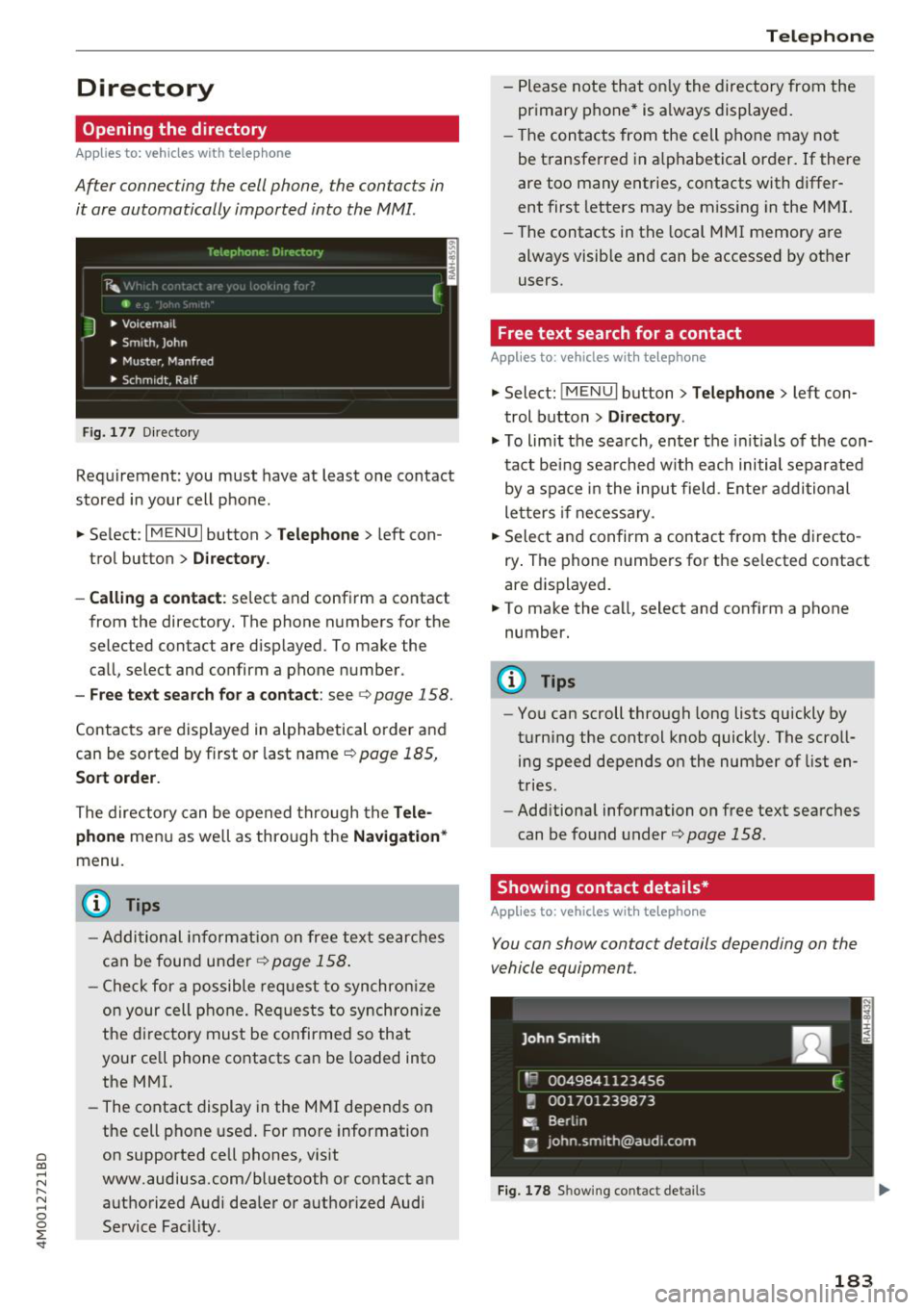
After connecting the cell phone, the contacts in
it are automatically imported into the MMI.
__________ T_e_,e_p_h_o_n_e_· _o_,_,e_,_,_o_,_Y _________ ,
' E 41>
J • Voicema il
• Smith, John
• Muster, Manfred
• Schm idt, Ralf
Fig . 177 Di recto ry
Requirement: you must have at least one contact
stored in your cell phone.
... Select :
IM ENU I button > Telephone > left con
trol button >
D irecto ry.
- Calling a contact :
select and confirm a contact
from the directory. The phone numbers for the
selected contact are displayed. To make the
call, select and confirm a phone number.
-Free text search for a contact: see c;, page 158.
Contacts are displayed in alphabetical order and
can be sorted by first or last name
c:> page 185,
Sort order.
The directory can be opened through the Tele
phone
menu as well as through the Navigation *
menu.
(D Tips
- Additional information on free text searches
can be found under
r::;, page 158.
- Check for a possible request to synchronize
on your cell phone. Requests to synchronize
the di rectory must be confirmed so that
your ce ll phone contacts can be loaded into
the MMI.
- The contact display in the MMI depends on
the cell phone used. For more information
on supported cell phones, visit
www.audiusa.com/bluetooth or contact an
authorized Audi dealer or authorized Audi
Service Fac ility .
Telephone
-Please note that only the directory from the
primary phone* is always displayed.
- The contacts from the cell phone may not
be transferred in alphabetical order. If there
are too many entries, contacts with differ
ent first letters may be missing in the MMI.
- The contacts in the local MMI memory are
always visible and can be accessed by other
users.
Free text search for a contact
Applies to : vehicles with telepho ne
... Select: IMENUI button> Telephone> left con
trol button >
Directory .
.,. To limit the search, enter the initials of the con
tact being sea rched w ith each initial separated
by a space in the input field . Enter additional
letters if necessary .
... Select and confirm a contact from the directo
ry . The phone numbers for the selected contact
are displayed.
... To make the call, select and confirm a phone
number.
(D Tips
- You can scroll through long lists quickly by
turning the control knob quickly. The scroll ing speed depends on the number of list en
tries.
- Additional information on free text searches
can be found under
c:> page 158.
Showing contact details*
Applies to: vehicles wit h telepho ne
You can show contact details depending on the
vehicle equipment.
Fig. 178 Showing contact details
183
Page 187 of 398
Cl a:, ...... N
" N ,-1 0
0
::r '
Call forwarding :
you can switc h the forwarding
of incoming calls to your voicemail or to anothe r
phone number on and off . You can check if the
function is activated or deactivated with
Check
status .
Call waiting :
you are alerted to an incoming call
during a phone call when the function is switched
on~ -You can check if th e function is activated
or deactivated with
Check status .
Send own telephone number:
sending your
phone n umber with an outgoing call can be acti
vated and deactivated . With the
Network -de
pendent
setting, the setting listed in the con
tract with the cell phone service provider is used.
The settings only apply to the
Telephone menu in
the MMI. Please note that the settings on your
cell phone will apply afte r disconnecting the
B luetooth co nnect ion. You ca n check if the func
tion is activated or deactivated with
Check sta
tus .
Ringtone and volume settings
1 )
Using the Mute telephone function, you can
switch the ringtone playback through the MMI
speake r o n and off. You can play the ringtones
using the
Ringtone fu nct ion. Select and confirm
an entry from the list. For th e
Ringtone volume/
Message volume
settings, see¢ page 250. The
Microphone input level can be adj usted during a
phone call using the control knob.
(D Tips
-Several cell phones can be paired to the
MMI, but only two* cell phones can be ac
tive ly connected.
- To delete all paired Bluetooth devices, the
Bluetooth function can be reset to the fac
tory default sett ings
c::> page 246.
Additional options
"' Select : I MENU I button> Telephone > right con
trol button .
ll Depends on t he conne cted cell pho ne.
Telephone
Connection manager
See¢ page 246.
Bluetooth settings*
See¢ page 248 .
Online settings*
See c::> page 248.
Wi-Fi settings*
See ¢ page 193, Wi-Fi hotspot.
Directory settings
Applies to: vehicles with telephone
"'Sele ct: ! MENUI button> Telephone > left con
trol button >
Directory > right control button >
Directory settings.
Memory capacity
Shows the Memory capacity for the directory.
You can manage up to 17,000 contacts with the
directory. You can load up to 4,000 contacts
from your cell phone into each directory. Yo u can
also impo rt up to 1,000 contacts from a storage
device .
Sort order
You can sort the contacts in your directory alpha
bet ically according to
Last name or First name .
Import contacts/Export contacts
See ¢ page 184.
Download directory
To update the contacts in th e MMI, you can man
ually download your cell phone contacts . De
pending on the ce ll phone, the B luetooth connec
tion may need to be disconnected and reconnect
ed to update the contacts.
Hide contacts without phone number
When this function is switched on, g rayed -out
contacts that have no phone numbers stored for
them wi ll be hidden in the directory.
185
Page 188 of 398
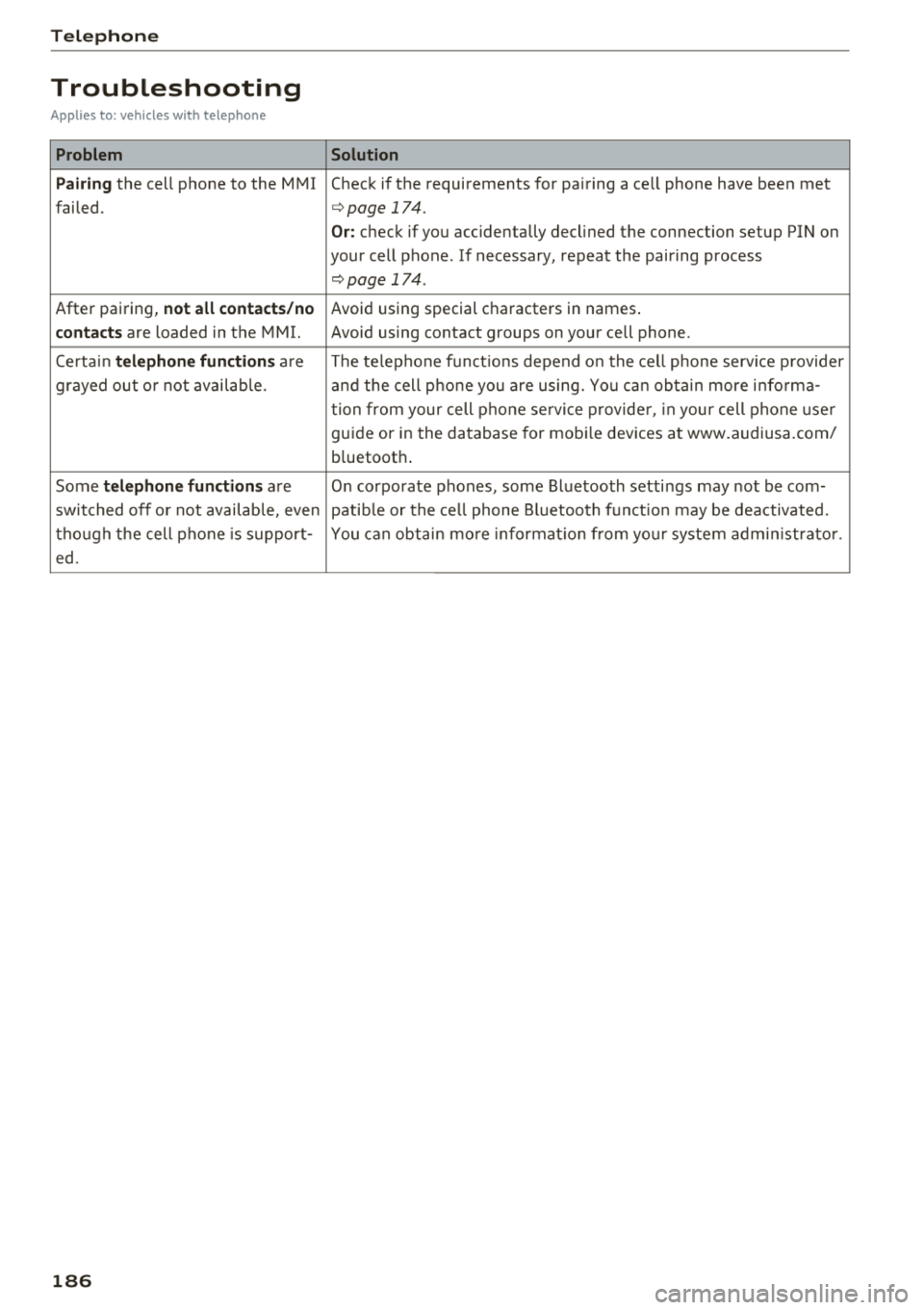
Tele phone
Troubleshooting
Applies to: vehicles with telephone
Problem Solution
P airing
the cell phone to the MMI Check if the requirements for pairing a ce ll phone have been met
failed.
c:::;, page 174.
Or: check if you accidentally declined the connection setup PIN on
your cell phone . If necessary, repeat the pairing process
¢ page 174 .
After pairing, not all contact s/no Avoid using special characters in names .
contac ts are loaded in the MMI. Avoid using contact groups on your cell phone .
Certa in
te le phon e function s are The te lephone funct ions depend o n the cell phone serv ice p rovider
grayed out o r not availab le. a nd the cell p ho ne you are using. Yo u ca n obtain more i nfo rma -
tion from your cell p hone se rvice p rovide r, in your cell phone use r
guide or in the database for mobi le devices at www .audiusa.com/
b luetooth .
Some
t el ephon e func tio ns are On corporate phones, some Bluetooth settings may not be com-
switched off o r not availab le, even patib le or the ce ll phone Bluetooth funct ion may be deactivated.
tho ugh the cell phone is support- You can obtain more informat io n from yo ur system admi nistrator.
ed .
186