steering AUDI Q7 2018 Owner´s Manual
[x] Cancel search | Manufacturer: AUDI, Model Year: 2018, Model line: Q7, Model: AUDI Q7 2018Pages: 398, PDF Size: 185.58 MB
Page 148 of 398
Intellig ent T echn olo gy
{QJ Note
- Never let the brakes "rub" by pressing the
pedal light ly when braking is not actually
necessary. This causes the brakes to over
heat and increases braking d istance and
causes wear .
- Before driv ing downhill a long distance on a
steep hill, decrease your speed and select a
lower gear. This makes use of the engine
braking effect and rel ieves the brakes. If
you need to b rake additionally, b rake in in
te rvals a nd not conti nuously.
@ Tips
-If the brake booster is not wo rking, you
must press the brake pedal with much more
fo rce than no rma l.
- If you ret rofit your vehicle with a front spoil
e r, whee l cove rs o r similar items, ma ke sure
th at the a ir flow to the front whee ls is not
i nterr upted. Ot herw ise the bra ke sys tem
can become too hot.
Electromechanical
steering, all-wheel
steering
The electromechanical steering supports the
driver's steering movements.
Power steering adapts electronically based on
the vehicle speed.
Indicator lights and me ssa ges
• Steering: malfuncti on! Plea se st o p vehicle
If this indicator light turns on and stays on and
this message appears, the power steering may
have failed.
Stop the vehicle in a safe location as soon as pos
sib le. Do
not continue driving. See an authorized
Audi dea ler or authorized Audi Service Facility for
assistance .
• Stee ring: malfunction! Plea se stop vehicle.
Pa y attention t o di sta nce at sid e
If t his ind icator light tu rns o n and stays o n and
this message appears, t he a ll-wheel steer ing*
146
may have fai led . The side of the vehicle may need
more space on the road .
Reduce you r speed and stop the vehicle in a safe
l oca tion with eno ugh space on the s ides as soon
as possible. Do
n ot continue driving. See an au
thorized Audi dea ler or authorized Audi Service
Facility for assistance.
'I-ij S te e ring : m alfun cti on! You can c ontinue
dri ving
If the indicato r light turns on and the message
appears, the steeri ng wheel may be more d iffi
cu lt to move or more sensitive than usu al. The
steering wheel may a lso be at an ang le when
driving straight.
D rive slowly to an a uth orized Audi dea ler or au
t h orized Aud i Serv ice Facili ty to have t he mal
f unction corrected .
l:r-ij Stee ring : malfun ction! Adapt driving sty le .
Lar ger turnin g radiu s
If the indicator l ight turns on and this message
appears, the all-whee l stee ring* may have fa iled .
Please note that the vehicle has a larger t urning
r ad ius and the st abil ity w hen turning a corner is
lik e tha t of a vehicle wi thout a ll -wheel s teer ing.
The steering whee l may also be at an angle when
driving straight.
D rive slowly to an a uth o rized Audi dea ler or au
t h orized Aud i Serv ice Facili ty to have t he mal
function corrected .
(D Tips
-If the . or l;rfl indi cato r light only stays on
for a sho rt time, you may cont inue driv ing.
- For add itiona l information o n all-wheel
steeri ng*, see
r=.>page 128.
ALL-wheel drive (quattro)
General information
In all whee l dr ive, the dr iv ing power is distr ibut
ed between all fou r whee ls when needed. This
happe ns automatically depend ing on your dr iving
behav ior as we ll as the curren t road cond it ions.
A lso see
r=.> page 142, Electronic stabilization
control (ESC). ..,.
Page 151 of 398
a co ...... N r--. N ...... 0
0
:E '
Traffic safety information
Audi recommend s performing certain Infotain
ment system fun ctions, such as entering a desti
nation, only when the vehicle is stationary . Al
ways be prepared to stop operating the Infotain
ment system in the interest of your safety and
the safety of other road users.
_& WARNING
Only use the Infotainment system when traf
fic conditions permit and always in a way that
allows you to maintain complete control over
your vehicle.
@ Tips
Certain functions are not available while driv
ing .
Introduction
The Multi Media Interface, or MMI for short,
combines various systems for communication,
navigation* and entertainment in your Audi. You
can opera te the MMI using the MMI control pan
el, the multifunction steering wheel or the voice
recognition system*.
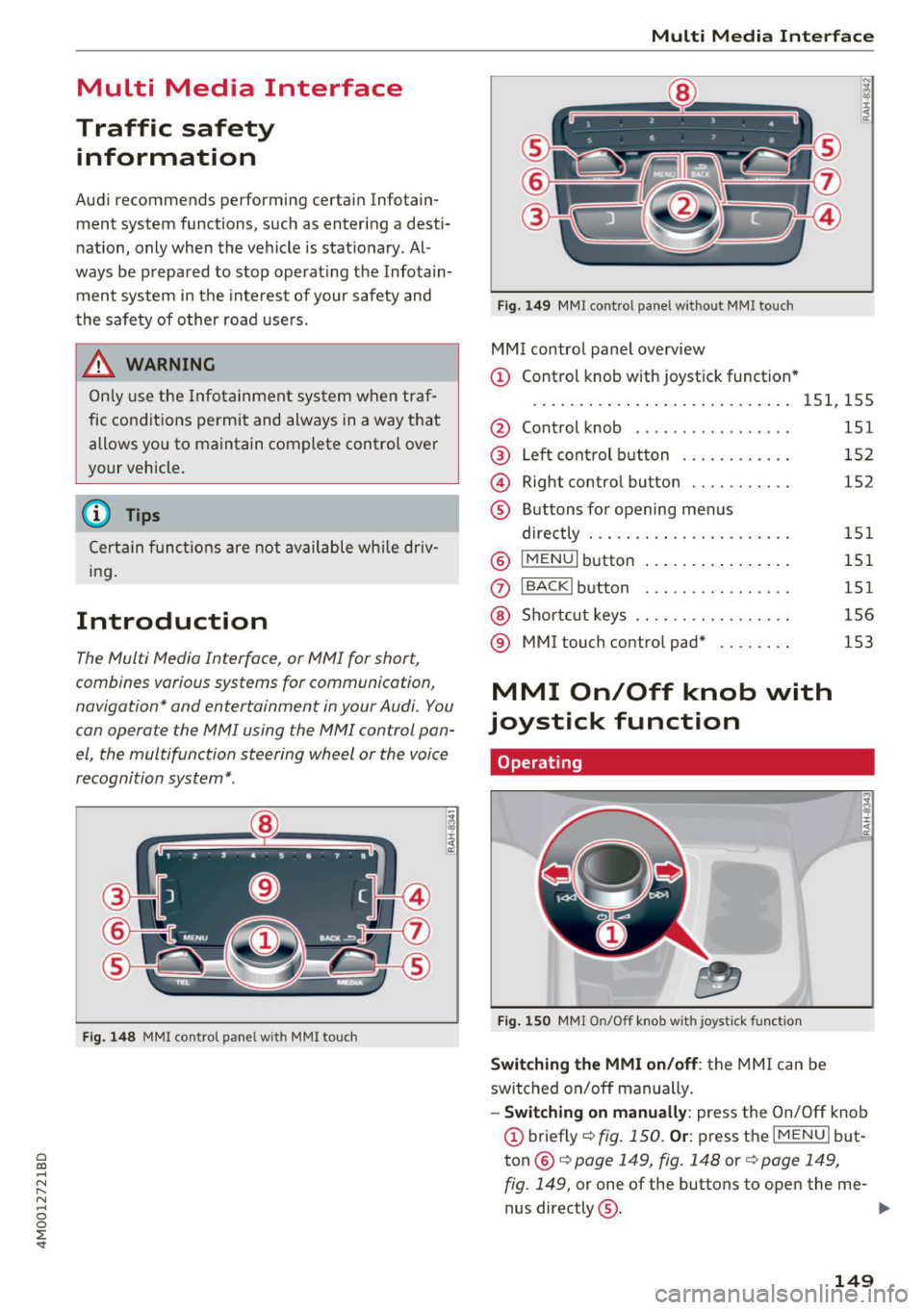
Fig. 148 MMI control pane l wit h MMI touc h
Multi Media Inte rface
Fig. 149 MMI co ntro l pane l w itho ut MM I to uch
MM I control panel overview
(D Control knob with joystick function *
....... ... ... .. ............. 151, 155
@ Control knob . . . . . . . . . . . . . . . . . 151
@ Left control button . . . . . . . . . . . . 152
@ Right control button . . . . . . . . . . . 152
® Buttons for opening menus
directly . . . . . . . . . . . . . . . . . . . . . . 151
®
I MENUI button . . . . . . . . . . . . . . . . 151
(J) IBACKI button . . . . . . . . . . . . . . . . 151
@ Shortcut keys . . . . . . . . . . . . . . . . . 156
® MMI touch contro l pad* . . . . . . . . 153
MMI On/Off knob with
joystick function
Operating
Fig. 150 MMI On/Off knob with joystick function
Switching the MMI on/off: the MMI can be
switched on/off manually .
- Switching on manually: press the On/Off knob
(D briefly c::> fig. 150 . Or: press the IM ENU I but
ton ®
c::> page 149, fig. 148 or¢ page 149,
fig . 149,
or one of the buttons to open the me-
nus directly @. ..,.
149
Page 163 of 398
Cl a:, ...... N
" N ...... 0
0
::r '
wheel
Introduction
Applies to: vehicles with multifunction steering wheel
In the driver information system display, you can
control numerous Infotainment system functions
using the multifunction steering wheel*
<=:> page 12 .
You can control additional Infotainment func
tions using the MMI control panel<=:>
page 149 in
the Infota inment system display .
A WARNING
Direct your full attention to driv ing . As the
driver, you have complete responsibility for
safety in traffic. Only use the func tions in
-
such a way that yo u always main tain com
plete control over yo ur vehicle in a ll traffic sit -
uations .
Radio
Applies to: vehicles with multifunction steering wheel and ra
dio
.,. Press the l<1 1>I butto n on the mult if u nct io n
stee ring wheel repeated ly until the Rad io/Me
dia t ab is displaye d .
.,. Press t he left cont ro l button
¢ page 13.
D epending on vehicle equipment, the following
f u nctions may be avai lab le in the d rive r informa
tion system.
- Selecting th e frequency band : select and con
firm a frequency band.
- Selecting a station from th e station list : select
and co nfirm a radio station .
-Selecting a station from the pr esets li st : se lect
and co nfirm
Presets and then a rad io sta tion .
-Opening a med ia source : select and confirm
Switch to media .
Additional settings
- Se lect : right contro l button > desired entry.
See <=:>page 223.
Multifunction ste ering wheel
(D Tips
Pay attention to the Infotainment system dis
play if necessary. Depending on the se lected
funct ion, it may be necessary to use the MMI
control panel.
Media
Applies to: vehicles with multifunction steering wheel and media
Requirement: a media drive must contain audio/
video files¢
page 226 and the radio/media tab
must be disp layed .
.,. Press the left con trol button on the m ultifu nc-
tion steering w heel
¢ page 13.
Depend ing on veh icle equ ipment, t he followi ng
funct ions may be ava ilable in the dr iver informa
t ion sys tem.
- Select ing a media source : select and confirm a
so urce such as the S D card.
-Switching to the radio : select and confirm
Switch to radio.
- Play ing an aud io /v id eo file :
select and confirm
a file .
-Pausing /resuming playback : press the right
t humbwheel @<=:>
page 15, fig . 11 . To resume
p layback, press the rig ht thumbwhee l again.
- Opening additional track information : selec t:
r ight control button
> " Now Playing" s creen.
For additional information, see <=:> page 23 7.
(D Tips
- Always follow the info rmation found in
<=:>page 225.
- Please note that wi thin a media source in
the driver information system, only play lists
that were selected th rough the MMI control
pane l can be played
<=:> page 235.
- Pay attention to the Infota inment system
display if necessary. Depending on the se
lected f unction, it may be necessa ry to use
the MMI control panel.
161
Page 164 of 398
Multifunction steering wheel
Telephone
Applies to: vehicles w ith multifunct ion steering wheel and
telephone
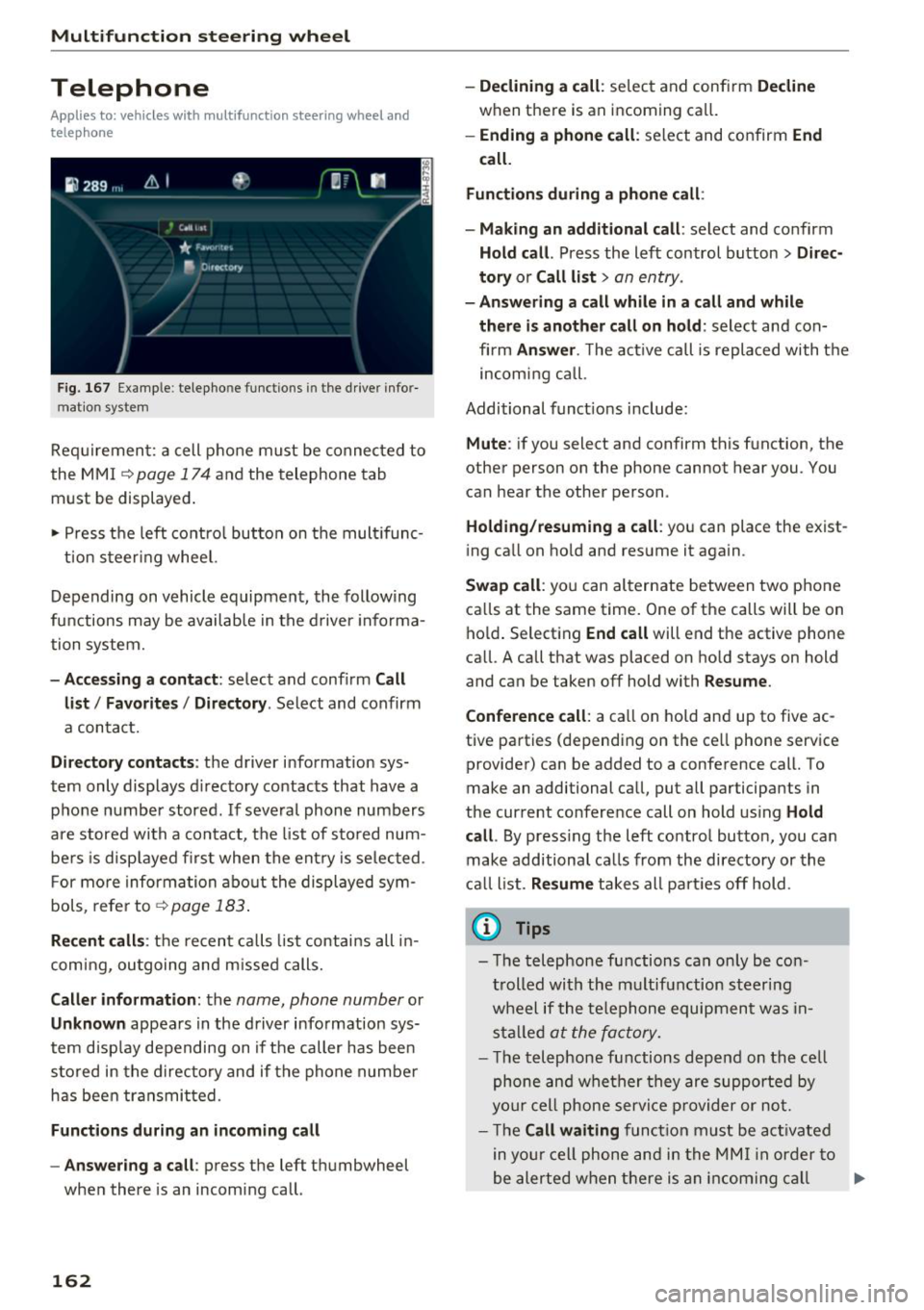
Fig. 167 Example : telepho ne functions in the driver info r
mat ion system
Requirement: a cell phone must be connected to
the MMI
¢ page 174 and the telephone tab
must be displayed.
• Press the left control button on the multifunc-
tion steering wheel.
Depending on vehicle equipment, the following
functions may be available in the driver informa
tion system.
-Accessing a contact: select and confirm Call
list/ Favorites/ Directory .
Select and confirm
a contact.
Directory contacts : the driver information sys
tem only displays directory contacts that have a
phone number stored.
If several phone numbers
are stored with a contact, the list of stored num
bers is displayed first when the entry is selected .
For more information about the displayed sym
bols , refer to
¢page 183.
Recent calls : the recent calls list contains all in
coming, outgoing and missed calls.
Caller information: the name, phone number or
Unknown appears in the driver information sys
tem display depending on if the caller has been
stored in the directory and if the phone number
has been transmitted.
Functions during an incoming call
- Answering a call :
press the left thumbwheel
when there is an incoming call .
162
-Declining a call: select and confirm Decline
when there is an incoming call.
-Ending a phone call : select and confirm End
call.
Functions during a phone call :
- Making an additional call :
select and confirm
Hold call. Press the left control button > Direc
tory
or Call list > an entry.
- Answering a call while in a call and while
there is another call on hold:
select and con
firm
Answer . The active call is replaced with the
incoming call .
Additional functions include:
Mute : if you select and confirm this function, the
other person on the phone cannot hear you. You
can hear the other person.
Holding/resuming a call : you can place the exist
ing call on hold and resume it again .
Swap call: you can alternate between two phone
calls at the same time. One of the calls will be on
hold. Selecting
End call will end the active phone
ca ll. A call that was placed on hold stays on hold
and can be taken off hold with
Resume.
Conference call:
a call on hold and up to five ac
tive parties (depending on the cell phone service
provider) can be added to a conference call. To
make an additional call, put all participants in
the current conference call on hold using
Hold
call .
By pressing the left control button, you can
make additional calls from the directory or the
call list.
Resume takes all parties off hold .
(D Tips
-The telephone functions can only be con
trolled with the multifunction steering
wheel if the telephone equipment was in
stalled
at the factory .
-The telephone functions depend on the cell
phone and whether they are supported by
your cell phone service provider or not.
- The
Call waiting function must be activated
in your cell phone and in the MMI in order to
be alerted when there is an incoming call .,.
Page 165 of 398
during an active ca ll. The call options de
pend on the cell phone and se rvice provide r.
You can obta in more information from your
ce ll phone service prov ider.
Navigation
Operation in the driver information system
Applies to: vehicles with multifunction steering wheel and
navigat ion system
Requirement: a destination must be entered
c::> pag e 204, rou te g uidance must be starte d and
the navigat ion tab mus t be d is pl ayed.
.,. Press t he left cont rol button on the mult ifunc -
t io n st eer ing whee l
c::>page 13.
Depending on vehicle equipment, the following
functions may be availab le in the driver in forma
tion syste m.
-Displaying nav igat ion during active route
guidance :
select and c onfirm Map or Street
view *
(analog instrument cluster).
- Showing the map when route guidance is not
active :
select and co nfirm Map .
- Access ing last destinations :
select and confirm
Last destinations > the desired destination .
-Access ing favorites : select and confirm Favor
ites >
the desired destination.
-Starting route guidance to the stored home
address :
select and confi rm Cancel route guid ·
ance
if necessary and then Home address .
If yo u have not starte d ro ute gui dance, a com
pass (in the analo g instr ument cluster) or a map
(Aud i virt ua l coc kp it)* will be disp layed.
- Canceling active route guidance : on the m ulti
function steering wheel, select: r ight control
button
> Cancel route guidance.
Additional settings
- Se lec t: rig ht c ontro l bu tton > desired entry .
Depending on t he f unction selected, the follow
in g addi tional sett ings may be poss ible:
a -Map display c::> page 214 co
~ -Map co lors c::> page 214 r--.
~ - Map orie ntation c::> page 21 4 0
~ -Au tom atic z oom c::> page 215
'
Nav igation view with route guidance
started
Applies to: vehicles with navigation system and Audi virtual
cockpit
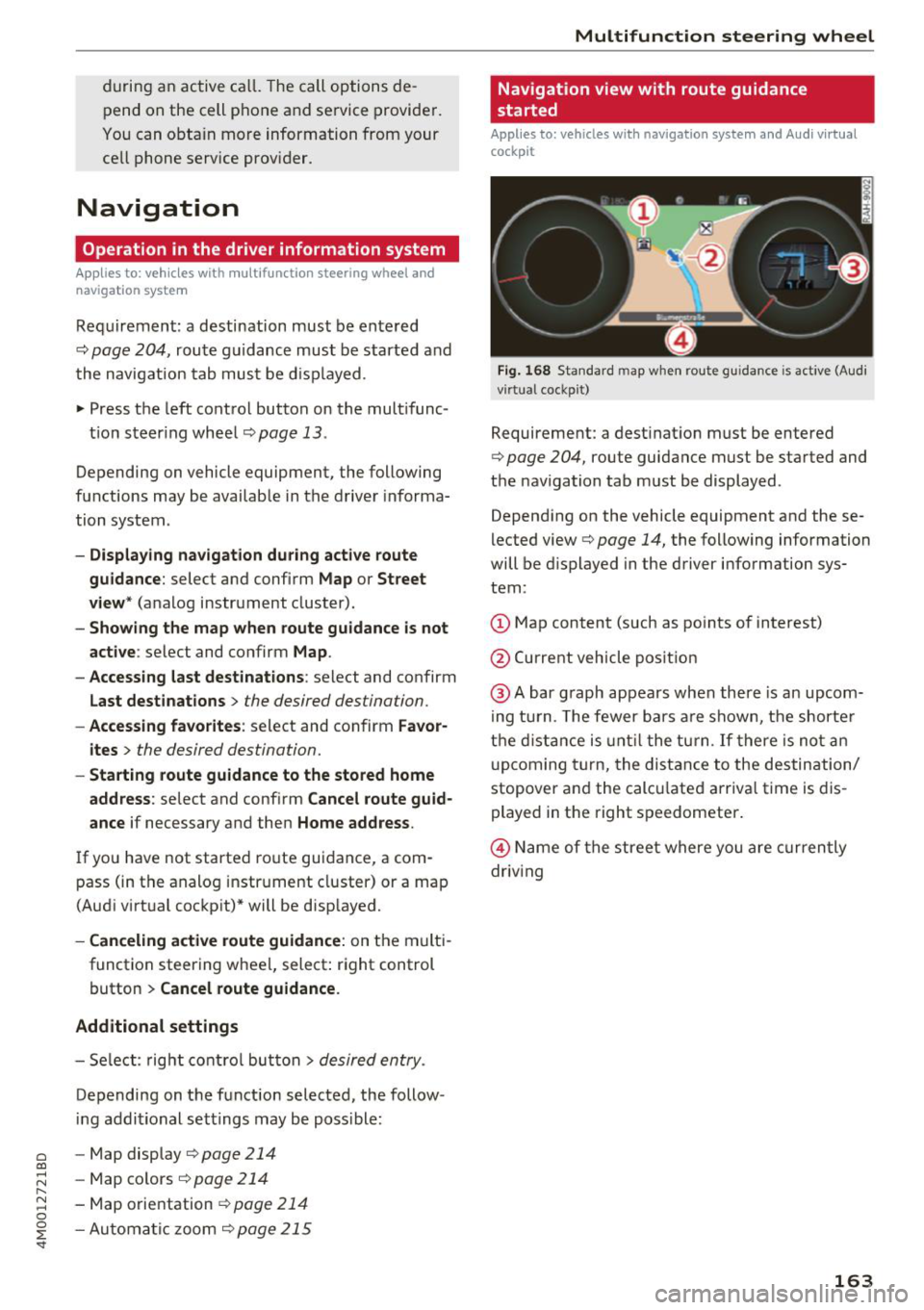
Fig. 168 Sta nda rd m ap whe n route gu idance is active (Audi
v ir tual coc kp it)
Requirement: a dest inat ion must be entered
c::> poge 204, route guidance must be sta rted and
the navigation tab m ust be displayed .
Depend ing on the vehicle equipment and these
l ected view
c::> page 14, the following information
will be d isplayed in the driver information sys
tem:
(D Map content (such as po ints of interest)
@ Current vehicle pos it ion
@ Abar g raph appears when ther e is an upcom
i ng tur n. T he fewer b ars a re s how n, th e shor te r
t h e di sta nce is until t he t urn.
If there is no t an
upc oming turn, the dis ta nce to the des tin ation/
stopover and the calc ulate d arriva l t ime is dis
played in t he right s peedometer .
@ Name of the street where you are curren tly
driv ing
163
Page 166 of 398
Multifunction steering wheel
Map view with route guidance started
Applies to: vehicles with navigation system and map view
Depending on the vehicle equipment , you con al
so hove the active route guidance display in the mop view* in the driver information system .
W 1 St
Ill
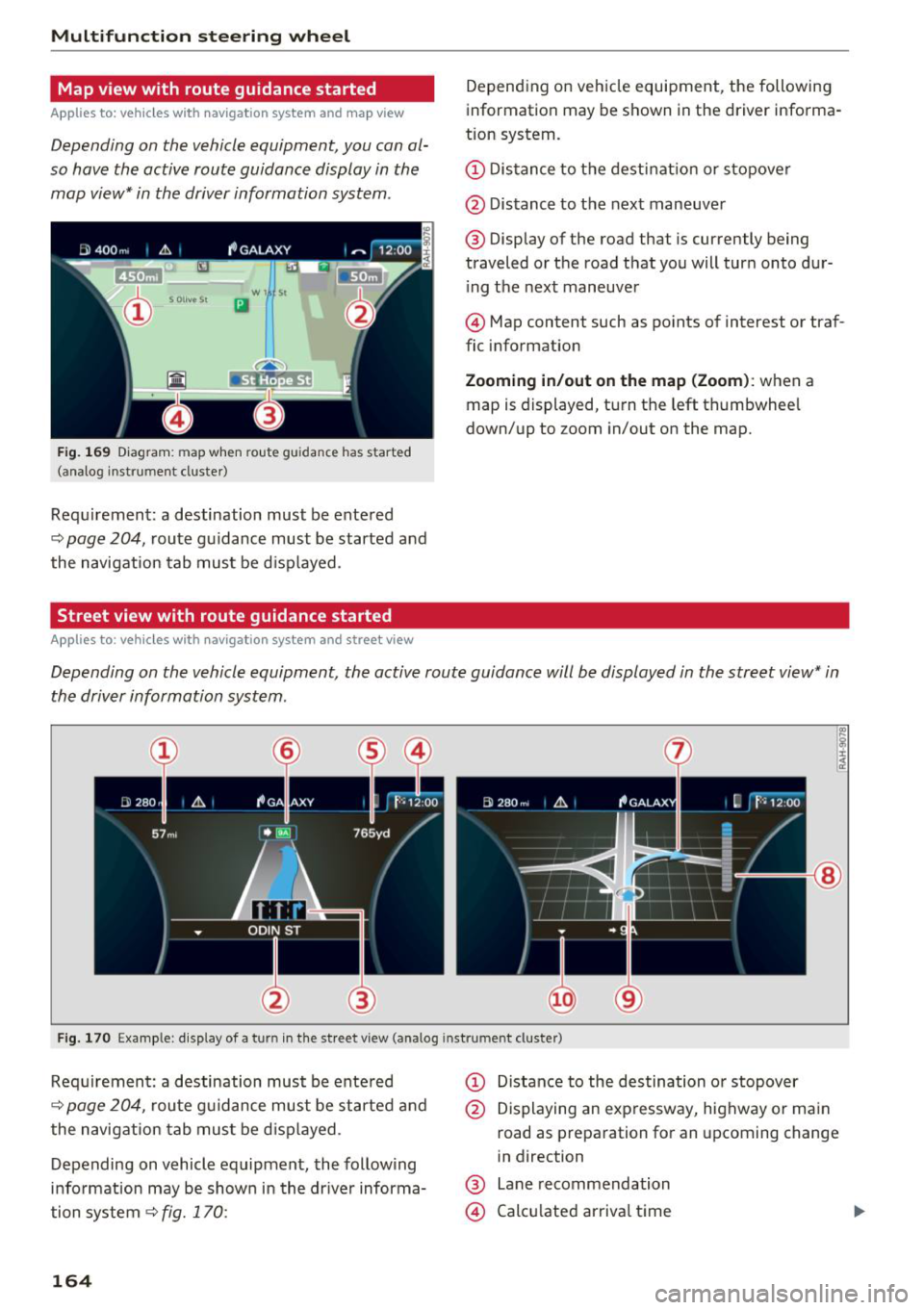
Fig. 169 Diagram : map when route gu idan ce has start ed
( a na log i nst rum ent cluste r)
Requirement: a destination must be entered
~ page 204, route guidance must be started and
the navigation tab must be displayed.
Street view with route guidance started
Applies to: vehicles with navigation system and street view
Depending on vehicle equipment, the following
information may be shown in the driver informa
tion system .
CD Distance to the destination or stopover
@ Distance to the next maneuver
@ Display of the road that is currently being
traveled or the road that you will turn onto dur
i ng the next maneuver
@ Map content such as points of interest or traf
fic information
Zooming in/out on the map (Zoom): when a
map is displayed, turn the left thumbwheel
down/up to zoom in/out on the map.
Depending on the vehicle equipment, the active route guidance will be displayed in the street view* in
the driver information system .
@
Fig. 170 Example : d isplay of a t urn in the stre et view (a nalog instr um en t cl uster )
Requirement: a destination must be entered
~ page 204, route guidance must be started and
the navigation tab must be displayed.
Depending on vehicle equipment, the following
information may be shown in the driver informa
tion system
~ fig. 170:
164
CD Distance to the destination or stopover
@ Displaying an expressway, highway or main
road as preparation for an upcoming change
in direction
@ Lane recommendation
@ Calculated arrival time
Page 175 of 398
Cl a:, ...... N
" N ...... 0
0
::r '
No phone call is in progress.
T he parking aid as well as the Audi voice recogni
tion system must not be active .
A cell phone must be connected to the MMI with
the
Handsfree profile ¢ page 174.
The cell phone being connected must have voice
control that can be controlled externally .
.. Switching on: press and hold the 5) button on
the multifunction steering wheel* and say the
desired command after the external speech di
alog begins .
.. Continuing/resuming the dialog: the system
remains ready to use for a short time after end
ing the dialog. You can start a new external dia
log during this time . Press the
51 button if
needed, and say a new command .
Or: select
and confirm
Resume on the MMI control panel.
.,. Switching off: press and hold the 5) button .
Or: select and confirm Cancel on the MMI con
trol panel.
(D Tips
- There are no voice guidance* prompts when
a dialog is active.
- This function depends on the cell phone
used. You can obtain more information
from your cell phone service provider or
from your cell phone user guide.
- AUDI AG simply provides access to control
your cell phone with voice operation and
does not take any responsibility for the con
tents and commands within the external
voice control.
Voice recognition system
173
Page 215 of 398
a co ...... N r--. N ...... 0
0
:E '
Map operation
Applies to: veh icles with navigation system
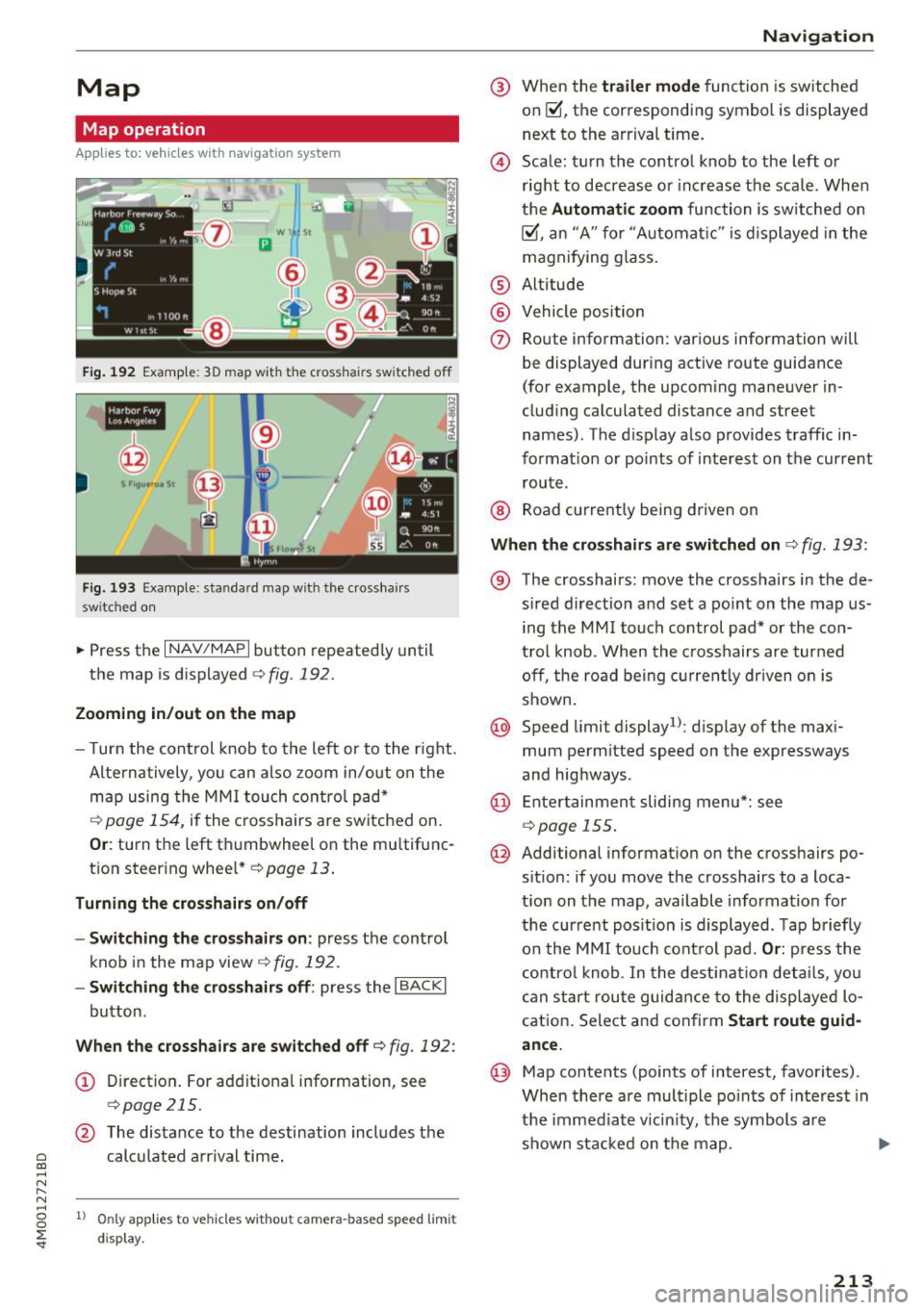
Fig. 192 Example: 30 map with the c ross hair s switched off
--,-
@
Fig. 193 Examp le: stan da rd map with t he crosshai rs
sw itc hed on
~ Press the I NAV /MAPI button repeatedly until
the map is displayed
c;,fig. 192.
Zooming in/out on the map
- Turn the control knob to the left or to the right.
Alternatively, you can also zoom in/out on the
map using the MMI touch control pad*
¢ page 154, if the crosshairs are switched on.
Or: turn the left thumbwheel on the mu ltifunc
tion steering wheel*¢
page 13.
Turning the crosshairs on/off
- Switching the crosshairs on :
press the control
knob in the map view
¢fig. 192.
- Switching the crosshairs off: press the I BACKI
button .
When the crosshairs are switched off¢ fig. 192 :
(D Direction. For additional information, see
¢page 215.
@ The distance to the destination includes the
calculated arrival time.
1l Only appl ies to vehicl es w ithou t camer a-b as ed speed lim it
d ispla y.
Navigation
@ When the trailer mode function is switched
on~, the corresponding symbol is displayed
next to the arrival time.
@ Scale: turn the control knob to the left or
right to decrease or increase the scale. When
the
Automatic zoom function is sw itched on
~, an "A" for "Automat ic " is displayed in the
magnifying gla ss.
® Altitude
@ Vehicle position
0 Route information: various information will
be displayed during active route guidance
(for example, the upcoming maneuver in
cluding calculated distance and street
names) . The display also provides traffic in
formation or points of interest on the current route .
® Road currently being driven on
When the crosshairs are switched on¢ fig. 193 :
® The crosshairs: move the crosshairs in the de-
s ired direction and set a po int on the map us
ing the MMI touch control pad* or the con
t rol knob . When the crosshairs are turned
off, the road being currently driven on is
shown.
@ Speed limit display1>: display of the maxi
mum perm itted speed on the expressways
and highways .
@ Entertainment sliding menu*: see
¢page 155 .
@ Additional information on the crosshairs po
sit ion: if you move the crosshairs to a loca
t ion on the map, available information for
the current posit ion is displayed . Tap briefly
on the MMI touch control pad.
Or: press the
control knob. In the destination details, you
can start route guidance to the displayed lo
cation. Select and confirm
Start route guid
ance.
@ Map contents (points of interest, favorites) .
When there are multiple points of interest in
the immediate vicin ity, the symbols are
shown stacked on the map.
213
Page 255 of 398
a co ...... N r--. N ...... 0
0
:E '
weather conditions.
~ Take frequent breaks on long trips. Do not drive
for more than two hours at a stretch.
~ Do NOT drive when you are tired, under pres
sure or when you are stressed .
A WARNING
Impaired driv ing safety increases the risk of
ser ious personal inju ry and death whenever a
vehicle is being used .
Correct passenger
seating positions
Proper seating position for the driver
The proper driver seating position is important
for safe, relaxed driving .
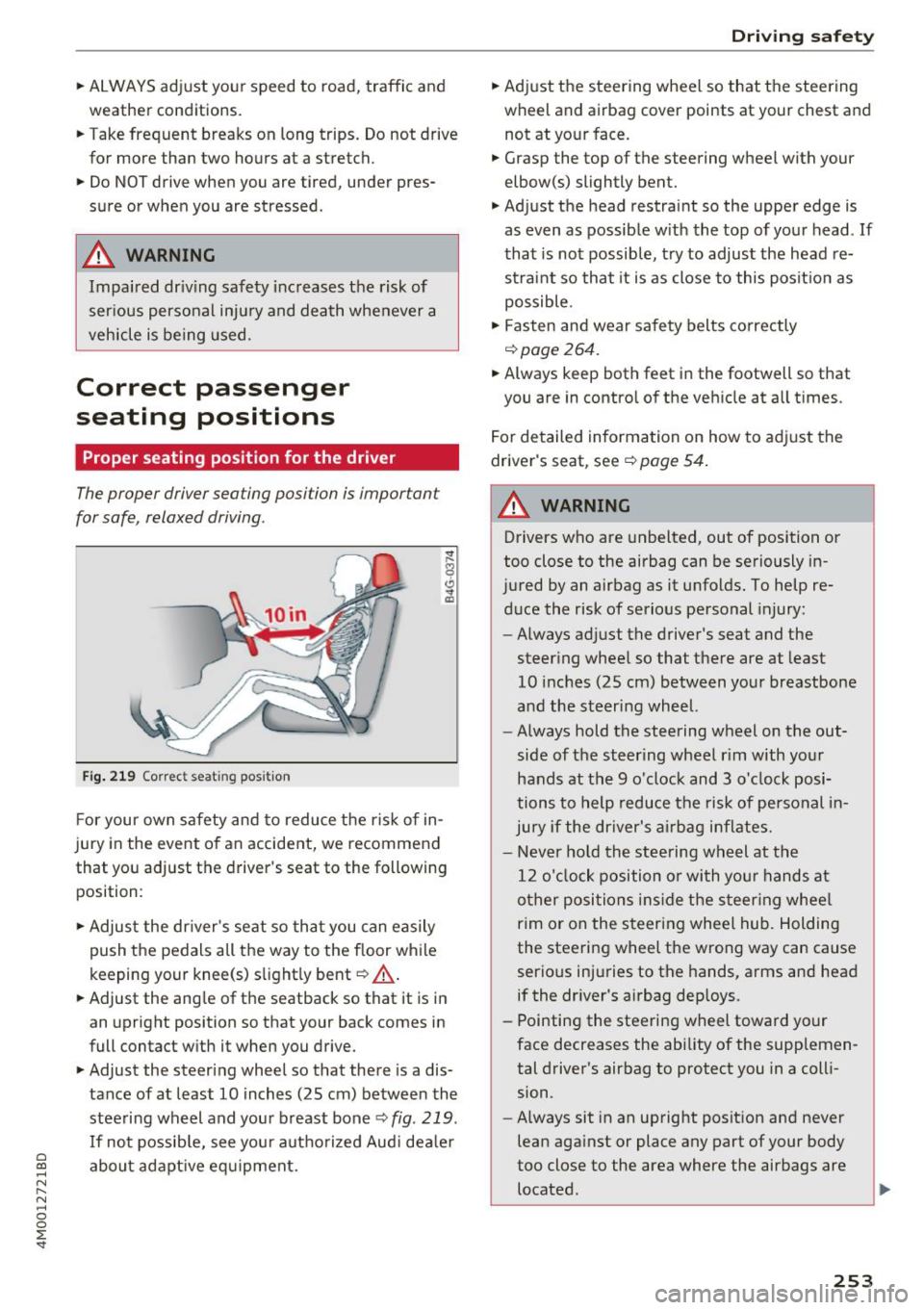
Fig. 219 Correc t seating pos ition
F or your own s afety and to reduce the risk of in
jury in the event of an accident, we recommend
that you adjust the driver 's seat to the following
position:
~ Adjust the dr iver's seat so tha t you can easily
push the pedals all the way to the f loor wh ile
keeping your knee(s) s light ly bent
c::> _& .
~ Adjust the ang le of the seatback so that it is in
an upright position so that your back comes in
full contact w ith it when you drive.
~ Adjust the steering wheel so that there is a dis
tance of at least 10 inches (25 cm) between the
stee ring wheel and you r breast bone
c::> fig. 219.
If no t possib le, see you r autho riz ed Aud i dea le r
abo ut adapt ive eq uipment.
Dri ving safety
~ Adjust the steering wheel so that the steering
wheel and airbag
cover points at your chest and
not at yo ur face.
~ Grasp the top of the steering wheel with your
elbow(s) slightly bent.
~ Adjust the head restra int so the upper edge is
as
even as possible w ith the top of your head . If
that is not possib le, t ry to adjust the head re
straint so that it is as close to this posit ion as
possible .
~ Fasten and wear safety belts correctly
c::>page 264.
~ Always keep both feet in the footwell so that
you are in contro l of the ve hicle at a ll times.
F or detailed information on how to adj ust the
drive r's seat, see
c::> page 54 .
A WARNING
-
Drivers who are unbelted, out of position or
too close to the airbag can be seriously in
jured by an airbag as it unfolds. To help re d uce the risk of serious personal injury:
- Always ad just the driver's seat and the
steer ing whee l so that there are at least
10 inc hes (25 cm) between you r breastbone
and the steering wheel.
- Always hold the steering wheel on the out
side of the steering wheel r im with your
hands at the 9 o'clock and 3 o' clock posi
tions to help reduce the risk of personal in
ju ry if the driver's airbag inflates.
- Never hold the stee ring wheel at the
12 o' clock position o r with you r hands at
o ther posi tions ins ide the s teer ing whee l
rim or on the steering wheel hub. Holding
the steering wheel the wrong way can cause
serio us injuries to the hands, arms and head
if the dr iver's airbag dep loys.
- Pointing the steering wheel toward your
face decreases the ability of the supplemen tal driver's airbag to protect you in a coll i
sion.
- Always sit in an upright position and never
lean aga inst or place any part of your body
too close to the area where the airbags are located .
253
Page 265 of 398
a co ...... N r--. N ...... 0
0
:E '
ty restraint systems , the unr estrained occupant
will slam violently into the steering wheel, in
strument panel, windshield , or whatever else is
in the way
c:;, fig. 225 . This impact with the vehi
cle interior has all the energy they had just be
fore the crash.
Never rely on airbags alone for protection. Even
when they deploy , airbags provide only additional
protection . Airbags are not supposed to deploy in
all kinds of accidents. Although your Audi is
equipped with airbags, all vehicle occupants, in
cluding the driver, must wear safety belts cor
rectly in order to minimize the risk of severe in
jury or death in a crash.
Remember too, that airbags will deploy only
once and that your safety belts are always there
to offer protection in those accidents in which
airbags are not supposed to deploy or when they
have already deployed. Unbelted occupants can
also be thrown out of the vehicle where even more severe or fatal injuries can occur.
It is also important for the rear passengers to
wear safety belts correctly. Unbelted passengers in the rear seats endanger not only themselves
but also the driver and other passengers
c:;, fig. 226 . In a frontal collision they will be
thrown forward violently, where they can hit and injure the driver and/or front seat passenger .
Safety belts protect
People think it's possible to use the hands to
brace the body in a minor collision . It's simply
not true!
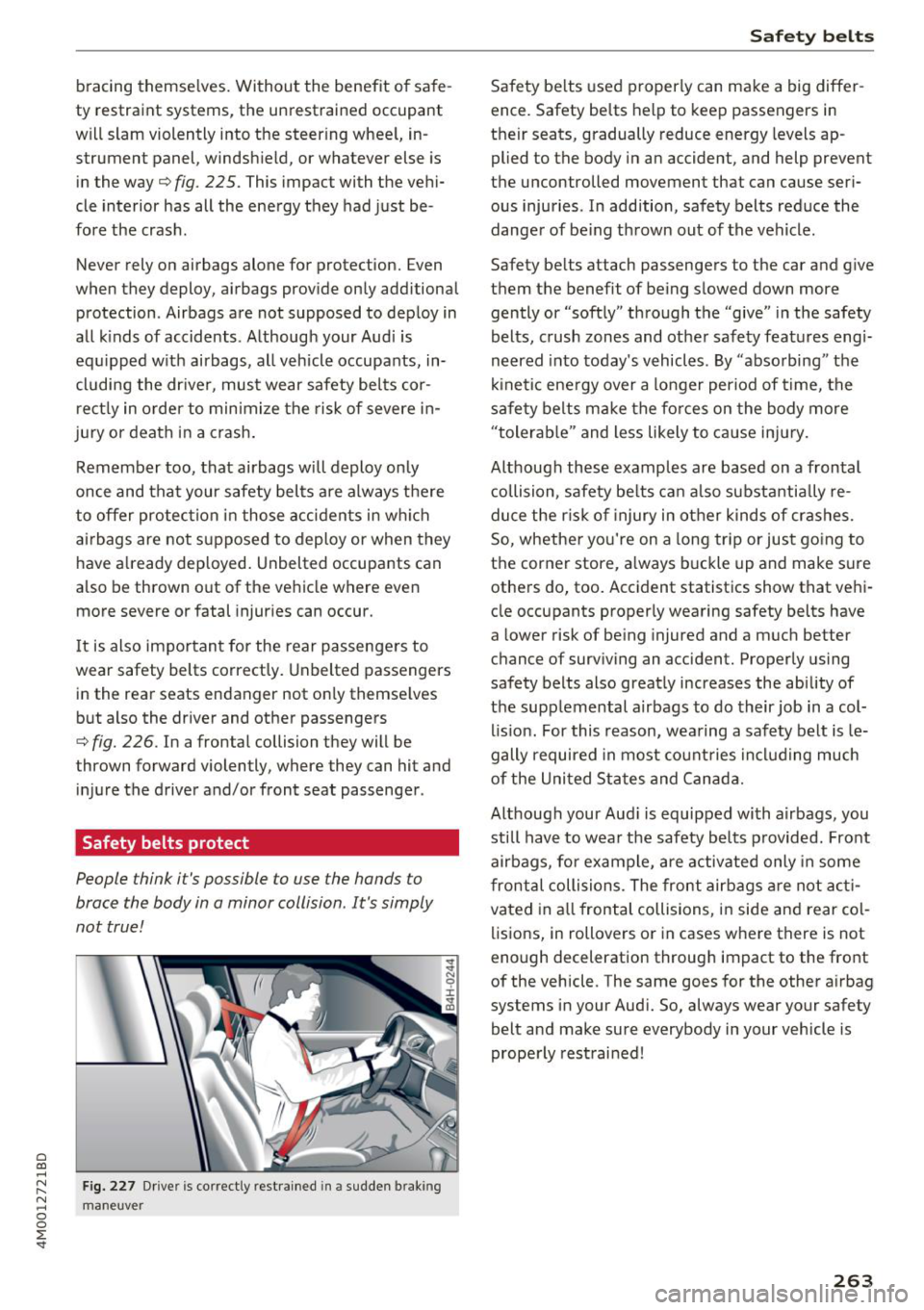
Fig. 227 Drive r is co rr ectly restrained in a sudden b rak ing
maneuver
Safety belts
Safety belts used properly can make a big differ
ence. Safety belts help to keep passengers in
their seats, gradually reduce energy levels ap plied to the body in an accident , and help prevent
the uncontrolled movement that can cause seri ous injuries. In addition, safety belts reduce the
danger of be ing thrown out of the vehicle .
Safety belts attach passengers to the car and give
them the benefit of being slowed down more gently or "softly" through the "give" in the safety
belts, crush zones and other safety features engi
neered into today's vehicles . By "absorbing" the
kinetic energy over a longer period of time, the
safety belts make the forces on the body more
"tolerable" and less likely to cause injury .
Although these examples are based on a frontal collision, safety belts can also substantia lly re
duce the risk of injury in other kinds of crashes.
So, whether you're on a long trip or just going to
the corner store, always buckle up and make sure
others do, too. Accident statistics show that vehi
cle occupants properly wearing safety belts have
a lower risk of being injured and a much better
chance of surviving an accident. Properly using
safety belts also greatly increases the ability of
the supplemental a irbags to do their job in a col
lision. For this reason, wearing a safety belt is le
gally required in most countries including much
of the United States and Canada.
Although your Aud i is equipped with airbags, you
still have to wear the safety belts provided. Front
airbags, for example, are activated only in some
frontal collisions. The front airbags are not acti
vated in all frontal collisions, in side and rear col
lisions, in rollovers or in cases where there is not
enough deceleration through impact to the front
of the vehicle . The same goes for the other airbag
systems in your Audi. So, always wear your safety
belt and make sure everybody in your vehicle is
properly restrained!
263