audio AUDI TT ROADSTER 2018 Owners Manual
[x] Cancel search | Manufacturer: AUDI, Model Year: 2018, Model line: TT ROADSTER, Model: AUDI TT ROADSTER 2018Pages: 310, PDF Size: 46.95 MB
Page 5 of 310
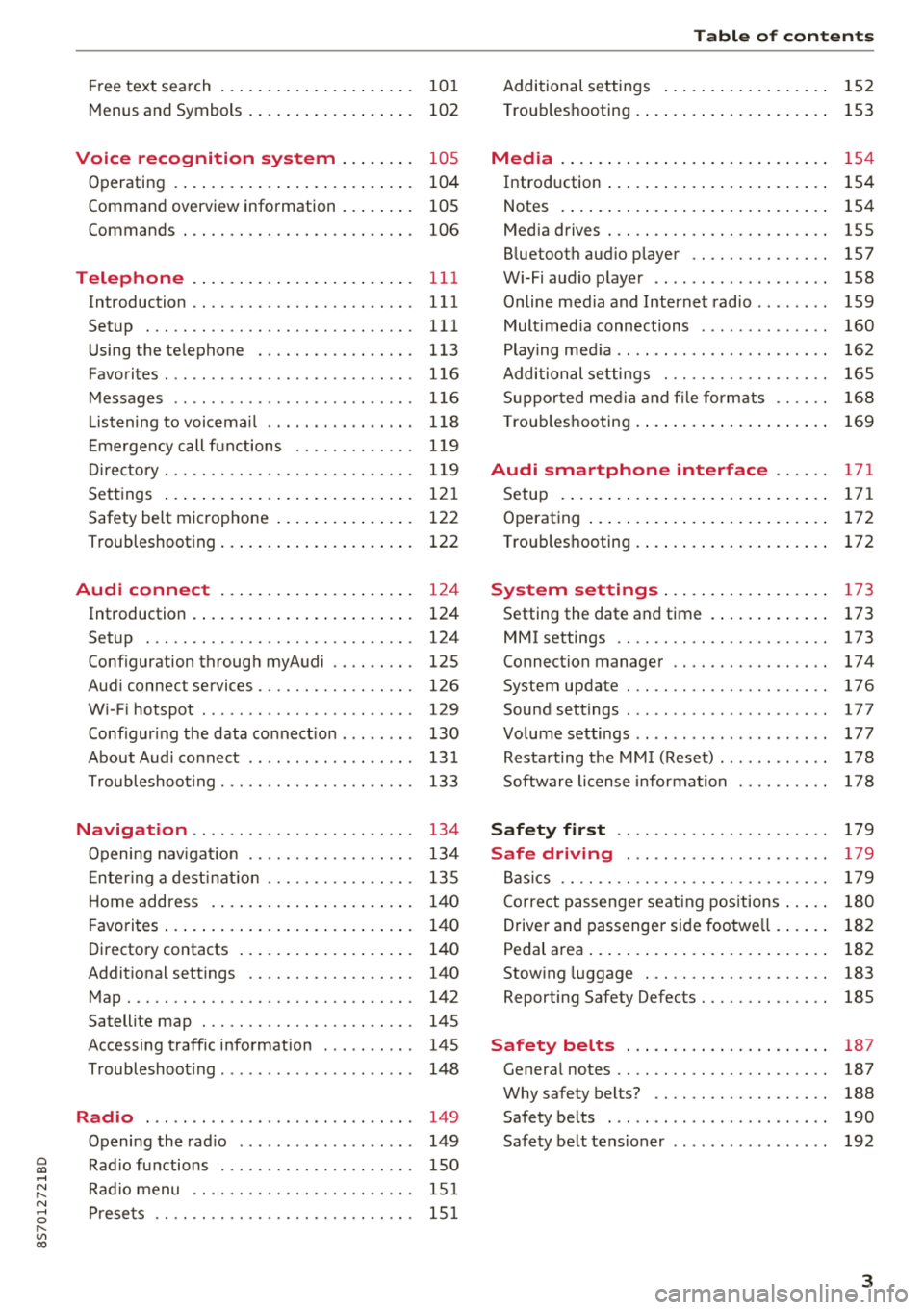
Free text search . . . . . . . . . . . . . . . . . . . . . 10 1
M enus and Symbols . . . . . . . . . . . . . . . . . . 102
Voice recognition system . . . . . . . . 105
Operating . . . . . . . . . . . . . . . . . . . . . . . . . . 104
Command overview information . . . . . . . . 105
Commands . . . . . . . . . . . . . . . . . . . . . . . . . 106
Telephone . . . . . . . . . . . . . . . . . . . . . . . . 111
Introduction . . . . . . . . . . . . . . . . . . . . . . . . 111
Setup . . . . . . . . . . . . . . . . . . . . . . . . . . . . . 111
Using the te lephone . . . . . . . . . . . . . . . . . 113
Favorites ... .. ................ ... .. . 116
Messages . . . . . . . . . . . . . . . . . . . . . . . . . . 116
Listening to voicema il . . . . . . . . . . . . . . . . 118
E me rgency call f unctions . . . . . . . . . . . . . 119
Dir ectory. .. .. ............. .. .. .. .. . 119
Sett ings . . . . . . . . . . . . . . . . . . . . . . . . . . . 12 1
Safety belt microphone . . . . . . . . . . . . . . . 122
Troubleshooting . . . . . . . . . . . . . . . . . . . . . 122
Audi connect . . . . . . . . . . . . . . . . . . . . . 124
Introduction . . . . . . . . . . . . . . . . . . . . . . . . 124
Setup . . . . . . . . . . . . . . . . . . . . . . . . . . . . . 124
Configuration through myAudi . . . . . . . . . 125
Aud i connect services . . . . . . . . . . . . . . . . . 126
W i- F i hotspot . . . . . . . . . . . . . . . . . . . . . . . 129
Configur ing the data connect ion . . . . . . . . 130
About Audi connect . . . . . . . . . . . . . . . . . . 131
T roubleshoot ing . . . . . . . . . . . . . . . . . . . . . 133
Navigation . . . . . . . . . . . . . . . . . . . . . . . . 134
Opening nav igat io n . . . . . . . . . . . . . . . . . . 134
E nter ing a dest inat io n . . . . . . . . . . . . . . . . 135
H ome add ress . . . . . . . . . . . . . . . . . . . . . . 140
F avorites . . . . . . . . . . . . . . . . . . . . . . . . . . . 140
Directory contacts . . . . . . . . . . . . . . . . . . . 140
Addit ional settings . . . . . . . . . . . . . . . . . . 140
Map. .. .. .. .. ............... .. .. .. . 142
Sa tellite map . . . . . . . . . . . . . . . . . . . . . . . 145
Accessing traff ic i nformation . . . . . . . . . . 145
T roubleshoot ing . . . . . . . . . . . . . . . . . . . . . 148
Radio ... .. .. ................ ... .. . 149
Opening the rad io . . . . . . . . . . . . . . . . . . . 149
~ Rad io fu nctions . . . . . . . . . . . . . . . . . . . . . 150 .-<
~ Rad io menu . . . . . . . . . . . . . . . . . . . . . . . . 151
N 8 Prese ts . . . . . . . . . . . . . . . . . . . . . . . . . . . . 151
r--Vl 00
Table of content s
Additional settings . . . . . . . . . . . . . . . . . . 152
T roub leshooting .... ... .. ..... ... .. .. 153
Media . . . . . . . . . . . . . . . . . . . . . . . . . . . . . 154
Introd uction ..... .. ... .. ..... ... .. .. 154
Notes . . . . . . . . . . . . . . . . . . . . . . . . . . . . . 154
Media drives . . . . . . . . . . . . . . . . . . . . . . . . 155
B luetooth aud io player . . . . . . . . . . . . . . . 157
Wi-Fi audio player . . . . . . . . . . . . . . . . . . . 158
Online media and Internet radio ........ 159
Mult imed ia connections . . . . . . . . . . . . . . 160
Play ing med ia . . . . . . . . . . . . . . . . . . . . . . . 162
Additional settings . . . . . . . . . . . . . . . . . . 165
S uppo rted med ia a nd fi le formats . . . . . . 168
T roub leshooting . . . . . . . . . . . . . . . . . . . . . 169
Audi smartphone interface . . . . . . 171
Setup . . . . . . . . . . . . . . . . . . . . . . . . . . . . . 171
Operating . . . . . . . . . . . . . . . . . . . . . . . . . . 172
T roub les hooting . . . . . . . . . . . . . . . . . . . . . 172
System settings . . . . . . . . . . . . . . . . . . 173
Setting the date and time . . . . . . . . . . . . . 173
MMI settings . . . . . . . . . . . . . . . . . . . . . . . 173
Connection manager . . . . . . . . . . . . . . . . . 17 4
System update . . . . . . . . . . . . . . . . . . . . . . 176
Sound settings . . . . . . . . . . . . . . . . . . . . . . 177
Volume settings . . . . . . . . . . . . . . . . . . . . . 177
Resta rting the MM I (Reset) . . . . . . . . . . . . 178
Software license informat ion 178
Safety first . . . . . . . . . . . . . . . . . . . . . . . 179
Safe driving . . . . . . . . . . . . . . . . . . . . . . 179
B as ics . . . . . . . . . . . . . . . . . . . . . . . . . . . . . 179
C orrect passenger seat ing pos itions . . . . . 180
Driver and passenger side foo twe ll . . . . . . 182
Pedal area . . . . . . . . . . . . . . . . . . . . . . . . . . 182
Stow ing luggage . . . . . . . . . . . . . . . . . . . . 183
Reporting Safety Defects . . . . . . . . . . . . . . 185
Safety belts . . . . . . . . . . . . . . . . . . . . . . 187
Genera l notes . . . . . . . . . . . . . . . . . . . . . . . 187
Why safety belts? . . . . . . . . . . . . . . . . . . . 188
Safety belts . . . . . . . . . . . . . . . . . . . . . . . . 190
Safety belt tens ioner . . . . . . . . . . . . . . . . . 192
3
Page 9 of 310
Cl 00 .-< N r-N .-< 0 r-Vl 00
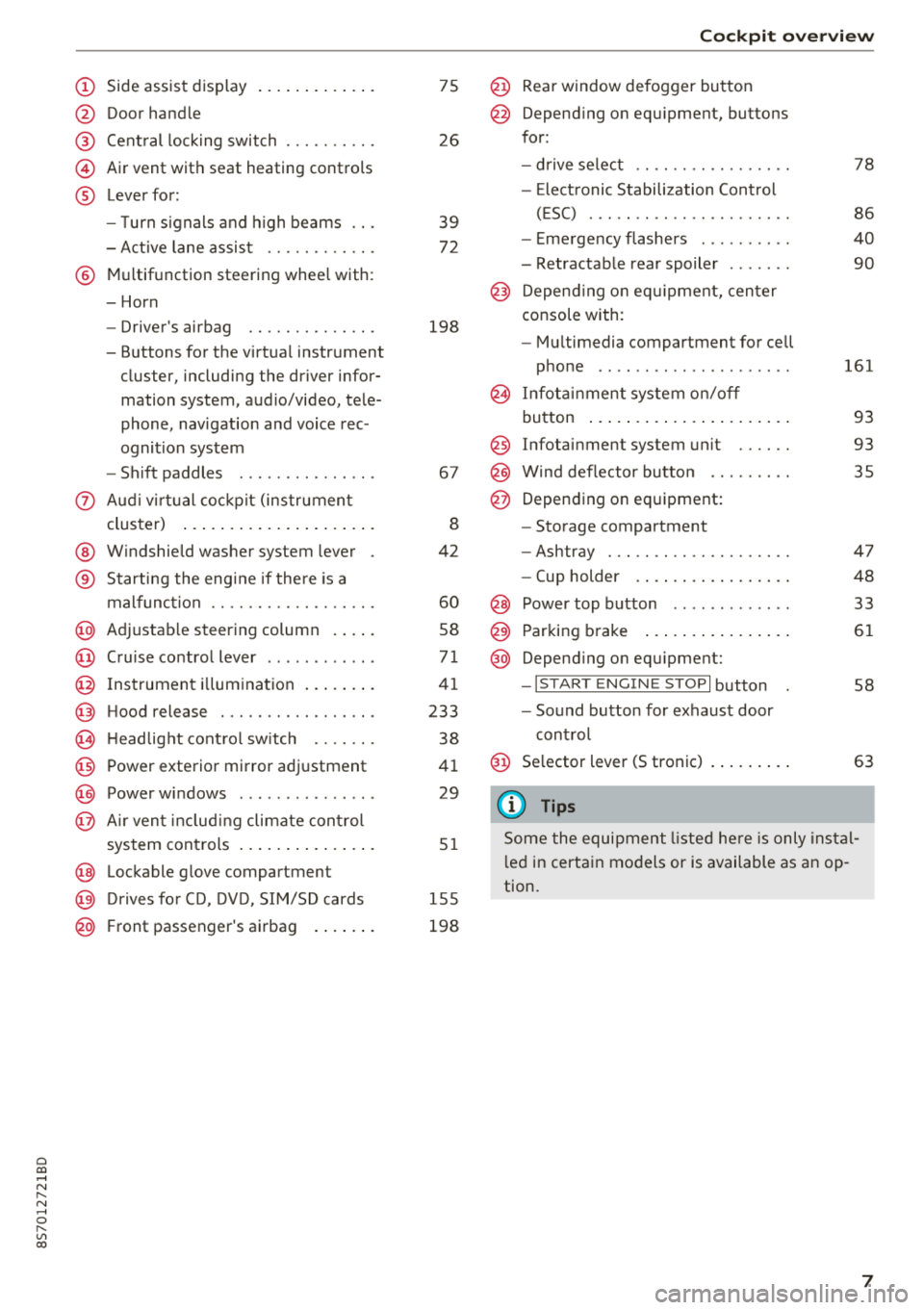
(D Side assist disp lay ..... ... .. .. .
@ Door handle
@ Cent ral locking swit ch ..... .. .. .
@ Air vent with seat heating controls
® Lever for:
- T urn s ignals and high beams
- Act ive lane assist ....... .. .. .
® M ultifunction steering whee l with :
- Horn
- Driver's airbag ........... .. .
- Buttons for the virtua l instr ument
cluster, including the dr iver infor
mation system, audio/video, tele
phone, navigation and voice rec
ognit ion system
- Shift paddles ............. . .
(J) A ud i v irtu al coc kp it (instrument
cluster) ... ... .. ..... ... .. .. .
@ W indshield washer system lever
® Starting the eng ine if the re is a
malfunc tion ............... .. .
@ Ad justable steer ing column . ... .
@ Cruise contro l lever .......... . .
@ Ins trumen t il lum ination ... .. .. .
@ Hood release .............. .. .
€3) H eadlight cont ro l sw itch .... .. .
@ Power exterio r mirror adj ustment
@) Power windows .............. .
@ A ir ven t incl uding climate con trol
system controls .. ..... ... .. .. .
@ Lockable g love compartment
@) D rives fo r CD, DV D, SIM/SD cards
@ Front passenger's ai rbag . ... .. .
75
26
39
7 2
198
67
8
42
60
58
71
41
233
38
4 1
29
5 1
1 55
198
Coc kpit o ver view
@ Rear window defogger button
@ Depend ing on equ ipment, buttons
for:
- drive select .. .............. .
- Elect ronic Stabili zation Cont rol
( E SC) . .. .. .. .............. .
- E me rge ncy flashers ......... .
- Retractable rear spoiler ...... .
@ Depending o n eq uipment, cen ter
console with:
- Mu ltimedia compartment for cell
p hone .. .. .. .. ............ .
@ In fota inment system o n/off
bu tton ... .... .. ... .. ..... .. .
@ Infotai nment system unit ..... .
@ Wind deflector butto n ........ .
@ Depending on eq uipment:
- Storage compartment
- Ashtray . .. .. .............. .
- Cup holder .... ... .. ..... .. .
@ Power top b utton ............ .
@ Parking b rake ... ... .. ..... .. .
@ Depend ing on eq uipment:
-I S TAR T ENGI NE STOP I button
- So und button for exhaust door
cont rol
@ Se lector lever (S tronic)
(D Tips
78
86
40
90
161
93
93 35
47
48
33
61
58
63
Some the equi pment listed he re is only ins tal
l e d in certa in models or is available as an op
tion.
7
Page 22 of 310
Driver information system
@l1<1
- Selecting the previous/next track or station :
press the l1<1<1! or l1:>1>1 I button.
-Fast forwarding/rewinding audio files : press
and hold the
!1<1<1 1 or 11:>1:> 1! bu tton un til the desired
location in the file is reached.
@lilButton
- Programmable steering wheel button
-open
ing a function :
press the@ button.
-Programmable steering wheel button - re
questing a function :
press and hold the@ but
ton.
- Programmable steering wheel button - chang
ing a function :
select the first tab > Vehicle
settings
> Steering wheel button assignment .
@l~w l Button
- Repeating the last navigation prompt :
press
the
l ~"'v l button when route guidance is act ive.
- Changing the voice guidance volume : when
route gu idance is active, turn the right thumb
whee l upward or downward during a navigation
prompt.
Multifunction steering
wheel
Operating
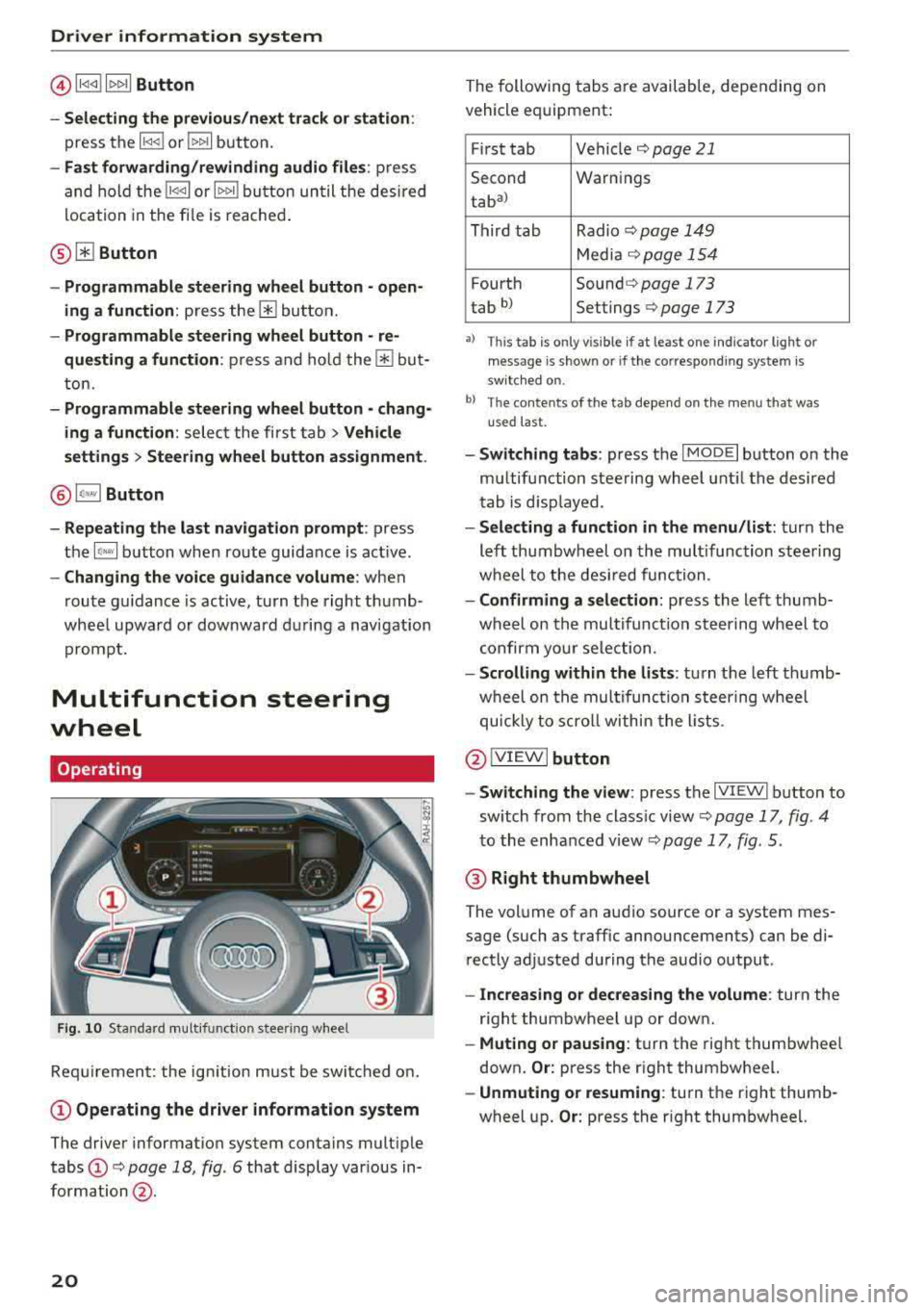
F ig . 10 Standard multifunct ion stee ring wheel
Requirement: the ign ition must be swi tched on.
(D Operating the driver information system
The driver information system contains multiple
tabs
(D c> page 18 , fig. 6 that display various in
formation @.
20
The following tabs are available, depending on
vehicle equipment:
First tab Vehicle
c> page 21
Second Warnings
tab
a)
Third tab Radio c> page 149
Media c>page 154
Fourth Sound c> page 173
tab b) Settings c> page 173
•> This tab is onl y visi ble if at least on e indi ca tor ligh t o r
mess age is show n or if the co rres pond ing sys te m is
s w it ch ed o n.
bl Th e conten ts of the t ab depe nd on the men u th at wa s
u se d las t.
- Switching tabs: press the I MOD E I button on the
multifunction steering wheel until the desired
tab is disp layed .
-Selecting a function in the menu /list: turn the
left thumbwheel on the multifunction steering
wheel to the desired function.
-Confirming a selection: press the left thumb
wheel on the multifunc tion steering wheel to
confirm your selection .
-Scrolling within the lists : turn the left thumb
wheel on the multifunction steering wheel
quickly to scroll within the lists .
@IVIEWI button
- Switching the view :
press the IV IEWI button to
sw itch from the class ic view
c> page 17, fig . 4
to the enhanced view c> page 17, fig. 5.
@ Right thumbwheel
The volume of an audio source or a system mes
sage (such as traffic announcements) can be di
rectly adjusted during the audio output .
-Increasing or decreasing the volume : turn the
right thumbwheel up or down.
-Muting or pausing : turn the right thumbwhee l
down.
Or: press the right thumbwheel.
-Unmuting or resuming : turn the right thumb
wheel up.
Or: press the right thumbwheel.
Page 29 of 310
Cl co ..... N ,....
N ...... 0
Fold mirrors* -if yo u se lec t On , the exterior rear
view mirrors fold in automatically when you press
the
[ml button on the remote cont rol key o r touch
the sensor* in the hand le.
Lo ck when driving1> -if you select On , the vehicle
l oc ks automatically when driving . A ll of the doors
and the luggage compa rtment lid lock.
Mechanically unlocking and locking the
doors
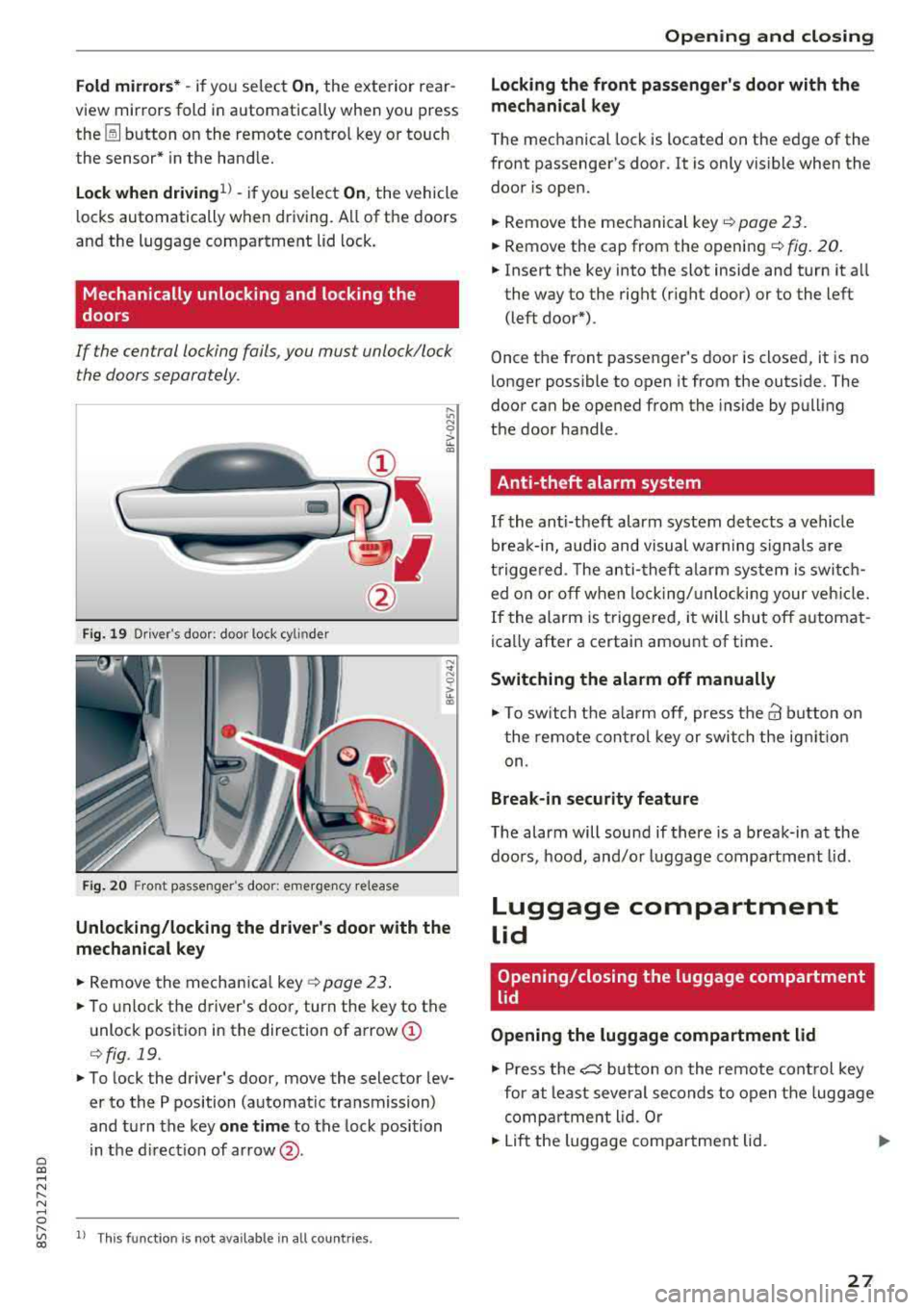
If the central locking fails , you mus t unlock/lock
t he doors separa tely.
F ig. 19 Dr iver 's door: doo r loc k cy lin der
F ig. 20 Fro nt passenger 's doo r: e merge ncy re lease
Unlocking/locking the driver's door with the
mechanical key
.. Remove the mechan ica l key o:!> page 23 .
.. To unlock the driver's doo r, turn the key to the
unlock positio n in the direction of arrow
(I)
r=> fig . 19.
.. To lock the driver's door, move the selector lev
er to the P position (automat ic tra nsmission)
and tu rn the key
one t ime to the lock position
in the d irect ion of ar row @.
,....
"' l) Thi s fun ctio n is not avail able in al l coun tries. co
Opening and closing
Locking the front passenger's door with the
mechanical key
The mechanical lock is located on the edge of the
front passenger's door . It is only vis ible when the
door is open.
.. Remove the mechanical key .:!> page 23.
.. Remove the cap from the openi ng ¢ fig . 20 .
.. Insert the key into the slot inside and turn it a ll
the way to the right (r ight door) or to the left
(left door*).
Once the front passenger 's door is closed, it is no
longer possible to open it from the outs ide . The
door can be opened from the inside by pull ing
t h e door handle.
Anti-theft alarm system
If the anti-theft alarm system detects a vehicle
brea k-in, audio and visual warn ing signals are
t rigge red. The anti -theft a la rm sys tem is swi tc h
ed o n or off when lock ing/ unlo cki ng your ve hicle.
If the alarm is triggered, i t will shut off a utomat
ica lly after a certain amount of time.
Switching the alarm off manually
.,. To swit ch t he a la rm off, press t he@ b utton on
t he remote cont rol key o r switch the ig nit io n
on.
Break-in security feature
T he alarm will sound if there is a break-in at the
doo rs , hood, and/o r luggage compa rtment lid.
Luggage compartment
lid
Opening/closing the luggage compartment
lid
Opening the luggage compartment lid
.,. Press the e5 button on the remote con trol key
for at least severa l seconds to open the luggage
comp artment lid. Or
.. Lift the luggage compa rtment lid . ..,_.
27
Page 83 of 310
Cl co .... N ,....
N .... 0 ,....
Vl co
Rear parking system
Description
A pplies to: ve hicles with rear park ing system
The rear parking system is an audible parking
aid .
Desc ripti on
There is a sensor in the rear bumper cover. If
these detect an obstacle, audible signals warn
you .
Make sure the sensors are not covered by stick
ers, deposits or any other obstructions as it may
impair the sensor function. For informat ion on
cleaning, see
c::;.page 266 .
The range at which the sensors begin to measure
is approximately:
side 3 ft (0.90 m)
rear
center 5.2 ft (1.60 m)
The closer you get to the obstacle, the shorter
the interval between the audible signals . A con
tinuous tone sounds when the obstacle is less
than approximately 1 foot (0.30 meters) away.
Do not cont inue back ing up
c::;. &. in General infor
mation on page 80,
c::;. @ in General information
on page 80!
If the distance to an obstacle remains constant,
the volume of the distance warning gradually
drops after about four seconds (this does not ap ply in the continuous tone range).
Acti vat ing
The rear parking assist activates a utomatically
when the reverse gear is engaged. A brief confir
mat ion tone will sound.
Parking systems
Parking system plus
Description
App lies to: vehicles wit h parking system pl us
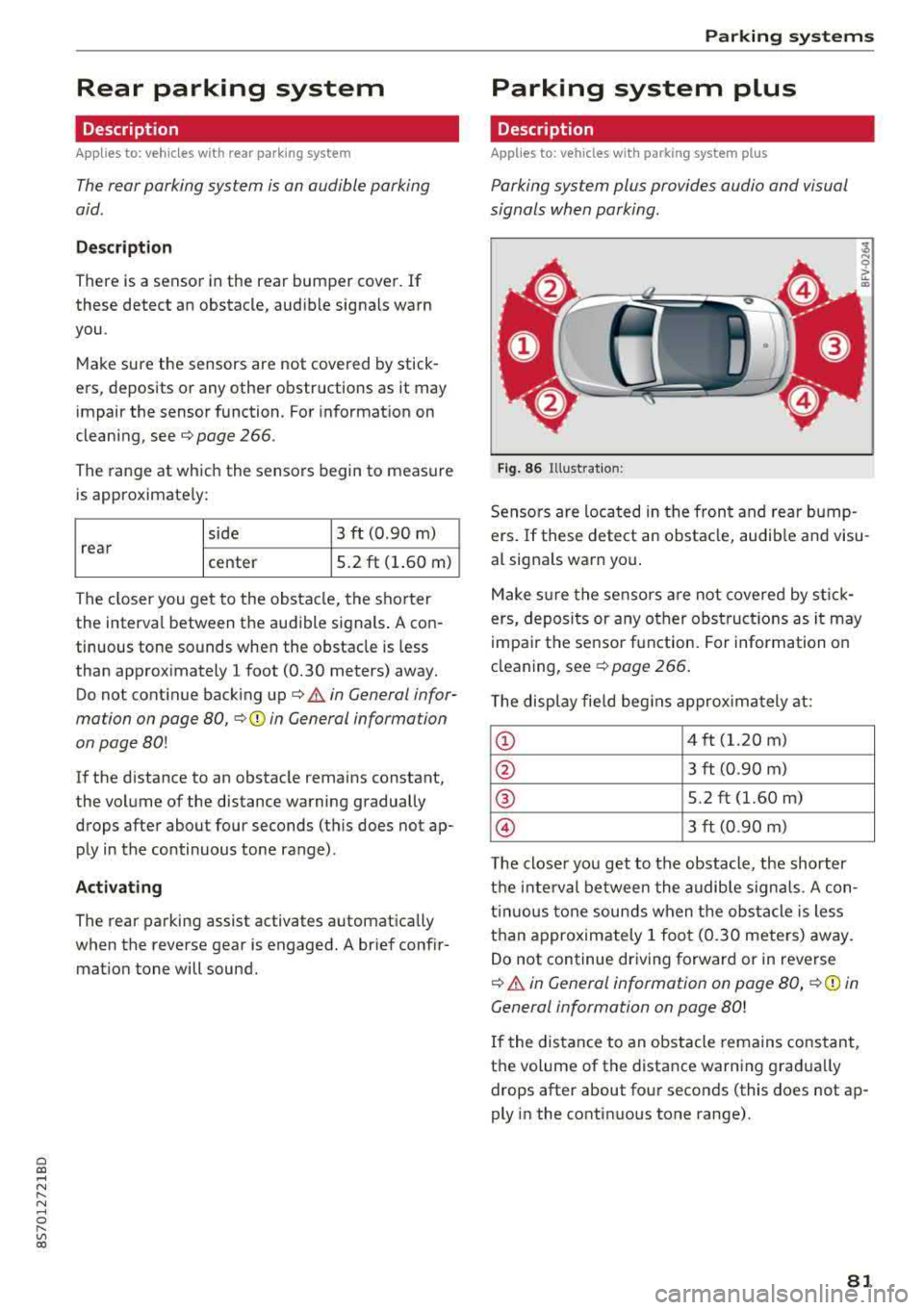
Parking system plus provides audio and visual
signals when parking.
Fig . 86 Illust rat io n:
Sensors are located in the front and rear bump
ers. If these detect an obstacle, audib le and visu
al signals warn you .
Make s ure the sensors are not covered by st ick
ers, deposi ts or any other obstruc tions as it may
impa ir the se nsor function. For information on
cleaning, see
c::;. page 266 .
The display fie ld beg ins approx ima tely at:
CD 4 ft (1.20 m)
0 3 ft (0.90 m)
® 5.2 ft (1.60 m)
© 3 ft (0.90 m)
T he close r you get to the obstacle, the shorter
t h e i nte rval be twee n the audible signa ls . A con
t in u ous tone sounds when the obs tacle is less
than appro ximately 1 foot (0.30 meters) away.
Do not continue dr iving forward or in reverse
c::;. &. in General information on page 80, c::;. (D in
General information on page 80!
If the distance to an obstacle remains constant,
the volume of the distance warn ing gradua lly
drops after about four seconds (this does not ap
ply in the continuous tone range).
81
Page 86 of 310
Parking systems
Switching off
~ Drive faster than 6 mph (10 km/h), or
~ Press the P"'il button, or
~ Switch the ignition off .
(D Tips
-The visual display in the left part of the dis
play should help you detect the critical vehi
cle areas .
- You can change the volume of the signals
and the display
¢page 84.
Perpendicular parking
Applies to: vehicles with rearview camera
This view may be used when parking in a garage
or in a parking space.
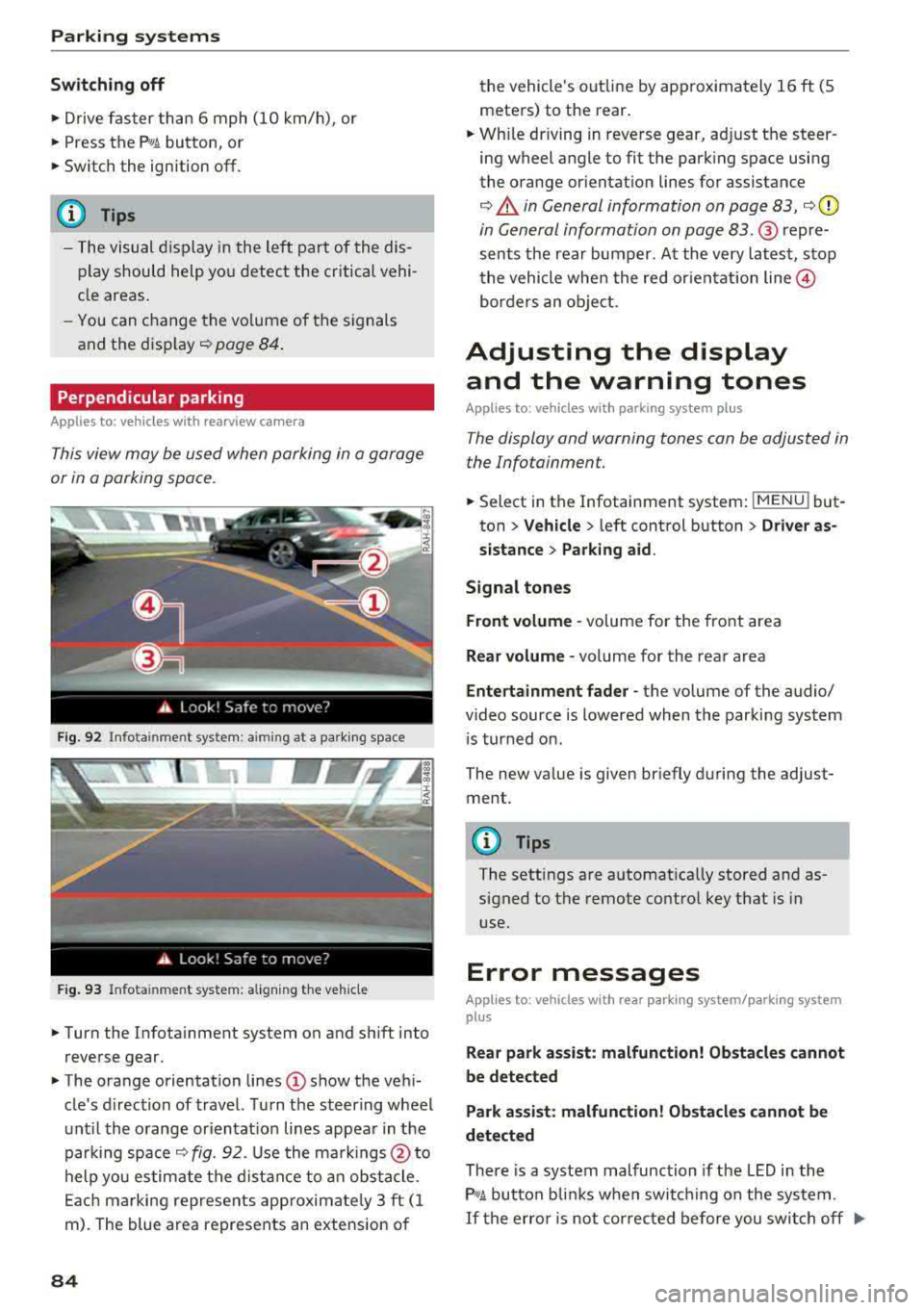
F ig. 92 Info ta in ment system: a im ing at a park ing space
Fig. 93 Infota inme nt system: aligning the vehicle
~ Turn the Infota inment system on and shift into
reverse gear.
~ The orange orientation lines (D show the vehi
cle's d irection of travel. Turn the steering wheel
until the orange or ientat ion lines appear in the
parking space
¢ fig. 92. Use the markings @to
help you estimate the distance to an obstacle.
Each marking represents app roximate ly 3 ft (1
m). The blue area represents an extension of
84
the vehicle 's out line by approximately 16 ft (5
meters) to the rear.
~ Wh ile driving in reverse gear, adjust the steer
ing wheel angle to fit the parking space using
the orange orientation lines for assistance
¢ .&. in General information on page 83, ¢(D
in General information on page 83. ® repre
sents the rear bumper. At the very latest, stop
the vehicle when the red or ientat ion
line @
borders an object.
Adjusting the display
and the warning tones
Applies to: vehicles with parking system plus
The display and warning tones can be adjusted in
the Infotainment.
~ Select in the Infotainment system : IMENU! but
ton
> Vehicle > left control button > Driver as
sistance> Parking aid.
Signal tones
Front volume -
volume for the front area
Rear volume -volume for the rear area
Entertainment fader -the volume of the audio/
video source is lowered when the parking system
i s turned on.
The new value is given briefly during the adjust ment.
{!) Tips
The settings are automat ically stored and as
signed to the remote control key that is in
use.
Error messages
App lies to: vehicles with rear park ing system/parking system
plus
Rear park assist: malfunction! Obstacles cannot
be detected
Park assist: malfunction! Obstacles cannot be
detected
There is a system malfunction if the LED in the
P'1
1 .ll button blin ks when switc hing on the system .
If the error is not corrected before you switch off Ill-
Page 96 of 310
Multi Media Interface
A WARNING
Adjust the volume of the audio system so that signals from outside the vehicle, such as po
lice and fire sirens, can be heard easily at all
times .
(j) Tips
The MMI switches off automatically if the en
gine is not running and the vehicle battery is
low .
MMI operation
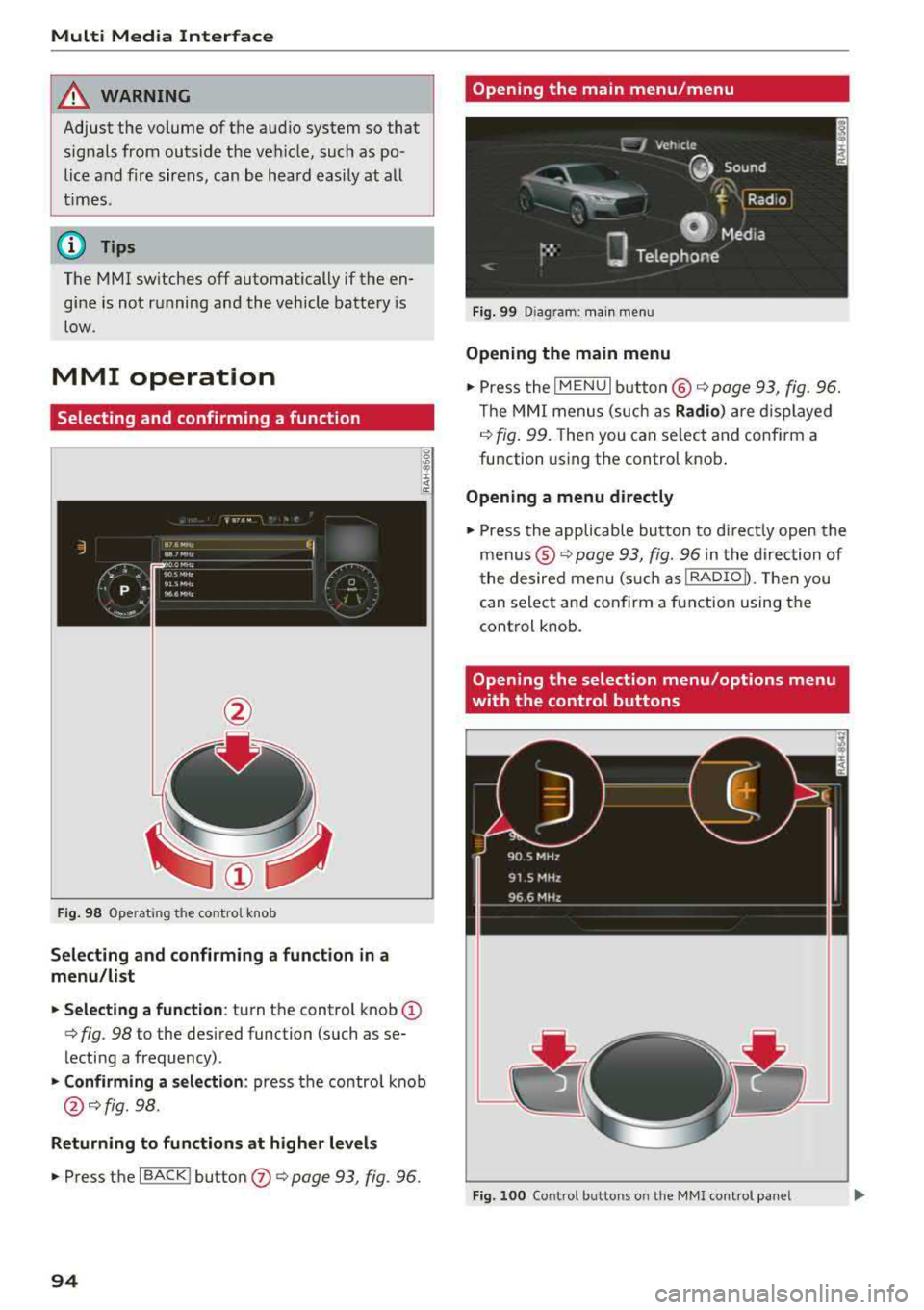
Selecting and confirming a function
Fig . 98 Operat ing the control knob
Selecting and confirming a function in a
menu/list
.. Selecting a function : turn the control knob (D
c> fig. 98 to the desired function (such as se
lecting a frequency) .
.. Confirming a selection : press the contro l knob
@ c>fig . 98.
Returning to functions at higher levels
.. Press the I BACK ! button (J) c> page 93, fig. 96.
94
Opening the main menu/menu
Fig. 99 Diagram: main menu
Opening the main menu
.,. Press the I MENU I button @ c> page 93, fig. 96.
Th e MMI menus (such as
Radio) are displayed
c>fig. 99. Then you can select and conf irm a
function using the control knob.
Opening a menu directly
.. Press the applicable button to directly open the
menus ®
c> page 93, fig. 96 in the direction of
the desired menu (such as
!RADIOD. Th en you
can select and confirm a function using the
control knob.
Opening the selection menu/options menu
with the control buttons
Fig. 100 Control butto ns on the MMI cont rol panel
Page 104 of 310
Multi Media Interfac e
Menus and Symbols
@
14
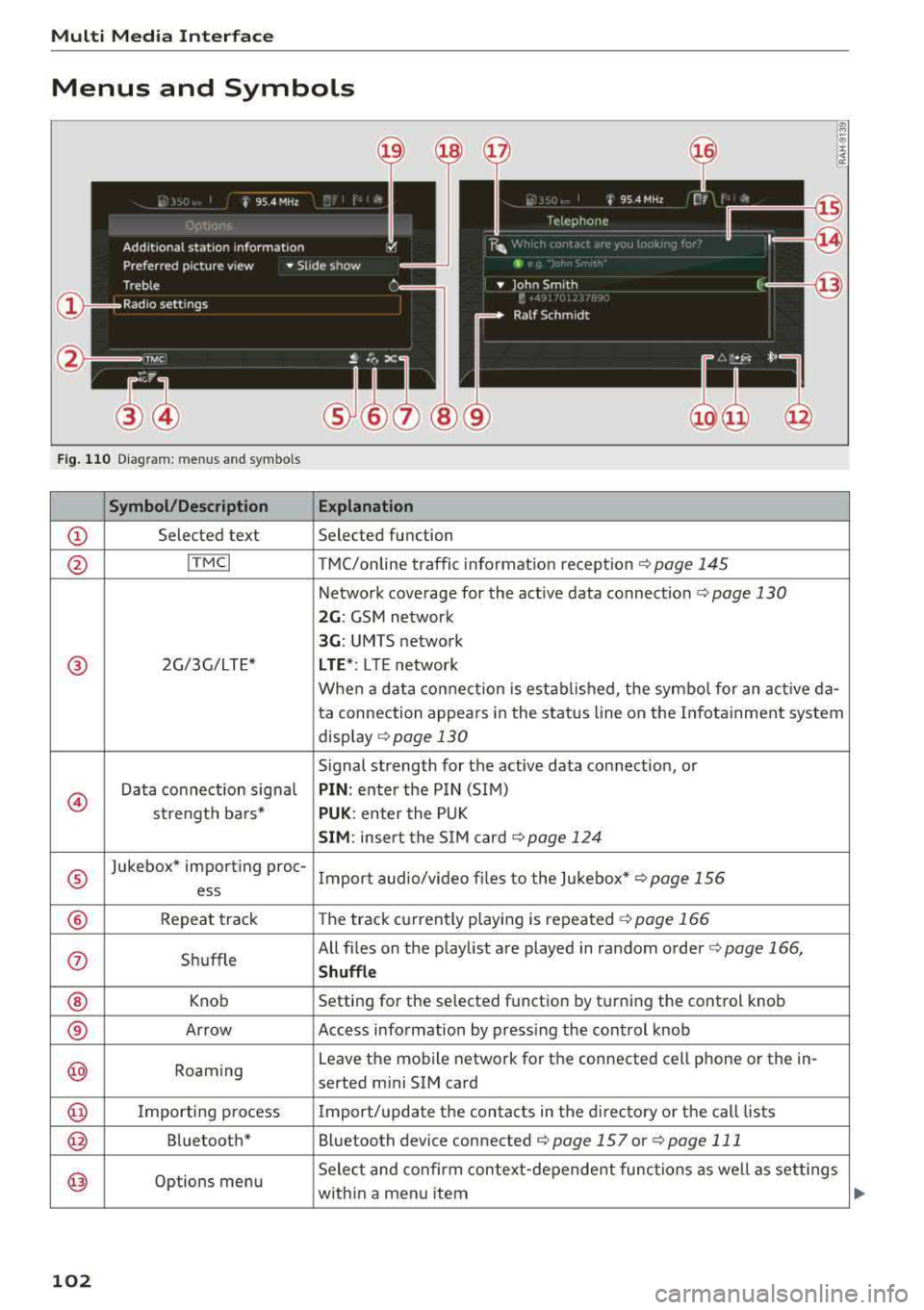
Fig. 110 Diagram: menus and symbols
Symbol /Description E xplanation
CD Selected text Selected function
@ ITMCI T MC/online traffic information reception c> page 145
Network coverage for the active data connection c> page 130
2 G : GSM network
3G : UMTS network
® 2G/3G/LTE* LTE *: L T E network
When a data connection is established, the symbo l for an act ive da-
ta connection appears in the status line on the Infota inment system
disp lay
c> page 130
Signal strength for the active data connection, or
@
Data connect ion signa l PIN : enter the PIN (SIM)
strength bars*
PUK: enter the PUK
SIM : insert the S IM card <=>page 124
®
Jukebox* importing proc-
Import audio/v ideo fi les to the Jukebox*
c> page 156
ess
® Repeat track The track currently playing is repeated c> page 166
(i) Shuffle All files on
the playlist are played in random order
c> page 166,
Shuffle
® Knob Setting
for the selected function by turning the control knob
® Arrow Access information by pressing the control knob
@ Roaming Leave
the mobile network for the connected cell phone or the in-
serted mini SIM card
@ Importing process Import/update the conta cts in the d irectory or the call lists
@ Bluetooth* Bluetooth device connected c> page 157 or c> page 111
@ Options menu Select and confirm context
-depende nt functions as well as set tings
with in a menu item
102
Page 107 of 310
Cl 00 .-< N r-N .-< 0 r-Vl 00
Voice recognition system Operating
Applies to: vehicles with voice recognitio n system
You con operate many Infotainment functions
conveniently by speaking.
Requirement: the ignition and the MM I must be
switched on, there m ust be no phone call in p rog
ress and the park ing system must not be active.
~ Switching on : briefly p ress t h e ~ but ton @
¢page 19, fig . 9 on the multif unction steering
whee l and say th e desi red command after the
Beep .
~ Switching off : press and hold the ~ button .
Or: say the command Cancel.
~ Pausing : say the command Pause . To resume,
press
the~ b utt on .
~ Corr ecting : press t h e ~ button one t ime ®
¢ page 18, fig. 7. Or: say the co mmand Correc
tion .
Input assistance
The system g uides you throug h the input with
v isua l and aud io feedback .
-Visual input assistance : after switching on
vo ice recogn it io n, a display with a se lection of
poss ible commands appears . The command
display can be sw itched on/off under
I M EN U I >
Setting s> left contro l butto n > MMI setting s>
Speech dialog system .
- Audio input assistance:
to have the poss ible
c omma nds read, press t he
10, I bu tton o n the
mul tifunc tion steering w heel b riefly and say
Help.
For the system to understand you:
Speak clearly and dis tinct ly a t a normal vo lume .
Speak lo uder when d riving faste r.
Emphasi ze the words in the commands even ly
a n d do not leave long pauses .
Do not spea k a command when the voice recogni
tion system is m aking an a nno uncement.
C lose the doors, the windows and the sunroof* to
r e duce background noise. Make s ure that passe n-
Voice recognition system
gers are not speaking w hen you are g iv ing a voice
comman d.
D o no t direct the vents towa rd the handsfree mi
c rophone, wh ic h is near the fro nt inter ior lights
on the roof headline r or on the dr iver's safety
belt*. Fo r additional informat io n on th e safety
belt m ic rophone, see
¢ pag e 122 .
Only use the system from the dr ive r's sea t be
ca use the hands -free microphone is di rected to
ward that s eat .
Additional settings
See ¢ page 178, Voice recognition system.
_&. WARNING
- D ir e ct y ou r full a tte ntio n to dr iv in g. A s t he
dr iver, you have com ple te re spon sibility fo r
safety in t raff ic . O nly use the functions in
such a way t hat you a lways maintai n com
p lete contro l over your vehicle in all traffic
situations.
- Do not use t he voice recognition system in
emergencies beca use your voice may change
in st ressfu l s ituations. It may ta ke longe r to
d ia l the number o r th e system may not be
ab le to d ia l it at all. Dia l the emergency
number manually .
(D Tips
-The d ialog pauses w hen the re is a n incom
ing phone call a nd will con tinue if yo u ig
nore the ca ll. The dia log ends if yo u answer
t he ca ll.
- There are no vo ice gu idance* prompts when
a dialog is ac tive .
- Yo u ca n select a n item in the list us ing ei
t her the vo ice recogn ition sys tem o r the
cont ro l knob .
Command overview
information
Applies to: vehicles with voice recognition system
T he following overv iews des crib e the co m man ds
t h at can be used to oper ate the MMI using the
vo ice recognit ion system.
..,.
105
Page 130 of 310
Audi conn ect
The Audi MMI con nect app must be installed and
open on your mobile device.
You must be logged into yo ur myAud i acco unt in
t he
Audi MMI connect app and you must have se
lected you r vehicle .
The Wi-Fi funct ion on you r mobile device and on
the MMI must be sw itched on.
The MMI must be connected to the network .
~ Select : I MENU I button > Aud i conn ect> left
cont ro l button
> In formation category> Tra v
el.
After opening th e travel guide , travel tips in your
area will be d isplayed including current rat ings as
well as the corresponding ca tegory.
~ Press the left control button to change the cat
egory (such as bars nearby) .
A WARNING
-It is only safe to use tab lets, laptops, mo
bile devices and othe r similar devices w hen
the vehicle is st ationa ry be cause, like all
loose objects, they could be thrown aro und
the inside of the vehicle in a crash and cause serious injuries . Store t hese types of devices
securely whi le driving.
- Do not use any wireless devices on the front
seats w ith in range of the a irbags while driv
ing. Also read the warnings in the chapter
Q page 198, Front airbags.
@ Note
Always follow the information found in Q i© in
Wi-Fi hotspot on page 130.
@ Tips
Units of meas urement, language settings and
time are shown in the Infotainment system
disp lay based on how they were set in the
MMI system settings
<=) page 173 .
-
ll AUDI AG pr ovide s access to services fro m third party pro
v ider s. Pe rma ne nt ava ilabil ity c anno t be guara nteed , be
c a use that depen ds on th e th ird party provid er.
128 Audi connect services in navigation
App
lies to : vehicles wit h naviga tion sys te m and A udi connect
The following Aud i connect services a re current ly
available :
- Navigation with
satellite map1> Q page 145 .
-Point of Interest (POI ) on line sear ch wi th
v oi ce recognit ion
(such as restaurants) : plan
route guidance using the MMI control panel
and the vo ice recognit ion system
<=) page 105 .
- Set up destinations in your MMI using your
m yA udi account or the sat ellite map view l )
r=;, page 145 .
-Online traffic information : receive up-to-the
m inute traffic informat ion about acc idents,
road const ruct ion and other inc idents
r=;, page 146 .
-Map updates *: import navigat ion map updates
in yo ur MMI using an S D card.
(D Tips
-For the map update Audi connect serv ice
using an SD card, check t he current soft
w ar e version in yo ur vehicle and compare it
w ith www.aud iusa.com/myaudi to see if a
new ve rsion is avai lab le . You can a lso have
the new navigation data installed by an Audi dea ler, which can be done for an addit iona l
charge.
- You can find additional information about
the
map update at www.a udiusa.com/
myaudi.
Audi connect services in the Media menu
App lies to: vehicles wit h Audi conne ct
- Online media and Internet radio : offers access
to d ifferent online med ia services as well as In
ternet radio and ope ration through the
MMI us
ing the
A udi MMI connect app Q page 159.
App lies to: vehicles wi th Wi-Fi au dio player
- Wi-Fi audio playe r: you can access the media
center through W i-F i connected med ia p layers
(such as smartphones)
Q page 158. Ill-