light CHEVROLET VOLT 2011 Repair Manual
[x] Cancel search | Manufacturer: CHEVROLET, Model Year: 2011, Model line: VOLT, Model: CHEVROLET VOLT 2011Pages: 516, PDF Size: 6.61 MB
Page 184 of 516
Black plate (64,1)Chevrolet Volt Owner Manual - 2011
5-64 Instruments and Controls
Reprogramming a Single
Universal Remote System
Button
To reprogram any of the three
Universal Remote system buttons:
1. Press and hold the desiredUniversal Remote system
button. Do not release the
button.
2. The indicator light will begin to flash after 20 seconds. Without
releasing the button, proceed
with Step 1 of the section
“Programming the Universal
Remote System.”
If you have questions or need help
programming the Universal Remote
system, call 1‐800‐355‐3515 or go
to www.homelink.com. You may
also call the customer assistance
phone number under Customer
Assistance Offices on page 13‑3.
Page 185 of 516
Black plate (1,1)Chevrolet Volt Owner Manual - 2011
Lighting 6-1
Lighting
Exterior Lighting
Exterior Lamp Controls . . . . . . . . 6-1
Headlamp High/Low-BeamChanger . . . . . . . . . . . . . . . . . . . . . 6-2
Flash-to-Pass . . . . . . . . . . . . . . . . . 6-2
Pedestrian Friendly Alert . . . . . . 6-2
Daytime Running Lamps (DRL) . . . . . . . . . . . . . . . . 6-3
Hazard Warning Flashers . . . . . 6-4
Turn and Lane-Change Signals . . . . . . . . . . . . . . . . . . . . . . 6-4
Interior Lighting
Instrument Panel IlluminationControl . . . . . . . . . . . . . . . . . . . . . . 6-5
Dome Lamps . . . . . . . . . . . . . . . . . 6-5
Reading Lamps . . . . . . . . . . . . . . . 6-5
Lighting Features
Entry Lighting . . . . . . . . . . . . . . . . . 6-5
Exit Lighting . . . . . . . . . . . . . . . . . . . 6-6
Battery Power Protection . . . . . . 6-6
Exterior Lighting
Exterior Lamp Controls
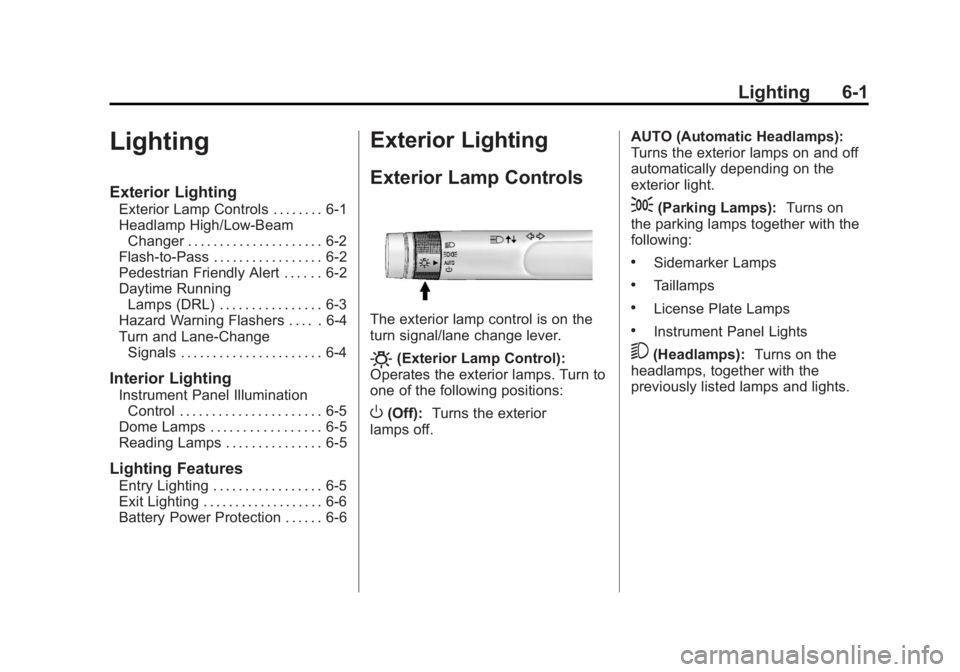
The exterior lamp control is on the
turn signal/lane change lever.
O(Exterior Lamp Control):
Operates the exterior lamps. Turn to
one of the following positions:
O(Off): Turns the exterior
lamps off. AUTO (Automatic Headlamps):
Turns the exterior lamps on and off
automatically depending on the
exterior light.
;(Parking Lamps):
Turns on
the parking lamps together with the
following:
.Sidemarker Lamps
.Taillamps
.License Plate Lamps
.Instrument Panel Lights
5(Headlamps): Turns on the
headlamps, together with the
previously listed lamps and lights.
Page 186 of 516

Black plate (2,1)Chevrolet Volt Owner Manual - 2011
6-2 Lighting
Headlamp High/
Low-Beam Changer
2 3
Headlamp High/Low‐Beam
Changer: Push the turn signal/lane
change lever away from you and
release, to turn the high beams on.
To return to low beams, push the
lever again or pull it toward you
and release.
This indicator light turns on in
the instrument cluster when the
high‐beam headlamps are on.
Flash-to-Pass
The flash‐to‐pass feature works with
the low beams or Daytime Running
Lamps (DRL) on or off.
To flash the high beams, pull the
turn signal/lane change lever toward
you momentarily and then release it.
The Pedestrian Friendly Alert will
also sound if the vehicle is moving
less than 64 km/h (40 mph).
Pedestrian Friendly Alert
While driving at low speeds, such
as in parking lots, use this feature
to alert people who may not hear
your vehicle approaching.
The pedestrian alert is only
available when the vehicle is
moving at less than 64 km/h
(40 mph) or is stopped and is
not in P (Park). To use the pedestrian friendly alert:
Pull the turn signal/lane change
lever all the way toward you
momentarily. See
Exterior
Lamp Controls on page 6‑1 and
Headlamp High/Low-Beam Changer
on page 6‑2. The high‐beam
headlamps and indicator light
will turn on, and a soft‐note
alert will momentarily sound.
When the turn signal/lane change
lever is released, the high‐beam
headlamps and indicator light will
turn off.
Repeat for additional activations of
the pedestrian friendly alert.
Page 187 of 516

Black plate (3,1)Chevrolet Volt Owner Manual - 2011
Lighting 6-3
Daytime Running
Lamps (DRL)
The Daytime Running Lamps (DRL)
system comes on in daylight when
the following conditions are met:
.The vehicle is on.
.The exterior lamp control is in
the automatic position.
.The electric drive unit is not in
P (Park).
.The light sensor determines it is
daytime.A light sensor on top of the
instrument panel makes the DRL
work, so be sure it is not covered.
Fully functional DRL are required on
all vehicles first sold in Canada.When the DRL are on, the taillamps,
sidemarker lamps, instrument panel
lights, and other lamps will not be
on. The instrument cluster will be lit.
When the exterior lamp control band
is turned to the headlamp position,
the low-beam headlamps come on.
The other lamps that come on with
the headlamps will also come on.
When the vehicle is on and you are
stopped, the DRL can be turned off
by moving the shift lever to P (Park).
The DRL will stay off until the shift
lever is moved out of the P (Park)
position.
The regular headlamp system
should be turned on when needed.
Page 188 of 516
Black plate (4,1)Chevrolet Volt Owner Manual - 2011
6-4 Lighting
Hazard Warning Flashers
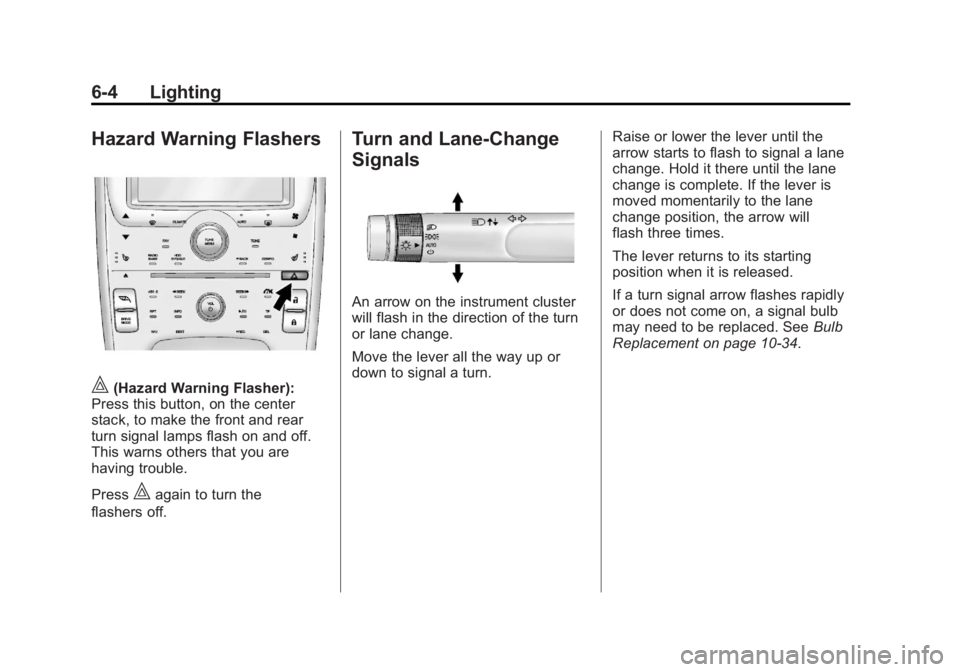
|(Hazard Warning Flasher):
Press this button, on the center
stack, to make the front and rear
turn signal lamps flash on and off.
This warns others that you are
having trouble.
Press
|again to turn the
flashers off.
Turn and Lane-Change
Signals
An arrow on the instrument cluster
will flash in the direction of the turn
or lane change.
Move the lever all the way up or
down to signal a turn. Raise or lower the lever until the
arrow starts to flash to signal a lane
change. Hold it there until the lane
change is complete. If the lever is
moved momentarily to the lane
change position, the arrow will
flash three times.
The lever returns to its starting
position when it is released.
If a turn signal arrow flashes rapidly
or does not come on, a signal bulb
may need to be replaced. See
Bulb
Replacement on page 10‑34.
Page 189 of 516

Black plate (5,1)Chevrolet Volt Owner Manual - 2011
Lighting 6-5
Interior Lighting
Instrument Panel
Illumination Control
The brightness of the instrument
panel cluster display, infotainment
display and controls, steering wheel
controls, and all other illuminated
controls, as well as feature status
indicators can be adjusted.The thumbwheel is on the
instrument panel to the left
of the steering column.
Move the thumbwheel up or down to
brighten or dim the lights.
Dome Lamps
The dome lamp controls are in the
overhead console.
To operate, press the following
buttons:
+(On):
Press to turn on the
dome lamps.
1(Door): Press to turn the lamps
on automatically when a door is
opened.
*(Off): Press to turn the lamps
off, even when a door is open.
Reading Lamps
The front reading lamps are in the
overhead console.
# $: Press to turn each lamp on
or off.
Lighting Features
Entry Lighting
The headlamps, parking lamps,
taillamps, back‐up lamps, and the
interior lights turn on briefly, when
the Remote Keyless Entry (RKE)
transmitter
Kis pressed. The lights
turn off immediately when the
POWER
Obutton is pressed or
automatically after a brief period.
Page 190 of 516

Black plate (6,1)Chevrolet Volt Owner Manual - 2011
6-6 Lighting
Exit Lighting
The headlamps, parking lamps,
taillamps, back‐up lamps, and
license plate lamps come on
when the vehicle is turned off.
Some interior lights also come
on when the vehicle is turned off.
The exterior lamps and interior
lights remain on after the door
is closed for a brief period and
then turn off.
The exit lighting feature
can be changed. SeeVehicle
Personalization on page 5‑53.
Battery Power Protection
The battery saver feature is
designed to protect the vehicle's
12‐volt battery.
If the exterior lamps or any interior
lamp is left on and the vehicle is
turned off, the battery rundown
protection system automatically
turns the lamps off after about
10 minutes.
Page 198 of 516
Black plate (8,1)Chevrolet Volt Owner Manual - 2011
7-8 Infotainment System
Entering a Point of Interest (POI)
To set a destination by entering a
Point of Interest (POI):
1. Press VOL/
Oto turn the
system on.
2. A caution could appear. Press OK to proceed.
3. Press the DEST button.
4. Press the Point of Interest screen button.
5. Enter the specific title of the POI in the POI name space
(e.g., Washington Monument).
If four or fewer names are
available, a list displays. If more
than four are available, there is a
match counter with a number in
it, representing the number of
available POI names. Press the
List screen button to view the
list. Select the POI. 6. Press the Go screen button.
The system calculates the route.
7. Select the route preference for Fastest, Shortest, or Easiest.
The system highlights the route.
8. Press the Start Guidance screen button. The route is now ready
to be started.
See Destination on page 7‑51 for
more information on how to enter
a POI.
Storing Preset Destinations
1. Press VOL/Oto turn the
system on.
2. If a caution appears, press the OK screen button to proceed.
3. Press the DEST button.
4. Enter a destination. See Destination on page 7‑51
for information on how to
enter a destination. 5. Press Save from the map
screen to add the current final
destination to the address book.
6. Press the Edit screen button and then press the Change
Name field on the screen.
An alpha-keyboard displays.
Enter the name.
7. Press and hold one of the screen buttons at the bottom
of the screen until the text in
the button changes.
The address book entry
name appears in that preset
destination screen button and
is now available to select from
the Select Destination screen.
See “Using the Stored Preset
Destinations” following to select
it as a destination.
See Destination on page 7‑51
for more information on how to
add preset destinations.
Page 199 of 516
Black plate (9,1)Chevrolet Volt Owner Manual - 2011
Infotainment System 7-9
Using the Stored Preset
Destinations
These destinations are available for
selection while driving.
1. Press VOL/
Oto turn the
system on.
2. A caution could appear. Press the OK screen button
to proceed.
3. Press the DEST button.
4. Press one of the available preset destination screen
buttons. The system calculates
the route.
5. Select the route preference for Fastest, Shortest, or Easiest.
The system highlights the route.
6. Press the Start Guidance screen button. The route is now ready
to be started.
See “Preset Destinations” under
Destination on page 7‑51 for more
information.
Canceling Guidance
Guidance is canceled at the final
destination. To cancel guidance
prior to reaching the final
destination:
1. Press the DEST button.
2. Press the Cancel Guidance screen button.
3. Press the Yes screen button to confirm cancellation.
Voice Guidance
To adjust the volume of voice
guidance prompts:
1. Press the CONFIG button toenter the menu features. Turn
the TUNE/MENU knob until Nav
displays. Press the TUNE/MENU
knob to select Nav or press the
Nav screen button to display
more options within that feature.
2. Press Voice Prompt. 3. Press Voice Volume.
4. Press the + or
–screen buttons
to increase or to decrease the
volume of the voice prompts.
See Using the Navigation System
on page 7‑39 for more information.
Cleaning the Display
If the center stack or the display is
stained, wipe it with a dry, soft cloth.
Notice:Using abrasive cleaners
when cleaning glass surfaces,
could scratch the glass. When
cleaning the glass, use only a
soft cloth and do not spray
cleaner directly on the system.
Do not wipe the center stack with
a hard cloth or use a volatile liquid
such as paint thinner; it could
scratch the surface or erase
the characters on the buttons.
Page 211 of 516
Black plate (21,1)Chevrolet Volt Owner Manual - 2011
Infotainment System 7-21
Playing an Audio and
Video DVD
To view the DVD video, the vehicle
must be in P (Park) or the parking
brake must be engaged.
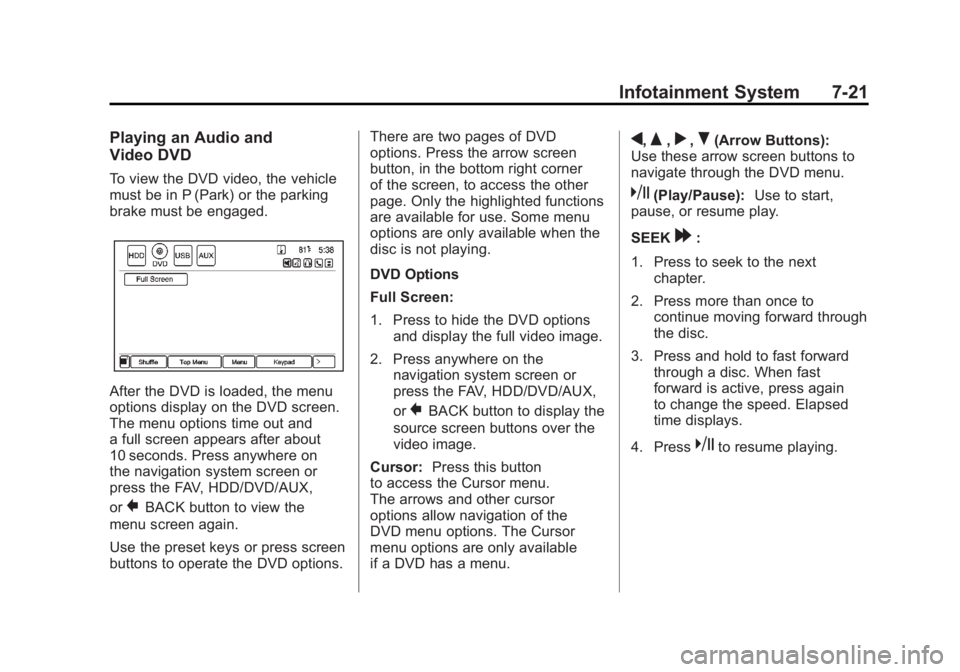
After the DVD is loaded, the menu
options display on the DVD screen.
The menu options time out and
a full screen appears after about
10 seconds. Press anywhere on
the navigation system screen or
press the FAV, HDD/DVD/AUX,
or
}BACK button to view the
menu screen again.
Use the preset keys or press screen
buttons to operate the DVD options. There are two pages of DVD
options. Press the arrow screen
button, in the bottom right corner
of the screen, to access the other
page. Only the highlighted functions
are available for use. Some menu
options are only available when the
disc is not playing.
DVD Options
Full Screen:
1. Press to hide the DVD options
and display the full video image.
2. Press anywhere on the navigation system screen or
press the FAV, HDD/DVD/AUX,
or
}BACK button to display the
source screen buttons over the
video image.
Cursor: Press this button
to access the Cursor menu.
The arrows and other cursor
options allow navigation of the
DVD menu options. The Cursor
menu options are only available
if a DVD has a menu.
q,Q,r,R(Arrow Buttons):
Use these arrow screen buttons to
navigate through the DVD menu.
k(Play/Pause): Use to start,
pause, or resume play.
SEEK
[:
1. Press to seek to the next chapter.
2. Press more than once to continue moving forward through
the disc.
3. Press and hold to fast forward through a disc. When fast
forward is active, press again
to change the speed. Elapsed
time displays.
4. Press
kto resume playing.