ESP Citroen C4 2016 2.G User Guide
[x] Cancel search | Manufacturer: CITROEN, Model Year: 2016, Model line: C4, Model: Citroen C4 2016 2.GPages: 396, PDF Size: 10.22 MB
Page 42 of 396
40
C4-2_en_Chap01_instruments-de-bord_ed02-2015
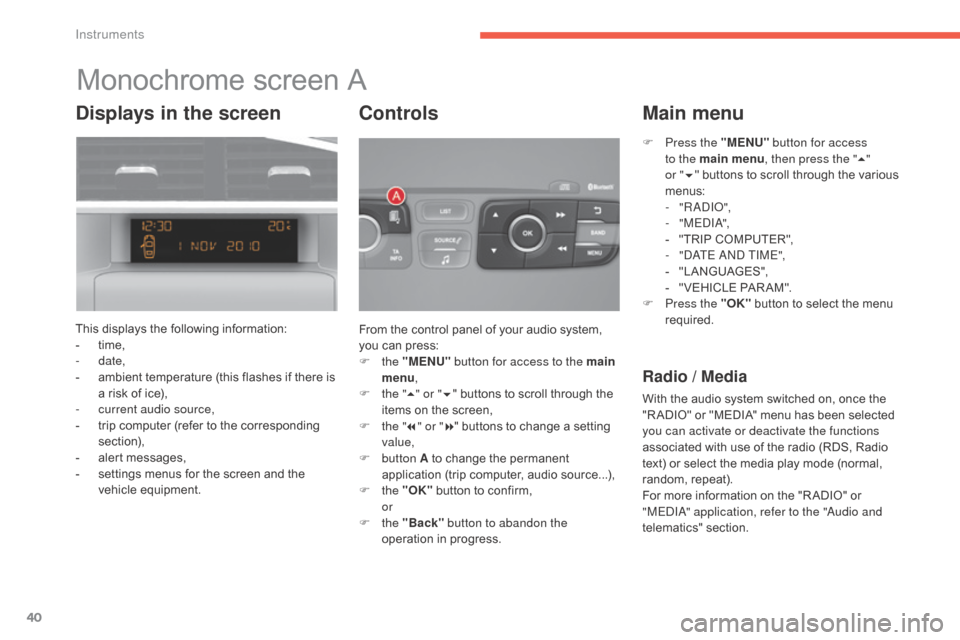
Monochrome screen A
This displays the following information:
- t ime,
-
date,
-
a
mbient temperature (this flashes if there is
a
risk of ice),
-
c
urrent audio source,
-
t
rip computer (refer to the corresponding
s
ection),
-
a
lert messages,
-
s
ettings menus for the screen and the
v
ehicle
e
quipment. From
the control panel of your audio system,
y
ou can press:
F
the "MENU" button for access to the main
menu ,
F
t
he "5" or " 6"
buttons to scroll through the
i
tems on the screen,
F
t
he "7" or " 8"
buttons to change a setting
va
lue,
F
button A
to change the permanent
a
pplication (trip computer, audio source...),
F
the "OK"
button to confirm,
or
F
the "Back" button to abandon the
operation
in progress.
Controls
F Press the "MENU" button for access
to the main menu , then press the "5"
or
"6 " buttons
to scroll through the various
m
enus:
-
" R A DIO ",
-
" M EDI A",
-
"
TRIP COMPUTER",
-
"
DATE AND TIME",
-
"
LANGUAGES",
-
"
VEHICLE PAR AM".
F
P
ress the "OK"
button to select the menu
r
equired.
Main menu
Radio / Media
With the audio system switched on, once the "R ADIO" or "MEDIA" menu has been selected
y
ou can activate or deactivate the functions
associated
with use of the radio (RDS, Radio
t
ext) or select the media play mode (normal,
r
andom,
r
epeat).
For
more information on the "R ADIO" or
"
MEDIA" application, refer to the "Audio and
telematics"
se
ction.
Displays in the screen
Instruments
Page 43 of 396
41
C4-2_en_Chap01_instruments-de-bord_ed02-2015
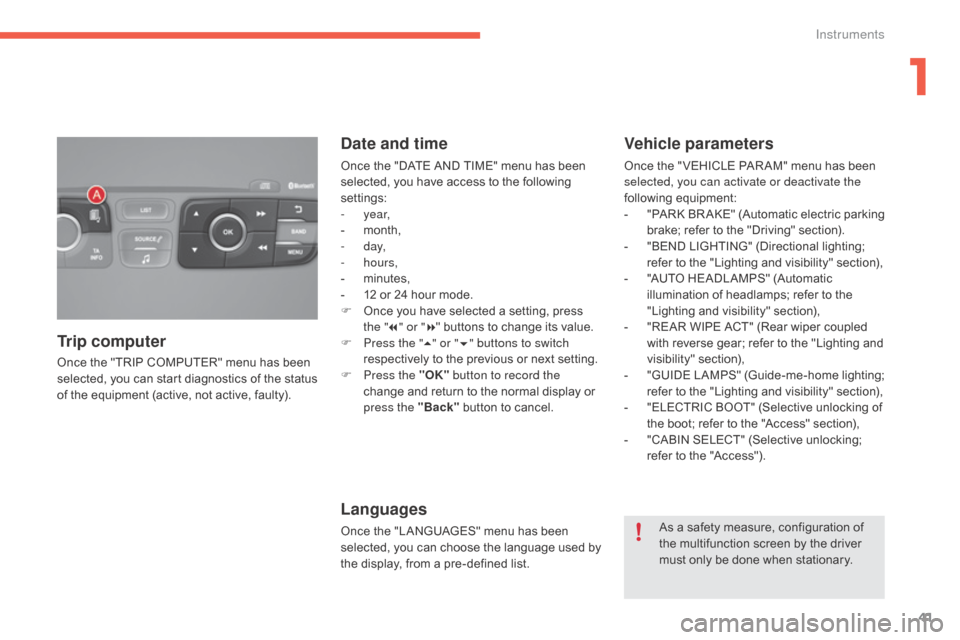
Once the "TRIP COMPUTER" menu has been selected, you can start diagnostics of the status
o
f the equipment (active, not active, faulty).
Trip computer Date and time
Once the "DATE AND TIME" menu has been s
elected, you have access to the following
se
ttings:
-
year,
-
m
onth,
-
d ay,
-
hours,
-
m
inutes,
-
1
2 or 24 hour mode.
F
O
nce you have selected a setting, press
t
he "7" or " 8"
buttons to change its value.
F
P
ress the " 5" or " 6" buttons to switch
respectively
to the previous or next setting.
F
P
ress the "OK" button to record the
change
and return to the normal display or
p
ress the "Back"
button to cancel.
Languages
Once the "LANGUAGES" menu has been selected, you can choose the language used by
t
he display, from a pre-defined list.
Vehicle parameters
Once the " VEHICLE PAR AM" menu has been selected, you can activate or deactivate the
following
e
quipment:
-
"
PARK
B
R AKE"
(
Automatic
e
lectric
p
arking
b
rake; refer to the "Driving" section).
-
"
BEND LIGHTING" (Directional lighting;
r
efer to the "Lighting and visibility" section),
-
"
AUTO HEADLAMPS" (Automatic
i
llumination of headlamps; refer to the
"
Lighting and visibility" section),
-
"
REAR WIPE ACT" (Rear wiper coupled
w
ith reverse gear; refer to the "Lighting and
v
isibility"
s
ection),
-
"
GUIDE
L
AMPS"
(
Guide-me-home
l
ighting;
r
efer to the "Lighting and visibility" section),
-
"
ELECTRIC BOOT" (Selective unlocking of
t
he boot; refer to the "Access" section),
-
"
CABIN SELECT" (Selective unlocking;
r
efer to the "Access").
As
a safety measure, configuration of
t
he multifunction screen by the driver
m
ust only be done when stationary.
1
Instruments
Page 44 of 396
42
C4-2_en_Chap01_instruments-de-bord_ed02-2015
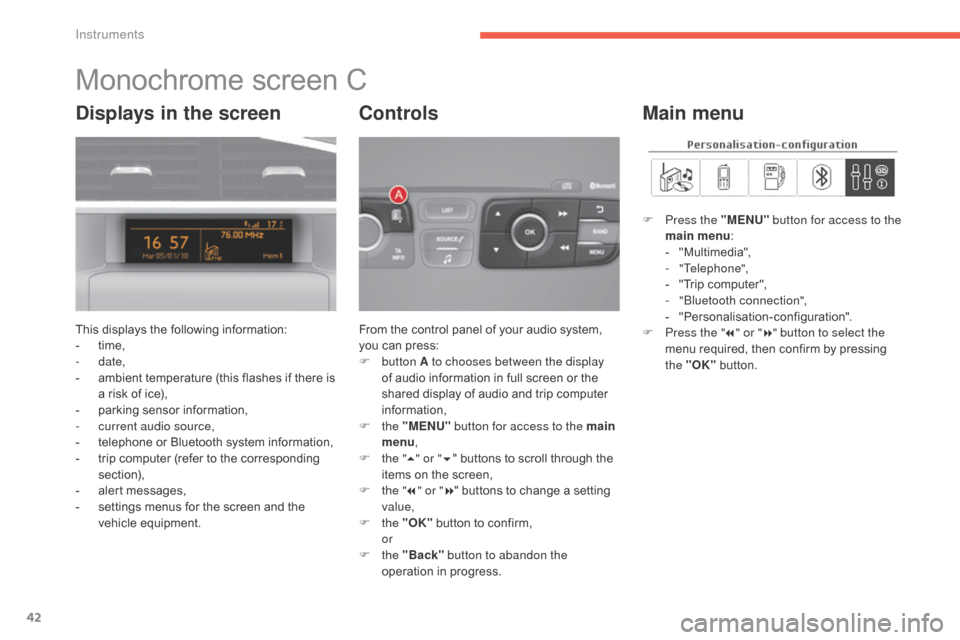
Monochrome screen C
This displays the following information:
- t ime,
-
date,
-
a
mbient temperature (this flashes if there is
a
risk of ice),
-
p
arking sensor information,
-
c
urrent audio source,
-
t
elephone or Bluetooth system information,
-
t
rip computer (refer to the corresponding
s
ection),
-
a
lert messages,
-
s
ettings menus for the screen and the
v
ehicle
e
quipment. From
the control panel of your audio system, y
ou can press:
F
button A to chooses between the display
of
audio information in full screen or the
s
hared display of audio and trip computer
i
nformation,
F
the "MENU" button for access to the main
menu ,
F
t
he "5" or " 6"
buttons to scroll through the
i
tems on the screen,
F
t
he "7" or " 8"
buttons to change a setting
va
lue,
F
the "OK"
button to confirm,
or
F
the "Back" button to abandon the
operation
in progress.
Controls
F Press the "MENU" button for access to the
main menu :
-
"
Multimedia",
-
"Telephone",
-
"
Trip computer",
-
"
Bluetooth connection",
-
"
Personalisation-configuration".
F
P
ress the " 7" or " 8" button to select the
menu
required, then confirm by pressing
t
he "OK"
button.
Main menuDisplays in the screen
Instruments
Page 50 of 396
48
C4-2_en_Chap01_instruments-de-bord_ed02-2015
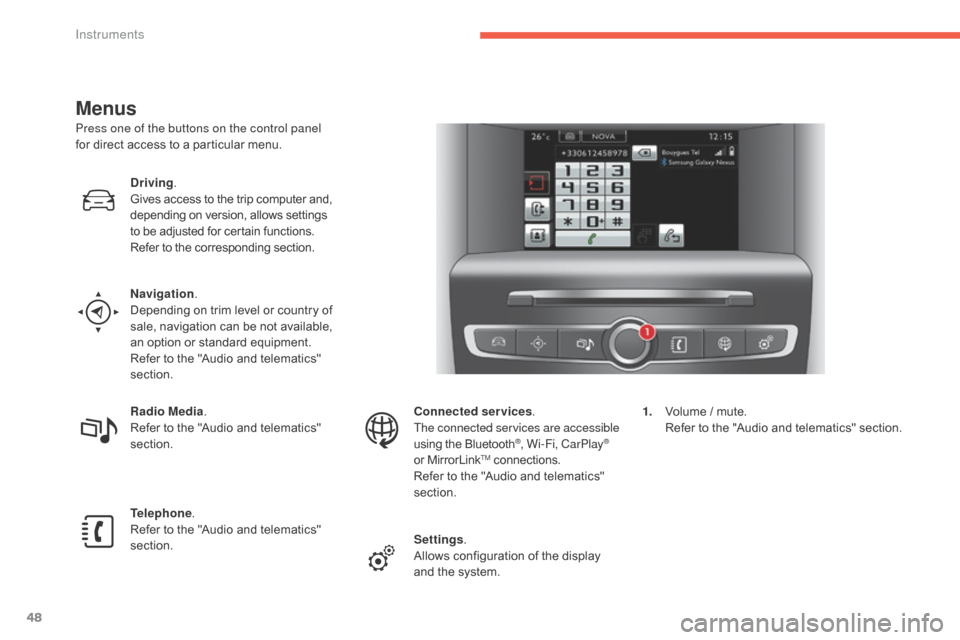
Menus
Press one of the buttons on the control panel
for direct access to a particular menu.
Driving .
Gives
access to the trip computer and,
d
epending on version, allows settings
t
o be adjusted for certain functions.
Refer
to the corresponding section.
Navigation .
Depending
on trim level or country of
s
ale, navigation can be not available,
a
n option or standard equipment.
Refer
to the "Audio and telematics"
s
ection.
Radio Media .
Refer
to the "Audio and telematics"
s
ection.
Telephone .
Refer
to the "Audio and telematics"
s
ection. Connected services
.
The connected services are accessible
using
the Bluetooth
®, Wi-Fi, CarPlay®
or
MirrorLinkTM connections.
Refer
to
the
"Audio and telematics"
s
ection.
Settings .
Allows
configuration of the display
a
nd
the
system. 1.
V
olume / mute.
R
efer to the "Audio and telematics" section.
Instruments
Page 51 of 396
49
C4-2_en_Chap01_instruments-de-bord_ed02-2015
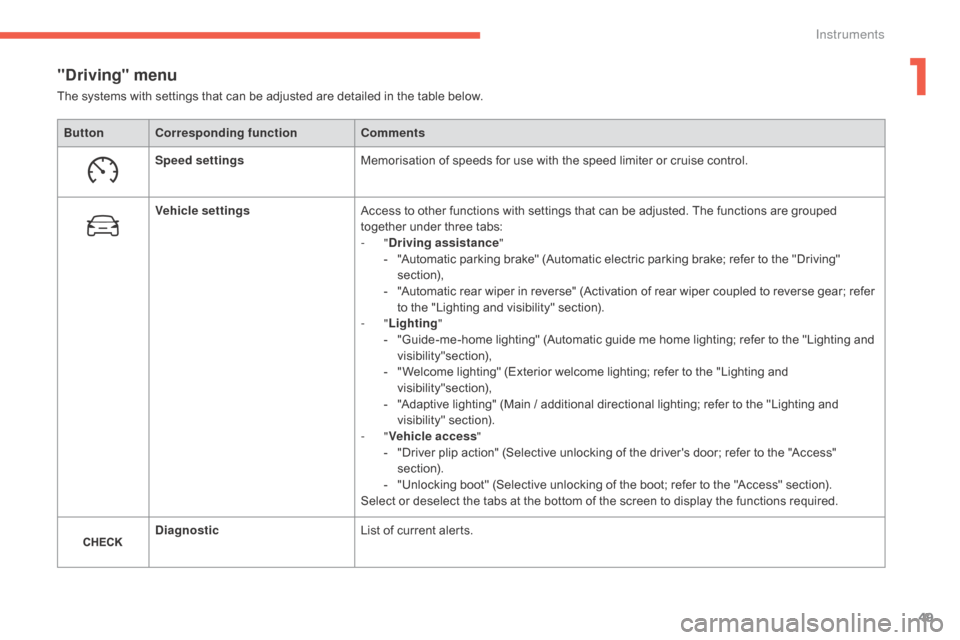
"Driving" menu
ButtonCorresponding function Comments
Speed settings Memorisation
of speeds for use with the speed limiter or cruise control.
Vehicle settings Access
to other functions with settings that can be adjusted. The functions are grouped
t
ogether under three tabs:
-
"Driving assistance "
-
"
Automatic parking brake" (Automatic electric parking brake; refer to the "Driving"
s
ection),
-
"
Automatic rear wiper in reverse" (Activation of rear wiper coupled to reverse gear; refer
t
o the "Lighting and visibility" section).
-
"Lighting "
-
"
Guide-me-home lighting" (Automatic guide me home lighting; refer to the "Lighting and
v
isibility"section),
-
"
Welcome lighting" (Exterior welcome lighting; refer to the "Lighting and
v
isibility"section),
-
"
Adaptive lighting" (Main / additional directional lighting; refer to the "Lighting and
v
isibility"
s
ection).
-
"Vehicle access "
-
"
Driver plip action" (Selective unlocking of the driver's door; refer to the "Access"
s
ection).
-
"
Unlocking boot" (Selective unlocking of the boot; refer to the "Access" section).
Select
or deselect the tabs at the bottom of the screen to display the functions required.
Diagnostic List
of current alerts.
The
systems with settings that can be adjusted are detailed in the table below.
1
Instruments
Page 52 of 396
50
C4-2_en_Chap01_instruments-de-bord_ed02-2015
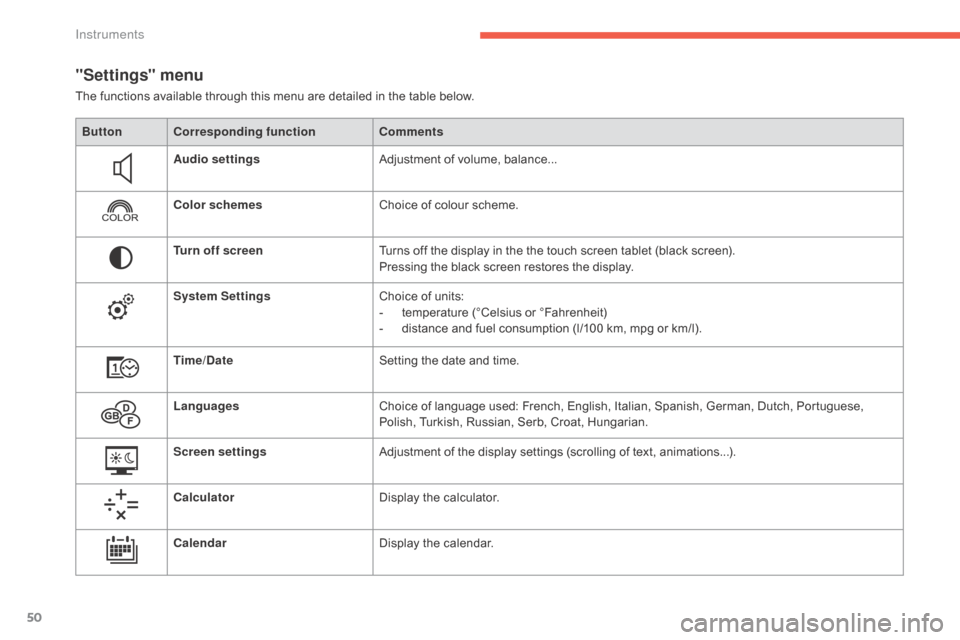
"Settings" menu
The functions available through this menu are detailed in the table below.
Bu tton Corresponding function Comments
Audio settings Adjustment
of volume, balance...
Color schemes Choice
of colour scheme.
Turn off screen Turns
off the display in the the touch screen tablet (black screen).
Pressing
the black screen restores the display.
System Settings Choice
of units:
-
t
emperature (°Celsius or °Fahrenheit)
-
d
istance and fuel consumption (l/100 km, mpg or km/l).
Time/Date Setting
the date and time.
Languages Choice
of language used: French, English, Italian, Spanish, German, Dutch, Portuguese,
P
olish, Turkish, Russian, Serb, Croat, Hungarian.
Screen settings Adjustment
of the display settings (scrolling of text, animations...).
Calculator Display
the calculator.
Calendar Display
the calendar.
Instruments
Page 62 of 396
60
C4-2_en_Chap02_ouvertures_ed02-2015
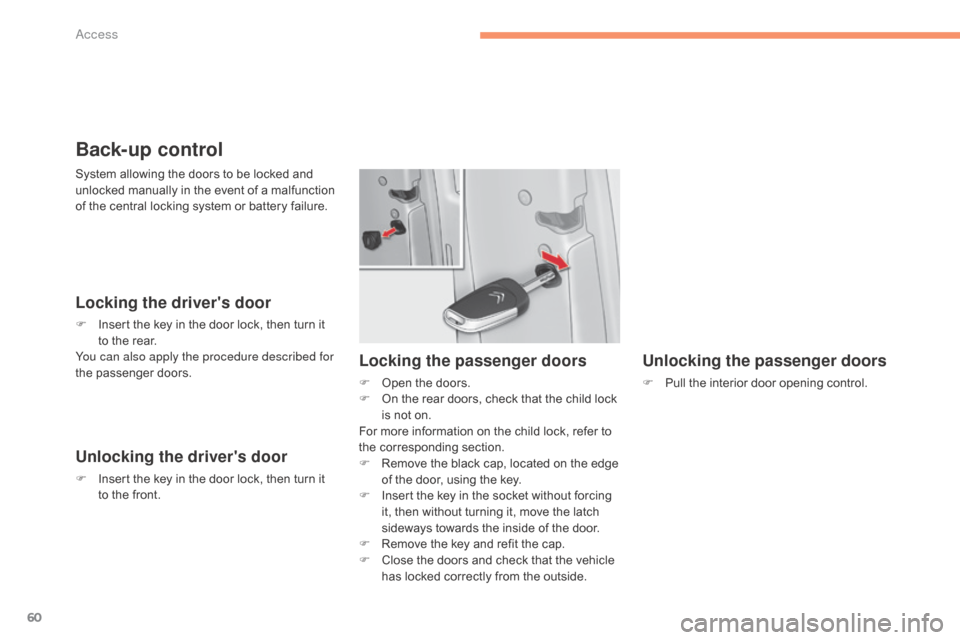
Back-up control
Locking the driver's door
F Insert the key in the door lock, then turn it t
o the rear.
You can also apply the procedure described for
the
p
assenger
do
ors.
Unlocking the driver's door
F Insert the key in the door lock, then turn it t
o the front.
Unlocking the passenger doors
F Pull the interior door opening control.
Locking the passenger doors
F Open the doors.
F O n the rear doors, check that the child lock
i
s not on.
For
more information on the child lock, refer to
t
he corresponding section.
F
R
emove the black cap, located on the edge
o
f the door, using the key.
F
I
nsert the key in the socket without forcing
i
t, then without turning it, move the latch
s
ideways towards the inside of the door.
F
R
emove the key and refit the cap.
F
C
lose the doors and check that the vehicle
h
as locked correctly from the outside.
System
allowing
the
doors
to
be
locked
and
u
nlocked
manually
in
the
event
of
a
malfunction
o
f
the
central
locking
system
or
battery
failure.
Access
Page 65 of 396
63
C4-2_en_Chap02_ouvertures_ed02-2015
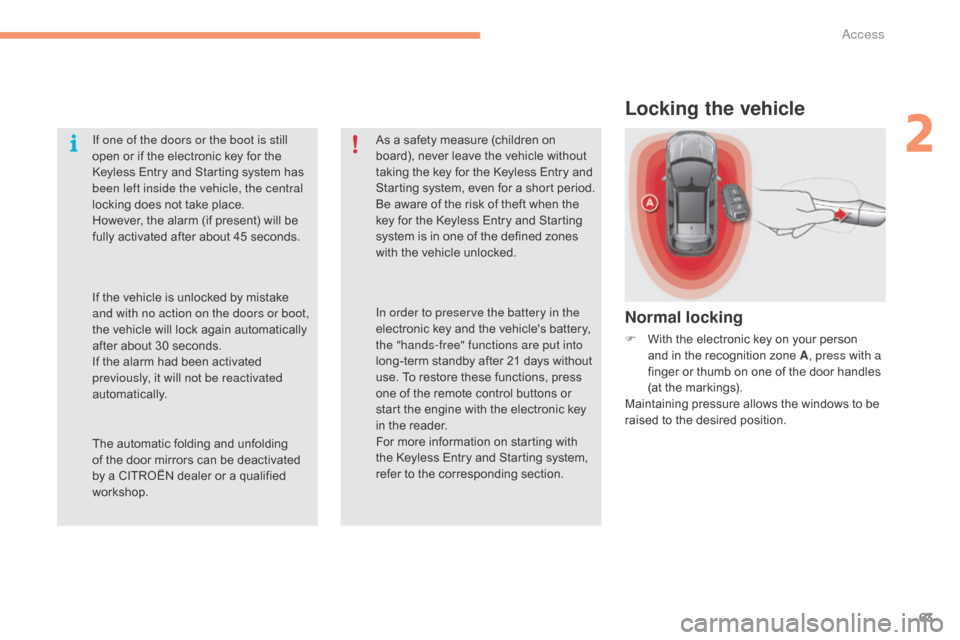
Locking the vehicle
Normal locking
F With the electronic key on your person a
nd in the recognition zone A, press with a
finger
or thumb on one of the door handles
(
at the markings).
Maintaining
pressure allows the windows to be
r
aised to the desired position.
If one of the doors or the boot is still
open
or
if
the
electronic
key
for
the
K
eyless
Entry
and
Starting
system
has
b
een left inside the vehicle, the central
locking
does
not
take
place.
However,
the
alarm
(if
present)
will
be
f
ully
activated
after
about
45
seconds.
As
a
safety
measure
(children
on
b
oard),
never
leave
the
vehicle
without
t
aking
the
key
for
the
Keyless
Entry
and
S
tarting
system,
even
for
a
short
period.
Be
aware
of
the
risk
of
theft
when
the
k
ey
for
the
Keyless
Entry
and
Starting
s
ystem
is
in
one
of
the
defined
zones
w
ith
the
vehicle
unlocked.
The
automatic
folding
and
unfolding
o
f
the
door
mirrors
can
be
deactivated
b
y
a
CITROËN
dealer
or
a
qualified
w
orkshop. In order to preserve the battery in the
electronic
key
and
the
vehicle's
battery,
t
he "hands-free" functions are put into
long-term
standby
after
21
days
without
u
se.
To
restore
these
functions,
press
o
ne
of
the
remote
control
buttons
or
s
tart
the
engine
with
the
electronic
key
i
n
the
reader.
For
more
information
on
starting
with
t
he
Keyless
Entry
and
Starting
system,
r
efer
to
the
corresponding
section.
If
the
vehicle
is
unlocked
by
mistake
a
nd with no action on the doors or boot,
the
vehicle
will
lock
again
automatically
a
fter
about
30
seconds.
If
the
alarm
had
been
activated
p
reviously, it will not be reactivated
automatically.
2
Access
Page 68 of 396
66
C4-2_en_Chap02_ouvertures_ed02-2015
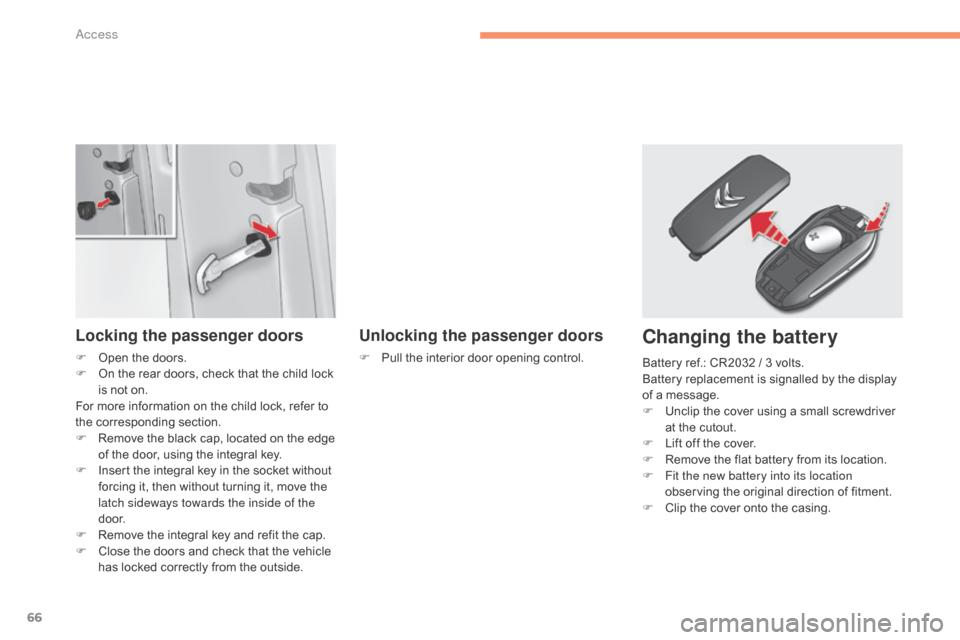
Locking the passenger doors
F Open the doors.
F O n the rear doors, check that the child lock
i
s not on.
For
more information on the child lock, refer to
t
he corresponding section.
F
R
emove the black cap, located on the edge
o
f the door, using the integral key.
F
I
nsert the integral key in the socket without
f
orcing it, then without turning it, move the
l
atch sideways towards the inside of the
d o o r.
F
R
emove the integral key and refit the cap.
F
C
lose the doors and check that the vehicle
h
as locked correctly from the outside.
Unlocking the passenger doors
F Pull the interior door opening control.
Changing the battery
Battery ref.: CR2032 / 3 volts.
B attery replacement is signalled by the display
o
f a message.
F
U
nclip the cover using a small screwdriver
a
t the cutout.
F
L
ift off the cover.
F
R
emove the flat battery from its location.
F
F
it the new battery into its location
observing
the original direction of fitment.
F
C
lip the cover onto the casing.
Access
Page 72 of 396

70
C4-2_en_Chap02_ouvertures_ed02-2015
Activation / Deactivation
You can activate or deactivate this function
permanently.
F
W
ith the ignition on, press this button
u
ntil an audible signal starts and a
c
orresponding message is displayed.
The
state of the system stays in memory when
s
witching off the ignition.
Anti-intrusion security
Operation
If one of the doors or the boot is open, the
automatic central locking does not take place.
This
system allows automatic simultaneous locking of the doors and boot as soon as the speed of
t
he vehicle exceeds 6 mph (10 km/h).
Pressing the central locking button unlocks the
v
ehicle.
Above
6 mph (10 km/h), this unlocking is
t
e m p o r a r y. This
is signalled by the sound of
t
he locks rebounding, accompanied
b
y illumination of this symbol in the
i
nstrument panel, an audible signal
a
nd the display of an alert message.
Carrying long and voluminous
objects
If you want to drive with the boot open,
you
should press the central locking
b
utton to lock the the doors. Other wise,
e
very time the speed of the vehicle
e
xceeds 6 mph (10 km/h), the locks
w
ill rebound and the alerts mentioned
a
bove will appear.
Access