display DODGE CHARGER SRT 2015 7.G Manual PDF
[x] Cancel search | Manufacturer: DODGE, Model Year: 2015, Model line: CHARGER SRT, Model: DODGE CHARGER SRT 2015 7.GPages: 595, PDF Size: 16.43 MB
Page 308 of 595
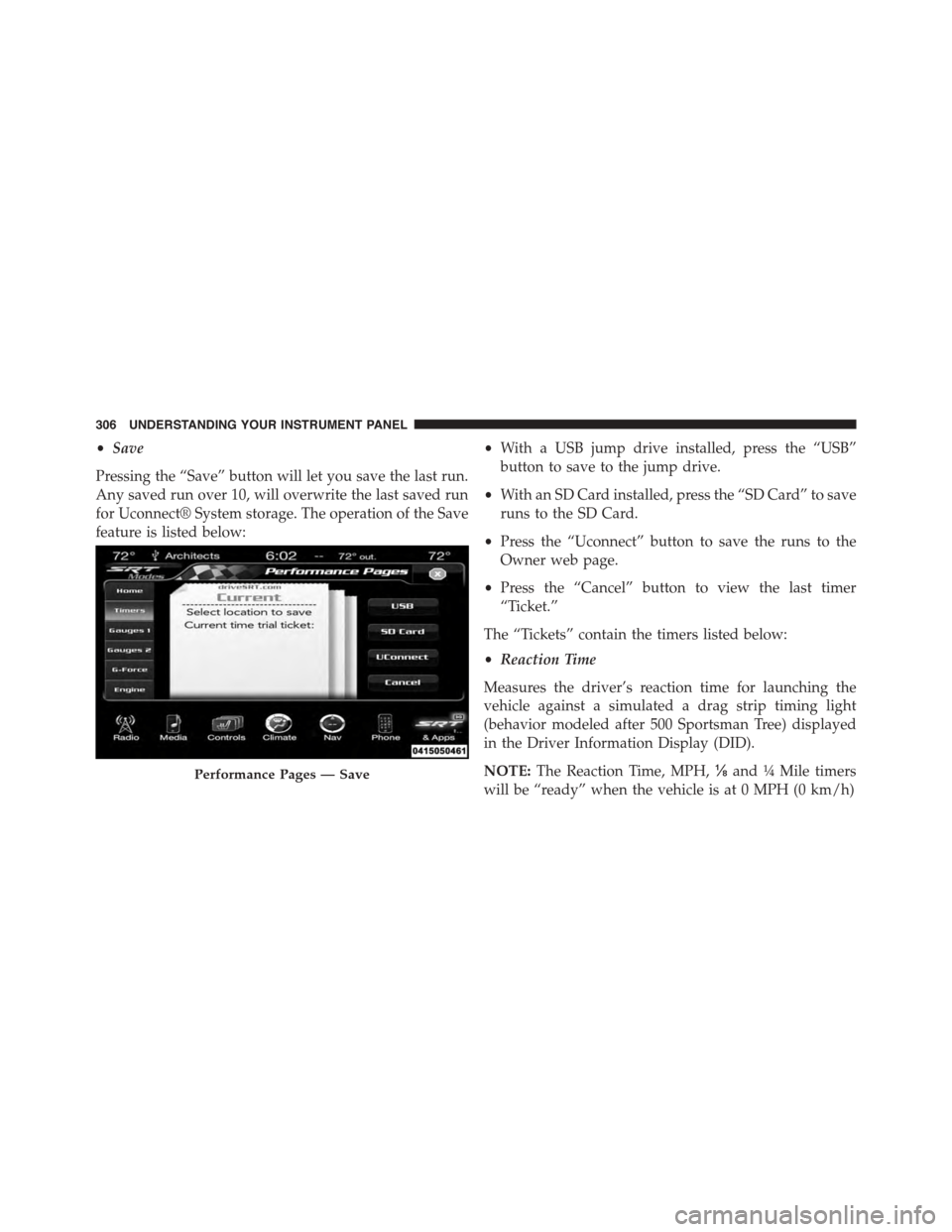
•Save
Pressing the “Save” button will let you save the last run.
Any saved run over 10, will overwrite the last saved run
for Uconnect® System storage. The operation of the Save
feature is listed below:
•With a USB jump drive installed, press the “USB”
button to save to the jump drive.
•With an SD Card installed, press the “SD Card” to save
runs to the SD Card.
•Press the “Uconnect” button to save the runs to the
Owner web page.
•Press the “Cancel” button to view the last timer
“Ticket.”
The “Tickets” contain the timers listed below:
•Reaction Time
Measures the driver’s reaction time for launching the
vehicle against a simulated a drag strip timing light
(behavior modeled after 500 Sportsman Tree) displayed
in the Driver Information Display (DID).
NOTE:The Reaction Time, MPH,⅛and¼Mile timers
will be “ready” when the vehicle is at 0 MPH (0 km/h)
Performance Pages — Save
306 UNDERSTANDING YOUR INSTRUMENT PANEL
Page 309 of 595
•0-60 MPH (0-100 km/h)
Displays the time it takes for the vehicle to go from 0 to
60 mph (0 to 100 km/h).
•0-100 MPH (0-160 km/h)
Displays the time it takes for the vehicle to go from 0 to
100 mph (0 to 160 km/h).
•⅛Mile (200 meter)
Displays the time it takes for the vehicle to go an⅛mile
(200 meters).
•¼Mile (400 meter)
Displays the time it takes for the vehicle to go an¼mile
(400 meters).
•Brake Distance
Displays the distance it takes the vehicle to make a full
stop.
NOTE:The distance measurement will be aborted if the
brake pedal is released or the parking brake is engaged,
before the vehicle comes to a complete stop.
•Brake Speed
Displays the speed the vehicle is traveling when the
brake pedal is depressed.
NOTE:Brake Distance and Speed timers will only dis-
play#ready#when vehicle is traveling at greater than 30
MPH (48 km/h).
4
UNDERSTANDING YOUR INSTRUMENT PANEL 307
Page 310 of 595
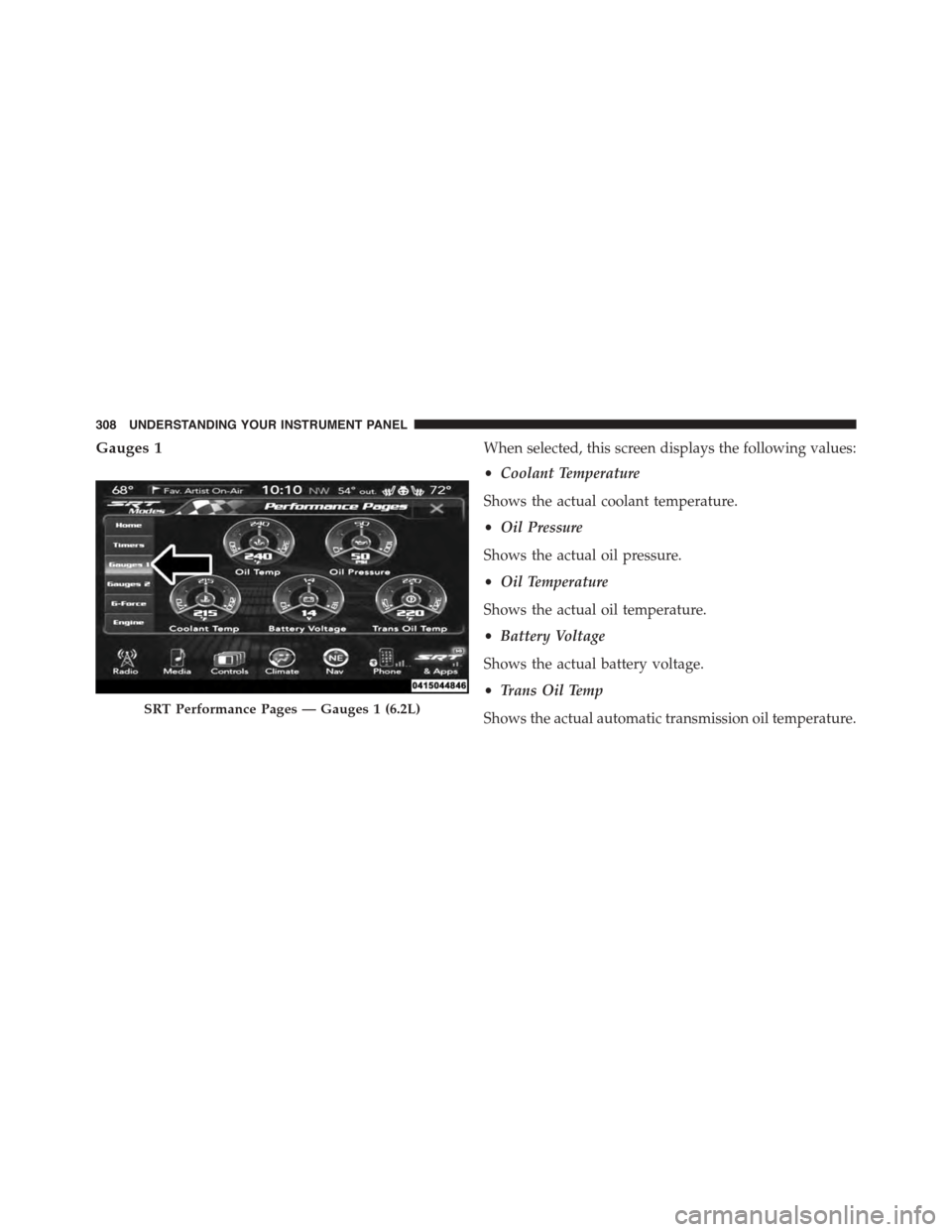
Gauges 1When selected, this screen displays the following values:
•Coolant Temperature
Shows the actual coolant temperature.
•Oil Pressure
Shows the actual oil pressure.
•Oil Temperature
Shows the actual oil temperature.
•Battery Voltage
Shows the actual battery voltage.
•Trans Oil Temp
Shows the actual automatic transmission oil temperature.SRT Performance Pages — Gauges 1 (6.2L)
308 UNDERSTANDING YOUR INSTRUMENT PANEL
Page 311 of 595
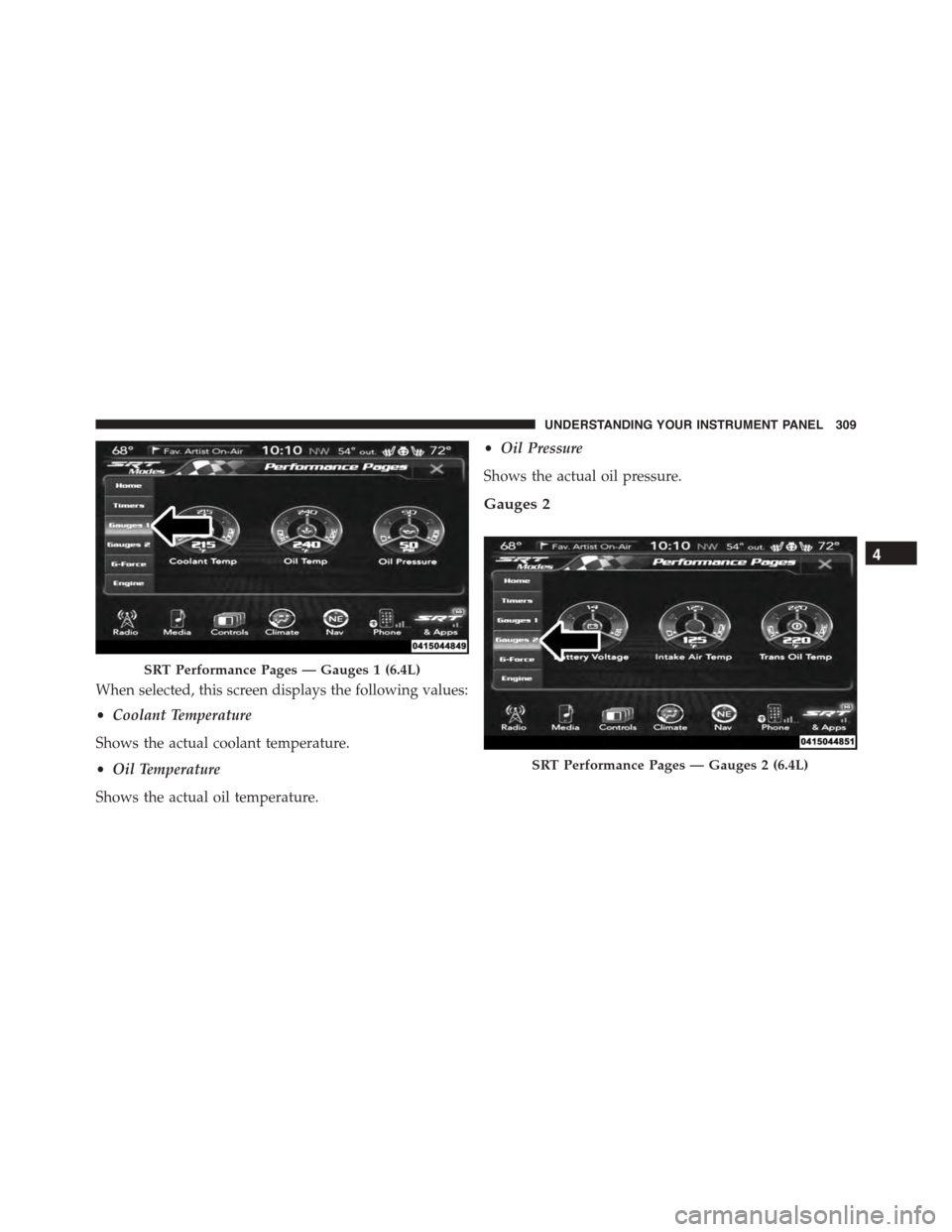
When selected, this screen displays the following values:
•Coolant Temperature
Shows the actual coolant temperature.
•Oil Temperature
Shows the actual oil temperature.
•Oil Pressure
Shows the actual oil pressure.
Gauges 2
SRT Performance Pages — Gauges 1 (6.4L)
SRT Performance Pages — Gauges 2 (6.4L)
4
UNDERSTANDING YOUR INSTRUMENT PANEL 309
Page 312 of 595
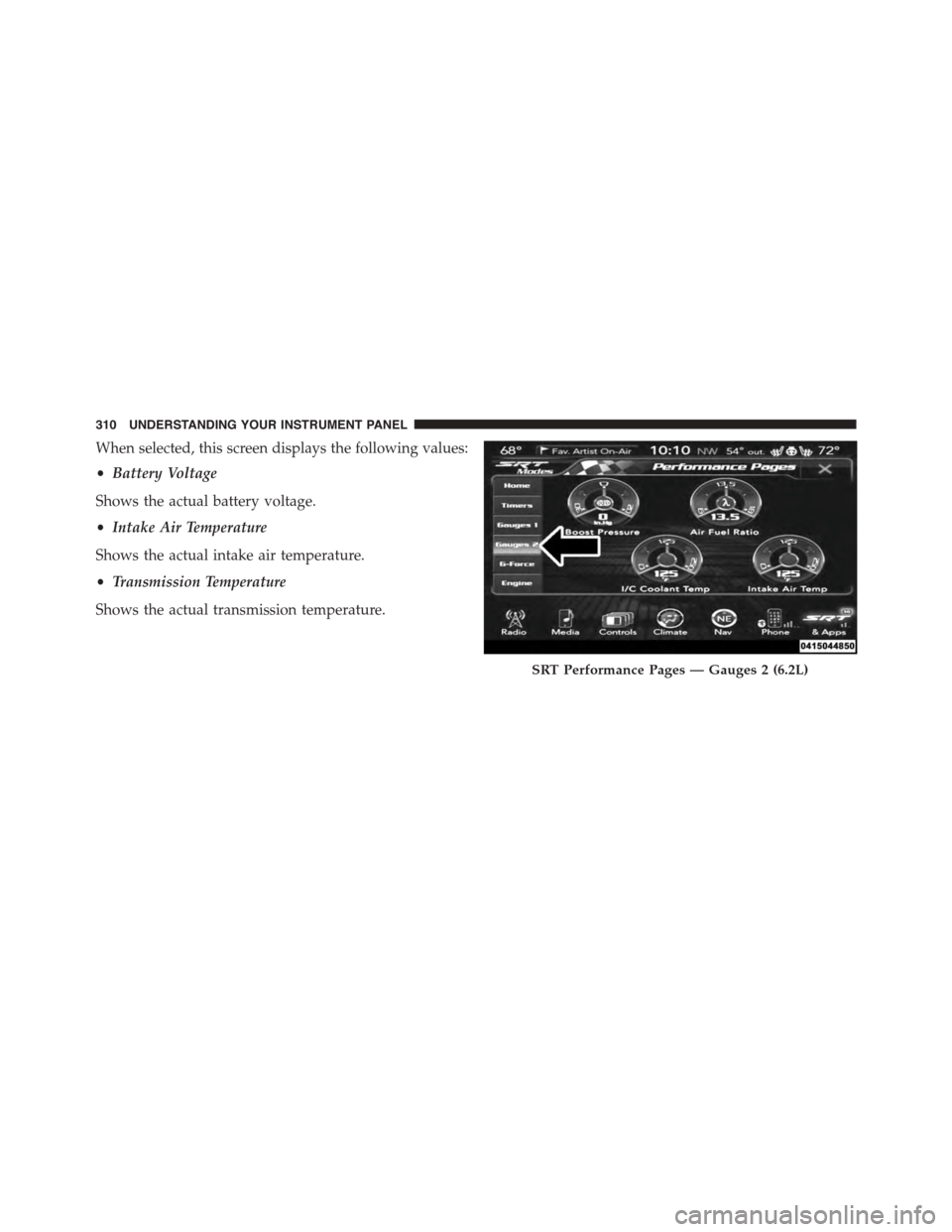
When selected, this screen displays the following values:
•Battery Voltage
Shows the actual battery voltage.
•Intake Air Temperature
Shows the actual intake air temperature.
•Transmission Temperature
Shows the actual transmission temperature.
SRT Performance Pages — Gauges 2 (6.2L)
310 UNDERSTANDING YOUR INSTRUMENT PANEL
Page 313 of 595
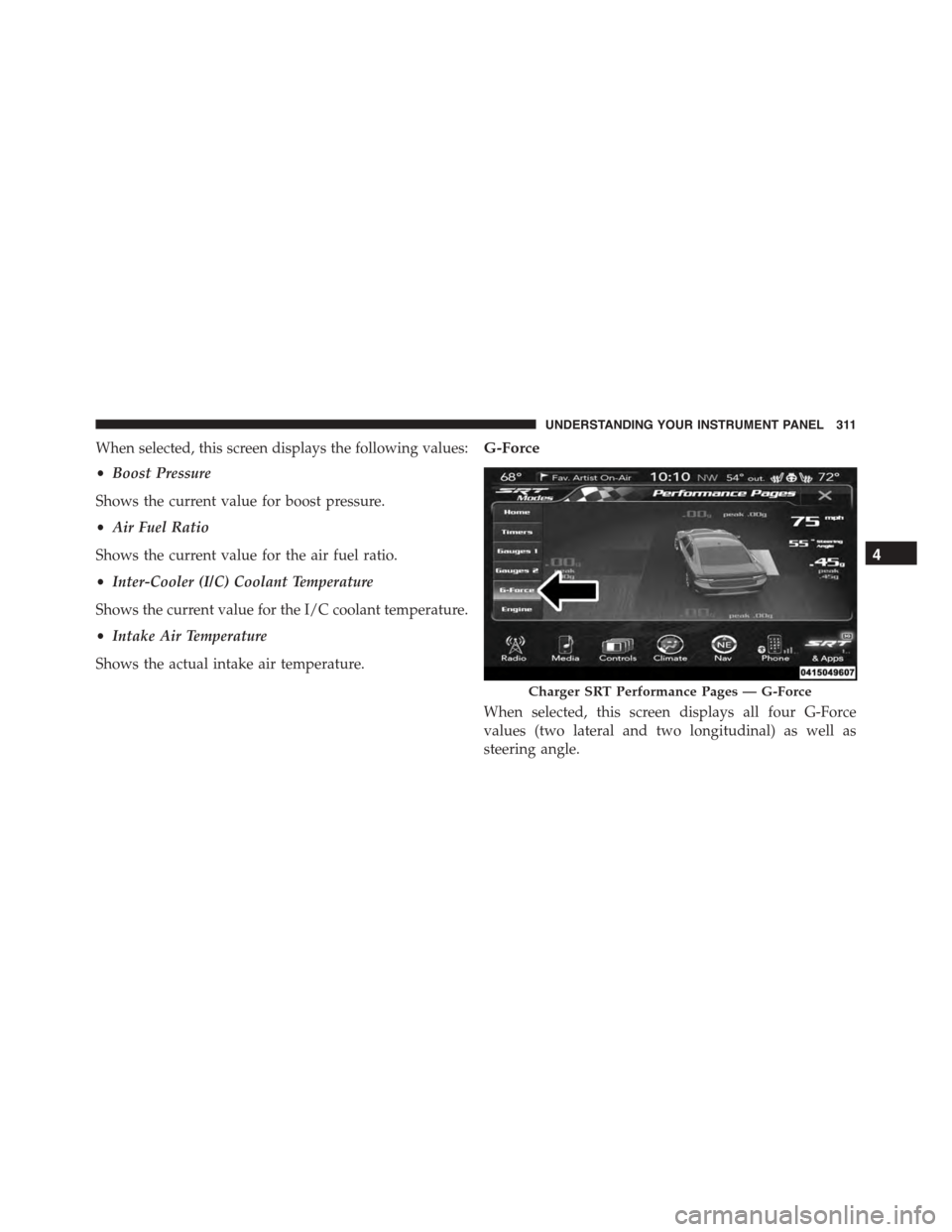
When selected, this screen displays the following values:
•Boost Pressure
Shows the current value for boost pressure.
•Air Fuel Ratio
Shows the current value for the air fuel ratio.
•Inter-Cooler (I/C) Coolant Temperature
Shows the current value for the I/C coolant temperature.
•Intake Air Temperature
Shows the actual intake air temperature.
G-Force
When selected, this screen displays all four G-Force
values (two lateral and two longitudinal) as well as
steering angle.
Charger SRT Performance Pages — G-Force
4
UNDERSTANDING YOUR INSTRUMENT PANEL 311
Page 315 of 595
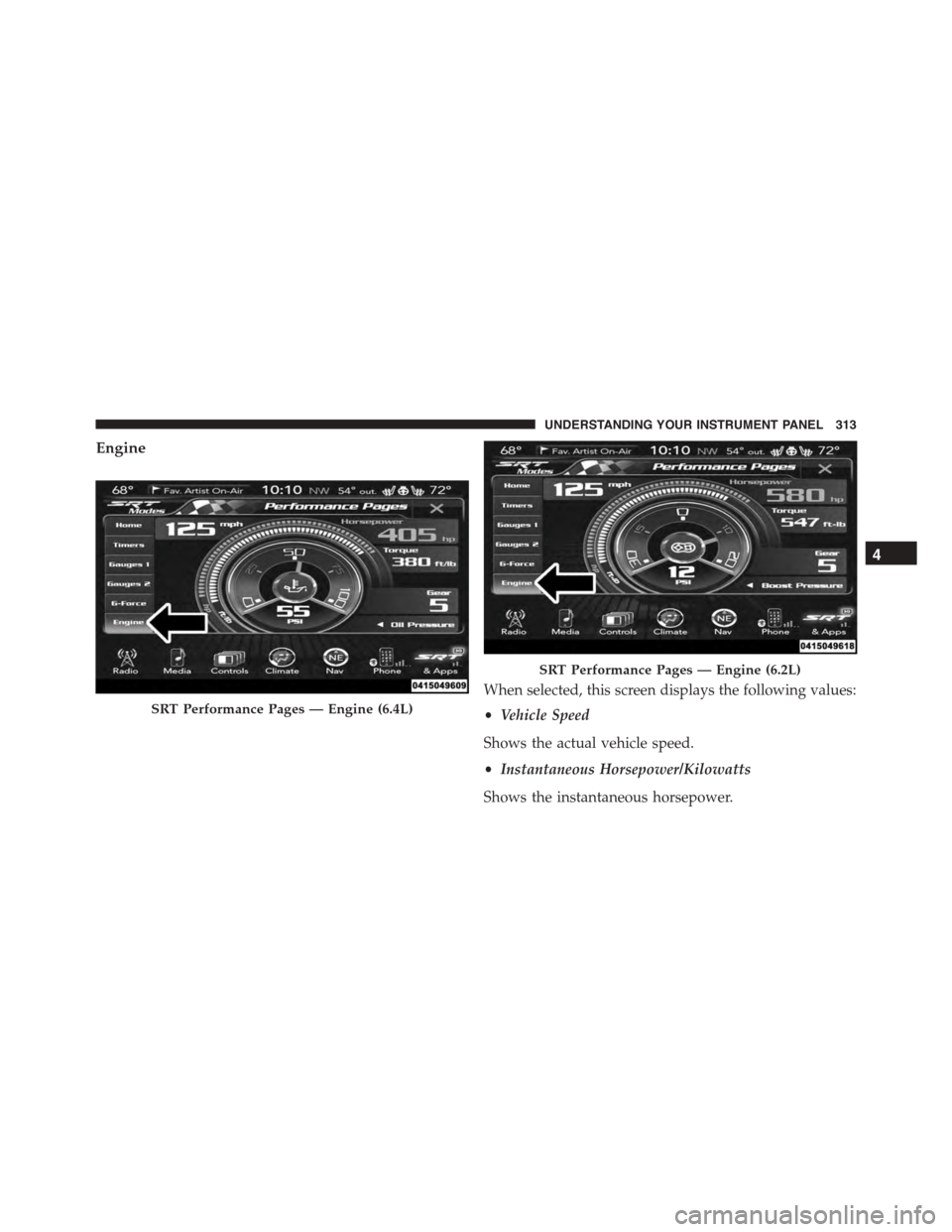
Engine
When selected, this screen displays the following values:
•Vehicle Speed
Shows the actual vehicle speed.
•Instantaneous Horsepower/Kilowatts
Shows the instantaneous horsepower.
SRT Performance Pages — Engine (6.4L)
SRT Performance Pages — Engine (6.2L)
4
UNDERSTANDING YOUR INSTRUMENT PANEL 313
Page 318 of 595
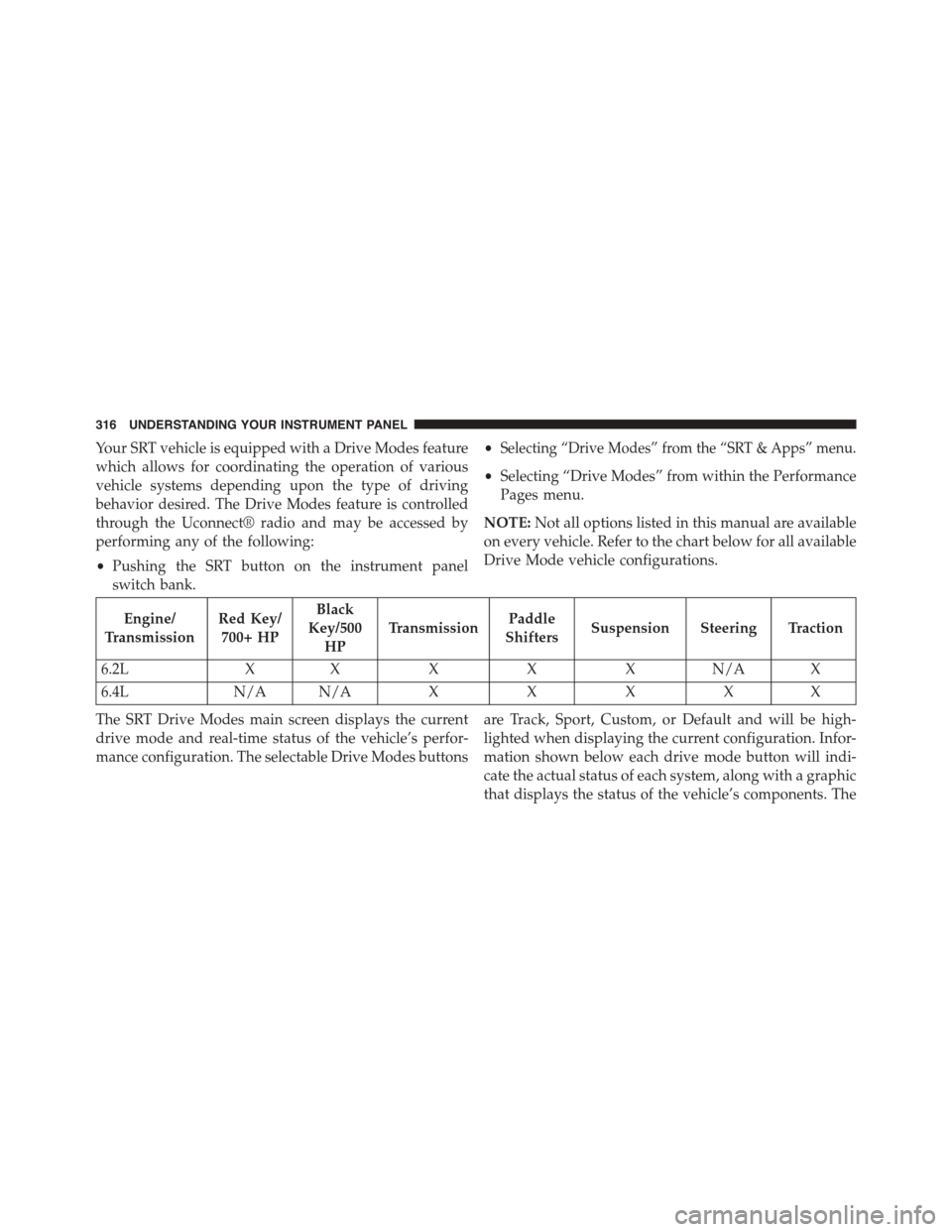
Your SRT vehicle is equipped with a Drive Modes feature
which allows for coordinating the operation of various
vehicle systems depending upon the type of driving
behavior desired. The Drive Modes feature is controlled
through the Uconnect® radio and may be accessed by
performing any of the following:
•Pushing the SRT button on the instrument panel
switch bank.
•Selecting “Drive Modes” from the “SRT & Apps” menu.
•Selecting “Drive Modes” from within the Performance
Pages menu.
NOTE:Not all options listed in this manual are available
on every vehicle. Refer to the chart below for all available
Drive Mode vehicle configurations.
Engine/
Transmission
Red Key/
700+ HP
Black
Key/500
HP
TransmissionPaddle
ShiftersSuspension Steering Traction
6.2LXXXXXN/AX
6.4LN/A N/AXXXXX
The SRT Drive Modes main screen displays the current
drive mode and real-time status of the vehicle’s perfor-
mance configuration. The selectable Drive Modes buttons
are Track, Sport, Custom, or Default and will be high-
lighted when displaying the current configuration. Infor-
mation shown below each drive mode button will indi-
cate the actual status of each system, along with a graphic
that displays the status of the vehicle’s components. The
316 UNDERSTANDING YOUR INSTRUMENT PANEL
Page 319 of 595
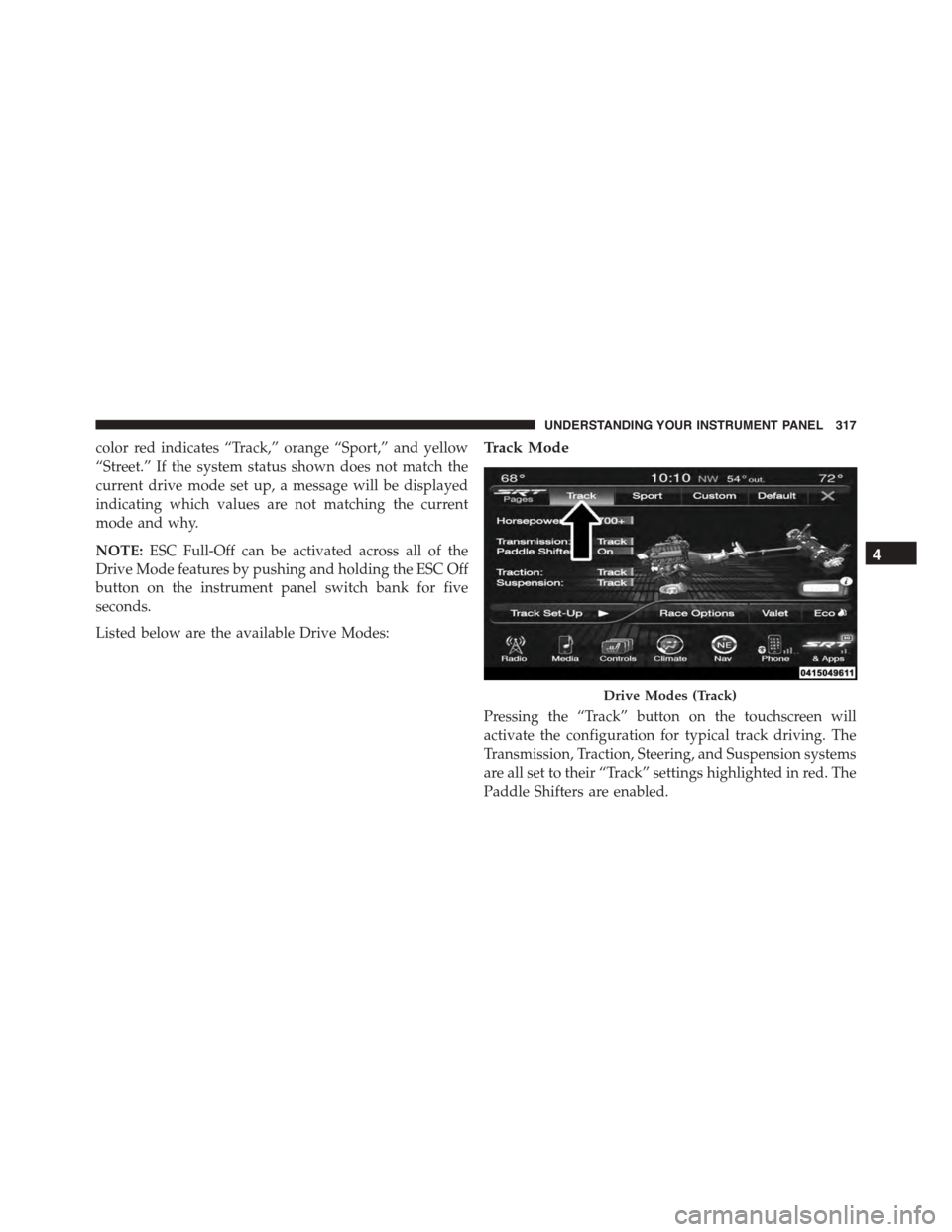
color red indicates “Track,” orange “Sport,” and yellow
“Street.” If the system status shown does not match the
current drive mode set up, a message will be displayed
indicating which values are not matching the current
mode and why.
NOTE:ESC Full-Off can be activated across all of the
Drive Mode features by pushing and holding the ESC Off
button on the instrument panel switch bank for five
seconds.
Listed below are the available Drive Modes:
Track Mode
Pressing the “Track” button on the touchscreen will
activate the configuration for typical track driving. The
Transmission, Traction, Steering, and Suspension systems
are all set to their “Track” settings highlighted in red. The
Paddle Shifters are enabled.
Drive Modes (Track)
4
UNDERSTANDING YOUR INSTRUMENT PANEL 317
Page 322 of 595
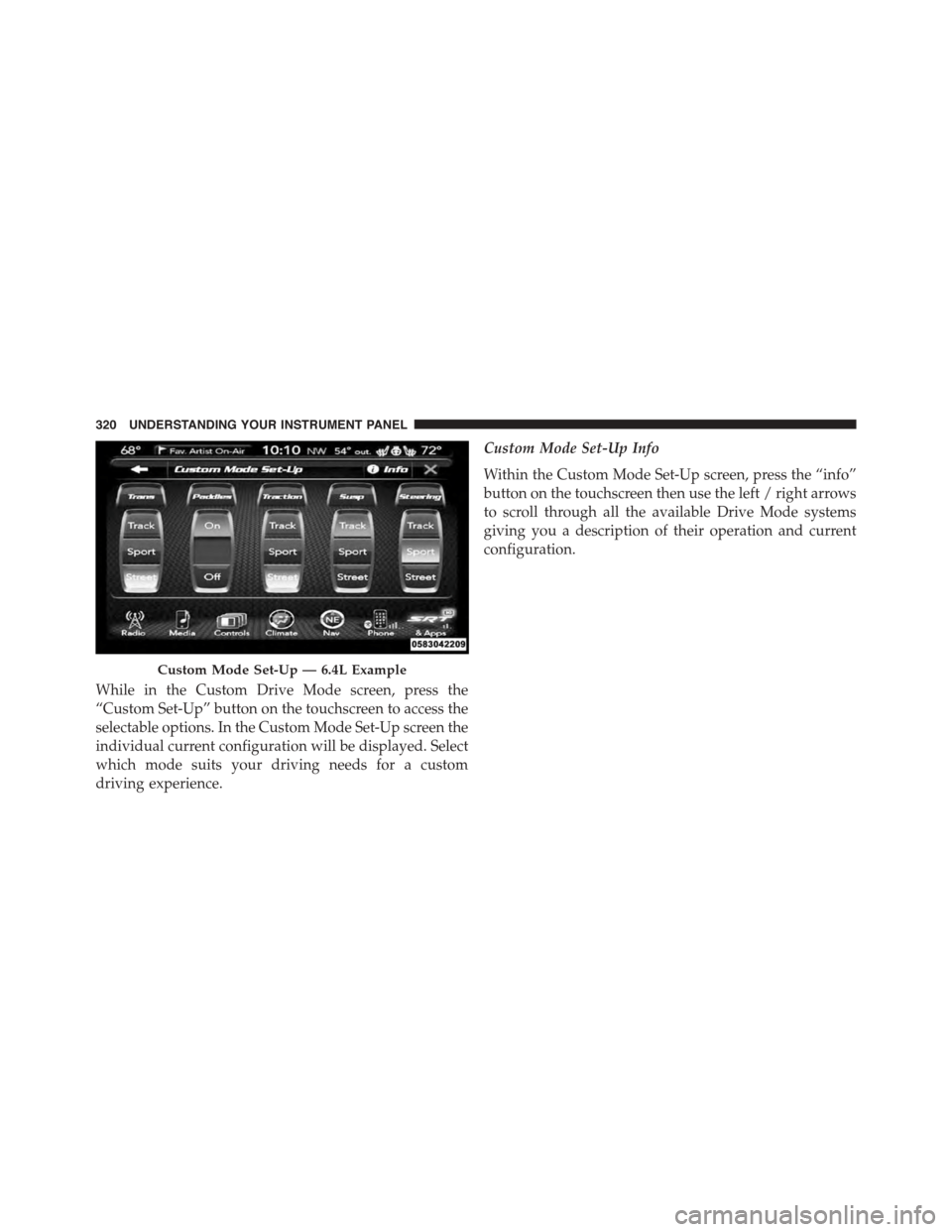
While in the Custom Drive Mode screen, press the
“Custom Set-Up” button on the touchscreen to access the
selectable options. In the Custom Mode Set-Up screen the
individual current configuration will be displayed. Select
which mode suits your driving needs for a custom
driving experience.
Custom Mode Set-Up Info
Within the Custom Mode Set-Up screen, press the “info”
button on the touchscreen then use the left / right arrows
to scroll through all the available Drive Mode systems
giving you a description of their operation and current
configuration.
Custom Mode Set-Up — 6.4L Example
320 UNDERSTANDING YOUR INSTRUMENT PANEL