display DODGE CHARGER SRT 2015 7.G Uconnect 8.4A
[x] Cancel search | Manufacturer: DODGE, Model Year: 2015, Model line: CHARGER SRT, Model: DODGE CHARGER SRT 2015 7.GPages: 429, PDF Size: 4.01 MB
Page 212 of 429
Recent Calls
You may browse up to 31 of the most recent of each of the
following call types:
•All Calls
•Incoming Calls
•Outgoing Calls
•Missed Calls
These can be accessed by pressing the “recent calls”
button on the Phone main screen.
You can also push thebutton on your steering wheel
and say “Show my incoming calls” from any screen
and the Incoming calls will be displayed.
NOTE:Incoming can also be replaced with “Outgoing,”
“Recent” or “Missed.”
Answer Or Ignore An Incoming Call — No Call
Currently In Progress
When you receive a call on your mobile phone, the
Uconnect® Phone will interrupt the vehicle audio sys-
tem. Push the Phonebutton on the steering wheel to
accept the call. You can also press the “answer” button
on the touchscreen or press the caller ID box.
Answer Or Ignore An Incoming Call — Call
Currently In Progress
If a call is currently in progress and you have another
incoming call, you will hear the same network tones for
call waiting that you normally hear when using your
mobile phone. Push the Phonebutton on the steering
wheel, or press the “answer” button on the touch-
screen, or caller ID box, to place the current call on
hold and answer the incoming call.
3
Uconnect® 8.4A — If Equipped 211
Page 216 of 429
NOTE:
•The first number encountered for that contact will be
sent. All other numbers entered for that contact will be
ignored.
•You may not hear all of the tones due to mobile phone
network configurations. This is normal.
•Some paging and voice mail systems have system time
out settings that are too short and may not allow the
use of this feature.
•Pauses, wait or other characters that are supported by
some phones are not supported over Bluetooth®.
These additional symbols will be ignored in the dialing
a numbered sequence.
Barge In — Overriding Prompts
The Voice Commandbutton can be used when
you wish to skip part of a prompt and issue your voice
command immediately. For example, if a prompt is
asking “There are two numbers with the name John.
Say the full name” you could push the Voice Com-
mandbutton and say, “John Smith” to select that
option without having to listen to the rest of the voice
prompt.
Voice Response Length
It is possible for you to choose between Brief and
Detailed Voice Response Length.
1. Press the “More” button on the touchscreen (where
available), then press the “Settings” button on the
touchscreen.
2. Press the “Display” button on the touchscreen, then
scroll down to Voice Response Length.
3. Select either “Brief” or “Detailed” by pressing the box
next to the selection. A check-mark will appear to
indicate your selection.
3
Uconnect® 8.4A — If Equipped 215
Page 226 of 429
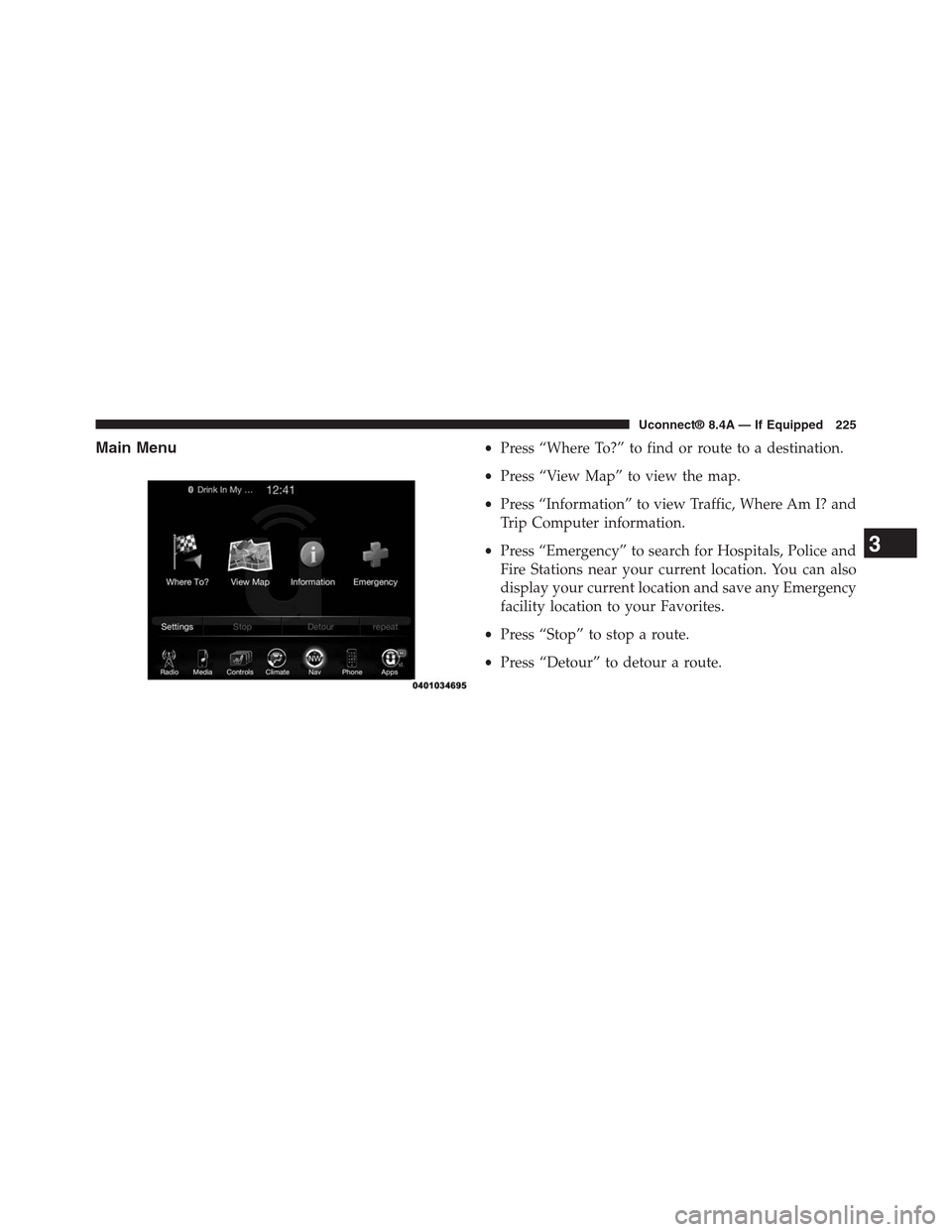
Main Menu•Press “Where To?” to find or route to a destination.
•Press “View Map” to view the map.
•Press “Information” to view Traffic, Where Am I? and
Trip Computer information.
•Press “Emergency” to search for Hospitals, Police and
Fire Stations near your current location. You can also
display your current location and save any Emergency
facility location to your Favorites.
•Press “Stop” to stop a route.
•Press “Detour” to detour a route.
3
Uconnect® 8.4A — If Equipped 225
Page 229 of 429
Closest City
Press this button on the touchscreen to route to a nearby
city. The screen will display an alphabetical listing of
nearby cities. The navigation system will calculate a route
with the destination at the center of the nearby city.
Phone Number
Press this button on the touchscreen to route to a location
or point of interest by the phone number.
You can press the “back” arrow button on the touch-
screen to return to the previous screen or the “X” button
on the touchscreen to exit.
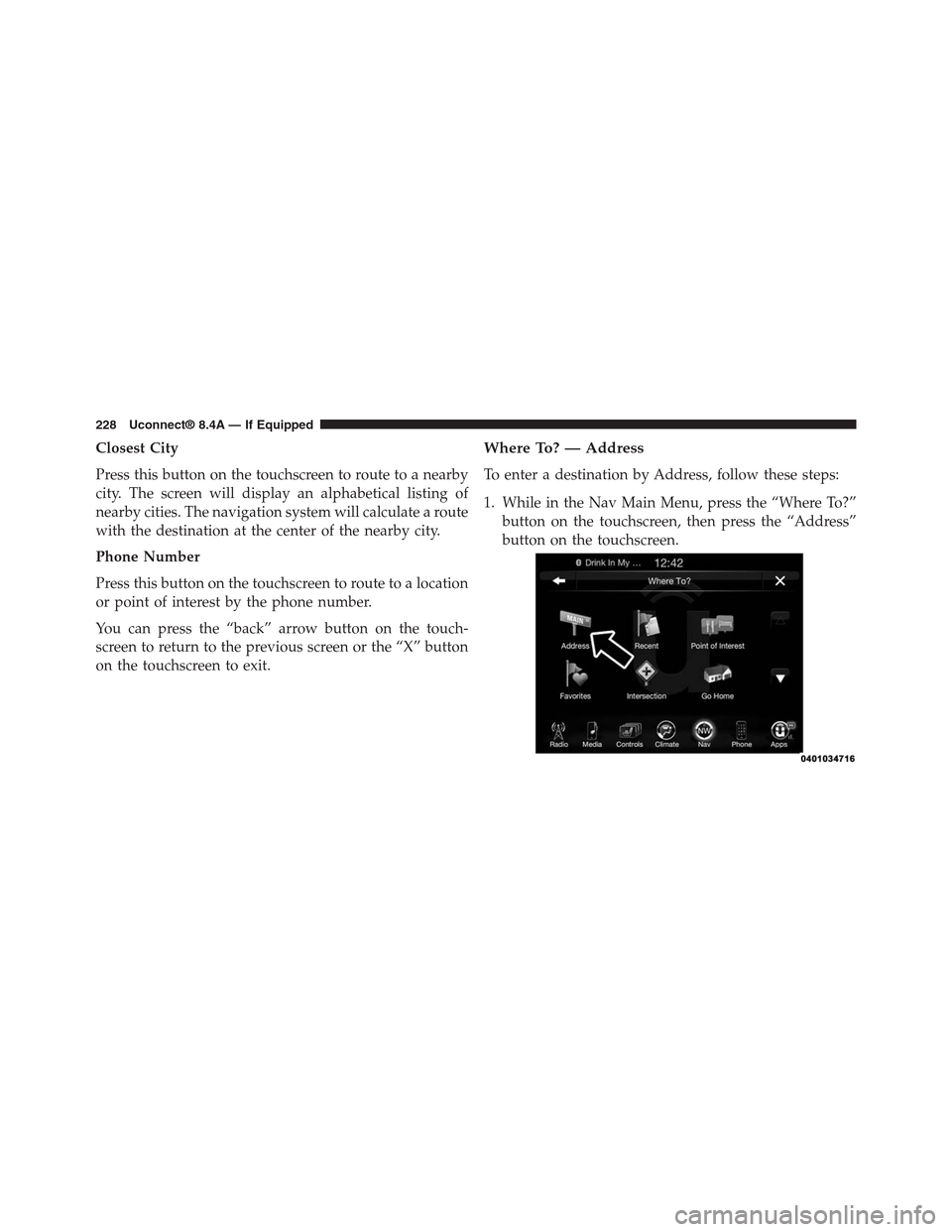
Where To? — Address
To enter a destination by Address, follow these steps:
1. While in the Nav Main Menu, press the “Where To?”
button on the touchscreen, then press the “Address”
button on the touchscreen.
228 Uconnect® 8.4A — If Equipped
Page 233 of 429
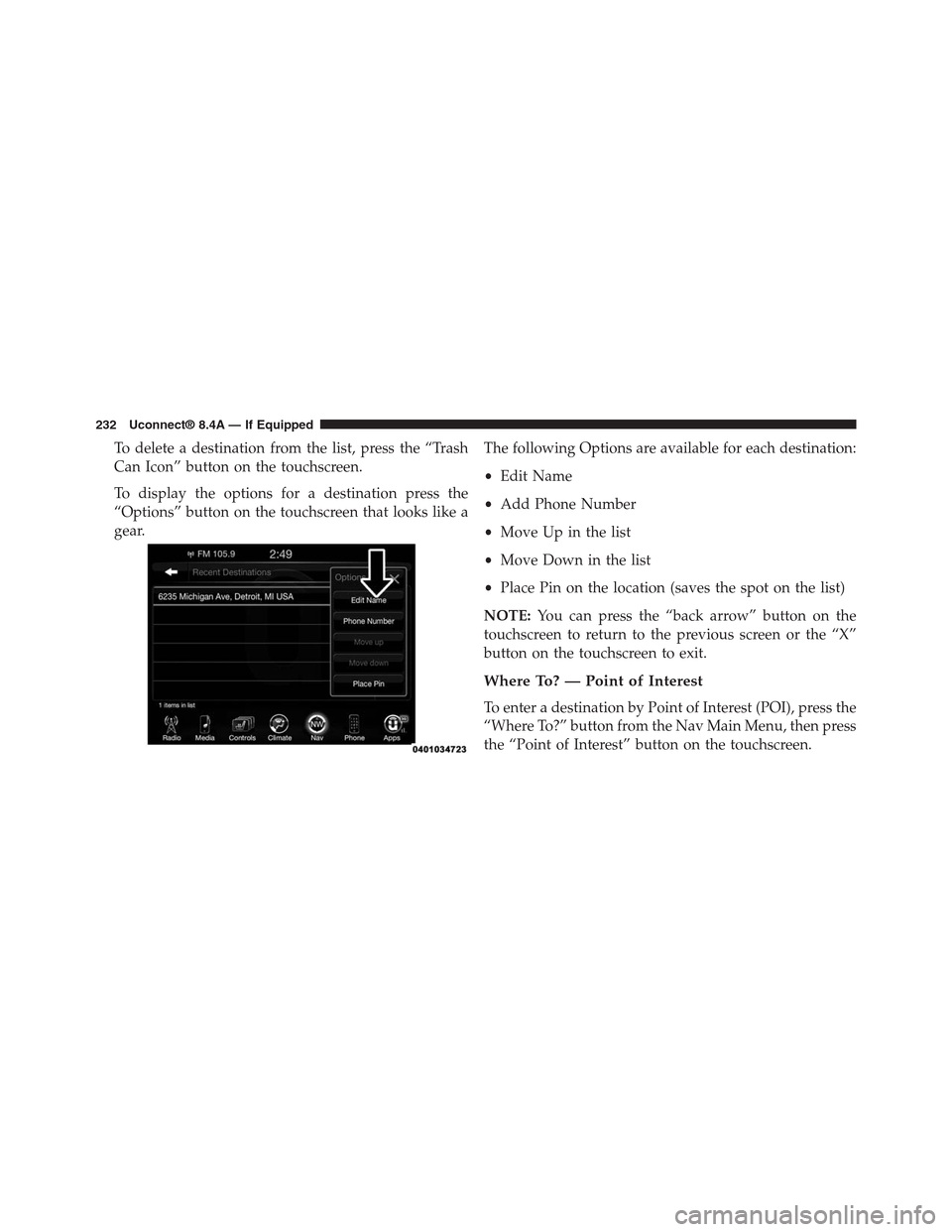
To delete a destination from the list, press the “Trash
Can Icon” button on the touchscreen.
To display the options for a destination press the
“Options” button on the touchscreen that looks like a
gear.
The following Options are available for each destination:
•Edit Name
•Add Phone Number
•Move Up in the list
•Move Down in the list
•Place Pin on the location (saves the spot on the list)
NOTE:You can press the “back arrow” button on the
touchscreen to return to the previous screen or the “X”
button on the touchscreen to exit.
Where To? — Point of Interest
To enter a destination by Point of Interest (POI), press the
“Where To?” button from the Nav Main Menu, then press
the “Point of Interest” button on the touchscreen.
232 Uconnect® 8.4A — If Equipped
Page 245 of 429
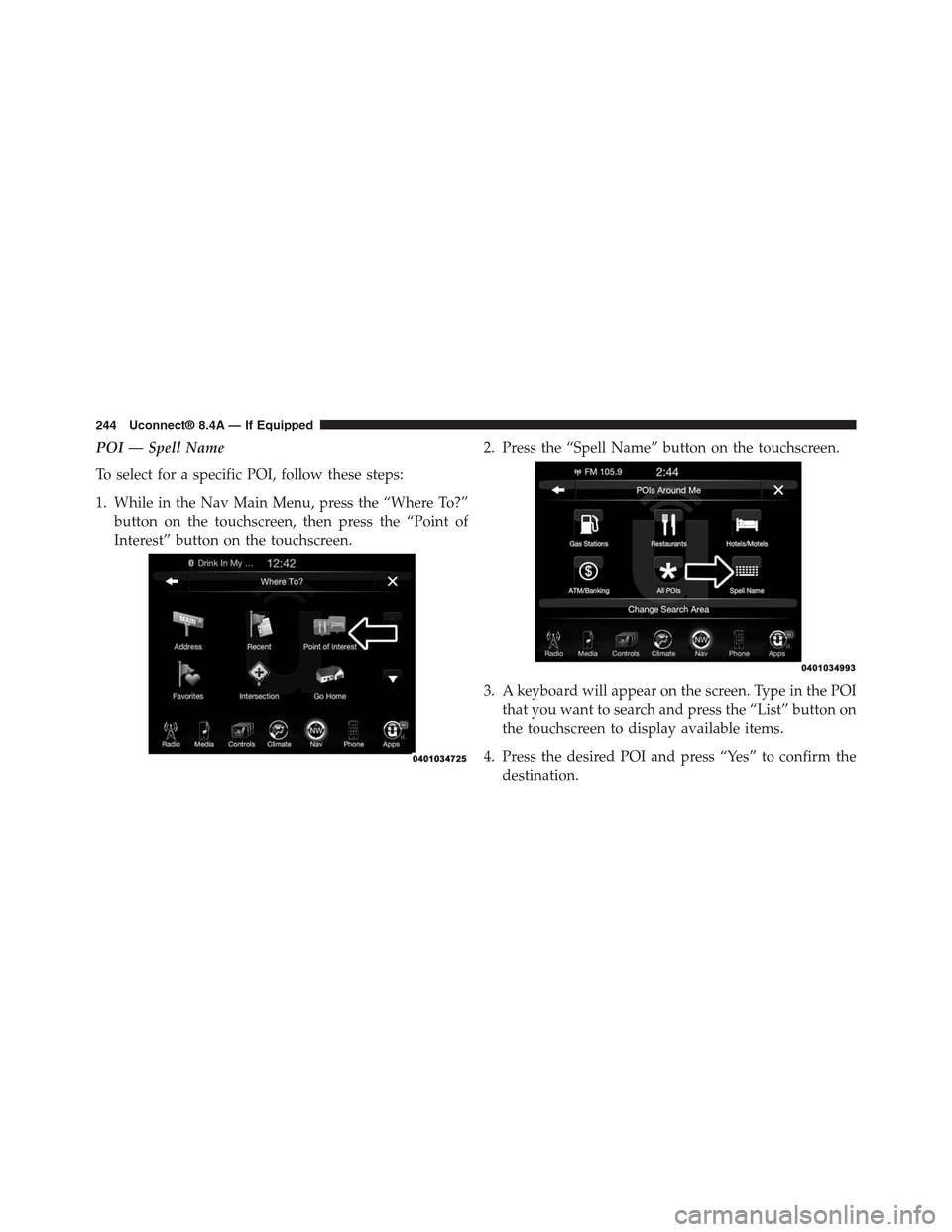
POI — Spell Name
To select for a specific POI, follow these steps:
1. While in the Nav Main Menu, press the “Where To?”
button on the touchscreen, then press the “Point of
Interest” button on the touchscreen.
2. Press the “Spell Name” button on the touchscreen.
3. A keyboard will appear on the screen. Type in the POI
that you want to search and press the “List” button on
the touchscreen to display available items.
4. Press the desired POI and press “Yes” to confirm the
destination.
244 Uconnect® 8.4A — If Equipped
Page 247 of 429
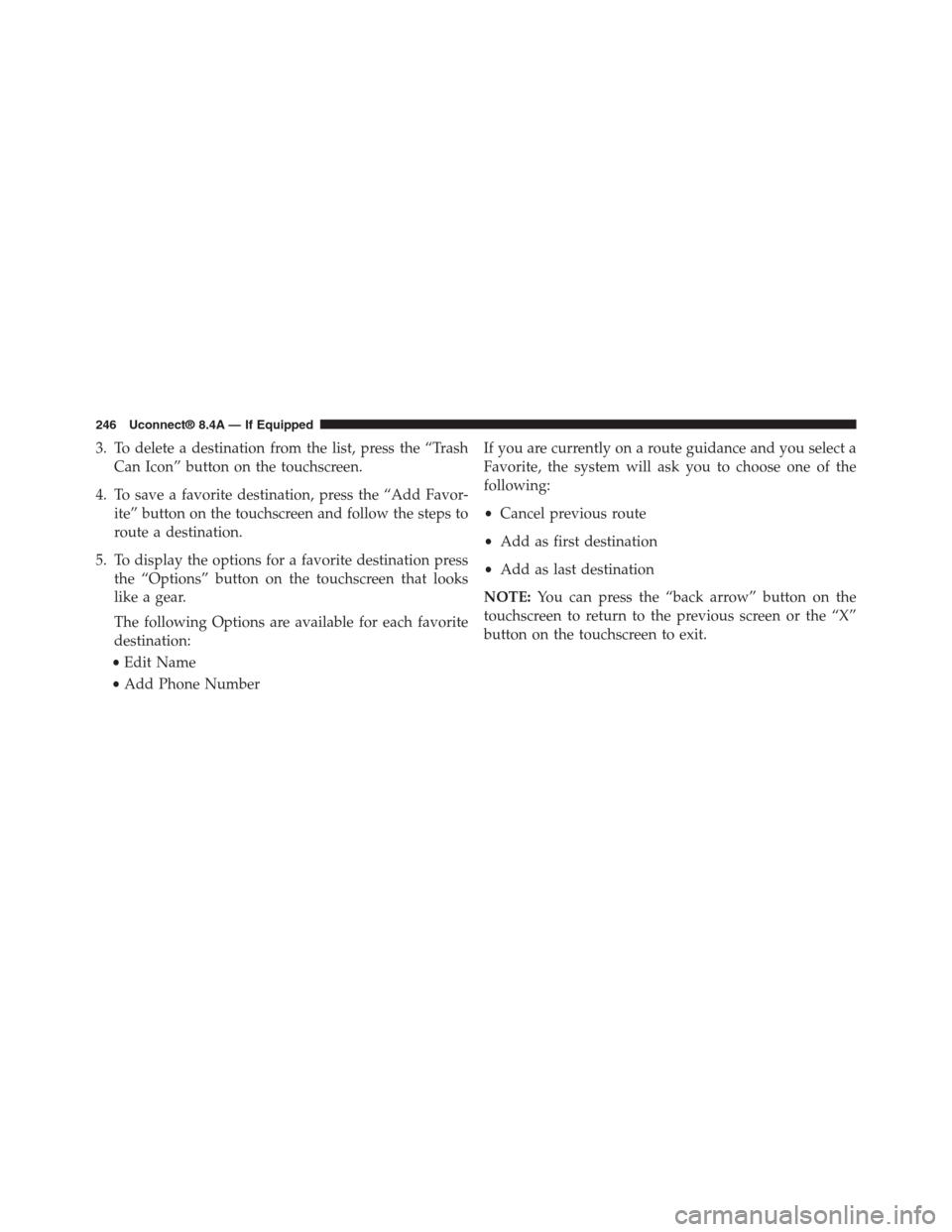
3. To delete a destination from the list, press the “Trash
Can Icon” button on the touchscreen.
4. To save a favorite destination, press the “Add Favor-
ite” button on the touchscreen and follow the steps to
route a destination.
5. To display the options for a favorite destination press
the “Options” button on the touchscreen that looks
like a gear.
The following Options are available for each favorite
destination:
•Edit Name
•Add Phone Number
If you are currently on a route guidance and you select a
Favorite, the system will ask you to choose one of the
following:
•Cancel previous route
•Add as first destination
•Add as last destination
NOTE:You can press the “back arrow” button on the
touchscreen to return to the previous screen or the “X”
button on the touchscreen to exit.
246 Uconnect® 8.4A — If Equipped
Page 251 of 429
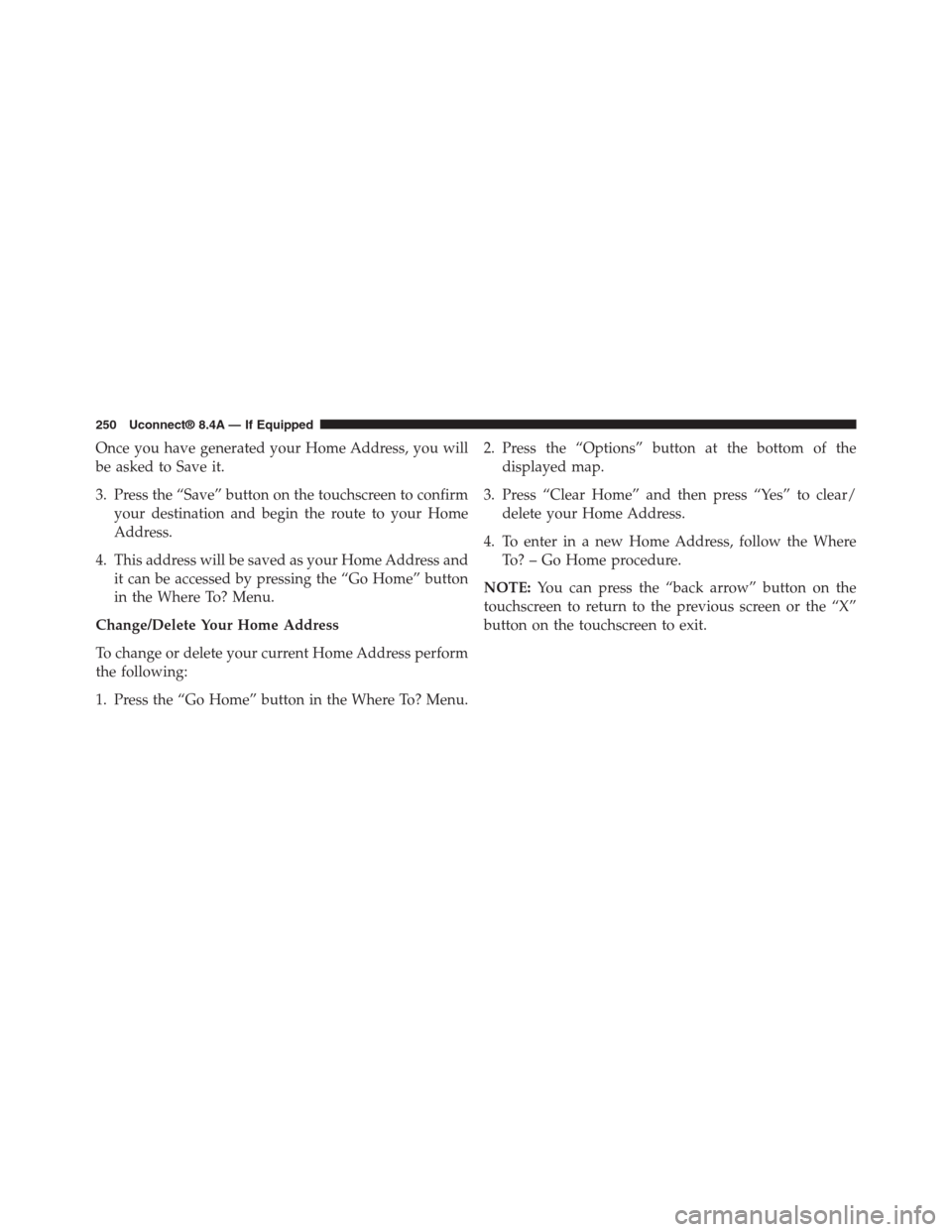
Once you have generated your Home Address, you will
be asked to Save it.
3. Press the “Save” button on the touchscreen to confirm
your destination and begin the route to your Home
Address.
4. This address will be saved as your Home Address and
it can be accessed by pressing the “Go Home” button
in the Where To? Menu.
Change/Delete Your Home Address
To change or delete your current Home Address perform
the following:
1. Press the “Go Home” button in the Where To? Menu.
2. Press the “Options” button at the bottom of the
displayed map.
3. Press “Clear Home” and then press “Yes” to clear/
delete your Home Address.
4. To enter in a new Home Address, follow the Where
To? – Go Home procedure.
NOTE:You can press the “back arrow” button on the
touchscreen to return to the previous screen or the “X”
button on the touchscreen to exit.
250 Uconnect® 8.4A — If Equipped
Page 253 of 429
To add a Trip, follow these steps:
1. Press the “Create new Trip” button on the touchscreen.
2. Type in the new Trip Name.
3. Press “Add Destination” to add destinations to your
trip.
4. Choose from the following options to add a destina-
tion
•Address
•Recent
•Point of Interest
•Favorites
•Intersection
•GEO Coordinates
•Point on Map
•City Center
•Closest Cities
•Phone Number
NOTE:Refer to the individual section of the chosen
option for further information.
5. Add more needed destinations to your trip.
NOTE:Each destination will be listed in order, with the
last destination being the final destination.
6. Your new Trip will appear on the Trips list.
To delete a Trip from the list, press the “Trash Can Icon”
button on the touchscreen.
To display the options for a trip press the “Options”
button on the touchscreen that looks like a gear.
The following Options are available for each trip:
•Edit Name
•Move Up in the list
252 Uconnect® 8.4A — If Equipped
Page 256 of 429
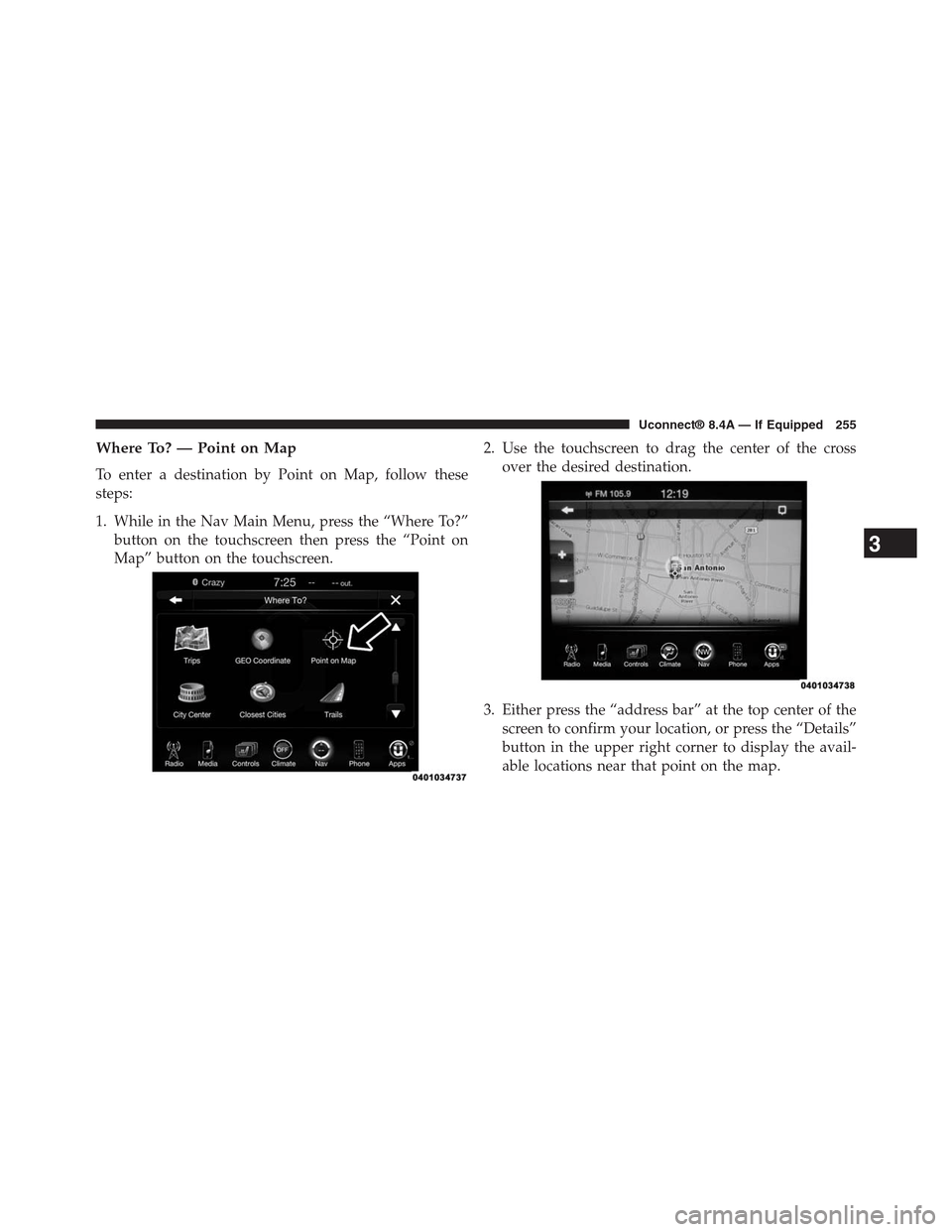
Where To? — Point on Map
To enter a destination by Point on Map, follow these
steps:
1. While in the Nav Main Menu, press the “Where To?”
button on the touchscreen then press the “Point on
Map” button on the touchscreen.
2. Use the touchscreen to drag the center of the cross
over the desired destination.
3. Either press the “address bar” at the top center of the
screen to confirm your location, or press the “Details”
button in the upper right corner to display the avail-
able locations near that point on the map.
3
Uconnect® 8.4A — If Equipped 255