audio DODGE DURANGO 2020 User Guide
[x] Cancel search | Manufacturer: DODGE, Model Year: 2020, Model line: DURANGO, Model: DODGE DURANGO 2020Pages: 464, PDF Size: 22.14 MB
Page 266 of 464
264IN CASE OF EMERGENCY
SOS Call System Limitations
Vehicles sold in Mexico DO NOT have SOS Call
system capabilities.
SOS or other emergency line operators in
Mexico may not answer or respond to SOS
system calls.
If the SOS Call system detects a malfunction,
any of the following may occur at the time the
malfunction is detected, and at the beginning of
each ignition cycle:
The Rearview Mirror light located between
the ASSIST and SOS buttons will continuously
illuminate red.
The Device Screen will display the following
message “Vehicle device requires service.
Please contact an authorized dealer.”
An In-Vehicle Audio message will state
“Vehicle device requires service. Please
contact an authorized dealer.” Even if the SOS Call system is fully functional,
factors beyond FCA US LLC’s control may
prevent or stop the SOS Call system operation.
These include, but are not limited to, the
following factors:
The ignition is in the OFF position
The vehicle’s electrical systems are not intact
The SOS Call system software and/or hard
-
ware are damaged during a crash
The vehicle battery loses power or becomes
disconnected during a vehicle crash
LTE (voice/data) or 4G (data) network and/or
Global Positioning Satellite signals are
unavailable or obstructed
Equipment malfunction at the SOS operator
facility
Operator error by the SOS operator
LTE (voice/data) or 4G (data) network
congestion
Weather
Buildings, structures, geographic terrain, or
tunnels
WARNING!
Ignoring the Rearview Mirror light could
mean you will not have SOS Call services. If
the Rearview Mirror light is illuminated,
have an authorized dealer service the SOS
Call system immediately.
The Occupant Restraint Control module
turns on the air bag Warning Light on the
instrument panel if a malfunction in any
part of the system is detected. If the Air Bag
Warning Light is illuminated, have an
authorized dealer service the Occupant
Restraint Control system immediately.
WARNING!
ALWAYS obey traffic laws and pay attention to
the road. ALWAYS drive safely with your hands
on the steering wheel. You have full
responsibility and assume all risks related to
the use of the features and applications in
this vehicle. Only use the features and
applications when it is safe to do so. Failure
to do so may result in an accident involving
serious injury or death.
20_WD_OM_EN_USC_t.book Page 264
Page 365 of 464
MULTIMEDIA363
CUSTOMER PROGRAMMABLE FEATURES
— U
CONNECT 4 SETTINGS
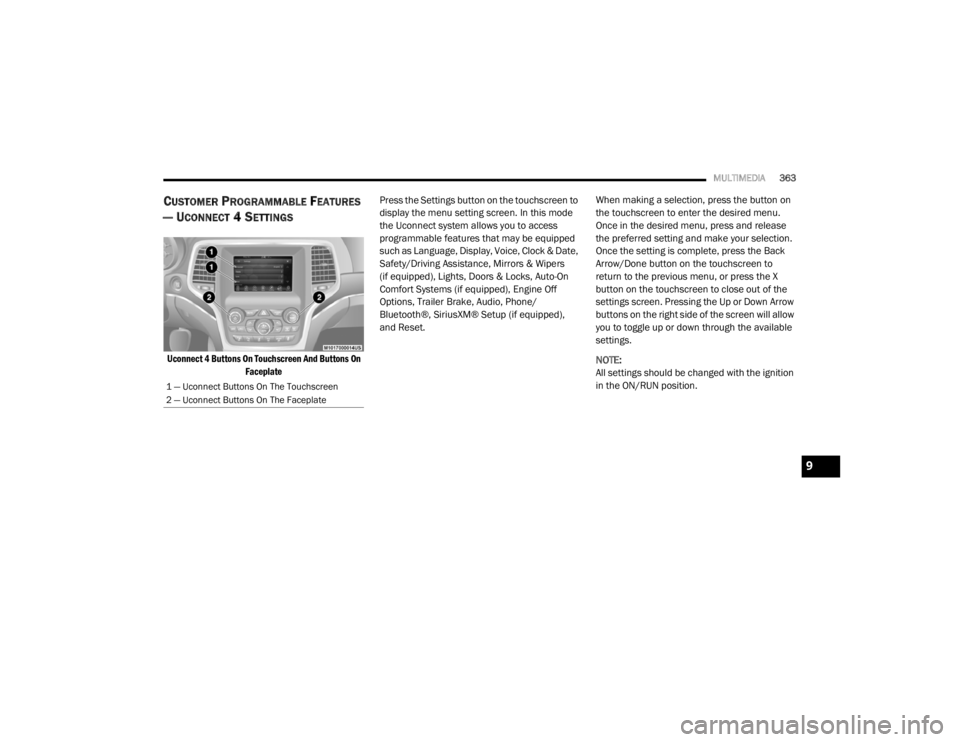
Uconnect 4 Buttons On Touchscreen And Buttons On
Faceplate
Press the Settings button on the touchscreen to
display the menu setting screen. In this mode
the Uconnect system allows you to access
programmable features that may be equipped
such as Language, Display, Voice, Clock & Date,
Safety/Driving Assistance, Mirrors & Wipers
(if equipped), Lights, Doors & Locks, Auto-On
Comfort Systems (if equipped), Engine Off
Options, Trailer Brake, Audio, Phone/
Bluetooth®, SiriusXM® Setup (if equipped),
and Reset.
When making a selection, press the button on
the touchscreen to enter the desired menu.
Once in the desired menu, press and release
the preferred setting and make your selection.
Once the setting is complete, press the Back
Arrow/Done button on the touchscreen to
return to the previous menu, or press the X
button on the touchscreen to close out of the
settings screen. Pressing the Up or Down Arrow
buttons on the right side of the screen will allow
you to toggle up or down through the available
settings.
NOTE:
All settings should be changed with the ignition
in the ON/RUN position.
1 — Uconnect Buttons On The Touchscreen
2 — Uconnect Buttons On The Faceplate
9
20_WD_OM_EN_USC_t.book Page 363
Page 376 of 464

374MULTIMEDIA
Audio
After pressing the Audio button on the touchscreen, the following settings will be available:
Setting Name Selectable Options
EqualizerBassMidTreble
NOTE:
When in this display, you may adjust the “Bass”, “Mid”, and “Treble” settings. Adjust the settings with the + and – setting buttons on the touchscreen
or by selecting any point on the scale between the + and – buttons on the touchscreen. Bass/Mid/Treble also allow you to simply slide your finger up
or down to change the setting as well as press directly on the desired setting.
Balance/Fade Up Arrow
Button Down Arrow
Button Left Arrow
Button Right Arrow
Button Center C Button
NOTE:
When in this display, you may adjust the “Balance/Fade” of the audio by using the Arrow button on the touchscreen to adjust the sound level from
the front and rear or right and left side speakers. Press the Center C button on the touchscreen to reset the balance and fade to the factory setting. Speed Adjusted Volume Off123
Surround Sound — If Equipped OnOff
Loudness — If Equipped YesNo
NOTE:
This feature improves sound quality at lower volumes when enabled. AUX Volume Offset — If Equipped OnOff
NOTE:
This feature provides the ability to tune the audio level for portable devices connected through the AUX input.
20_WD_OM_EN_USC_t.book Page 374
Page 379 of 464
MULTIMEDIA377
CUSTOMER PROGRAMMABLE FEATURES
— U
CONNECT 4C/4C NAV SETTINGS
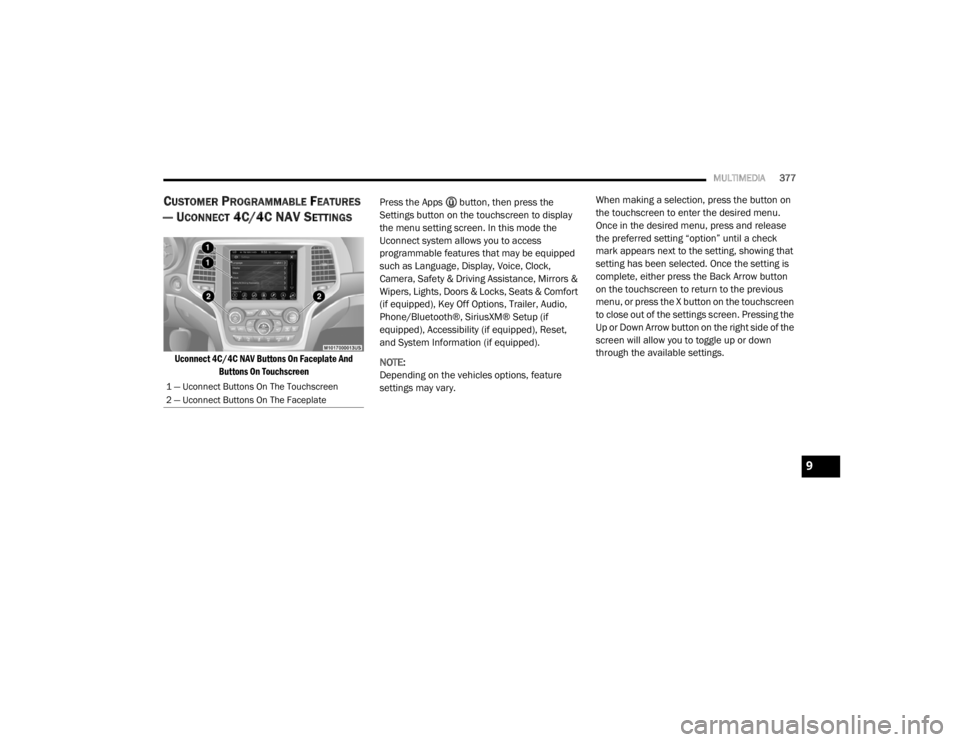
Uconnect 4C/4C NAV Buttons On Faceplate And
Buttons On Touchscreen
Press the Apps button, then press the
Settings button on the touchscreen to display
the menu setting screen. In this mode the
Uconnect system allows you to access
programmable features that may be equipped
such as Language, Display, Voice, Clock,
Camera, Safety & Driving Assistance, Mirrors &
Wipers, Lights, Doors & Locks, Seats & Comfort
(if equipped), Key Off Options, Trailer, Audio,
Phone/Bluetooth®, SiriusXM® Setup (if
equipped), Accessibility (if equipped), Reset,
and System Information (if equipped).
NOTE:
Depending on the vehicles options, feature
settings may vary. When making a selection, press the button on
the touchscreen to enter the desired menu.
Once in the desired menu, press and release
the preferred setting “option” until a check
mark appears next to the setting, showing that
setting has been selected. Once the setting is
complete, either press the Back Arrow button
on the touchscreen to return to the previous
menu, or press the X button on the touchscreen
to close out of the settings screen. Pressing the
Up or Down Arrow button on the right side of the
screen will allow you to toggle up or down
through the available settings.
1 — Uconnect Buttons On The Touchscreen
2 — Uconnect Buttons On The Faceplate
9
20_WD_OM_EN_USC_t.book Page 377
Page 391 of 464

MULTIMEDIA389
Audio
After pressing the Audio button on the touchscreen, the following settings will be available: Trailer Name
List of Trailer Names
NOTE:
You can select and personalize your trailer name depending on the type of trailer you are hauling. Select the trailer name from the following list: trailer,
boat, car, cargo, equipment, flat, livestock, horse, motorcycle, snowmobile, travel, and utility.
Setting Name Selectable Options
Setting NameSelectable Options
Balance/Fade Speaker Icon
NOTE:
When in this display, you may adjust the “Balance/Fade” of the audio by pressing and dragging the Speaker Icon toward any location in the box. Equalizer BassMid Treble
NOTE:
When in this display, you may adjust the “Bass”, “Mid”, and “Treble” settings. Adjust the settings with the + and – setting buttons on the touchscreen
or by selecting any point on the scale between the + and – buttons on the touchscreen. Bass/Mid/Treble also allow you to simply slide your finger up
or down to change the setting as well as press directly on the desired setting. Speed Adjusted Volume Off123
Surround Sound — If Equipped On
Off
AUX Volume Offset — If Equipped +
-
NOTE:
This feature provides the ability to tune the audio level for portable devices connected through the AUX input.
9
20_WD_OM_EN_USC_t.book Page 389
Page 392 of 464

390MULTIMEDIA
Phone/Bluetooth®
After pressing the Phone/Bluetooth® button on the touchscreen, the following settings will be available:Auto Play
On Off
Setting Name Selectable Options
Setting NameSelectable Options
Phone Pop-ups Displayed in Cluster OnOff
Do Not Disturb List of Settings
NOTE:
Press “Do Not Disturb” to access the available settings. The following settings are: Auto Reply (Both, Text, Call), Auto Reply Message (Custom, Default),
and Custom Auto Reply Message (Create Message). Paired Phones and Audio Devices List Of Paired Phones and Audio Sources
NOTE:
The “Paired Phones and Audio Devices” feature shows which phones and audio sources are paired to the Phone and Audio Sources Settings system.
For further information, refer to the Uconnect Owner’s Manual Supplement. Smartphone Projection Manager List Of Connected Phones
NOTE:
Pressing “Smartphone Projection Manager” feature allows you to see a list of all connected phones and gives you the option to determine which phone
will be used for projection (Apple CarPlay® or Android Auto™).
20_WD_OM_EN_USC_t.book Page 390
Page 398 of 464
396MULTIMEDIA
6. Phone
Press the Phone button on the touchscreen
to access the Uconnect Phone feature.
7. Settings Press the Settings button on the touch -
screen to access the Uconnect Settings
menu.
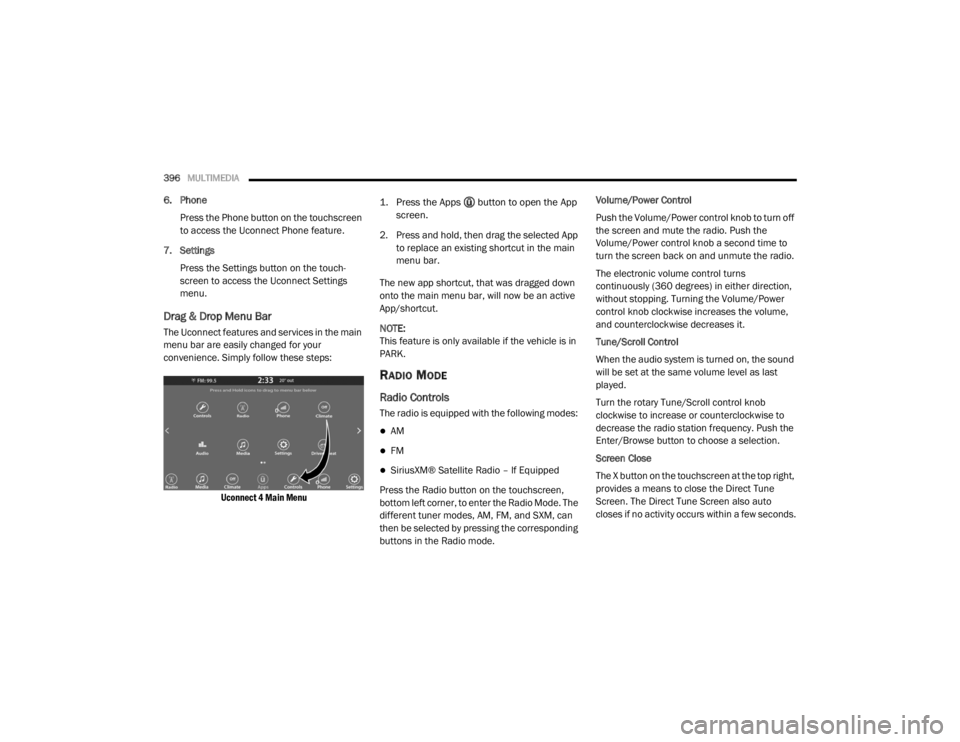
Drag & Drop Menu Bar
The Uconnect features and services in the main
menu bar are easily changed for your
convenience. Simply follow these steps:
Uconnect 4 Main Menu
1. Press the Apps button to open the App
screen.
2. Press and hold, then drag the selected App to replace an existing shortcut in the main
menu bar.
The new app shortcut, that was dragged down
onto the main menu bar, will now be an active
App/shortcut.
NOTE:
This feature is only available if the vehicle is in
PARK.
RADIO MODE
Radio Controls
The radio is equipped with the following modes:
AM
FM
SiriusXM® Satellite Radio – If Equipped
Press the Radio button on the touchscreen,
bottom left corner, to enter the Radio Mode. The
different tuner modes, AM, FM, and SXM, can
then be selected by pressing the corresponding
buttons in the Radio mode. Volume/Power Control
Push the Volume/Power control knob to turn off
the screen and mute the radio. Push the
Volume/Power control knob a second time to
turn the screen back on and unmute the radio.
The electronic volume control turns
continuously (360 degrees) in either direction,
without stopping. Turning the Volume/Power
control knob clockwise increases the volume,
and counterclockwise decreases it.
Tune/Scroll Control
When the audio system is turned on, the sound
will be set at the same volume level as last
played.
Turn the rotary Tune/Scroll control knob
clockwise to increase or counterclockwise to
decrease the radio station frequency. Push the
Enter/Browse button to choose a selection.
Screen Close
The X button on the touchscreen at the top right,
provides a means to close the Direct Tune
Screen. The Direct Tune Screen also auto
closes if no activity occurs within a few seconds.
20_WD_OM_EN_USC_t.book Page 396
Page 399 of 464

MULTIMEDIA397
Seek And Direct Tune Functions
The Seek Up and Down functions are activated
by pressing the double arrow buttons on the
touchscreen to the right and left of the radio
station display or by pushing the left Steering
Wheel Audio Control up or down.
Seek Up
Press and release the Seek Up button on the
touchscreen to tune the radio to the next
listenable station or channel. During a Seek Up
function, if the radio reaches the starting
station after passing through the entire band
two times, the radio will stop at the station
where it began.
Fast Seek Up
Press and hold the Seek Up button on the
touchscreen to advance the radio through the
available stations or channels at a faster rate.
The radio stops at the next available station or
channel when the button on the touchscreen is
released. Seek Down
Press and release the Seek Down button on the
touchscreen to tune the radio to the next
listenable station or channel. During a Seek
Down function, if the radio reaches the starting
station after passing through the entire band
two times, the radio will stop at the station
where it began.
Fast Seek Down
Press and hold the Seek Down button on the
touchscreen to advance the radio through the
available stations or channel at a faster rate.
The radio stops at the next available station or
channel when the button on the touchscreen is
released.
Direct Tune
Press the Tune button on the touchscreen
located at the bottom of the radio screen. The
Direct Tune button on the touchscreen is
available in AM, FM, and SXM radio modes and
can be used to direct tune the radio to a desired
station or channel.Press the available number button on the
touchscreen to begin selecting a desired
station. Once a number has been entered, any
numbers that are no longer possible (stations
that cannot be reached) will become
deactivated/grayed out.
Undo
You can backspace an entry by pressing the
bottom left on the touchscreen.
OK
Once the last digit of a station has been
entered, press the OK button, and the Direct
Tune screen will close. The system will
automatically tune to that station.
The selected Station or Channel number is
displayed in the Direct Tune text box.
Setting Presets
The Presets are available for all Radio Modes,
and are activated by pressing any of the six
Preset buttons on the touchscreen, located at
the top of the screen.
9
20_WD_OM_EN_USC_t.book Page 397
Page 402 of 464

400MULTIMEDIA
Replay
The replay function provides a means to store
and replay up to 22 minutes of music audio and
48 minutes of talk radio. Once the channel is
switched, content in replay memory is lost.
Press the Replay button on the touchscreen.
The play/pause, rewind/forward and live
buttons will display at the top of the screen,
along with the replay time.
You can exit by pressing the Replay button on
the touchscreen, any time during the Replay
mode.
Play/Pause
Press the Pause/Play button on the
touchscreen to pause the playing of live or
rewound content at any time. Play can be
resumed again by pressing of the Pause/Play
button on the touchscreen.
Rewind
Press the RW button on the touchscreen to
rewind the content in steps of five seconds.
Pressing the RW button on the touchscreen for
more than two seconds rewinds the content.
The Radio begins playing the content at the
point at which the press is released. Forward
Each press of the FW button on the touchscreen
forwards the content in steps of five seconds.
Forwarding of the content can only be done
when the content is previously rewound, and
therefore, can not be done for live content. A
continuous press of the FW button on the
touchscreen also forwards the content. The
Radio begins playing the content at the point at
which the press is released.
Live
Press the Live button on the touchscreen to
resume playing of Live content.
Favorites
Press the Fav button on the touchscreen to
activate the favorites menu, which will time out
in five seconds in absence of user interaction.
You can exit the Favorites Menu by a press of
the X in the top right corner.
The favorites feature enables you to set a
favorite artist, or song that is currently playing.
The Radio then uses this information to alert
you when either the favorite song, or favorite
artist are being played at any time by any of the
SiriusXM® Channels.The maximum number of favorites that can be
stored in the Radio is 50.
Fav. Artist:
While the song is playing to set a
Favorite Artist, press the Fav button on the
touchscreen and then the Fav. Artist button on
the touchscreen.
Fav. Song: While the song is playing to set a
Favorite Song, press the Fav button on the
touchscreen and then the Fav Song button on
the touchscreen.
Browse In SXM
Press the Browse button on the touchscreen to
edit Presets, Favorites, Game Zone, and Jump
settings, along with providing the SiriusXM®
Channel List.
This Screen contains many submenus. You can
exit a sub menu to return to a parent menu by
pressing the Back Arrow.
All
Press the All button at the left of the Browse
Screen.
20_WD_OM_EN_USC_t.book Page 400
Page 404 of 464
402MULTIMEDIA
Remove Selection
Press the Remove Selection tab at the top of the
screen. Press the Delete All button on the
touchscreen to delete all of the Selections or
press the Trash Can Icon next to the Selection to
be deleted.
Alert Settings
Press the Alert Setting tab at the top of the
screen. The Alert Settings menu allows you to
choose from “Alert me to on-air games upon
start” or “Alert upon score update” or both when
one or more of your selections is airing on any
of the SiriusXM® channels.
Featured
Press the Featured button, located on the left of
the Browse screen. This feature provides a list
of your featured favorite stations.
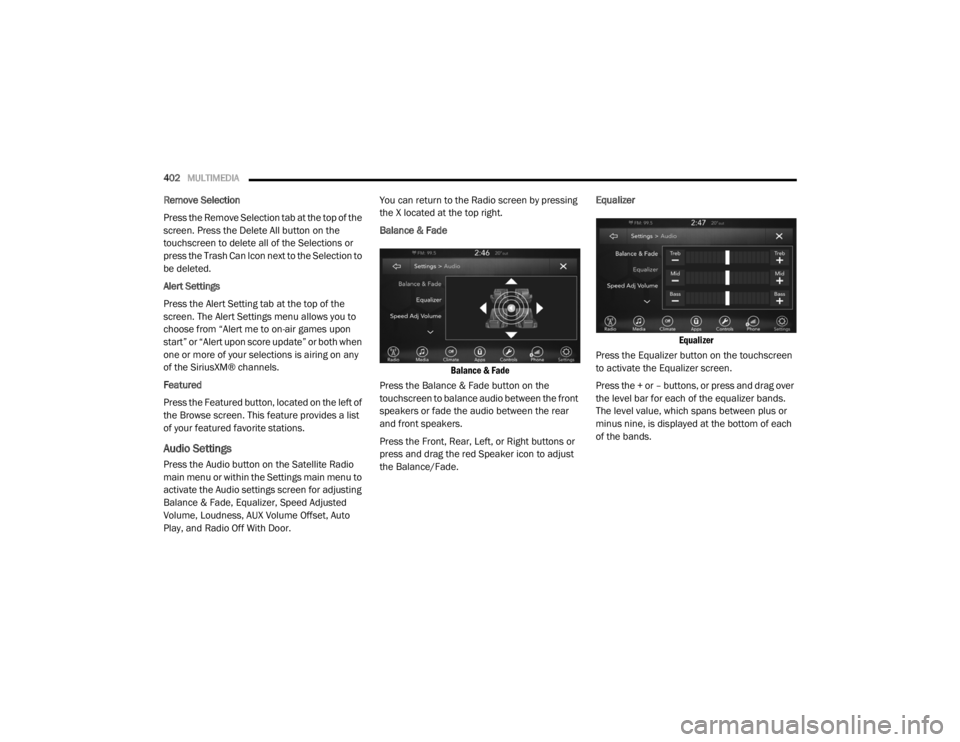
Audio Settings
Press the Audio button on the Satellite Radio
main menu or within the Settings main menu to
activate the Audio settings screen for adjusting
Balance & Fade, Equalizer, Speed Adjusted
Volume, Loudness, AUX Volume Offset, Auto
Play, and Radio Off With Door. You can return to the Radio screen by pressing
the X located at the top right.
Balance & Fade
Balance & Fade
Press the Balance & Fade button on the
touchscreen to balance audio between the front
speakers or fade the audio between the rear
and front speakers.
Press the Front, Rear, Left, or Right buttons or
press and drag the red Speaker icon to adjust
the Balance/Fade. Equalizer
Equalizer
Press the Equalizer button on the touchscreen
to activate the Equalizer screen.
Press the + or – buttons, or press and drag over
the level bar for each of the equalizer bands.
The level value, which spans between plus or
minus nine, is displayed at the bottom of each
of the bands.
20_WD_OM_EN_USC_t.book Page 402