phone DODGE JOURNEY 2020 Owners Manual
[x] Cancel search | Manufacturer: DODGE, Model Year: 2020, Model line: JOURNEY, Model: DODGE JOURNEY 2020Pages: 396, PDF Size: 25.53 MB
Page 2 of 396

WARNING: Operating, servicing and maintaining a passenger vehicle or off-highway \
motor vehicle can expose you to
chemicals including engine exhaust, carbon monoxide, phthalates, and lea\
d, which are known to the State of California to
cause cancer and birth defects or other reproductive harm. To minimize exposure, avoid breathing exhaust, do not idle the
engine except as necessary, service your vehicle in a well-ventilated area and wear gloves or wash\
your hands frequently
when servicing your vehicle. For more information go to www.P65Warnings.ca.gov/passenger-vehicle.
This Owner’s Manual illustrates and describes the operation of features and equipme\
nt that are either standard or optional on this vehicle. This manual may also include
a description of features and equipment that are no longer available or \
were not ordered on this vehicle. Please disregard any features and equipment described in this
manual that are not on this vehicle. FCA US LLC reserves the right to make changes in design and specificat\
ions, and/or make additions to or improvements to its
products without imposing any obligation upon itself to install them on \
products previously manufactured.
With respect to any vehicles sold in Canada, the name FCA US LLC shall b\
e deemed to be deleted and the name FCA Canada Inc. used in substitution therefore.
If you are the first registered retail owner of your vehicle, you may \
obtain a complimentary printed copy of the Warranty Booklet by calling 1-800-423-6343 (U.S.) or
1-800-387-1143 (Canada) or by contacting your dealer.
This Owner’s Manual is intended to familiarize you with the important features of y\
our vehicle. Your most up-to-date Owner’s Manual, Navigation/Uconnect manuals and
Warranty Booklet can be found by visiting the website on the back cover. U.S. residents can purchase replacement kits by visiting www.techauthority.com and Canadian
residents can purchase replacement kits by calling 1-800-387-1143.
The driver’s primary responsibility is the safe operation of the vehicle. Driving w\
hile distracted can result in loss of vehicle control, resulting in an accident and
personal injury. FCA US LLC strongly recommends that the driver use extreme caution whe\
n using any device or feature that may take their attention off the road.
Use of any electrical devices, such as cellular telephones, computers, p\
ortable radios, vehicle navigation or other devices, by the driver while the vehicle is moving
is dangerous and could lead to a serious accident. Texting while driving is also dangerous and should never be done while th\
e vehicle is moving. If you find yourself
unable to devote your full attention to vehicle operation, pull off the \
road to a safe location and stop your vehicle. Some states or provinces prohibit the use of
cellular telephones or texting while driving. It is always the driver’\
s responsibility to comply with all local laws.
This Owner’s Manual has been prepared to help you get acquainted with your new Dodg\
e brand vehicle and to provide a convenient reference source
for common questions.
Not all features shown in this manual may apply to your vehicle. For add\
itional information, visit www.mopar.com (U.S.), www.mopar.ca (Canada) or your local
Dodge brand dealer.
Drunk driving is one of the most frequent causes of accidents. Your driving ability can be seriously impaired with blood alcohol levels
far below the legal minimum. If you are drinking, don’t drive. Ride with a designated non-drinking driver, call a cab, a friend or use
public transportation.
DRIVING AND ALCOHOL
Driving after drinking can lead to an accident. Your perceptions are less sharp, your reflexes are slower and your judg\
ment is impaired
when you have been drinking. Never drink and then drive.
WARNING
Page 8 of 396
6
MULTIMEDIA
CYBERSECURITY ............................................... 265
UCONNECT SETTINGS .. .................................... 266
Customer Programmable
Features — Radio 4.3 Settings. .
................266
Customer Programmable Features —
Uconnect 3/3 NAV Settings .
.
....................274
SAFETY AND GENERAL INFORMATION . . ........ 285
Safety Guidelines .. .....................................285
RADIO 4.3 . .......................................................... 286
I ntroduction .. ..............................................286
Radio Mode . . ..............................................287
Media Mode . . .............................................291
Uconnect Phone (4.3) . . .............................294
More Mode . . ...............................................305
UCONNECT 3/3 NAV WITH 8.4-INCH
DISPLAY . ............................................................. 306
I
ntroduction To the Uconnect 3/3 NAV
With 8.4-Inch Display. .
...............................306
Radio Mode . . ..............................................307
Media Mode . . .............................................316
Uconnect Phone. . .......................................324
Navigation Mode — If Equipped . . ..............339
More Mode . . ...............................................363
STEERING WHEEL AUDIO CONTROLS — IF
EQUIPPED . .
........................................................ 363
Radio Operation .. .......................................364
Media Mode . . .............................................364
IPOD®/USB/MP3 CONTROL . . ......................... 364UCONNECT MULTIMEDIA — VIDEO
ENTERTAINMENT SYSTEM (VES)
(IF EQUIPPED) . .
..................................................365
Getting Started .. ........................................ 365
Single Video Screen. . ................................. 365
Play Video Games . . .................................... 365
Listen To An Audio Source On Channel 2 While
A Video Is Playing On Channel 1 . .
............. 366
Play A DVD Using The Touchscreen
Radio . ......................................................... 367
V
ES Remote Control — If Equipped . . ........ 367
Remote Control Storage . . .......................... 369
Locking The Remote Control. . ................... 369
Replacing The Remote Control
Batteries . .................................................... 369
I
mportant Notes For Single Video Screen
System . ....................................................... 369
U
connect Headphones Operation . . .......... 370
Controls . ..................................................... 370
R eplacing The Headphone Batteries . . ..... 371
Accessibility. . .............................................. 371
Stereo Headphone Lifetime Limited
Warranty . .................................................... 371
S
ystem Information . . ................................. 372
RADIO OPERATION AND MOBILE PHONES . . .. 376
Regulatory And Safety Information.. ......... 377
VOICE COMMAND (UCONNECT 3/3 NAV) .
..... 378
U
connect 3/3 NAV ..................................... 378
U
connect Voice Commands . . .................... 379
CUSTOMER ASSISTANCE
SUGGESTIONS FOR OBTAINING SERVICE FOR
YOUR VEHICLE .................................................. 380
Prepare For The Appointment .. ................ 380
Prepare A List. . ........................................... 380
Be Reasonable With Requests . . ............... 380
IF YOU NEED ASSISTANCE . . ............................ 380
FCA US LLC Customer Center ..
................. 381
FCA Canada Inc. Customer Center . . ......... 381
In Mexico Contact . . .................................... 381
Puerto Rico And US Virgin Islands . . .......... 381
Customer Assistance For The Hearing Or
Speech Impaired (TDD/TTY) . .
................... 381
Service Contract . . ..................................... 381
WARRANTY INFORMATION . . ............................ 382
MOPAR PARTS.. ................................................. 382
REPORTING SAFETY DEFECTS .. ...................... 382
In The 50 United States And
Washington, D.C. . .
..................................... 382
In Canada . .................................................. 383
P
UBLICATION ORDER FORMS . . ...................... 383
Page 11 of 396
9
GETTING TO KNOW YOUR VEHICLE
KEYS
KEY FOB
Your vehicle uses a keyless ignition system.
The ignition system consists of a key fob with
R e
mote Keyless Entry (RKE) and a START/STOP
push button ignition system. The Remote
Keyless Entry system consists of a key fob and
Keyless Enter-N-Go feature if equipped.
NOTE:
The key fob may not be found if it is located next
t o
a mobile phone, laptop or other electronic
device; these devices may block the key fob’s
wireless signal.
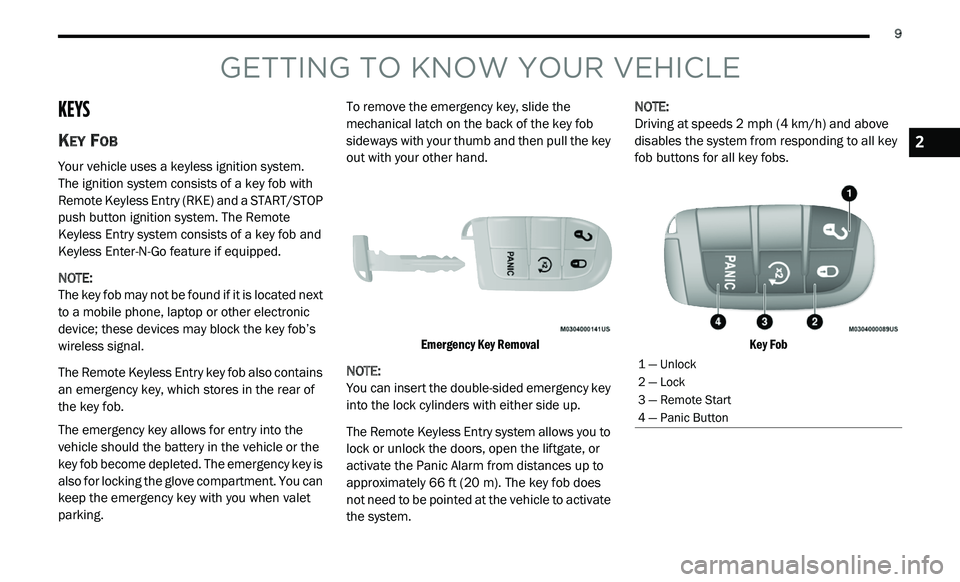
The Remote Keyless Entry key fob also contains
an
emergency key, which stores in the rear of
the key fob.
The emergency key allows for entry into the
v e
hicle should the battery in the vehicle or the
key fob become depleted. The emergency key is
also for locking the glove compartment. You can
keep the emergency key with you when valet
parking. To remove the emergency key, slide the
m
e
chanical latch on the back of the key fob
sideways with your thumb and then pull the key
out with your other hand.
Emergency Key Removal
NOTE:
You can insert the double-sided emergency key
in
to the lock cylinders with either side up.
The Remote Keyless Entry system allows you to
l o
ck or unlock the doors, open the liftgate, or
activate the Panic Alarm from distances up to
approximately 66 ft (20 m). The key fob does
n o
t need to be pointed at the vehicle to activate
the system. NOTE:
Driving at speeds 2 mph (4 km/h) and above
d i
sables the system from responding to all key
fob buttons for all key fobs.
Key Fob
1 — Unlock
2 — Lock
3 — Remote Start
4 — Panic Button
2
Page 23 of 396
GETTING TO KNOW YOUR VEHICLE 21
NOTE:
Use the Automatic Unlock Doors On Exit feature
i n
accordance with local laws.
KEYLESS ENTER-N-GO — PASSIVE
E
NTRY (IF EQUIPPED)
The Passive Entry system is an enhancement to
the vehicle’s Remote Keyless Entry (RKE)
system and a feature of Keyless Enter-N-Go.
This feature allows you to lock and unlock the
vehicle’s door(s) without having to push the key
fob lock or unlock buttons.
NOTE:
Passive Entry may be programmed on/off;
refer to “Uconnect Settings” in “Multimedia”
for further information.
If wearing gloves on your hands, or if it has
been raining/snowing on the Passive Entry
door handle, the unlock sensitivity can be
affected, resulting in a slower response time.
If the vehicle is unlocked by Passive Entry
and no door is opened within 60 seconds, the
vehicle will re-lock and if equipped will arm
the security alarm.
The key fob may not be detected by the
vehicle Passive Entry system if it is located
next to a mobile phone, laptop, or other elec -
tronic device; these devices may interfere
w i
th the key fob’s wireless signal and prevent
the Passive Entry system from locking/
unlocking the vehicle.
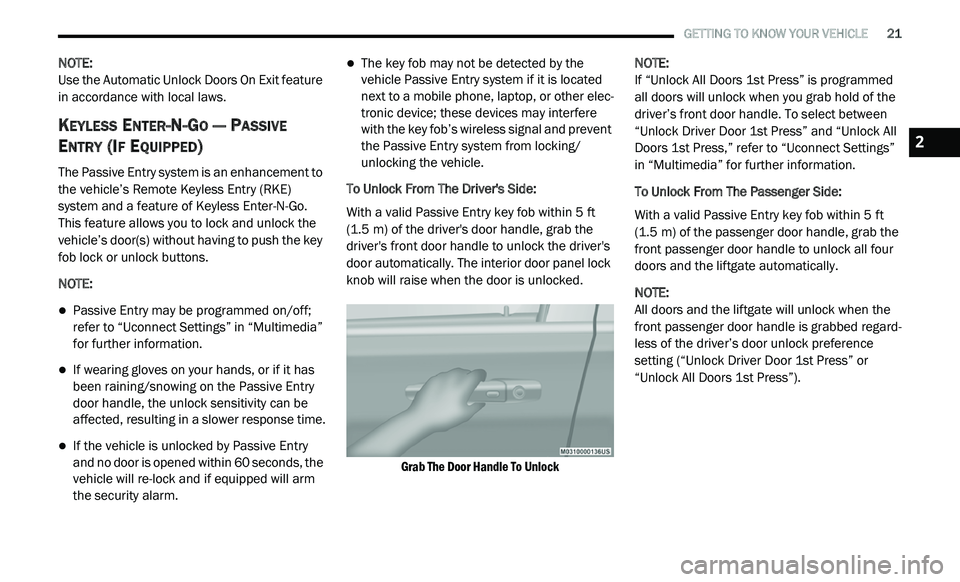
To Unlock From The Driver's Side:
With a valid Passive Entry key fob within 5 ft
( 1
.5 m) of the driver's door handle, grab the
d r
iver's front door handle to unlock the driver's
door automatically. The interior door panel lock
knob will raise when the door is unlocked.
Grab The Door Handle To Unlock
NOTE:
If “Unlock All Doors 1st Press” is programmed
a l
l doors will unlock when you grab hold of the
driver’s front door handle. To select between
“Unlock Driver Door 1st Press” and “Unlock All
Doors 1st Press,” refer to “Uconnect Settings”
in “Multimedia” for further information.
To Unlock From The Passenger Side:
With a valid Passive Entry key fob within 5 ft
( 1
.5 m) of the passenger door handle, grab the
f r
ont passenger door handle to unlock all four
doors and the liftgate automatically.
NOTE:
All doors and the liftgate will unlock when the
fr
ont passenger door handle is grabbed regard -
less of the driver’s door unlock preference
s e
tting (“Unlock Driver Door 1st Press” or
“Unlock All Doors 1st Press”).
2
Page 91 of 396
GETTING TO KNOW YOUR VEHICLE 89
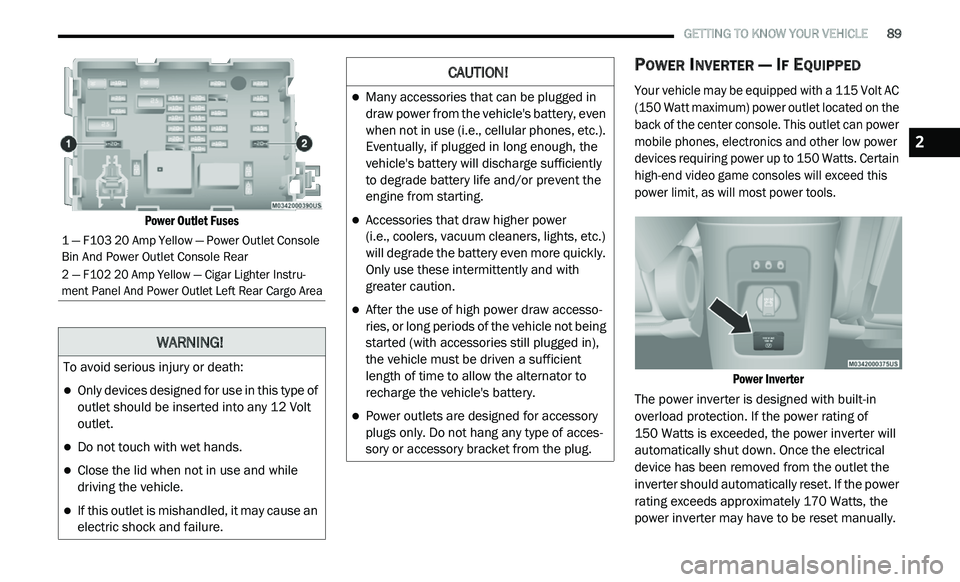
Power Outlet Fuses
POWER INVERTER — IF EQUIPPED
Your vehicle may be equipped with a 115 Volt AC
(150 Watt maximum) power outlet located on the
back of the center console. This outlet can power
mobile phones, electronics and other low power
devices requiring power up to 150 Watts. Certain
high-end video game consoles will exceed this
power limit, as will most power tools.
Power Inverter
The power inverter is designed with built-in
o v
erload protection. If the power rating of
150 Watts is exceeded, the power inverter will
a u
tomatically shut down. Once the electrical
device has been removed from the outlet the
inverter should automatically reset. If the power
rating exceeds approximately 170 Watts, the
power inverter may have to be reset manually.
1 — F103 20 Amp Yellow — Power Outlet Console
Bin And Power Outlet Console Rear
2 — F102 20 Amp Yellow — Cigar Lighter Instru -
ment Panel And Power Outlet Left Rear Cargo Area
WARNING!
To avoid serious injury or death:
Only devices designed for use in this type of
outlet should be inserted into any 12 Volt
outlet.
Do not touch with wet hands.
Close the lid when not in use and while
driving the vehicle.
If this outlet is mishandled, it may cause an
electric shock and failure.
CAUTION!
Many accessories that can be plugged in
draw power from the vehicle's battery, even
when not in use (i.e., cellular phones, etc.).
Eventually, if plugged in long enough, the
vehicle's battery will discharge sufficiently
to degrade battery life and/or prevent the
engine from starting.
Accessories that draw higher power
(i.e., coolers, vacuum cleaners, lights, etc.)
w i
ll degrade the battery even more quickly.
Only use these intermittently and with
greater caution.
After the use of high power draw accesso -
ries, or long periods of the vehicle not being
s t
arted (with accessories still plugged in),
the vehicle must be driven a sufficient
length of time to allow the alternator to
recharge the vehicle's battery.
Power outlets are designed for accessory
plugs only. Do not hang any type of acces -
sory or accessory bracket from the plug.
2
Page 267 of 396
265
MULTIMEDIA
CYBERSECURITY
Your vehicle may be a connected vehicle and
may be equipped with both wired and wireless
networks. These networks allow your vehicle to
send and receive information. This information
allows systems and features in your vehicle to
function properly.
Your vehicle may be equipped with certain
se
curity features to reduce the risk of
unauthorized and unlawful access to vehicle
systems and wireless communications. Vehicle
software technology continues to evolve over
time and FCA US LLC, working with its suppliers,
evaluates and takes appropriate steps as
needed. Similar to a computer or other devices,
your vehicle may require software updates to
improve the usability and performance of your
systems or to reduce the potential risk of
unauthorized and unlawful access to your
vehicle systems.
The risk of unauthorized and unlawful access to
y o
ur vehicle systems may still exist, even if the
most recent version of vehicle software (such as
Uconnect software) is installed. NOTE:
FCA US LLC or your dealer may contact you
directly regarding software updates.
To help further improve vehicle security and
minimize the potential risk of a security
breach, vehicle owners should:
Routinely check
www.driveuconnect.com/
support/software-update.html
(US Resi-
dents) or
www.driveuconnect.ca
(Canadian
Residents) to learn about available Uconnect
s o
ftware updates.
Only connect and use trusted media
devices (e.g. personal mobile phones,
USBs, CDs).
Privacy of any wireless and wired
c o
mmunications cannot be assured.
Third parties may unlawfully intercept
i n
formation and private communications
without your consent. For further information,
refer to “Onboard Diagnostic System (OBD II)
Cybersecurity” in “Getting To Know Your
Instrument Panel”.
WARNING!
It is not possible to know or to predict all of
the possible outcomes if your vehicle’s
systems are breached. It may be possible
that vehicle systems, including safety
related systems, could be impaired or a
loss of vehicle control could occur that may
result in an accident involving serious injury
or death.
ONLY insert media (e.g., USB, SD card, or
CD) into your vehicle if it came from a
trusted source. Media of unknown origin
could possibly contain malicious software,
and if installed in your vehicle, it may
increase the possibility for vehicle systems
to be breached.
As always, if you experience unusual
vehicle behavior, take your vehicle to your
nearest authorized dealer immediately.9
Page 268 of 396
266 MULTIMEDIA
UCONNECT SETTINGS
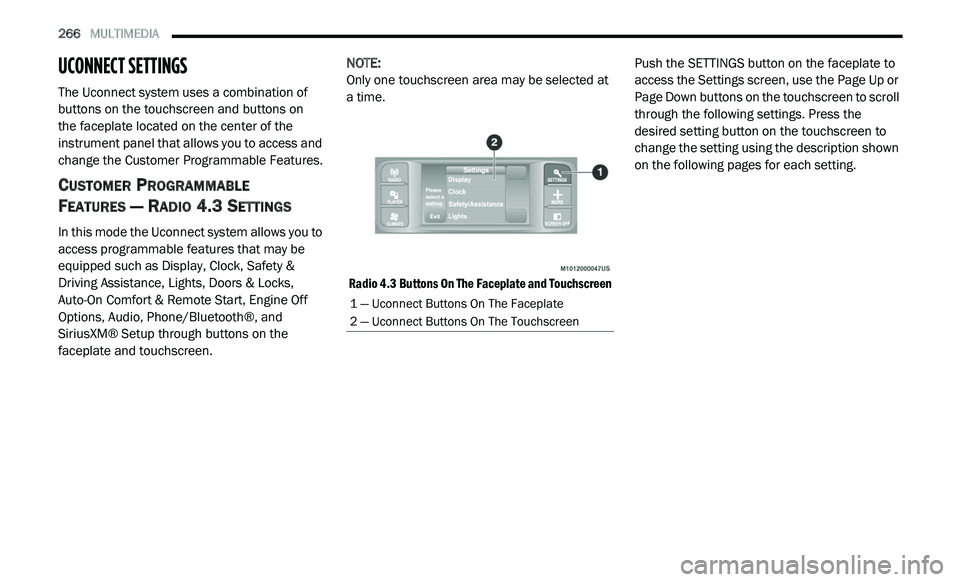
The Uconnect system uses a combination of
buttons on the touchscreen and buttons on
the faceplate located on the center of the
i n
strument panel that allows you to access and
change the Customer Programmable Features.
CUSTOMER PROGRAMMABLE
F
EATURES — RADIO 4.3 SETTINGS
In this mode the Uconnect system allows you to
access programmable features that may be
equipped such as Display, Clock, Safety &
Driving Assistance, Lights, Doors & Locks,
Auto-On Comfort & Remote Start, Engine Off
Options, Audio, Phone/Bluetooth®, and
SiriusXM® Setup through buttons on the
faceplate and touchscreen. NOTE:
Only one touchscreen area may be selected at
a
time.
Radio 4.3 Buttons On The Faceplate and Touchscreen
Push the SETTINGS button on the faceplate to
a
c
cess the Settings screen, use the Page Up or
Page Down buttons on the touchscreen to scroll
through the following settings. Press the
desired setting button on the touchscreen to
change the setting using the description shown
on the following pages for each setting.
1 — Uconnect Buttons On The Faceplate
2 — Uconnect Buttons On The Touchscreen
Page 273 of 396
MULTIMEDIA 271
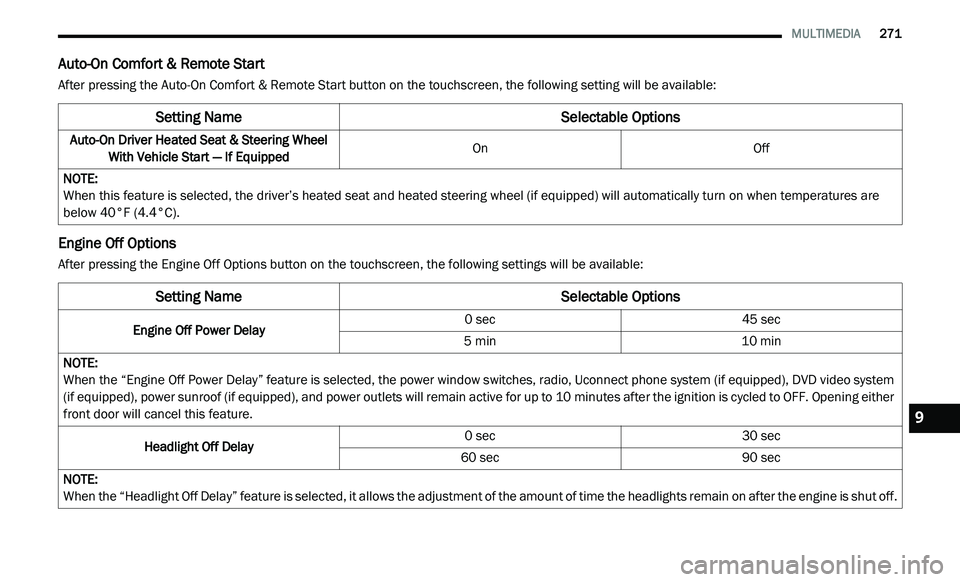
Auto-On Comfort & Remote Start
After pressing the Auto-On Comfort & Remote Start button on the touchscreen, the following setting will be available:
Engine Off Options
After pressing the Engine Off Options button on the touchscreen, the following settings will be available:
Setting Name Selectable Options
Auto-On Driver Heated Seat & Steering Wheel
With Vehicle Start — If Equipped On
Off
NOTE:
When this feature is selected, the driver’s heated seat and heated steering wheel (if equipped) will automatically turn on when temperatures are
b e
low 40°F (4.4°C).
Setting NameSelectable Options
Engine Off Power Delay 0 sec
45 sec
5 min 10 min
NOTE:
When the “Engine Off Power Delay” feature is selected, the power window switches, radio, Uconnect phone system (if equipped), DVD video system
( i
f equipped), power sunroof (if equipped), and power outlets will remain active for up to 10 minutes after the ignition is cycled to OFF. Opening either
f r
ont door will cancel this feature.
Headlight Off Delay 0 sec
30 sec
60 sec 90 sec
NOTE:
When the “Headlight Off Delay” feature is selected, it allows the adjustment of the amount of time the headlights remain on after the engine is shut off.
9
Page 275 of 396
MULTIMEDIA 273
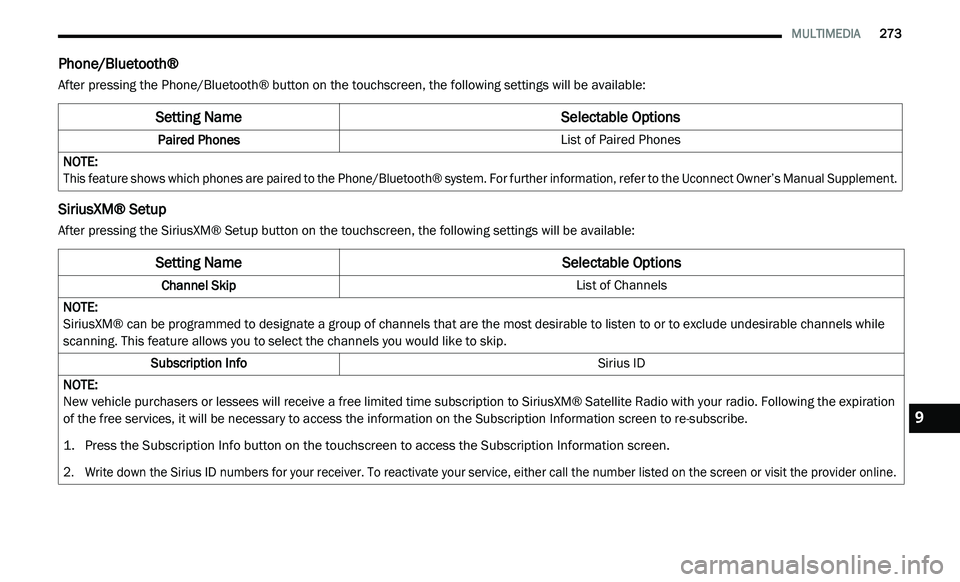
Phone/Bluetooth®
After pressing the Phone/Bluetooth® button on the touchscreen, the following settings will be available:
SiriusXM® Setup
After pressing the SiriusXM® Setup button on the touchscreen, the following settings will be available:
Setting Name Selectable Options
Paired Phones List of Paired Phones
NOTE:
This feature shows which phones are paired to the Phone/Bluetooth® system. For further information, refer to the Uconnect Owner’s Manual Supplement.
Setting NameSelectable Options
Channel Skip List of Channels
NOTE:
SiriusXM® can be programmed to designate a group of channels that are the most desirable to listen to or to exclude undesirable channels while
s c
anning. This feature allows you to select the channels you would like to skip.
Subscription Info Sirius ID
NOTE:
New vehicle purchasers or lessees will receive a free limited time subscription to SiriusXM® Satellite Radio with your radio. Following the expiration
of
the free services, it will be necessary to access the information on the Subscription Information screen to re-subscribe.
1. P ress the Subscription Info button on the touchscreen to access the Subscription Information screen.
2
. W rite down the Sirius ID numbers for your receiver. To reactivate your service, either call the number listed on the screen or visit the provider online.
9
Page 276 of 396
274 MULTIMEDIA
CUSTOMER PROGRAMMABLE FEATURES —
U
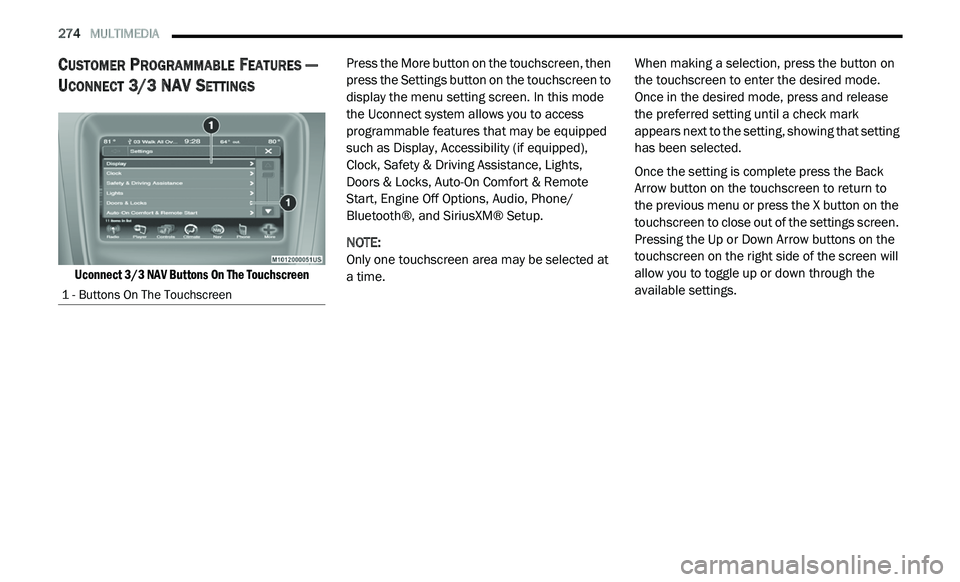
CONNECT 3/ 3 NAV SETTINGS
Uconnect 3/3 NAV Buttons On The Touchscreen
Press the More button on the touchscreen, then
p
r
ess the Settings button on the touchscreen to
display the menu setting screen. In this mode
the Uconnect system allows you to access
programmable features that may be equipped
such as Display, Accessibility (if equipped),
Clock, Safety & Driving Assistance, Lights,
Doors & Locks, Auto-On Comfort & Remote
Start, Engine Off Options, Audio, Phone/
Bluetooth®, and SiriusXM® Setup.
NOTE:
Only one touchscreen area may be selected at
a
time. When making a selection, press the button on
t
h
e touchscreen to enter the desired mode.
Once in the desired mode, press and release
the preferred setting until a check mark
appears next to the setting, showing that setting
has been selected.
Once the setting is complete press the Back
A r
row button on the touchscreen to return to
the previous menu or press the X button on the
touchscreen to close out of the settings screen.
Pressing the Up or Down Arrow buttons on the
touchscreen on the right side of the screen will
allow you to toggle up or down through the
available settings.
1 - Buttons On The Touchscreen