instrument panel DODGE VIPER 2015 VX / 3.G Manual Online
[x] Cancel search | Manufacturer: DODGE, Model Year: 2015, Model line: VIPER, Model: DODGE VIPER 2015 VX / 3.GPages: 400, PDF Size: 9.59 MB
Page 194 of 400
NOTE:The distance measurement will be aborted if the
brake pedal is released before the vehicle comes to a
complete stop.
•Brake Speed
Displays the speed the vehicle is traveling when the
brake pedal is depressed.
NOTE:Brake Distance and Speed timers will only dis-
play#ready#when vehicle is traveling at greater than 30
MPH (48 km/h).
G-Force
When selected, this screen displays all four G-Force
values (two lateral and two longitudinal) as well as
steering angle.
When a G-Force greater than zero is measured, the
display will update the value real-time. As the G-Force
falls, the peak forces will continue to display.
Gauges 1
When selected, this screen displays the following values:
•Oil Temperature
Displays the actual oil temperature.
•Oil Pressure
Displays the actual oil pressure.
•Battery Voltage
Displays the actual battery voltage.
Gauges 2
When selected, this screen displays the following values:
•Coolant Temperature
Displays the actual coolant temperature.
•Oil Temperature
Displays the actual oil temperature.
192 UNDERSTANDING YOUR INSTRUMENT PANEL
Page 195 of 400
•Intake Air Temperature
Displays the actual intake air temperature.
•Oil Pressure
Displays the actual oil pressure.
•Battery Voltage
Displays the actual battery voltage.
Engine
When selected, this screen displays the following values:
•Speed (mph)
Displays the actual speed.
•Horsepower (hp)
Displays the actual horsepower.
•Torque (ft-lb)
Displays the actual torque.
•Oil Pressure (psi)
Displays the actual oil pressure.
Options
When selected, this screen allows you to set your SRT
home page picture, and configure the vehicle color.
Uconnect® RADIOS — IF EQUIPPED
For detailed information about your Uconnect® radio,
refer to your Uconnect® Supplement Manual.
4
UNDERSTANDING YOUR INSTRUMENT PANEL 193
Page 196 of 400
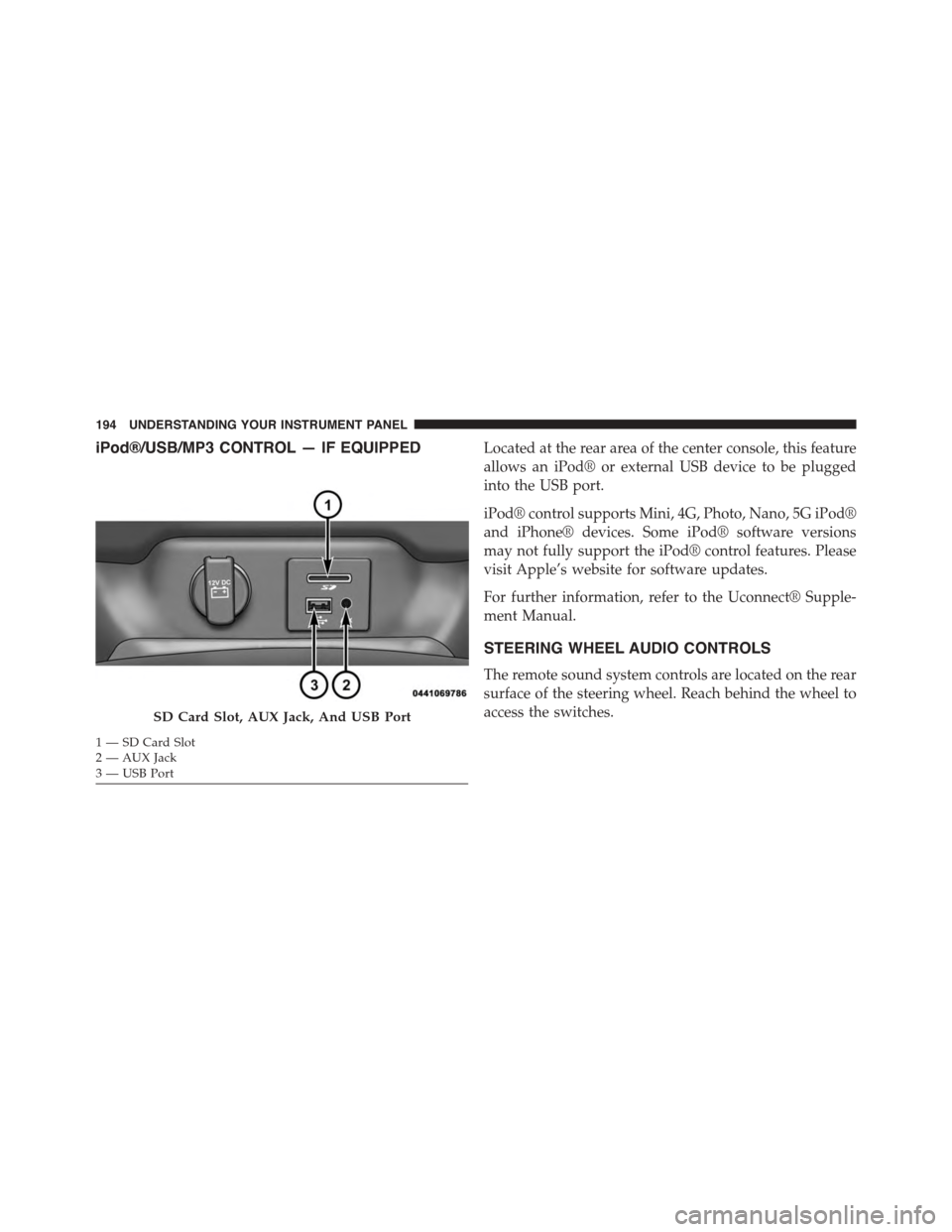
iPod®/USB/MP3 CONTROL — IF EQUIPPEDLocated at the rear area of the center console, this feature
allows an iPod® or external USB device to be plugged
into the USB port.
iPod® control supports Mini, 4G, Photo, Nano, 5G iPod®
and iPhone® devices. Some iPod® software versions
may not fully support the iPod® control features. Please
visit Apple’s website for software updates.
For further information, refer to the Uconnect® Supple-
ment Manual.
STEERING WHEEL AUDIO CONTROLS
The remote sound system controls are located on the rear
surface of the steering wheel. Reach behind the wheel to
access the switches.SD Card Slot, AUX Jack, And USB Port
1—SDCardSlot2 — AUX Jack3—USBPort
194 UNDERSTANDING YOUR INSTRUMENT PANEL
Page 197 of 400
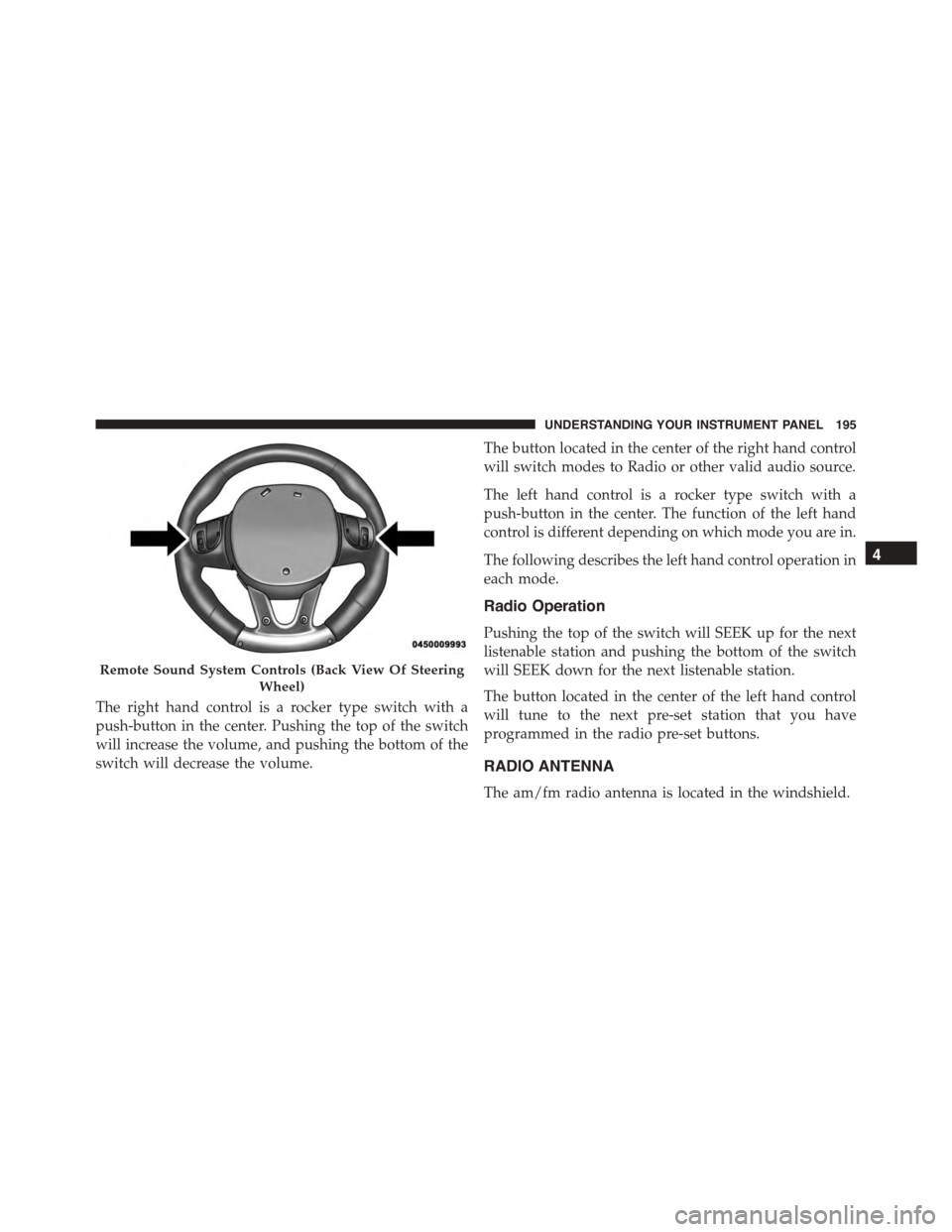
The right hand control is a rocker type switch with a
push-button in the center. Pushing the top of the switch
will increase the volume, and pushing the bottom of the
switch will decrease the volume.
The button located in the center of the right hand control
will switch modes to Radio or other valid audio source.
The left hand control is a rocker type switch with a
push-button in the center. The function of the left hand
control is different depending on which mode you are in.
The following describes the left hand control operation in
each mode.
Radio Operation
Pushing the top of the switch will SEEK up for the next
listenable station and pushing the bottom of the switch
will SEEK down for the next listenable station.
The button located in the center of the left hand control
will tune to the next pre-set station that you have
programmed in the radio pre-set buttons.
RADIO ANTENNA
The am/fm radio antenna is located in the windshield.
Remote Sound System Controls (Back View Of Steering
Wheel)
4
UNDERSTANDING YOUR INSTRUMENT PANEL 195
Page 198 of 400
The Satellite/Navigation antenna is located in the rear
liftgate, while the cellular phone antenna is on the
windshield behind the interior rearview mirror.
RADIO OPERATION AND MOBILE PHONES
Under certain conditions, the mobile phone being on in
your vehicle can cause erratic or noisy performance from
your radio. This condition may be lessened or eliminated
by relocating the mobile phone antenna. This condition is
not harmful to the radio. If your radio performance does
not satisfactorily “clear” by the repositioning of the
antenna, it is recommended that the radio volume be
turned down or off during mobile phone operation when
not using Uconnect® (if equipped).
General Information
This device complies with Part 15 of the FCC rules and
RSS 210 of Industry Canada. Operation is subject to the
following conditions:
•Changes or modifications not expressly approved by
the party responsible for compliance could void the
user’s authority to operate the equipment.
•This device may not cause harmful interference.
•This device must accept any interference received,
including interference that may cause undesired op-
eration.
CLIMATE CONTROLS
The Climate Control System allows you to regulate the
temperature, amount, and direction of air circulating
throughout the vehicle. The controls are located on the
instrument panel below the radio.
196 UNDERSTANDING YOUR INSTRUMENT PANEL
Page 199 of 400
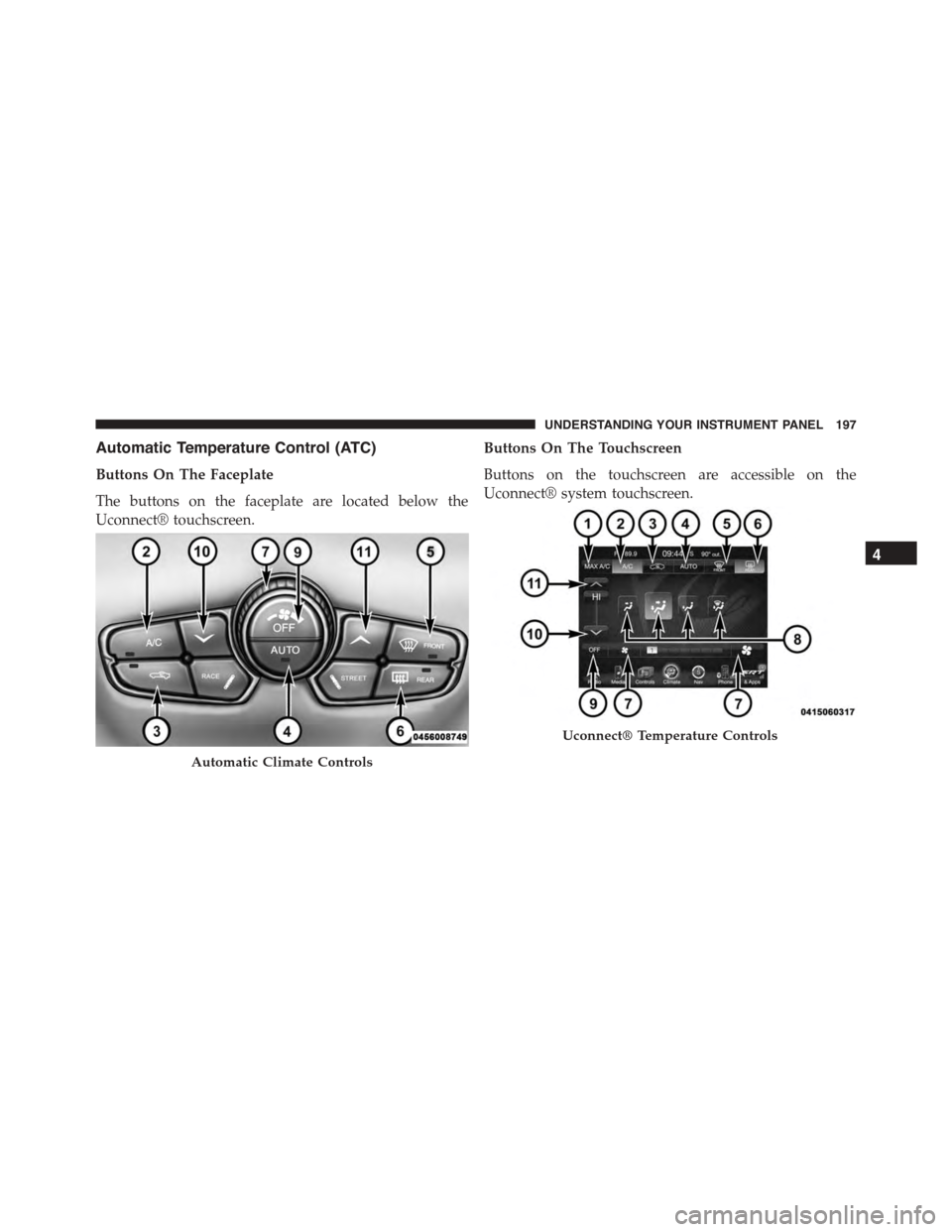
Automatic Temperature Control (ATC)
Buttons On The Faceplate
The buttons on the faceplate are located below the
Uconnect® touchscreen.
Buttons On The Touchscreen
Buttons on the touchscreen are accessible on the
Uconnect® system touchscreen.
Automatic Climate Controls
Uconnect® Temperature Controls
4
UNDERSTANDING YOUR INSTRUMENT PANEL 197
Page 200 of 400
Button Descriptions (Applies To Both Buttons On The
Faceplate And Buttons On The Touchscreen)
1. MAX A/C Button
Press and release to change the current setting, the
indicator illuminates when MAX A/C is ON. Performing
this function again will cause the MAX A/C operation to
switch into manual mode and the MAX A/C indicator
will turn off.
2. A/C Button
Press and release to change the current setting, the
indicator illuminates when A/C is ON. Performing this
function again will cause the A/C operation to switch
into manual mode and the A/C indicator will turn off.
3. Recirculation Button
Press and release to change the current setting, the
indicator illuminates when ON.
4. AUTO Temperature Control
Controls airflow temperature, distribution, volume, and
the amount of air recirculation automatically. Press and
release to select. Refer to “Automatic Operation” for
more information. Performing this function will cause
the ATC to switch between manual mode and automatic
modes.
5. Front Defrost Button
Press and release to change the current airflow setting to
Defrost mode. The indicator illuminates when this fea-
ture is ON. Performing this function will cause the ATC
to switch into manual mode. The blower speed may
increase when Defrost mode is selected. If the front
defrost mode is turned off the climate system will return
the previous setting.
198 UNDERSTANDING YOUR INSTRUMENT PANEL
Page 201 of 400
6. Rear Defrost Button
Press and release this button to turn on the rear window
defroster and the heated outside mirrors (if equipped).
An indicator will illuminate when the rear window
defroster is on. The rear window defroster automatically
turns off after 10 minutes.
CAUTION!
Failure to follow these cautions can cause damage to
the heating elements:
•Use care when washing the inside of the rear
window. Do not use abrasive window cleaners on
the interior surface of the window. Use a soft cloth
and a mild washing solution, wiping parallel to the
heating elements. Labels can be peeled off after
soaking with warm water.
(Continued)
CAUTION!(Continued)
•Do not use scrapers, sharp instruments, or abrasive
window cleaners on the interior surface of the
window.
•Keep all objects a safe distance from the window.
7. Blower Control
Blower control is used to regulate the amount of air
forced through the climate system. There are seven
blower speeds available. Adjusting the blower will cause
automatic mode to switch to manual operation. The
speeds can be selected using either the buttons on the
faceplate or the buttons on the touchscreen as follows:
Button On The Faceplate
The blower speed increases as you turn the control
clockwise from the lowest blower setting. The blower
speed decreases as you turn the knob counterclockwise.
4
UNDERSTANDING YOUR INSTRUMENT PANEL 199
Page 202 of 400
Button On The Touchscreen
Use the small blower icon to reduce the blower setting
and the large blower icon to increase the blower setting.
Blower can also be selected by pressing the blower bar
area between the icons.
8. Modes
The airflow distribution mode can be adjusted so air
comes from the instrument panel outlets, floor outlets,
demist outlets and defrost outlets. The Mode settings are
as follows:
•Panel Mode
Air comes from the outlets in the instrument
panel. Each of these outlets can be individu-
ally adjusted to direct the flow of air. The air
vanes of the center outlets and outboard outlets can
be moved up and down or side to side to regulate
airflow direction. There is a shut off wheel located
below the air vanes to shut off or adjust the amount
of airflow from these outlets.
•Bi-Level Mode
Air comes from the instrument panel outlets
and floor outlets. A slight amount of air is
directed through the defrost and side window
demister outlets.
NOTE:BI-LEVEL mode is designed under comfort con-
ditions to provide cooler air out of the panel outlets and
warmer air from the floor outlets.
•Floor Mode
Air comes from the floor outlets. A slight
amount of air is directed through the defrost
and side window demister outlets.
200 UNDERSTANDING YOUR INSTRUMENT PANEL
Page 203 of 400
•Mix Mode
Air comes from the floor, defrost and side
window demist outlets. This mode works best
in cold or snowy conditions.
9. Climate Control OFF Button
Press and release this button to turn the Climate Control
ON/OFF.
10. Temperature Control Down Button
Push the button for cooler temperature settings.
11. Temperature Control Up Button
Push the button for warmer temperature settings.
Automatic Operation
1. Push the AUTO button on the faceplate, or the AUTO
button on the touchscreen on the Automatic Tempera-
ture Control (ATC) Panel.
2. Next, adjust the temperature you would like the
system to maintain by adjusting the driver and pas-
senger temperature control buttons. Once the desired
temperature is displayed, the system will achieve and
automatically maintain that comfort level.
3. When the system is set up for your comfort level, it is
not necessary to change the settings. You will experi-
ence the greatest efficiency by simply allowing the
system to function automatically.
NOTE:
•It is not necessary to move the temperature settings for
cold or hot vehicles. The system automatically adjusts
the temperature, mode, and blower speed to provide
comfort as quickly as possible.
•The temperature can be displayed in U.S. or Metric
units by selecting the US/M customer-programmable
4
UNDERSTANDING YOUR INSTRUMENT PANEL 201