light FIAT 500X 2022 Workshop Manual
[x] Cancel search | Manufacturer: FIAT, Model Year: 2022, Model line: 500X, Model: FIAT 500X 2022Pages: 312, PDF Size: 13.26 MB
Page 119 of 312
STARTING AND OPERATING117
(Continued)
Towing Requirements — Tires
Do not attempt to tow a trailer while using a
compact spare tire.
Proper tire inflation pressures are essential to
the safe and satisfactory operation of your
vehicle Ú page 276.
Check the trailer tires for proper tire inflation
pressures before trailer usage.
Check for signs of tire wear or visible tire
damage before towing a trailer Ú page 276.
For the proper tire replacement procedures
Úpage 276. Replacing tires with a higher load
carrying capacity will not increase the vehicle's
GVWR and GAWR limits.
Towing Requirements — Trailer Brakes
Do not interconnect the hydraulic brake system
or vacuum system of your vehicle with that of
the trailer. This could cause inadequate braking
and possible personal injury.
An electronically actuated trailer brake
controller is required when towing a trailer with
electronically actuated brakes. When towing a
trailer equipped with a hydraulic surge actuated
brake system, an electronic brake controller is
not required.
Trailer brakes are recommended for trailers
over 1,000 lb (453 kg) and required for trailers
in excess of 2,000 lb (907 kg).Towing Requirements — Trailer Lights And
Wiring (If Equipped)
Whenever you pull a trailer, regardless of the trailer
size, stoplights and turn signals on the trailer are
required for motoring safety.
The Trailer Tow Package may include a four- and
seven-pin wiring harness. Use a factory approved
trailer harness and connector.
NOTE:Do not cut or splice wiring into the vehicles wiring
harness.
GAWR
Tongue weight rating for the trailer hitch
utilized.
CAUTION!
Do not tow a trailer at all during the first
500 miles (805 km) the new vehicle is driven.
The engine, axle or other parts could be
damaged.
Then, during the first 500 miles (805 km) that
a trailer is towed, do not drive over 50 mph
(80 km/h) and do not make starts at full
throttle. This helps the engine and other parts
of the vehicle wear in at the heavier loads.
WARNING!
WARNING!
Do not connect trailer brakes to your vehicle's
hydraulic brake lines. It can overload your
brake system and cause it to fail. You might
not have brakes when you need them and
could have a collision.
Towing any trailer will increase your stopping
distance. When towing you should allow for
additional space between your vehicle and the
vehicle in front of you. Failure to do so could
result in a collision.
CAUTION!
If the trailer weighs more than 1,000 lb (453 kg)
loaded, it should have its own brakes and they
should be of adequate capacity. Failure to do
this could lead to accelerated brake lining wear,
higher brake pedal effort, and longer stopping
distances.
WARNING!
4
22_FD_OM_EN_USC_t.book Page 117
Page 121 of 312
STARTING AND OPERATING119
Cruise Control — If Equipped
Do not use in hilly terrain or with heavy loads.
When using the Cruise Control, if you experience
speed drops greater than 10 mph (16 km/h),
disengage until you can get back to cruising
speed.
Use Cruise Control in flat terrain and with light
loads to maximize fuel efficiency.
RECREATIONAL TOWING (BEHIND
MOTORHOME)
TOWING THIS VEHICLE BEHIND
A
NOTHER VEHICLE
NOTE:You must ensure that the Auto Park Brake feature
is disabled before towing this vehicle, to avoid
inadvertent Electric Park Brake engagement. The
Auto Park Brake feature is enabled or disabled via
the Customer Programmable Features in the
Uconnect Settings.
All-Wheel Drive (AWD) Models
Recreational towing (with all four wheels on the
ground, or using a towing dolly) is NOT ALLOWED.
This vehicle may be towed on a flatbed or vehicle
trailer provided all four wheels are OFF the ground.
DRIVING TIPS
DRIVING ON SLIPPERY SURFACES
Information in this section will aid in safe
controlled launches in adverse conditions.
Acceleration
Rapid acceleration on snow covered, wet, or other
slippery surfaces may cause the driving wheels to
pull erratically to the right or left. This phenomenon
occurs when there is a difference in the surface
traction under the front (driving) wheels.
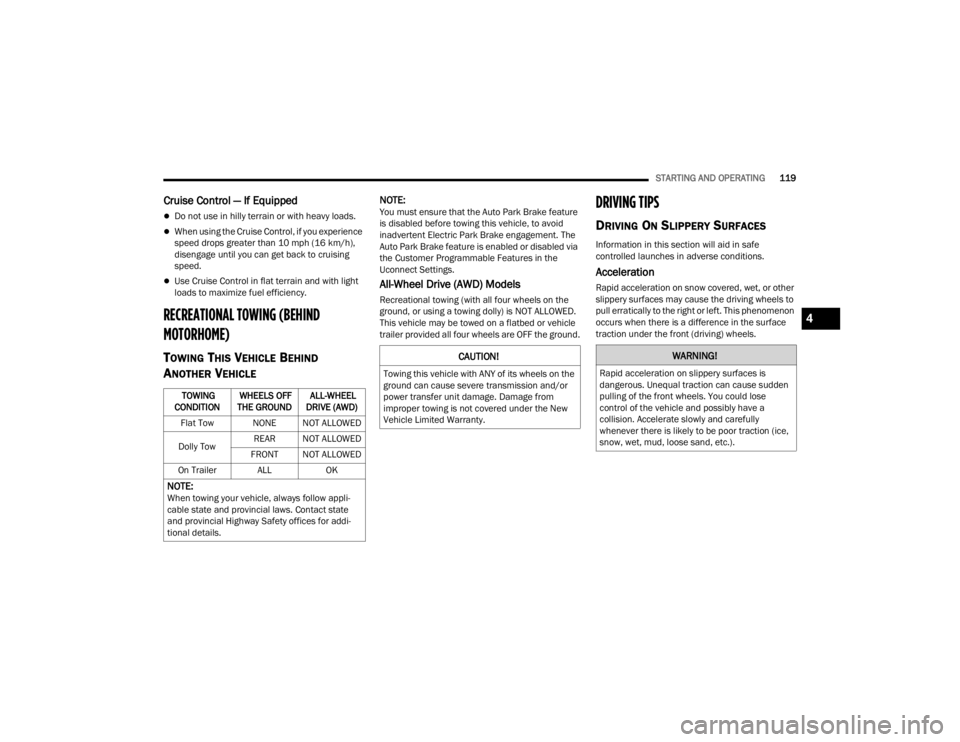
TOWING
CONDITION WHEELS OFF
THE GROUND ALL-WHEEL
DRIVE (AWD)
Flat Tow NONE NOT ALLOWED
Dolly Tow REAR NOT ALLOWED
FRONT NOT ALLOWED
On Trailer ALL OK
NOTE:When towing your vehicle, always follow appli -
cable state and provincial laws. Contact state
and provincial Highway Safety offices for addi -
tional details.
CAUTION!
Towing this vehicle with ANY of its wheels on the
ground can cause severe transmission and/or
power transfer unit damage. Damage from
improper towing is not covered under the New
Vehicle Limited Warranty.
WARNING!
Rapid acceleration on slippery surfaces is
dangerous. Unequal traction can cause sudden
pulling of the front wheels. You could lose
control of the vehicle and possibly have a
collision. Accelerate slowly and carefully
whenever there is likely to be poor traction (ice,
snow, wet, mud, loose sand, etc.).
4
22_FD_OM_EN_USC_t.book Page 119
Page 122 of 312
120STARTING AND OPERATING
Traction
When driving on wet or slushy roads, it is possible
for a wedge of water to build up between the tire
and road surface. This is hydroplaning and may
cause partial or complete loss of vehicle control
and stopping ability. To reduce this possibility, the
following precautions should be observed:
Slow down during rainstorms or when the roads
are slushy.
Slow down if the road has standing water or
puddles.
Replace the tires when tread wear indicators
first become visible.
Keep tires properly inflated.
Maintain sufficient distance between your
vehicle and the vehicle in front of you to avoid a
collision in a sudden stop.
DRIVING THROUGH WATER
Driving through water more than a few inches/
centimeters deep will require extra caution to
ensure safety and prevent damage to your vehicle.
Flowing/Rising Water Shallow Standing Water
Although your vehicle is capable of driving through
shallow standing water, consider the following
Cautions and Warnings before doing so.
WARNING!
Do not drive on or across a road or path where
water is flowing and/or rising (as in storm
run-off). Flowing water can wear away the road
or path's surface and cause your vehicle to sink
into deeper water. Furthermore, flowing and/or
rising water can carry your vehicle away swiftly.
Failure to follow this warning may result in
injuries that are serious or fatal to you, your
passengers, and others around you.
WARNING!
Driving through standing water limits your
vehicle’s traction capabilities. Do not exceed
5 mph (8 km/h) when driving through
standing water.
Driving through standing water limits your
vehicle’s braking capabilities, which increases
stopping distances. Therefore, after driving
through standing water, drive slowly and
lightly press on the brake pedal several times
to dry the brakes.
Failure to follow these warnings may result in
injuries that are serious or fatal to you, your
passengers, and others around you.
22_FD_OM_EN_USC_t.book Page 120
Page 126 of 312

124MULTIMEDIA
Language
Display
When the Language button is pressed on the touchscreen, the system displays the different language options. Once an option is selected, the system will
display in the chosen language. The available setting is:
NOTE:Depending on the vehicle’s options, feature settings may vary.
Setting Name Description
Language This setting will change the language of the Uconnect system. The available
languages are English, Français, and Español.
After pressing the Display button on the touchscreen, the following settings will be available:
NOTE:Depending on the vehicle’s options, feature settings may vary.
Setting Name
Description
Display Mode This setting will allow you to set the brightness manually or have the system
set it automatically. The “Auto” setting has the system automatically adjust
the display brightness. The “Manual” setting will allow the user to adjust the
brightness of the display.
Display Brightness With Headlights ON This setting will allow you to set the brightness when the headlights are on. To
access this setting, Display Mode must be set to Manual. The “+” setting will
increase the brightness; the “-” will decrease the brightness.
22_FD_OM_EN_USC_t.book Page 124
Page 127 of 312

MULTIMEDIA125
Units
Display Brightness With Headlights OFF This setting will allow you to set the brightness when the headlights are off. To
access this setting, Display Mode must be set to Manual. The “+” setting will
increase the brightness; the “-” will decrease the brightness.
Touchscreen Beep This setting will allow you to adjust the touchscreen beep. The setting options
are “On” or “Off”.
Setting Name
Description
When the Units button is pressed on the touchscreen, the system displays the different measurement options. The selected unit of measurement will display in
the instrument cluster display and Navigation system (if equipped). The available settings are:
NOTE:Depending on the vehicle’s options, feature settings may vary.
Setting NameDescription
US This setting will change the unit of measurement on the display to US.
Metric This setting will change the unit of measurement on the display to Metric.
Custom This setting changes the “Distance” (mi or km), “Fuel Consumption” (MPG
[US], MPG [UK], L/100 km, or km/L), “Pressure” (psi, kPa, or bar), and
“Temperature” (°C or °F) units of measurement independently.
5
22_FD_OM_EN_USC_t.book Page 125
Page 133 of 312

MULTIMEDIA131
Lights
After pressing the Lights button on the touchscreen, the following settings will be available:
NOTE:Depending on the vehicle’s options, feature settings may vary.
Setting Name Description
Interior Ambient Lights When this feature is selected, it allows the adjustment of the brightness of the
interior ambient lighting.
Headlight Sensitivity This setting will allow you to adjust the headlight sensitivity to minimum
sensitivity, medium sensitivity, or maximum sensitivity.
Headlight Off Delay This setting will allow you to set the headlight off delay to “0”, “30”, “60”, or
“90” seconds.
Greeting Lights This setting will allow you to turn the greeting lights on or off.
High Beam Control This setting will allow you to turn the high beam control on or off.
Daytime Running Lights When the Daytime Running Lights feature is selected, the daytime running
lights can be turned On or Off. This feature is only available if allowed by law in
the country of the vehicle purchase.
Cornering Lights When this feature is selected, if the steering wheel rotation angle is large or
the turn signal indicators are on, a light (incorporated in the fog light) turns on,
on the relevant side to improve visibility at night.
Flash Lights With Lock This setting will allow you to turn the flash lights with lock on or off.
5
22_FD_OM_EN_USC_t.book Page 131
Page 134 of 312

132MULTIMEDIA
Doors & Locks
After pressing the Doors & Locks button on the touchscreen, the following settings will be available:
NOTE:Depending on the vehicle’s options, feature settings may vary.
Setting Name Description
Auto Door Locks When this feature is selected, all doors will lock automatically when the
vehicle reaches a speed of 15 mph (24 km/h).
Auto Unlock On Exit When the Auto Unlock On Exit feature is selected, all doors will unlock when
the vehicle is stopped and the transmission is in the PARK or NEUTRAL
position and the driver's door is opened.
Flash Lights With Lock This setting will allow you to turn the flash lights with lock on or off.
Sound Horn With Lock This setting will allow you to set the Sound Horn With Lock feature “Off”, “1st
Press”, or “2nd Press”.
Sound Horn With Remote Start This setting will allow you to turn horn with remote start on or off.
Keyless Entry This feature allows you to lock and unlock the vehicle’s door(s) without having
to press the key fob lock or unlock button.
Remote Door Unlock
When “Driver” is programmed, only the driver’s door will unlock on the first
push of the key fob Unlock button; you must push the key fob Unlock button
twice to unlock the passengers’ doors. When “All” is programmed, all of the
doors will unlock on the first press of the key fob Unlock button.
If “All” is programmed, all doors will unlock no matter which Passive
Entry-equipped door handle is grasped. If “Driver” is programmed, only the
driver’s door will unlock when the driver’s door is grabbed. Touching the
handle more than once will only result in the driver’s door unlocking. If the
driver’s door is opened, the interior door lock/unlock switch can be used to
unlock all doors (or use key fob).
22_FD_OM_EN_USC_t.book Page 132
Page 141 of 312
MULTIMEDIA139
NOTE:Uconnect screen images are for illustration purposes only and may not reflect exact software for your vehicle.
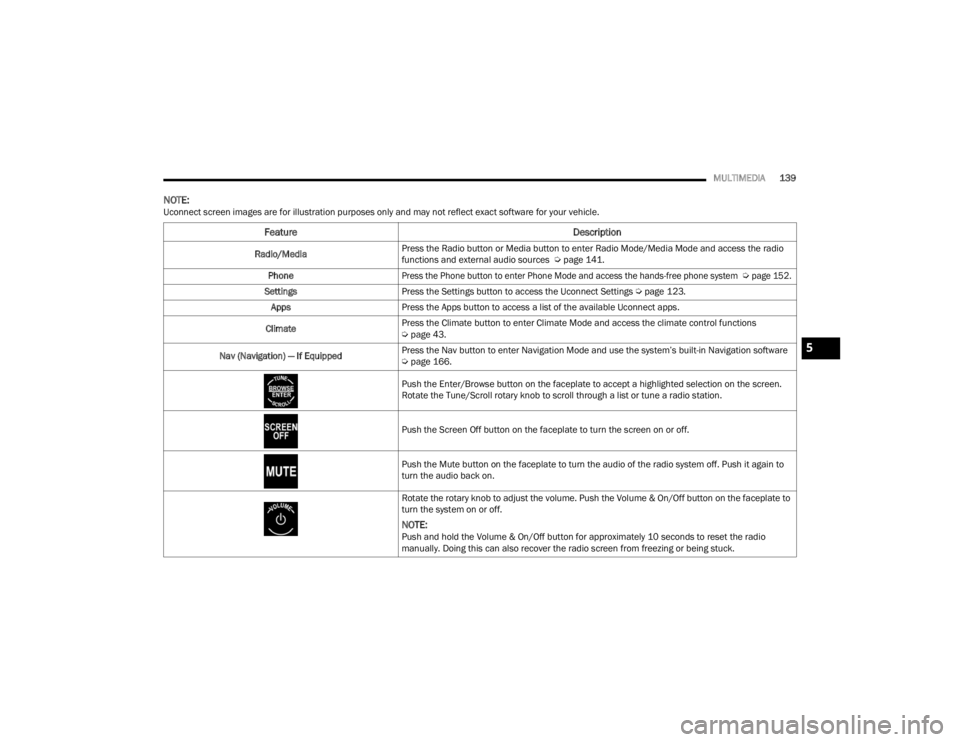
Feature Description
Radio/MediaPress the Radio button or Media button to enter Radio Mode/Media Mode and access the radio
functions and external audio sources Ú
page 141.
Phone
Press the Phone button to enter Phone Mode and access the hands-free phone system
Ú
page 152.
Settings Press the Settings button to access the Uconnect Settings Ú page 123.
Apps Press the Apps button to access a list of the available Uconnect apps.
Climate Press the Climate button to enter Climate Mode and access the climate control functions
Ú
page 43.
Nav (Navigation) — If Equipped Press the Nav button to enter Navigation Mode and use the system’s built-in Navigation software
Ú
page 166.
Push the Enter/Browse button on the faceplate to accept a highlighted selection on the screen.
Rotate the Tune/Scroll rotary knob to scroll through a list or tune a radio station.
Push the Screen Off button on the faceplate to turn the screen on or off.
Push the Mute button on the faceplate to turn the audio of the radio system off. Push it again to
turn the audio back on.
Rotate the rotary knob to adjust the volume. Push the Volume & On/Off button on the faceplate to
turn the system on or off.
NOTE:Push and hold the Volume & On/Off button for approximately 10 seconds to reset the radio
manually. Doing this can also recover the radio screen from freezing or being stuck.
5
22_FD_OM_EN_USC_t.book Page 139
Page 146 of 312

144MULTIMEDIA
No Subscription
Radios equipped with a Satellite receiver require a
subscription to the SiriusXM® Service. When the
radio does not have the necessary subscription,
the radio is able to receive the Preview channel
only.
Acquiring SiriusXM® Subscription
To activate the SiriusXM® Satellite Radio
subscription, US residents visit http://
www.siriusxm.com/getallaccess or call:
1-800-643-2112
Canadian residents visit https://www.siriusxm.ca/ or call: 1-888-539-7474.
NOTE:You will need to provide the SiriusXM® ID (RID)
located at the bottom of the Channel 0 screen.
The Satellite Mode is activated by a press of the
SXM button on the touchscreen. When in Satellite Mode:
The SXM button on the touchscreen is high
-
lighted.
The SiriusXM® Presets are displayed at the top
of the screen.
The SiriusXM® Channel Number is displayed in
the center.
The Program Information is displayed at the
bottom of the Channel Number.
The SiriusXM® function buttons are displayed
below the Program Information.
Tuning is done by operating the Tune Knob or by
Direct Tune, similar to other Radio Bands.
In addition to the tuning operation functions
common to all radio modes, the replay, Traffic/
Weather button, and Favorite button functions are
available in SiriusXM® Mode.
Uconnect 4/4 NAV With 7-inch Display SiriusXM®
Satellite Radio
1 — Browse
2 — Replay
3 — Seek Down Button
4 — Direct Tune Button
5 — Seek Up Button
6 — Audio Settings Button
22_FD_OM_EN_USC_t.book Page 144
Page 148 of 312
146MULTIMEDIA
FAVORITES
Press the Favorites button on the touchscreen to
activate the favorites menu, which will time out
within 20 seconds in absence of user interaction.
You can exit the Favorites Menu by a press of the X
button.
The Favorites feature enables you to set a favorite
artist or song that is currently playing. The radio
then uses this information to alert you when either
the favorite artist or song is being played at any
time by any of the SiriusXM® Channels.
The maximum number of favorites that can be
stored in the Radio is 50.
Favorite Artist: While the song is playing, to set a
favorite artist, press the Favorites button on the
touchscreen and then the Favorite Artist button on
the touchscreen.
Favorite Song: While the song is playing, to set a
favorite song, press the Favorites button on the
touchscreen and then the Favorite Song button on
the touchscreen.
BROWSE IN SXM
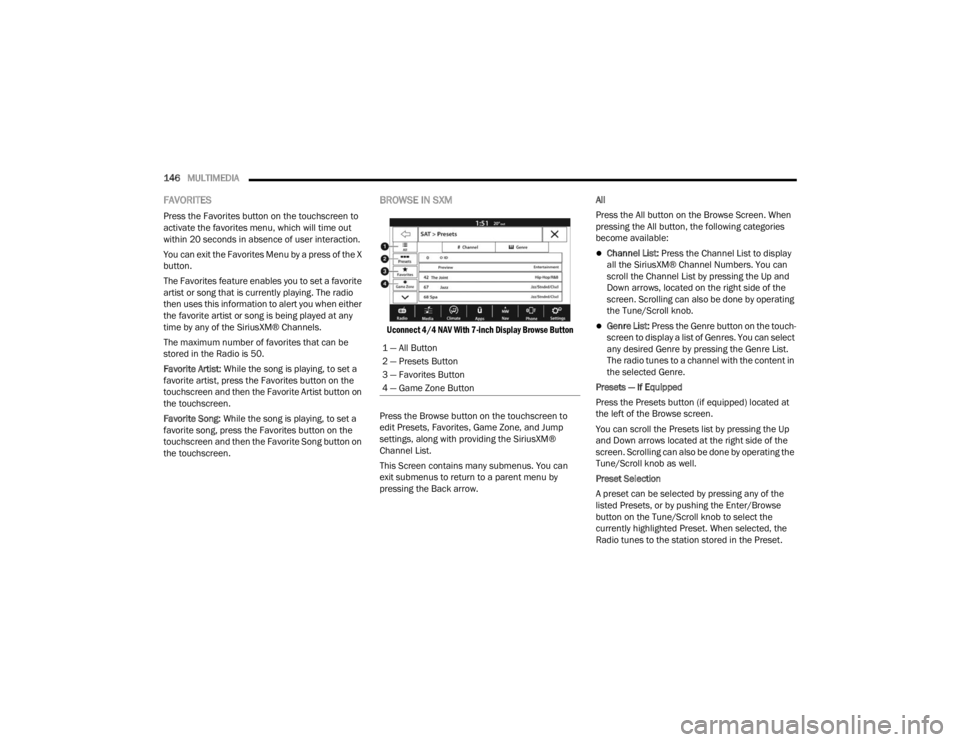
Uconnect 4/4 NAV With 7-inch Display Browse Button
Press the Browse button on the touchscreen to
edit Presets, Favorites, Game Zone, and Jump
settings, along with providing the SiriusXM®
Channel List.
This Screen contains many submenus. You can
exit submenus to return to a parent menu by
pressing the Back arrow. All
Press the All button on the Browse Screen. When
pressing the All button, the following categories
become available:
Channel List:
Press the Channel List to display
all the SiriusXM® Channel Numbers. You can
scroll the Channel List by pressing the Up and
Down arrows, located on the right side of the
screen. Scrolling can also be done by operating
the Tune/Scroll knob.
Genre List: Press the Genre button on the touch -
screen to display a list of Genres. You can select
any desired Genre by pressing the Genre List.
The radio tunes to a channel with the content in
the selected Genre.
Presets — If Equipped
Press the Presets button (if equipped) located at
the left of the Browse screen.
You can scroll the Presets list by pressing the Up
and Down arrows located at the right side of the
screen. Scrolling can also be done by operating the
Tune/Scroll knob as well.
Preset Selection
A preset can be selected by pressing any of the
listed Presets, or by pushing the Enter/Browse
button on the Tune/Scroll knob to select the
currently highlighted Preset. When selected, the
Radio tunes to the station stored in the Preset.
1 — All Button
2 — Presets Button
3 — Favorites Button
4 — Game Zone Button
22_FD_OM_EN_USC_t.book Page 146