display FORD MUSTANG 2015 6.G Owners Manual
[x] Cancel search | Manufacturer: FORD, Model Year: 2015, Model line: MUSTANG, Model: FORD MUSTANG 2015 6.GPages: 441, PDF Size: 6.98 MB
Page 323 of 441
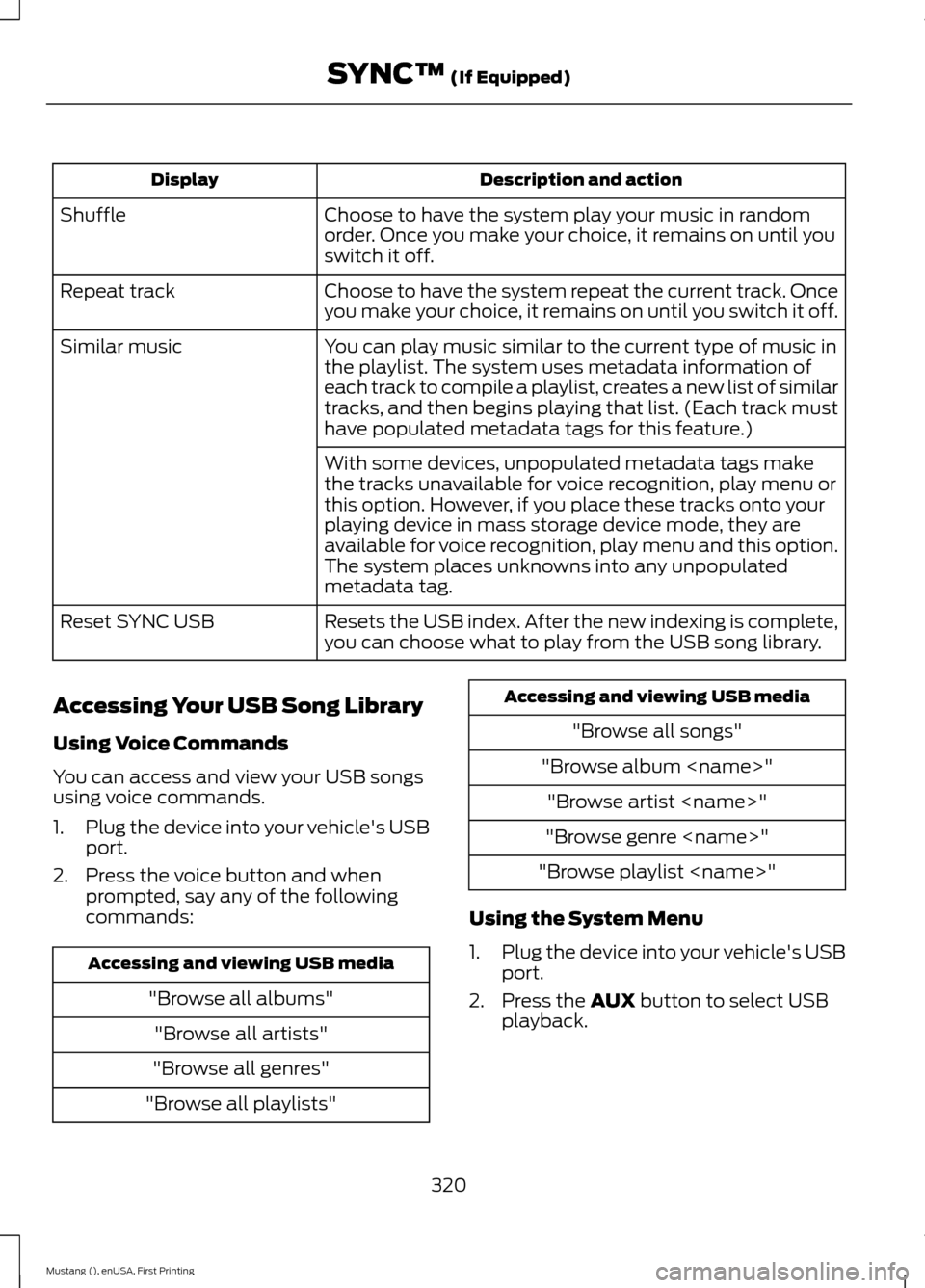
Description and action
Display
Choose to have the system play your music in random
order. Once you make your choice, it remains on until you
switch it off.
Shuffle
Choose to have the system repeat the current track. Once
you make your choice, it remains on until you switch it off.
Repeat track
You can play music similar to the current type of music in
the playlist. The system uses metadata information of
each track to compile a playlist, creates a new list of similar
tracks, and then begins playing that list. (Each track must
have populated metadata tags for this feature.)
Similar music
With some devices, unpopulated metadata tags make
the tracks unavailable for voice recognition, play menu or
this option. However, if you place these tracks onto your
playing device in mass storage device mode, they are
available for voice recognition, play menu and this option.
The system places unknowns into any unpopulated
metadata tag.
Resets the USB index. After the new indexing is complete,
you can choose what to play from the USB song library.
Reset SYNC USB
Accessing Your USB Song Library
Using Voice Commands
You can access and view your USB songs
using voice commands.
1. Plug the device into your vehicle's USB
port.
2. Press the voice button and when prompted, say any of the following
commands: Accessing and viewing USB media
"Browse all albums""Browse all artists"
"Browse all genres"
"Browse all playlists" Accessing and viewing USB media
"Browse all songs"
"Browse album
"Browse genre
"Browse playlist
Using the System Menu
1. Plug the device into your vehicle's USB
port.
2. Press the AUX button to select USB
playback.
320
Mustang (), enUSA, First Printing SYNC™
(If Equipped)
Page 324 of 441
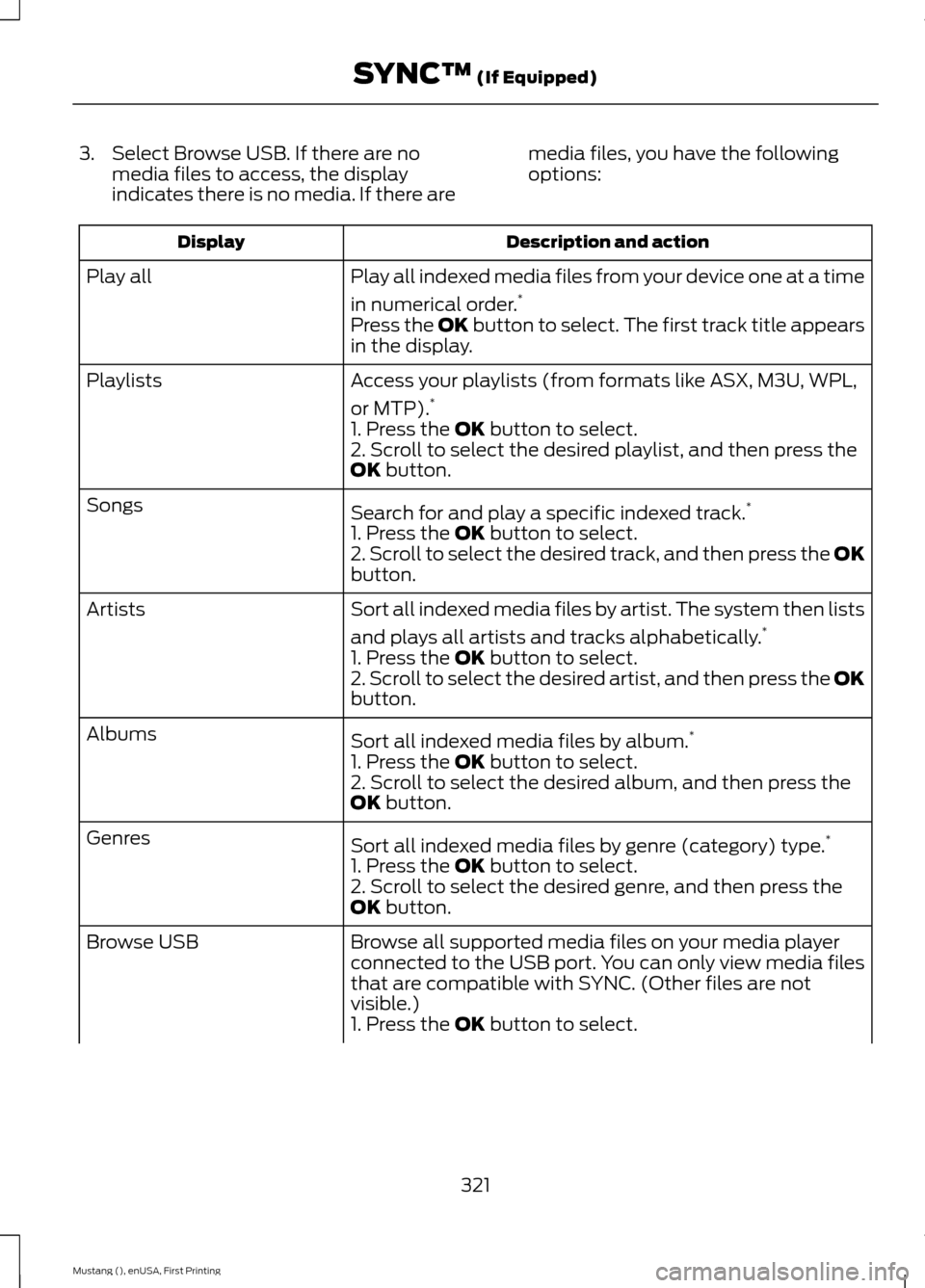
3. Select Browse USB. If there are no
media files to access, the display
indicates there is no media. If there are media files, you have the following
options: Description and action
Display
Play all indexed media files from your device one at a time
in numerical order.*
Play all
Press the OK button to select. The first track title appears
in the display.
Access your playlists (from formats like ASX, M3U, WPL,
or MTP).*
Playlists
1. Press the OK button to select.
2. Scroll to select the desired playlist, and then press the
OK
button.
Search for and play a specific indexed track. *
Songs
1. Press the
OK button to select.
2. Scroll to select the desired track, and then press the OK
button.
Sort all indexed media files by artist. The system then lists
and plays all artists and tracks alphabetically. *
Artists
1. Press the
OK button to select.
2. Scroll to select the desired artist, and then press the OK
button.
Sort all indexed media files by album. *
Albums
1. Press the
OK button to select.
2. Scroll to select the desired album, and then press the
OK
button.
Sort all indexed media files by genre (category) type. *
Genres
1. Press the
OK button to select.
2. Scroll to select the desired genre, and then press the
OK
button.
Browse all supported media files on your media player
connected to the USB port. You can only view media files
that are compatible with SYNC. (Other files are not
visible.)
Browse USB
1. Press the
OK button to select.
321
Mustang (), enUSA, First Printing SYNC™
(If Equipped)
Page 325 of 441
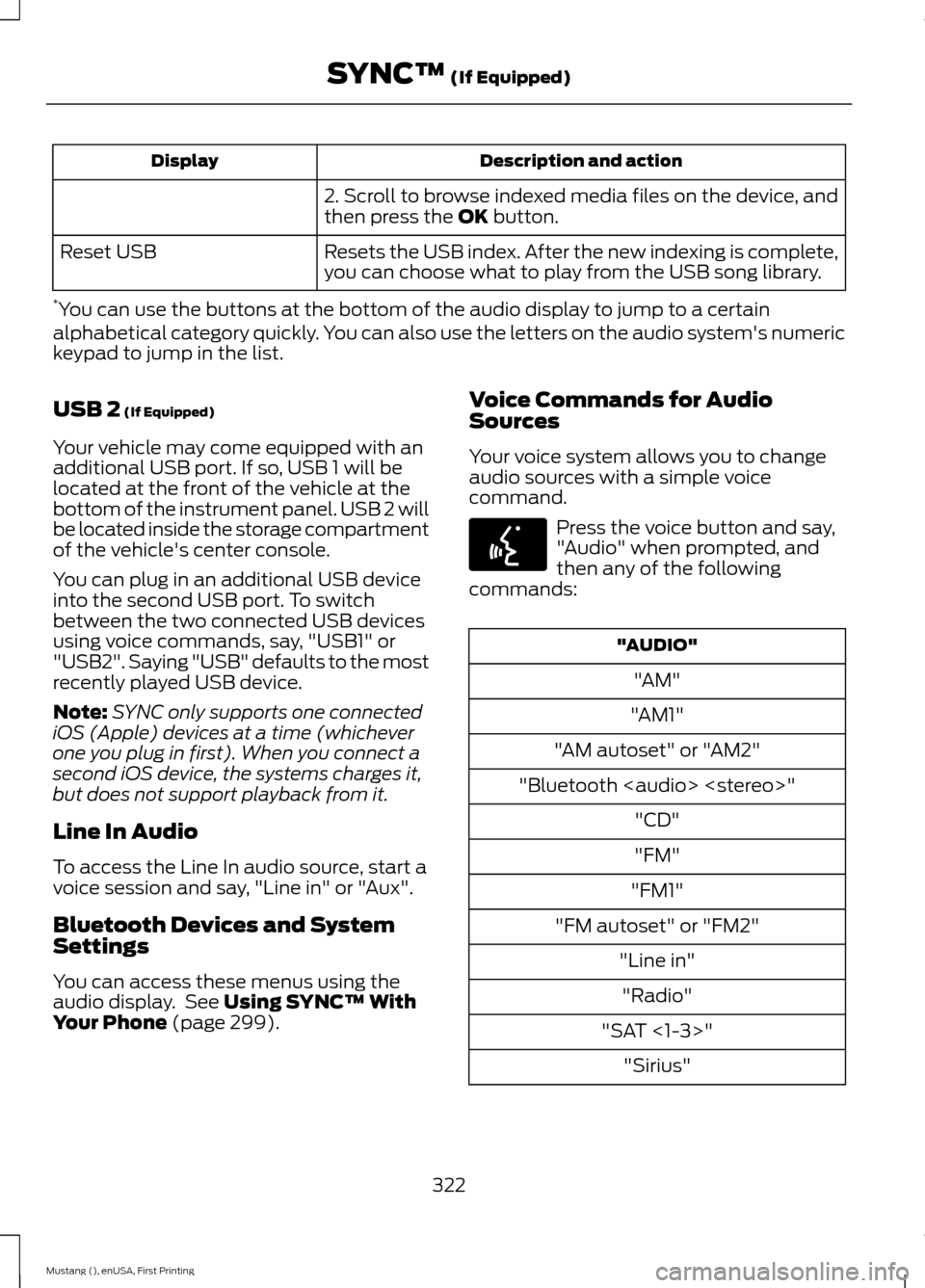
Description and action
Display
2. Scroll to browse indexed media files on the device, and
then press the OK button.
Resets the USB index. After the new indexing is complete,
you can choose what to play from the USB song library.
Reset USB
* You can use the buttons at the bottom of the audio display to jump to a certain
alphabetical category quickly. You can also use the letters on the audio system's numeric
keypad to jump in the list.
USB 2
(If Equipped)
Your vehicle may come equipped with an
additional USB port. If so, USB 1 will be
located at the front of the vehicle at the
bottom of the instrument panel. USB 2 will
be located inside the storage compartment
of the vehicle's center console.
You can plug in an additional USB device
into the second USB port. To switch
between the two connected USB devices
using voice commands, say, "USB1" or
"USB2". Saying "USB" defaults to the most
recently played USB device.
Note: SYNC only supports one connected
iOS (Apple) devices at a time (whichever
one you plug in first). When you connect a
second iOS device, the systems charges it,
but does not support playback from it.
Line In Audio
To access the Line In audio source, start a
voice session and say, "Line in" or "Aux".
Bluetooth Devices and System
Settings
You can access these menus using the
audio display. See
Using SYNC™ With
Your Phone (page 299). Voice Commands for Audio
Sources
Your voice system allows you to change
audio sources with a simple voice
command. Press the voice button and say,
"Audio" when prompted, and
then any of the following
commands: "AUDIO"
"AM"
"AM1"
"AM autoset" or "AM2"
"Bluetooth
Page 338 of 441
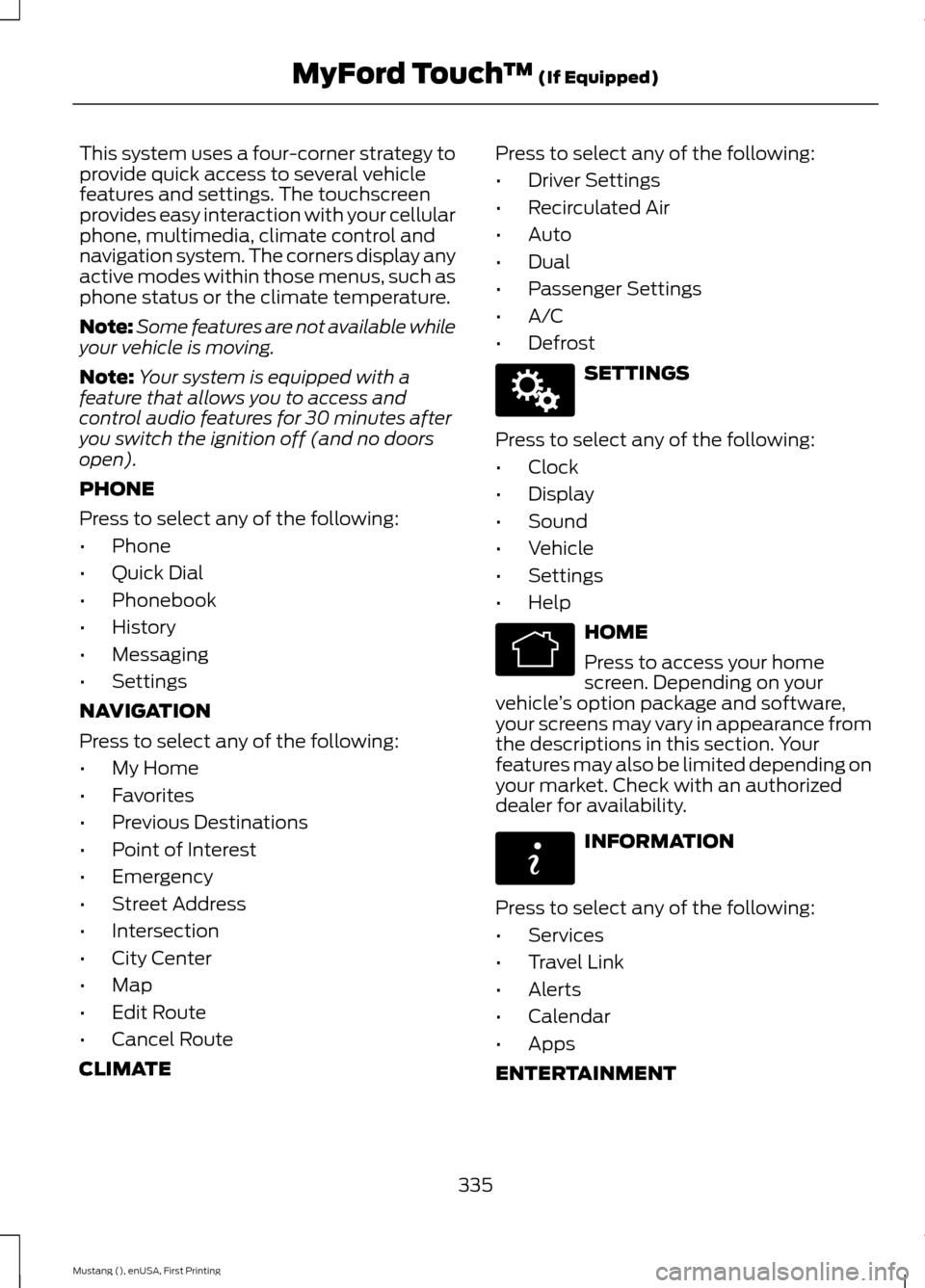
This system uses a four-corner strategy to
provide quick access to several vehicle
features and settings. The touchscreen
provides easy interaction with your cellular
phone, multimedia, climate control and
navigation system. The corners display any
active modes within those menus, such as
phone status or the climate temperature.
Note:
Some features are not available while
your vehicle is moving.
Note: Your system is equipped with a
feature that allows you to access and
control audio features for 30 minutes after
you switch the ignition off (and no doors
open).
PHONE
Press to select any of the following:
• Phone
• Quick Dial
• Phonebook
• History
• Messaging
• Settings
NAVIGATION
Press to select any of the following:
• My Home
• Favorites
• Previous Destinations
• Point of Interest
• Emergency
• Street Address
• Intersection
• City Center
• Map
• Edit Route
• Cancel Route
CLIMATE Press to select any of the following:
•
Driver Settings
• Recirculated Air
• Auto
• Dual
• Passenger Settings
• A/C
• Defrost SETTINGS
Press to select any of the following:
• Clock
• Display
• Sound
• Vehicle
• Settings
• Help HOME
Press to access your home
screen. Depending on your
vehicle ’s option package and software,
your screens may vary in appearance from
the descriptions in this section. Your
features may also be limited depending on
your market. Check with an authorized
dealer for availability. INFORMATION
Press to select any of the following:
• Services
• Travel Link
• Alerts
• Calendar
• Apps
ENTERTAINMENT
335
Mustang (), enUSA, First Printing MyFord Touch
™ (If Equipped)E142607 E142613 E142608
Page 339 of 441
Press to select any of the following:
•
AM
• FM
• SIRIUS
• CD
• USB
• BT Stereo
• SD Card
• Line In
Cleaning the Touchscreen Display
Use a clean, soft cloth such as one used
for cleaning glasses. If dirt or fingerprints
are still visible, apply a small amount of
alcohol to the cloth. Do not pour or spray
alcohol onto the display. Do not use
detergent or any type of solvent to clean
the display.
Using Your Bezel Controls
Depending on your vehicle and option
package, you may also have these controls
on your bezel:
• Power: Switch the media or climate
features off and on.
• VOL:
Control the volume of playing
media.
• Climate:
Control the temperature, fan
speed or settings of the climate control
system.
• Seek buttons and Tune knob: Use as
you normally would in media modes. •
Eject:
Eject a CD from the
entertainment system.
• Sound:
Touch the musical note icon
to access the Sound menu where you
can adjust settings such as: Bass,
Treble, Midrange, Balance and Fade,
DSP (Digital Signal Processing),
Occupancy Mode and Speed
Compensated Volume. (Your vehicle
may not have all of these sound
options.)
Using Your Steering Wheel
Controls
You can use your steering wheel controls
to interact with the touchscreen system.
• VOL:
Control the volume of audio
output.
• M:
Change the source of playing media.
• Mute:
Mute the audio output.
• Voice:
Press to start a voice session.
Press again to end an active voice
prompt so you can begin speaking.
Press and hold to end a voice session.
• PHONE ACCEPT:
Press to answer a
call, or to switch between calls.
• PHONE REJECT:
Press to end a call
or to reject an incoming call.
See
Steering Wheel (page 64).
Support
The SYNC support team is available to
help you with any questions you are not
able to answer on your own.
Monday-Saturday, 8:30am-9:00pm EST.
Sunday, 10:30am-7:30pm EST.
In the United States, call: 1-800-392-3673.
In Canada, call: 1-800-565-3673.
Times are subject to change due to
holidays.
336
Mustang (), enUSA, First Printing MyFord Touch
™
(If Equipped)
Page 344 of 441
Voice settings using voice commands
"Interaction mode novice"
"Media candidate lists off" "Media candidate lists on"
"Phone candidate lists off" "Phone candidate lists on" "Help" Using Voice Commands with the
Touchscreen Options
Your voice system has a dual mode feature
which allows you to switch between using
voice commands and making on-screen
selections. This is available only when the
system displays a list of candidates
generated during a voice session. For
example, when entering in a street address
or trying to call a contact from the phone
you paired to the system.
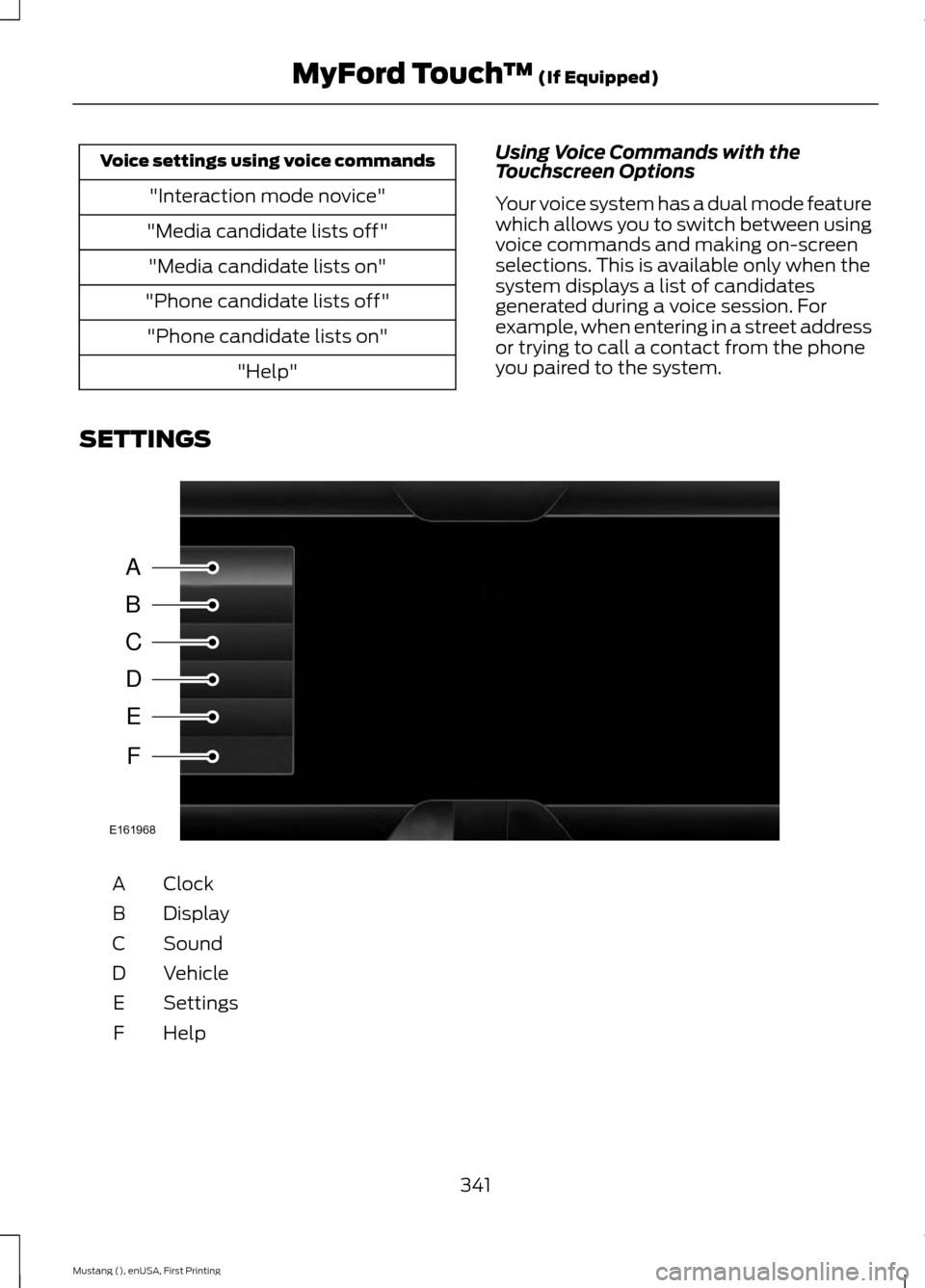
SETTINGS Clock
A
Display
B
Sound
C
Vehicle
D
Settings
E
HelpF
341
Mustang (), enUSA, First Printing MyFord Touch
™ (If Equipped)A
B
C
D
E
F
E161968
Page 345 of 441
Under this menu, you can set
your clock, access and adjust the
display, sound and vehicle
settings as well as access settings for
specific modes or the help feature.
Clock
Note: You cannot manually set the date.
Your vehicle ’s GPS does this for you.
Note: If the battery has been disconnected,
your vehicle needs to acquire a GPS signal
to update the clock. Once your vehicle
acquires the signal, it may take a few
minutes for the update to display the correct
time. 1. Press the Settings icon > Clock.
2. Press
+ and - to adjust the time.
From this screen, you can also make other
adjustments such as 12-hour or 24-hour
mode, activate GPS time synchronization
and have the system automatically update
new time zones.
You can also switch the outside air
temperature display off and on. It appears
at the top center of the touchscreen, next
to the time and date.
The system automatically saves any
updates you make to the settings.
Display
You can adjust the touchscreen display
through the touchscreen or by pressing the
voice button on your steering wheel
controls and when prompted, say, "Display
settings". Press the Settings icon >
Display
, to access and make
adjustments using the
touchscreen. •
Brightness
allows you to make the
screen display brighter or dimmer.
• Auto DIM
, when set to On, lets you use
the Auto Dim Manual Offset feature.
When set to
Off, screen brightness
does not change.
• Mode
allows you to set the screen to
a certain brightness or have the system
automatically change based on the
outside light level, or switch the display
off.
• If you select
AUTO or NIGHT, you
have the options of switching the
display's Auto Dim feature on or off
and changing the Auto Dim Manual
Offset feature.
• Auto Dim Manual Offset
allows you
to adjust screen dimming as the
outside lighting conditions change from
day to night. This feature also allows
you to adjust screen brightness using
the instrument panel dimming control.
• Edit Wallpaper
•You can have your touchscreen
display the default photo or upload
your own.
Uploading Photos for Your Home
Screen Wallpaper
Note: You cannot load photos directly from
your camera. You must access the photos
either from your USB mass storage device
or from an SD card.
Note: Photographs with extremely large
dimensions (such as 2048 x 1536) may not
be compatible and appear as a blank
(black) image on the display.
Your system allows you to upload and view
up to 32 photos. To access, press the Settings
icon >
Display > Edit
Wallpaper, and then follow the
system prompts to upload your
photographs.
342
Mustang (), enUSA, First Printing MyFord Touch
™
(If Equipped)E142607 E142607 E142607 E142607
Page 346 of 441
Only photographs that meet the following
conditions display:
•
Compatible file formats are as follows:
.jpg, .gif, .png, .bmp.
• Each file must be 1.5 MB or less.
• Recommended dimensions: 800 x 384.
Sound Press the Settings icon > Sound,
then select from the following:
Sound
Bass
Midrange Treble
Set Balance and Fade
DSP*
Occupancy Mode *
Speed Compensated Volume
* Your vehicle may not have these sound
settings.
Vehicle Press the Settings icon >
Vehicle, then select from the
following:
• Vehicle Health Report
• Camera Settings
• Enable Valet Mode.
Vehicle Health Report
Switch
Automatic Reminders on and off
and set the mileage interval at which you
would like to receive the reports. Press
?
for more information on these selections. When done making your selections, press
Run Vehicle Health Report Now
if you
want your report.
You can find more information on Vehicle
Health Report in this chapter. See
Information
(page 374).
Camera Settings
This menu allows you to access settings
for your camera. Press the Settings icon >
Vehicle
> Camera Settings,
then select from the following
settings:
• Enhanced Park Aids
• Rear Camera Delay.
You can find more information on the rear
view camera in another chapter. See Rear
View Camera
(page 148).
Enable Valet Mode
Valet mode allows you to lock the system.
No information is accessible until the
system is unlocked with the correct PIN.
You can create your own four-digit PIN to
lock and unlock the system. 1. Press the Settings icon >
Vehicle >
Enable Valet Mode.
2. Enter a four-digit PIN twice, as prompted.
After you press Continue, the system locks
until you enter the PIN again.
Note: If the system locks, and you need to
reset the PIN, enter 3681 and the system
unlocks.
343
Mustang (), enUSA, First Printing MyFord Touch
™
(If Equipped)E142607 E142607 E142607 E142607
Page 347 of 441
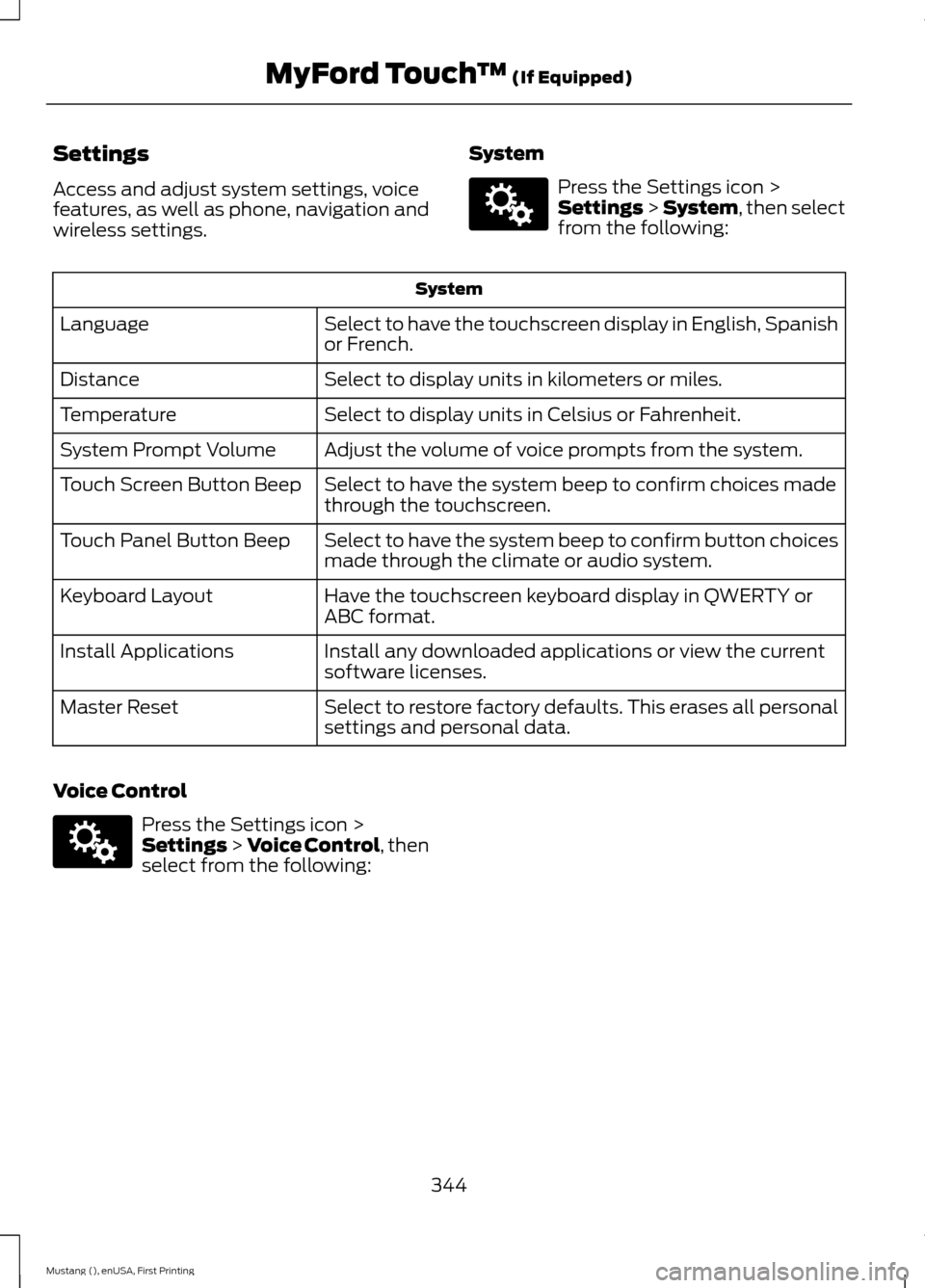
Settings
Access and adjust system settings, voice
features, as well as phone, navigation and
wireless settings.
System Press the Settings icon >
Settings > System, then select
from the following: System
Select to have the touchscreen display in English, Spanish
or French.
Language
Select to display units in kilometers or miles.
Distance
Select to display units in Celsius or Fahrenheit.
Temperature
Adjust the volume of voice prompts from the system.
System Prompt Volume
Select to have the system beep to confirm choices made
through the touchscreen.
Touch Screen Button Beep
Select to have the system beep to confirm button choices
made through the climate or audio system.
Touch Panel Button Beep
Have the touchscreen keyboard display in QWERTY or
ABC format.
Keyboard Layout
Install any downloaded applications or view the current
software licenses.
Install Applications
Select to restore factory defaults. This erases all personal
settings and personal data.
Master Reset
Voice Control Press the Settings icon >
Settings
> Voice Control, then
select from the following:
344
Mustang (), enUSA, First Printing MyFord Touch
™
(If Equipped)E142607 E142607
Page 349 of 441
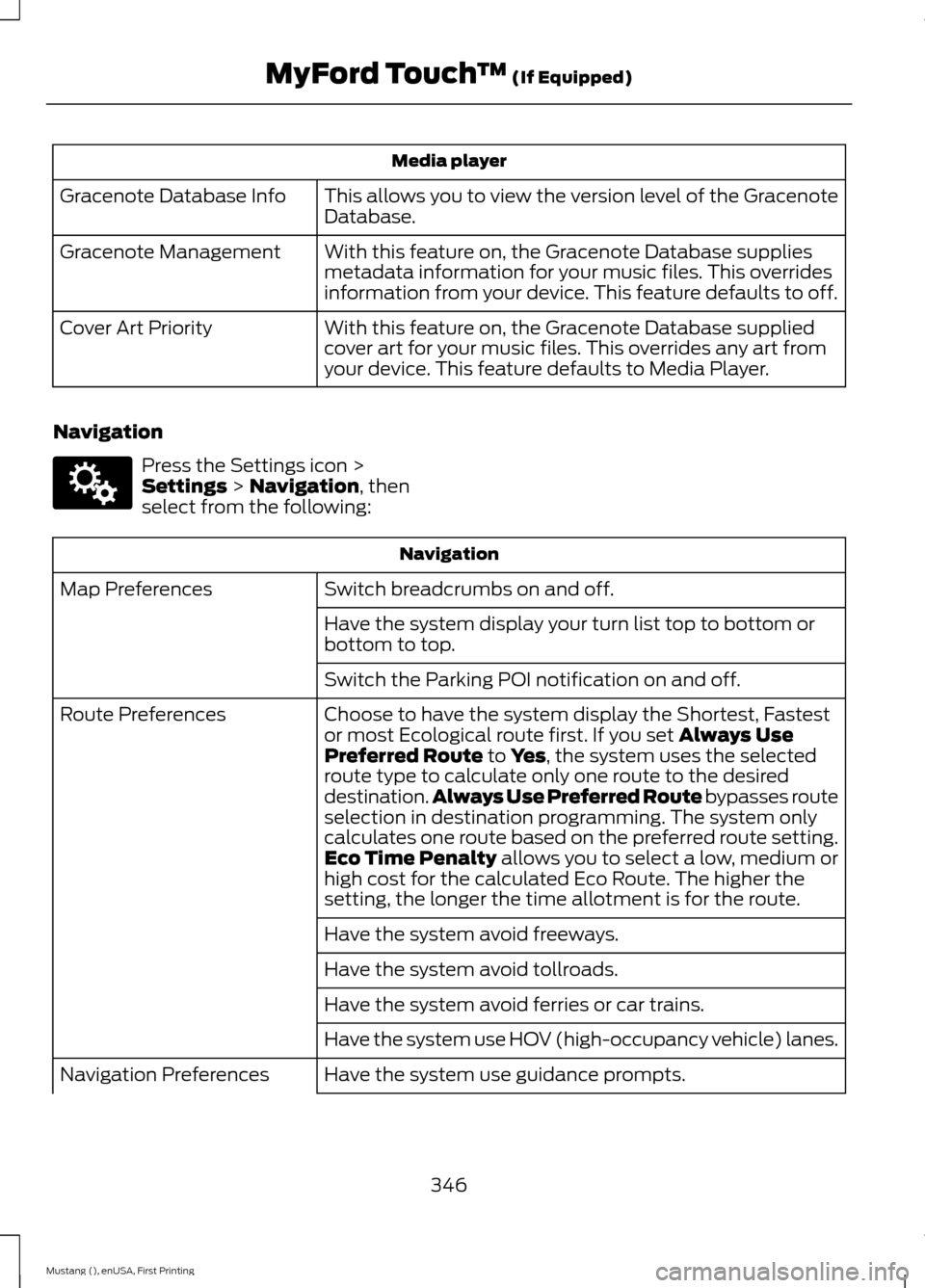
Media player
This allows you to view the version level of the Gracenote
Database.
Gracenote Database Info
With this feature on, the Gracenote Database supplies
metadata information for your music files. This overrides
information from your device. This feature defaults to off.
Gracenote Management
With this feature on, the Gracenote Database supplied
cover art for your music files. This overrides any art from
your device. This feature defaults to Media Player.
Cover Art Priority
Navigation Press the Settings icon >
Settings > Navigation, then
select from the following: Navigation
Switch breadcrumbs on and off.
Map Preferences
Have the system display your turn list top to bottom or
bottom to top.
Switch the Parking POI notification on and off.
Choose to have the system display the Shortest, Fastest
or most Ecological route first. If you set
Always Use
Preferred Route to Yes, the system uses the selected
route type to calculate only one route to the desired
destination. Always Use Preferred Route
bypasses route
selection in destination programming. The system only
calculates one route based on the preferred route setting.
Eco Time Penalty
allows you to select a low, medium or
high cost for the calculated Eco Route. The higher the
setting, the longer the time allotment is for the route.
Route Preferences
Have the system avoid freeways.
Have the system avoid tollroads.
Have the system avoid ferries or car trains.
Have the system use HOV (high-occupancy vehicle) lanes.
Have the system use guidance prompts.
Navigation Preferences
346
Mustang (), enUSA, First Printing MyFord Touch
™
(If Equipped)E142607