buttons FORD MUSTANG 2015 6.G User Guide
[x] Cancel search | Manufacturer: FORD, Model Year: 2015, Model line: MUSTANG, Model: FORD MUSTANG 2015 6.GPages: 441, PDF Size: 6.98 MB
Page 109 of 441
Recommended Settings for Cooling
Vehicle with automatic climate control
Vehicle with manual climate control
Press the AUTO button.
Adjust the fan speed to the center
setting.
1
Adjust the temperature control to the
desired setting. Use 72°F (22°C) as a
starting point, then adjust the setting as
necessary.
Adjust the temperature control to the
midway point of the cold settings.
2
Select the instrument panel air vents
using the air distribution buttons.
3
Side Window Defogging in Cold Weather Vehicle With Automatic Climate Control
Vehicle With Manual Climate Control
Press the defrost button.
Select the windshield air vents using the
air distribution buttons.
1
Adjust the temperature control to the
desired setting. Use 72°F (22°C) as a
starting point, then adjust the setting as
necessary.
Press the
A/C button.
2
Adjust the temperature control to the
desired setting.
3
Adjust the fan speed to the highest
setting.
4
HEATED WINDOWS AND
MIRRORS
(If Equipped)
Heated Rear Window
Note: You must switch the ignition on to
use this feature. Press the button to clear the
rear window of thin ice and fog.
It switches off automatically
after 10 minutes, or when you switch off
the ignition. You can also press the button
again to switch it off. Do not use razor blades or other sharp
objects to clean the inside of the rear
window or to remove decals from the
inside of the rear window. This may
cause damage to the heated grid lines.
Your warranty does not cover this
damage.
Heated Exterior Mirror
(If Equipped)
Note: Do not remove ice from the mirrors
with a scraper or attempt to readjust the
mirror glass that has frozen in place. These
actions could cause damage to the glass
and mirrors.
106
Mustang (), enUSA, First Printing Climate ControlE72507
Page 112 of 441
WARNINGS
Install the head restraint properly to
help minimize the risk of neck injury
in the event of a crash.
Note:
Adjust the seatback to an upright
driving position before adjusting the head
restraint. Adjust the head restraint so that
the top of it is level with the top of your head
and as far forward as possible. Make sure
that you remain comfortable. If you are
extremely tall, adjust the head restraint to
its highest position.
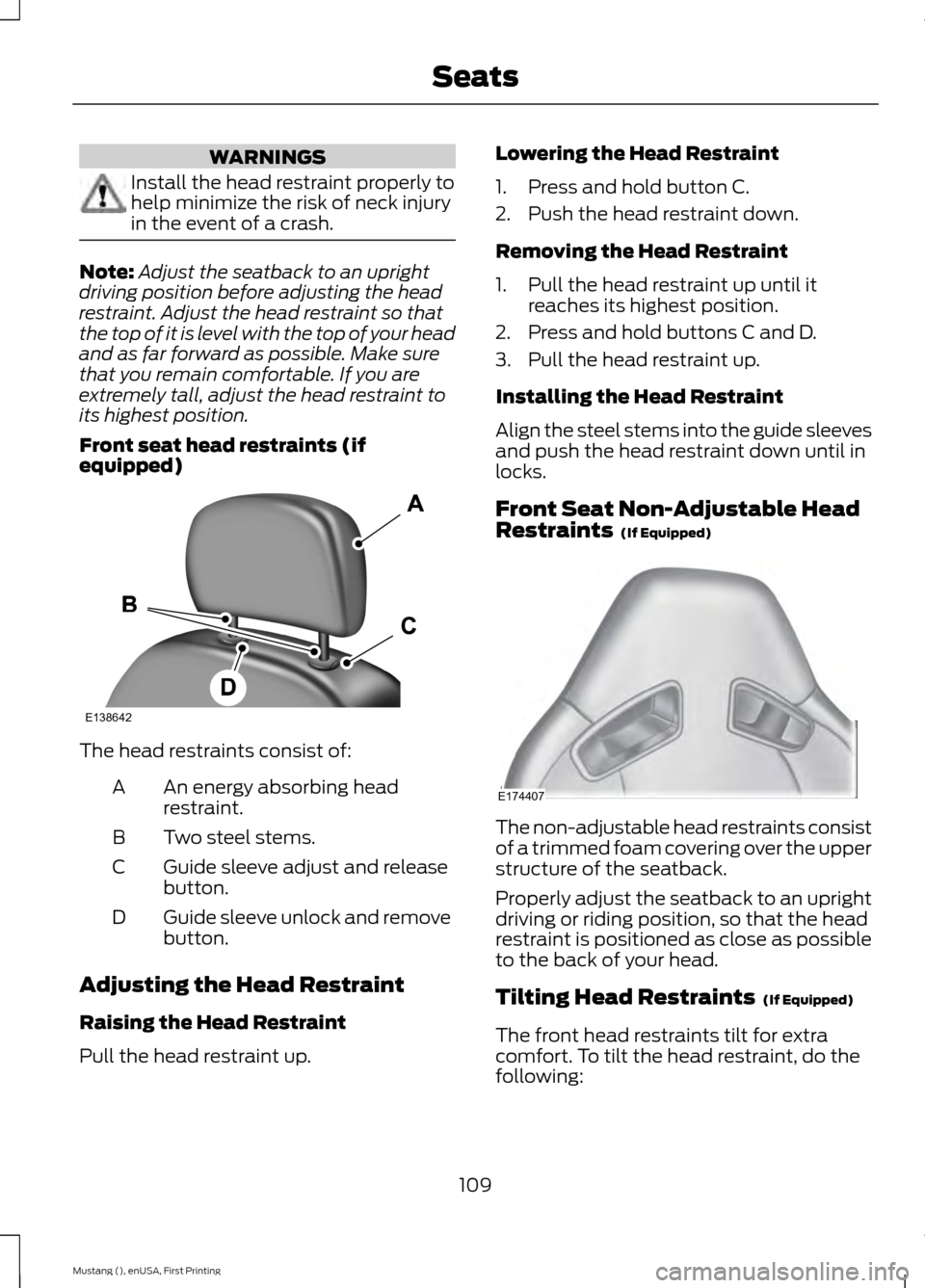
Front seat head restraints (if
equipped) The head restraints consist of:
An energy absorbing head
restraint.
A
Two steel stems.
B
Guide sleeve adjust and release
button.
C
Guide sleeve unlock and remove
button.
D
Adjusting the Head Restraint
Raising the Head Restraint
Pull the head restraint up. Lowering the Head Restraint
1. Press and hold button C.
2. Push the head restraint down.
Removing the Head Restraint
1. Pull the head restraint up until it
reaches its highest position.
2. Press and hold buttons C and D.
3. Pull the head restraint up.
Installing the Head Restraint
Align the steel stems into the guide sleeves
and push the head restraint down until in
locks.
Front Seat Non-Adjustable Head
Restraints (If Equipped) The non-adjustable head restraints consist
of a trimmed foam covering over the upper
structure of the seatback.
Properly adjust the seatback to an upright
driving or riding position, so that the head
restraint is positioned as close as possible
to the back of your head.
Tilting Head Restraints
(If Equipped)
The front head restraints tilt for extra
comfort. To tilt the head restraint, do the
following:
109
Mustang (), enUSA, First Printing SeatsE138642 E174407
Page 117 of 441
HomeLink Wireless Control
System (If Equipped)
WARNING
Do not use the system with any
garage door opener that does not
have the safety stop and reverse
feature as required by U.S. Federal Safety
Standards (this includes any garage door
opener manufactured before April 1, 1982).
A garage door opener which cannot detect
an object, signaling the door to stop and
reverse, does not meet current federal
safety standards. Using a garage door
opener without these features increases
the risk of serious injury or death. Note:
Make sure that the garage door and
security device are free from obstruction
when you are programming. Do not program
the system with the vehicle in the garage.
Note: Make sure you keep the original
remote control transmitter for use in other
vehicles as well as for future system
programming.
Note: We recommend that upon the sale
or lease termination of your vehicle, you
erase the programmed function buttons for
security reasons. See Erasing the Function
Button Codes
later in this section.
Note: You can program a maximum of
three devices. To change or replace any of
the three devices after initially programming
them, you must first erase the current
settings. See
Erasing the Function Button
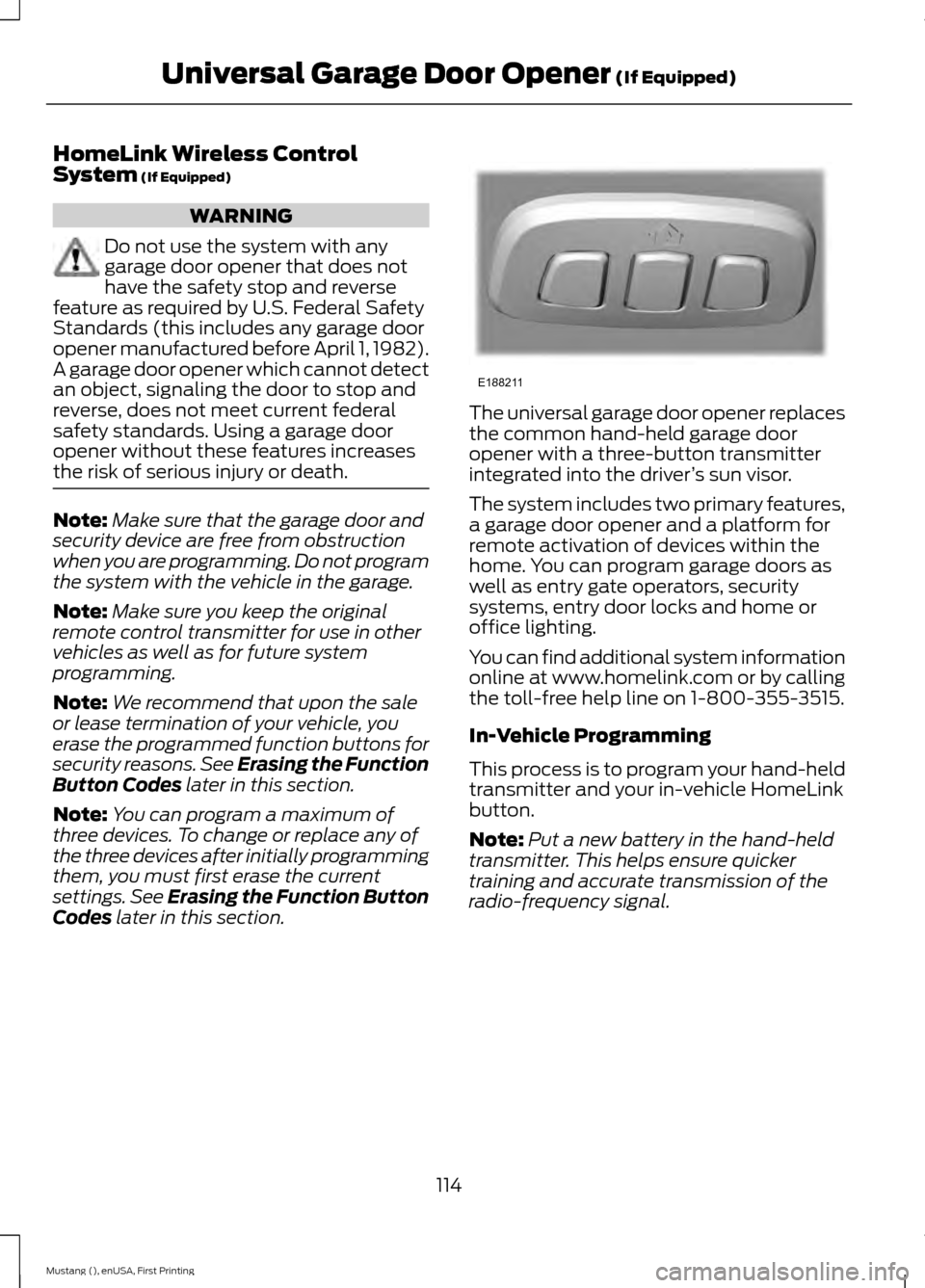
Codes later in this section. The universal garage door opener replaces
the common hand-held garage door
opener with a three-button transmitter
integrated into the driver
’s sun visor.
The system includes two primary features,
a garage door opener and a platform for
remote activation of devices within the
home. You can program garage doors as
well as entry gate operators, security
systems, entry door locks and home or
office lighting.
You can find additional system information
online at www.homelink.com or by calling
the toll-free help line on 1-800-355-3515.
In-Vehicle Programming
This process is to program your hand-held
transmitter and your in-vehicle HomeLink
button.
Note: Put a new battery in the hand-held
transmitter. This helps ensure quicker
training and accurate transmission of the
radio-frequency signal.
114
Mustang (), enUSA, First Printing Universal Garage Door Opener
(If Equipped)E188211
Page 118 of 441
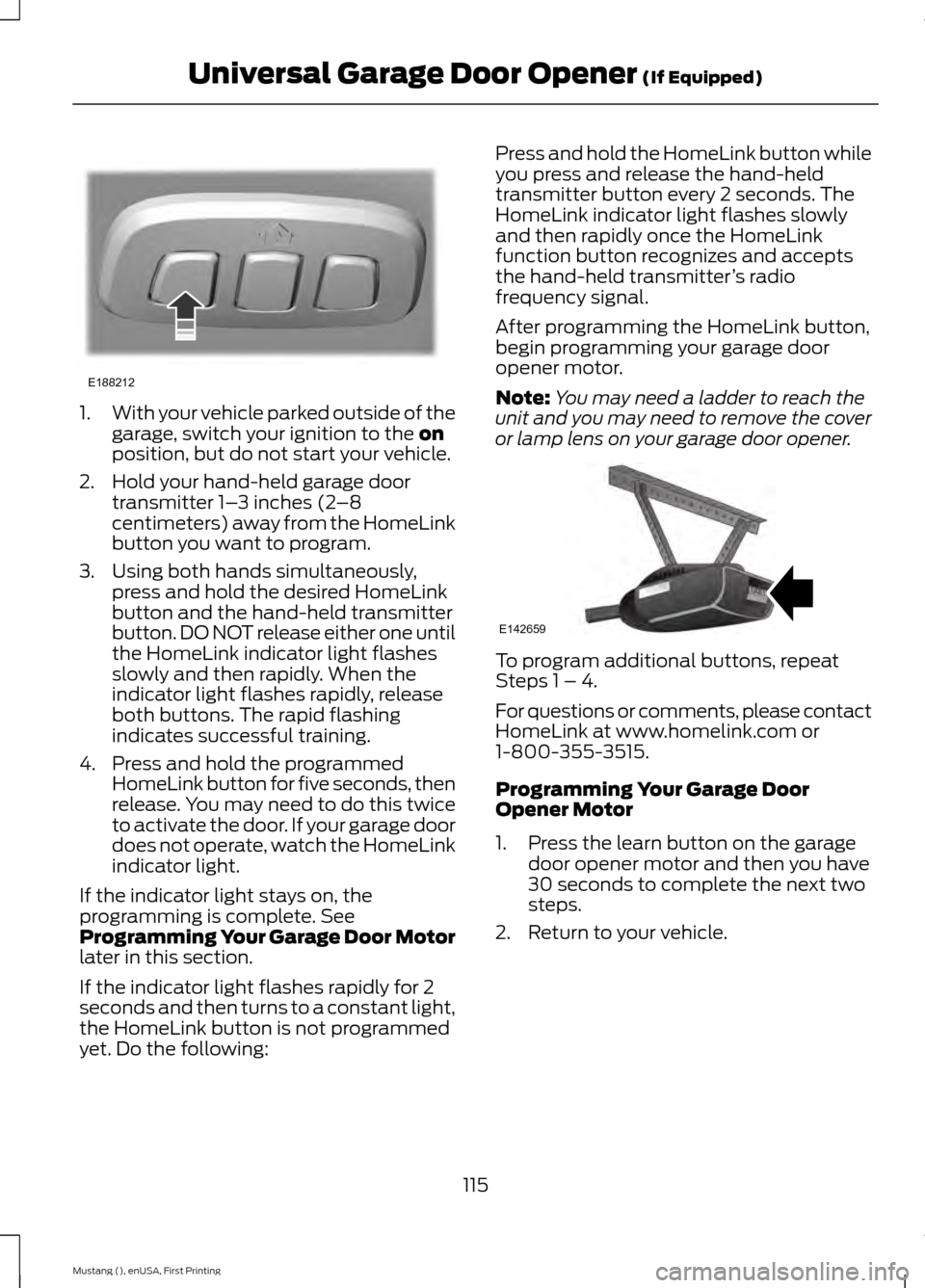
1.
With your vehicle parked outside of the
garage, switch your ignition to the on
position, but do not start your vehicle.
2. Hold your hand-held garage door transmitter 1– 3 inches (2–8
centimeters) away from the HomeLink
button you want to program.
3. Using both hands simultaneously, press and hold the desired HomeLink
button and the hand-held transmitter
button. DO NOT release either one until
the HomeLink indicator light flashes
slowly and then rapidly. When the
indicator light flashes rapidly, release
both buttons. The rapid flashing
indicates successful training.
4. Press and hold the programmed HomeLink button for five seconds, then
release. You may need to do this twice
to activate the door. If your garage door
does not operate, watch the HomeLink
indicator light.
If the indicator light stays on, the
programming is complete. See
Programming Your Garage Door Motor
later in this section.
If the indicator light flashes rapidly for 2
seconds and then turns to a constant light,
the HomeLink button is not programmed
yet. Do the following: Press and hold the HomeLink button while
you press and release the hand-held
transmitter button every 2 seconds. The
HomeLink indicator light flashes slowly
and then rapidly once the HomeLink
function button recognizes and accepts
the hand-held transmitter
’s radio
frequency signal.
After programming the HomeLink button,
begin programming your garage door
opener motor.
Note: You may need a ladder to reach the
unit and you may need to remove the cover
or lamp lens on your garage door opener. To program additional buttons, repeat
Steps 1 – 4.
For questions or comments, please contact
HomeLink at www.homelink.com or
1-800-355-3515.
Programming Your Garage Door
Opener Motor
1. Press the learn button on the garage
door opener motor and then you have
30 seconds to complete the next two
steps.
2. Return to your vehicle.
115
Mustang (), enUSA, First Printing Universal Garage Door Opener
(If Equipped)E188212 E142659
Page 119 of 441
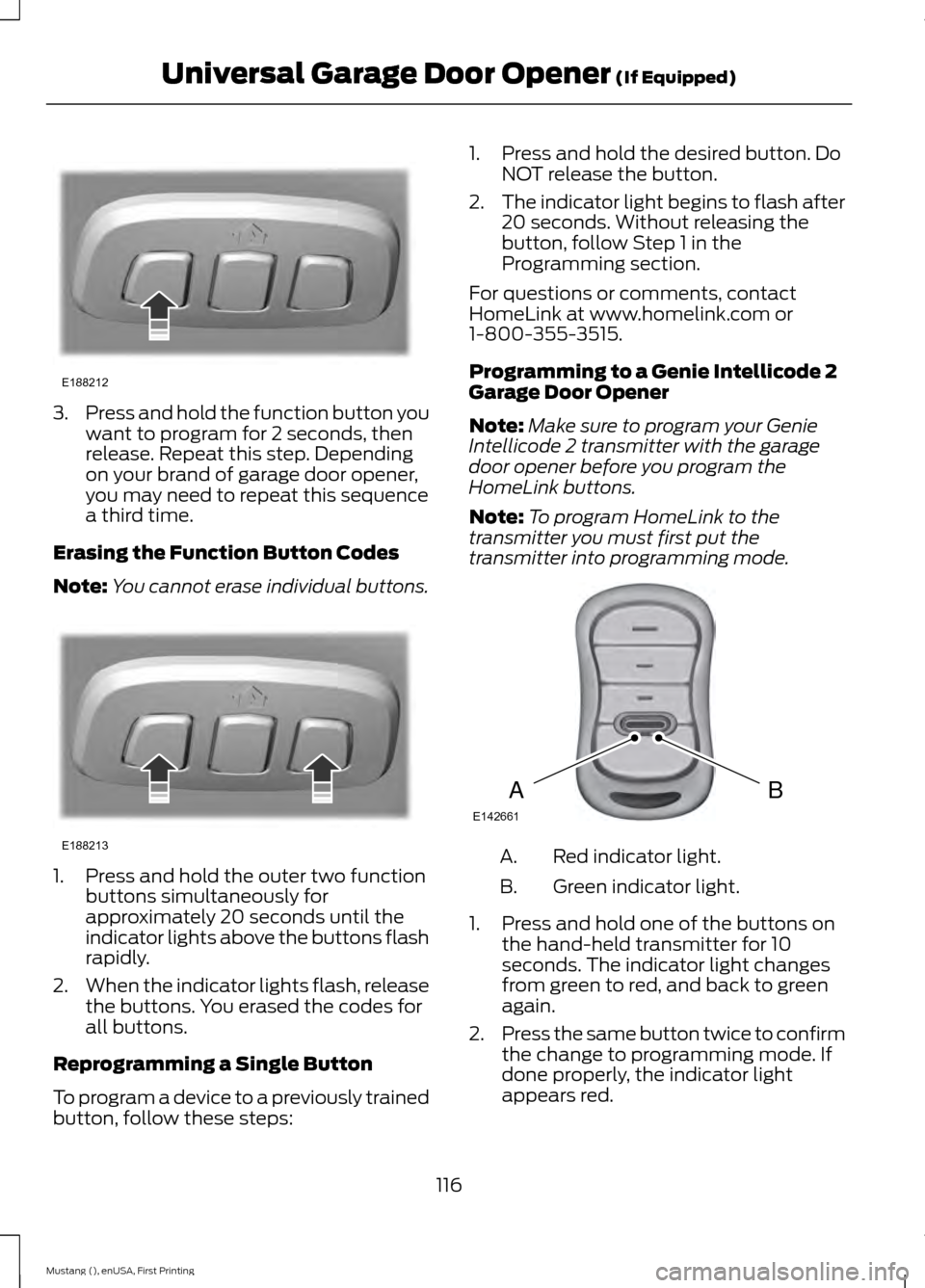
3.
Press and hold the function button you
want to program for 2 seconds, then
release. Repeat this step. Depending
on your brand of garage door opener,
you may need to repeat this sequence
a third time.
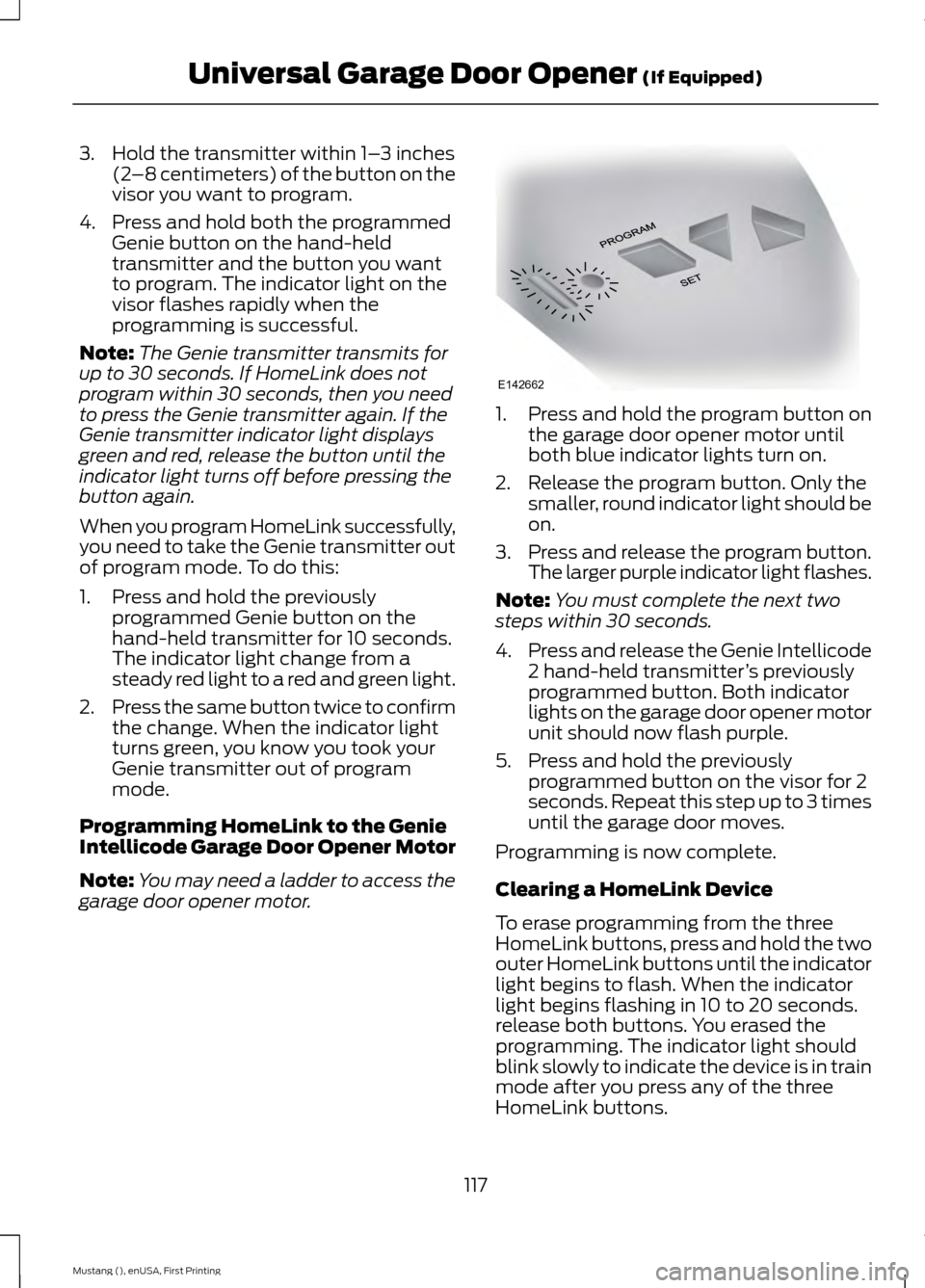
Erasing the Function Button Codes
Note: You cannot erase individual buttons.1. Press and hold the outer two function
buttons simultaneously for
approximately 20 seconds until the
indicator lights above the buttons flash
rapidly.
2. When the indicator lights flash, release
the buttons. You erased the codes for
all buttons.
Reprogramming a Single Button
To program a device to a previously trained
button, follow these steps: 1. Press and hold the desired button. Do
NOT release the button.
2. The indicator light begins to flash after
20 seconds. Without releasing the
button, follow Step 1 in the
Programming section.
For questions or comments, contact
HomeLink at www.homelink.com or
1-800-355-3515.
Programming to a Genie Intellicode 2
Garage Door Opener
Note: Make sure to program your Genie
Intellicode 2 transmitter with the garage
door opener before you program the
HomeLink buttons.
Note: To program HomeLink to the
transmitter you must first put the
transmitter into programming mode. Red indicator light.
A.
Green indicator light.
B.
1. Press and hold one of the buttons on the hand-held transmitter for 10
seconds. The indicator light changes
from green to red, and back to green
again.
2. Press the same button twice to confirm
the change to programming mode. If
done properly, the indicator light
appears red.
116
Mustang (), enUSA, First Printing Universal Garage Door Opener (If Equipped)E188212 E188213 BAE142661
Page 120 of 441
3. Hold the transmitter within 1–
3 inches
(2 –8 centimeters) of the button on the
visor you want to program.
4. Press and hold both the programmed Genie button on the hand-held
transmitter and the button you want
to program. The indicator light on the
visor flashes rapidly when the
programming is successful.
Note: The Genie transmitter transmits for
up to 30 seconds. If HomeLink does not
program within 30 seconds, then you need
to press the Genie transmitter again. If the
Genie transmitter indicator light displays
green and red, release the button until the
indicator light turns off before pressing the
button again.
When you program HomeLink successfully,
you need to take the Genie transmitter out
of program mode. To do this:
1. Press and hold the previously programmed Genie button on the
hand-held transmitter for 10 seconds.
The indicator light change from a
steady red light to a red and green light.
2. Press the same button twice to confirm
the change. When the indicator light
turns green, you know you took your
Genie transmitter out of program
mode.
Programming HomeLink to the Genie
Intellicode Garage Door Opener Motor
Note: You may need a ladder to access the
garage door opener motor. 1. Press and hold the program button on
the garage door opener motor until
both blue indicator lights turn on.
2. Release the program button. Only the smaller, round indicator light should be
on.
3. Press and release the program button.
The larger purple indicator light flashes.
Note: You must complete the next two
steps within 30 seconds.
4. Press and release the Genie Intellicode
2 hand-held transmitter ’s previously
programmed button. Both indicator
lights on the garage door opener motor
unit should now flash purple.
5. Press and hold the previously programmed button on the visor for 2
seconds. Repeat this step up to 3 times
until the garage door moves.
Programming is now complete.
Clearing a HomeLink Device
To erase programming from the three
HomeLink buttons, press and hold the two
outer HomeLink buttons until the indicator
light begins to flash. When the indicator
light begins flashing in 10 to 20 seconds.
release both buttons. You erased the
programming. The indicator light should
blink slowly to indicate the device is in train
mode after you press any of the three
HomeLink buttons.
117
Mustang (), enUSA, First Printing Universal Garage Door Opener (If Equipped)E142662
Page 125 of 441
STEERING WHEEL LOCK (If
Equipped)
The steering wheel locks automatically
when you leave your vehicle and take the
intelligent access key with you. The
steering wheel unlocks automatically when
you enter your vehicle with the intelligent
access key.
Note: You may need to turn the steering
wheel left or right if the wheel does not
unlock completely. This may happen in
certain situations, such as parking your
vehicle on a steep grade.
STARTING A GASOLINE
ENGINE
When you start the engine, the idle speed
increases, this helps to warm up the
engine. If the engine idle speed does not
slow down automatically, have your
vehicle checked by an authorized dealer.
Note: You can crank the engine for a total
of 60 seconds (without the engine starting)
before the starting system temporarily
disables. The 60 seconds does not have to
be all at once. For example, if you crank the
engine three times for 20 seconds each
time, without the engine starting, you
reached the 60-second time limit. A
message appears in the information display
alerting you that you exceeded the cranking
time. You cannot attempt to start the engine
for at least 15 minutes. After 15 minutes, you
are limited to a 15-second engine cranking
time. You need to wait 60 minutes before
you can crank the engine for 60 seconds
again. Before starting the engine, check the
following:
•
Make sure all occupants have fastened
their safety belts.
• Make sure the headlamps and
electrical accessories are off.
• Make sure the parking brake is on.
• Move the transmission selector lever
to park (P) (automatic transmission)
or neutral (manual transmission)
Note: Do not touch the accelerator pedal.
Note: You must have your intelligent access
key in the vehicle in order to shift the
transmission out of position
P.
1. Fully press the brake pedal.
2. Press the button.
The system does not function if:
• The key frequencies are jammed.
• The key battery has no charge.
If you are unable to start the engine, do the
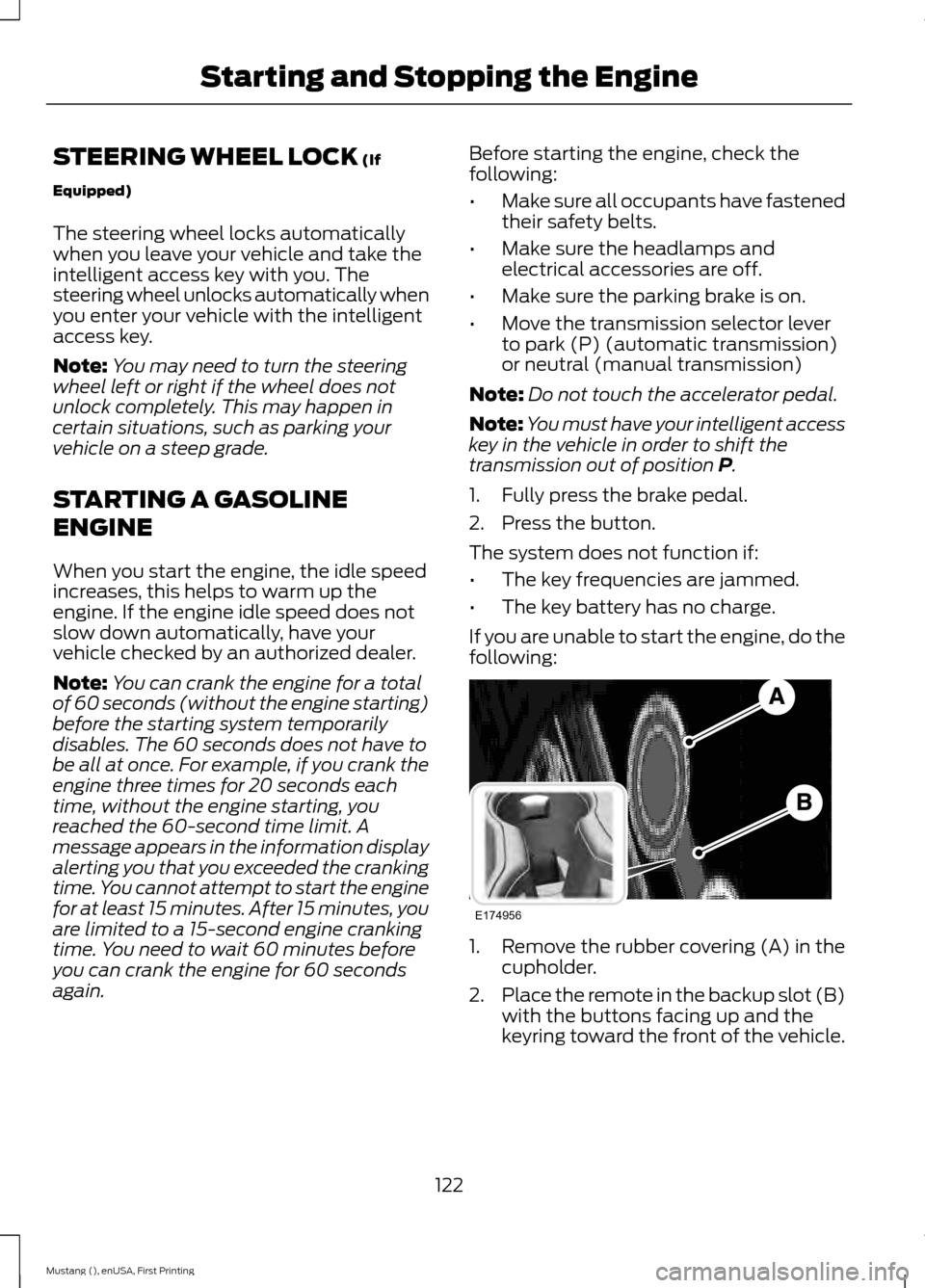
following: 1. Remove the rubber covering (A) in the
cupholder.
2. Place the remote in the backup slot (B)
with the buttons facing up and the
keyring toward the front of the vehicle.
122
Mustang (), enUSA, First Printing Starting and Stopping the EngineE174956
Page 225 of 441
control fan, heated steering wheel, audio
and navigation system. A message may be
shown in the information displays to alert
the driver that battery protection actions
are active. These messages are only for
notification that an action is taking place,
and not intended to indicate an electrical
problem or that the battery requires
replacement.
Electrical accessory installation
To ensure proper operation of the Battery
Management System, any electrical
devices that are added to your vehicle
should not have their ground connection
made directly at the negative battery post.
A connection at the negative battery post
can cause inaccurate measurements of
the battery condition and potential
incorrect system operation.
Note:
Electrical or electronic accessories
added to your vehicle by the dealer or the
owner, may adversely affect battery
performance and durability, and may affect
the performance of other electrical systems
in your vehicle.
When a battery replacement is required,
the battery should only be replaced with
a Ford-recommended replacement battery
that matches the electrical requirements
of your vehicle. After battery replacement,
or in some cases after charging the battery
with the external charger, the Battery
Management System requires eight hours
of vehicle sleep time (key off with doors
closed) to relearn the new battery state of
charge. Prior to relearning the state of
charge, the Battery Management System
may disable electrical features (to protect
the battery) earlier than normal. CHECKING THE WIPER
BLADES
Run the tip of your fingers over the edge of
the blade to check for roughness.
Clean the wiper blades with washer fluid
or water applied with a soft sponge or
cloth.
CHANGING THE WIPER
BLADES
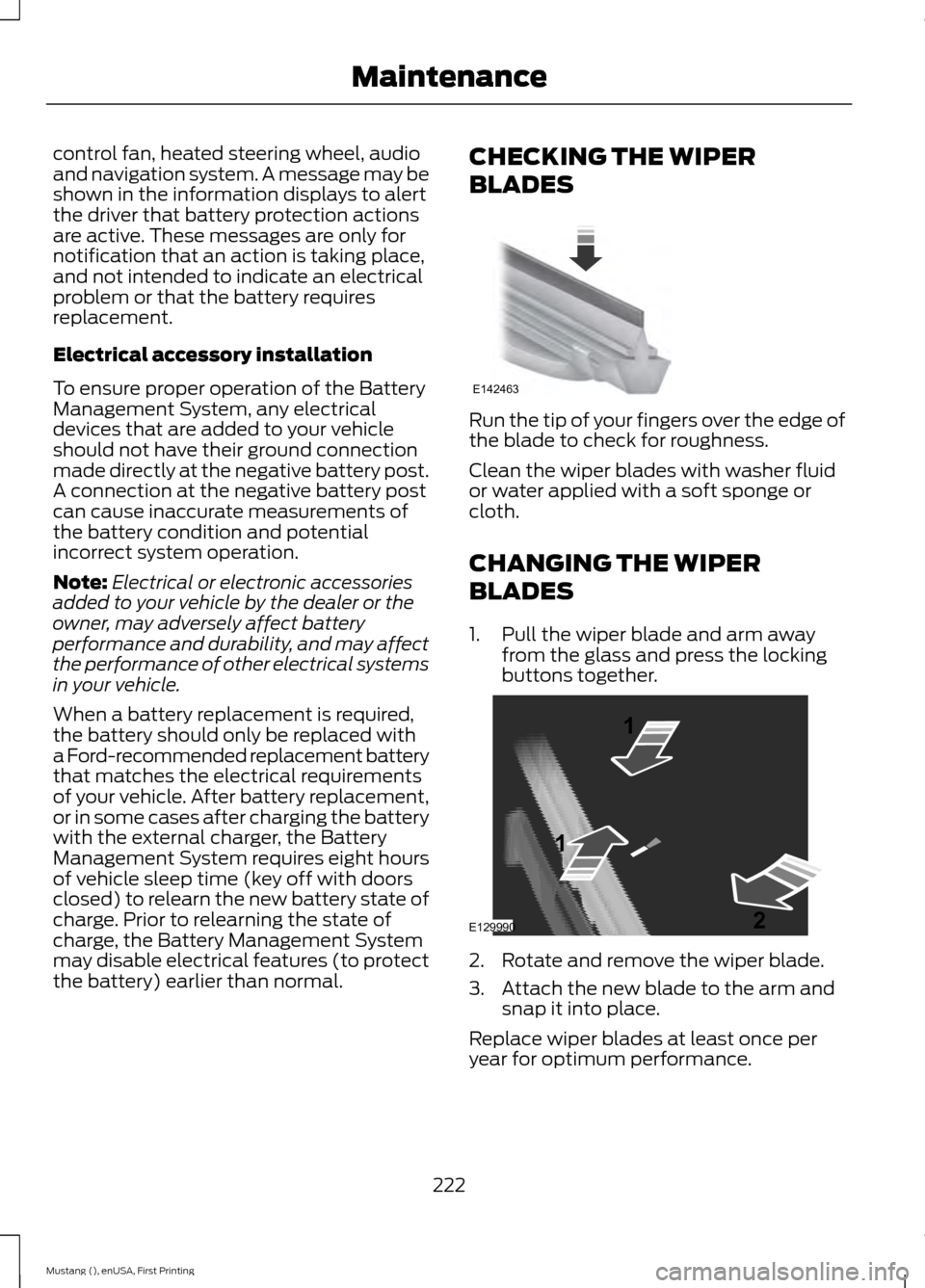
1. Pull the wiper blade and arm away
from the glass and press the locking
buttons together. 2. Rotate and remove the wiper blade.
3. Attach the new blade to the arm and
snap it into place.
Replace wiper blades at least once per
year for optimum performance.
222
Mustang (), enUSA, First Printing MaintenanceE142463 E129990
1
1 2
Page 288 of 441
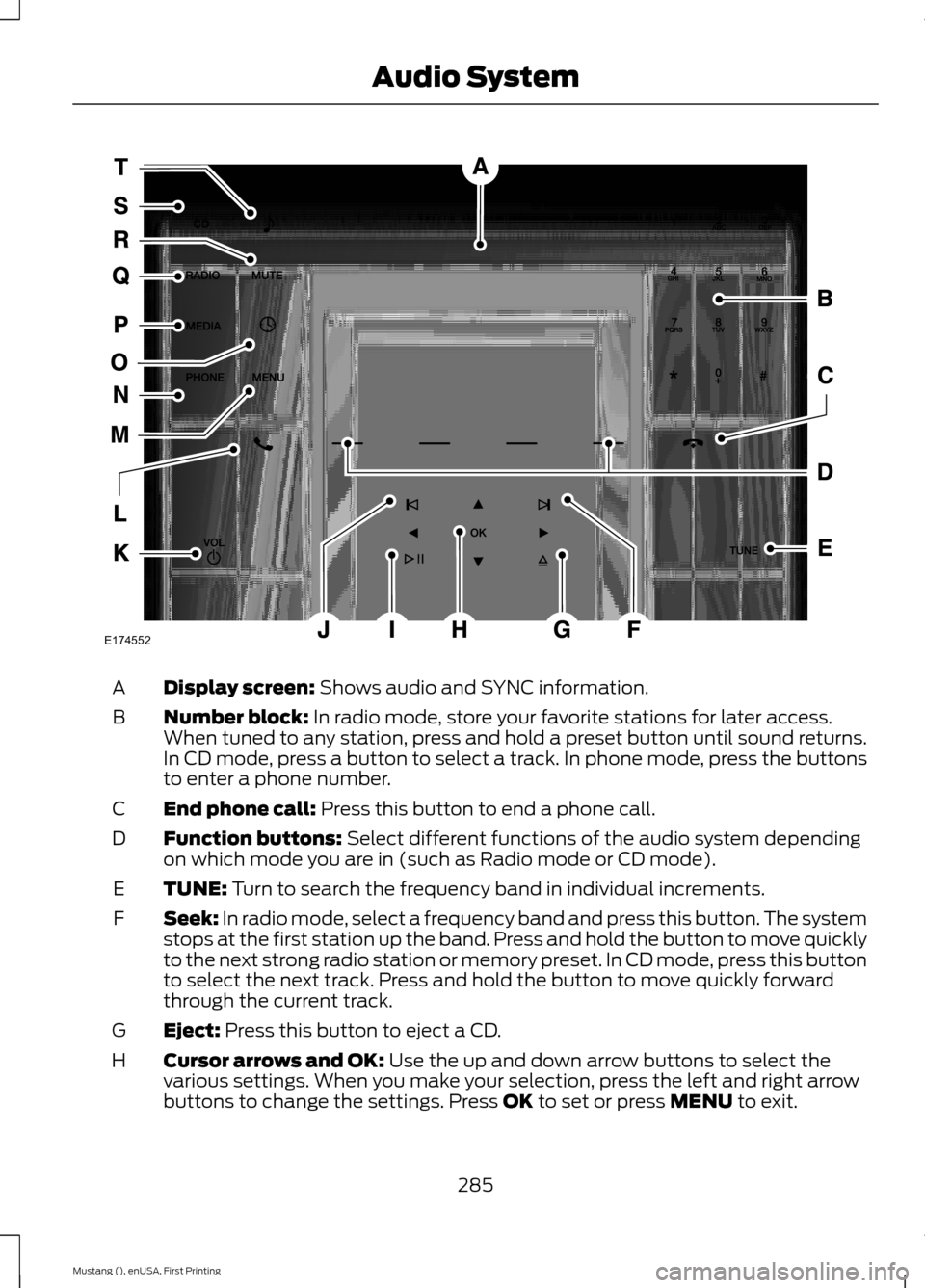
Display screen: Shows audio and SYNC information.
A
Number block:
In radio mode, store your favorite stations for later access.
When tuned to any station, press and hold a preset button until sound returns.
In CD mode, press a button to select a track. In phone mode, press the buttons
to enter a phone number.
B
End phone call:
Press this button to end a phone call.
C
Function buttons:
Select different functions of the audio system depending
on which mode you are in (such as Radio mode or CD mode).
D
TUNE:
Turn to search the frequency band in individual increments.
E
Seek:
In radio mode, select a frequency band and press this button. The system
stops at the first station up the band. Press and hold the button to move quickly
to the next strong radio station or memory preset. In CD mode, press this button
to select the next track. Press and hold the button to move quickly forward
through the current track.
F
Eject:
Press this button to eject a CD.
G
Cursor arrows and OK:
Use the up and down arrow buttons to select the
various settings. When you make your selection, press the left and right arrow
buttons to change the settings. Press
OK to set or press MENU to exit.
H
285
Mustang (), enUSA, First Printing Audio SystemE174552
Page 289 of 441
Play/Pause: Press to either play or pause a track when listening to a CD.
I
Seek:
In radio mode, select a frequency band and press this button. The system
stops at the first station down the band. Press and hold the button to move
quickly to the previous strong radio station or memory preset. In CD mode, press
this button to select the previous track. Press and hold the button to move
quickly backward through the current track.
J
VOL and Power:
Press this button to turn the system off and on. Turn it to
adjust the volume.
K
Pick-up or Make phone call:
Press this button to either pick-up an incoming
phone call or to make a phone call.
L
MENU:
Press this button to access different audio system features.
M
PHONE:
Press this button to access the phone features of the SYNC® system.
See SYNC™ (page 295).
N
Clock:
Press this button to access the clock setting. Use the center arrow
controls to change the hours and minutes. You can also set the clock by pressing
the
MENU button and scrolling to Clock Settings.
O
MEDIA:
Press this button to access your auxiliary input jack or switch between
devices you plug into the input jack or USB port.
P
RADIO:
Press this button to listen to the radio or change radio frequencies
bands. Press the function buttons below the radio screen to select different
radio functions.
Q
MUTE
or SIRIUS: Press this button to mute the playing audio, or if equipped,
listen to Sirius satellite radio.
R
CD:
Press this button to listen to a CD. Press the function buttons below the
radio screen to select on-screen options of Repeat or Shuffle.
S
Sound:
Press this button to access settings for Treble, Midrange, Bass, Fade
and Balance. Use the up and down arrow buttons to select the various settings.
When you make your selection, press the left and right arrow buttons to change
the settings. Press
OK to set or press MENU to exit. Sound settings can be set
for each audio source independently.
T
286
Mustang (), enUSA, First Printing Audio System