buttons FORD MUSTANG 2015 6.G Owner's Guide
[x] Cancel search | Manufacturer: FORD, Model Year: 2015, Model line: MUSTANG, Model: FORD MUSTANG 2015 6.GPages: 441, PDF Size: 6.98 MB
Page 394 of 441
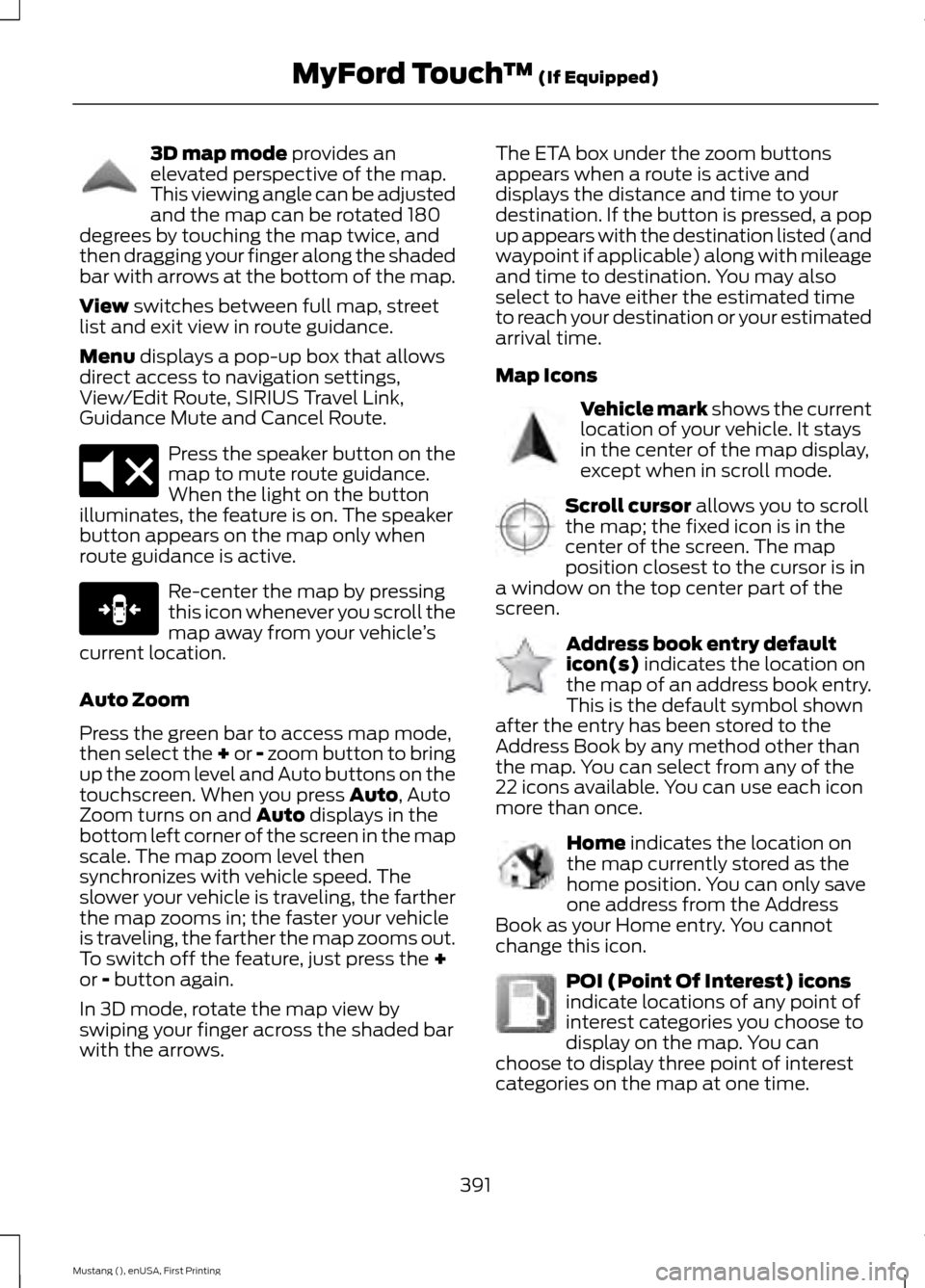
3D map mode provides an
elevated perspective of the map.
This viewing angle can be adjusted
and the map can be rotated 180
degrees by touching the map twice, and
then dragging your finger along the shaded
bar with arrows at the bottom of the map.
View
switches between full map, street
list and exit view in route guidance.
Menu
displays a pop-up box that allows
direct access to navigation settings,
View/Edit Route, SIRIUS Travel Link,
Guidance Mute and Cancel Route. Press the speaker button on the
map to mute route guidance.
When the light on the button
illuminates, the feature is on. The speaker
button appears on the map only when
route guidance is active. Re-center the map by pressing
this icon whenever you scroll the
map away from your vehicle
’s
current location.
Auto Zoom
Press the green bar to access map mode,
then select the + or - zoom button to bring
up the zoom level and Auto buttons on the
touchscreen. When you press
Auto, Auto
Zoom turns on and Auto displays in the
bottom left corner of the screen in the map
scale. The map zoom level then
synchronizes with vehicle speed. The
slower your vehicle is traveling, the farther
the map zooms in; the faster your vehicle
is traveling, the farther the map zooms out.
To switch off the feature, just press the
+
or - button again.
In 3D mode, rotate the map view by
swiping your finger across the shaded bar
with the arrows. The ETA box under the zoom buttons
appears when a route is active and
displays the distance and time to your
destination. If the button is pressed, a pop
up appears with the destination listed (and
waypoint if applicable) along with mileage
and time to destination. You may also
select to have either the estimated time
to reach your destination or your estimated
arrival time.
Map Icons
Vehicle mark
shows the current
location of your vehicle. It stays
in the center of the map display,
except when in scroll mode. Scroll cursor
allows you to scroll
the map; the fixed icon is in the
center of the screen. The map
position closest to the cursor is in
a window on the top center part of the
screen. Address book entry default
icon(s)
indicates the location on
the map of an address book entry.
This is the default symbol shown
after the entry has been stored to the
Address Book by any method other than
the map. You can select from any of the
22 icons available. You can use each icon
more than once. Home
indicates the location on
the map currently stored as the
home position. You can only save
one address from the Address
Book as your Home entry. You cannot
change this icon. POI (Point Of Interest) icons
indicate locations of any point of
interest categories you choose to
display on the map. You can
choose to display three point of interest
categories on the map at one time.
391
Mustang (), enUSA, First Printing MyFord Touch
™
(If Equipped)E142644 E174017 E146188 E142646 E142647 E142648 E142649 E142650
Page 395 of 441
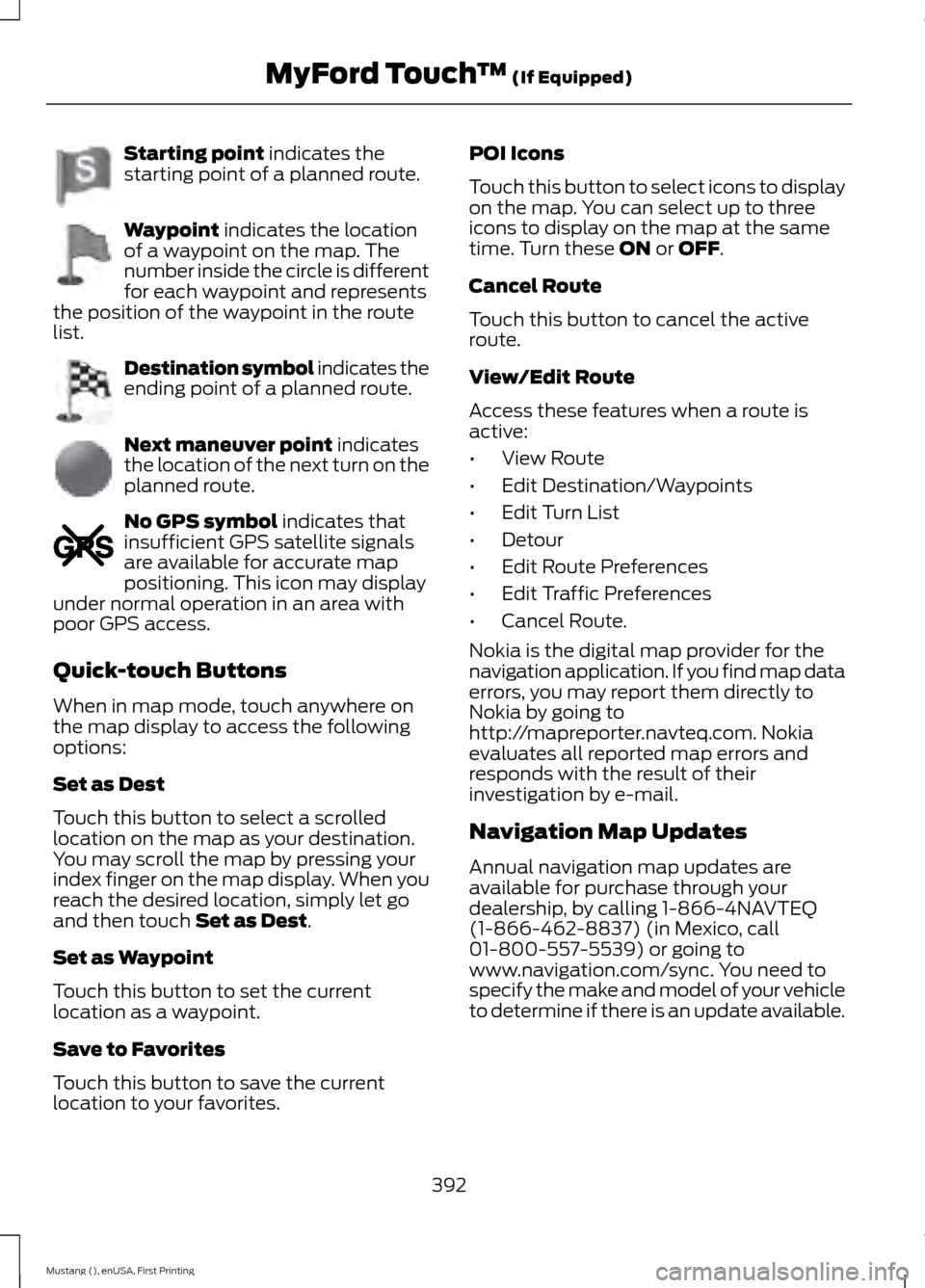
Starting point indicates the
starting point of a planned route. Waypoint
indicates the location
of a waypoint on the map. The
number inside the circle is different
for each waypoint and represents
the position of the waypoint in the route
list. Destination symbol indicates the
ending point of a planned route.
Next maneuver point
indicates
the location of the next turn on the
planned route. No GPS symbol
indicates that
insufficient GPS satellite signals
are available for accurate map
positioning. This icon may display
under normal operation in an area with
poor GPS access.
Quick-touch Buttons
When in map mode, touch anywhere on
the map display to access the following
options:
Set as Dest
Touch this button to select a scrolled
location on the map as your destination.
You may scroll the map by pressing your
index finger on the map display. When you
reach the desired location, simply let go
and then touch
Set as Dest.
Set as Waypoint
Touch this button to set the current
location as a waypoint.
Save to Favorites
Touch this button to save the current
location to your favorites. POI Icons
Touch this button to select icons to display
on the map. You can select up to three
icons to display on the map at the same
time. Turn these
ON or OFF.
Cancel Route
Touch this button to cancel the active
route.
View/Edit Route
Access these features when a route is
active:
• View Route
• Edit Destination/Waypoints
• Edit Turn List
• Detour
• Edit Route Preferences
• Edit Traffic Preferences
• Cancel Route.
Nokia is the digital map provider for the
navigation application. If you find map data
errors, you may report them directly to
Nokia by going to
http://mapreporter.navteq.com. Nokia
evaluates all reported map errors and
responds with the result of their
investigation by e-mail.
Navigation Map Updates
Annual navigation map updates are
available for purchase through your
dealership, by calling 1-866-4NAVTEQ
(1-866-462-8837) (in Mexico, call
01-800-557-5539) or going to
www.navigation.com/sync. You need to
specify the make and model of your vehicle
to determine if there is an update available.
392
Mustang (), enUSA, First Printing MyFord Touch
™
(If Equipped)E142651 E142652 E142653 E142654 E142655
Page 437 of 441
M
Maintenance..................................................210
General Information.......................................... 210
Manual Climate Control.............................101
Manual Seats..................................................110
Manual Transmission Fluid Check.........219
Manual Transmission
..................................134
Parking Your Vehicle.......................................... 135
Recommended Shift Speeds......................... 134
Reverse................................................................... 135
Using the Clutch.................................................. 134
Media Hub......................................................294
Memory Function
............................................111
Easy Entry and Exit Feature............................. 112
Linking a PreSet Position to your Remote Control or Intelligent Access Key
Fob........................................................................\
112
Saving a PreSet Position.................................... 111
Message Center See: Information Displays................................. 83
Mirrors See: Heated Windows and Mirrors..............106
See: Windows and Mirrors................................ 73
Mobile Communications Equipment.......13
Motorcraft Parts
..........................................268
MyFord Touch ™...........................................334
General Information......................................... 334
MyKey Troubleshooting
...............................54
MyKey ™............................................................50
Principle of Operation........................................ 50
N
Navigation
......................................................386
cityseekr................................................................ 388
Map Mode............................................................ 390
Navigation Map Updates................................ 392
Navigation Voice Commands....................... 393
Point of Interest (POI) Categories...............387
Quick-touch Buttons........................................ 392
Setting a Destination....................................... 386
Setting Your Navigation Preferences.........389
Normal Scheduled Maintenance............417 Intelligent Oil-Life Monitor®........................... 417
Normal Maintenance Intervals..................... 418O
Oil Check
See: Engine Oil Check....................................... 214
Opening and Closing the Hood
...............210
Opening the Convertible Top...................185 Using the Tonneau Caps................................. 186
Ordering Additional Owner's Literature.....................................................200
Obtaining a French Owner ’s Manual.........200
P
Parking Aid
.......................................................147
Rear Sensing System......................................... 147
Parking Aids
....................................................147
Parking Brake.................................................140
Passive Anti-Theft System.........................62 SecuriLock.............................................................. 62
PATS See: Passive Anti-Theft System..................... 62
Perchlorate.........................................................11
Personal Safety System ™
..........................35
How Does the Personal Safety System
Work?.................................................................. 35
Phone..............................................................368 Making Calls........................................................ 370
Pairing Subsequent Phones.......................... 370
Pairing Your Phone for the First Time.................................................................. 369
Phone Menu Options....................................... 370
Phone Settings.................................................... 372
Phone Voice Commands................................ 373
Receiving Calls.................................................... 370
Text Messaging.................................................... 371
Post-Crash Alert System...........................195
Power Door Locks See: Locking and Unlocking............................. 56
Power Seats
....................................................110
Power Lumbar........................................................ 111
Power Steering Fluid Check......................219
Power Windows
..............................................73
Accessory Delay.................................................... 73
Bounce-Back.......................................................... 73
One-Touch Down................................................. 73
One-Touch Up....................................................... 73
434
Mustang (), enUSA, First Printing Index