navigation system HONDA CR-Z 2012 1.G User Guide
[x] Cancel search | Manufacturer: HONDA, Model Year: 2012, Model line: CR-Z, Model: HONDA CR-Z 2012 1.GPages: 333, PDF Size: 10.43 MB
Page 136 of 333
135
Features
This chapter describes how to operate the audio system an d other technology features.
Audio System
About Your Audio System ................ 136
USB Adapter Cable .......................... 137
Auxiliary Input Jack .......................... 138
Audio System Theft Protection ......... 139
Audio Remote Controls .................... 140
Audio without Navigation System Audio System Basic Operation .......... 141
Playing the AM/FM Radio ................. 143
Playing a CD .................................... 145
Playing an iPod ®............................... 147
Playing a USB Flash Drive ................. 149 Audio with Navigation System
*
Audio System Basic Operation.......... 151
Playing the AM/FM Radio ................. 154
Playing a CD .................................... 156
Playing a PC Card ............................ 158
Playing an iPod ®............................... 162
Playing a USB Flash Drive ................. 165
Audio Error Messages CD Player ......................................... 167
iPod ®/USB Flash Drive....................... 168 General Information on the Audio System
Recommended CDs ......................... 169
Compatible iPod® and USB Flash Drives ... 171
Recommended PC Card ................... 172
Bluetooth ® HandsFreeLink ®*
Using HFL ........................................ 173
HFL Menus ...................................... 175
* Not available on all models
Page 137 of 333
136
Features
Audio System
About Your Audio System
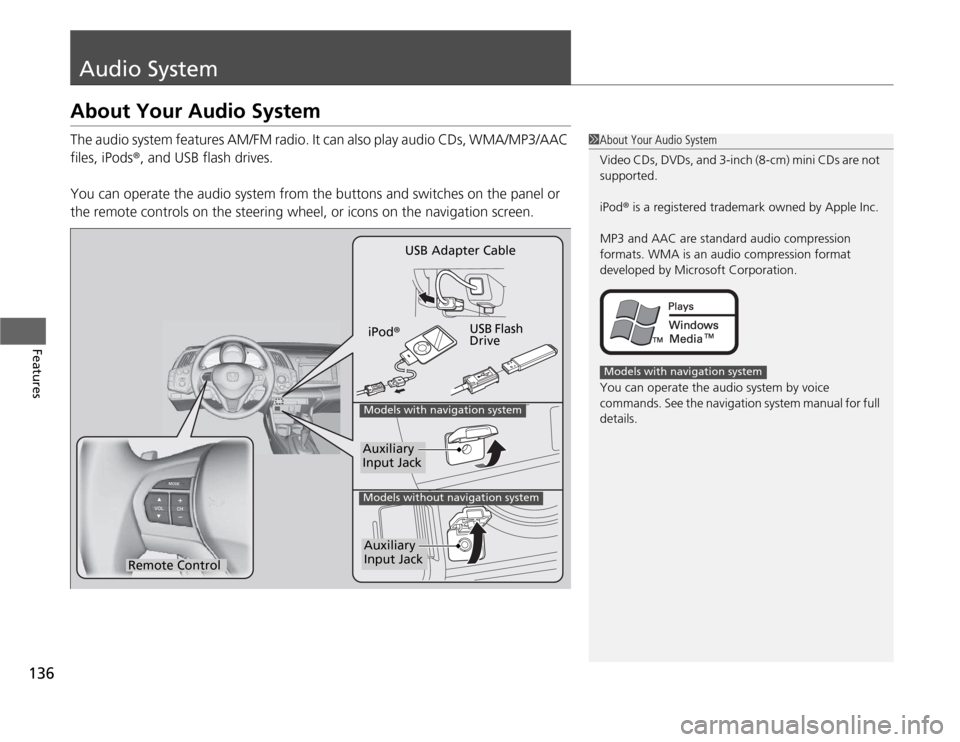
The audio system features AM/FM radio. It can also play audio CDs, WMA/MP3/AAC files, iPods®, and USB flash drives.
You can operate the audio system from the buttons and switches on the panel or
the remote controls on the steering wheel, or icons on the navigation screen.
1About Your Audio System
Video CDs, DVDs, and 3-inch (8-cm) mini CDs are not
supported.
iPod® is a registered trademark owned by Apple Inc.
MP3 and AAC are standard audio compression
formats. WMA is an audio compression format
developed by Microsoft Corporation.
You can operate the audio system by voice
commands. See the navigation system manual for full details.
Models with navigation system
Remote Control iPod
® USB Flash Drive
USB Adapter Cable
Models with navigation system
Models without navigation system
Auxiliary Input Jack
Auxiliary Input Jack
Page 139 of 333
138
uuAudio SystemuAuxiliary Input Jack
Features
Auxiliary Input Jack
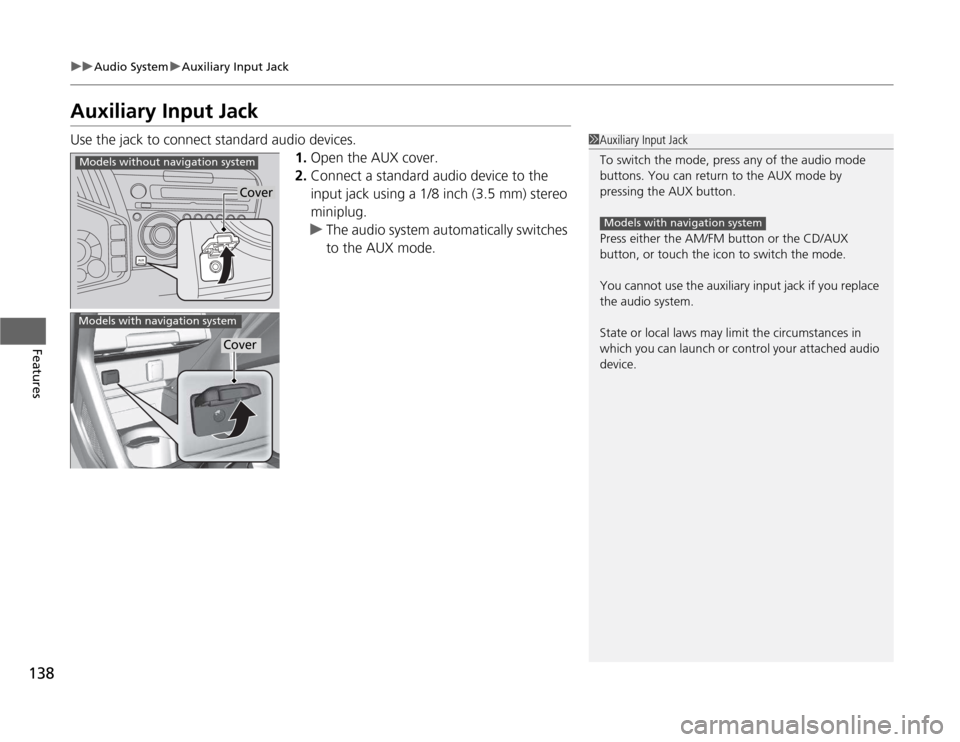
Use the jack to connect standard audio devices.1.Open the AUX cover.
2. Connect a standard audio device to the
input jack using a 1/8 inch (3.5 mm) stereo
miniplug.
uThe audio system automatically switches
to the AUX mode.
1Auxiliary Input Jack
To switch the mode, press any of the audio mode
buttons. You can return to the AUX mode by
pressing the AUX button.
Press either the AM/FM button or the CD/AUX
button, or touch the icon to switch the mode.
You cannot use the auxiliary input jack if you replace
the audio system.
State or local laws may limit the circumstances in
which you can launch or control your attached audio
device.
Models with navigation system
Cover
Models without navigation system
Models with navigation system
Cover
Page 140 of 333
139
uuAudio SystemuAudio System Theft Protection
Features
Audio System Theft Protection
The audio system is disabled when it is disconnected from the power source, such as
when the 12 volt battery is disconnected or goes dead. ■Reactivating the audio system
1. Turn the ignition switch to ON
(w , and turn on the audio system.
uIf you turn the ignition switch to ACCESSORY (q , you will be requested to
enter the audio security code.
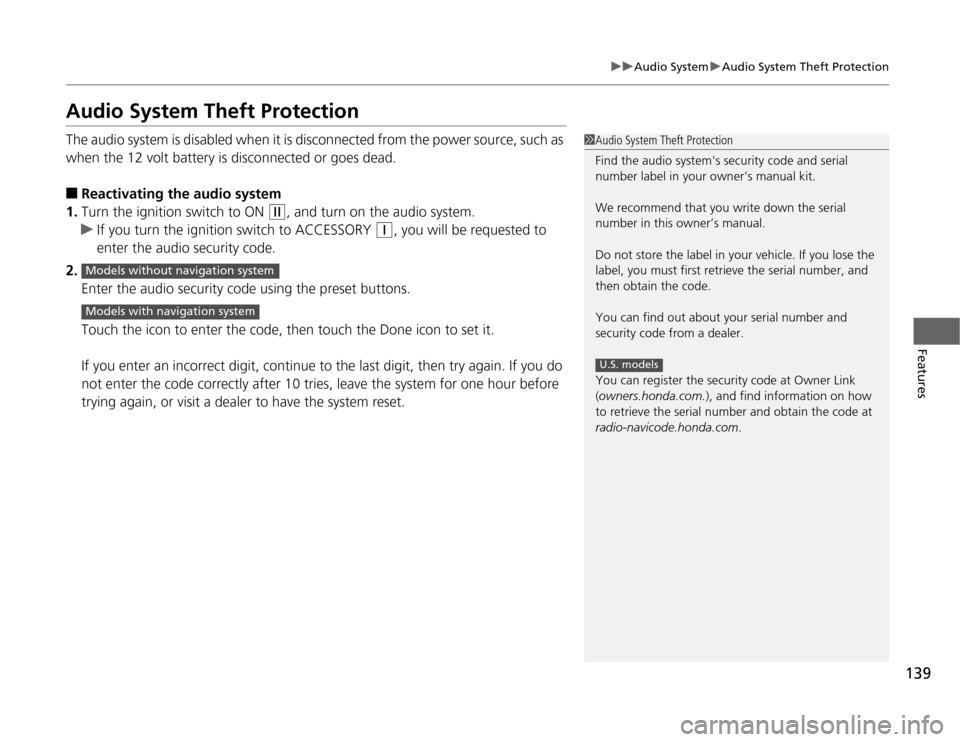
2. Enter the audio security code using the preset buttons.
Touch the icon to enter the code, then touch the Done icon to set it.
If you enter an incorrect digit, continue to the last digit, then try again. If you do
not enter the code correctly after 10 tries, leave the system for one hour before
trying again, or visit a dealer to have the system reset.
1Audio System Theft Protection
Find the audio system's security code and serial
number label in your owner’s manual kit.
We recommend that you write down the serial
number in this owner’s manual.
Do not store the label in your vehicle. If you lose the
label, you must first retrieve the serial number, and
then obtain the code.
You can find out about your serial number and
security code from a dealer.
You can register the security code at Owner Link (owners.honda.com. ), and find information on how
to retrieve the serial number and obtain the code at
radio-navicode.honda.com .
U.S. models
Models without navigation system
Models with navigation system
Page 141 of 333
140
uuAudio SystemuAudio Remote Controls
Features
Audio Remote Controls
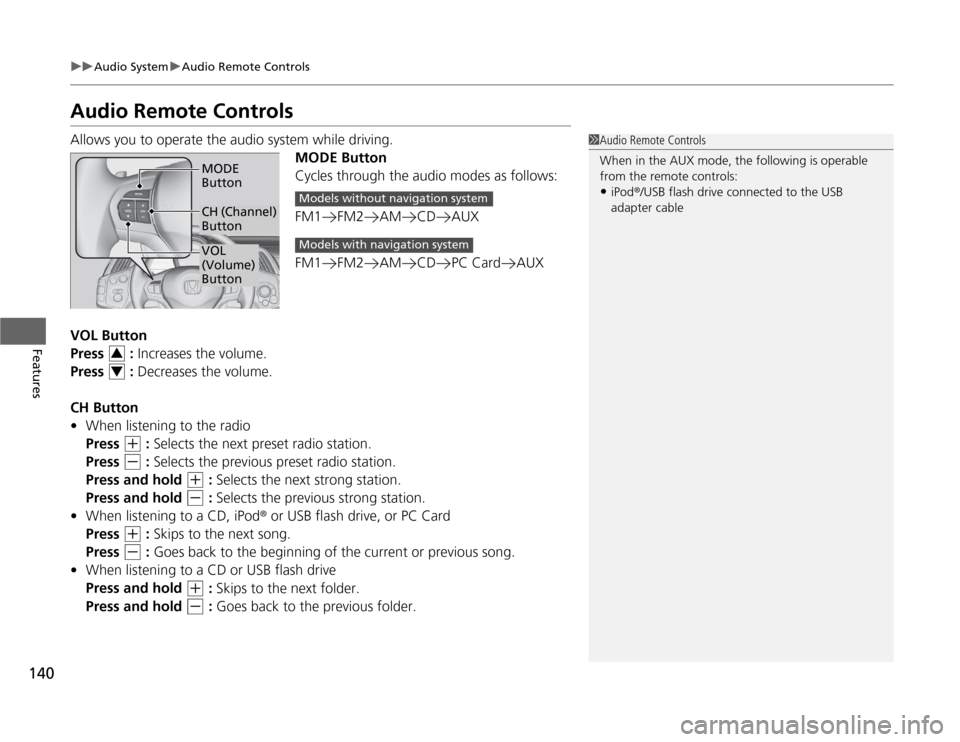
Allows you to operate the audio system while driving.MODE Button
Cycles through the audio modes as follows:
FM1 FM2 AM CD AUX
FM1 FM2 AM CD PC Card AUX
VOL Button
Press : Increases the volume.
Press : Decreases the volume.
CH Button • When listening to the radio
Press
(+ : Selects the next preset radio station.
Press
(- : Selects the previous preset radio station.
Press and hold
(+ : Selects the next strong station.
Press and hold
(- : Selects the previous strong station.
• When listening to a CD, iPod ® or USB flash drive, or PC Card
Press
(+ : Skips to the next song.
Press
(- : Goes back to the beginning of the current or previous song.
• When listening to a CD or USB flash drive
Press and hold
(+ : Skips to the next folder.
Press and hold
(- : Goes back to the previous folder.
1Audio Remote Controls
When in the AUX mode, the following is operable
from the remote controls:
• iPod ®/USB flash drive connected to the USB
adapter cable
VOL
(Volume) Button
MODE Button
CH (Channel) Button
Models without navigation system
Models with navigation system
3
4
Page 142 of 333
141
Continued
Features
Audio without Navigation System
Audio System Basic Operation
To use the audio system function, the ignition switch must be in ACCESSORY
(q
or
ON
(w .
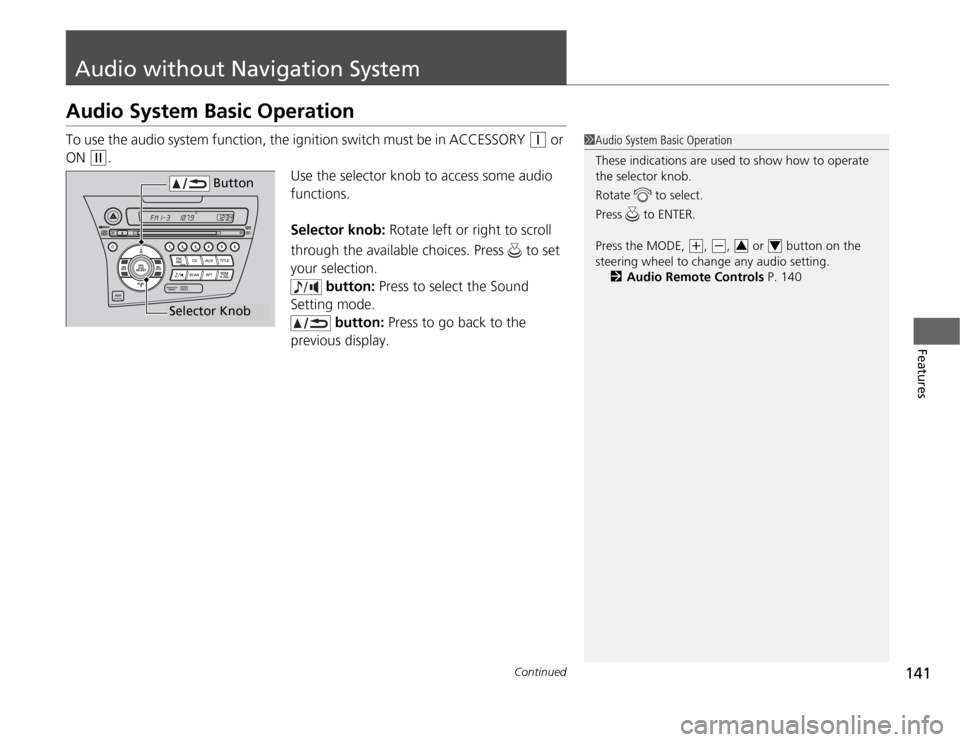
Use the selector knob to access some audio
functions.
Selector knob: Rotate left or right to scroll
through the available choices. Press to set
your selection. button: Press to select the Sound
Setting mode.
button: Press to go back to the
previous display.
1Audio System Basic Operation
These indications are used to show how to operate
the selector knob.
Rotate to select.
Press to ENTER.
Press the MODE,
(+ , (-, or button on the
steering wheel to change any audio setting. 2 Audio Remote Controls P. 14034
Button
Selector Knob
Page 143 of 333
uuAudio without Navigation SystemuAudio System Basic Operation
142
Features
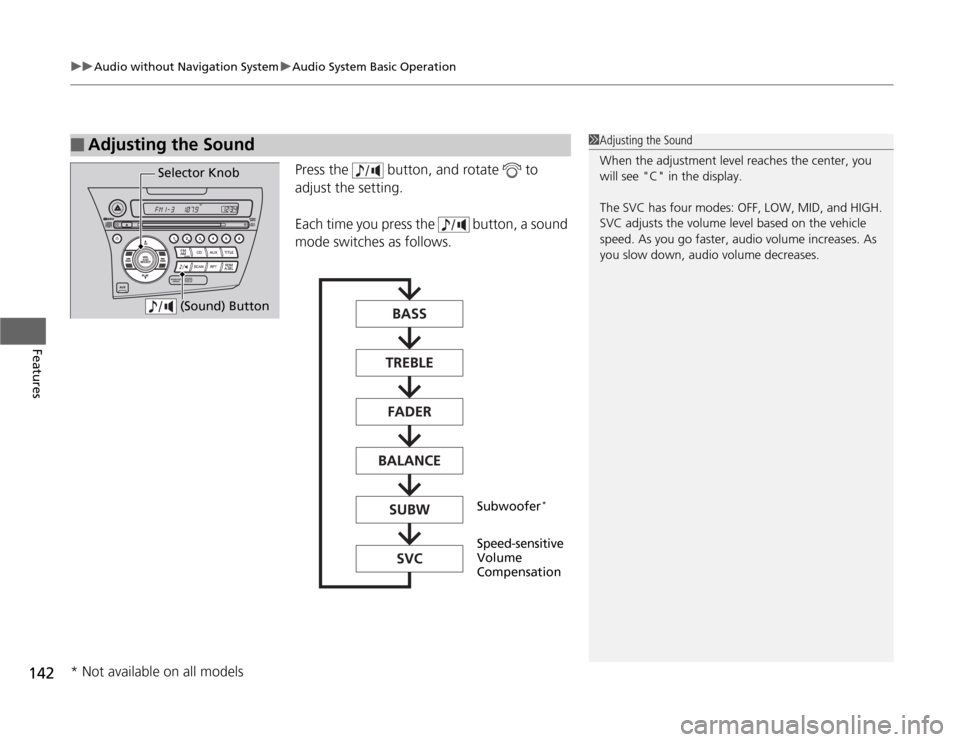
Press the button, and rotate to
adjust the setting.
Each time you press the button, a sound
mode switches as follows.
■Adjusting the Sound1Adjusting the Sound
When the adjustment level reaches the center, you
will see "C" in the display.
The SVC has four modes: OFF, LOW, MID, and HIGH.
SVC adjusts the volume level based on the vehicle
speed. As you go faster, audio volume increases. As
you slow down, audio volume decreases.
Selector Knob (Sound) Button
Speed-sensitive Volume Compensation
Subwoofer
*
* Not available on all models
Page 144 of 333
143
uuAudio without Navigation SystemuPlaying the AM/FM Radio
Continued
Features
Playing the AM/FM Radio
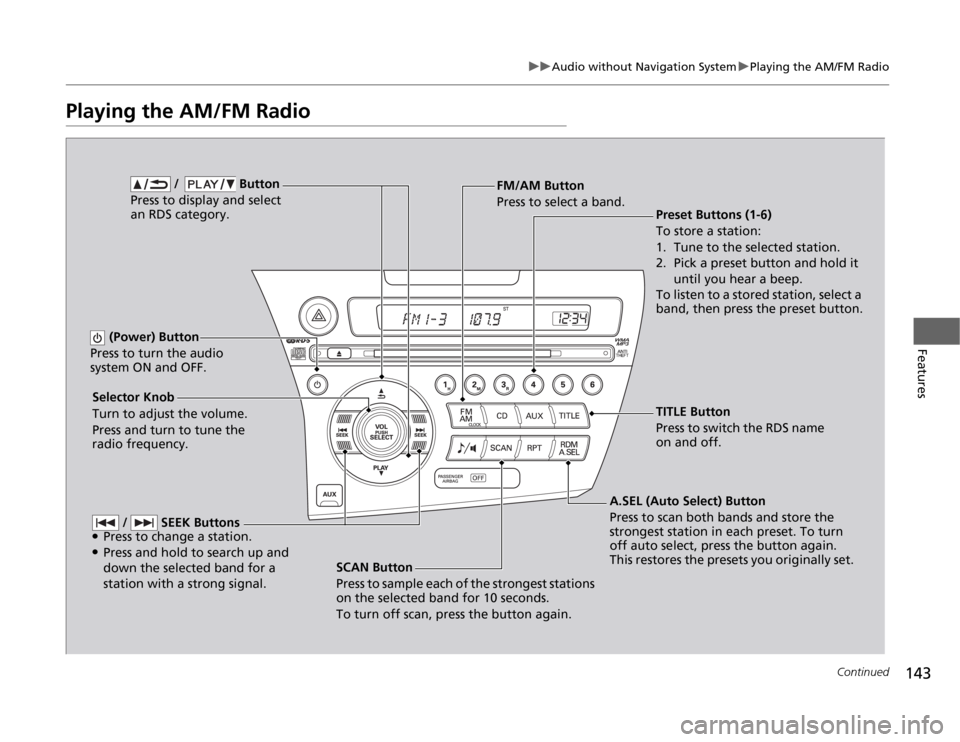
SCAN Button
Press to sample each of the strongest stations
on the selected band for 10 seconds.
To turn off scan, press the button again.
(Power) Button
Press to turn the audio
system ON and OFF.
Preset Buttons (1-6)
To store a station:
1. Tune to the selected station.
2. Pick a preset button and hold it until you hear a beep.
To listen to a stored station, select a
band, then press the preset button.
Selector Knob
Turn to adjust the volume.
Press and turn to tune the radio frequency. FM/AM Button
Press to select a band.
A.SEL (Auto Select) Button
Press to scan both bands and store the
strongest station in each preset. To turn
off auto select, press the button again.
This restores the presets you originally set.
/ Button
Press to display and select an RDS category.
/ SEEK Buttons
● Press to change a station.
● Press and hold to search up and
down the selected band for a station with a strong signal.
TITLE Button
Press to switch the RDS name
on and off.
Page 145 of 333
uuAudio without Navigation SystemuPlaying the AM/FM Radio
144
Features
Use the auto select feature to scan both band s and store the strongest station in
each preset.
Press the A.SEL button to activate the feature.
To turn off auto select, press the A.SEL button again. This restores the presets you
originally set.
Provides text data information related to your selected RDS capable FM station. ■ RDS INFO ON
Press the TITLE button while listening to an RDS capable station. “RDS INFO ON”
appears, and the station name is displayed.
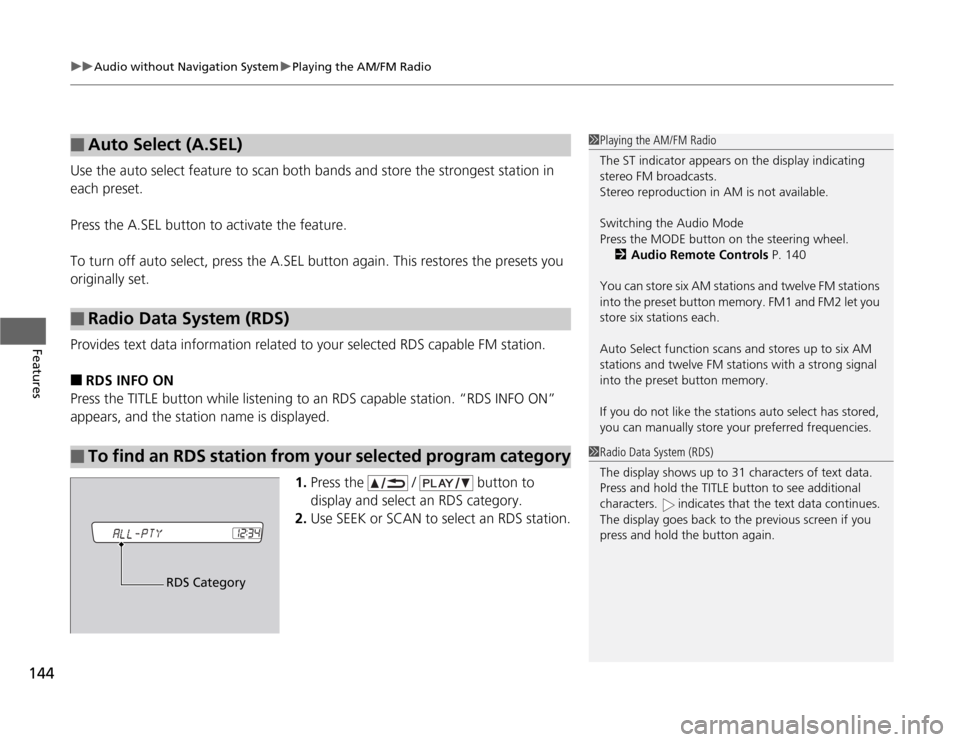
1.Press the / button to
display and select an RDS category.
2. Use SEEK or SCAN to select an RDS station.
■Auto Select (A.SEL)
■Radio Data System (RDS)
■To find an RDS station from your selected program category
1Playing the AM/FM Radio
The ST indicator appears on the display indicating
stereo FM broadcasts.
Stereo reproduction in AM is not available. Switching the Audio Mode
Press the MODE button on the steering wheel.
2 Audio Remote Controls P. 140
You can store six AM stations and twelve FM stations
into the preset button memory. FM1 and FM2 let you store six stations each.
Auto Select function scans and stores up to six AM
stations and twelve FM stations with a strong signal
into the preset button memory.
If you do not like the stations auto select has stored,
you can manually store your preferred frequencies.
1Radio Data System (RDS)
The display shows up to 31 characters of text data.
Press and hold the TITLE button to see additional
characters. indicates that the text data continues.
The display goes back to the previous screen if you
press and hold the button again.
RDS Category
Page 146 of 333
145
uuAudio without Navigation SystemuPlaying a CD
Continued
Features
Playing a CD
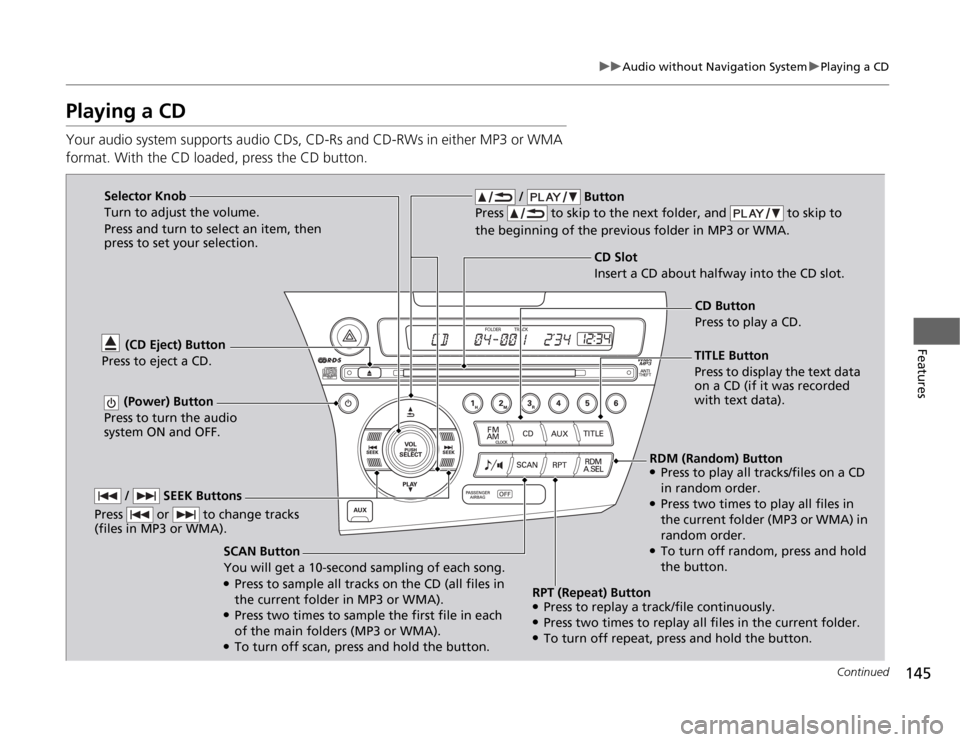
Your audio system supports audio CDs, CD-Rs and CD-RWs in either MP3 or WMA
format. With the CD loaded, press the CD button.
SCAN Button
You will get a 10-second sampling of each song. ●Press to sample all tracks on the CD (all files in
the current folder in MP3 or WMA).
● Press two times to sample the first file in each
of the main folders (MP3 or WMA).
● To turn off scan, press and hold the button.
(CD Eject) Button
Press to eject a CD.
/ Button
Press to skip to the next folder, and to skip to
the beginning of the previous folder in MP3 or WMA.
(Power) Button
Press to turn the audio
system ON and OFF.
CD Slot
Insert a CD abou t halfway into the CD slot.
/ SEEK Buttons
Press or to change tracks
(files in MP3 or WMA).
Selector Knob
Turn to adjust the volume.
Press and turn to select an item, then press to set your selection.
TITLE Button
Press to display the text data on a CD (if it was recorded with text data).CD Button
Press to play a CD.
RDM (Random) Button
● Press to play all tracks/files on a CD
in random order.
● Press two times to play all files in
the current folder (MP3 or WMA) in
random order.
● To turn off random, press and hold the button.
RPT (Repeat) Button ● Press to replay a track/file continuously.
● Press two times to replay all files in the current folder.
● To turn off repeat, press and hold the button.