ECO mode HONDA PILOT 2015 2.G Service Manual
[x] Cancel search | Manufacturer: HONDA, Model Year: 2015, Model line: PILOT, Model: HONDA PILOT 2015 2.GPages: 488, PDF Size: 11.34 MB
Page 194 of 488
193
uuAudio System Basic Operation uPlaying a CD
Continued
Features
Playing a CD
Your audio system supports audio CDs, CD-Rs and CD-RWs in either MP3, WMA, or
AAC format. With the CD loaded, press the CD button.
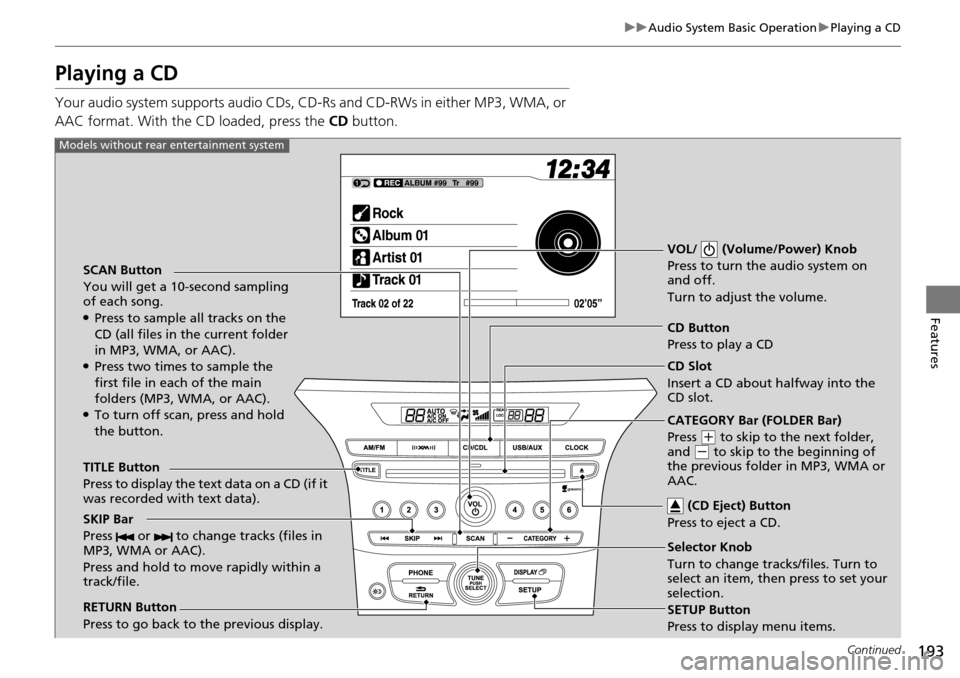
SCAN Button
You will get a 10-second sampling
of each song.
●Press to sample all tracks on the
CD (all files in the current folder
in MP3, WMA, or AAC).
●Press two times to sample the
first file in each of the main
folders (MP3, WMA, or AAC).
●To turn off scan, press and hold
the button. VOL/ (Volume/Power) Knob
Press to turn the audio system on
and off.
Turn to adjust the volume.
CD Button
Press to play a CD
TITLE Button
Press to display the text data on a CD (if it
was recorded with text data).
RETURN Button
Press to go back to the previous display. Selector Knob
Turn to change tracks/files. Turn to
select an item, then press to set your
selection.
SETUP Button
Press to display menu items.
Models without rear entertainment system
CD Slot
Insert a CD about halfway into the
CD slot.
(CD Eject) Button
Press to eject a CD.
SKIP Bar
Press or to change tracks (files in
MP3, WMA or AAC).
Press and hold to mo ve rapidly within a
track/file.
CATEGORY Bar (FOLDER Bar)
Press
( + to skip to the next folder,
and ( - to skip to the beginning of
the previous folder in MP3, WMA or
AAC.
Page 195 of 488
194
uuAudio System Basic Operation uPlaying a CD
Features
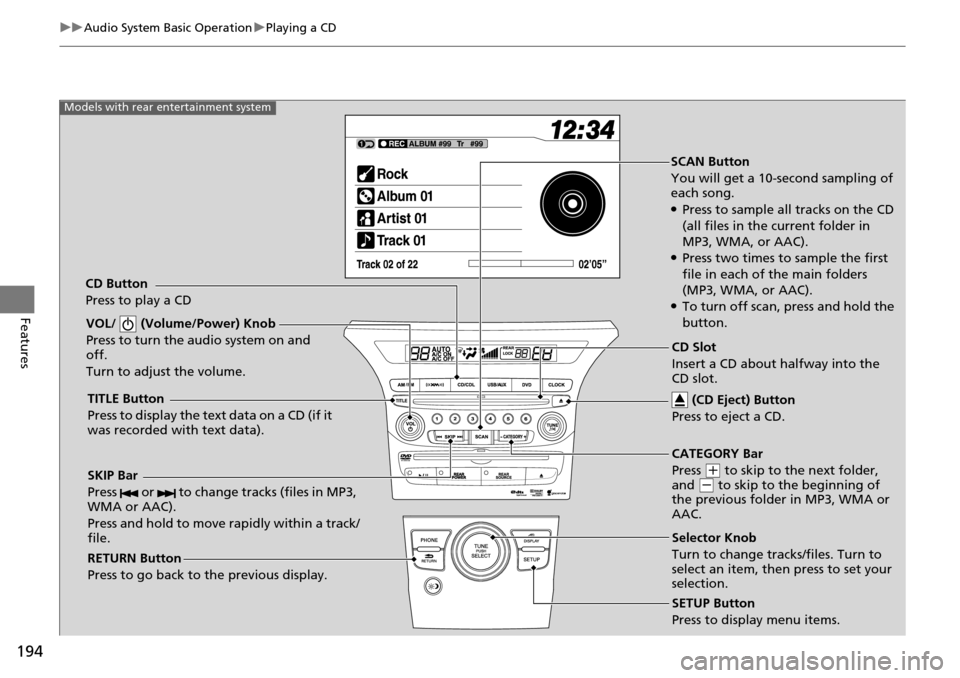
SCAN Button
You will get a 10-second sampling of
each song.
●Press to sample all tracks on the CD
(all files in the current folder in
MP3, WMA, or AAC).
●Press two times to sample the first
file in each of the main folders
(MP3, WMA, or AAC).
●To turn off scan, press and hold the
button.
VOL/ (Volume/Power) Knob
Press to turn the audio system on and
off.
Turn to adjust the volume.
SKIP Bar
Press or to change tracks (files in MP3,
WMA or AAC).
Press and hold to move rapidly within a track/
file.
TITLE Button
Press to display the text data on a CD (if it
was recorded with text data).
RETURN Button
Press to go back to the previous display.
SETUP Button
Press to display menu items.
Models with rear entertainment system
CD Button
Press to play a CD
Selector Knob
Turn to change tracks/files. Turn to
select an item, then press to set your
selection. CD Slot
Insert a CD about halfway into the
CD slot. (CD Eject) Button
Press to eject a CD.
CATEGORY Bar
Press
( + to skip to the next folder,
and ( - to skip to the beginning of
the previous folder in MP3, WMA or
AAC.
Page 196 of 488

Continued195
uuAudio System Basic Operation uPlaying a CD
Features
1. Press to switch the display to a folder list.
2. Rotate to select a folder.
3. Press to change the display to a list of
files in that folder.
4. Rotate to select a file, then press .
■How to Select a File from a Folder with the Selector Knob
(MP3/WMA/AAC)1Playing a CD
NOTICE
Do not use CDs with adhesive labels. The label can
cause the CD to jam in the unit.
WMA files protected by di gital rights management
(DRM) cannot be played.
The audio system displays UNSUPPORTED, then
skips to the next file.
Text data appears on the di splay under the following
circumstances:
•When you select a new folder, file, or track.
•When you change the audio mode to CD.
•When you insert a CD.
If you eject the CD but do not remove it from the slot,
the system reloads the CD automatically after several
seconds.Folder Selection
Track Selection
Page 198 of 488
197
uuAudio System Basic Operation uPlaying CD Library
Continued
Features
Playing CD Library
The songs on music CDs can be recorded to the flash memory. You can then play
the songs directly from your vehicle’s audio system.
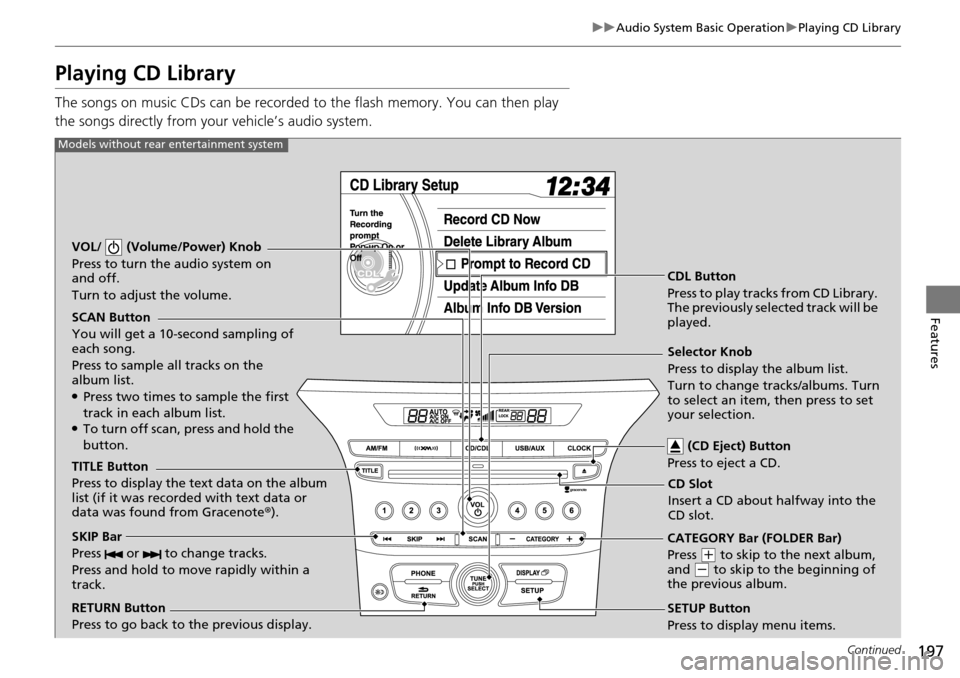
SCAN Button
You will get a 10-second sampling of
each song.
Press to sample all tracks on the
album list.
●Press two times to sample the first
track in each album list.
●To turn off scan, press and hold the
button.
VOL/ (Volume/Power) Knob
Press to turn the audio system on
and off.
Turn to adjust the volume.
CDL Button
Press to play tracks from CD Library.
The previously selected track will be
played.
TITLE Button
Press to display the text data on the album
list (if it was recorded with text data or
data was found from Gracenote ®).
RETURN Button
Press to go back to the previous display. Selector Knob
Press to display the album list.
Turn to change tracks/albums. Turn
to select an item, then press to set
your selection.
SETUP Button
Press to display menu items.
Models without rear entertainment system
CD Slot
Insert a CD about halfway into the
CD slot. (CD Eject) Button
Press to eject a CD.
SKIP Bar
Press or to change tracks.
Press and hold to move rapidly within a
track.CATEGORY Bar (FOLDER Bar)
Press
( + to skip to the next album,
and ( - to skip to the beginning of
the previous album.
Page 199 of 488
198
uuAudio System Basic Operation uPlaying CD Library
Features
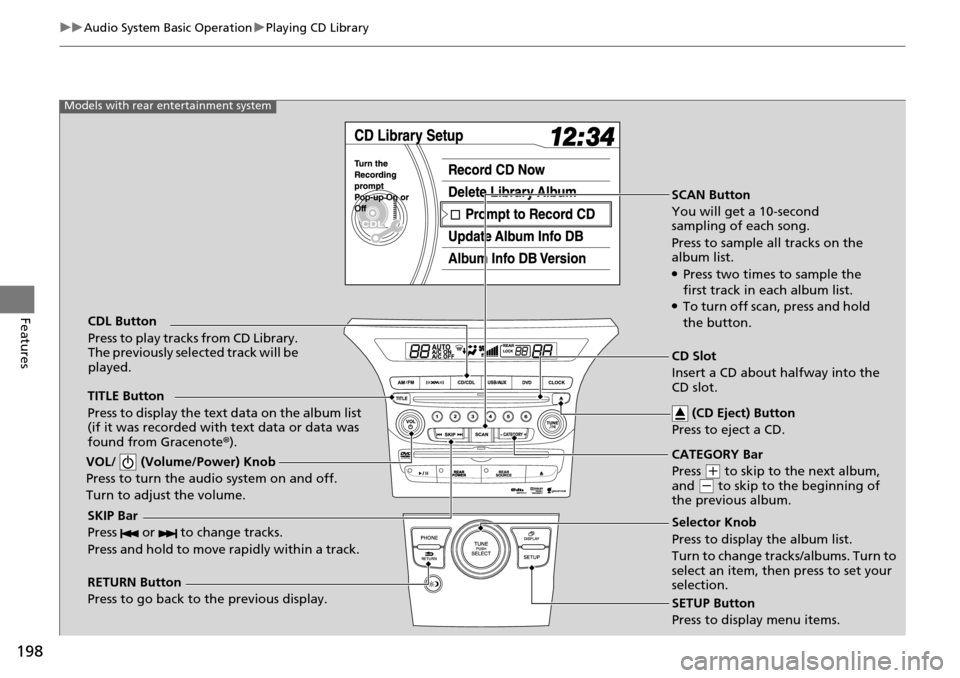
SCAN Button
You will get a 10-second
sampling of each song.
Press to sample all tracks on the
album list.
●Press two times to sample the
first track in each album list.
●To turn off scan , press and hold
the button.
VOL/ (Volume/Power) Knob
Press to turn the audio system on and off.
Turn to adjust the volume.
SKIP Bar
Press or to change tracks.
Press and hold to move rapidly within a track.
TITLE Button
Press to display the text data on the album list
(if it was recorded with text data or data was
found from Gracenote ®).
RETURN Button
Press to go back to the previous display. SETUP Button
Press to display menu items.
Models with rear entertainment system
CDL Button
Press to play tracks from CD Library.
The previously selected track will be
played.
Selector Knob
Press to display the album list.
Turn to change tracks/albums. Turn to
select an item, then press to set your
selection. CD Slot
Insert a CD about halfway into the
CD slot. (CD Eject) Button
Press to eject a CD.
CATEGORY Bar
Press
( + to skip to the next album,
and ( - to skip to the beginning of
the previous album.
Page 208 of 488
207
uuAudio System Basic Operation uPlaying a USB Flash Drive
Continued
Features
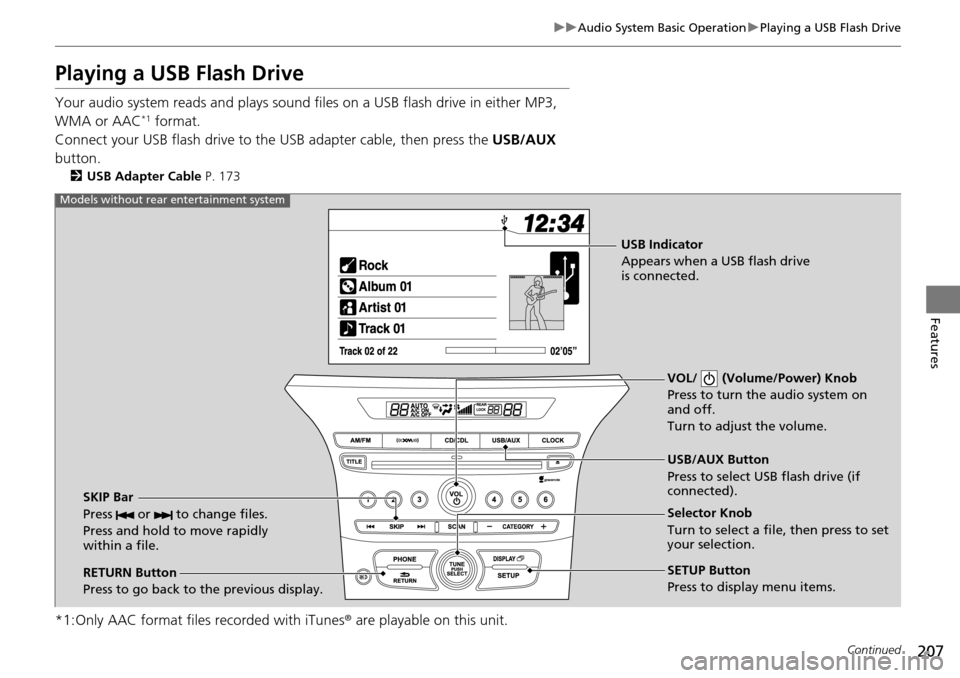
Playing a USB Flash Drive
Your audio system reads and plays sound files on a USB flash drive in either MP3,
WMA or AAC*1 format.
Connect your USB flash drive to the USB adapter cable, then press the USB/AUX
button.
2 USB Adapter Cable P. 173
*1:Only AAC format files recorded with iTunes® are playable on this unit.
VOL/ (Volume/Power) Knob
Press to turn the audio system on
and off.
Turn to adjust the volume.
RETURN Button
Press to go back to the previous display. Selector Knob
Turn to select a file, then press to set
your selection.
SETUP Button
Press to display menu items. USB/AUX Button
Press to select USB flash drive (if
connected).
SKIP Bar
Press or to change files.
Press and hold to move rapidly
within a file.
Models without rear entertainment system
USB Indicator
Appears when a USB flash drive
is connected.
Page 214 of 488
Continued213
uuAudio System Basic Operation uPlaying Bluetooth ® Audio
Features
1. Make sure that your phone is paired and linked to HFL.
2. Press the USB/AUX button.
If the phone is not recognized, anothe r HFL-compatible phone, which is not
compatible for Bluetooth® Audio, may be already linked.
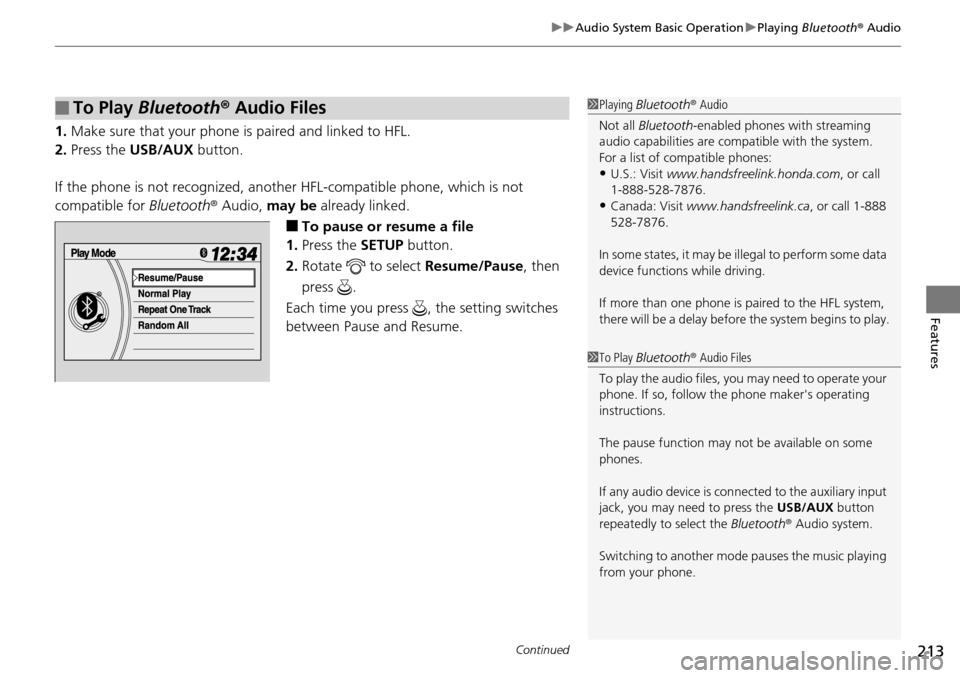
■To pause or resume a file
1. Press the SETUP button.
2. Rotate to select Resume/Pause, then
press .
Each time you press , the setting switches
between Pause and Resume.
■To Play Bluetooth ® Audio Files1 Playing Bluetooth ® Audio
Not all Bluetooth -enabled phones with streaming
audio capabilities are compatible with the system.
For a list of compatible phones:
•U.S.: Visit www.handsfreelink.honda.com , or call
1-888-528-7876.
•Canada: Visit www.handsfreelink.ca , or call 1-888
528-7876.
In some states, it may be il legal to perform some data
device functions while driving.
If more than one phone is paired to the HFL system,
there will be a delay before the system begins to play.
1To Play Bluetooth ® Audio Files
To play the audio files, y ou may need to operate your
phone. If so, follow the phone maker's operating
instructions.
The pause function may no t be available on some
phones.
If any audio device is conne cted to the auxiliary input
jack, you may need to press the USB/AUX button
repeatedly to select the Bluetooth® Audio system.
Switching to another mode pauses the music playing
from your phone.
Page 220 of 488
219
uuAudio System Basic Operation uPlaying the AM/FM Radio
Continued
Features
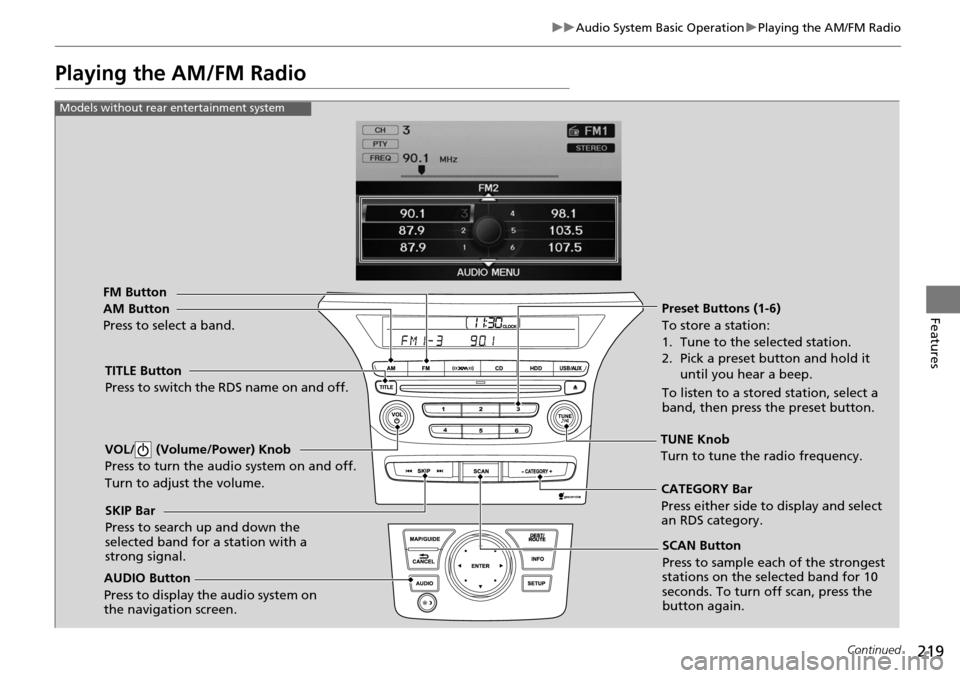
Playing the AM/FM Radio
FM Button
TITLE Button
Press to switch the RDS name on and off.
SCAN Button
Press to sample each of the strongest
stations on the selected band for 10
seconds. To turn off scan, press the
button again.
VOL/ (Volume/Power) Knob
Press to turn the a
udio system on and off.
Turn to adjust the volume.
Preset Buttons (1-6)
To store a station:
1. Tune to the selected station.
2. Pick a preset button and hold it until you hear a beep.
To listen to a stored station, select a
band, then press the preset button.
SKIP Bar
Press to search up and down the
selected band for a station with a
strong signal.
AUDIO Button
Press to display the audio system on
the navigation screen.
AM Button
Press to select a band.
CATEGORY Bar
Press either side to display and select
an RDS category.
Models without rear entertainment system
TUNE Knob
Turn to tune the radio frequency.
Page 221 of 488
220
uuAudio System Basic Operation uPlaying the AM/FM Radio
Features
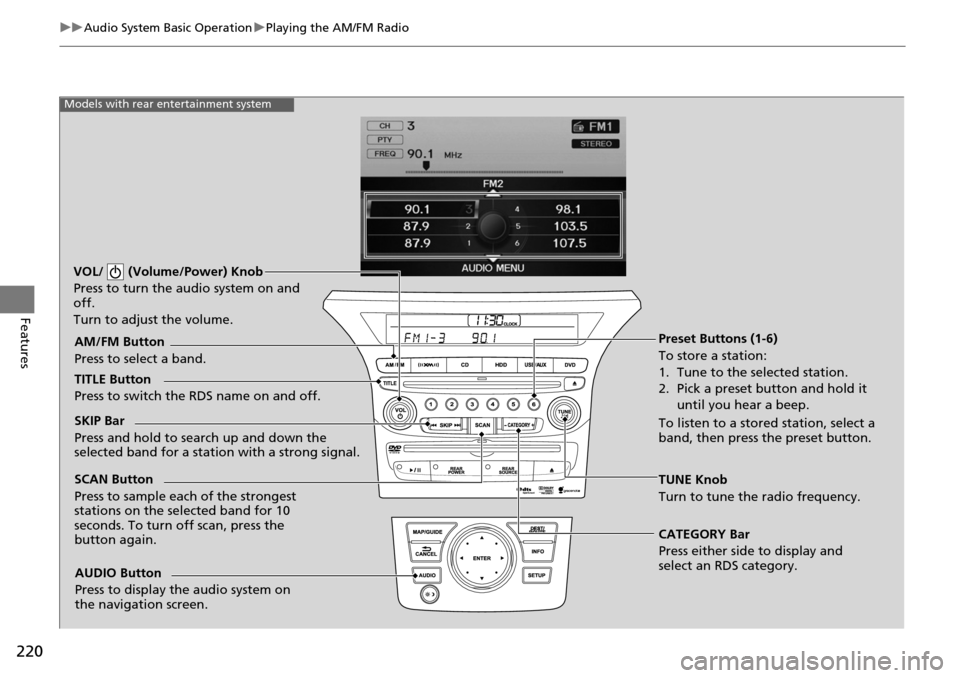
Models with rear entertainment system
TUNE Knob
Turn to tune the radio frequency.
SCAN Button
Press to sample each of the strongest
stations on the selected band for 10
seconds. To turn
off scan, press the
button again.
VOL/ (Volume/Power) Knob
Press to turn the audio system on and
off.
Turn to adjust the volume.
Preset Buttons (1-6)
To store a station:
1. Tune to the selected station.
2. Pick a preset button and hold it
until you hear a beep.
To listen to a stored station, select a
band, then press the preset button.
SKIP Bar
Press and hold to search up and down the
selected band for a stati
on with a strong signal.
CATEGORY Bar
Press either side to display and
select an RDS category.
TITLE Button
Press to switch the RDS name on and off. AM/FM Button
Press to select a band.
AUDIO Button
Press to display the audio system on
the navigation screen.
Page 224 of 488
223
uuAudio System Basic Operation uPlaying the XM ® Radio
Continued
Features
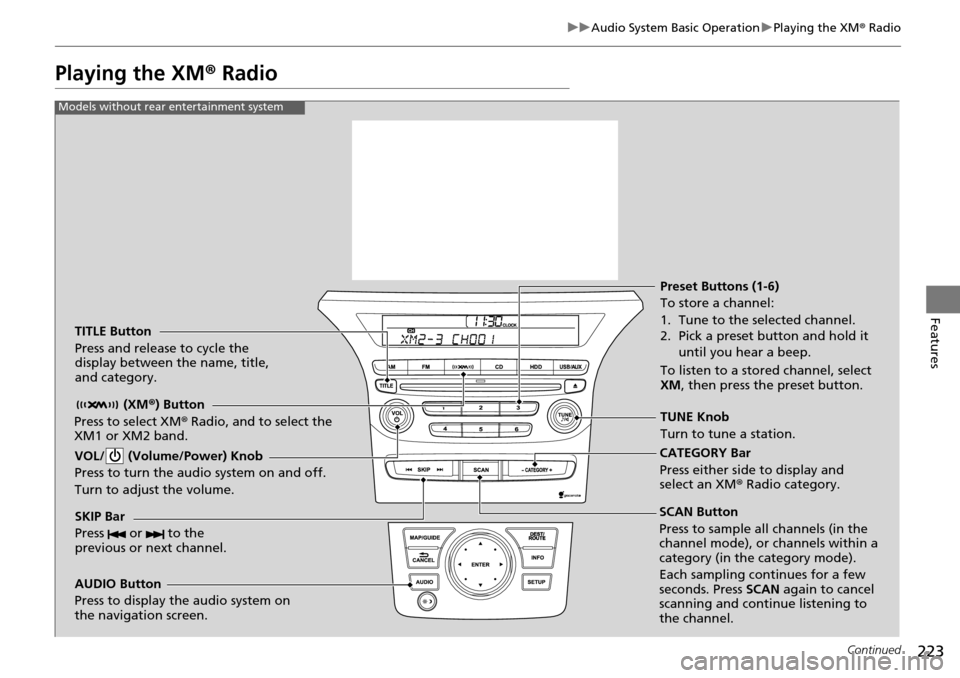
Playing the XM ® Radio
TITLE Button
Press and release to cycle the
display between the name, title,
and category.
(XM®) Button
Press to select XM® Radio, and to select the
XM1 or XM2 band.
VOL/ (Volume/Power) Knob
Press to turn the audio system on and off.
Turn to adjust the volume.
SKIP Bar
Press or to the
previous or next channel.
CATEGORY Bar
Press either side to display and
select an XM r Radio category.
TUNE Knob
Turn to tune a station. Preset Buttons (1-6)
To store a channel:
1. Tune to the selected channel.
2. Pick a preset button and hold it
until you hear a beep.
To listen to a stored channel, select
XM , then press the preset button.
SCAN Button
Press to sample all channels (in the
channel mode), or channels within a
category (in the category mode).
Each sampling continues for a few
seconds. Press SCAN again to cancel
scanning and continue listening to
the channel.
Models without rear entertainment system
AUDIO Button
Press to display the audio system on
the navigation screen.