change Hyundai Elantra 2016 Owner's Manual
[x] Cancel search | Manufacturer: HYUNDAI, Model Year: 2016, Model line: Elantra, Model: Hyundai Elantra 2016Pages: 669, PDF Size: 31.96 MB
Page 416 of 669
Features of your vehicle
330
4
iPod®MODE
Basic Mode Screen
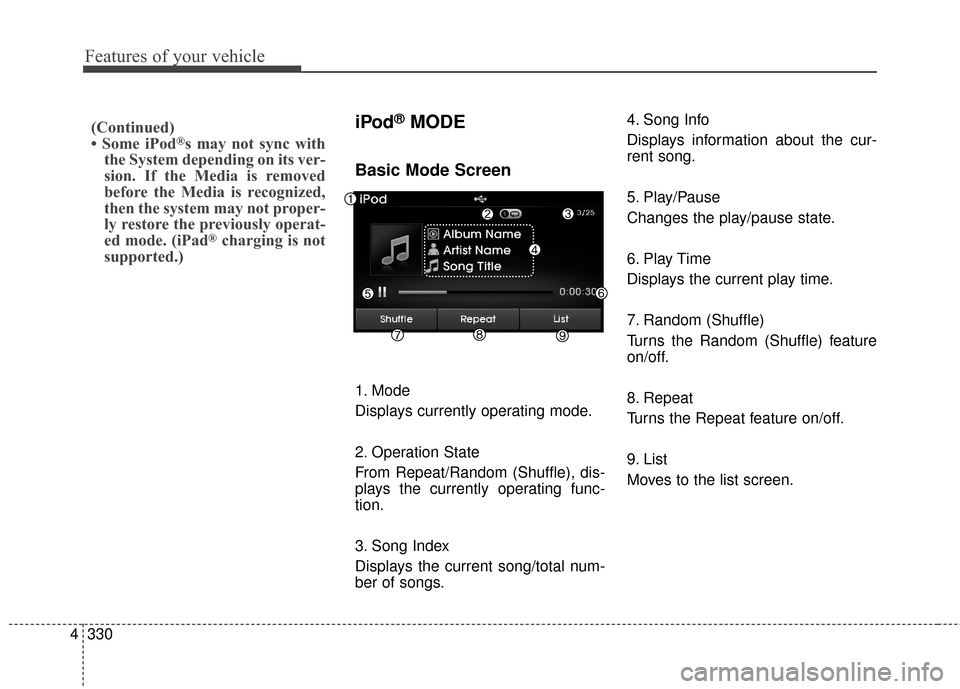
1. Mode
Displays currently operating mode.
2. Operation State
From Repeat/Random (Shuffle), dis-
plays the currently operating func-
tion.
3. Song Index
Displays the current song/total num-
ber of songs. 4. Song Info
Displays information about the cur-
rent song.
5. Play/Pause
Changes the play/pause state.
6. Play Time
Displays the current play time.
7. Random (Shuffle)
Turns the Random (Shuffle) feature
on/off.
8. Repeat
Turns the Repeat feature on/off.
9. List
Moves to the list screen.
(Continued)
• Some iPod®s may not sync with
the System depending on its ver-
sion. If the Media is removed
before the Media is recognized,
then the system may not proper-
ly restore the previously operat-
ed mode. (iPad
®charging is not
supported.)
Page 421 of 669
4335
Features of your vehicle
MY MUSIC MODE
Basic Mode Screen
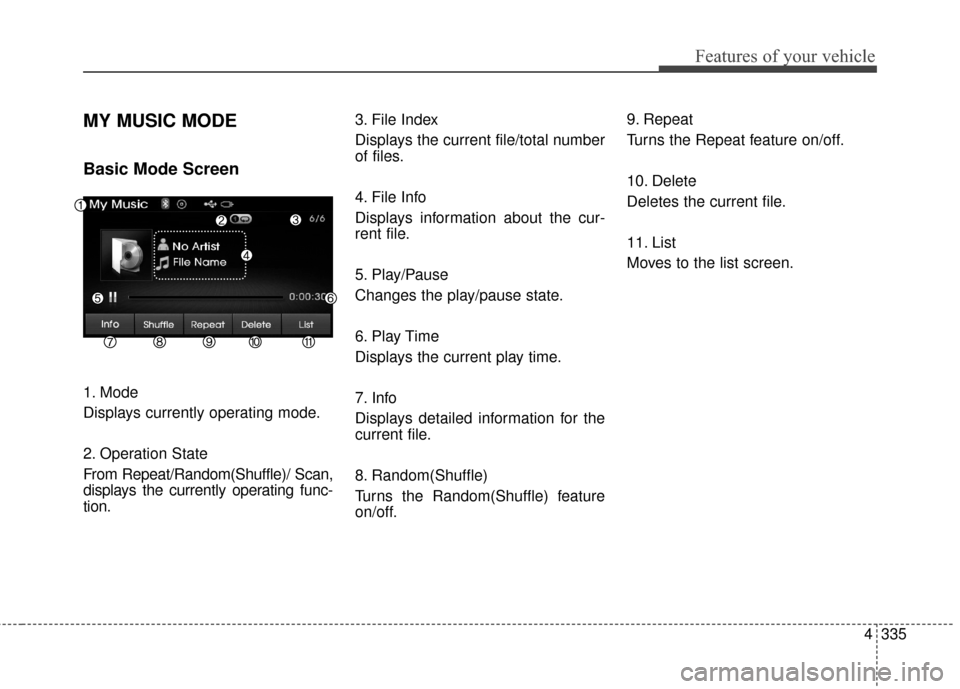
1. Mode
Displays currently operating mode.
2. Operation State
From Repeat/Random(Shuffle)/ Scan,
displays the currently operating func-
tion.3. File Index
Displays the current file/total number
of files.
4. File Info
Displays information about the cur-
rent file.
5. Play/Pause
Changes the play/pause state.
6. Play Time
Displays the current play time.
7. Info
Displays detailed information for the
current file.
8. Random(Shuffle)
Turns the Random(Shuffle) feature
on/off.9. Repeat
Turns the Repeat feature on/off.
10. Delete
Deletes the current file.
11. List
Moves to the list screen.
Page 430 of 669
![Hyundai Elantra 2016 Owners Manual Connecting a Device
Press the key Select
[Phone] Select [Paired Phone List]
1) Connected Phone : Device that iscurrently connected
2) Paired Phone : Device that is paired but not connected From the](/img/35/14551/w960_14551-429.png "Hyundai Elantra 2016 Owners Manual Connecting a Device
Press the key Select
[Phone] Select [Paired Phone List]
1) Connected Phone : Device that iscurrently connected
2) Paired Phone : Device that is paired but not connected From the")
Connecting a Device
Press the key Select
[Phone] Select [Paired Phone List]
1) Connected Phone : Device that iscurrently connected
2) Paired Phone : Device that is paired but not connected From the paired phone list, select the
device you want to connect and
press the button.
Changing Priority
What is Priority?
It is possible to pair up to five
Bluetooth®Wireless Technology
devices with the car audio system.
The "Change Priority" feature is used
to set the connection priority of
paired phones.
Press the key Select
[Phone] Select [Paired Phone List]
SETUP
ConnectSETUP
4344
Features of your vehicle
Page 431 of 669
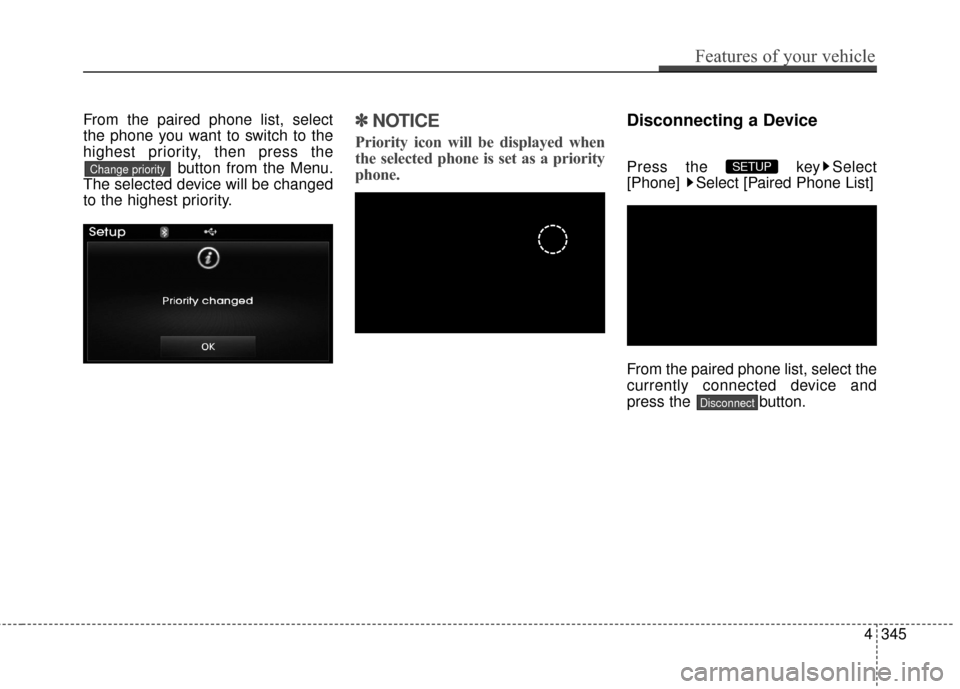
From the paired phone list, select
the phone you want to switch to the
highest priority, then press thebutton from the Menu.
The selected device will be changed
to the highest priority.✽ ✽ NOTICE
Priority icon will be displayed when
the selected phone is set as a priority
phone.
Disconnecting a Device
Press the key Select
[Phone] Select [Paired Phone List]
From the paired phone list, select the
currently connected device and
press the button.
Disconnect
SETUP Change priority
Features of your vehicle
345
4
Page 437 of 669
![Hyundai Elantra 2016 Owners Manual Bluetooth®Wireless
Technology Setting
Pairing a New Device
Press the key Select
[Phone] Select [Pair Phone]
Bluetooth®Wireless Technology
devices can be paired with the audio
system.
For more infor](/img/35/14551/w960_14551-436.png "Hyundai Elantra 2016 Owners Manual Bluetooth®Wireless
Technology Setting
Pairing a New Device
Press the key Select
[Phone] Select [Pair Phone]
Bluetooth®Wireless Technology
devices can be paired with the audio
system.
For more infor")
Bluetooth®Wireless
Technology Setting
Pairing a New Device
Press the key Select
[Phone] Select [Pair Phone]
Bluetooth®Wireless Technology
devices can be paired with the audio
system.
For more information, refer to the
"Pairing through Phone Setup" sec-
tion within
Bluetooth®Wireless
Technology.
Viewing Paired Phone List
Press the key Select
[Phone] Select [Paired Phone List]
This feature is used to view mobile
phones that have been paired with
the audio system. Upon selecting a
paired phone, the setup menu is dis-
played.
For more information, refer to the
"Setting
Bluetooth®Wireless
Technology Connection" section
within
Bluetooth®Wireless
Technology. 1) : Moves to the previous
screen
2) Connect/Disconnect Phone : Connect/ disconnects currently
selected phone
3) Delete : Deletes the currently selected phone
4) Change Priority : Sets currently selected phone to highest connec-
tion priority
SETUP
SETUP
Features of your vehicle
351
4
Page 438 of 669
✽
✽NOTICE BEFORE DOWN-
LOADING CONTACTS
• Only contacts within connected
phones can be downloaded. Also
check to see that your mobile
phone supports the download fea-
ture.
• To learn more about whether your mobile phone supports contacts
downloads, refer to your mobile
phone user’s manual.
• The contacts for only the connect- ed phone can be downloaded.
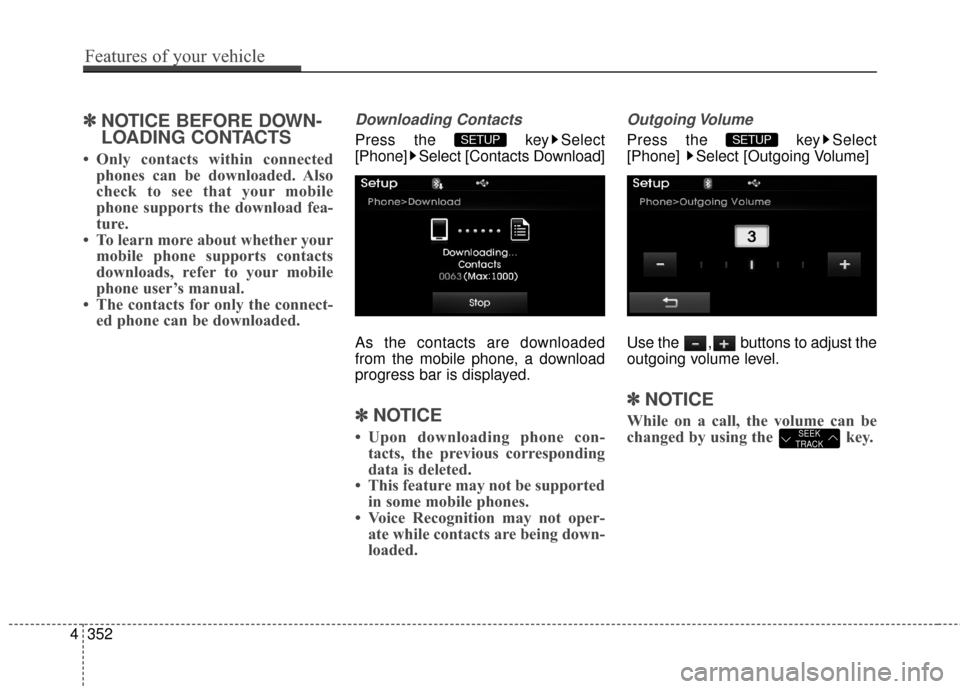
Downloading Contacts
Press the key Select
[Phone] Select [Contacts Download]
As the contacts are downloaded
from the mobile phone, a download
progress bar is displayed.
✽ ✽ NOTICE
• Upon downloading phone con-
tacts, the previous corresponding
data is deleted.
• This feature may not be supported in some mobile phones.
• Voice Recognition may not oper- ate while contacts are being down-
loaded.
Outgoing Volume
Press the key Select
[Phone] Select [Outgoing Volume]
Use the , buttons to adjust the
outgoing volume level.
✽ ✽ NOTICE
While on a call, the volume can be
changed by using the key.SEEK
TRACK
SETUP SETUP
4352
Features of your vehicle
Page 440 of 669
![Hyundai Elantra 2016 Owners Manual VOICE RECOGNITION
Using Voice Recognition
Starting Voice Recognition
Shortly press the key on the
steering wheel remote controller. Say
a command.
If prompt feedback is in [ON], then
the system wil](/img/35/14551/w960_14551-439.png "Hyundai Elantra 2016 Owners Manual VOICE RECOGNITION
Using Voice Recognition
Starting Voice Recognition
Shortly press the key on the
steering wheel remote controller. Say
a command.
If prompt feedback is in [ON], then
the system wil")
VOICE RECOGNITION
Using Voice Recognition
Starting Voice Recognition
Shortly press the key on the
steering wheel remote controller. Say
a command.
If prompt feedback is in [ON], then
the system will say "Please say a
command after the beep (BEEP)"
If prompt feedback is in [OFF]mode, then the system will only
say "(BEEP)"
To change Prompt Feedback [On]/[Off], go to [System][Prompt Feedback]
✽ ✽ NOTICE
For proper recognition, say the com-
mand after the voice instruction and
beep tone.
Contact List Best Practices
1) Do not store single-name entries
(e.g., “Bob”, “Mom”, “Kim”, etc.).
Instead, always use full names
(including first and last names) for
all contacts (e.g., use “Jacob
Stevenson” instead of “Dad”).
2) Do not use abbreviations (i.e., use “Lieutenant” instead of “Lt.” or
“Sergeant” instead of “Sgt.”).
3) Do not use acronyms (i.e., use “County Finance Department”
instead of “CFD”).
4) Do not use special characters (e.g., “@”, “hyphen -”, “asterisk *”,
“ampersand &”).
5) If a name is not recognized from the contact list, change it to a
more descriptive name (e.g., use
“Grandpa Joseph” instead of “Pa
Joe”).
Skipping Prompt Messages
While prompt message is being stat-
ed Shortly press the key on the
steering remote controller
The prompt message is immediately
ended and the beep tone will sound.
After the “beep”, say the voice com-
mand.
Re-starting Voice Recognition
While system waits for a command
Shortly press the key on the
steering remote controller
The command wait state is immedi-
ately ended and the beep ton will
sound. After the “beep”, say the voice
command.
SETUP
4354
Features of your vehicle
Page 448 of 669
![Hyundai Elantra 2016 Owners Manual MP3 Information Display
Press the key Select
[Display] Select [Media Display]
This feature is used to change the
information displayed within USB
and MP3 CD modes.
1) Folder File : Displays file nam](/img/35/14551/w960_14551-447.png "Hyundai Elantra 2016 Owners Manual MP3 Information Display
Press the key Select
[Display] Select [Media Display]
This feature is used to change the
information displayed within USB
and MP3 CD modes.
1) Folder File : Displays file nam")
MP3 Information Display
Press the key Select
[Display] Select [Media Display]
This feature is used to change the
information displayed within USB
and MP3 CD modes.
1) Folder File : Displays file nameand folder name
2) Album Artist Song : Displays album name/artist name/song
Sound Settings
Sound Settings
Press the key Select
[Sound] Select [Sound Setting] Use the , , , buttons to
adjust the Fader/Balance settings.
Use the , buttons to adjust the
Bass/Middle/Treble settings.
Press the button to reset.DefaultSETUP
SETUP
4362
Features of your vehicle
Page 452 of 669
Features of your vehicle
366
4
Blue Link®(if equipped)
Hyundai aims to offer differentiated
customer values through a
‘Connected Car Life,’ which is to pro-
vide consumers with fast and reliable
IT technology. As consumers’ lifestyles
become more and more mobile in
thanks to remarkable advances in
smart phones, tablet PCs and overall
wireless telecommunication, new
lifestyle patterns demand seamless
connection between one’s office,
home, outdoors and automobiles.
Automobile companies are now faced
with the task of shifting their paradigm
from vehicle-centered services to cus-
tomer value-centered services, with
the ultimate goal of securing global
leadership in the field of vehicle IT and
telematics.
Hyundai plans to achieve this by real-
izing a terminal platform flexible to
changes in IT technology, cooperat-
ing with global IT companies, creat-
ing an eco-system and providing the
latest contents & services based on
an open environment.
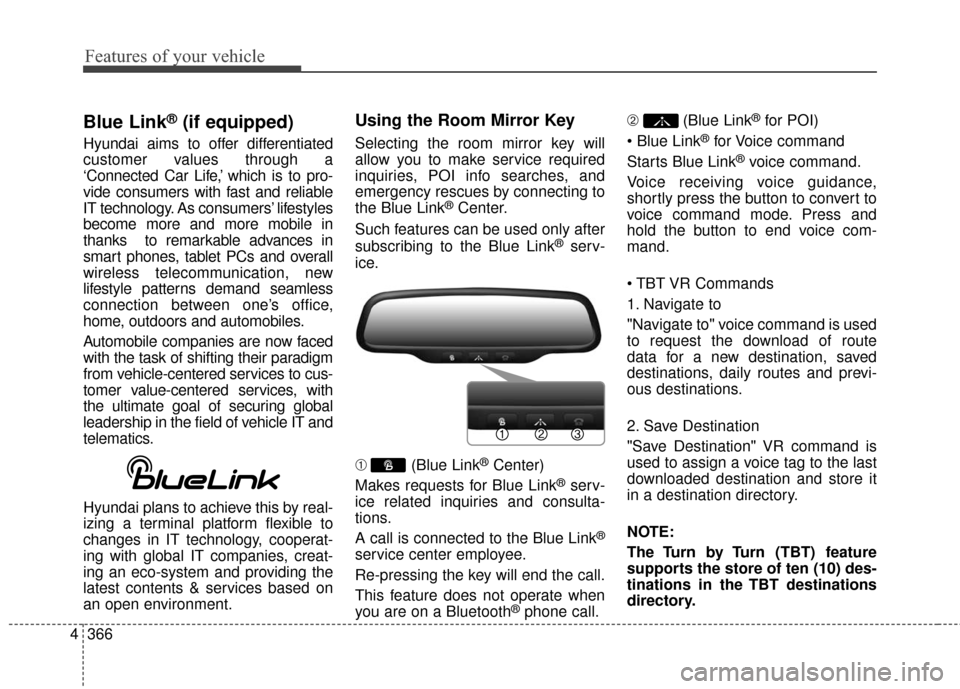
Using the Room Mirror Key
Selecting the room mirror key will
allow you to make service required
inquiries, POI info searches, and
emergency rescues by connecting to
the Blue Link
®Center.
Such features can be used only after
subscribing to the Blue Link
®serv-
ice.
➀ (Blue Link
®Center)
Makes requests for Blue Link
®serv-
ice related inquiries and consulta-
tions.
A call is connected to the Blue Link
®
service center employee.
Re-pressing the key will end the call.
This feature does not operate when
you are on a Bluetooth
®phone call. ➁
(Blue Link
®for POI)
®for Voice command
Starts Blue Link
®voice command.
Voice receiving voice guidance,
shortly press the button to convert to
voice command mode. Press and
hold the button to end voice com-
mand.
1. Navigate to
"Navigate to" voice command is used
to request the download of route
data for a new destination, saved
destinations, daily routes and previ-
ous destinations.
2. Save Destination
"Save Destination" VR command is
used to assign a voice tag to the last
downloaded destination and store it
in a destination directory.
NOTE:
The Turn by Turn (TBT) feature
supports the store of ten (10) des-
tinations in the TBT destinations
directory.
Page 456 of 669
FCC
This equipment has been tested and found to comply with the limits for a Class B digital device, pursuant to part 15
of the FCC Rules. These limits are designed to provide reasonable protection against harmful interference in a resi-
dential installation.
This equipment generates, uses and can radiate radio frequency energy and, if not installed and used in accordance
with the instructions,may cause harmful interference to radio communications. However, there is no guarantee that
interference will not occur in a particular installation. If this equipment does cause harmful interference to radio or tel-
evision reception, which can be determined by turning the equipment off and on, the user is encouraged to try to cor-
rect the interference by one ormore of the following measures: Reorient or relocate the receiving antenna.
Increase the separation between the equipment and receiver.
Connect the equipment into an outlet on a circuit different from that to which the receiver is connected.
Consult the dealer or an experienced radio/TV technician for help.
Caution: Any changes or modifications to this device not explicitly approved by manufacturer could void
your authority to operate this equipment.
4370
Features of your vehicle
DECLARATION OF CONFORMITY