automatic Hyundai Grand i10 2015 Owner's Guide
[x] Cancel search | Manufacturer: HYUNDAI, Model Year: 2015, Model line: Grand i10, Model: Hyundai Grand i10 2015Pages: 343, PDF Size: 29.47 MB
Page 137 of 343
481
Features of your vehicle
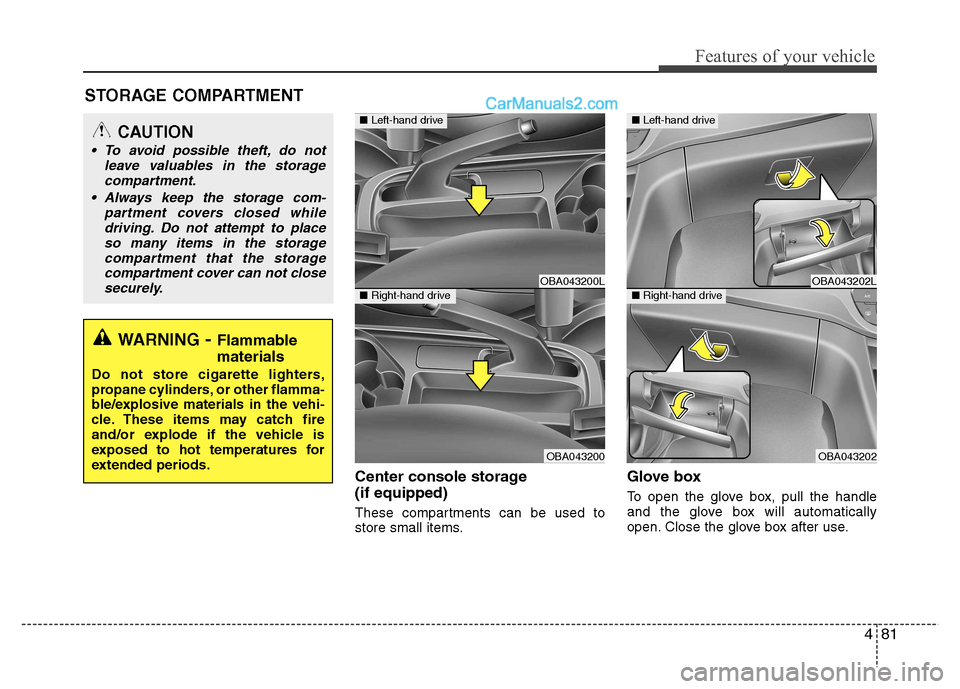
Center console storage (if equipped)
These compartments can be used to
store small items.Glove box
To open the glove box, pull the handle
and the glove box will automatically
open. Close the glove box after use.
STORAGE COMPARTMENT
WARNING
- Flammable
materials
Do not store cigarette lighters,
propane cylinders, or other flamma-
ble/explosive materials in the vehi-
cle. These items may catch fire
and/or explode if the vehicle is
exposed to hot temperatures for
extended periods.
CAUTION
To avoid possible theft, do not leave valuables in the storage
compartment.
Always keep the storage com- partment covers closed whiledriving. Do not attempt to place
so many items in the storage compartment that the storagecompartment cover can not close securely.
OBA043200L
OBA043200
■ Left-hand drive
■Right-hand driveOBA043202L
OBA043202
■Left-hand drive
■Right-hand drive
Page 144 of 343
Features of your vehicle
88
4
✽✽
NOTICE
If you install an aftermarket HID head lamp, your vehicle’s audio and
electronic device may malfunction.
Prevent chemicals such as perfume, cosmetic oil, sun cream, hand cleaner
and air freshener from contacting the
interior parts because they may cause
damage or discoloration.
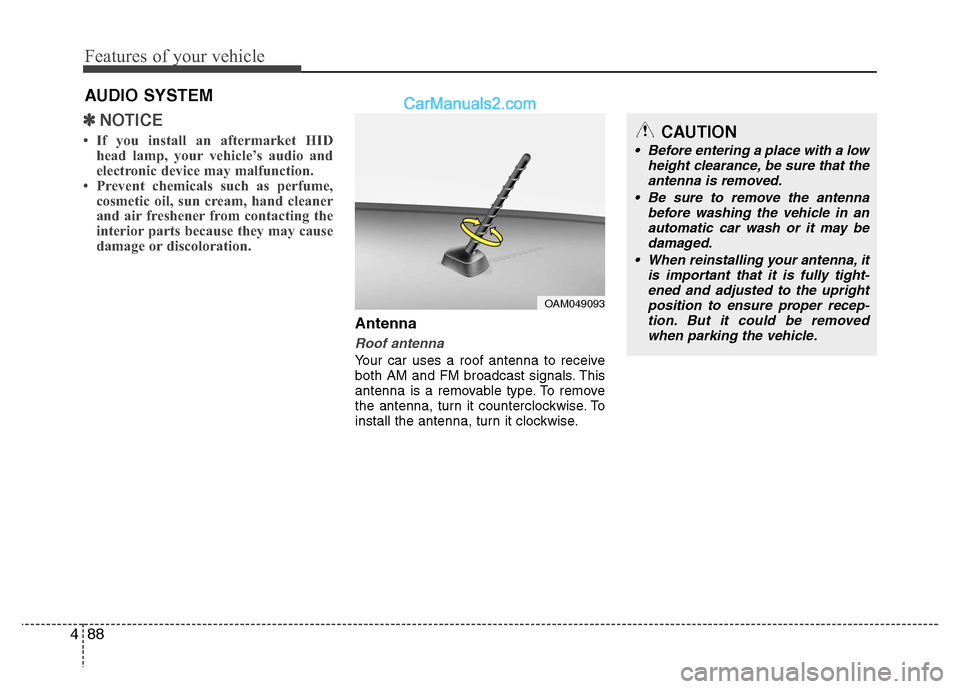
Antenna
Roof antenna
Your car uses a roof antenna to receive
both AM and FM broadcast signals. This
antenna is a removable type. To remove
the antenna, turn it counterclockwise. To
install the antenna, turn it clockwise.
AUDIO SYSTEM
CAUTION
• Before entering a place with a low
height clearance, be sure that the
antenna is removed.
Be sure to remove the antenna before washing the vehicle in anautomatic car wash or it may be
damaged.
When reinstalling your antenna, it is important that it is fully tight-ened and adjusted to the uprightposition to ensure proper recep-
tion. But it could be removedwhen parking the vehicle.
OAM049093
Page 158 of 343
Features of your vehicle
102
4
SYSTEM CONTROLLERS AND FUNCTIONS ❈ Display and settings may differ
depending on the selected audio.
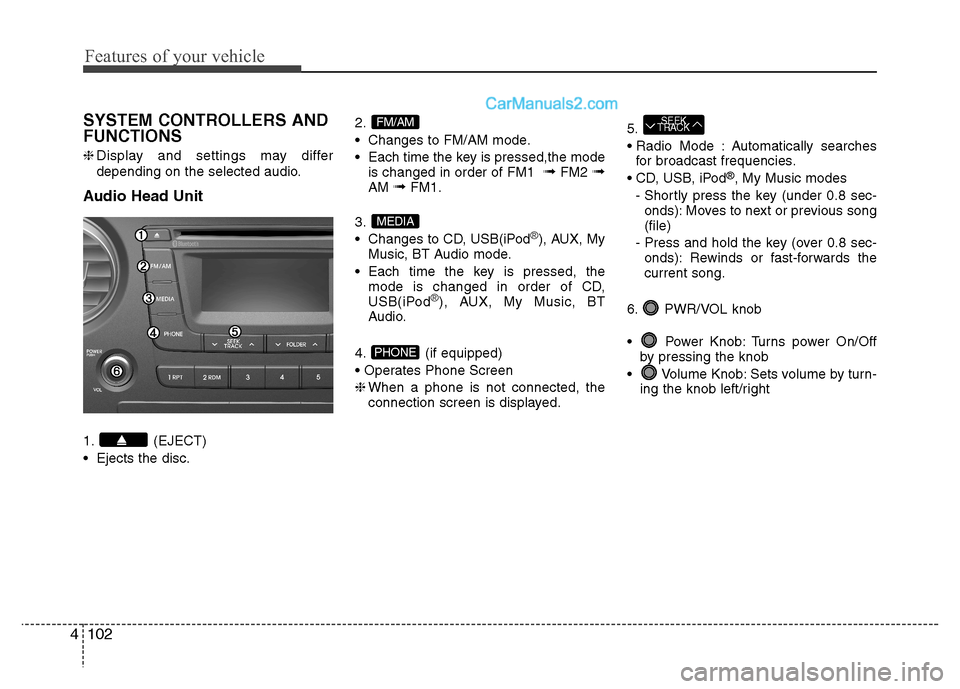
Audio Head Unit
1. (EJECT)
Ejects the disc. 2.
Changes to FM/AM mode.
Each time the key is pressed,the mode
is changed in order of FM1 ➟
FM2 ➟
AM ➟FM1.
3.
Changes to CD, USB(iPod
®), AUX, My
Music, BT Audio mode.
Each time the key is pressed, the mode is changed in order of CD,
USB(iPod
®), AUX, My Music, BT
Audio.
4. (if equipped)
❈ When a phone is not connected, the
connection screen is displayed. 5.
Automatically searches
for broadcast frequencies.
®
, My Music modes
- Shortly press the key (under 0.8 sec- onds): Moves to next or previous song (file)
- Press and hold the key (over 0.8 sec- onds): Rewinds or fast-forwards thecurrent song.
6. PWR/VOL knob
Power Knob: Turns power On/Off by pressing the knob
Volume Knob: Sets volume by turn- ing the knob left/right
SEEK
TRACK
PHONE
MEDIA
FM/AM
Page 162 of 343
Features of your vehicle
106
4
SYSTEM CONTROLLERS AND FUNCTIONS ❈ Display and settings may differ
depending on the selected audio.
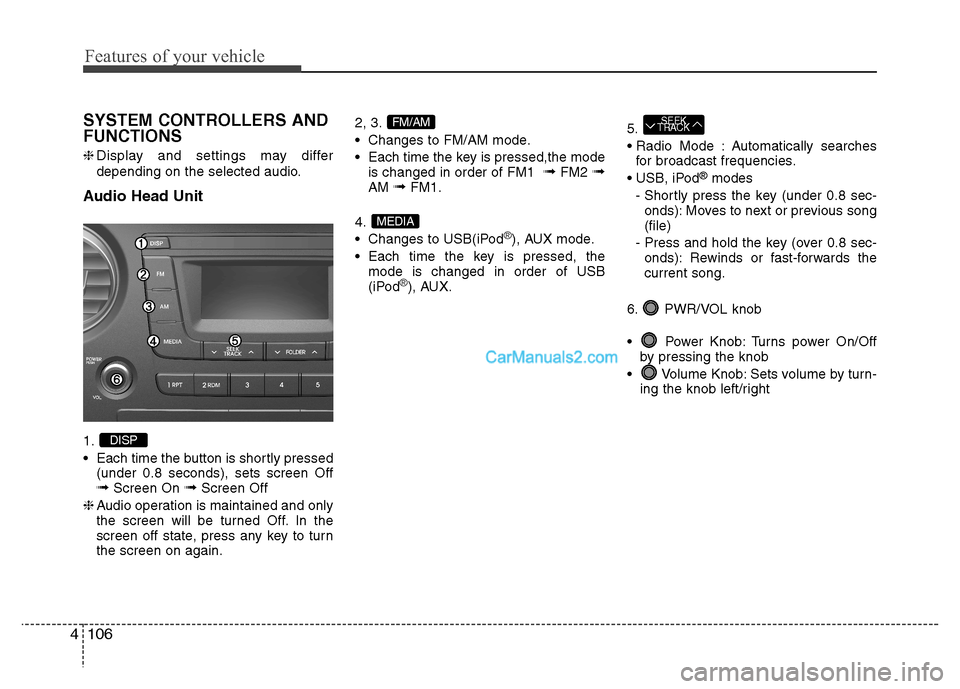
Audio Head Unit 1.
Each time the button is shortly pressed (under 0.8 seconds), sets screen Off ➟ Screen On ➟Screen Off
❈ Audio operation is maintained and only
the screen will be turned Off. In the
screen off state, press any key to turnthe screen on again. 2, 3.
Changes to FM/AM mode.
Each time the key is pressed,the mode
is changed in order of FM1 ➟
FM2 ➟
AM ➟FM1.
4.
Changes to USB(iPod
®), AUX mode.
Each time the key is pressed, the mode is changed in order of USB
(iPod
®), AUX. 5.
Automatically searches
for broadcast frequencies.
®
modes
- Shortly press the key (under 0.8 sec- onds): Moves to next or previous song (file)
- Press and hold the key (over 0.8 sec- onds): Rewinds or fast-forwards thecurrent song.
6. PWR/VOL knob
Power Knob: Turns power On/Off by pressing the knob
Volume Knob: Sets volume by turn- ing the knob left/right
SEEK
TRACK
MEDIA
FM/AM
DISP
Page 165 of 343
![Hyundai Grand i10 2015 Owners Guide 4109
Features of your vehicle
Sound Settings
This menu allows you to set the ‘Bass,
Middle, Treble’ and the Sound Fader and
Balance.
Select [Audio Settings] Select menu
through TUNE knob Turn](/img/35/14790/w960_14790-164.png "Hyundai Grand i10 2015 Owners Guide 4109
Features of your vehicle
Sound Settings
This menu allows you to set the ‘Bass,
Middle, Treble’ and the Sound Fader and
Balance.
Select [Audio Settings] Select menu
through TUNE knob Turn")
4109
Features of your vehicle
Sound Settings
This menu allows you to set the ‘Bass,
Middle, Treble’ and the Sound Fader and
Balance.
Select [Audio Settings] Select menu
through TUNE knob Turn TUNE
knob left/right to set
Bass, Middle, Treble : Selects the soundtone.
Fader, Balance : Moves the sound fader and balance.
Restores default settings. ❈ Return : While adjusting values, re-
pressing the TUNE knob will restore
the parent menu. Virtual Sound
The PowerTreble, and Surround can be set.
Select [Virtual Sound] Set menu through
TUNEknob Set /
through
TUNEknob
PowerTreble : This is a sound system fea- ture that provides live tremble.
Surround : This is a sound system fea- ture that provides surround sound.
❈ May differ depending on the selected
audio. Speed Dependent Volume Control
This feature is used to automatically con-
trol the volume level according to the
speed of the vehicle.
Select [Speed Dependent Vol.] Set in 4
levels [Off/Low/Mid/High] of TUNE knobOff
On
Page 167 of 343
![Hyundai Grand i10 2015 Owners Guide 4111
Features of your vehicle
Phone Setup (if equipped)
Press the key Select [Phone]Pair Phone
Select [Pair Phone] Set through TUNE knob ➀
Search for device names as displayed
on your mobile pho](/img/35/14790/w960_14790-166.png "Hyundai Grand i10 2015 Owners Guide 4111
Features of your vehicle
Phone Setup (if equipped)
Press the key Select [Phone]Pair Phone
Select [Pair Phone] Set through TUNE knob ➀
Search for device names as displayed
on your mobile pho")
4111
Features of your vehicle
Phone Setup (if equipped)
Press the key Select [Phone]Pair Phone
Select [Pair Phone] Set through TUNE knob ➀
Search for device names as displayed
on your mobile phone and connect.
➁ Input the passkey displayed on the
screen. (Passkey : 0000)
❈ The device name and passkey will be
displayed on the screen for up to 3
minutes. If pairing is not completed
within the 3 minutes, the mobile phone
pairing process will automatically becanceled. ➂
Pairing completion is displayed.
❈ In some mobile phones, pairing will
automatically be followed by connec-tion.
❈ It is possible to pair up to five
Bluetooth®Wireless Technology
enabled mobile phones.
SETUP
CLOCKCAUTION
To pair a Bluetooth®Wireless
Technology enabled mobile phone,
authentication and connection processes are first required. As aresult, you cannot pair your mobilephone while driving the vehicle.
First park your vehicle before use.
Page 169 of 343
![Hyundai Grand i10 2015 Owners Guide 4113
Features of your vehicle
(Priority)
This is used to change the order (pri-
ority) of automatic connection for the
paired mobile phones.
Select [Phone List] Select [Priority]
through TUNE knob](/img/35/14790/w960_14790-168.png "Hyundai Grand i10 2015 Owners Guide 4113
Features of your vehicle
(Priority)
This is used to change the order (pri-
ority) of automatic connection for the
paired mobile phones.
Select [Phone List] Select [Priority]
through TUNE knob")
4113
Features of your vehicle
(Priority)
This is used to change the order (pri-
ority) of automatic connection for the
paired mobile phones.
Select [Phone List] Select [Priority]
through TUNE knob Select No. 1
Priority mobile phone ➀ Select [Priority].
➁ From the paired phones, select
the phone desired for No.1 priority.
➂ The changed priority sequence is
displayed.
❈ Once the connection sequence
(priority) is changed, the new no. 1
priority mobile phone will be con-nected.
- when the no. 1 priority cannot be connected: Automaticallyattempts to connect the most
recently connected phone.
- Cases when the most recently connected phone cannot be con-
nected: Attempts to connect inthe order in which paired phonesare listed. - The connected phone will auto-
matically be changed to No. 1
priority.
Select [Phone List] Select mobile
phone through TUNE knobSelect [Delete] ➀ Select the desired mobile phone.
➁ Delete the selected mobile phone.
➂ Deletion completion is displayed.
❈ When attempting to delete a cur-
rently connected phone, the phone is first disconnected. Contacts Download
This feature is used to download
contacts and call histories into theaudio system.
Select [Contacts Download] Select
through TUNE knob
CAUTION
When you delete a mobile
phone, the mobile phone con-tacts will also be erased.
For stable Bluetooth ®
Wireless
Technology communication, delete the mobile phone fromthe audio and also delete theaudio from your mobile phone.
CAUTION
The download feature may not be supported in some mobilephones.
If a different operation is per- formed while Contacts arebeing downloaded, download-ing will be discontinued.Contacts already downloaded will be saved.
When downloading new Contacts, delete all previouslysaved Contacts before start-ing download.
Page 170 of 343
![Hyundai Grand i10 2015 Owners Guide Features of your vehicle
114
4
Auto Download
When connecting a mobile phone, it is
possible to automatically download new
Contacts and Call Histories.
Select [Auto Download] Set /
through TUNE kno](/img/35/14790/w960_14790-169.png "Hyundai Grand i10 2015 Owners Guide Features of your vehicle
114
4
Auto Download
When connecting a mobile phone, it is
possible to automatically download new
Contacts and Call Histories.
Select [Auto Download] Set /
through TUNE kno")
Features of your vehicle
114
4
Auto Download
When connecting a mobile phone, it is
possible to automatically download new
Contacts and Call Histories.
Select [Auto Download] Set /
through TUNE knob
Audio Streaming
Songs (files) saved in your
Bluetooth®
Wireless Technology enabled mobile
phone can be played through the audiosystem.
Select [Audio Streaming] Set / through TUNE knob Outgoing Volume
This is used to set the volume of your
voice as heard by the other party whileon a
Bluetooth®Wireless Technology
enabled handsfree call.
Select [Outgoing Volume] Set volume
through TUNE knob ❈ While on a call, the volume can be
changed by using the key.
Bluetooth®Wireless Technology
System Off
This feature is used when you do not wish to use the
Bluetooth®Wireless
Technology system.
Select [Bluetooth System Off] Set
through TUNE knob ❈ If a phone is already connected, dis- connect the currently connected phone
and turn the
Bluetooth®Wireless
Technology system off. Using the
Bluetooth®Wireless
Technology System
To use
Bluetooth®Wireless Technology
when the system is currently off, follow
these next steps.
Turning On
Bluetooth®Wireless
Technology through the Key.
Press the key Screen Guidance❈ Moves to the screen where
Bluetooth®
Wireless Technology functions can be
used and displays guidance.
Turning On
Bluetooth®Wireless
Technology through the Key.
Press the key Select [Phone] ➀ A screen asking whether to turn on
Bluetooth®Wireless Technology will be
displayed.
➁ On the screen, select to turn on
Bluetooth®Wireless Technology and
display guidance.
❈ If the
Bluetooth®Wireless Technology
system is turned on, the system will
automatically try to connect the mostrecently connected
Bluetooth®Wireless
Technology mobile phone. YES
SETUP
CLOCK
SETUP
CLOCK
PHONE
PHONE
SEEK
TRACK
OffOn
OffOn
CAUTION
The Bluetooth®Wireless Technology
audio streaming feature may not be supported in some mobile phones.
Page 172 of 343
Features of your vehicle
116
4
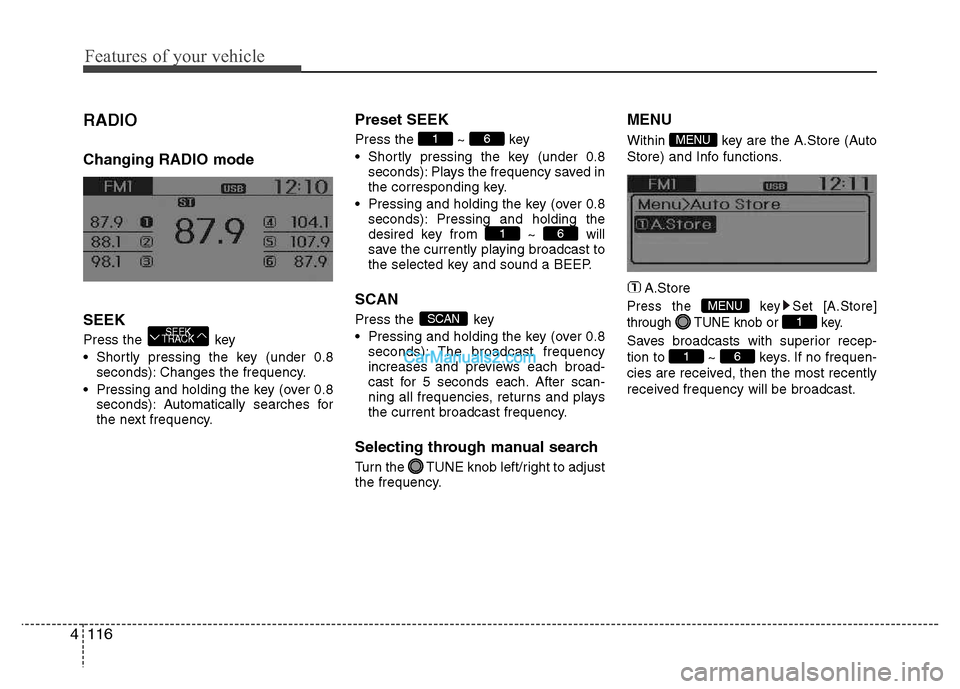
RADIO Changing RADIO mode SEEK
Press the key
Shortly pressing the key (under 0.8
seconds): Changes the frequency.
Pressing and holding the key (over 0.8 seconds): Automatically searches for
the next frequency. Preset SEEK Press
the ~ key
Shortly pressing the key (under 0.8 seconds): Plays the frequency saved in
the corresponding key.
Pressing and holding the key (over 0.8 seconds): Pressing and holding thedesired key from ~ will
save the currently playing broadcast to
the selected key and sound a BEEP.
SCAN
Press the key
Pressing and holding the key (over 0.8 seconds): The broadcast frequency
increases and previews each broad-
cast for 5 seconds each. After scan-
ning all frequencies, returns and plays
the current broadcast frequency.
Selecting through manual search
Turn the TUNE knob left/right to adjust
the frequency. MENU
Within key are the A.Store (Auto
Store) and Info functions.
A.Store
Press the key Set [A.Store]
through TUNE knob or key.
Saves broadcasts with superior recep-
tion to ~ keys. If no frequen-
cies are received, then the most recently
received frequency will be broadcast.61
1
MENU
MENU
SCAN
61
61
SEEK
TRACK
Page 173 of 343
4117
Features of your vehicle
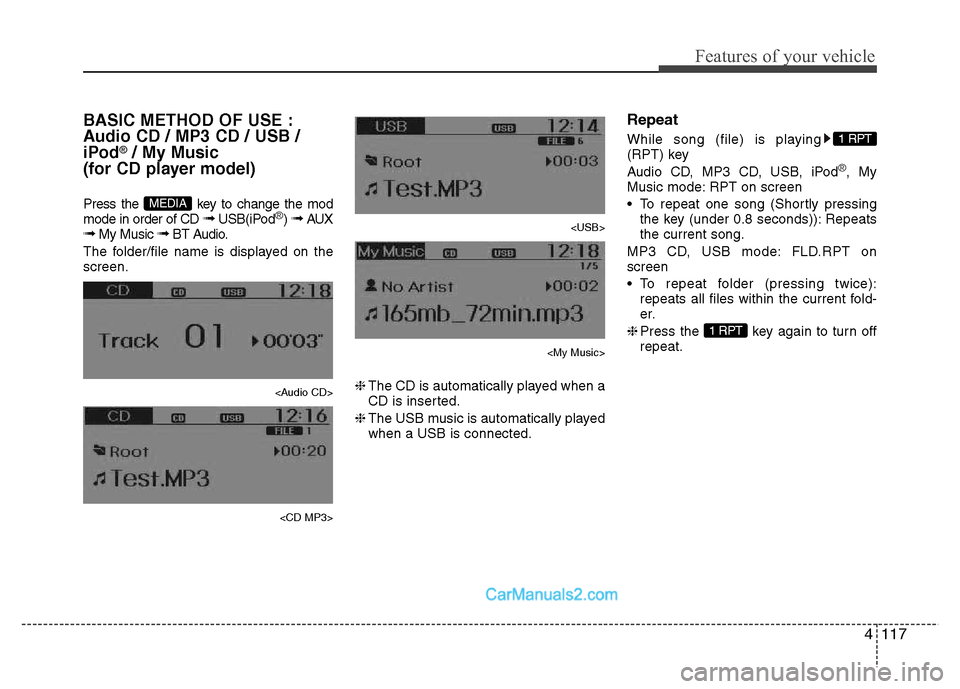
BASIC METHOD OF USE :
Audio CD / MP3 CD / USB /
iPod
®/ My Music
(for CD player model)
Press the key to change the mod mode in order of CD ➟ USB(iPod
®) ➟ AUX
➟ My Music ➟ BT Audio.
The folder/file name is displayed on the screen.