N mode HYUNDAI I30 2023 Workshop Manual
[x] Cancel search | Manufacturer: HYUNDAI, Model Year: 2023, Model line: I30, Model: HYUNDAI I30 2023Pages: 533, PDF Size: 59.13 MB
Page 250 of 533
4-25
Multimedia System
4
Information
- Using the iPod®Devices
• To use the audio system’s iPod
®con-
trol function, use the dedicated
cable provided with your iPod
®.
• Connecting the iPod
®to the vehicle
during play may result in a loud
noise that lasts about one to two sec-
onds. Connect the iPod
®to the vehi-
cle after stopping or pausing play.
• Connect the iPod
®with the vehicle in
the ACC ON state to begin charging.
• When connecting the iPod
®cable,
be sure to fully push the cable into
the port.
• When EQ effects are enabled simul-
taneously on external devices, such
as iPod
®s and the audio system, the
EQ effects may overlap, causing
sound quality deterioration or dis-
tortion. Deactivate the EQ function
for all external devices, if possible.
• Noise may occur when your iPod
®
or the AUX port is connected.
Disconnect and store separately
when not in use.
(Continued)(Continued)
• There may be noise if the audio sys-
tem is used with an iPod
®or AUX
external device connected to the
power jack. In these cases, discon-
nect the iPod
®or external device
from the power jack.
• Play may be interrupted, or device
malfunctions may occur depending
on the characteristics of your
iPod
®/iPhone®.
• Play may fail if your iPhone
®is con-
nected through both Bluetooth®and
USB. In this case, select Dock con-
nector or Bluetooth
®on your
iPhone®to change the sound output
settings.
• If your software version does not
support the communication proto-
col or your iPod
®is not recognised
due to device failure, anomalies or
defects, iPod
®mode cannot be used.
• iPod
®nano (5th generation) devices
may not be recognised if the battery is
low. Charge sufficiently before use.
(Continued)(Continued)
• The search and song play order in
the iPod
®device may be different
from the search order in the audio
system.
• If the iPod
®has failed due to an
internal defect, please reset the
iPod
®(consult your iPod®manual).
• Depending on the software version,
the iPod
®may fail to sync with the
system. If the media is removed or
disconnected before recognition, the
previous mode may not be restored
(iPad
®cannot be charged).
• Cables other than the 1-meter cable
provided with iPod
®/iPhone®prod-
ucts may not be recognised.
• When other music apps are used on
your iPod
®, the system sync func-
tion may fail due to malfunction of
the iPod
®application.
i
Page 252 of 533
4-27
Multimedia System
4
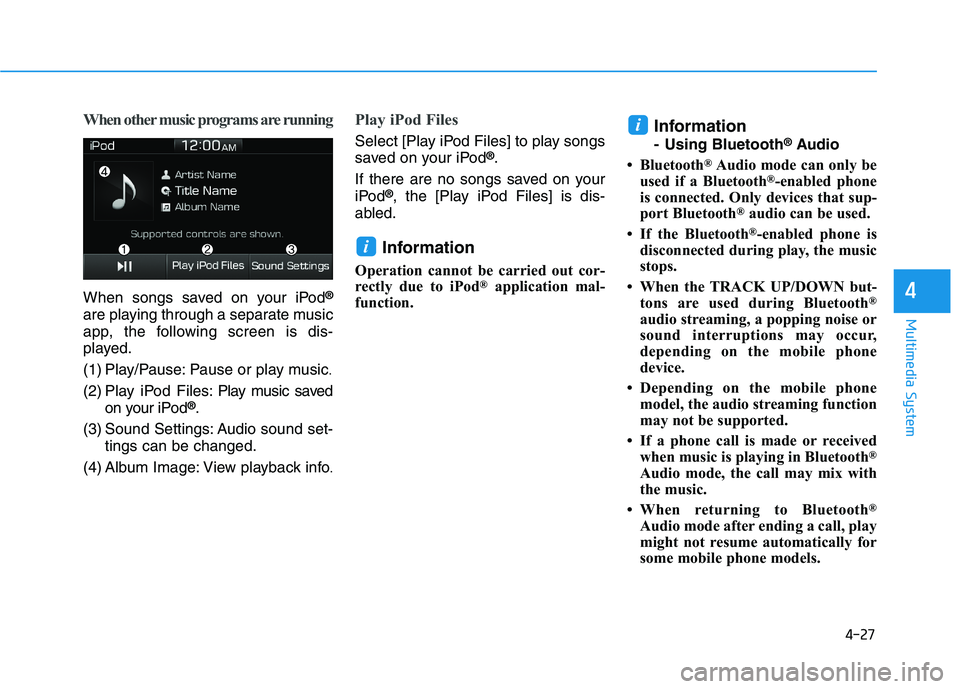
When other music programs are running
When songs saved on your iPod®
are playing through a separate music
app, the following screen is dis-
played.
(1) Play/Pause: Pause or play music
.
(2) Play iPod Files: Play music saved
on your iPod®.
(3) Sound Settings: Audio sound set-
tings can be changed.
(4) Album Image: View playback info
.
Play iPod Files
Select [Play iPod Files] to play songs
saved on your iPod®.
If there are no songs saved on your
iPod
®, the [Play iPod Files] is dis-
abled.
Information
Operation cannot be carried out cor-
rectly due to iPod®application mal-
function.
Information
- Using Bluetooth®Audio
• Bluetooth
®Audio mode can only be
used if a Bluetooth®-enabled phone
is connected. Only devices that sup-
port Bluetooth
®audio can be used.
• If the Bluetooth
®-enabled phone is
disconnected during play, the music
stops.
• When the TRACK UP/DOWN but-
tons are used during Bluetooth
®
audio streaming, a popping noise or
sound interruptions may occur,
depending on the mobile phone
device.
• Depending on the mobile phone
model, the audio streaming function
may not be supported.
• If a phone call is made or received
when music is playing in Bluetooth
®
Audio mode, the call may mix with
the music.
• When returning to Bluetooth
®
Audio mode after ending a call, play
might not resume automatically for
some mobile phone models.
i
i
Page 253 of 533
4-28
Multimedia System
Bluetooth
®Handsfree is a fea-
ture that enables drivers to prac-
tice safe driving. Connecting the
car audio system with a
Bluetooth
®phone allows the
user to conveniently make calls,
receive calls, and manage the
phone book. Before using the
Bluetooth
®, carefully read the
contents of this user’s manual.
Excessive use or operations
whilst driving may lead to negli-
gent driving practices and be
the cause of accidents.
Do not operate the device exces-
sively whilst driving.
Viewing the screen for pro-
longed periods of time is dan-
gerous and may lead to acci-
dents.
When driving, view the screen
only for short periods of time.
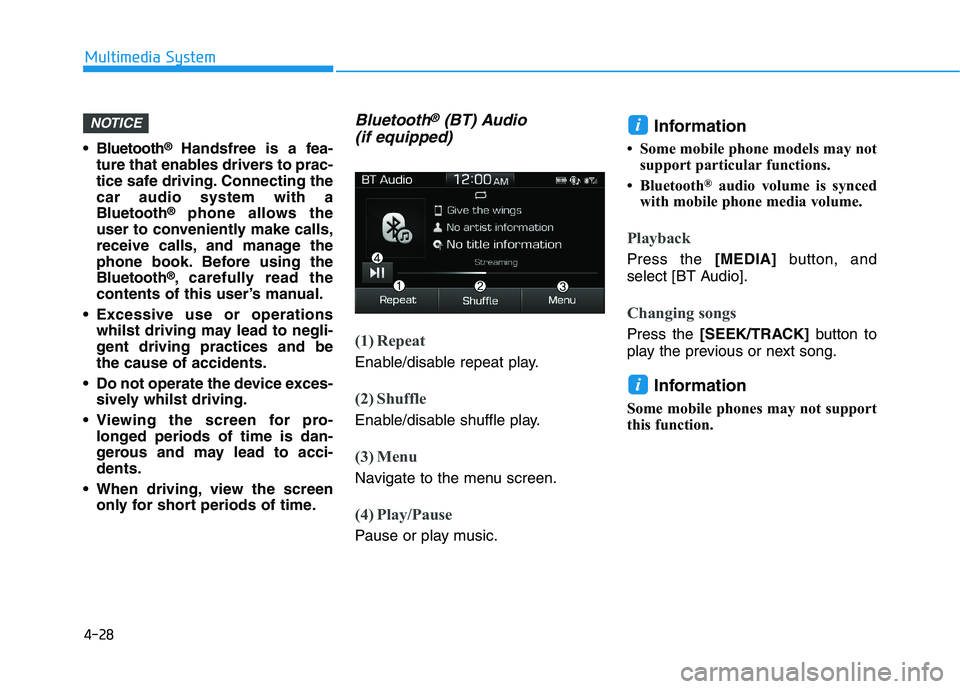
Bluetooth®(BT) Audio
(if equipped)
(1) Repeat
Enable/disable repeat play.
(2) Shuffle
Enable/disable shuffle play.
(3) Menu
Navigate to the menu screen.
(4) Play/Pause
Pause or play music.
Information
• Some mobile phone models may not
support particular functions.
• Bluetooth
®audio volume is synced
with mobile phone media volume.
Playback
Press the [MEDIA]button, and
select [BT Audio].
Changing songs
Press the [SEEK/TRACK]button to
play the previous or next song.
Information
Some mobile phones may not support
this function.
i
iNOTICE
Page 260 of 533
![HYUNDAI I30 2023 Workshop Manual 4-35
Multimedia System
4
Pairing a second Bluetooth®device
Press the [SETUP]button on the
audio system ➟ Select [Bluetooth] ➟
Select [Connections] ➟Select [Add
New].
- The pairing procedure fro](/img/35/56144/w960_56144-259.png "HYUNDAI I30 2023 Workshop Manual 4-35
Multimedia System
4
Pairing a second Bluetooth®device
Press the [SETUP]button on the
audio system ➟ Select [Bluetooth] ➟
Select [Connections] ➟Select [Add
New].
- The pairing procedure fro")
4-35
Multimedia System
4
Pairing a second Bluetooth®device
Press the [SETUP]button on the
audio system ➟ Select [Bluetooth] ➟
Select [Connections] ➟Select [Add
New].
- The pairing procedure from this
point is identical to [Pairing the first
Bluetooth device].Information
• Bluetooth®standby mode lasts for
three minutes. If a device is not
paired within three minutes, pairing
is cancelled. Start over from the
beginning.
• For most Bluetooth
®devices, a con-
nection is established automatically
after pairing. Some devices, howev-
er, require separate confirmation
when connecting after pairing. Be
sure to check your Bluetooth
®
device after pairing to confirm that
it has connected.
Connecting Bluetooth®devices
If there are no connected devices
Press the [PHONE]button on the
audio system or the [CALL]button in
the steering wheel remote control ➟
List of paired Bluetooth
®devices ➟
Select the desired Bluetooth®device
from the list ➟Connect Bluetooth®.
i
Page 261 of 533
![HYUNDAI I30 2023 Workshop Manual 4-36
Multimedia System
If there are connected devices
Press the [PHONE]button on the
audio system ➟Select [Settings] ➟
Select [Connections] ➟Select
Bluetooth
®device to connect ➟Select
[Conne](/img/35/56144/w960_56144-260.png "HYUNDAI I30 2023 Workshop Manual 4-36
Multimedia System
If there are connected devices
Press the [PHONE]button on the
audio system ➟Select [Settings] ➟
Select [Connections] ➟Select
Bluetooth
®device to connect ➟Select
[Conne")
4-36
Multimedia System
If there are connected devices
Press the [PHONE]button on the
audio system ➟Select [Settings] ➟
Select [Connections] ➟Select
Bluetooth
®device to connect ➟Select
[Connect] ➟Connect Bluetooth®.
Information
• Only one Bluetooth®device can be
connected at a time.
• When a Bluetooth
®device is con-
nected, other devices cannot be
paired.
Accepting/rejecting phone calls
Receiving phone calls with
Bluetooth®connected.
(1) Caller name: If the caller number
is in your contacts, the correspon-
ding name is displayed.
(2) Incoming phone number:
Incoming phone number is dis-
played.
(3) Accept: Accept call.
(4) Reject: Reject call.
Information
• When the incoming call screen is
displayed, audio mode and the set-
tings screen cannot be shown. Only
call volume control is supported.
• Some Bluetooth
®devices may not
support the call reject function.
• Some Bluetooth
®devices may not
support the phone number display
function.
i
i
Page 264 of 533
4-39
Multimedia System
4
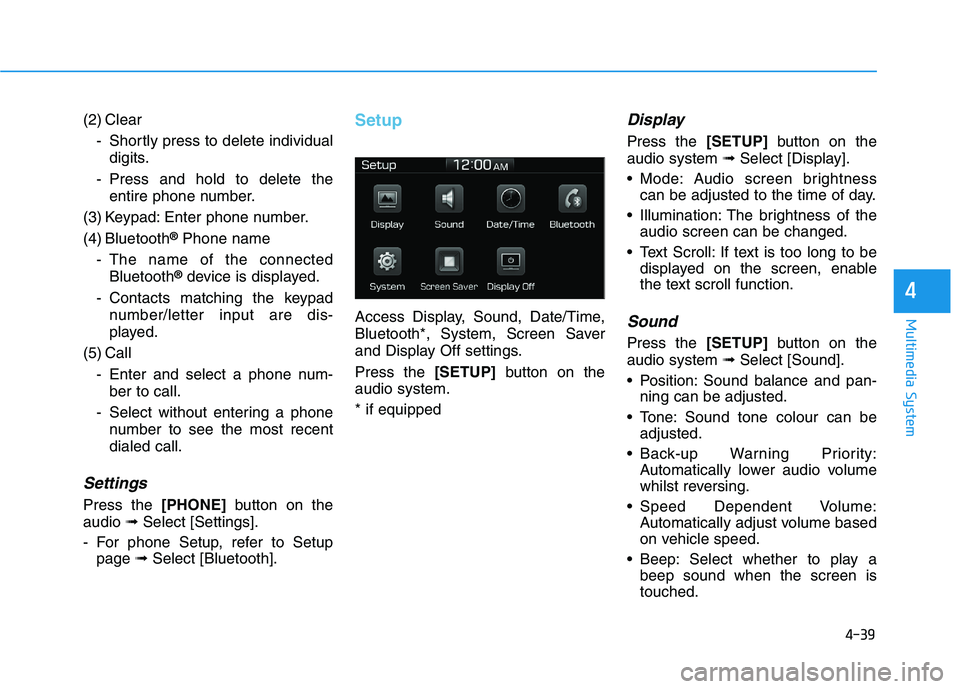
(2) Clear
- Shortly press to delete individual
digits.
- Press and hold to delete the
entire phone number.
(3) Keypad: Enter phone number.
(4) Bluetooth
®Phone name
- The name of the connected
Bluetooth
®device is displayed.
- Contacts matching the keypad
number/letter input are dis-
played.
(5) Call
- Enter and select a phone num-
ber to call.
- Select without entering a phone
number to see the most recent
dialed call.
Settings
Press the [PHONE]button on the
audio ➟Select [Settings].
- For phone Setup, refer to Setup
page ➟Select [Bluetooth].
Setup
Access Display, Sound, Date/Time,
Bluetooth*, System, Screen Saver
and Display Off settings.
Press the [SETUP]button on the
audio system.
* if equipped
Display
Press the [SETUP]button on the
audio system ➟Select [Display].
Mode: Audio screen brightness
can be adjusted to the time of day.
Illumination: The brightness of the
audio screen can be changed.
Text Scroll: If text is too long to be
displayed on the screen, enable
the text scroll function.
Sound
Press the [SETUP]button on the
audio system ➟Select [Sound].
Position: Sound balance and pan-
ning can be adjusted.
Tone: Sound tone colour can be
adjusted.
Back-up Warning Priority:
Automatically lower audio volume
whilst reversing.
Speed Dependent Volume:
Automatically adjust volume based
on vehicle speed.
Beep: Select whether to play a
beep sound when the screen is
touched.
Page 266 of 533
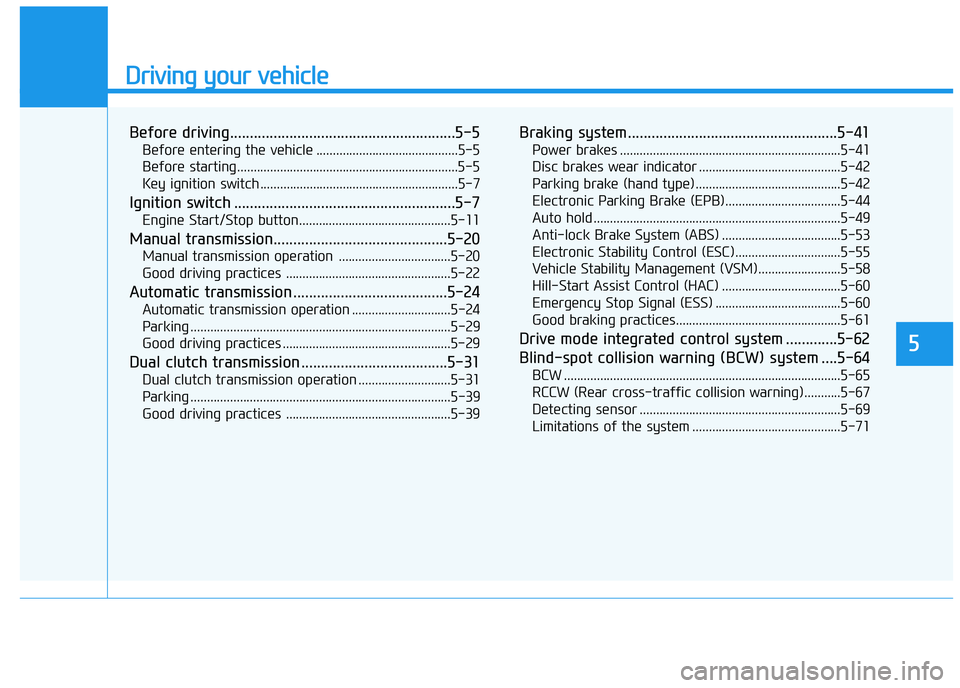
Driving your vehicle
Before driving.........................................................5-5
Before entering the vehicle ...........................................5-5
Before starting...................................................................5-5
Key ignition switch ............................................................5-7
Ignition switch ........................................................5-7
Engine Start/Stop button ..............................................5-11
Manual transmission............................................5-20
Manual transmission operation ..................................5-20
Good driving practices ..................................................5-22
Automatic transmission .......................................5-24
Automatic transmission operation ..............................5-24
Parking ...............................................................................5-29
Good driving practices ...................................................5-29
Dual clutch transmission .....................................5-31
Dual clutch transmission operation ............................5-31
Parking ...............................................................................5-39
Good driving practices ..................................................5-39
Braking system.....................................................5-41
Power brakes ...................................................................5-41
Disc brakes wear indicator ...........................................5-42
Parking brake (hand type) ............................................5-42
Electronic Parking Brake (EPB)...................................5-44
Auto hold ...........................................................................5-49
Anti-lock Brake System (ABS) ....................................5-53
Electronic Stability Control (ESC)................................5-55
Vehicle Stability Management (VSM).........................5-58
Hill-Start Assist Control (HAC) ....................................5-60
Emergency Stop Signal (ESS) ......................................5-60
Good braking practices..................................................5-61
Drive mode integrated control system .............5-62
Blind-spot collision warning (BCW) system ....5-64
BCW ....................................................................................5-65
RCCW (Rear cross-traffic collision warning) ...........5-67
Detecting sensor .............................................................5-69
Limitations of the system .............................................5-71
5
Page 267 of 533
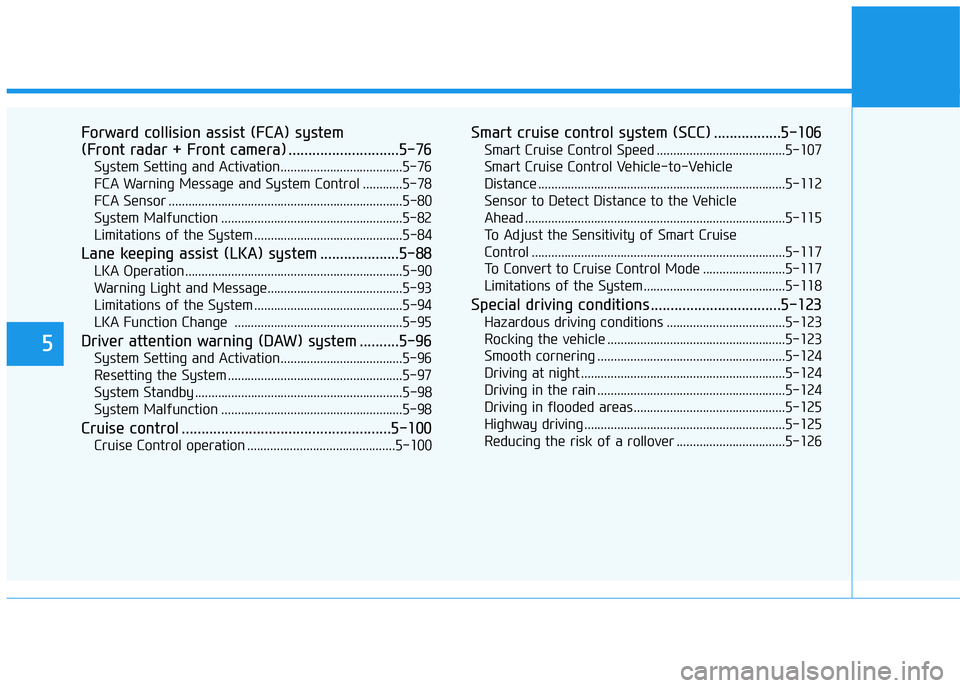
5
Forward collision assist (FCA) system
(Front radar + Front camera) ............................5-76
System Setting and Activation.....................................5-76
FCA Warning Message and System Control ............5-78
FCA Sensor .......................................................................5-80
System Malfunction .......................................................5-82
Limitations of the System .............................................5-84
Lane keeping assist (LKA) system ....................5-88
LKA Operation..................................................................5-90
Warning Light and Message.........................................5-93
Limitations of the System .............................................5-94
LKA Function Change ...................................................5-95
Driver attention warning (DAW) system ..........5-96
System Setting and Activation.....................................5-96
Resetting the System .....................................................5-97
System Standby ...............................................................5-98
System Malfunction .......................................................5-98
Cruise control .....................................................5-100
Cruise Control operation .............................................5-100
Smart cruise control system (SCC) .................5-106
Smart Cruise Control Speed .......................................5-107
Smart Cruise Control Vehicle-to-Vehicle
Distance ...........................................................................5-112
Sensor to Detect Distance to the Vehicle
Ahead ...............................................................................5-115
To Adjust the Sensitivity of Smart Cruise
Control .............................................................................5-117
To Convert to Cruise Control Mode .........................5-117
Limitations of the System...........................................5-118
Special driving conditions .................................5-123
Hazardous driving conditions ....................................5-123
Rocking the vehicle ......................................................5-123
Smooth cornering .........................................................5-124
Driving at night ..............................................................5-124
Driving in the rain .........................................................5-124
Driving in flooded areas..............................................5-125
Highway driving .............................................................5-125
Reducing the risk of a rollover .................................5-126
Page 274 of 533
5-9
Driving your vehicle
5
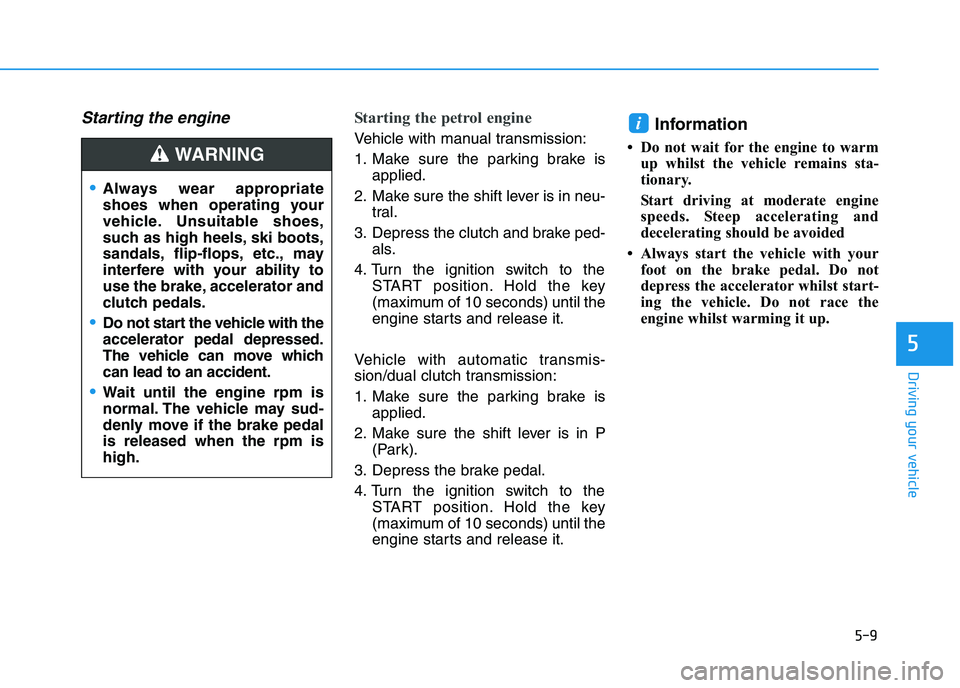
Starting the engine Starting the petrol engine
Vehicle with manual transmission:
1. Make sure the parking brake is
applied.
2. Make sure the shift lever is in neu-
tral.
3. Depress the clutch and brake ped-
als.
4. Turn the ignition switch to the
START position. Hold the key
(maximum of 10 seconds) until the
engine starts and release it.
Vehicle with automatic transmis-
sion/dual clutch transmission:
1. Make sure the parking brake is
applied.
2. Make sure the shift lever is in P
(Park).
3. Depress the brake pedal.
4. Turn the ignition switch to the
START position. Hold the key
(maximum of 10 seconds) until the
engine starts and release it.Information
• Do not wait for the engine to warm
up whilst the vehicle remains sta-
tionary.
Start driving at moderate engine
speeds. Steep accelerating and
decelerating should be avoided
• Always start the vehicle with your
foot on the brake pedal. Do not
depress the accelerator whilst start-
ing the vehicle. Do not race the
engine whilst warming it up.
i
Always wear appropriate
shoes when operating your
vehicle. Unsuitable shoes,
such as high heels, ski boots,
sandals, flip-flops, etc., may
interfere with your ability to
use the brake, accelerator and
clutch pedals.
Do not start the vehicle with the
accelerator pedal depressed.
The vehicle can move which
can lead to an accident.
Wait until the engine rpm is
normal. The vehicle may sud-
denly move if the brake pedal
is released when the rpm is
high.
WARNING
Page 282 of 533
5-17
Driving your vehicle
5
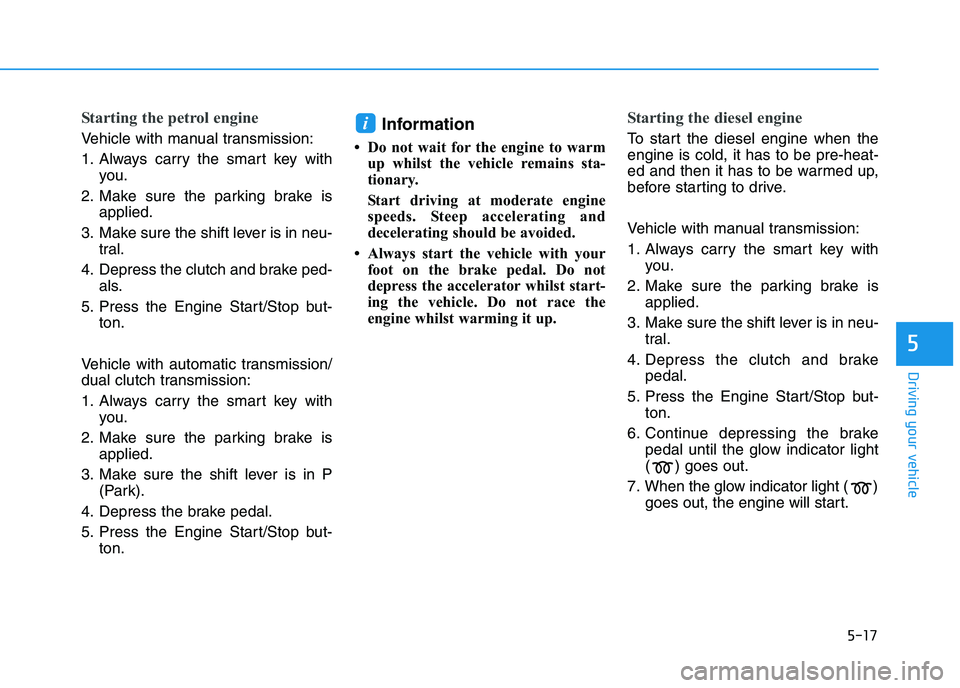
Starting the petrol engine
Vehicle with manual transmission:
1. Always carry the smart key with
you.
2. Make sure the parking brake is
applied.
3. Make sure the shift lever is in neu-
tral.
4. Depress the clutch and brake ped-
als.
5. Press the Engine Start/Stop but-
ton.
Vehicle with automatic transmission/
dual clutch transmission:
1. Always carry the smart key with
you.
2. Make sure the parking brake is
applied.
3. Make sure the shift lever is in P
(Park).
4. Depress the brake pedal.
5. Press the Engine Start/Stop but-
ton.Information
• Do not wait for the engine to warm
up whilst the vehicle remains sta-
tionary.
Start driving at moderate engine
speeds. Steep accelerating and
decelerating should be avoided.
• Always start the vehicle with your
foot on the brake pedal. Do not
depress the accelerator whilst start-
ing the vehicle. Do not race the
engine whilst warming it up.
Starting the diesel engine
To start the diesel engine when the
engine is cold, it has to be pre-heat-
ed and then it has to be warmed up,
before starting to drive.
Vehicle with manual transmission:
1. Always carry the smart key with
you.
2. Make sure the parking brake is
applied.
3. Make sure the shift lever is in neu-
tral.
4. Depress the clutch and brake
pedal.
5. Press the Engine Start/Stop but-
ton.
6. Continue depressing the brake
pedal until the glow indicator light
( ) goes out.
7. When the glow indicator light ( )
goes out, the engine will start.i