ignition HYUNDAI I800 2016 Workshop Manual
[x] Cancel search | Manufacturer: HYUNDAI, Model Year: 2016, Model line: I800, Model: HYUNDAI I800 2016Pages: 419, PDF Size: 9.23 MB
Page 162 of 419
Features of your vehicle
88 4
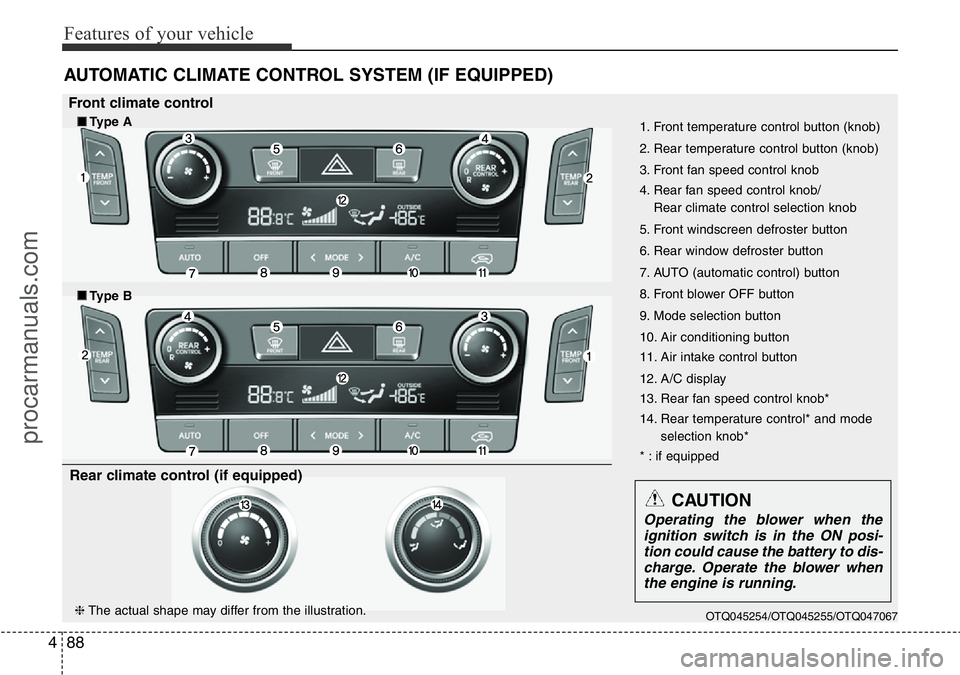
AUTOMATIC CLIMATE CONTROL SYSTEM (IF EQUIPPED)
OTQ045254/OTQ045255/OTQ047067
1. Front temperature control button (knob)
2. Rear temperature control button (knob)
3. Front fan speed control knob
4. Rear fan speed control knob/
Rear climate control selection knob
5. Front windscreen defroster button
6. Rear window defroster button
7. AUTO (automatic control) button
8. Front blower OFF button
9. Mode selection button
10. Air conditioning button
11. Air intake control button
12. A/C display
13. Rear fan speed control knob*
14. Rear temperature control* and mode
selection knob*
* : if equipped
■Type B
CAUTION
Operating the blower when the
ignition switch is in the ON posi-
tion could cause the battery to dis-
charge. Operate the blower when
the engine is running.
Front climate control
■Type A
❈The actual shape may differ from the illustration.
Rear climate control (if equipped)
procarmanuals.com
Page 176 of 419
Features of your vehicle
102 4
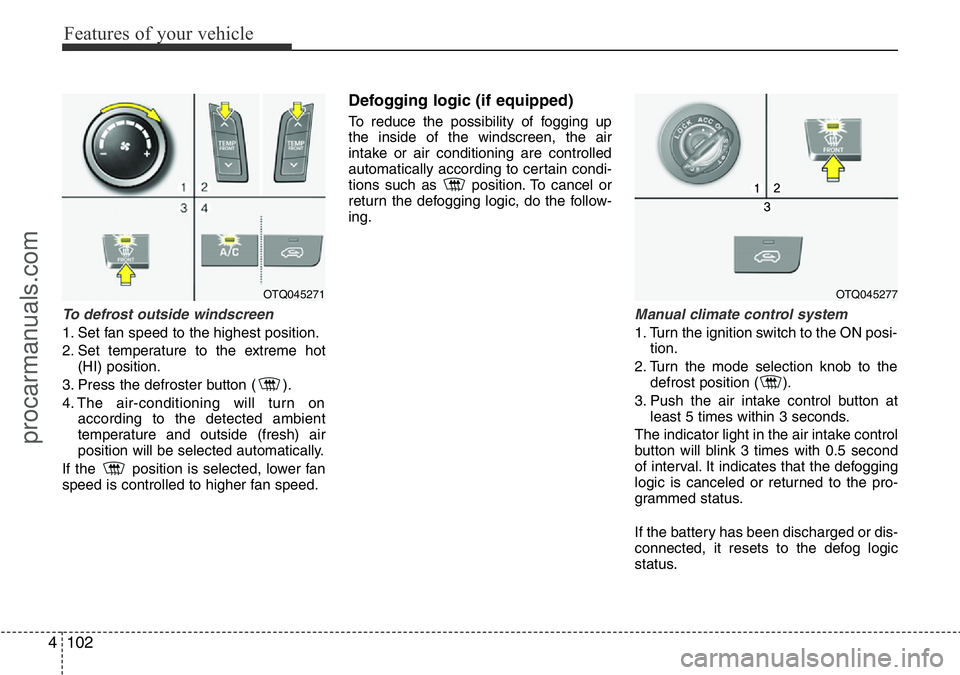
To defrost outside windscreen
1. Set fan speed to the highest position.
2. Set temperature to the extreme hot
(HI) position.
3. Press the defroster button ( ).
4. The air-conditioning will turn on
according to the detected ambient
temperature and outside (fresh) air
position will be selected automatically.
If the position is selected, lower fan
speed is controlled to higher fan speed.
Defogging logic (if equipped)
To reduce the possibility of fogging up
the inside of the windscreen, the air
intake or air conditioning are controlled
automatically according to certain condi-
tions such as position. To cancel or
return the defogging logic, do the follow-
ing.
Manual climate control system
1. Turn the ignition switch to the ON posi-
tion.
2. Turn the mode selection knob to the
defrost position ( ).
3. Push the air intake control button at
least 5 times within 3 seconds.
The indicator light in the air intake control
button will blink 3 times with 0.5 second
of interval. It indicates that the defogging
logic is canceled or returned to the pro-
grammed status.
If the battery has been discharged or dis-
connected, it resets to the defog logic
status.
OTQ045271OTQ045277
procarmanuals.com
Page 177 of 419
4103
Features of your vehicle
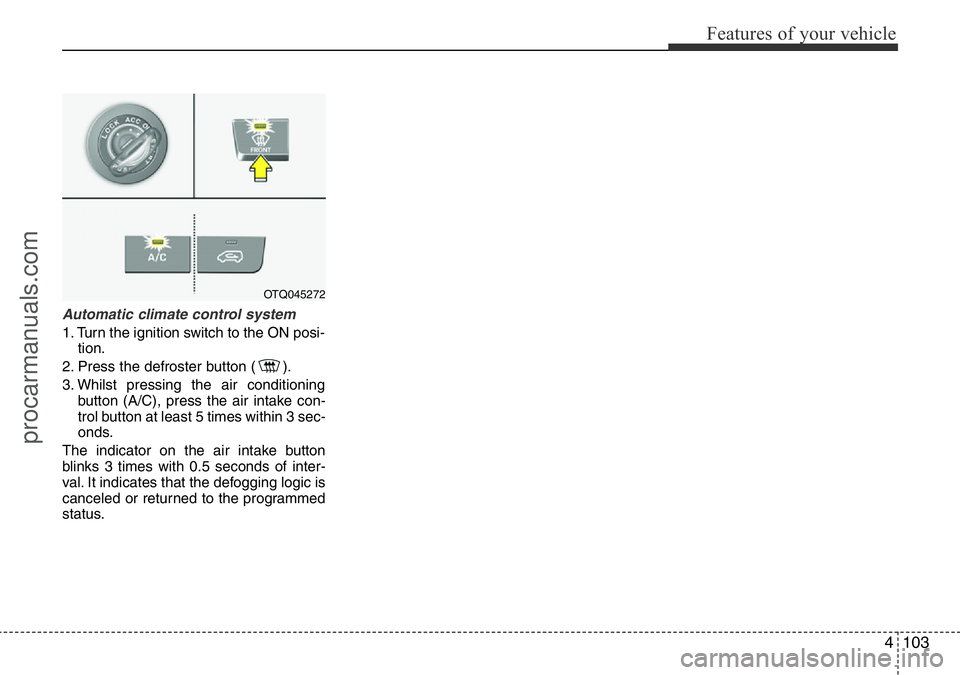
Automatic climate control system
1. Turn the ignition switch to the ON posi-
tion.
2. Press the defroster button ( ).
3. Whilst pressing the air conditioning
button (A/C), press the air intake con-
trol button at least 5 times within 3 sec-
onds.
The indicator on the air intake button
blinks 3 times with 0.5 seconds of inter-
val. It indicates that the defogging logic is
canceled or returned to the programmed
status.
OTQ045272
procarmanuals.com
Page 184 of 419
Features of your vehicle
110 4
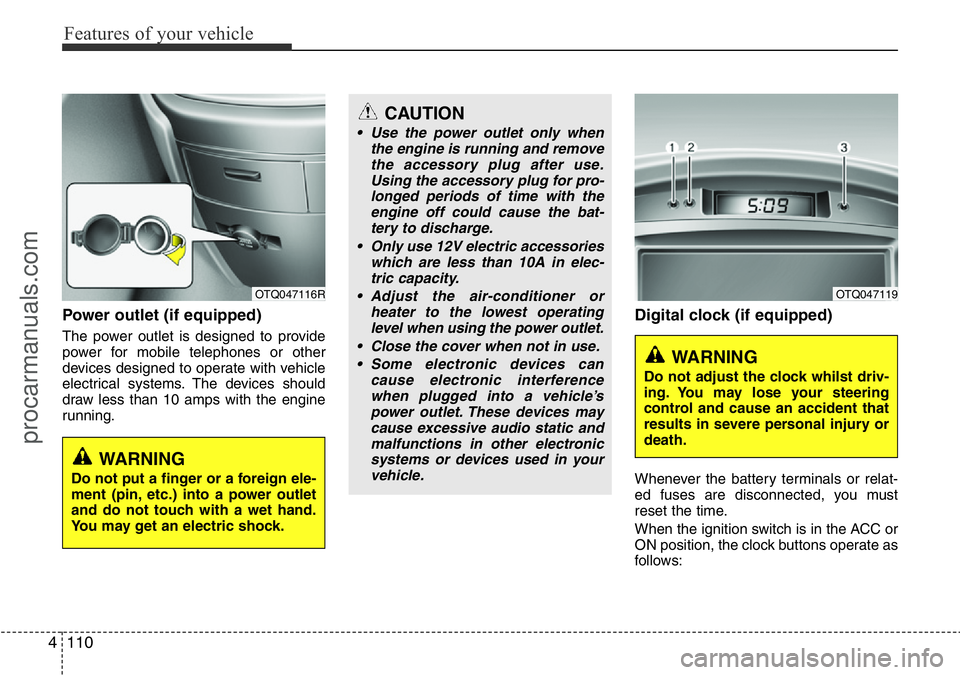
Power outlet (if equipped)
The power outlet is designed to provide
power for mobile telephones or other
devices designed to operate with vehicle
electrical systems. The devices should
draw less than 10 amps with the engine
running.
Digital clock (if equipped)
Whenever the battery terminals or relat-
ed fuses are disconnected, you must
reset the time.
When the ignition switch is in the ACC or
ON position, the clock buttons operate as
follows:
OTQ047116R
WARNING
Do not put a finger or a foreign ele-
ment (pin, etc.) into a power outlet
and do not touch with a wet hand.
You may get an electric shock.
OTQ047119
WARNING
Do not adjust the clock whilst driv-
ing. You may lose your steering
control and cause an accident that
results in severe personal injury or
death.
CAUTION
• Use the power outlet only when
the engine is running and remove
the accessory plug after use.
Using the accessory plug for pro-
longed periods of time with the
engine off could cause the bat-
tery to discharge.
• Only use 12V electric accessories
which are less than 10A in elec-
tric capacity.
• Adjust the air-conditioner or
heater to the lowest operating
level when using the power outlet.
• Close the cover when not in use.
• Some electronic devices can
cause electronic interference
when plugged into a vehicle’s
power outlet. These devices may
cause excessive audio static and
malfunctions in other electronic
systems or devices used in your
vehicle.
procarmanuals.com
Page 193 of 419
4119
Features of your vehicle
WARNING
• Do not stare at the screen whilst
driving. Staring at the screen for
prolonged periods of time could
lead to traffic accidents.
• Do not disassemble, assemble, or
modify the audio system. Such
acts could result in accidents,
fire, or electric shock.
• Using the phone whilst driving
may lead to a lack of attention of
traffic conditions and increase
the likelihood of accidents. Use
the phone feature after parking
the vehicle.
• Heed caution not to spill water or
introduce foreign objects into the
device. Such acts could lead to
smoke, fire, or product malfunc-
tion.
(Continued)
(Continued)
• Driving whilst distracted can
result in a loss of vehicle control
that may lead to an accident,
severe personal injury, and death.
The driver’s primary responsibili-
ty is in the safe and legal opera-
tion of a vehicle, and use of any
handheld devices, other equip-
ment, or vehicle systems which
take the driver’s eyes, attention
and focus away from the safe
operation of a vehicle or which
are not permissible by law should
never be used during operation
of the vehicle.(Continued)
• Please refrain from use if the
screen is blank or no sound can be
heard as these signs may indicate
product malfunction. Continued
use in such conditions could lead
to accidents (fires, electric shock)
or product malfunctions.
• Do not touch the antenna during
thunder or lightening as such acts
may lead to lightning induced elec-
tric shock.
• Do not stop or park in parking-
restricted areas to operate the
product. Such acts could lead to
traffic accidents.
• Use the system with the vehicle
ignition turned on. Prolonged use
with the ignition turned off could
result in battery discharge.
(Continued)
procarmanuals.com
Page 194 of 419
Features of your vehicle
120 4
(Continued)
• Turn on the car ignition before
using this device. Do not operate
the audio system for long periods
of time with the ignition turned off
as such operations may lead to
battery discharge.
• Do not subject the device to
severe shock or impact. Direct
pressure onto the front side of
the monitor may cause damage to
the LCD or touch screen.
• When cleaning the device, make
sure to turn off the device and
use a dry and smooth cloth.
Never use tough materials, chem-
ical cloths, or solvents (alcohol,
benzene, thinners, etc.) as such
materials may damage the device
panel or cause colour/quality
deterioration
(Continued)(Continued)
• Do not place beverages close to
the audio system. Spilling bever-
ages may lead to system mal-
function.
• In case of product malfunction,
please contact your place of pur-
chase or After Service centre.
• Placing the audio system within
an electromagnetic environment
may result in noise interference.
• Prevent caustic solutions such as
perfume and cosmetic oil from
contacting the dashboard because
they may cause damage or discol-
oration.CAUTION
• Operating the device whilst driv-
ing could lead to accidents due to
a lack of attention to external sur-
roundings. First park the vehicle
before operating the device.
• Adjust the volume to levels that
allow the driver to hear sounds
from outside of the vehicle.
Driving in a state where external
sounds cannot be heard may lead
to accidents.
• Pay attention to the volume set-
ting when turning the device on.
A sudden output of extreme vol-
ume upon turning the device on
could lead to hearing impairment.
(Adjust the volume to a suitable
levels before turning off the
device.)
(Continued)
procarmanuals.com
Page 198 of 419
Features of your vehicle
124 4
✽NOTICE - USING THE
Bluetooth®Wireless Technology
MOBILE PHONE
• Do not use a mobile phone or perform
Bluetooth®Wireless Technology settings
(e.g. pairing a phone) whilst driving.
• Some Bluetooth
®Wireless Technology -
enabled phones may not be recognized by
the system or fully compatible with the
system.
• Before using Bluetooth
®Wireless
Technology related features of the
audio system, refer your phone’s User’s
Manual for phone-side Bluetooth
®
Wireless Technology operations.
• The phone must be paired to the audio
system to use Bluetooth
®Wireless
Technology related features.
• You will not be able to use the hands-
free feature when your phone (in the
car) is outside of the mobile service area
(e.g. in a tunnel, in a underground, in a
mountainous area, etc.).
(Continued)(Continued)
• If the mobile phone signal is poor or
the vehicles interior noise is too loud, it
may be difficult to hear the other per-
son’s voice during a call.
• Do not place the phone near or inside
metallic objects, otherwise communi-
cations with Bluetooth
®Wireless
Technology system or mobile service
stations can be disturbed.
• Whilst a phone is connected through
Bluetooth
®Wireless Technology your
phone may discharge quicker than
usual for additional Bluetooth
®Wireless
Technology-related operations.
• Some mobile phones or other devices
may cause interference noise or mal-
function to audio system. In this case,
store the device in a different location
may resolve the condition.
• Phone contact names should be saved
in English or they may not be displayed
correctly.
(Continued)(Continued)
• If Priority is set upon vehicle
ignition(IGN/ACC ON), the Bluetooth
®
Wireless Technology phone will be
automatically connected.
Even if you are outside, the Bluetooth
®
Wireless Technology phone will be
automatically connected once you are
in the vicinity of the vehicle.
If you do not want automatic
Bluetooth
®Wireless Technology con-
nection, turn the Bluetooth®Wireless
Technology feature off.
• The hands-free call volume and quali-
ty may differ depending on the mobile
phone type.
•Bluetooth
®Wireless Technology features
can be used only when the mobile phone
has been paired and connected with the
device. For more information on pairing
and connecting Bluetooth
®Wireless
Technology enabled mobile phones,
refer to the “Phone Setup” section.
(Continued)
procarmanuals.com
Page 199 of 419
4125
Features of your vehicle
(Continued)
• When a Bluetooth®Wireless Technology
mobile phone is connected, a ( ) icon
will appear at the top of the screen. If
a ( ) icon is not displayed, this indi-
cates that a Bluetooth
®Wireless
Technology enabled device has not
been connected. You must connect the
device before use. For more informa-
tion on Bluetooth
®Wireless Technology
mobile phones, refer to the “Phone
Setup” section.
• Pairing and connecting a Bluetooth
®
Wireless Technology enabled mobile
phone will work only when the
Bluetooth
®Wireless Technology option
within your mobile phone has been
turned on. (Methods of turning on the
Bluetooth
®Wireless Technology
enabled feature may differ depending
on the mobile phone.)
(Continued)(Continued)
• In some mobile phones, starting the
ignition whilst talking through
Bluetooth
®Wireless Technology
enabled handsfree call will result in
the call becoming disconnected.
(Switch the call back to your mobile
phone when starting the ignition.)
• Some features may not be supported in
some Bluetooth
®Wireless Technology
mobile phone and devices.
•Bluetooth
®Wireless Technology
enabled operation may be unstable
depending on the communication state.
• Placing the audio system within an
electromagnetic environment may
result in noise interference.
procarmanuals.com
Page 234 of 419
Features of your vehicle
160 4
PHONE (If equipped)
Before using the Bluetooth®Wireless
Technology phone features
• In order to use
Bluetooth®Wireless
Technology phone, you must first pair
and connect the
Bluetooth®Wireless
Technology mobile phone.
• If the mobile phone is not paired or con-
nected, it is not possible to enter Phone
mode. Once a phone is paired or con-
nected, the guidance screen will be dis-
played.
• If Priority is set upon vehicle ignition
(IGN/ACC ON), the
Bluetooth®Wireless
Technology phone will be automatically
connected. Even if you are outside, the
Bluetooth®Wireless Technology phone
will be automatically connected once
you are in the vicinity of the vehicle. If
you do not want automatic
Bluetooth®
Wireless Technology phone connec-
tion, set the Bluetooth®Wireless
Technology power to OFF.
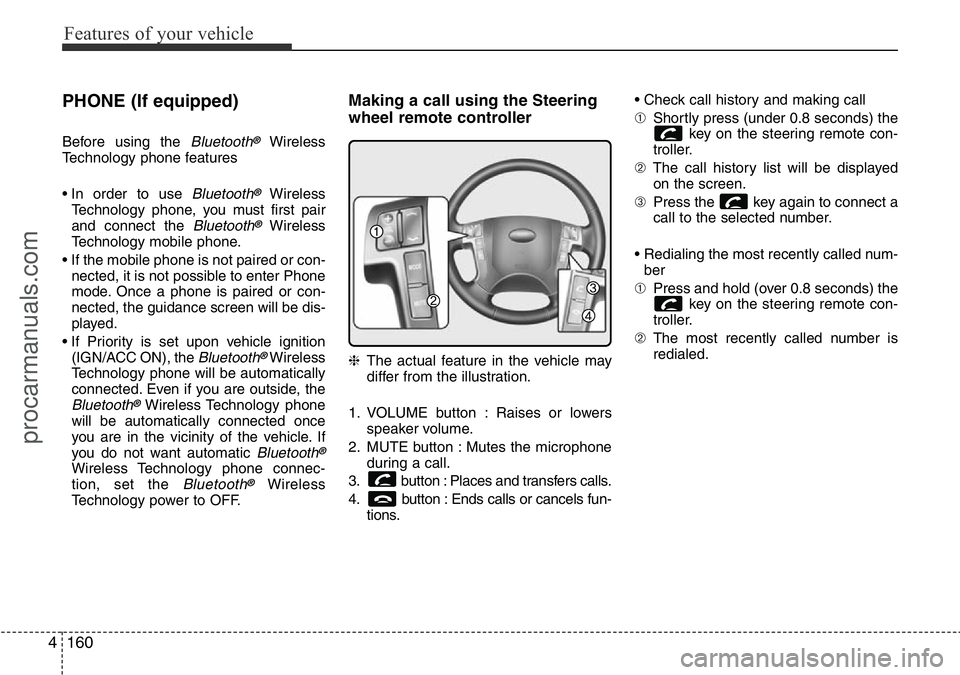
Making a call using the Steering
wheel remote controller
❈The actual feature in the vehicle may
differ from the illustration.
1. VOLUME button : Raises or lowers
speaker volume.
2. MUTE button : Mutes the microphone
during a call.
3. button : Places and transfers calls.
4. button : Ends calls or cancels fun-
tions.• Check call history and making call
➀Shortly press (under 0.8 seconds) the
key on the steering remote con-
troller.
➁The call history list will be displayed
on the screen.
➂Press the key again to connect a
call to the selected number.
• Redialing the most recently called num-
ber
➀Press and hold (over 0.8 seconds) the
key on the steering remote con-
troller.
➁The most recently called number is
redialed.
procarmanuals.com
Page 238 of 419
Features of your vehicle
164 4
SYSTEM CONTROLLERS AND
FUNCTIONS
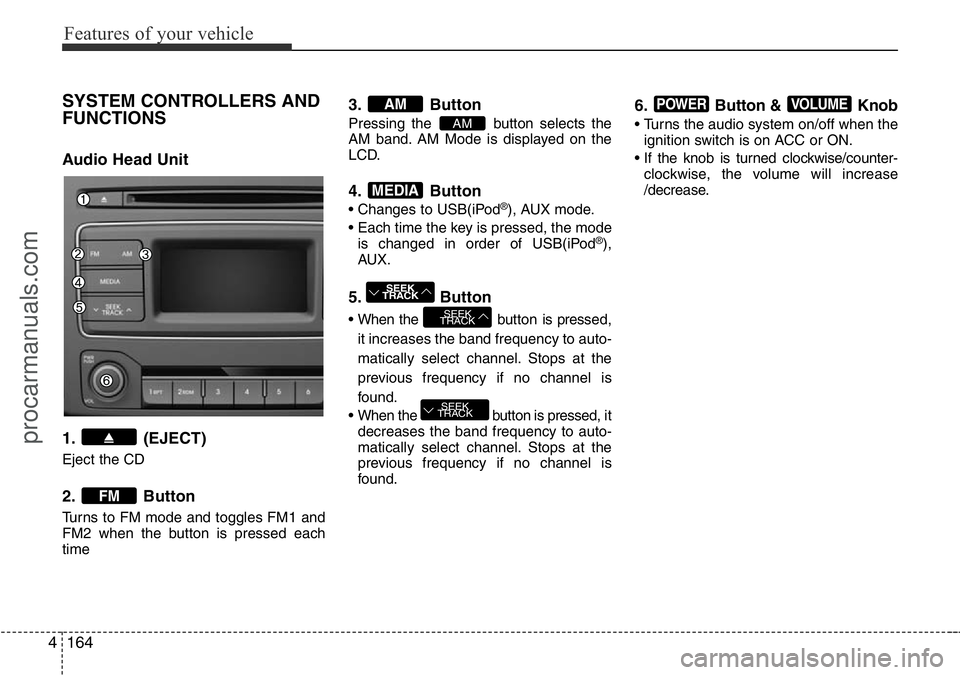
Audio Head Unit
1. (EJECT)
Eject the CD
2. Button
Turns to FM mode and toggles FM1 and
FM2 when the button is pressed each
time
3. Button
Pressing the button selects the
AM band. AM Mode is displayed on the
LCD.
4. Button
• Changes to USB(iPod®), AUX mode.
• Each time the key is pressed, the mode
is changed in order of USB(iPod
®),
AUX.
5. Button
• When the button is pressed,
it increases the band frequency to auto-
matically select channel. Stops at the
previous frequency if no channel is
found.
• When the button is pressed, it
decreases the band frequency to auto-
matically select channel. Stops at the
previous frequency if no channel is
found.
6. Button & Knob
• Turns the audio system on/off when the
ignition switch is on ACC or ON.
• If the knob is turned clockwise/counter-
clockwise, the volume will increase
/decrease.
VOLUMEPOWER
SEEK
TRACK
SEEK
TRACK
SEEK
TRACK
MEDIA
AM
AM
FM
procarmanuals.com