change light Hyundai Kona EV 2019 User Guide
[x] Cancel search | Manufacturer: HYUNDAI, Model Year: 2019, Model line: Kona EV, Model: Hyundai Kona EV 2019Pages: 540, PDF Size: 21.84 MB
Page 211 of 540
3-127
Convenient features of your vehicle
3
Air conditioning
1. Start the engine.
2. Press the air conditioning button.
3. Select the Face Level mode.
4. Set the air intake control toRecirculation mode temporarily to
allow the cabin to cool quickly.
When the desired temperature in
the cabin is reached, change the
air intake control back to Fresh
mode.
5. Adjust the fan speed control and temperature control to maintain
maximum comfort.
When maximum cooling is desired,
set the temperature control to the
MAX A/C position, then set the fan
speed control to the highest setting.
Air conditioning system operation
tips
If the vehicle has been parked in direct sunlight during hot weather,
open the windows for a short time
to let the hot air inside the vehicle
escape.
After sufficient cooling has been achieved, switch back from recircu-
lation mode to fresh mode.
To help decrease the humidity inside the vehicle on rainy or humid
days, operate the air conditioning
system with the windows and sun-
roof closed. It is useful to operate the air condi-
tioning system periodically through-
out the year. Turn on the A/C sys-
tem at least once a month for a few
minutes to maintain system pres-
sure and help optimize A/C per-
formance.
Note that if you operate the air con-
ditioner to cool your vehicle with
the mode set to or when
the outside relative humidity is
high, moisture may collect on the
outer surface of the windshield
glass causing the windshield to fog
up on the outside and limit your
visibility.
If this occurs, use the windshield
wipers to clear the glass. In addi-
tion, change the mode selection
knob or button on the climate con-
trol system to the mode to
redirect cooling air away from the
windshield.
Page 225 of 540
3-141
Convenient features of your vehicle
3
To charge a cellular phone
The wireless cellular phone charging
system charges only the Qi-enabled
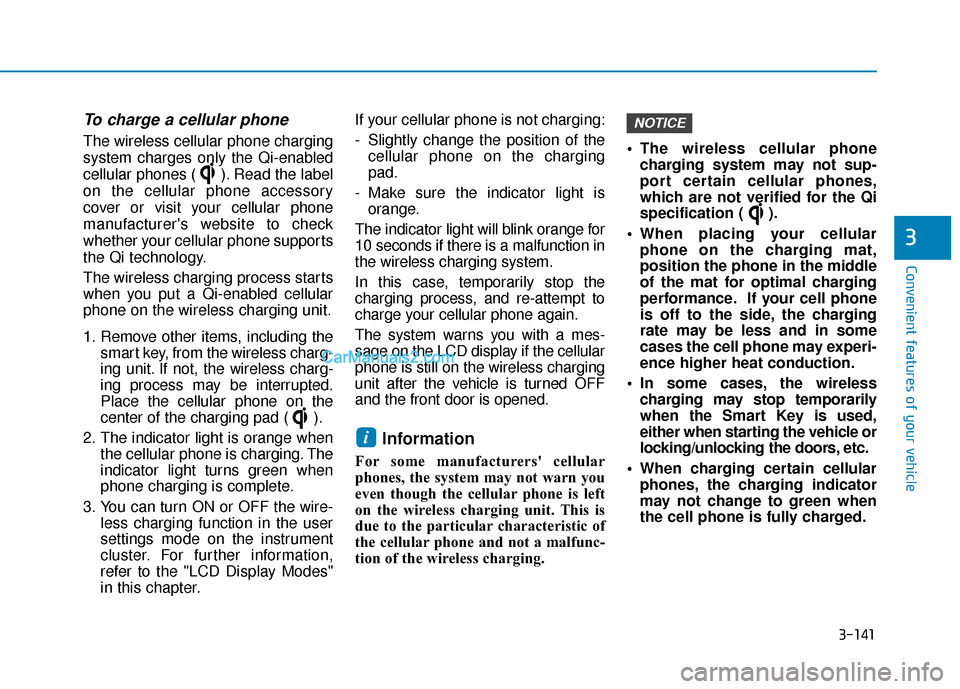
cellular phones ( ). Read the label
on the cellular phone accessory
cover or visit your cellular phone
manufacturer's website to check
whether your cellular phone supports
the Qi technology.
The wireless charging process starts
when you put a Qi-enabled cellular
phone on the wireless charging unit.
1. Remove other items, including thesmart key, from the wireless charg-
ing unit. If not, the wireless charg-
ing process may be interrupted.
Place the cellular phone on the
center of the charging pad ( ).
2. The indicator light is orange when the cellular phone is charging. The
indicator light turns green when
phone charging is complete.
3. You can turn ON or OFF the wire- less charging function in the user
settings mode on the instrument
cluster. For further information,
refer to the "LCD Display Modes"
in this chapter. If your cellular phone is not charging:
- Slightly change the position of the
cellular phone on the charging
pad.
- Make sure the indicator light is orange.
The indicator light will blink orange for
10 seconds if there is a malfunction in
the wireless charging system.
In this case, temporarily stop the
charging process, and re-attempt to
charge your cellular phone again.
The system warns you with a mes-
sage on the LCD display if the cellular
phone is still on the wireless charging
unit after the vehicle is turned OFF
and the front door is opened.
Information
For some manufacturers' cellular
phones, the system may not warn you
even though the cellular phone is left
on the wireless charging unit. This is
due to the particular characteristic of
the cellular phone and not a malfunc-
tion of the wireless charging. The wireless cellular phone
charging system may not sup-
port certain cellular phones,
which are not verified for the Qi
specification ( ).
When placing your cellular phone on the charging mat,
position the phone in the middle
of the mat for optimal charging
performance. If your cell phone
is off to the side, the charging
rate may be less and in some
cases the cell phone may experi-
ence higher heat conduction.
In some cases, the wireless charging may stop temporarily
when the Smart Key is used,
either when starting the vehicle or
locking/unlocking the doors, etc.
When charging certain cellular phones, the charging indicator
may not change to green when
the cell phone is fully charged.
NOTICE
i
Page 235 of 540
5
Forward Collision-Avoidance Assist (FCA)
System ...................................................................5-49
System Setting and Activation.....................................5-49
FCA Warning Message and System Control ............5-52
FCA Sensor .......................................................................5\
-54
System Not Operating....................................................5-56
Limitations of the System .............................................5-57
Blind-Spot Collision Warning (BCW) /
Rear Cross-Traffic Collision Warning (RCCW) ..5-62
System Description .........................................................5-62
Blind-Spot Collision Warning (BCW) ..........................5-63
Rear Cross-Traffic Collision Warning (RCCW) .........5-66
Detecting Sensor .............................................................5-68
Limitations of the System .............................................5-69
Lane Keeping Assist (LKA) System ...................5-75
LKA Operation..................................................................5-76
Warning Light and Message.........................................5-78
Limitations of the System .............................................5-81
LKA Function Change.....................................................5-82
Driver Attention Warning (DAW) System .........5-83
System Setting and Activation.....................................5-83
Resetting the System .....................................................5-85
System Standby ...............................................................5-85
System Not Operating....................................................5-85
Cruise Control .......................................................5-88
Cruise Control Operation...............................................5-88
Smart Cruise Control with Stop & Go System .5-93
Smart Cruise Control Switch ........................................5-93
Smart Cruise Control Speed .........................................5-94
Smart Cruise Control Vehicle-to-Vehicle Distance...5-98
Sensor to Detect Distance to the Vehicle Ahead ..5-102
SCC Reaction Setting ...................................................5-104
Conventional Cruise Control Mode ...........................5-104
Limitations of the System...........................................5-105
Special Driving Conditions ................................5-111
Hazardous Driving Conditions....................................5-111
Rocking the Vehicle ......................................................5-111
Smooth Cornering .........................................................5-112
Driving at Night .............................................................5-112
Driving in the Rain ........................................................5-112
Driving in Flooded Areas.............................................5-113
Highway Driving ............................................................5-113
Reducing the Risk of a Rollover ...............................5-114
Page 241 of 540
5-8
Driving your vehicleButton Position Action Notice
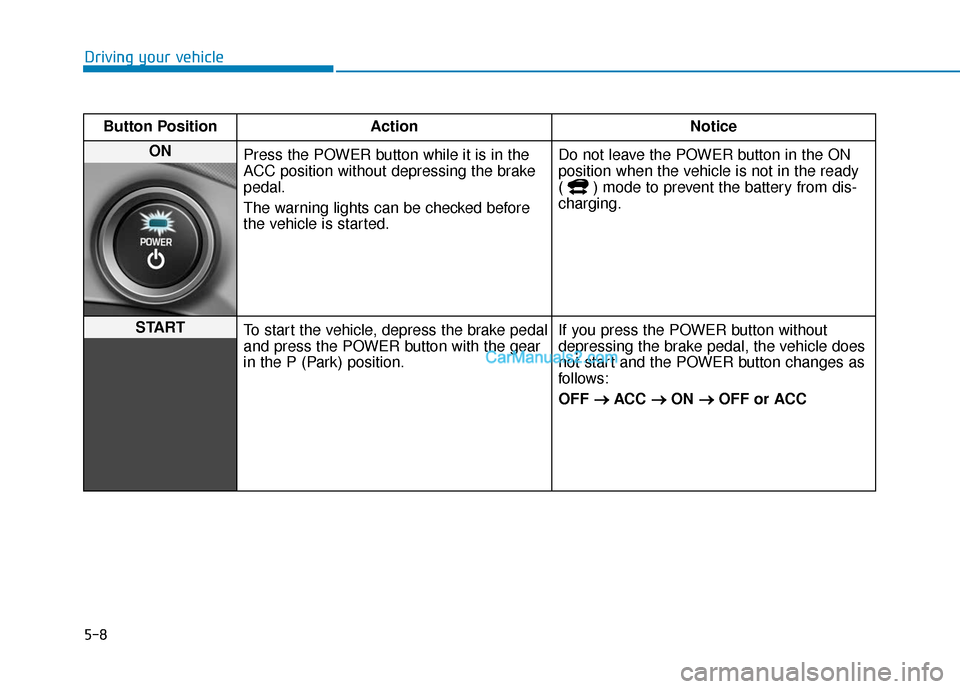
ON Press the POWER button while it is in the
ACC position without depressing the brake
pedal.
The warning lights can be checked before
the vehicle is started. Do not leave the POWER button in the ON
position when the vehicle is not in the ready
( ) mode to prevent the battery from dis-
charging.
START
To start the vehicle, depress the brake pedal
and press the POWER button with the gear
in the P (Park) position. If you press the POWER button without
depressing the brake pedal, the vehicle does
not start and the POWER button changes as
follows:
OFF
→ →
ACC →
→
ON →
→
OFF or ACC
Page 267 of 540

5-34
Driving your vehicle
AUTO HOLD turning Off!
Press brake pedal
When the conversion from Auto Hold
to EPB is not working properly a
warning will sound and a message
will appear.
Parking brake automatically
engaged
If the EPB is applied while Auto Hold
is activated, a warning will sound and
a message will appear.
EPB malfunction indicator
This warning light illuminates if the
POWER button is changed to the ON
position and goes off in approximate-
ly 3 seconds if the system is operat-
ing normally.
If the EPB malfunction indicator
remains on, comes on while driving,
or does not come on when the
POWER button is changed to the ON
position, this indicates that the EPB
may have malfunctioned.
If this occurs, have the system
checked by an authorized HYUNDAI
dealer.
OIK057077N
OOSEV058017R
OIK057079N
Page 271 of 540
5-38
Driving your vehicle
Information
• The Auto Hold does not operatewhen:
- The driver's door is opened
- The hood is opened
- The liftgate is opened
- The gear is in P (Park)
- The EPB is applied
• For your safety, the Auto Hold auto- matically switches to EPB when:
- The driver's door is opened
- The hood is opened
- The liftgate is opened
- The vehicle stops for more than 10minutes
- The vehicle stands on a steep slope
- The vehicle moves several times In these cases, the parking brake
warning light comes on, the AUTO
HOLD indicator changes from green
to white, and a warning sounds and
a message will appear to inform you
that EPB has been automatically
engaged. Before driving again,
depress the brake pedal, check the
surrounding area near your vehicle
and release the parking brake man-
ually with the EPB switch.
• While the AUTO HOLD feature is operating, some mechanical noises
may be audible. This is a normal
condition of the AUTO HOLD fea-
ture.
If the AUTO HOLD indicator
changes to yellow, the Auto Hold
is not working properly. Contact
an authorized HYUNDAI dealer. If there is a malfunction with the
driver's door or hood open detec-
tion system, the Auto Hold may
not work properly. Contact an
authorized HYUNDAI dealer.
NOTICE
NOTICE
i
Depress the accelerator pedal
slowly when you start the
vehicle.
For your safety, cancel the
Auto Hold when you drive
downhill, back up the vehicle
or park the vehicle.
WARNING
Page 274 of 540
5-41
Driving your vehicle
5
Using ABS
To obtain the maximum benefit from
your ABS in an emergency situation,
do not attempt to modulate your
brake pressure and do not try to
pump your brakes. Depress your
brake pedal as hard as possible.
When you apply your brakes under
conditions which may lock the
wheels, you may hear sounds from
the brakes, or feel a corresponding
sensation in the brake pedal. This is
normal and it means your ABS is
active.
ABS does not reduce the time or dis-
tance it takes to stop the vehicle.
Always maintain a safe distance from
the vehicle in front of you.
ABS will not prevent a skid that
results from sudden changes in
direction, such as trying to take a
corner too fast or making a sudden
lane change. Always drive at a safe
speed for the road and weather con-
ditions.ABS cannot prevent a loss of stabili-
ty. Always steer moderately when
braking hard. Severe or sharp steer-
ing wheel movement can still cause
your vehicle to veer into oncoming
traffic or off the road.
On loose or uneven road surfaces,
operation of the anti-lock brake sys-
tem may result in a longer stopping
distance than for vehicles equipped
with a conventional brake system.
The ABS warning light ( ) will stay
on for several seconds after the
POWER button is in the ON position.
During that time, the ABS will go
through self-diagnosis and the light
will go off if everything is normal. If
the light stays on, you may have a
problem with your ABS. Contact an
authorized HYUNDAI dealer as soon
as possible.
If the ABS warning light ( ) is
on and stays on, you may have
a problem with the ABS. Your
power brakes will work normal-
ly. To reduce the risk of serious
injury or death, contact your
HYUNDAI dealer as soon as
possible.
WARNING
Page 291 of 540
5-58
Driving your vehicle
Detecting vehicles
The sensor may be limited when:
The camera is blocked with a for-eign object or debris
The camera lens is contaminated due to tinted, filmed or coated
windshield, damaged glass, or
stuck of foreign matter (sticker,
bug, etc.) on the glass
Inclement weather such as heavy rain or snow obscures the field of
view of the camera
The vehicle is on unpaved or uneven rough surfaces, or road
with sudden gradient changes.
The camera sensor recognition is limited
The vehicle in front is too small to be detected (for example a motor-
cycle or a bicycle, etc.)
The camera does not recognize the entire vehicle in front.
The vehicle in front is an oversize vehicle or trailer that is too big to
be detected by the camera recog-
nition system (for example a tractor
trailer, etc.) The camera's field of view is not
well illuminated (either too dark or
too much reflection or too much
backlight that obscures the field of
view)
The vehicle in front does not have their rear lights properly turned ON
The outside brightness changes suddenly, for example when enter-
ing or exiting a tunnel
Light coming from a street light or an oncoming vehicle is reflected on
a wet road surface such as a pud-
dle in the road
The field of view in front is obstructed by sun glare
The vehicle drives inside a build- ing, such as a basement parking
lot
The adverse road conditions cause excessive vehicle vibrations while
driving
The camera is damaged.
The brightness outside is too low such as when the headlamps are
not on at night or the vehicle is
going through a tunnel. The shadow is on the road by a
median strip, trees, etc.
The vehicle drives through a toll- gate.
The windshield glass is fogged up; a clear view of the road is obstruct-
ed
The rear part of the vehicle in front is not normally visible (for example,
the vehicle is spinning or the vehi-
cle is overturned)
The sensor recognition changes suddenly when passing over a
speed bump
The vehicle in front is driving errat- ically
The vehicle in front is moving verti- cally to the driving direction
The vehicle in front is stopped ver- tically
The vehicle in front is driving towards your vehicle or reversing
You are on a roundabout and the vehicle in front circles
Page 311 of 540
5-78
Driving your vehicle
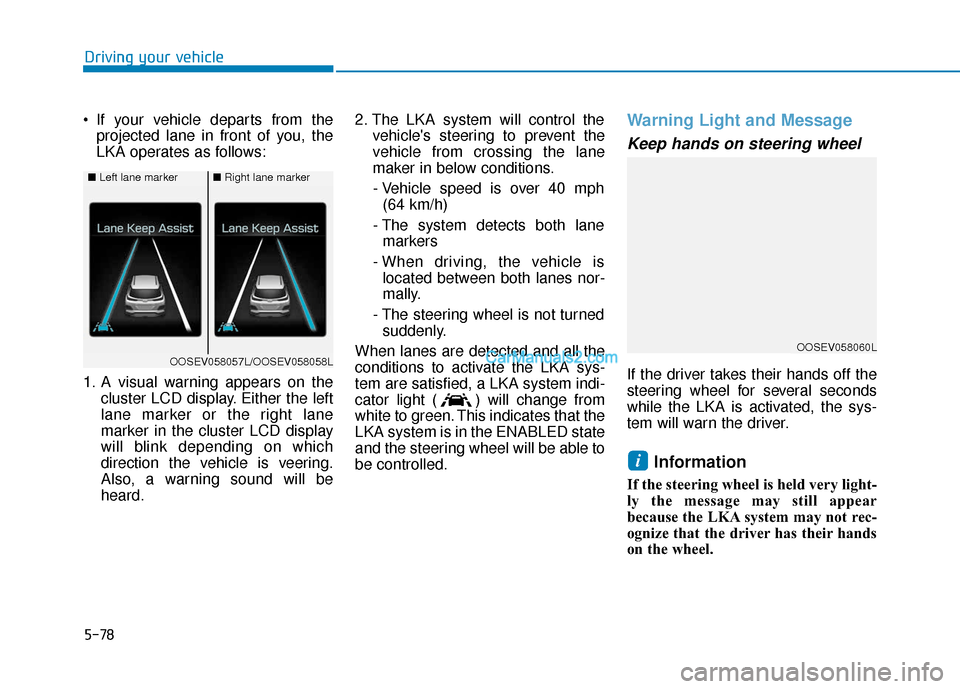
If your vehicle departs from the projected lane in front of you, the
LKA operates as follows:
1. A visual warning appears on the cluster LCD display. Either the left
lane marker or the right lane
marker in the cluster LCD display
will blink depending on which
direction the vehicle is veering.
Also, a warning sound will be
heard. 2. The LKA system will control the
vehicle's steering to prevent the
vehicle from crossing the lane
maker in below conditions.
- Vehicle speed is over 40 mph (64 km/h)
- The system detects both lane markers
- When driving, the vehicle is located between both lanes nor-
mally.
- The steering wheel is not turned suddenly.
When lanes are detected and all the
conditions to activate the LKA sys-
tem are satisfied, a LKA system indi-
cator light ( ) will change from
white to green. This indicates that the
LKA system is in the ENABLED state
and the steering wheel will be able to
be controlled.
Warning Light and Message
Keep hands on steering wheel
If the driver takes their hands off the
steering wheel for several seconds
while the LKA is activated, the sys-
tem will warn the driver.
Information
If the steering wheel is held very light-
ly the message may still appear
because the LKA system may not rec-
ognize that the driver has their hands
on the wheel.
i
■ Left lane marker■Right lane marker
OOSEV058057L/OOSEV058058LOOSEV058060L
Page 314 of 540
5-81
Driving your vehicle
5
Radius of a curve is too small.
The vehicle is driven on a steepincline.
The steering wheel is turned sud- denly.
Limitations of the System
The LKA system may operate pre-
maturely even if the vehicle does not
depart from the intended lane, OR,
the LKA system may not warn you if
the vehicle leaves the intended lane
under the following circumstances:
When the lane and road condi-
tions are poor
It is difficult to distinguish the lanemarker from the road because the
lane marker is covered with dust or
sand.
It is difficult to distinguish the color of the lane marker from the road.
There are markings on the road surface that look like a lane marker
that is inadvertently being detected
by the camera.
The lane marker is indistinct or damaged. The lane marker is merged or
divided. (e.g. tollgate)
The lane number increases or decreases or the lane marker are
crossing complicatedly.
There are more than two lane markers on the road in front of you.
The lane marker is very thick or thin.
The lane marker ahead is not visi- ble due to rain, snow, water on the
road, damaged or stained road
surface, or other factors.
The shadow is on the lane marker by a median strip, trees, guardrail,
noise barriers, etc.
The lane markers are complicated or a structure substitutes for the
lines such as a construction area.
There are crosswalk signs or other symbols on the road.
The lane marker in a tunnel is stained with oil, etc.
The lane suddenly disappears such as at the intersection. When external condition is inter-
vened
The brightness outside changes
suddenly such as when entering or
exiting a tunnel, or when passing
under a bridge.
The brightness outside is too low such as when the headlamps are
not on at night or the vehicle is
going through a tunnel.
There is a boundary structure in the roadway such as a concrete
barrier, guardrail and reflector post
that is inadvertently being detected
by the camera.
When light coming from a street light or an oncoming vehicle is
reflected on a wet road surface
such as a puddle in the road.
The field of view in front is obstructed by sun glare.
There is not enough distance between you and the vehicle in
front to be able to detect the lane
marker or the vehicle ahead is driv-
ing on the lane marker.