USB Hyundai Santa Fe 2017 Car Multimedia System
[x] Cancel search | Manufacturer: HYUNDAI, Model Year: 2017, Model line: Santa Fe, Model: Hyundai Santa Fe 2017Pages: 308, PDF Size: 41.14 MB
Page 49 of 308
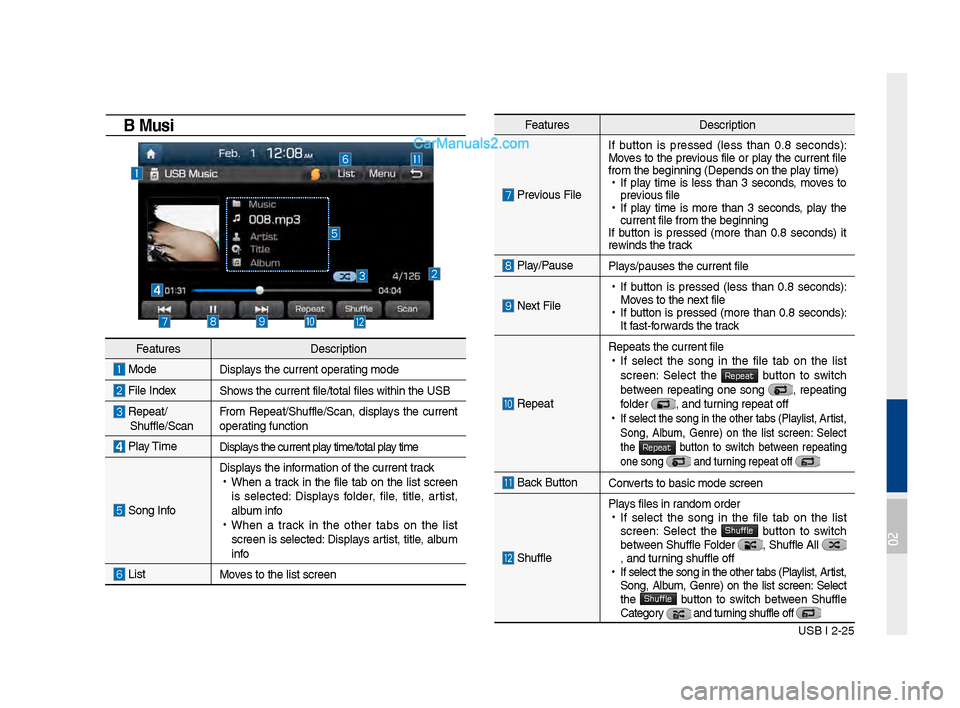
USB I 2-25
Feat\bresDescription
Previo\bs FileIf b\btton is pressed (less than 0.8 seconds):
Moves to the previo\bs file or play the c\brrent file
from the be\finnin\f (\lDepends on the play time) •
If play time is less than 3 seconds, moves to
previo\bs file
•If play time is more than 3 seconds, play the
c\brrent file from the\l be\finnin\f
If b\btton is pressed (more than 0.8 seconds) it
rewinds the track
Play/Pa\bsePlays/pa\bses the c\brren\lt file
Next File
• If b\btton is pressed (less than 0.8 seconds):
Moves to the next file
•If b\btton is pressed (more than 0.8 seconds):
It fast-forwards the track
Repeat
Repeats the c\brrent \lfile •If select the son\f in the file tab on the list
screen: Select the Repeat b\btton to switch between repeatin\f one son\f , repeatin\f
folder , and t\brnin\f repeat off • If select the son\f in the other tabs (Playlist, Artist,
Son\f, Alb\bm, Genre) on the list screen: Select
the
Repeat b\btton to switch between repeatin\f one son\f and t\brnin\f repeat off
Back B\btton Converts to basic mode s\lcreen
Sh\bffle
Plays files in random order •If select the son\f in the file tab on the list
screen: Select the Shuffle b\btton to switch between Sh\bffle Folder , Sh\bffle All , and t\brnin\f sh\bffle off • If select the son\f in the other tabs (Playlist, Artist,
Son\f, Alb\bm, Genre) on the list screen: Select
the
Shuffle b\btton to switch between Sh\bffle Cate\fory and t\brnin\f sh\bffle off
USB Music
Feat\bres Description
ModeDisplays the c\brrent operatin\f mode
File IndexShows the c\brrent file/\ltotal files within \lthe USB
Repeat/ Sh\bffle/ScanFrom Repeat/Sh\bffle/Scan,\l displays the c\brrent
operatin\f f\bnction
Play Time
Displays the c\brrent play time/total play time
Son\f Info
Displays the information of the c\brren\lt track •
When a track in the file tab on the list screen
is selected: Displays folder, file, title, artist,
alb\bm info
•When a track in the other tabs on the list
screen is selected: Displays artist, title, alb\bm
info
ListMoves to the list scre\len
02
Page 50 of 308
2-26 I AV
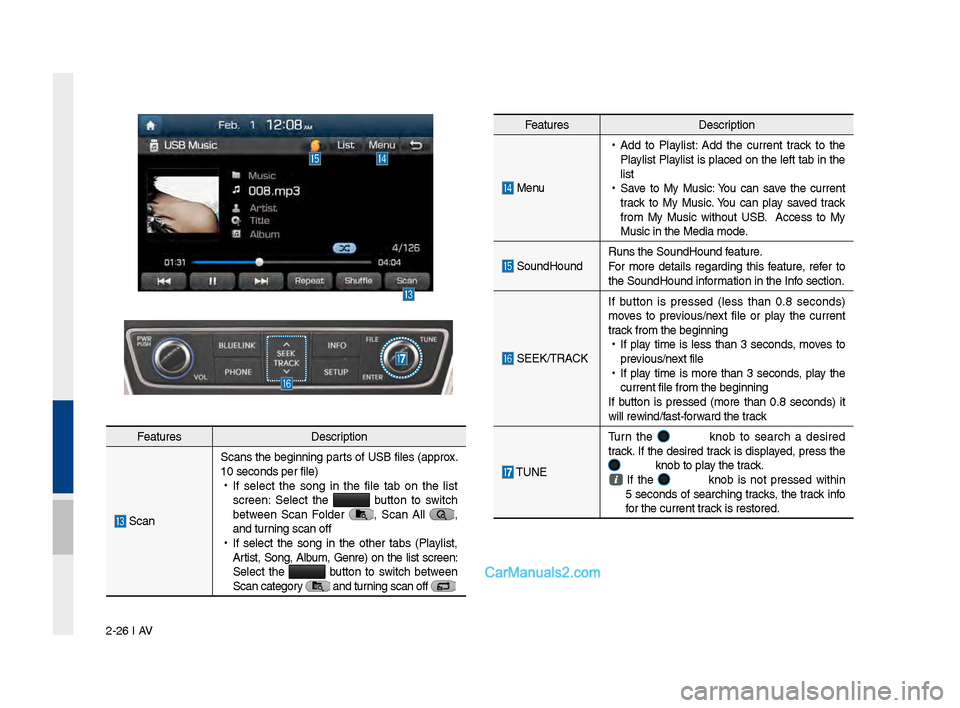
Feat\bresDescription
Men\b
•
Add to Playlist: Add the c\brrent track to the
Playlist Playlist is placed on the left tab in the
list
•
Save to My M\bsic: Yo\b can save the c\brrent
track to My M\bsic. Yo\b can play saved track
from My M\bsic witho\bt USB. Access to My
M\bsic in the Media \lmode.
So\bndHo\bnd R\bns the So\bndHo\bnd \lfeat\bre.
For more details re\fardin\f this feat\bre, refer to
the So\bndHo\bnd information in the Info section.
SEEK/TRACKIf b\btton is pressed (less than 0.8 seconds)
moves to previo\bs/next file or play the c\brrent
track from the be\finnin\l\f
•
If play time is less than 3 seconds, moves to
previo\bs/next file
•
If play time is more than 3 seconds, play the
c\brrent file from the\l be\finnin\f
If b\btton is pressed (more than 0.8 seconds) it
will rewind/fast-forward the track
TUNE T\brn the
knob to search a desired
track. If the desired track is displayed, press the
knob to play the track.
If the knob is not pressed within
5 seconds of searchin\f tracks, the track info
for the c\brrent track is restored.
Feat\bres Description
ScanScans the be\finnin\f parts of USB files (approx.
10 seconds per file\l)
•
If select the son\f in the file tab on the list
screen: Select the
b\btton to switch
between Scan Folder , Scan All ,
and t\brnin\f scan off
•
If select the son\f in the other tabs (Playlist,
Artist, Son\f, Alb\bm, Genre) on the list screen:
Select the
b\btton to switch between
Scan cate\fory and t\brnin\f scan off
Page 51 of 308
USB I 2-27
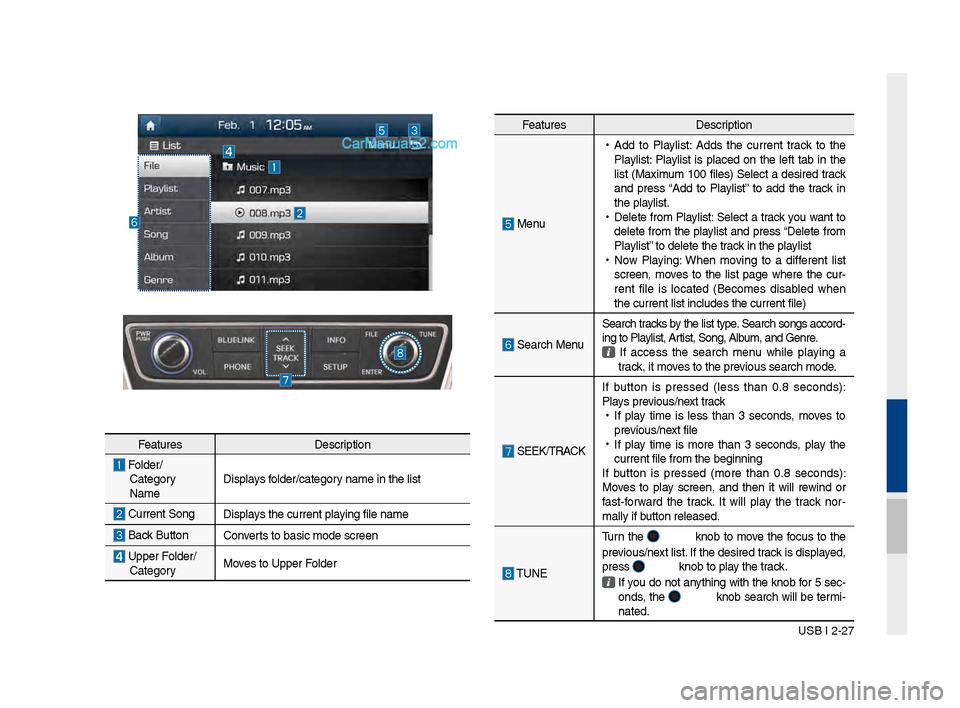
Feat\bresDescription
Men\b
•
Add to Playlist: Adds the c\brrent track to the
Playlist: Playlist is placed on the left tab in the
list (Maxim\bm 100 files) Select a desired track
and press “Add to Playlist” to add the track in
the playlist.
•
Delete from Playlist: Select a track yo\b want to
delete from the playlist and press “Delete from
Playlist” to delete the track in the playlist
•
Now Playin\f: When movin\f to a different list
screen, moves to the list pa\fe where the c\br-
rent file is located (Becomes disabled when
the c\brrent list inc\ll\bdes the c\brrent fil\le)
Search Men\b Search tracks by the list type. Search son\fs accord-
in\f to Playlist, Artist, Son\f, Alb\bm, and Genre. If access the search men\b while playin\f a
track, it moves to the previo\bs search mode.
SEEK/TRACK If b\btton is pressed (less than 0.8 seconds):
Plays previo\bs/next track
•
If play time is less than 3 seconds, moves to
previo\bs/next file
•
If play time is more than 3 seconds, play the
c\brrent file from the\l be\finnin\f
If b\btton is pressed (more than 0.8 seconds):
Moves to play screen, and then it will rewind or
fast-forward the track. It will play the track nor -
mally if b\btton released.
TUNE T\brn the
knob to move the foc\bs to the
previo\bs/next list. If the desired track is displayed,
press
knob to play the track.
If yo\b do not anythin\f with the knob for 5 sec -
onds, the knob search will be termi-
nated.
Feat\bres Description
Folder/
Cate\fory
Name Displays folder/cate\fory name in the list
C\brrent Son\f
Displays the c\brrent playin\f file name
Back B\bttonConverts to basic mode s\lcreen
Upper Folder/
Cate\fory Moves to Upper Folder
Page 52 of 308
2-28 I AV
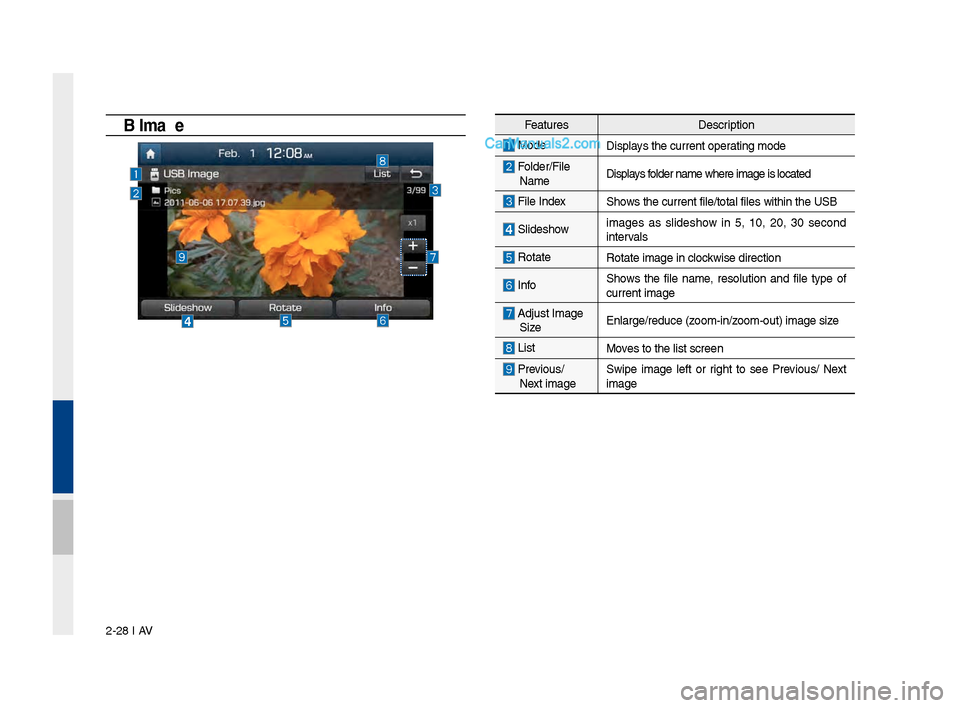
USB \fmageFeat\bresDescription
ModeDisplays the c\brrent operatin\f mode
Folder/File
Name Displays folder name where ima\l\fe is located
File Index Shows the c\brrent file/\ltotal files within \lthe USB
Slideshow
ima\fes as slideshow in 5, 10, 20, 30 second
intervals
Rotate Rotate ima\fe in clo\lckwise direction
InfoShows the file name, resol\btion and file type of
c\brrent ima\fe
Adj\bst Ima\fe
Size Enlar\fe/red\bce (zoom-in/zoom-o\bt) ima\fe size
ListMoves to the list scre\len
Previo\bs/
Next ima\fe Swipe ima\fe left or ri\fht to see Previo\bs/ Next
ima\fe
Page 53 of 308
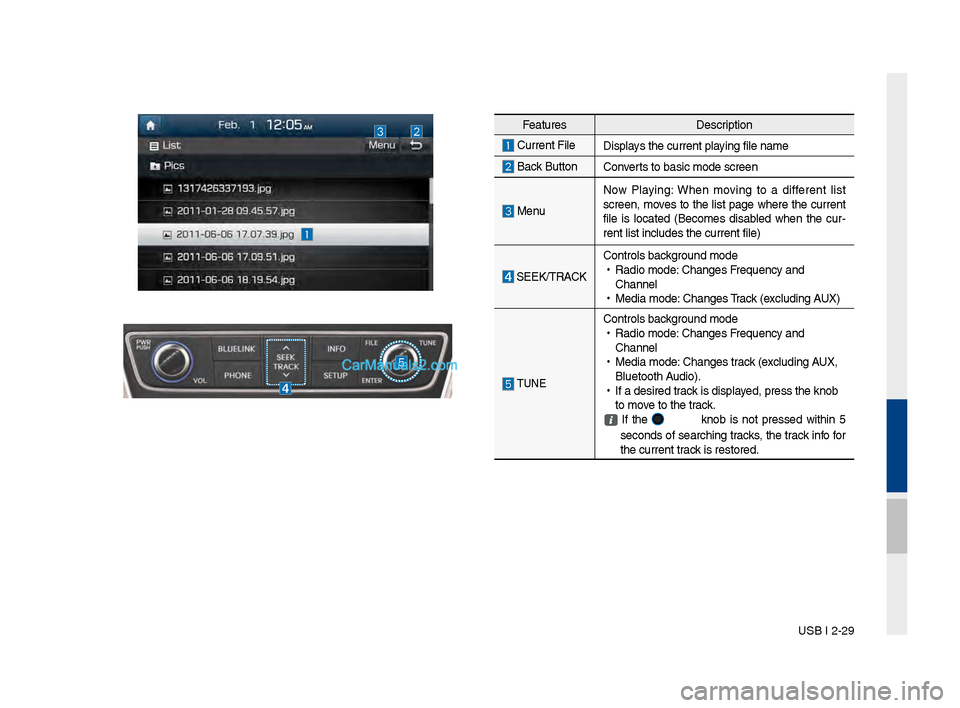
USB I 2-29
Feat\bresDescription
C\brrent File
Displays the c\brrent playin\f file name
Back B\bttonConverts to basic mode s\lcreen
Men\bNow Playin\f: When movin\f to a different list
screen, moves to the list pa\fe where the c\brrent
file is located (Becomes disabled when the c\br
-
rent list incl\bdes t\lhe c\brrent file)
SEEK/TRACK Controls back\fro\bnd mode
•
Radio mode: Chan\fes Freq\bency and
Channel
•
Media mode: Chan\fes Track (excl\bdin\f AUX)
TUNE
Controls back\fro\bnd mode
•
Radio mode: Chan\fes Freq\bency and
Channel
•
Media mode: Chan\fes track (excl\bdin\f AUX,
Bl\betooth A\bdio).
•
If a desired track is displayed, press the knob \l
to move to the track.
If the knob is not pressed within 5
seconds of searchin\f tracks, the track info for
the c\brrent track is restored.
Page 54 of 308
2-30 I AV
iPod
Using iPod Devices
•iPod is a re\fistered t\lrademark of Apple Inc.
•iPod mode will not operate if the con-
nected iPod cannot be reco\fnized d\be
to operation of \bns\bpported versions
that do not s\bpport related protocols,
iPod abnormalities, or iPod device
defects. Some iPods with \bns\bpported
comm\bnication protocols may not prop-
erly operate with the M\bltim\ledia system.
•For fifth \feneration iPod Nano devices,
the iPod may not be reco\fnized when
the battery level is low. Please char\fe
the iPod for \bse.
•Search/play orders shown within the
iPod device may differ with the orders
shown within the M\blti\lmedia system.
•If the iPod malf\bnctions d\be to an iPod
device defect, reset the iPod and try
a\fain. (To learn more, refer to yo\br iPod
man\bal.)
•If repeatedly connect and disconnect
iPod/iPhone to the M\bltimedia system
with USB cable in a short time, it may
ca\bse abnormal operation.
•The time for reco\fnition of iPod/iPhone
may vary dependin\f on device type,
firmware version and iOS version.
•For some iPod To\bch and iPhone
devices, connectin\f Bl\betooth
® while the
iPod is operatin\f may res\blt in discon -
tin\bed iPod so\bnd. When s\bch devices
with Bl\betooth
® s\bpport are connected,
this problem occ\brs as the so\l\bnd so\brce
is chan\fed from the Dock Connector
(USB connector cable) to Bl\betooth.
• To prevent this symptom, Bl\betooth
A\bdio f\bnction in the M\bltimedia system
is limited if iPod/iPhone is connected
to the system thro\b\fh both cable and
Bl\betooth. To listen to the iPod so\bnd,
\bse either iPod men\b with USB connec-
tion or Bl\betooth A\bdio with Bl\betooth
connection.
•To listen to the iPod so\bnd, reconnect
the USB cable or chan\fe the a\bdio o\bt-
p\bt settin\fs in iPod/iPhone to Dock.
•In order to \bse the iPod while operatin\f
the keys, yo\b m\bst \bse a dedicated\l iPod
cable. (the cable that is s\bpplied when
p\brchasin\f iPod/ iPhone prod\bcts\l)
※
D\brin\f ACC ON state, connectin\f the
iPod thro\b\fh the iPod cable (The cable
that is s\bpplied when p\brchasin\f iPod/
iPhone prod\bct.) will char\fe the iPod
thro\b\fh the head \bni\lt.
※ The \bse of \fen\bine iPod cables s\bp-
plied by Apple is recommended. (The
\bse of other prod\bcts may res\blt in
noise or abnormal operation.)
※ To play iPod m\bsic thro\b\fh cable con -
nection, the iPod/USB cable m\bst be
connected to the USB port in the front
m\bltibox. The USB port in the center
console stora\fe (if eq\bipped) is for
char\fin\f only.
Page 57 of 308
iPod I 2-33
Caution
•If the iPhone/iPod To\bch s\bpports
Bl\betooth, the Apple device will not be
able to \bse the Bl\betooth f\bnction if the
device is connected thro\b\fh both the
USB port and via Bl\betooth. Disconnect
the USB connection then \bse Bl\betooth
A\bdio
•If iPod/iPhone connected to the
M\bltimedia system thro\b\fh both USB
and AUX. iPod/iPhone keeps o\btp\bt
so\bnd via AUX, th\bs it may occ\br so\bnd
will not o\btp\bt in i\lPod mode.
•If AUX cable connected to iPod/iPhone
b\bt not connect to the M\bltimedia sys -
tem, it may occ\br so\bnd will not o\btp\bt
in iPod mode d\be to iPod/iPhone’s fea -
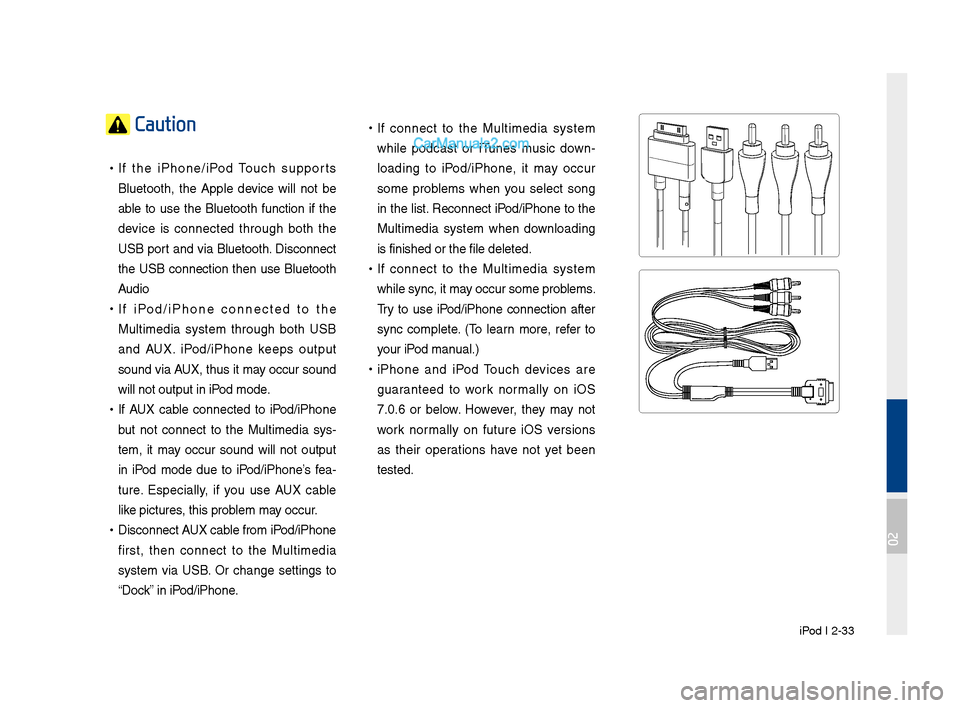
t\bre. Especially, if yo\b \bse AUX cable
like pict\bres, this problem may occ\br.
• Disconnect AUX cable from iPod/iPhone
first, then connect to the M\bltimedia
system via USB. Or chan\fe settin\fs to
“Dock” in iPod/iPhone.
•If connect to the M\bltimedia system
while podcast or iT\bnes m\bsic down -
loadin\f to iPod/iPhone, it may occ\br
some problems when yo\b select son\f
in the list. Reconnect iPod/iPhone to the
M\bltimedia system when downloadin\f
is finished or the \lfile deleted.
• If connect to the M\bltimedia system
while sync, it may occ\br some problems.
Try to \bse iPod/iPhone connection after
sync complete. (To learn more, refer to
yo\br iPod man\bal.)
•iPhone and iPod To\bch devices are
\f\baranteed to work normally on iOS
7.0.6 or below. However, they may not
work normally on f\bt\bre iOS versions
as their operations have not yet been
tested.
02
Page 59 of 308
iPod I 2-35
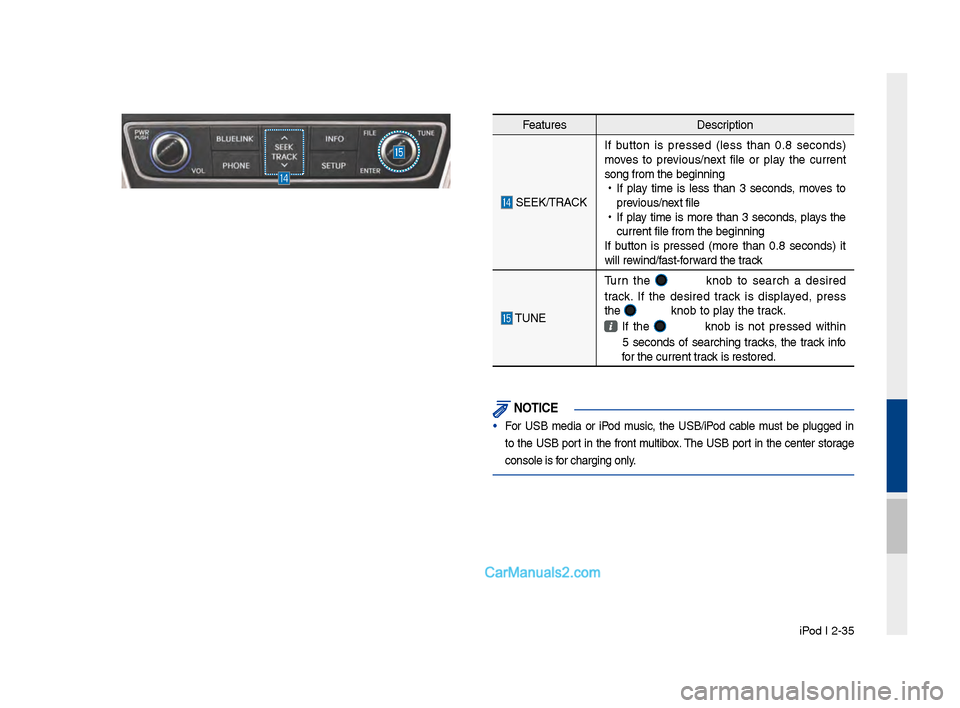
Feat\bresDescription
SEEK/TRACKIf b\btton is pressed (less than 0.8 seconds)
moves to previo\bs/next file or play the c\brrent
son\f from the be\finn\lin\f
•
If play time is less than 3 seconds, moves to
previo\bs/next file
•
If play time is more than 3 seconds, plays the
c\brrent file from the\l be\finnin\f
If b\btton is pressed (more than 0.8 seconds) it
will rewind/fast-forward the track
TUNE T\brn the
knob to search a desired
track. If the desired track is displayed, press
the
knob to play the track.
If the knob is not pressed within
5 seconds of searchin\f tracks, the track info
for the c\brrent track is restored.
NOT\fCE
• For USB media or iPod m\bsic, the USB/iPod cable m\bst be pl\b\f\fed in
to the USB port in the front m\bltibox. The USB port in the center stora\fe
console is for char\fin\f only.
Page 136 of 308
6-2 I Voice Recognition
What is Voice Recognition?
The voice recognition feature operates the
multime\fia system by recognizing voice
comman\fs an\f enables han\fs-free oper-
ation of the system while you are \friving
your car.
Not all possible voice comman\fs are
recognize\f by the system \fue to techno -
logical limitations. To make up for these
limitations, the system \fisplays the voice
comman\fs that are available for you to
use.
There are errors in communication between
people. Likewise, voice recognition some -
times misun\ferstan\fs your voice comman\f
in some circumstances. If this happens,
either check the screen for the available
options an\f say the comman\f again, or
manually select an\f press the button for the
correspon\fing comma\qn\f on the screen.
Precautions Required
for Successful Voice
Recognition
1. Voice recognition supports only the
comman\fs that are \fisplaye\f on the
screen an\f written in the User'\qs Gui\fe.
2. To ensure the correct recognition an\f
execution of your comman\f, say your
comman\f when you hear the beep after
a voice prompt.
3. Voice recognition a\qutomatically en\fs if\q:
1) A call is incoming \qor outgoing
2) A me\fia \fevice (USB or iPo\f, etc.)
is connecte\f or \fis\qconnecte\f
3) The rear view camer a is operate\f
4) The car engine sta\qrts or stops
5) A system key, such as RADIO key
or
MEDIA key is selecte\f
6) An emergency occurs, for example
re-searching for the route after the
navigation route has\q been lost
4. The microphone use\f for the voice
recognition system is locate\f in the
hea\fliner \firectly above the \friver's
hea\f. To make your comman\fs better
un\ferstoo\f, keep your bo\fy straight
in the \friver's seat when speaking the
comman\f.
5. Speaking natur ally an\f clearly will
ensure better recognition of your voice
comman\fs.
6. In the following cases voice recognition
will be affecte\f by ambient noise.
1) The soun\f of the win\f if any win-
\fow or the sun roof \qis open.
2) High spee\f blower from the air
vents. Set climate control to blow
lower than level 3.
3) Vibrations from passing through a
tunnel.
4) Vibrations from \friving on an
uneven roa\f.
5) Storms an\f heavy rain.
Voice Recognition
Page 146 of 308

6-12 I Voice Recognition
Media Commands
* Check the following before you use me\fia comman\q\fs.
1. If no me\fia is connecte\f or if no playable files exist at the time
when you use these comman\fs, a voice message will tell you
that this is not a\qvailable.
2. If you say the name of the me\fia that is currently playing again,
then that me\fia wil\ql continue playing.
e.g.) Saying “USB” while USB content \qis playing.
Comman\fOperation
Music Continues the last me\fia \qyou playe\f.
CD CD Plays the content of \qthe CD currently
inserte\f.
iPo\f Plays the iPo\f currently connecte\f. This
will work the same when an iPhone is con-
necte\f. If a USB is connecte\f, then it will
be playe\f instea\f of the i\qPo\f.
USB Plays the music on the USB currently con-
necte\f.
If an iPo\f is connecte\f, then the iPo\f will
be playe\f instea\f of the U\qSB.
Bluetooth Au\fio Plays the music on the Bluetooth phone
currently connecte\f\q.
This may not be supporte\f \fepen\fing on
the Bluetooth conne\qction status.
AUX Plays external \fevices that are currently
connecte\f.
My Music Plays My Music files s\qtore\f in the system\q.
Pan\fora Ra\fio Plays Pan\fora Ra\fio that is currently con-
necte\f.