Cat JAGUAR XF 2009 1.G Owners Manual
[x] Cancel search | Manufacturer: JAGUAR, Model Year: 2009, Model line: XF, Model: JAGUAR XF 2009 1.GPages: 391, PDF Size: 19.32 MB
Page 280 of 391
Digital audio broadcasting
280
GENERAL INFORMATION
Digital radio reception
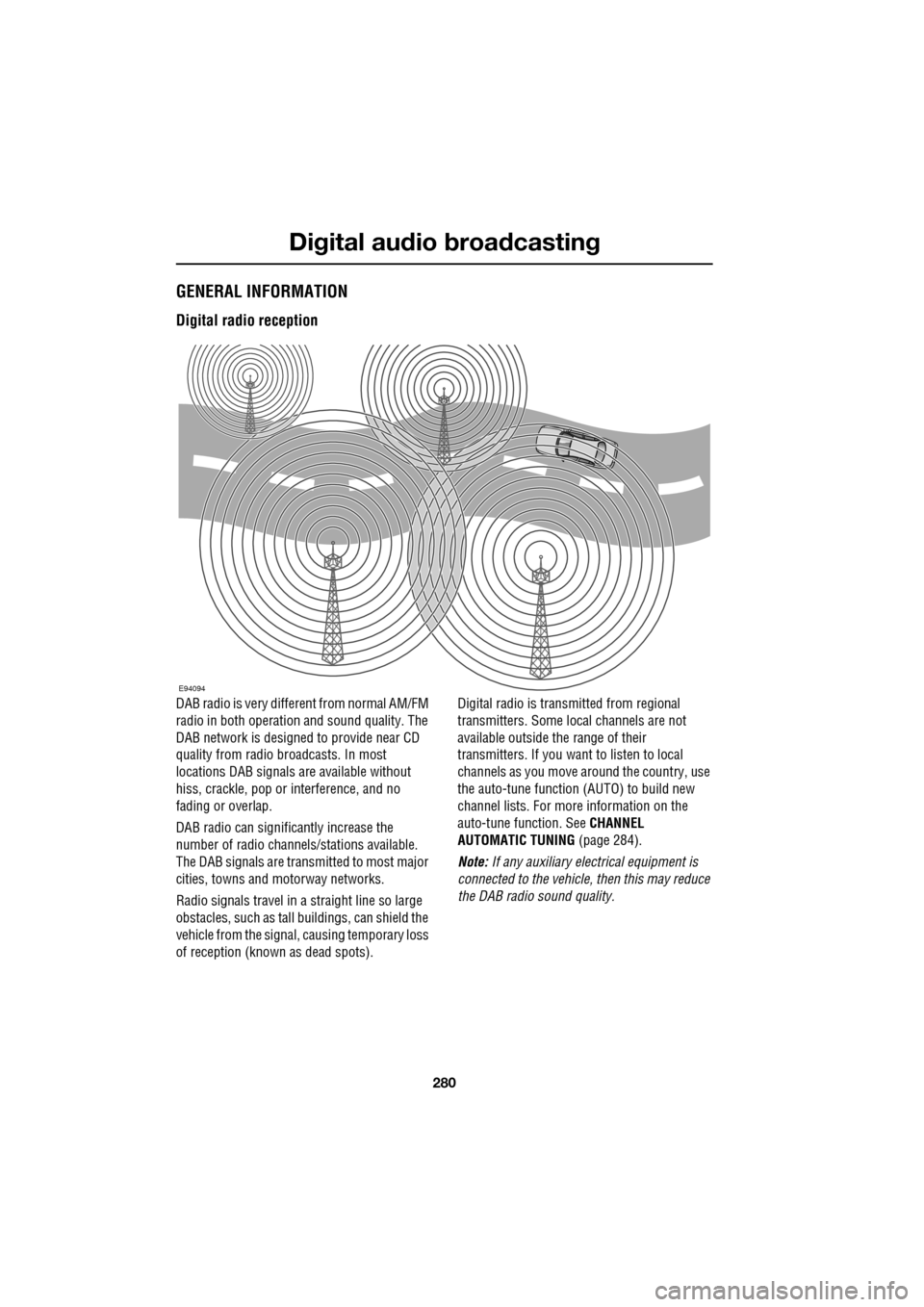
DAB radio is very different from normal AM/FM
radio in both operation and sound quality. The
DAB network is designed to provide near CD
quality from radio broadcasts. In most
locations DAB signals are available without
hiss, crackle, pop or interference, and no
fading or overlap.
DAB radio can significantly increase the
number of radio channe ls/stations available.
The DAB signals are transmitted to most major
cities, towns and motorway networks.
Radio signals travel in a straight line so large
obstacles, such as tall buildings, can shield the
vehicle from the signal, causing temporary loss
of reception (known as dead spots). Digital radio is transm
itted from regional
transmitters. Some local channels are not
available outside th e range of their
transmitters. If you want to listen to local
channels as you move around the country, use
the auto-tune function (AUTO) to build new
channel lists. For more information on the
auto-tune function. See CHANNEL
AUTOMATIC TUNING (page 284).
Note: If any auxiliary electrical equipment is
connected to the vehicle, then this may reduce
the DAB radio sound quality.
E94094
Page 281 of 391
281
Digital audio broadcasting
Ensembles
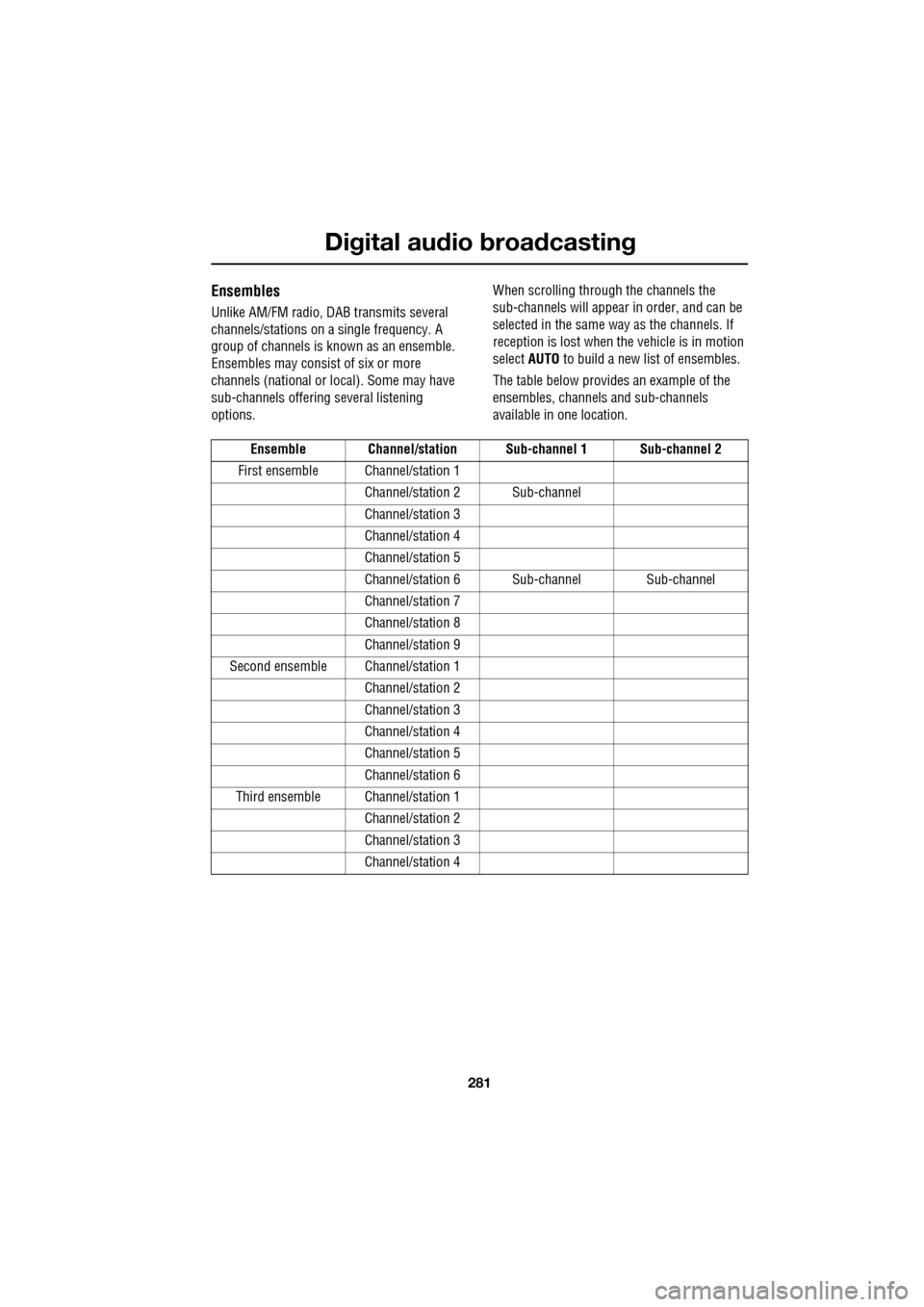
Unlike AM/FM radio, DAB transmits several
channels/stations on a single frequency. A
group of channels is known as an ensemble.
Ensembles may consist of six or more
channels (national or local). Some may have
sub-channels offering several listening
options. When scrolling through the channels the
sub-channels will appear
in order, and can be
selected in the same way as the channels. If
reception is lost when the vehicle is in motion
select AUTO to build a new list of ensembles.
The table below provides an example of the
ensembles, channels and sub-channels
available in one location.
Ensemble Channel/station Sub-channel 1 Sub-channel 2
First ensemble Channel/station 1 Channel/station 2 Sub-channel
Channel/station 3
Channel/st ation 4
Channel/st ation 5
Channel/station 6 Sub- channel Sub-channel
Channel/st ation 7
Channel/st ation 8
Channel/st ation 9
Second ensemble Ch annel/station 1
Channel/st ation 2
Channel/st ation 3
Channel/st ation 4
Channel/st ation 5
Channel/st ation 6
Third ensemble Channel/station 1 Channel/station 2
Channel/st ation 3
Channel/st ation 4
Page 283 of 391
283
Digital audio broadcasting
DISPLAY OPTIONS
Touch-screen information panel
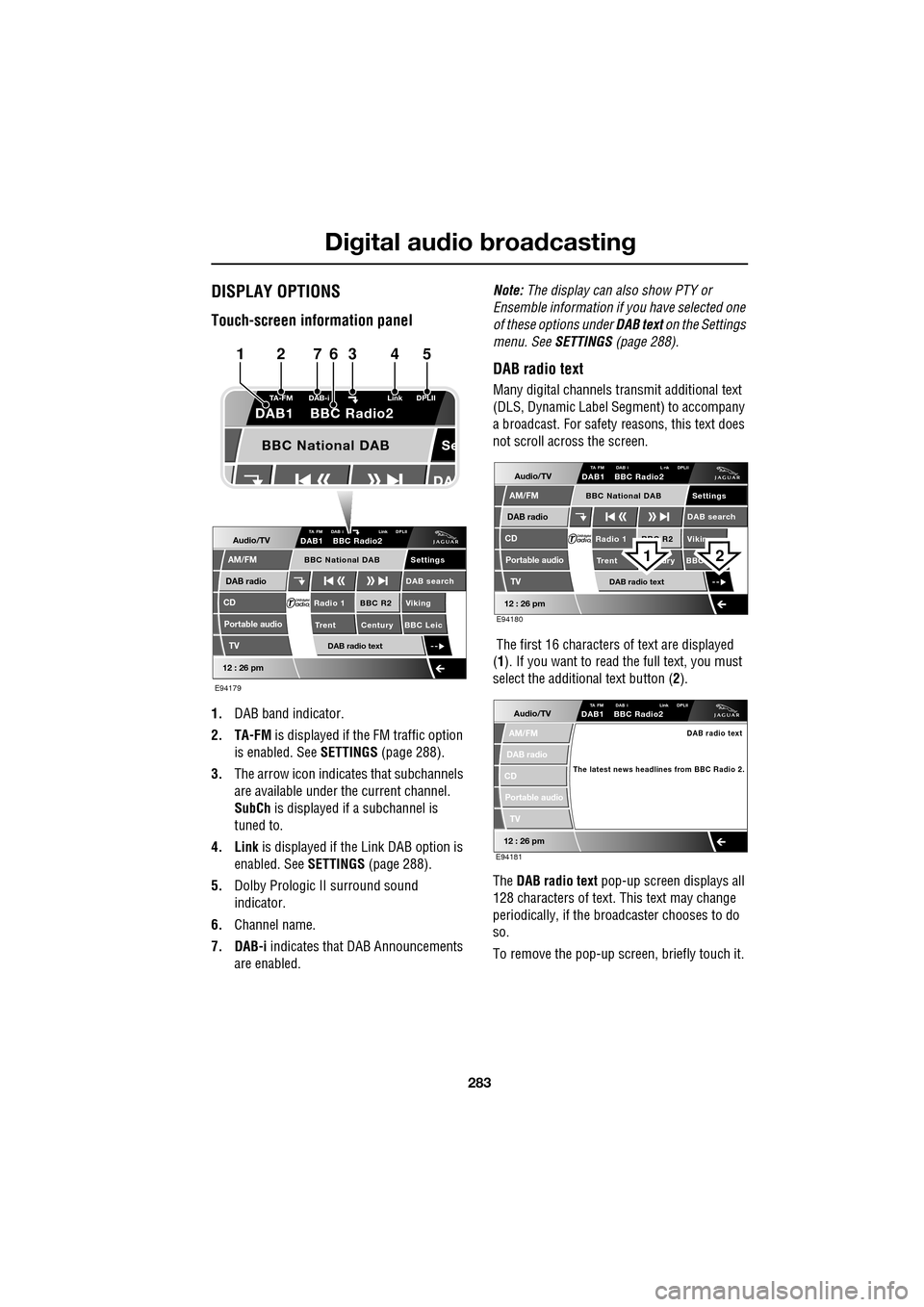
1.DAB band indicator.
2. TA-FM is displayed if the FM traffic option
is enabled. See SETTINGS (page 288).
3. The arrow icon indicates that subchannels
are available under the current channel.
SubCh is displayed if a subchannel is
tuned to.
4. Link is displayed if th e Link DAB option is
enabled. See SETTINGS (page 288).
5. Dolby Prologic II surround sound
indicator.
6. Channel name.
7. DAB-i indicates that DAB Announcements
are enabled. Note:
The display can also show PTY or
Ensemble information if you have selected one
of these options under DAB text on the Settings
menu. See SETTINGS (page 288).
DAB radio text
Many digital channels tr ansmit additional text
(DLS, Dynamic Label Segment) to accompany
a broadcast. For safety reasons, this text does
not scroll across the screen.
The first 16 characters of text are displayed
(1 ). If you want to read the full text, you must
select the additional text button ( 2).
The DAB radio text pop-up screen displays all
128 characters of text. This text may change
periodically, if the broadcaster chooses to do
so.
To remove the pop-up screen, briefly touch it.
Audio/TV
DAB radio
CD
AM/FM
12 : 26 pm
BBC R2 Viking
Trent Century BBC LeicRadio 1
Settings
DAB search
TA FM DAB i Link DPLIIDAB1 BBC Radio2
Portable audio
TV
DAB radio text
BBC National DAB
Se
TA-FM DAB-i
Link DPLII
DAB1 BBC Radio2
BBC National DAB
E94179
1234567
Audio/TV
DAB radio
CD
AM/FM
12 : 26 pm
BBC R2 Vikin
Trent ury BBC Radio 1
Settings
DAB search
TA FM DAB i L nk DPLIIDAB1 BBC Radio2
Portable audio
TV
DAB radio text
BBC National DAB
E94180
21
Audio/TV
DAB radio
CD
AM/FM
12 : 26 pm
TA FM DAB i Link DPLIIDAB1 BBC Radio2
Portable audio
TV
DAB radio text
The latest news headlines from BBC Radio 2.
E94181
Page 284 of 391
Digital audio broadcasting
284
CHANNEL AUTOMATIC TUNING
Note: When you first use the DAB radio, you
will be unable to listen to any digital broadcasts
until you have comp leted the auto-tune
process.
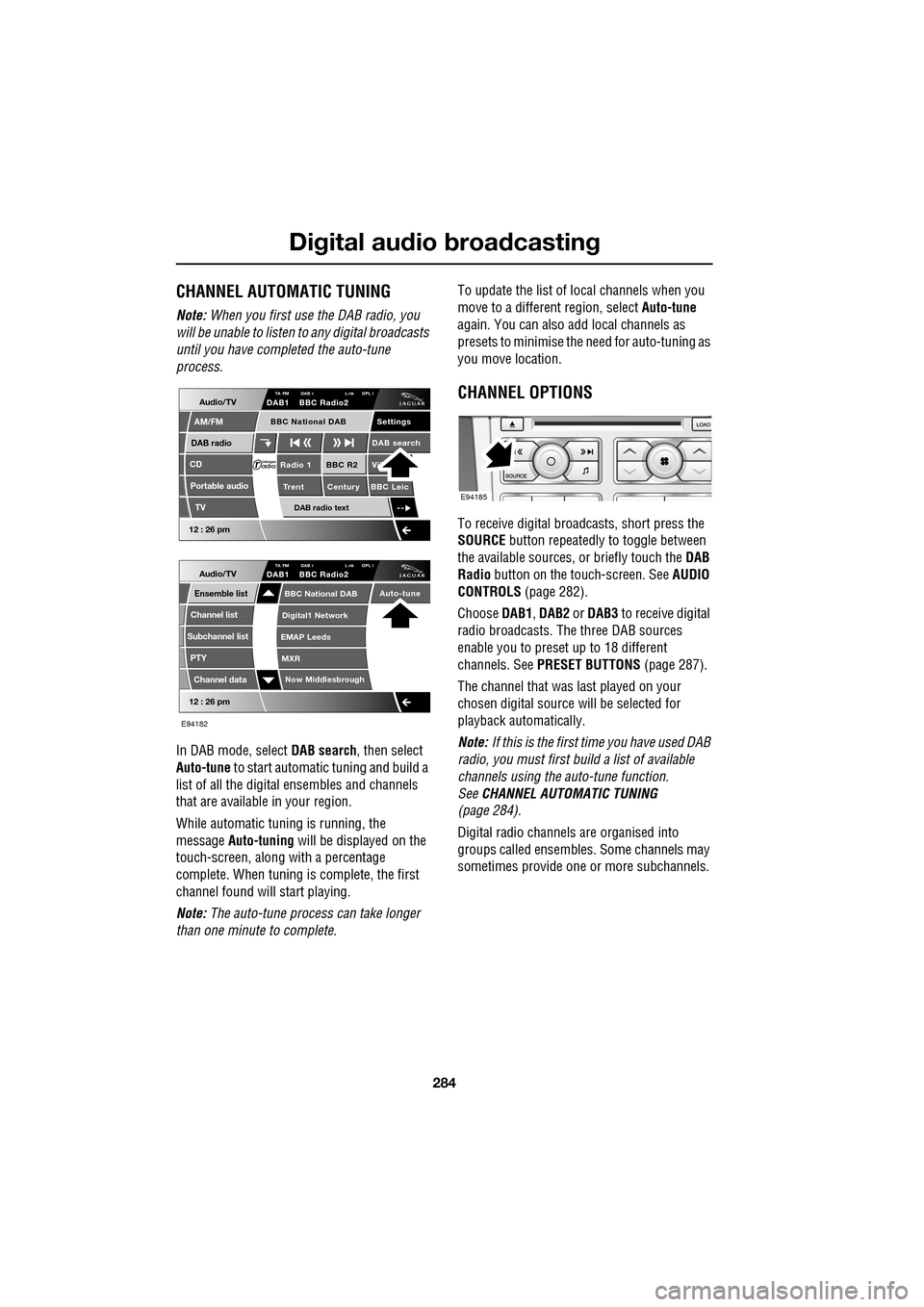
In DAB mode, select DAB search, then select
Auto-tune to start automatic tuning and build a
list of all the digital ensembles and channels
that are available in your region.
While automatic tuning is running, the
message Auto-tuning will be displayed on the
touch-screen, along with a percentage
complete. When tuning is complete, the first
channel found will start playing.
Note: The auto-tune process can take longer
than one minute to complete. To update the list of lo
cal channels when you
move to a different region, select Auto-tune
again. You can also add local channels as
presets to minimise the need for auto-tuning as
you move location.
CHANNEL OPTIONS
To receive digital broadcasts, short press the
SOURCE button repeatedly to toggle between
the available sources, or briefly touch the DAB
Radio button on the touch-screen. See AUDIO
CONTROLS (page 282).
Choose DAB1, DAB2 or DAB3 to receive digital
radio broadcasts. The three DAB sources
enable you to preset up to 18 different
channels. See PRESET BUTTONS (page 287).
The channel that was last played on your
chosen digital source will be selected for
playback automatically.
Note: If this is the first time you have used DAB
radio, you must first build a list of available
channels using the auto-tune function.
See CHANNEL AUTOMATIC TUNING
(page 284).
Digital radio channels are organised into
groups called ensembles. Some channels may
sometimes provide one or more subchannels.
Audio/TV
DAB radio
CD
AM/FM
12 : 26 pm
BBC R2 Vik
Trent Century BBC LeicRadio 1
Settings
DAB search
TA FM DAB i L nk DPL IDAB1 BBC Radio2
Portable audio
TV
DAB radio text
BBC National DAB
12 : 26 pm
Now Middlesbrough
BBC National DAB
Digital1 Network
EMAP Leeds
MXR
Audio/TVTA FM DAB i L nk DPL IDAB1 BBC Radio2
Channel list
Subchannel list
Ensemble list
PTY
Channel data
Auto-tune
E94182
E94185
Page 285 of 391
285
Digital audio broadcasting
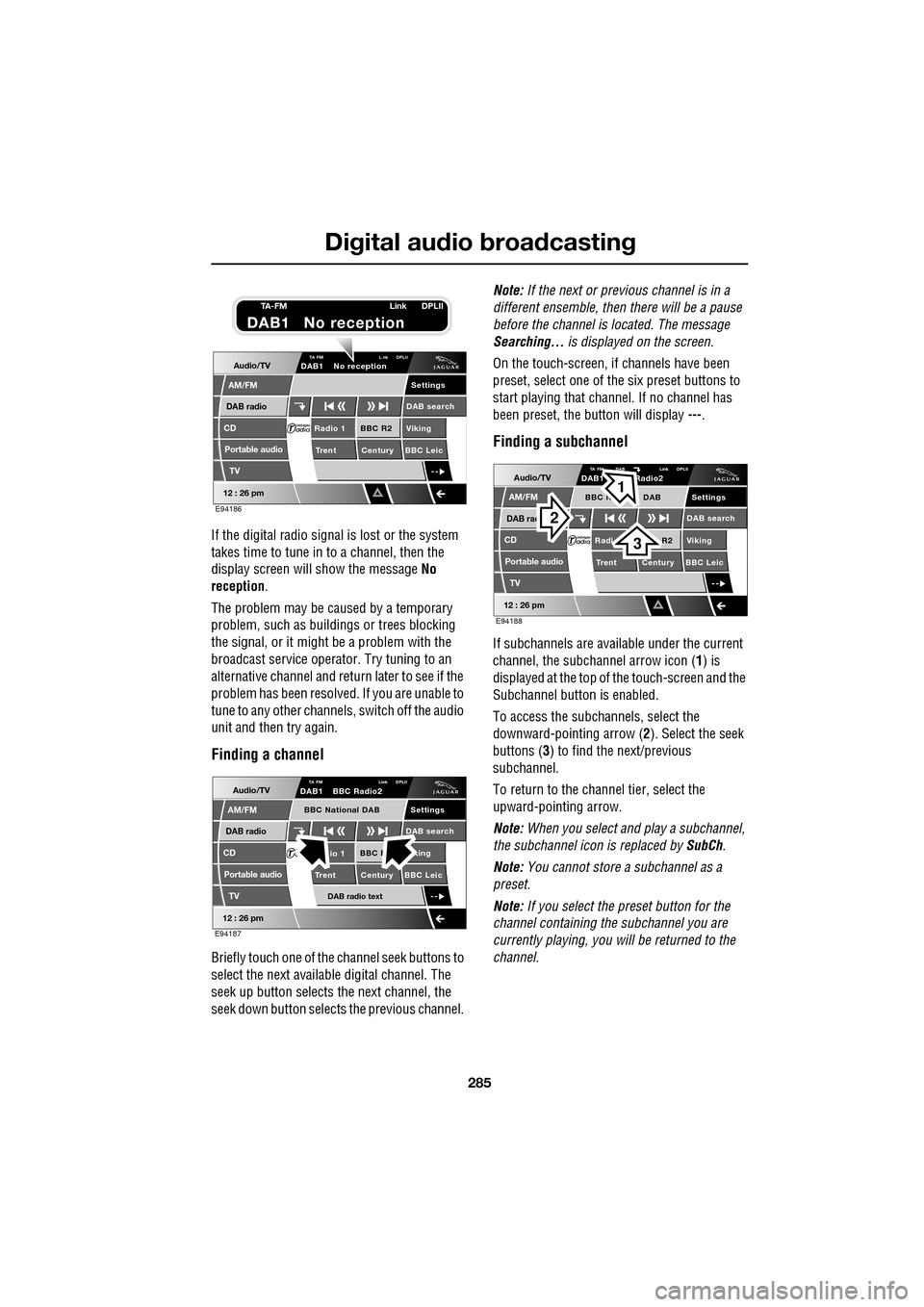
If the digital radio signal is lost or the system
takes time to tune in to a channel, then the
display screen will show the message No
reception.
The problem may be caused by a temporary
problem, such as buildings or trees blocking
the signal, or it might be a problem with the
broadcast servic e operator. Try tuning to an
alternative channel and return later to see if the
problem has been resolved. If you are unable to
tune to any other channe ls, switch off the audio
unit and then try again.
Finding a channel
Briefly touch one of the channel seek buttons to
select the next availabl e digital channel. The
seek up button selects th e next channel, the
seek down button selects the previous channel. Note:
If the next or previous channel is in a
different ensemble, then there will be a pause
before the channel is located. The message
Searching... is displayed on the screen.
On the touch-screen, if channels have been
preset, select one of the six preset buttons to
start playing that channel. If no channel has
been preset, the button will display ---.
Finding a subchannel
If subchannels are available under the current
channel, the subchannel arrow icon ( 1) is
displayed at the top of the touch-screen and the
Subchannel button is enabled.
To access the subchannels, select the
downward-pointing arrow ( 2). Select the seek
buttons ( 3) to find the next/previous
subchannel.
To return to the channel tier, select the
upward-pointing arrow.
Note: When you select and play a subchannel,
the subchannel icon is replaced by SubCh.
Note: You cannot store a subchannel as a
preset.
Note: If you select the preset button for the
channel containing the subchannel you are
currently playing, you will be returned to the
channel.
Audio/TV
DAB radio
CD
AM/FM
12 : 26 pm
BBC R2 Viking
Trent Century BBC LeicRadio 1
Settings
DAB search
TA FM L nk DPLIIDAB1 No reception
Portable audio
TV
E94186
TA-FM Link DPLII
DAB1 No reception
Audio/TV
DAB radio
CD
AM/FM
12 : 26 pm
BBC R king
Trent Century BBC Leicio 1
Settings
DAB search
TA FM Link DPLIIDAB1 BBC Radio2
Portable audio
TV
DAB radio text
BBC National DAB
E94187
Audio/TV
DAB rad
CD
AM/FM
12 : 26 pm
R2 Viking
T
rent Century BBC LeicRadi
Settings
DAB search
TA FM DAB Link DPLIIDAB1 Radio2
Portable audio
TV
BBC N DAB
E94188
2
3
1
Page 286 of 391
Digital audio broadcasting
286
Finding an ensemble
Touch and hold (two seconds) the seek
buttons to find the next or previous ensemble.
SeeAUDIO CONTROLS (page 282).
After a few seconds pause, the first channel in
the ensemble found will start playing.
DAB search
The DAB search menu enables you to view lists
of available ensembles, channels and
subchannels. You can al so perform searches
based on programme type (PTY).
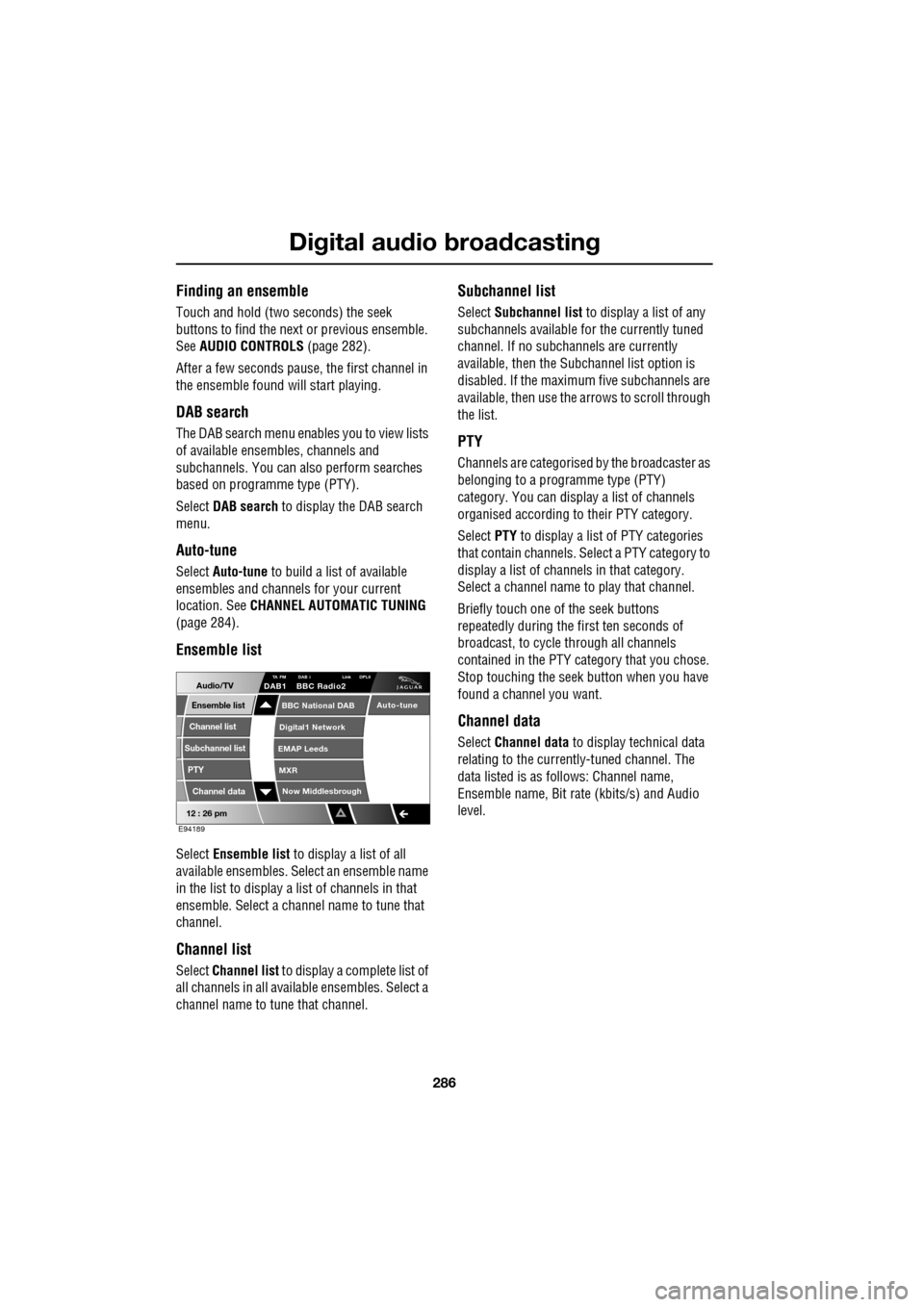
Select DAB search to display the DAB search
menu.
Auto-tune
Select Auto-tune to build a list of available
ensembles and channels for your current
location. See CHANNEL AUTOMATIC TUNING
(page 284).
Ensemble list
Select Ensemble list to display a list of all
available ensembles. Select an ensemble name
in the list to display a list of channels in that
ensemble. Select a channe l name to tune that
channel.
Channel list
Select Channel list to display a complete list of
all channels in all availa ble ensembles. Select a
channel name to tune that channel.
Subchannel list
Select Subchannel list to display a list of any
subchannels available for the currently tuned
channel. If no subcha nnels are currently
available, then the Subchannel list option is
disabled. If the maximum five subchannels are
available, then use the arrows to scroll through
the list.
PTY
Channels are categorised by the broadcaster as
belonging to a programme type (PTY)
category. You can display a list of channels
organised according to their PTY category.
Select PTY to display a list of PTY categories
that contain channels. Select a PTY category to
display a list of channels in that category.
Select a channel name to play that channel.
Briefly touch one of the seek buttons
repeatedly during the first ten seconds of
broadcast, to cycle through all channels
contained in the PTY category that you chose.
Stop touching the seek button wh en you have
found a channel you want.
Channel data
Select Channel data to display technical data
relating to the currently-tuned channel. The
data listed is as follows: Channel name,
Ensemble name, Bit rate (kbits/s) and Audio
level.
12 : 26 pm
Now Middlesbrough
BBC National DAB
Digital1 Network
EMAP Leeds
MXR
Audio/TVTA FM DAB i Link DPLIIDAB1 BBC Radio2
Channel list
Subchannel list
Ensemble list
PTY
Channel data
Auto-tune
E94189
Page 289 of 391
289
Digital audio broadcasting
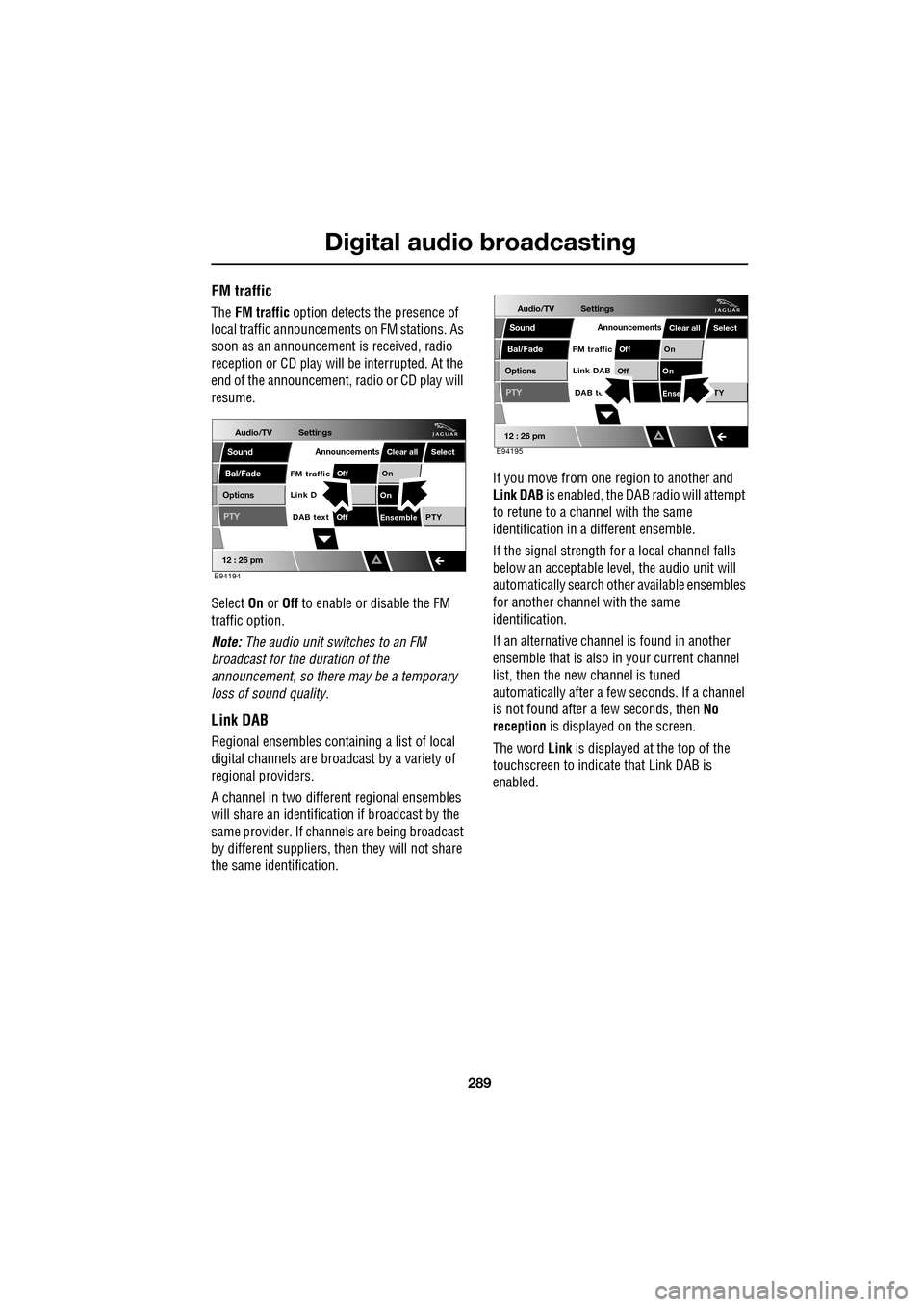
FM traffic
The FM traffic option detects the presence of
local traffic announcements on FM stations. As
soon as an announcement is received, radio
reception or CD play will be interrupted. At the
end of the announcement, radio or CD play will
resume.
Select On or Off to enable or disable the FM
traffic option.
Note: The audio unit switches to an FM
broadcast for the duration of the
announcement, so there may be a temporary
loss of sound quality.
Link DAB
Regional ensembles contai ning a list of local
digital channels are broadcast by a variety of
regional providers.
A channel in two differ ent regional ensembles
will share an identification if broadcast by the
same provider. If channels are being broadcast
by different suppliers, th en they will not share
the same identification. If you move from one region to another and
Link DAB
is enabled, the DAB radio will attempt
to retune to a channel with the same
identification in a different ensemble.
If the signal strength for a local channel falls
below an acceptable level, the audio unit will
automatically search other available ensembles
for another channel with the same
identification.
If an alternative channel is found in another
ensemble that is also in your current channel
list, then the new channel is tuned
automatically after a few seconds. If a channel
is not found after a few seconds, then No
reception is displayed on the screen.
The word Link is displayed at the top of the
touchscreen to indicate that Link DAB is
enabled.
Audio/TV
Bal/Fade
Options
Sound
12 : 26 pm
Settings
Announcements
On
Of f
On
EnsemblePTY
Of f
DAB text
Link D
FM trafficPTY
Select
Clear all
E94194
Audio/TV
Bal/Fade
Options
Sound
12 : 26 pm
Settings
Announcements
On
Of f
On
Of f
EnseTY
DAB te
Link DAB
FM trafficPTY
Select
Clear all
E94195
Page 293 of 391
293
Compact disc player
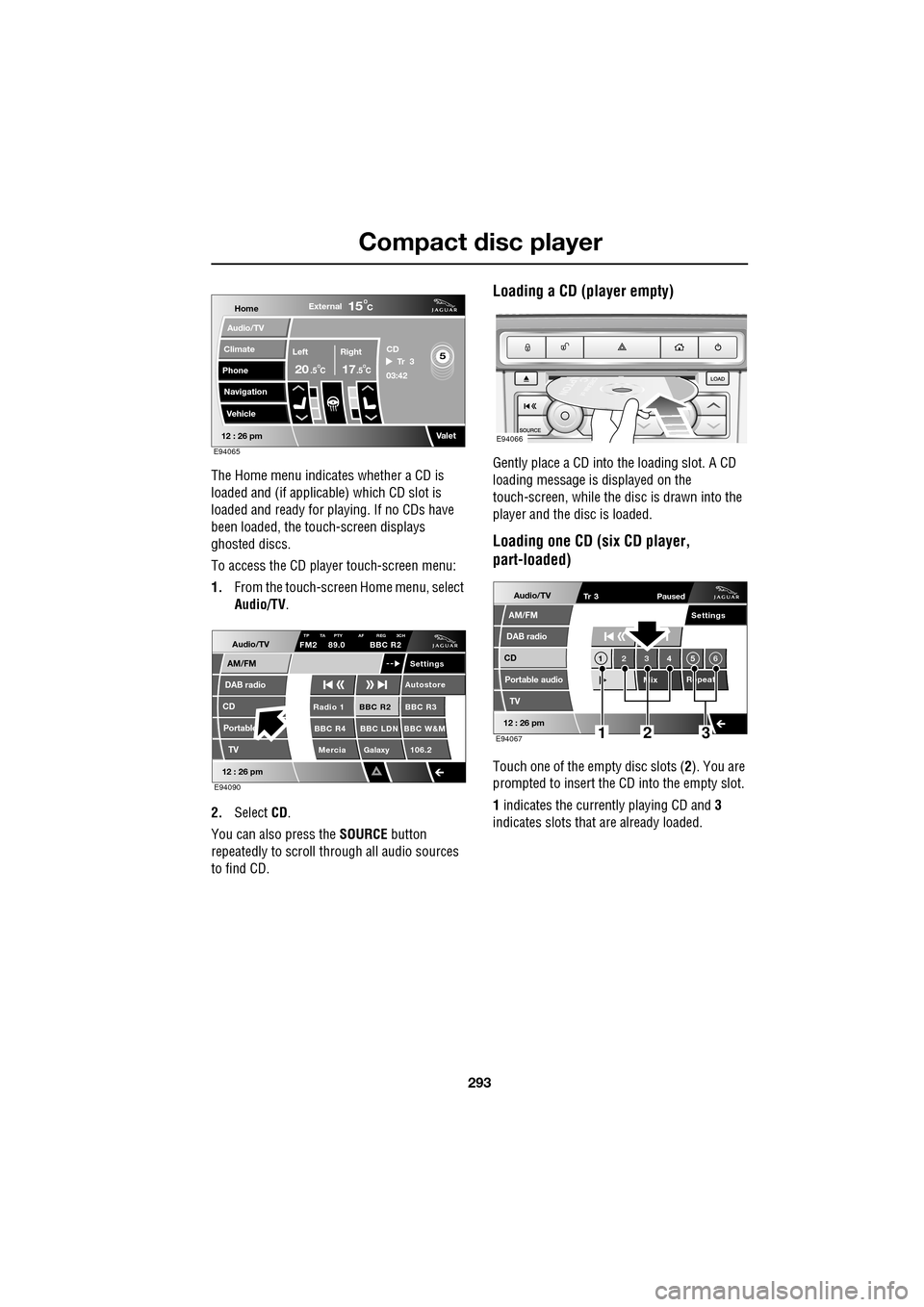
The Home menu indicates whether a CD is
loaded and (if applicable) which CD slot is
loaded and ready for playing. If no CDs have
been loaded, the touch-screen displays
ghosted discs.
To access the CD player touch-screen menu:
1. From the touch-screen Home menu, select
Audio/TV .
2. Select CD.
You can also press the SOURCE button
repeatedly to scroll through all audio sources
to find CD.
Loading a CD (player empty)
Gently place a CD into the loading slot. A CD
loading message is displayed on the
touch-screen, while the di sc is drawn into the
player and the disc is loaded.
Loading one CD (six CD player,
part-loaded)
Touch one of the empty disc slots ( 2). You are
prompted to insert the CD into the empty slot.
1 indicates the currently playing CD and 3
indicates slots that are already loaded.
Home
Audio/TV
Climate
Phone
Navigation
VehicleExternal
Left Right
20 17CC
15C
.5 .5
Valet12 : 26 pm
5Tr 3
CD
03:42
E94065
Audio/TV
DAB radio
CD
AM/FM
12 : 26 pm
BBC R2 BBC R3
BBC R4 BBC LDN BBC W&M Mercia Galaxy 106.2Radio 1
Settings
Autostore
TP TA PTY AF REG 3CHFM2 89.0 BBC R2
Portable TV
E94090
E94066
Audio/TV
DAB radio
CD
AM/FM
12 : 26 pm
Portable audio
TV
Settings
1 23 45 6
MixRepeat
Tr 3
Paused
E94067123
Page 294 of 391
Compact disc player
294
Loading several CDs (six CD player)
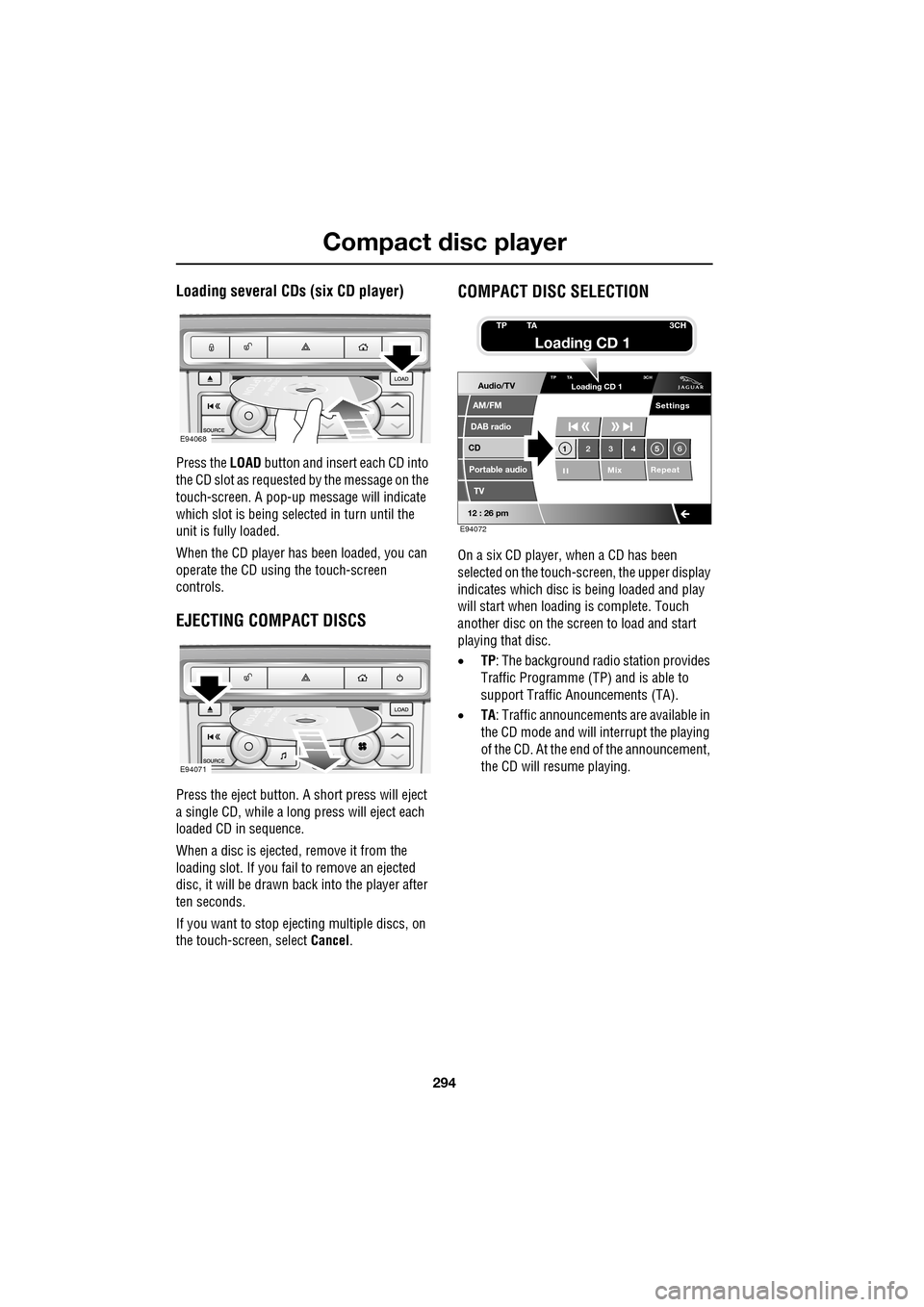
Press the LOAD button and insert each CD into
the CD slot as requested by the message on the
touch-screen. A pop-up me ssage will indicate
which slot is being sele cted in turn until the
unit is fully loaded.
When the CD player has been loaded, you can
operate the CD using the touch-screen
controls.
EJECTING COMPACT DISCS
Press the eject button. A short press will eject
a single CD, while a long press will eject each
loaded CD in sequence.
When a disc is ejected, remove it from the
loading slot. If you fail to remove an ejected
disc, it will be drawn back into the player after
ten seconds.
If you want to stop ejecting multiple discs, on
the touch-screen, select Cancel.
COMPACT DISC SELECTION
On a six CD player, when a CD has been
selected on the touch-screen, the upper display
indicates which disc is being loaded and play
will start when loading is complete. Touch
another disc on the scre en to load and start
playing that disc.
• TP: The background radio station provides
Traffic Programme (TP) and is able to
support Traffic Anouncements (TA).
• TA: Traffic announcements are available in
the CD mode and will interrupt the playing
of the CD. At the end of the announcement,
the CD will resume playing.
E94068
E94071
Audio/TV
DAB radio
CD
AM/FM
12 : 26 pm
Portable audio
TV
Settings
1 23 45 6
MixRepeat
TP TA
3CHLoading CD 1
E94072
TP TA3CH
Loading CD 1
Page 299 of 391
299
Portable audio
PORTABLE AUDIO
Portable audio overview
The portable audio system is located in the
centre console cubby box. You can connect a
variety of audio devices, including iPods, via
this interface to the audio system.
If you are connecting an iPod or mass storage
device, you can use the touch-screen to
operate and search the device. Many of the
controls are similar to those available for CD
play.
The devices that you can connect to the
portable audio interface include:
• USB mass storage devices, for example
memory stick.
• iPod.
• Auxiliary device (no to uch-screen control).
Note: The portable audio interface supports
the following iPods:
•iPod (generations 3-5).
•iPod Mini.
•iPod Nano (generations 1-3).
•iPod Photo.
•iPod Classic.
Note: The audio system will play MP3, WMA,
WAV and AAC files. Note:
Some MP3 players ha ve their own file
system that is not suppor ted by this system. To
use your MP3 player, y ou must set it to USB
Removable Device or Mass Storage Device
mode (see manufacturer's information for
further details). Only music that has been
added to the device in this mode can be played
via the vehicle's portable audio system.
Note: The system will suppor t devices with a
storage capacity up to 256 GB (approximately
65 000 tracks).
CAUTION
We recommend that you replace the
rubber cover when a portable device is
not plugged in. This will prevent damage to the
system. The cover is not waterproof.
Please disconnect your iPod when
leaving the vehicle. Failure to do so may
result in the iPod battery discharging.